
Introduction
All Maple Systems HMI Panels programmed with EBPro (EasyBuilder Pro), including every cMT X Series and cMT Series model, are compatible with a Siemens S7-1200 (Symbolic Addressing) Ethernet PLC. Configure your Controller and HMI/cMT with the following parameters to establish reliable communication.
Supported Series: Siemens S7-1200 (Symbolic Addressing) series via Ethernet
Website: www.siemens.com
HMI Settings
| Parameters | Recommended | Options | Notes |
|---|---|---|---|
| PLC type | Siemens S7-1200 (Symbolic Addressing) (Ethernet) | ||
| PLC I/F | Ethernet | ||
| Port no. | 102 | ||
| Rack | 0 | ||
| CPU slot | 1 | ||
| On-line simulator | Yes | ||
| Multi-HMI connect | TIA Settings | According to Connection resource / HMI Communication settings |
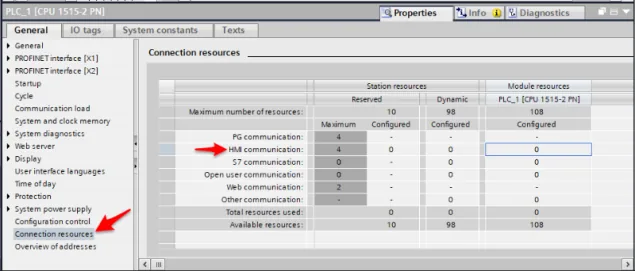
PLC Settings
Create Program and Download
In S7-1200 program software create PLC program and tag and then download to PLC.Select Go Offline
Select Go offline. EBPro (EasyBuilder) will connect to PLC and get tag data. In PLC type selectSIEMENS S7-1200 (Ethernet).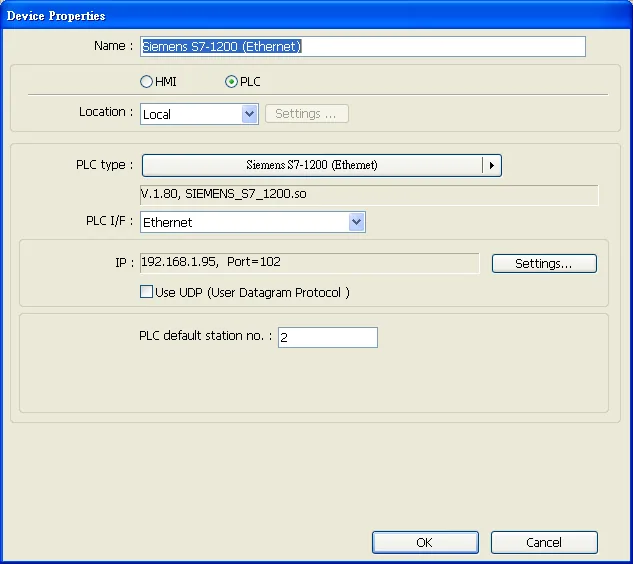
Input PLC IP Address
Click Settings…, input PLC IP address.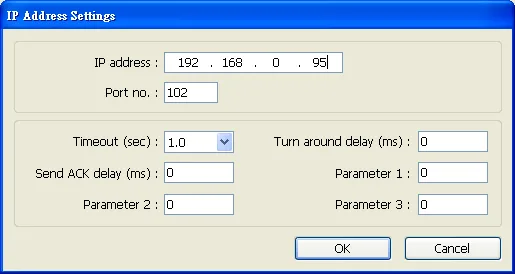
Get Tag Info
Check the PLC that is not connected to any PC. Click Get tag info….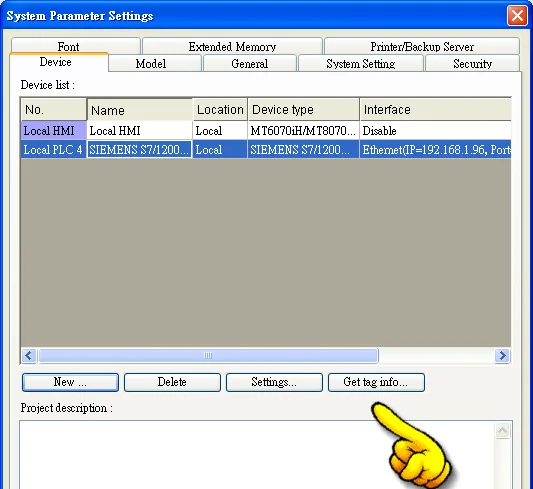
Check Firmware Compatibility
Supported by firmware V3.X and previous versions. For V4.0 or later, please see How to Connect With S7-1200 Firmware V4.0.Define Function Block Mapping
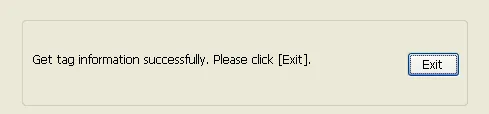
If the software used is a version later than TIA Portal V11 SP2, a dialog of FunctionBlock directory will be shown. Users have to define the mapping from FB to DB in this directory then click Check OK. The tag information will be gained and a successful message is shown.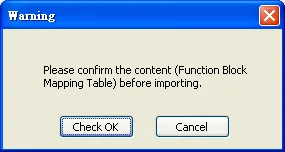
Re-enter DB Name for Existing Projects
When opening an existing project and getting the tag information again, if the PLC software used is TIA Portal V12 and later versions, the DB name must be entered again in order to compile the project.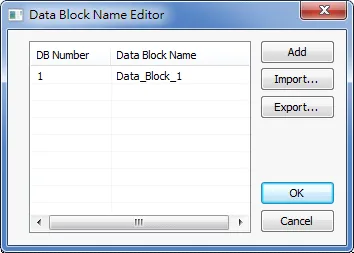
Select Tags in Tag Manager
Added Tag Manager that allows selecting the Siemens S7-1200 PLC tags to be imported.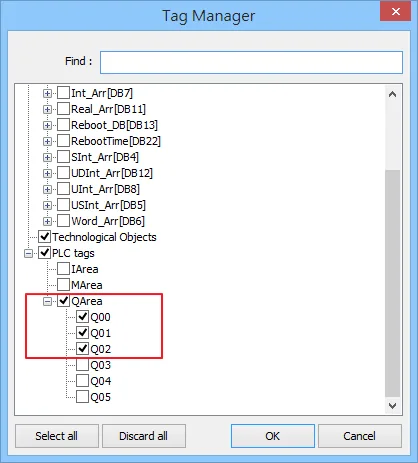
Create Object and Open Address Settings
Create an object and click read address Setting….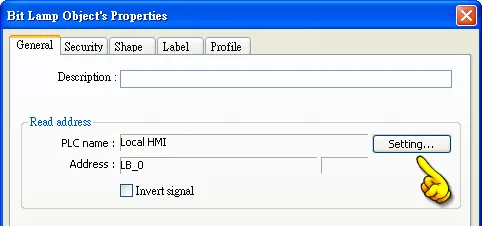
Select PLC Name and Tag
In PLC name select S7-1200 then click Tag.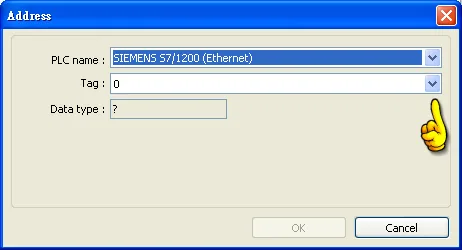
Select PLC Tag
Select PLC tag.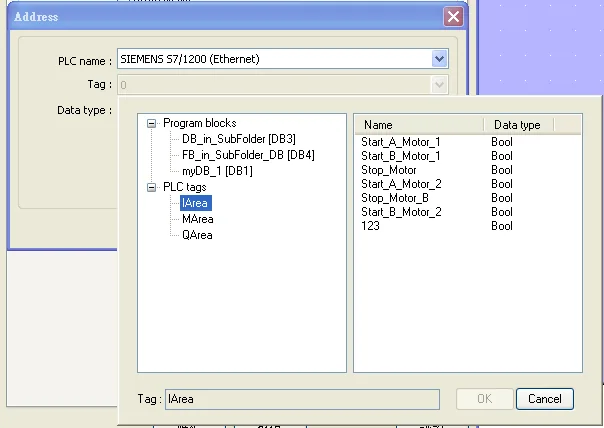
How to Connect With S7-1200 Firmware V4.0
There are certain restrictions in S7-1200 firmware V4.0. To avoid communication errors, please follow the steps to set up.
Open PLC Properties
Right click on the PLC program, and then click Properties.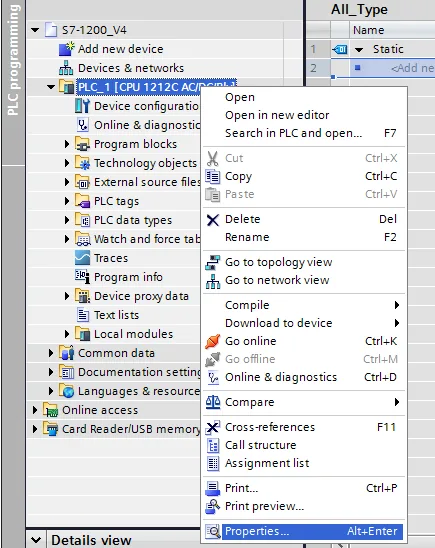
Enable PUT/GET Communication
Select Protection, and then select Permit access with PUT/GET communication from remote partner (PLC, HMI, OPC, …).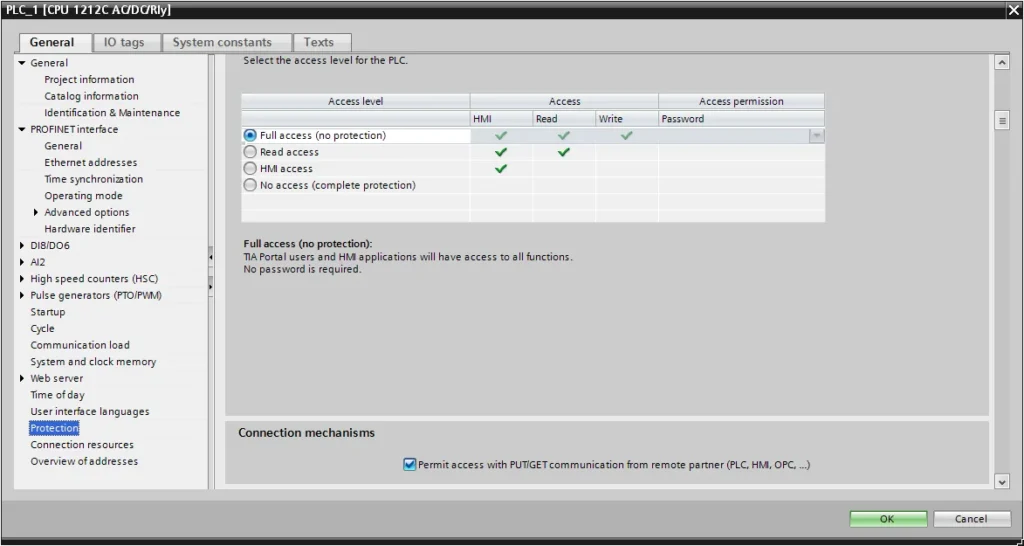
Exporting PLC Tags (I, Q, M tags)
Show All Tags
Under PLC tags select Show all tags.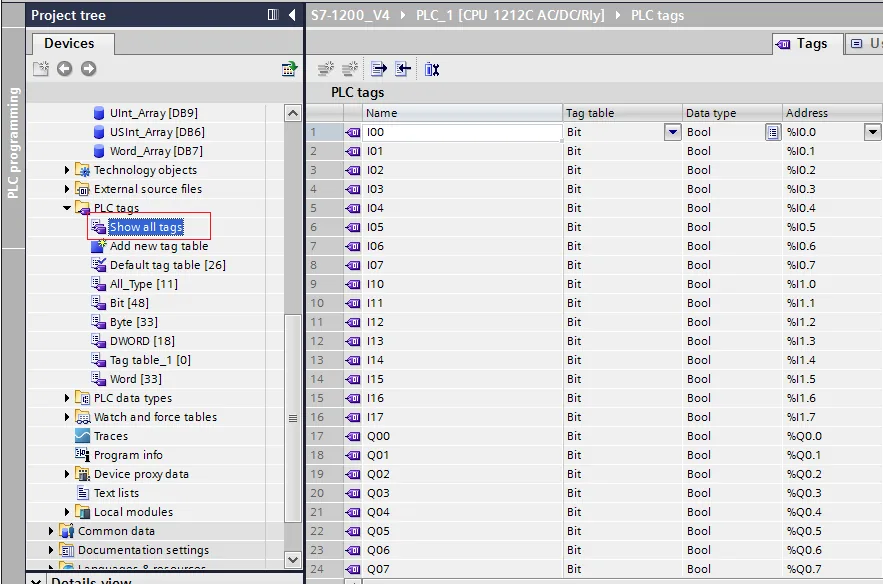
Click Export
Click Export to export the tags.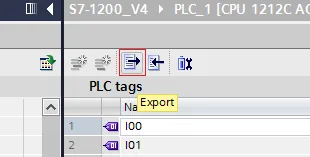
Browse and Save Exported File
Browse for the directory to save the exported file and then click OK.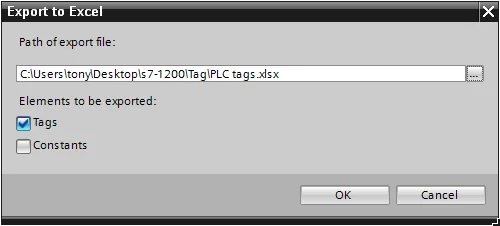
Exporting Program Blocks (DB)
When the database contains Struct data type, please note the following restrictions. Please at least add one data member that doesn’t belong to Struct data type into DB, otherwise, the data cannot be imported to EBPro (EasyBuilder). Multidimensional Arrays and Multilayer Structs are not supported.
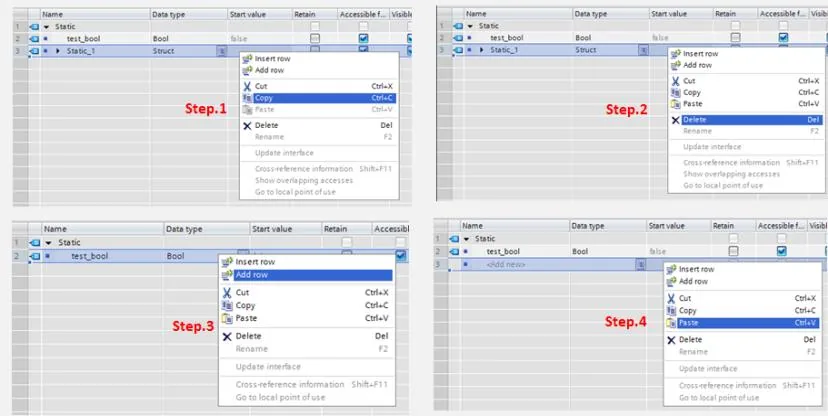
After building DB, please do the following actions for Struct address
(1) Copy the complete Struct data.
(2) Delete data.
(3) Add a new row.
(4) Paste data.
Generate Source from Blocks
Right click on DB, click Generate source from blocks, and then enter the file name to save.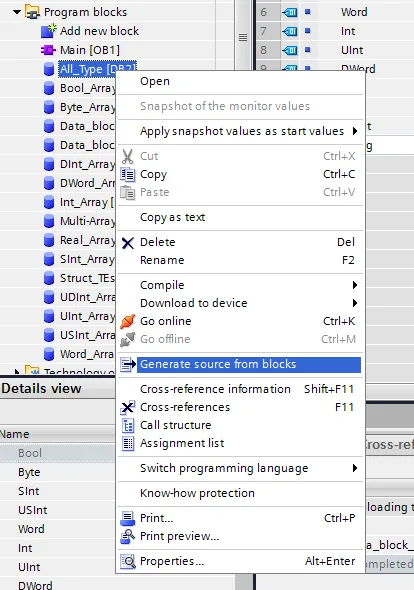
Download to device.
After building and importing PLC Tags and Program Blocks, click [Download to device].
Importing PLC Tags and Program Blocks (DB)
After building and importing PLC Tags and Program Blocks, click **Download to device**.
Launch EBPro (EasyBuilder) and Set IP
Launch EBPro (EasyBuilder) and set the IP address.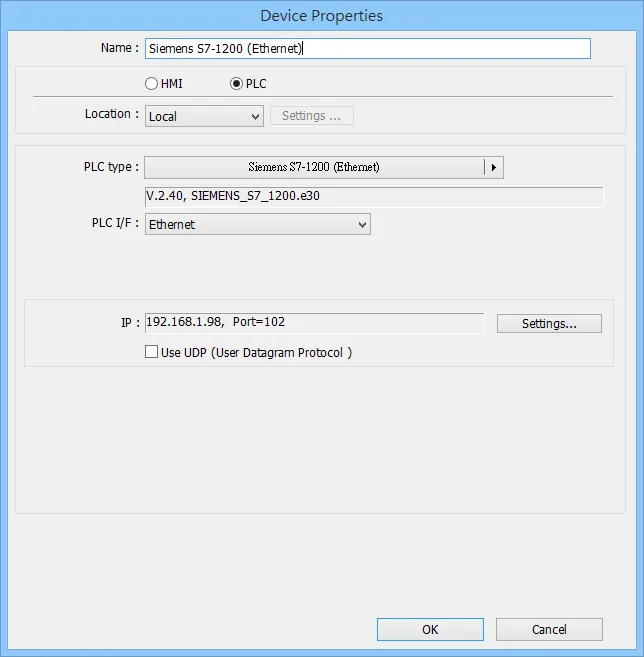
Click Import Tag
Click Import Tag….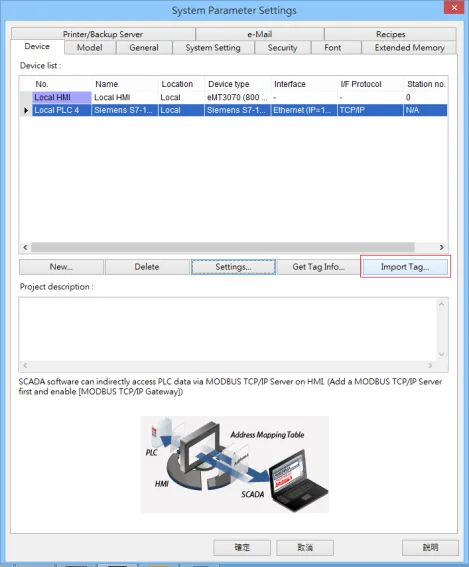
Select Files and Import
Select the PLC Tags and Program Blocks to be imported. Remember to change DB number, and select Use S7-1200 firmware version 4.0 or later versions. Click Import to import the files. The I, Q, and M addresses will be checked; if an error occurs, the communication will fail. If this happens, check your communication environment and try to import again.At least one DB file must be imported. PLC tags alone cannot be imported successfully.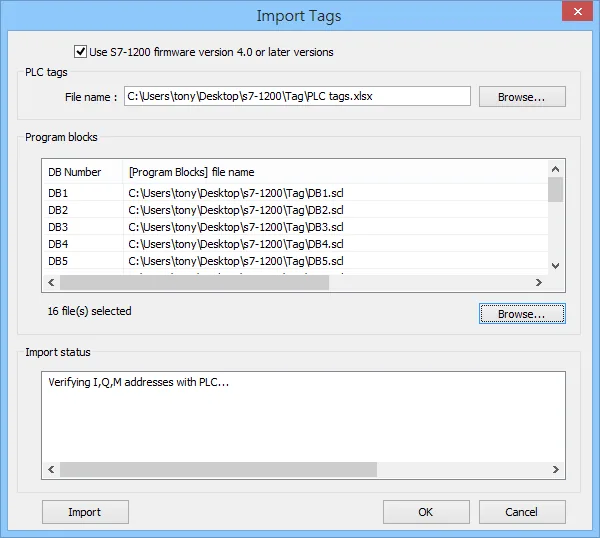
Review Import Status
The Import status field will display the result. Click OK.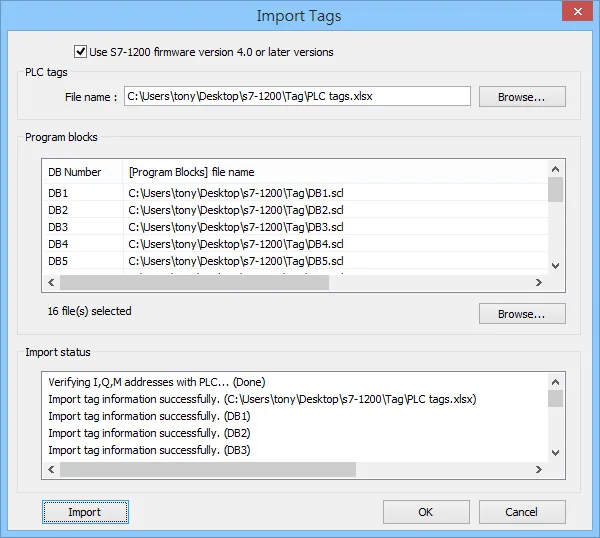
Select Tags and Click OK
Select the tags to be imported and then click OK.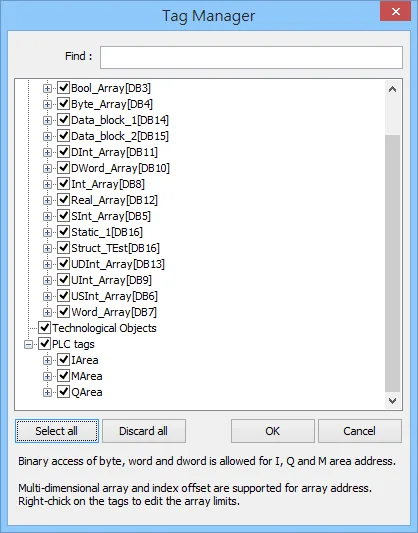
Confirm Successful Import
The following message is displayed when the import has succeeded.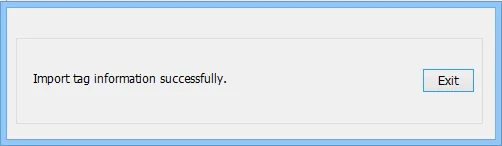
Support Device Types
NOTE: EBPro V6.03.02 or later supports 64-bit data type (cMT Series only), but please note that the address limit range is 48 bits maximum.
NOTE: Importing data types other than those in the table below may result in failure to communicate.
| Data type | EasyBuilder data format | Memo |
|---|---|---|
| Bool | bit | |
| Byte | 16-bit BCD, Hex, Binary, Unsigned | 8-bit |
| SInt | 16-bit BCD, Hex, Binary, Signed | 8-bit |
| USInt | 16-bit BCD, Hex, Binary, Unsigned | 8-bit |
| Word | 16-bit BCD, Hex, Binary, Unsigned | 16-bit |
| Int | 16-bit BCD, Hex, Binary, Signed | 16-bit |
| UInt | 16-bit BCD, Hex, Binary, Unsigned | 16-bit |
| DWord | 32-bit BCD, Hex, Binary, Unsigned | 32-bit |
| DInt | 32-bit BCD, Hex, Binary, Signed | 32-bit |
| Real | 32-bit Float | 32-bit |
| UDInt | 32-bit BCD, Hex, Binary, Unsigned | 32-bit |
| LInt | 64-bit Signed | 64-bit |
| ULInt | 64-bit Unsigned | 64-bit |
| LWord | 64-bit Unsigned | 64-bit |
| Double | 64-bit Float | 64-bit |
| Char | 16-bit BCD, Hex, Binary, Unsigned | USInt |
| CREF | Struct | |
| Date | 16-bit BCD, Hex, Binary, Unsigned | UInt |
| DTL | Read only | |
| ErrorStruct | ||
| IEC_COUNTER | ||
| IEC_DCOUNTER | ||
| IEC_SCOUNTER | ||
| IEC_TIMER | ||
| IEC_UCOUNTER | ||
| IEC_UDCOUNTER | ||
| IEC_USCOUNTER | ||
| NREF | ||
| Time | 32-bit BCD, Hex, Binary, Unsigned | DWord |
| Time_Of_Day | 32-bit BCD, Hex, Binary, Unsigned | DWord |
| Array | Bool, Byte, SInt, USInt, Word, Int, UInt, DWord, DInt, Real, UDInt | |
| Struct | Bool, Byte, SInt, USInt, Word, Int, UInt, DWord, DInt, Real, UDInt |
Wiring Diagram
The diagram below shows the Ethernet cable wiring.
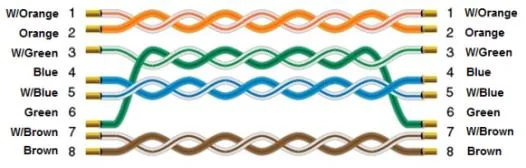
The image above shows a standard straight-through Ethernet cable. Connect the HMI Ethernet port to the Siemens S7-1200 Ethernet port using this cable configuration.