
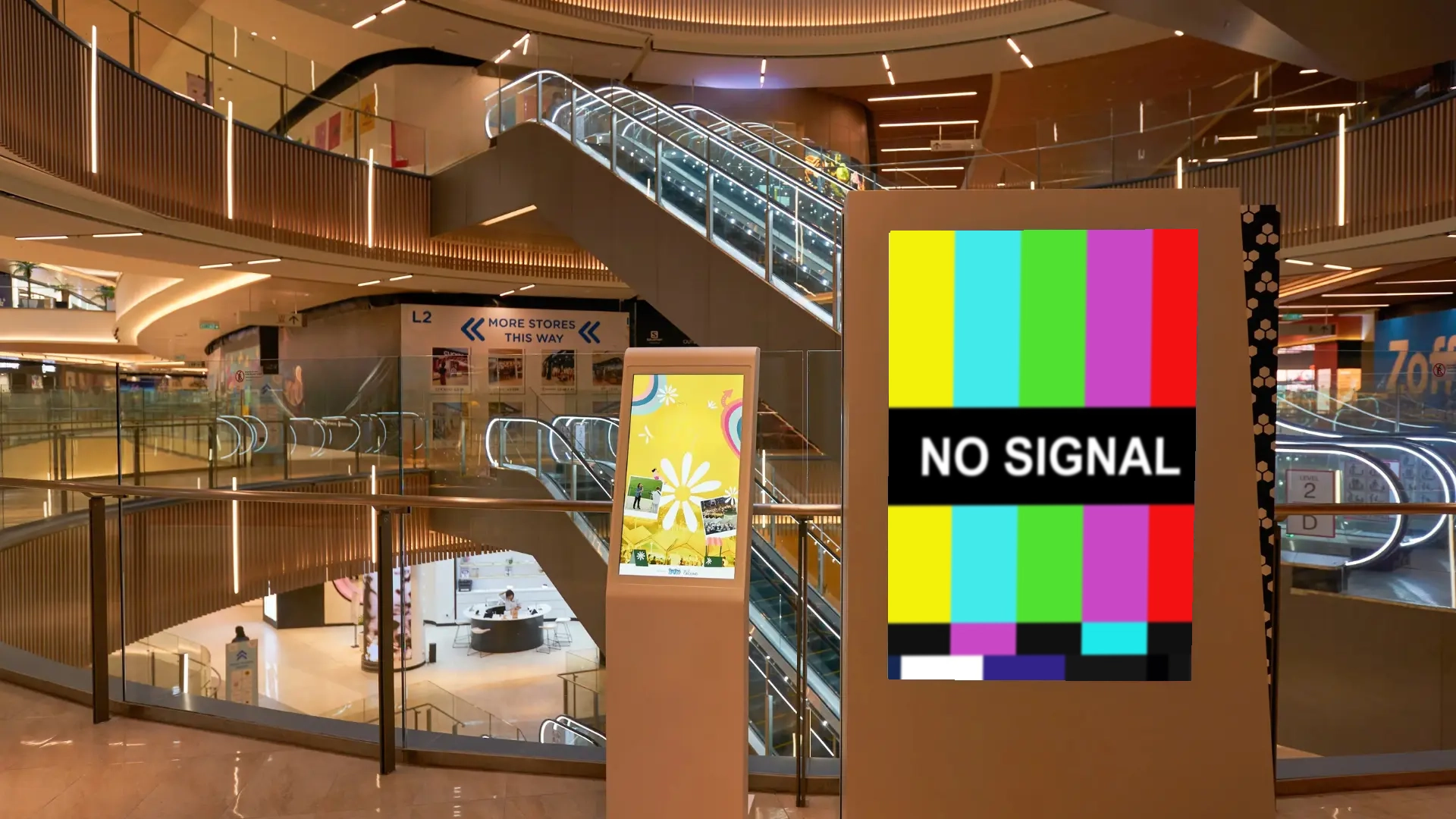
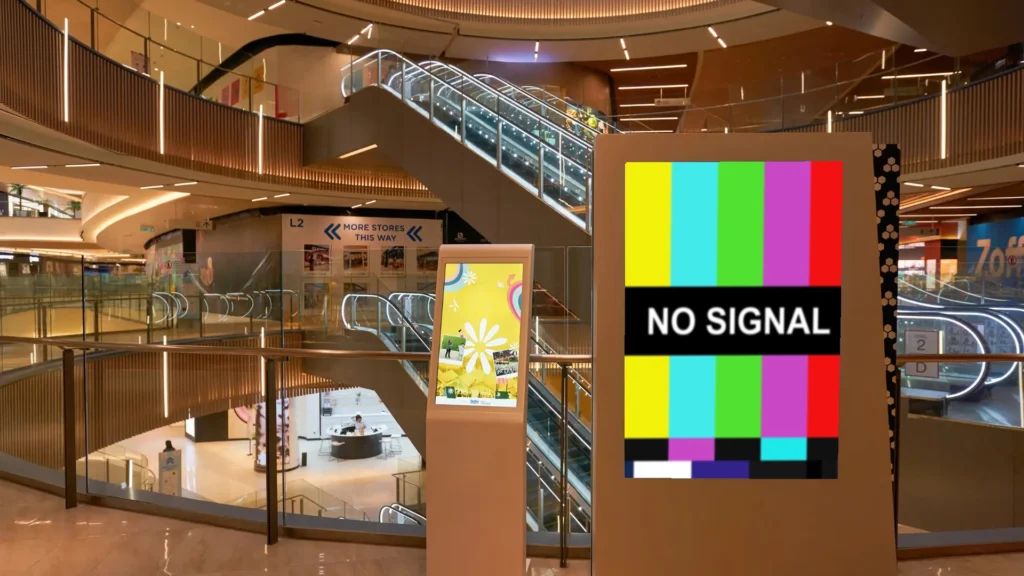
Imagine you manage the digital signage throughout a shopping mall. A digital signage PC in the west wing shows that it’s online, and your content management system reports that its content is playing. But an employee standing in front of the display reports that the physical screen says “No Signal.” This exposes an important blind spot in digital signage display monitoring: monitoring the signage PC is not the same as monitoring the complete signal path to the display. A loose cable, failed adapter, incorrect input, or communication problem can prevent content from reaching the screen even while the PC appears perfectly healthy.
So, how can a digital signage PC distinguish between a healthy digital signage PC (or player) and a broken connection to the display?
What Is Display Status Monitoring, and Why Isn’t Player Monitoring Enough?
Display status monitoring uses information from the signage PC, video connection, and display to determine whether the PC detects the screen and it’s responding as expected. Combined with player-health and playback monitoring, it provides a more complete picture of whether a digital display is functioning properly.
Each monitoring layer provides information about a different part of the signal chain:
| Monitoring layer | What it confirms | What it does not confirm |
|---|---|---|
| Player Health | The PC is online and operating | The screen is receiving a signal |
| Playback Health | The software reports that content is playing | The content is visible on the screen |
| Display Status | the PC detects the display or receives a response from it | The image is visually correct |
Player-only monitoring therefore leaves an important blind spot. A signage PC and its content application can remain online even when the HDMI cable is loose, the display loses power, the wrong input is selected, or an adapter has failed. The management dashboard may show a healthy player while the physical screen displays “No Signal.”
Detecting these problems requires the signage PC to monitor signals and information from beyond its operating system and playback application.
How Digital Signage PCs Detect Screen and Cable Problems
Detecting When a Display Connects or Disconnects
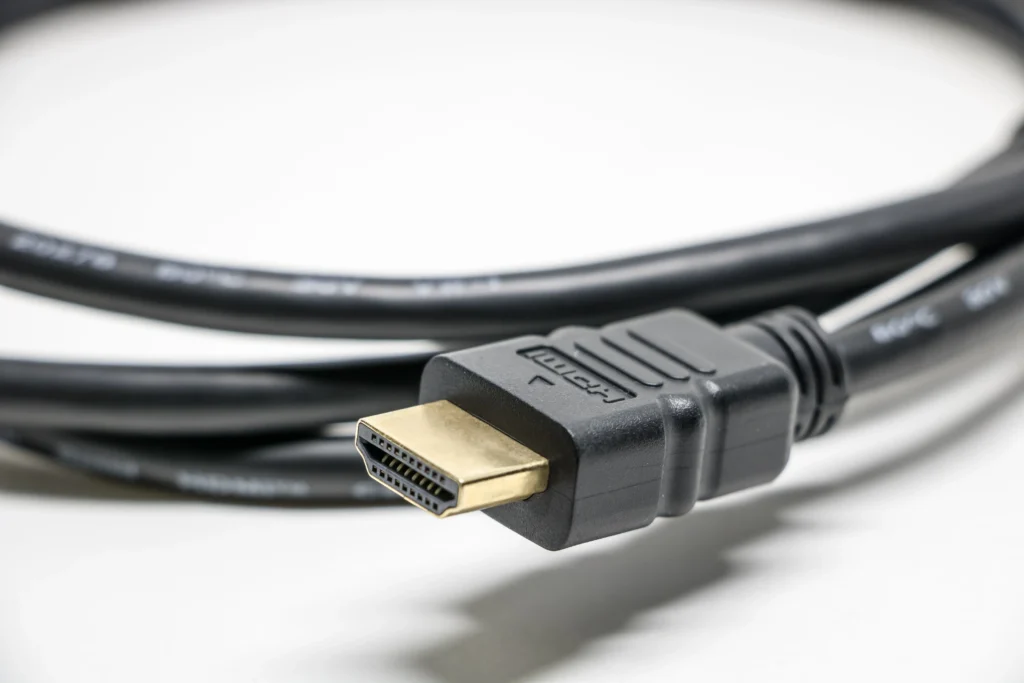
HDMI Hot-Plug Detection allows a source device to sense when an HDMI connection becomes present or absent. When a signage PC or its monitoring software records these changes, operators can use them as an initial indicator of a display-path problem. A lost connection could point to an unplugged cable, powered-down display, failed adapter, damaged port, or another interruption in the signal path. Repeated connection changes may indicate a loose connector, failing cable, or unstable device. HDMI Hot-Plug Detection cannot identify the failed component by itself, but it can provide an early warning that the display path has changed.
HDMI and DisplayPort handle display connections differently, and the right interface may depend on factors such as cable length, connector security, resolution, and the displays in your installation. For a closer comparison, see our guide to HDMI vs. DisplayPort for digital signage
Checking Power and Input Status With HDMI-CEC or RS-232
Displays and signage PCs that are compatible with HDMI-CEC have another source of display-status information. HDMI-CEC (Consumer Electronics Control) allows the PC to send simple control commands over the HDMI cable. This can allow the signage PC to read or infer the display power state, remotely select the correct input on the display, and turn the display on or off. Commercial displays equipped with an RS-232 control port may offer another way to query status or send power and input commands. Support for both HDMI-CEC and RS-232 varies by display model, so these capabilities should be verified during deployment.
Reading EDID and Display Identity
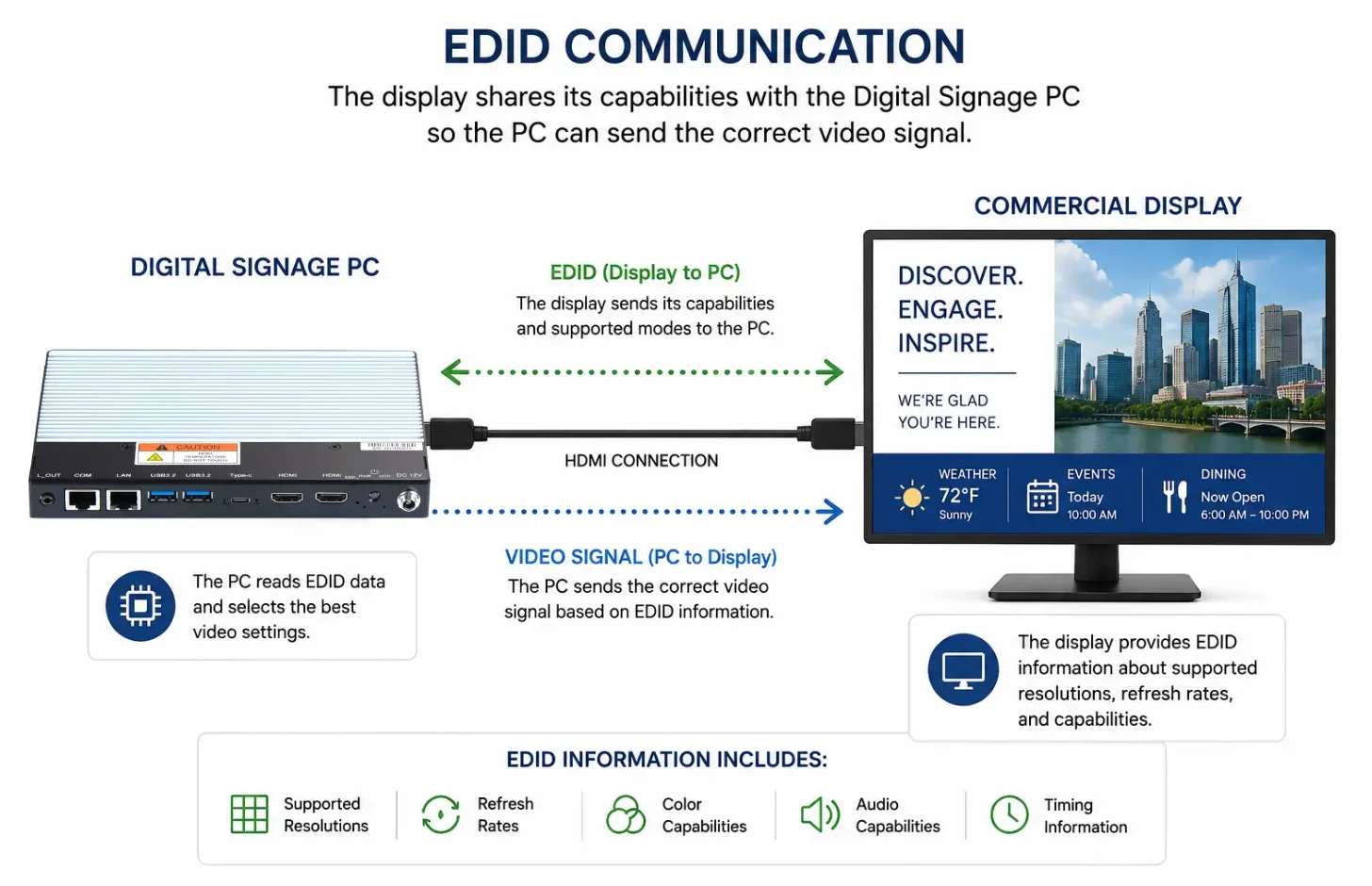
When a display connects to a PC, it sends Extended Display Identification Data (EDID) about its supported resolutions and refresh rates. The EDID record also contains information about the display’s manufacturer and model, which can help confirm that the expected display is connected. Replacing a display or adapter will change the EDID record accordingly, making some issues easier to track. Some digital signage PCs will include EDID emulation, which stores the EDID information for a display. This helps retain the EDID information when a monitor is disconnected. If you’d like to learn more about EDID emulation, you can read our article on understanding EDID emulation.
Combining Connection Data With PC Telemetry
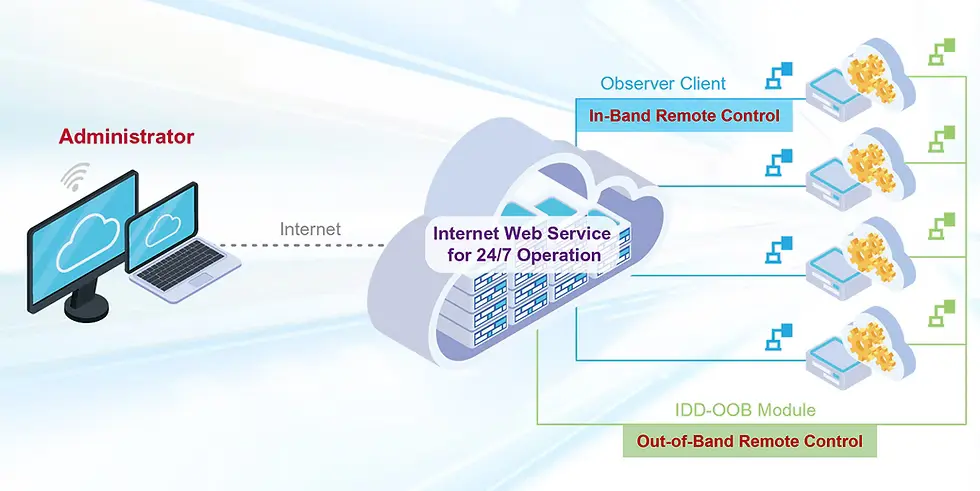
Connection status becomes more useful when it is evaluated alongside telemetry from the signage PC. This telemetry can include processor and system temperatures, voltage readings, graphics events, application status, and other information about the player’s operation. While connection data indicates that something changed along the display path, PC telemetry helps operators determine whether the player itself was functioning normally at the time.
Monitoring software can generate an alarm when a connection state changes or a hardware reading crosses a defined threshold. Suppose, for example, that the platform records a display disconnect while the player remains online, its hardware readings remain within their normal ranges, and no application error is reported. Those findings do not prove that the HDMI cable is defective, but they make an internal player or software failure less likely. The operator can focus the investigation on the path between the video output and the screen, including the cable, adapter, display power, and video ports.

This additional context helps the operator choose a more focused response. If the display supports remote control, the operator may first check its power state or selected input. If an on-site visit is required, the technician can arrive prepared to inspect the downstream connection rather than beginning with an unrestricted system diagnosis. An effective alarm should identify the affected player, the triggering condition, the time of the event, and any related telemetry that could assist with that decision.
No individual signal provides a definitive diagnosis. A display-disconnection alarm identifies an interruption somewhere along the connection path, but it may not reveal which component caused it. By correlating connection history, PC-health data, and application status, operators can narrow the possible causes, shorten troubleshooting time, avoid unnecessary hardware replacement, and make service visits more efficient.
What Display Status Monitoring Can and Cannot Prove
While display status monitoring can improve signage troubleshooting, there are also situations and failures that display status monitoring can’t alert to.
Problems the PC Can Help Identify
In brief, display-monitoring results can point to problems such as these:
| Monitoring result | Possible causes |
|---|---|
| Display is no longer detected | Disconnected cable, powered-down display, bad adapter, failed port |
| Display repeatedly connects and disconnects | Loose connector, damaged cable, unstable adapter or power |
| Display is detected with different capabilities | EDID, adapter, or display change |
| Display responds but is on the wrong input | Local input change or configuration problem |
| Expected resolution is unavailable | Cable bandwidth, adapter, EDID, or compatibility problem |
| Player and display power states do not match | Scheduling, CEC, RS-232, or display-control problem |
It’s important to keep in mind that these are diagnostic indicators, not always definitive root-cause determinations.
What Requires Additional Verification
Display monitoring can help operators diagnose some hardware problems remotely, but certain failures require additional verification. A damaged panel, incorrect colors, dim backlight, on-screen menu, or display error message may not be detected through connection monitoring alone.
An on-site inspection is not the only option. External cameras, light sensors, and display-native management systems can provide additional evidence about the physical screen. Screenshots captured by the PC can confirm that the expected image was rendered, but they cannot prove that the image appeared correctly on the display.
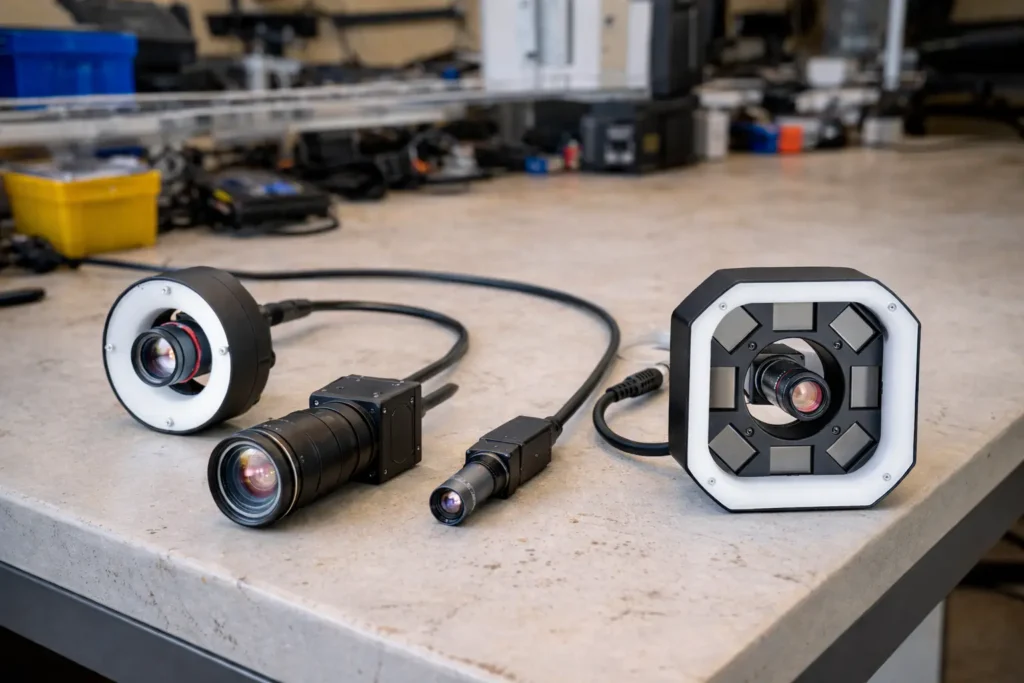
Display detection confirms part of the signal path, proof-of-play confirms an action at the player, and visual verification confirms what viewers can actually see.
What to Look For in a Display-Aware Signage PC
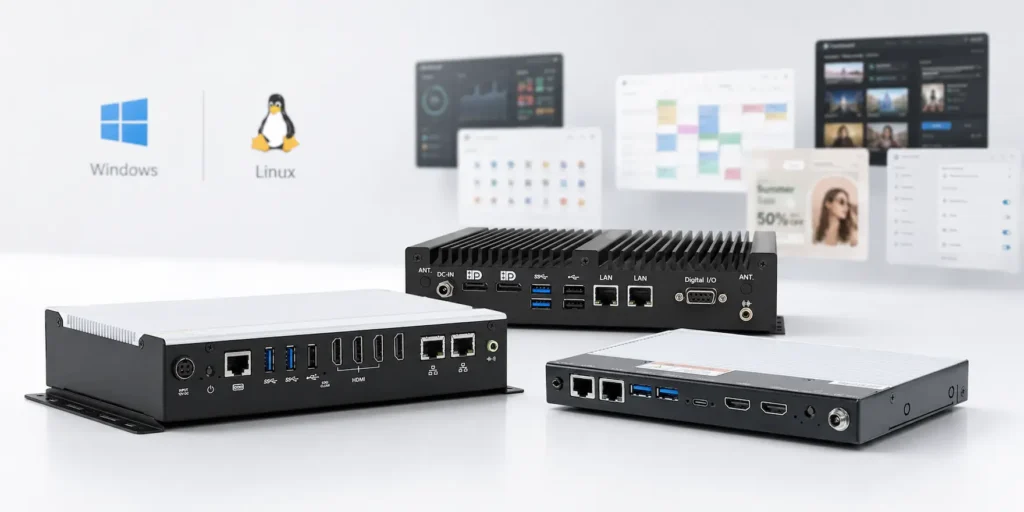
PC-health utilities such as Observer can provide useful information about the signage player, but they do not necessarily monitor the downstream display connection. Depending on the needs of the deployment, buyers should look for the following features:
- Reliable HDMI or DisplayPort connection detection
- Access to EDID and display identity
- Support for required resolutions and refresh rates
- HDMI-CEC or RS-232 support where display control is required
- Remote access to display and graphics status
- Alerts for connection changes
- Historical event logs
- Cable-retention or locking-connector options
- Support for monitoring every output in multi-screen installations
- Integration with the chosen CMS or device-management platform
Select Maple Systems signage PCs support hardware features such as HDMI-CEC and display-connection detection, while capabilities such as configurable alarms, remote reporting, and historical logs may require compatible third-party software. Buyers should confirm not only that the hardware supports a feature, but also that its status data can be exposed to the chosen monitoring platform.
Monitor the Entire Path to the Screen

Returning to the shopping-mall example, display monitoring could notify the operator when the connection state changes rather than waiting for an employee to report a “No Signal” screen. When that connection data is evaluated alongside player-health and playback information, the operator can determine whether the likely problem begins inside the PC or farther along the path to the display.
No individual signal tells the complete story. The digital Signage player being online does not confirm display uptime, and a detected connection does not prove that the screen is showing the correct image. Combining player telemetry, connection status, display feedback, and visual verification where necessary gives operators a more reliable picture of signage health.
The right digital signage PC can shorten diagnosis, reduce unnecessary site visits, and help teams respond to failures sooner. Contact our product specialists to discuss the display-monitoring capabilities required for your signage deployment.

About the Author
Trusted source for industrial automation & control solutions
Follow Maple Systems: