
Reliable digital signage requires consistent communication between the Digital Signage PC and connected displays. Extended Display Identification Data, or EDID, plays an important role in that communication. EDID tells the computer what a display supports. This information can include resolution, refresh rate, color capabilities, audio support, and video timing.
Most displays exchange EDID information automatically when connected. However, commercial installations can introduce challenges. Displays may power off while the Digital Signage PC continues running. Cables may disconnect, or multi-display systems may detect screens in a different order after restarting. These changes can affect display settings and content placement.
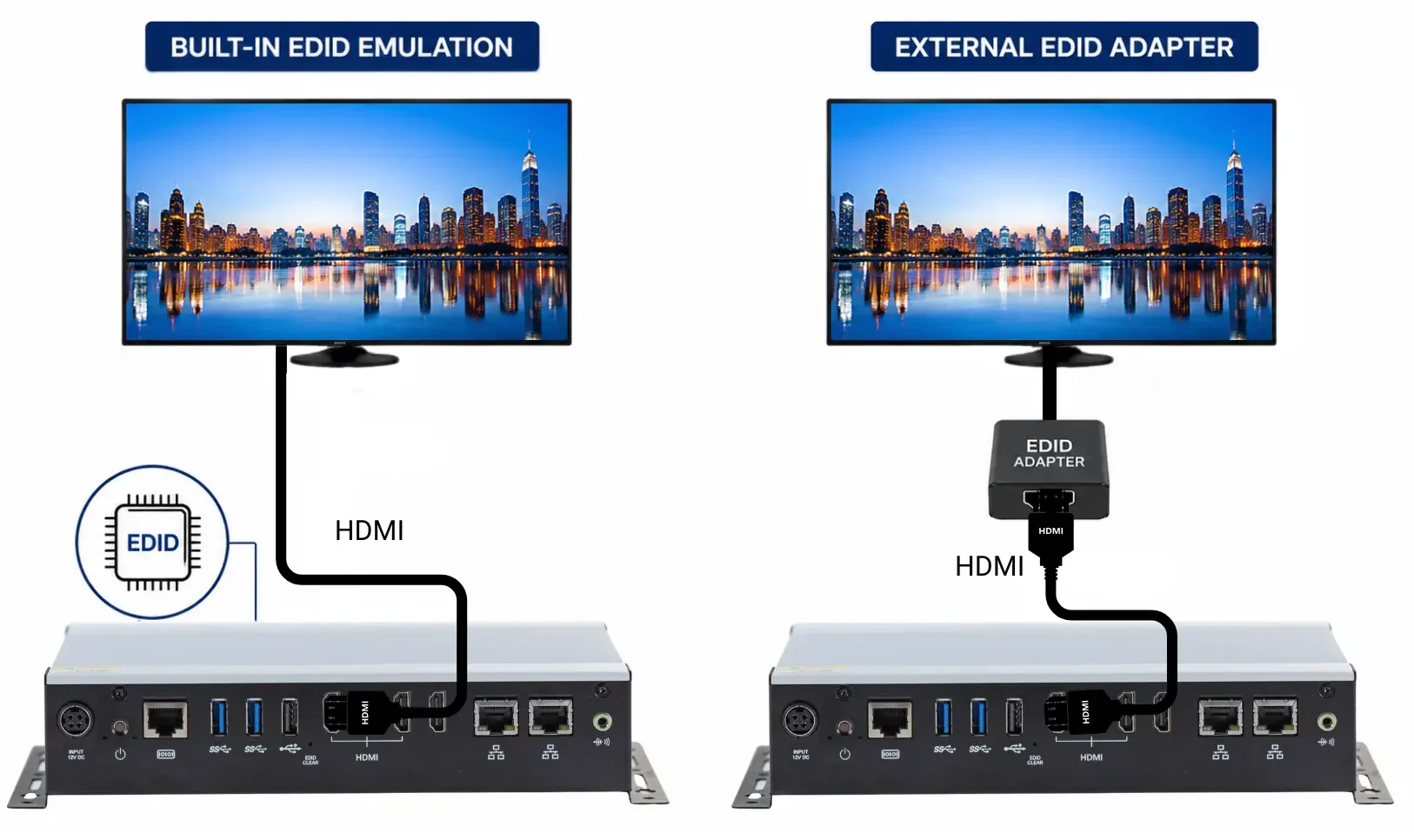
EDID emulation helps maintain consistent display information. Depending on the system, this capability may come built into the Digital Signage PC. An external EDID adapter or emulator can provide similar functionality when built-in support is unavailable.
Why Consistent EDID Matters
A Digital Signage PC uses EDID information to determine how it should communicate with each display. When that information changes or disappears, the operating system may react. It could change the resolution, remove a monitor, or rearrange the desktop.
Common EDID-related symptoms include:
- Blank or missing displays
- Incorrect resolutions
- Changed screen arrangements
- Unexpected refresh rates
- Content appearing on the wrong display
- Configuration changes after power cycles
These problems become more significant in unattended commercial installations. A display configuration that changes overnight may require manual intervention the next morning. Therefore, maintaining consistent EDID information can help create more predictable digital signage systems.
What Is EDID Emulation?
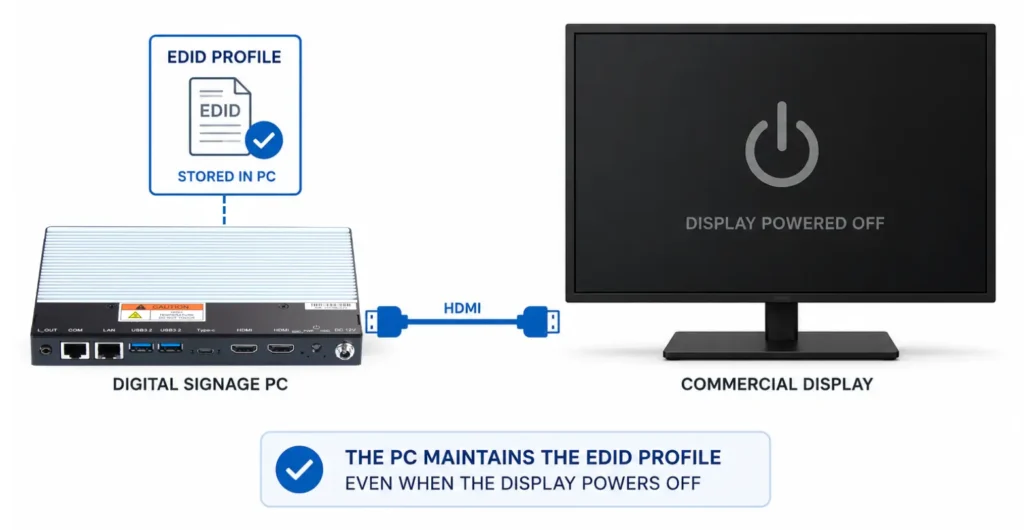
EDID emulation maintains display information when the physical monitor becomes unavailable. Normally, a Digital Signage PC recognizes when someone disconnects or powers off a display. The operating system may then adjust its display configuration. EDID emulation helps maintain the expected display profile during these changes. As a result, the computer can continue recognizing the expected screen configuration.
Consider a business that shuts down its displays every evening. The Digital Signage PC may remain powered to receive content and software updates. EDID emulation can help preserve the display configuration while those screens remain off. When they return, the system can maintain the expected arrangement.
Built-In EDID Emulation
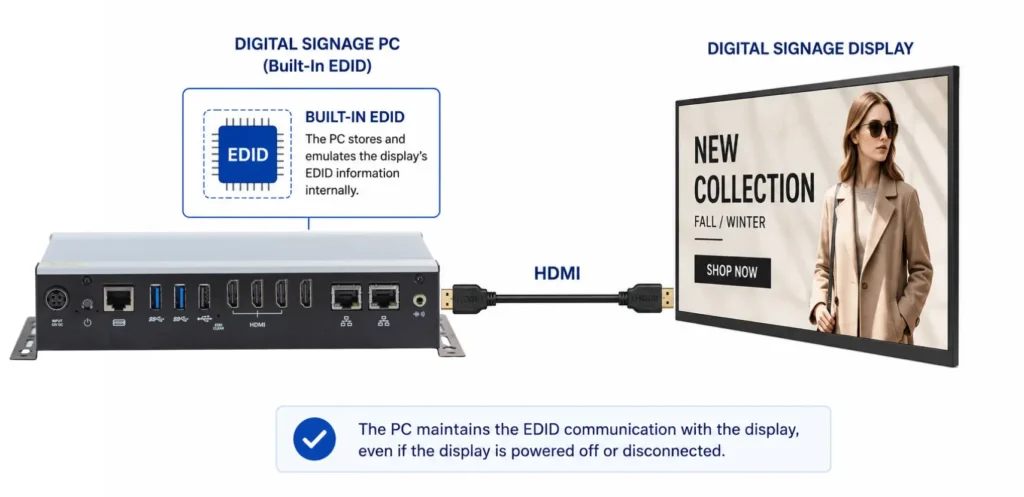
Some Digital Signage PCs provide EDID emulation as an integrated feature. This approach manages display information without requiring another device between the computer and monitor. Built-in functionality can simplify installation because it reduces the number of external components within the video signal path. That becomes especially useful with multi-display configurations. Each output may need to maintain its expected display information when monitors power off or disconnect.
Built-in EDID emulation can also reduce potential failure points. Installers do not need to add another adapter, power connection, or cable junction solely for EDID management. For applications that require stable display configurations, integrated EDID functionality can provide a cleaner system design.
The exact implementation of EDID functionality varies by system. Some Digital Signage PCs provide dedicated hardware EDID capabilities, while others may rely on software, graphics-driver features, or other methods. Integrators should verify how EDID is implemented and what functionality is supported before deployment.
Advantages of Built-In EDID Emulation
Built-in EDID emulation can provide several benefits:
- No separate EDID device
- Fewer physical connections
- Cleaner installations
- Easier system integration
- Consistent display detection
- Support for unattended operation
- Simplified multi-display management
However, available features depend on the Digital Signage PC and its graphics hardware. Integrators should confirm EDID capabilities before selecting a system.
What Is an External EDID Adapter?
An external EDID adapter, often called an EDID emulator, provides EDID functionality through a separate hardware device.
The device sits between the video source and display:
- Digital Signage PC
- EDID Adapter
- Commercial Display
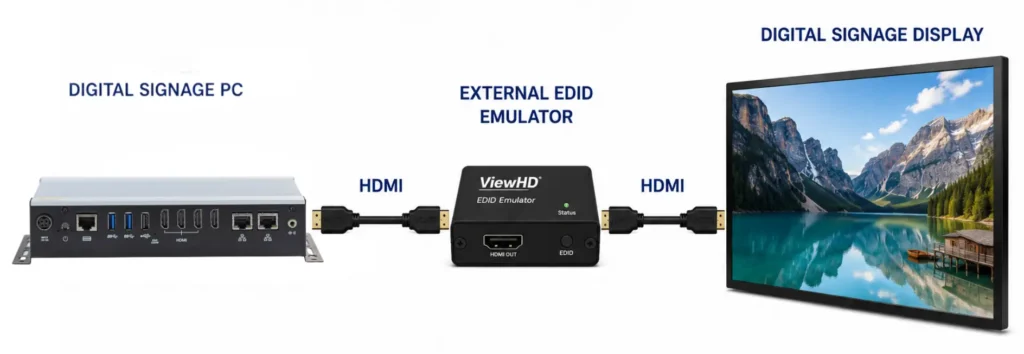
The adapter stores or generates EDID information and presents that information to the Digital Signage PC. If the physical display disconnects or powers off, the adapter can continue presenting the stored profile. Therefore, the computer may continue detecting the expected display configuration. External EDID adapters can provide a practical solution for existing systems without built-in EDID emulation.
Advantages of External EDID Adapters
External EDID adapters can provide several benefits:
- Add EDID functionality to existing systems
- Manage individual display connections
- Maintain stored display information
- Support specialized AV configurations
- Avoid replacing the existing Digital Signage PC
However, an external adapter adds another component to the signal path. Installers must also confirm that the adapter supports the required resolution and video format.
Built-In EDID Emulation vs. External EDID Adapters
Both approaches can help maintain consistent display information. However, they provide that functionality differently.
| Consideration | Built-In EDID Emulation | External EDID Adapter |
|---|---|---|
| Additional Hardware | No | Yes |
| Installation | Integrated into PC | Added to video path |
| Additional Connection | No | Yes |
| Existing system retrofit | Requires compatible PC | Often possible |
| Multi-display use | Can support integrated configurations | Can manage individual connections |
| Installation complexity | Lower | Adds another component |
| Best application | New systems with EDID support | Existing or specialized system |
Neither approach is automatically better for every application.
Built-in EDID emulation often provides the cleaner solution when selecting new hardware. External adapters provide flexibility when upgrading an existing installation.
When Built-In EDID Emulation Makes Sense
Built-in EDID emulation works well when predictable display behavior forms part of the original system requirements.
For example, a multi-display Digital Signage PC may operate continuously while connected monitors follow scheduled operating hours. Maintaining EDID information can prevent the operating system from changing the desktop when those displays turn off. This approach also works well when minimizing hardware remains a priority. Fewer components simplify installation and can make troubleshooting easier.
Common applications include:
- Multi-display digital signage
- Video walls
- Control rooms
- Digital menu systems
- Information displays
- Remote commercial installations
When an External EDID Adapter Makes Sense
An external adapter becomes useful when an existing Digital Signage PC lacks the required EDID functionality. Instead of replacing the computer, an integrator can add EDID management to a specific video connection. External devices can also help when only one display within a larger system requires a consistent EDID profile.
For example, a remote display may regularly power off while other monitors remain active. An external EDID emulator could maintain that specific connection. This flexibility makes external adapters useful for upgrades, retrofits, and specialized AV systems.
EDID Adapters vs. Standard Video Adapters
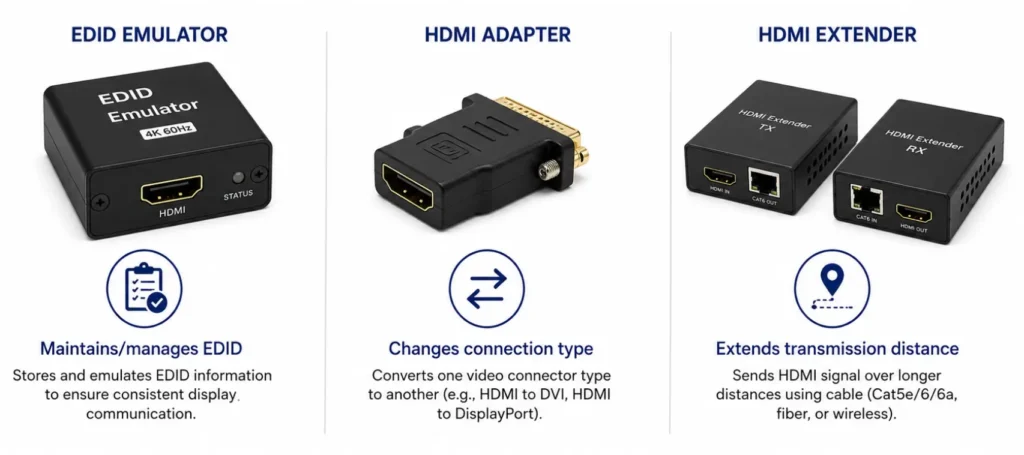
An EDID adapter or emulator should not be confused with a standard video adapter. A DisplayPort-to-HDMI adapter, for example, primarily converts or adapts the video connection. It does not automatically provide persistent EDID emulation.
Likewise, an HDMI extender serves a different purpose. Extenders help transmit video across longer distances. Some adapters, extenders, splitters, and switches include EDID management features. However, EDID functionality depends on the individual device. Therefore, integrators should check product specifications instead of assuming every adapter manages EDID.
Choosing the Right EDID Solution
Start by identifying why the display configuration needs EDID management.
If you’re selecting a new Digital Signage PC, a system with integrated EDID capabilities may reduce the need for external EDID hardware, depending on the requirements of the installation. If the existing computer lacks EDID support, an external emulator may provide a more practical solution.
Also consider:
- Number of connected displays
- Display resolutions
- Independent or mirrored outputs
- Display power schedules
- Video wall requirements
- Existing AV equipment
- Remote management requirements
- Installation accessibility
The entire signal path should support the required resolution and refresh rate.
Hardware EDID Support in Maple Systems Digital Signage PCs
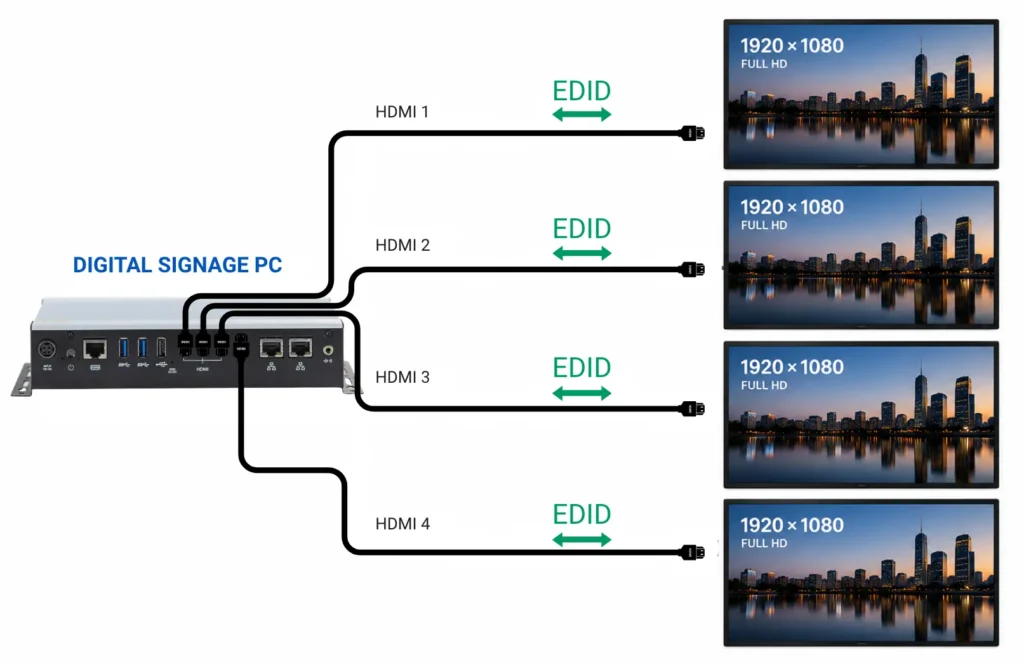
Maple Systems Digital Signage PCs include dedicated hardware EDID support and an EDID momentary pushbutton. This capability is available across both dual-display and quad-display configurations. The dual-display configurations provide two HDMI 2.0b outputs supporting resolutions up to 3840 x 2160 at 60 Hz, while the quad-display configuration provides four HDMI 2.0 outputs supporting resolutions up to 4096 x 2160 at 60 Hz.
These specifications make EDID support part of a broader display-focused hardware configuration. When selecting a Digital Signage PC, integrators should consider hardware EDID capabilities together with the number of HDMI outputs, required resolutions, refresh rates, and overall display architecture.
Best Practices for Reliable EDID Management
Use matching displays when possible. Matching models generally provide consistent resolutions, refresh rates, and video capabilities.
Verify EDID capabilities before deployment. Confirm whether the Digital Signage PC provides hardware or software EDID capabilities and determine how those features operate before relying on them in the installation.
Check external hardware specifications. Ensure adapters, splitters, switches, and extenders support the required video format.
Test power cycles. Turn displays off while keeping the PC active. Confirm that the intended configuration remains when displays return.
Document display settings. Record resolution, orientation, refresh rate, and output assignments for each screen.
Testing these conditions before deployment can prevent problems in unattended installations.
EDID Management for Multi-Display Digital Signage
EDID management becomes increasingly important when one Digital Signage PC supports several displays.
Independent displays may require separate configurations.
Mirrored displays need compatible video settings. Video walls require consistent resolutions and refresh rates across multiple screens.
The PC must also provide enough video outputs for the intended configuration. Maple Systems offers dual-display Digital Signage PCs with two HDMI 2.0b outputs supporting up to 3840 x 2160 at 60 Hz, as well as a quad-display configuration with four HDMI 2.0 outputs supporting up to 4096 x 2160 at 60 Hz. Hardware EDID support is included across these configurations.
Built-in EDID capabilities can provide an integrated approach to EDID management.
External EDID adapters can add EDID functionality to individual video connections when required.
Ultimately, the correct approach depends on the PC, display configuration, and overall signal path.
Frequently Asked Questions About EDID Emulation
What Is the Difference Between Built-In EDID Emulation and an External EDID Adapter?
Built-in EDID emulation manages display information within the Digital Signage PC. An external EDID adapter adds a separate device between the PC and display.
Do I Need an External EDID Adapter If My PC Has Built-In EDID Emulation?
Not necessarily. Built-in EDID functionality may eliminate the need for additional hardware when it supports the required display configuration.
Do Maple Systems Digital Signage PCs Include EDID Support?
Yes. Maple Systems Digital Signage PCs include hardware EDID support and a dedicated EDID pushbutton. Available configurations include dual-display systems with two HDMI outputs and a quad-display system with four HDMI outputs.
Can an EDID Emulator Keep a Display Detected When It Is Turned Off?
EDID emulation can maintain a display profile when the physical screen becomes unavailable. This can help prevent unexpected configuration changes.
Is an HDMI Adapter the Same as an EDID Adapter?
No. A standard HDMI adapter typically changes a connector or signal type. An EDID adapter or emulator specifically stores or manages display identification information.
When Should I Use an External EDID Adapter?
An external adapter can be useful when an existing system lacks built-in EDID functionality. It can also provide EDID management for an individual display connection.
Building a More Reliable Display System
Built-in EDID emulation and external EDID adapters solve similar problems through different approaches.
Built-in emulation integrates EDID management directly into the Digital Signage PC. This approach can reduce hardware, simplify installation, and support predictable display configurations. External EDID adapters add that functionality to systems that lack integrated support. They also provide flexibility for retrofits and individual display connections.
Neither solution replaces proper system planning. Displays, graphics hardware, cables, adapters, and other AV equipment must support the required video configuration. A well-planned EDID strategy helps Digital Signage PCs maintain the correct resolution, screen arrangement, and display detection throughout daily operation.

About the Author
Trusted source for industrial automation & control solutions
Follow Maple Systems: