
Legacy 7.0" Open HMI
OMI6807CP replaces the OMI6507A
This is a Legacy product and is no longer available for purchase. Please review the information on this page and call (425)-745-3229 or email [email protected] if you have further questions.
Share the product:
Compare to Similar Models
Compare OMI6507A with 4 other products
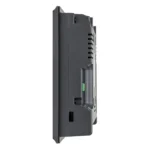
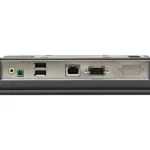
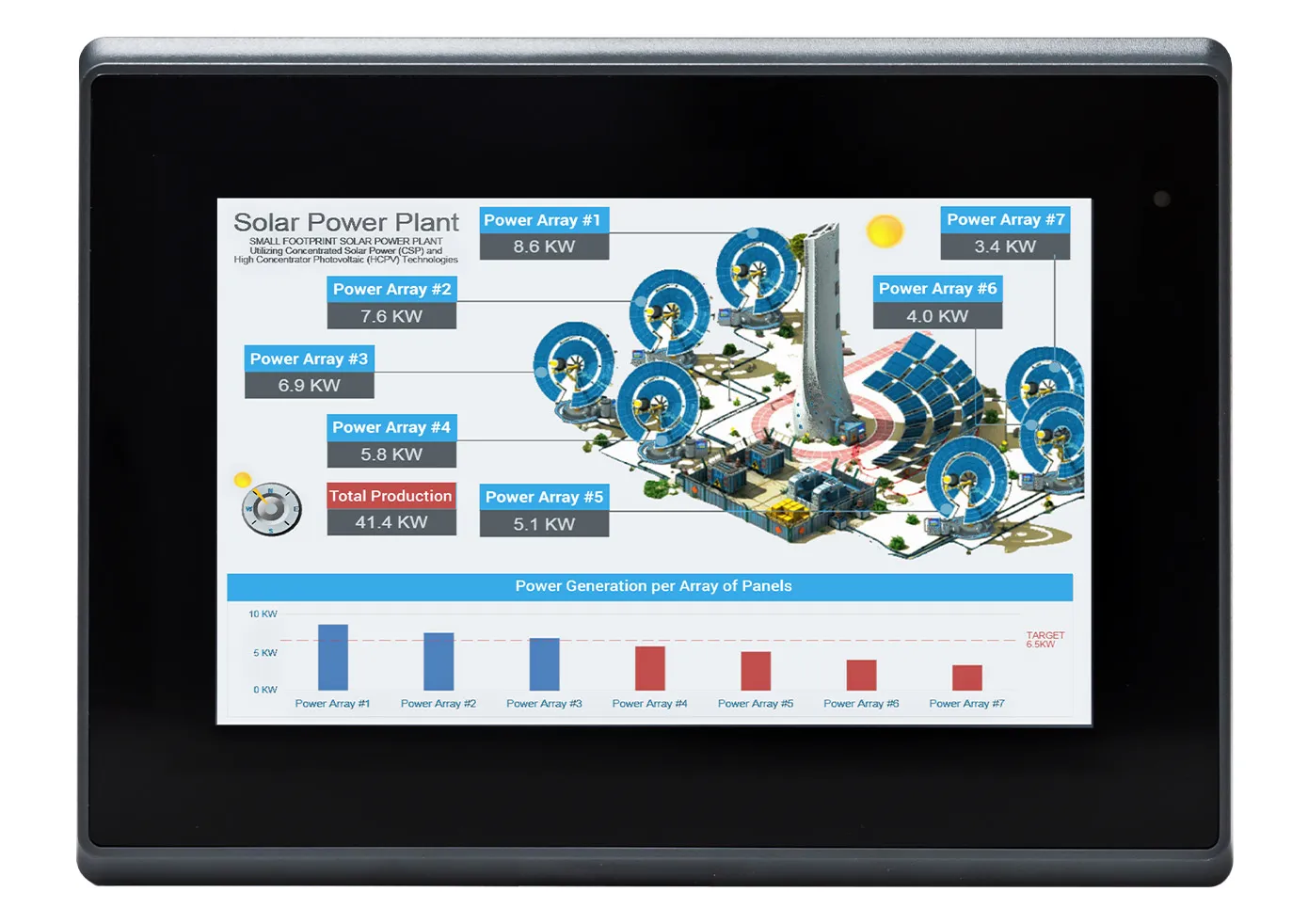
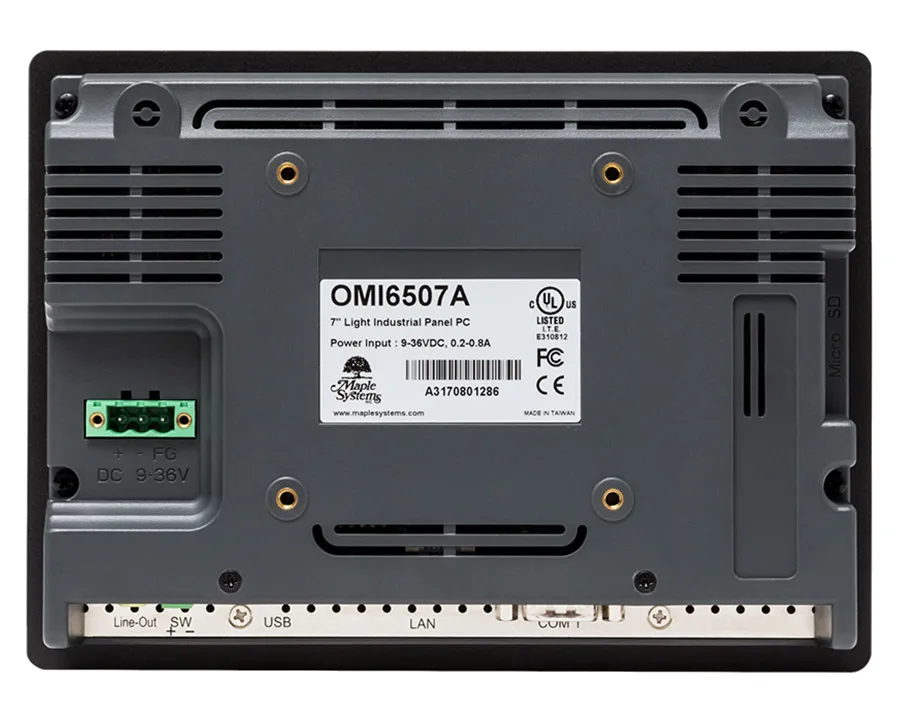
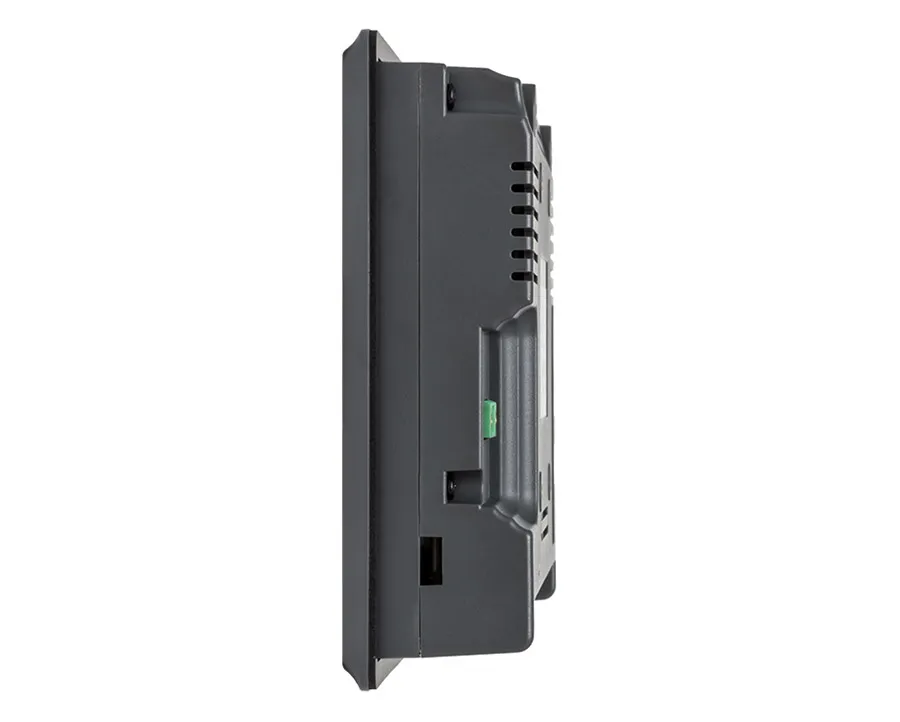
The OMI6507 Series came with Windows CE pre-loaded. Windows CE is no longer supported. You can upgrade to our OMI6807 Series which comes pre-loaded with Windows 10. Panel modifications are not needed as the cutout dimensions are the same for both units.
|
Filters |
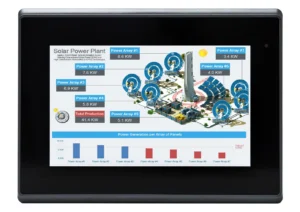
Legacy 7.0" Open HMI OMI6507A Price Not Available (N/A)
|
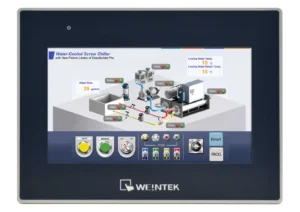
7.0" WiFi Capable High-Resolution High Performance HMI cMT3072XH3 $679
|

7" HTML5 Web HMI with Capacitive Touch Screen cMT3072XPW $649
|

7" Intel® Celeron® Fanless Panel PC with Capacitive Touch OMI6807CP $1750.00
|
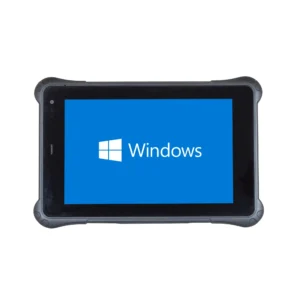
8.0" Intel® Celeron® Industrial Rugged Tablet RT1108A $1350.00
|
|---|---|---|---|---|---|
| Loading product data… | |||||
What is an Open Machine Interface ( OMI )?
OMI is the prefix for one of Maple Systems’ Industrial Panel PC series. This affordable robust, low-profile Panel PC series is an exceptional value and will run third party SCADA software.
With 20 models to choose from, you can configure your selection based on your screen size (7”~27”), required processing power (Intel Atom, Celeron, or Core i5), RAM (2GB~8GB), Windows® OS (Windows® 10 IoT 64-bit), as well as other options & accessories. Add additional storage or a Wi-Fi Expansion Kit. Units can be panel or VESA mounted and come in a die-cast aluminum enclosure. Add an AVEVA® license to help achieve complex process goals.
What is Open Machine Interface (OMI)?
Open Machine Interface or OMI, is a computer that runs on an open platform such as Microsoft Windows or Linux allowing for more configuration and programming options to be loaded.
What is a Light Industrial PC?
A Light Industrial PC is a ruggedized computing platform engineered for demanding but non-extreme environments. Featuring fanless passive cooling, sealed enclosures (IP64/IP65), and industrial-grade components, they deliver reliable 24/7 operation across extended temperature ranges. These systems bridge consumer-grade and heavy-duty industrial hardware, providing enhanced durability against dust, moisture, and mechanical stress for HMI applications, edge computing, factory automation, self-service kiosks, and logistics terminals in manufacturing, warehouse, and retail deployment scenarios.
Light Industrial PCs are part of Maple Systems’ Industrial Panel PC series. These models have the part prefix OMI. This affordable robust, low-profile Panel PC series is an exceptional value and will run third party SCADA software.
With various models to choose from, you can configure your selection based on your screen size (7”~27”), required processing power (Intel Atom, Celeron, or Core i5), RAM (2GB~8GB), Windows® OS (Windows® 10 IoT 32-bit or 64-bit), as well as other options & accessories. Add additional storage or a Wi-Fi Expansion Kit. Units can be panel or VESA mounted and come in a die-cast aluminum enclosure. Add an Indusoft Web Studio® license to help achieve complex process goals.
How do I start my OMI or Industrial PC in Safe Mode?
Safe Mode starts Windows in a basic state, using a limited set of files and drivers. If a problem doesn’t reoccur in Safe Mode, this means that default settings and basic device drivers aren’t causing the issue. Observing Windows in Safe Mode enables you to narrow down the source of a problem, and can help you troubleshoot problems on your PC. Instructions for Entering Safe Mode on a Windows 7 PC:-
- Restart your PC and press and hold the ‘F8’ key as it is restarting. You must press ‘F8’ before the Windows logo appears. If the Windows logo appears, you’ll need to try again by waiting until the Windows logon prompt appears, and then shutting down and restarting your computer again.
- On the Advanced Boot Options screen, use the arrow keys to highlight the option for ‘Safe Mode with Networking’, and then press Enter. (Alternative: Try ‘Safe Mode with Command Prompt’.)
- Log on to your computer in Safe Mode with a user account that has Administrator rights. SEE: https://support.microsoft.com/en-us/help/17419/windows-7-advanced-startup-options-safe-mode —
- Hold down the power button for 10 seconds to turn off your device.
- Press the power button again to turn on your device.
- On the first sign that Windows has started (for example, some devices show the manufacturer’s logo when restarting) hold down the power button for 10 seconds to turn off your device.
- Press the power button again to turn on your device.
- When Windows restarts, hold down the power button for 10 seconds to turn off your device.
- Press the power button again to turn on your device.
- Allow your device to fully restart. You will enter winRE.
- Now that you are in winRE, you will follow these steps to take you to safe mode: On the ‘Choose an option’ screen, select Troubleshoot > Advanced options > Startup Settings > Restart.
- After your device restarts again, you’ll see a list of options. Select ‘option 5’ from the list or press ‘F5’ for ‘Safe Mode with Networking’. (Alternative: Try ‘Safe Mode with Command Prompt’.) SEE: https://support.microsoft.com/en-us/help/12376/windows-10-start-your-pc-in-safe-mode
How much drive space does the Windows® 10 IoT Enterprise 64-bit operating system take?
The Windows® 10 IoT Enterprise 64-bit operating system takes around 20GB of space. A Windows® 10 32-Bit takes 15GB of space.What is the RAM limit for a system running Windows® 10 Enterprise?
It will depend on the version. The 64-bit version supports up to 512GB of RAM. The 32-bit version supports up to 4GB of RAM.What operating systems are available for the Maple Systems Industrial PCs?
The following operating systems are available for Maple Systems Industrial PC computers:
- Windows® 11 Pro
- Windows® 11 IoT Enterprise LTSC (EPKEA & PKEA)
- Windows® 10 Ent. LTSB Embedded (EPKEA)
- Windows® 10 Ent. LTSB Non-Embedded (PKEA)
- Linux® Ubuntu Desktop and Server
What if I want Windows® 10 Pro instead of Enterprise?
Maple Systems does not provide support for Windows® 10 Pro. If Windows® 10 Pro is a must have, the customer will have to find and install the Pro OS on their own and know that Maple Systems will not be able to provide support for the OS.
Select IPCs come pre-loaded with Windows 11 Pro.
Datasheet
Software Downloads & Upgrades
Manuals & Guides
Articles