
About This Manual
Introduction
This is the user manual of RT1211A & RT1211B, which mainly includes the introduction of the application environment of the product, appearance description, product characteristics, technical parameters, common function settings, machine installation, precautions and troubleshooting.
Precautions And Safety
- Before using the RT1211A & RT1211B, be sure to read the tablet’s manual carefully and follow the instructions.
- Do not exert excessive pressure or impact on the screen; otherwise, the LCD panel may crack, causing personal injury. If the liquid crystal panel is damaged and leaks, do not touch the liquid inside, because the liquid will irritate the skin.
- Although the terminal is tested to IP66 standards for water and dust resistance, if it is exposed to rain or other concentrated moisture for long periods of time, this situation exceeds IP66 standards and can result in water or other contaminants entering the terminal.
- Use only the original standard AC/DC adapter on the terminal. Using AC/DC adapters that do not meet the standards can cause electrical problems and even cause fires or electrical failures.
- Do not disassemble the terminal. Maintenance should be carried out by the supplier. If the terminal or accessories are damaged due to faulty operation or unauthorized repair, the warranty is void. If the warranty seal is damaged, the warranty is void.
- Back up all important data regularly.
- In no event shall the supplier be liable for any direct, indirect, consequential or incidental damage and/or any loss of data arising from the use or inability to use the hardware and software, even if the supplier has been advised of the possibility of such damage.
Recycling And Disposal Instructions

Do not throw away products with this logo or discard them in the trash.
Regulatory Information
If CE, FCC, RoHS and other documents that meet the requirements are needed, please consult Maple Systems.
Product Overview
RT1211A & RT1211B
RT1211A (i5 Core) and RT1211B (i7 Core) are rugged tablets launched by Maple Systems for the industrial, automation, and military industries, powered by Intel Celeron high performance processor. The main frequency is up to 2.8GHz, pre-installed with Windows 11 or Linux operating system. Take full advantage of Microsoft Windows data processing capabilities in a mobile environment, optimize application and network management capabilities, while maintaining the flexibility of multitasking applications. They adopt industrial high-brightness, capacitive touch screen, protection level IP66, meet 1.22m fall prevention, a variety of wireless communication methods, support 4G LTE, Wi-Fi, Bluetooth, GPS, long endurance time, built-in large-capacity removable lithium battery. Optional module: RFID UHF.
- Equipped with Intel 12th gen high-performance processor, benchmark frequency 1.3GHz, Rui frequency up to 4.4GHz,
- 11.6 inch brightness 1000cd/㎡ high brightness capacitive touch screen
- IP66 protection grade, meets 1.22m fall prevention
- A variety of wireless communication modes, supports 3G, 4G, & 5G LTE, Wi-Fi, Bluetooth, GPS
- Long standby, built-in large capacity, removable lithium battery
- Optional module: RFID UHF


Function Use
Key Operation
Start the RT1211
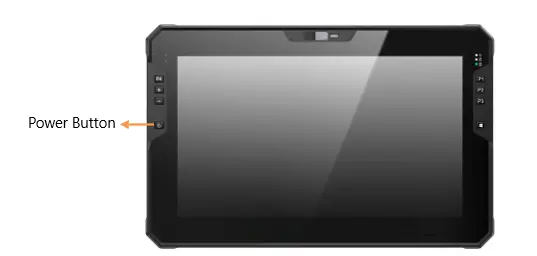
Press the power button to turn on RT1211. If RT1211 does not power on, check whether the power supply is connected properly.
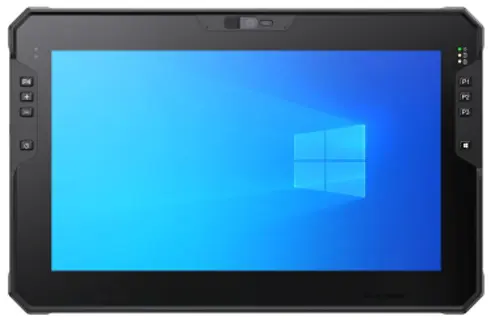
When the RT1211 is powered on, after the operating system starts, a Windows startup LOGO will appear on the screen for a short time, then Windows desktop will appear.
Status Light
After the RT1211 is powered on and the Windows operating system is opened, the volume can be adjusted, and the scan key can be used.

Power Status LED.
When the system starts running, the green LED power light is on. When the system is turned off or hibernated, the LED power light is off. During sleep, the LED power light breathes.
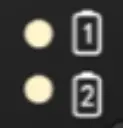
Battery indicator status.
- Steady on: The battery is being charged.
- Off: no charge or battery is fully charged
- Blinking: If the battery is lower than 10%, a charging message is displayed
Programmable Function Keys
How to Program P1-P4 Custom Keys
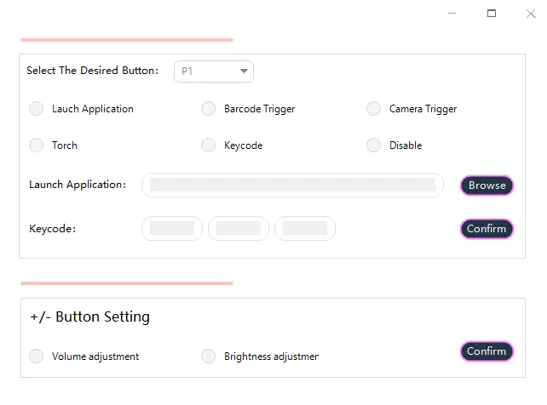
There are 4 custom function keys on the RT1211, P1-P4. To program these keys, locate the “Programmable Button Setting” folder on the tablet and open the folder. There will be several files within the folder, be sure not to move any of the files outside of the folder, otherwise the application may not run properly. Select the “Programmable Button Setting” application file and open the application.
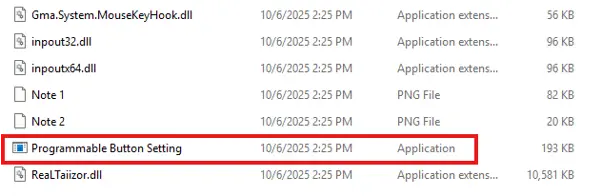
Once the application is open, the P1-P4 buttons can be programmed with specific set functions or can be programmed to automatically open certain applications. The plus and minus buttons on the left side of the tablet can also be reprogrammed to be either a volume or brightness adjustment. By default, the keys will operate as volume up and down. Once the selected function or application is selected, click the confirm button to set the function to the desired button.
Accessories And Power Connections
Check The Packaging
Open the package and inspect all parts for shortages and damage.
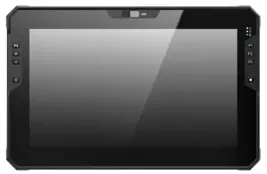
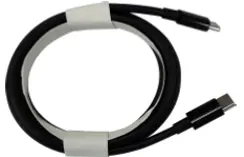
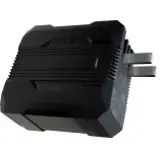
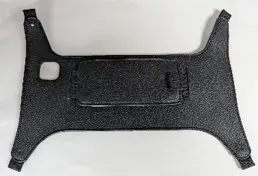
The main components are: RT1308B or RT1310B Tablet, power cord, adapter, hand strap, and 2 x power conversion head.
RT1308B or RT1310B Series Rugged Tablet
Data Cable
Power Adapter
Hand Strap
Power Connection
The power supply must be connected for the first time.
Open the waterproof plug of the Type-C port. (Flat front, waterproof plug on left side).
The Type-C power cable of the power adapter is inserted into the Type-C port of the tablet.
Insert the female end of the power cable into the power adapter and the male end into the power socket.
The power outlet supplies power to the panel through an adapter. Now the tablet can power on.
Battery Description
The RT1211 can be powered by an external Type-C power supply or an internal battery pack. This chapter shows how to effectively use and manage the power supply. For the best battery performance, follow the battery usage precautions.
Power Adapter
The power adapter only works with this tablet. Misuse for any other purpose may damage the included appliance or adapter.
The power cable attached to the power adapter meets the specifications of the place of purchase. If this tablet is used abroad, please consult Maple Systems for a suitable power cord.
When unplugging, do not pull the wire, pull the plug to disconnect power adapter.
Since this tablet runs on direct current, but a power outlet usually provides AC power, the power adaptor’s role is to convert the AC power from the power source to the direct current required by the tablet. While connected to the power adaptor, the battery is automatically charged, and the adapter can operate in the voltage range of 100V to 240V AC.
Battery Pack
The battery pack is the internal source of power for the tablet and can be charged via a power adapter.
Note: The time to remove the battery pack is only when the battery is not being charged.
Battery Charging
Note: The rechargeable temperature of the battery is 50 °F to 86 °F (10 °C and 30 °C).
Connect the tablet to the power adapter and plug the power cord of the adapter into the power socket to charge the battery. At this time, the two battery indicators on the tablet will light red, indicating that charging is in progress. When the battery is fully charged, the battery indicator is green.
When the battery is low, connect the adapter, put the tablet to sleep, or turn off the tablet power immediately.
Note: Do not unplug and connect the power adapter immediately after the battery is fully charged, as the battery may be damaged.
Replacing Battery Pack
Note: Battery replacement errors can cause an explosion. Follow the manufacturer’s instructions when discarding old battery packs.
Do not disassemble the battery pack.
The battery pack will get hot under prolonged operation. Do not touch the hot battery pack with bare hands. After removing the battery pack, place it in a well-ventilated place.
Note: Be sure to turn off the device when replacing the battery so that the device can save the work in progress.
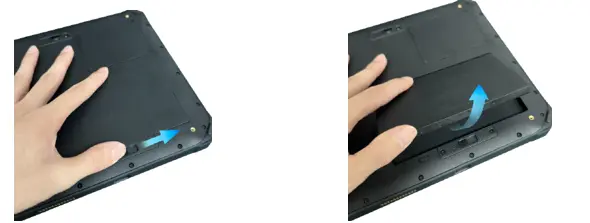
Carefully flip the tablet so that the back panel is facing up.
Push the four battery door locks to the unlocked position (  ).
).
Remove the battery pack.
Product Maintenance
Protect The Tablet
To protect the data integrity of the tablet and the security of the tablet itself, follow the directions described in this section.
Use anti-virus measures by installing anti-virus software on the tablet.
Tablet Maintenance
Environmental Standards
To ensure optimum performance, use the tablet in the recommended temperature range of -4 °F to 140 °F (-20 °C to 60 °C).
Avoid humidity, extreme temperatures, vibration, direct sunlight and places with a lot of dust when using the tablet. Long-term use of tablets in extreme environments can lead to product degradation and shortened product life.
Do not operate in an environment containing metal dust.
Do not store the tablet on its side or turn it upside down. A strong impact from a drop or blow may damage the tablet.
Do not cover or block any vents on the tablet. For example, do not place the tablet on a bed, sofa, rug, or other similar surface. Otherwise, the tablet will be damaged due to overheating.
The tablet will generate high temperatures during operation. Please keep the tablet away from items that are easily damaged by heat.
The tablet should be at least 13cm away from electrical appliances that generate strong magnetic fields, such as televisions, refrigerators, motors, or large loudspeakers.
Do not immediately move the tablet from cold to warm. If the temperature difference between the two places is higher than 50 °F (10 °C), it will condense water vapor inside the machine and damage the storage medium.
General Criteria
- Do not place heavy objects on the tablet to avoid damaging the screen.
- To protect the LCD screen from damage, do not touch the screen with sharp objects.
- Leaving the LCD screen to display a fixed image for a long time may cause image residue.
- Limiting the length of time the screen displays static content can help avoid this problem. It is recommended that a screen saver is used or to turn off the screen when not in use. To extend the life of the screen backlight, turn off the automatic backlight from the power management.
Clean-up Criteria
- Do not clean the tablet during tablet startup.
- When cleaning the outside of the fuselage, wipe it with a soft cloth dampened with water or alcohol-free detergent.
- When cleaning the screen, wipe it with a soft cloth free of debris.
- If the tablet gets wet with water or other liquids, dry it when as quick as possible. Although the tablet is waterproof, it is still not suitable for the tablet to remain wet.
- Tablet wet at 32 °F (0 °C) may cause frostbite. Be sure to wipe the wet tablet dry.
Battery Criteria
Batteries are consumables, and the following conditions will shorten their service life:
- Charge the battery frequently
- Use, charge, or store batteries in high temperature environments
In order to avoid accelerating the aging of the battery and extending its service life, the number of charging times should be minimized to avoid the internal temperature rising frequently.
Charge the battery in a temperature range of 50 °F to 86 °F (10 °C and 30 °C). Higher ambient temperatures cause battery temperatures to rise. Avoid charging batteries in closed cars and in hot weather conditions.
Do not charge the battery multiple times in one day.
It is recommended that the battery is charged while the tablet is off.
If there is a need to remove the battery for storage, in order to maintain the operating efficiency of the battery, please remove it from the tablet when the remaining power is 30% to 40%, and then store it in a cool and dark place.
Note the following when installing or removing batteries:
- Do not touch the battery terminal. Otherwise, it may cause damage, which may cause the battery or tablet to work improperly.
The input voltage and ambient temperature of the tablet directly affect the charging and discharging time of the battery:
- The charging time is extended when the tablet is active.
- To shorten the charging time, it is recommended to put the tablet in sleep or hibernate mode.
- The low temperature will lengthen the charging time and shorten the discharge time.
When battery power is used at extremely low temperatures, there may be shortened operating time and incorrect power display values. This is due to the chemistry of the battery.
Do not store the battery for more than six months without charging it.
Touch Screen Criteria
Use finger or touch screen pen to operate the touch screen. If sharp or metal objects are used, the display may be scratched and damaged, leading to errors.
Use a soft cloth to wipe the dust off the display. The touch screen surface has a special protective layer to prevent dust from absorbing it. If a soft cloth is not used, the special protective layer on the touch screen surface may be damaged.
Turn off the panel power before cleaning the display. Cleaning the display when it is turned on may cause abnormal operation.
Avoid pushing too hard on the screen. Do not place items on the screen to avoid screen breakage and damage.
In low and high temperature conditions, the touch screen response speed may be slow or the touch position may be offset. After reaching room temperature conditions, it can return to normal.
Troubleshooting
Preliminary Inspection
When you encounter a problem, you may wish to do the following preliminary checks, perhaps at this stage you can solve the problem:
- Try to identify the source and type of problem.
- Make sure you power on the peripheral before turning on the tablet.
- If there is a problem with the external device, make sure that all lines are properly and securely connected.
- Observe the actual situation. Does any information appear on the screen? How is the light on? When you have to ask for help from maintenance personnel, the more detailed the information you provide, the better.
If the problem persists after following the instructions in this chapter, contact an authorized distributor for assistance.
Reboot
When the tablet crashes due to a problem, you may need to restart the tablet.
If it is determined that the tablet has crashed and you cannot use the restart function provided by the operating system, then restart it by pressing and holding the power button for more than 5 seconds to force the tablet off. Then turn it on again.
If you continue to experience any issues, please contact Maple Systems at: [email protected] or call in at 425-745-3229.