
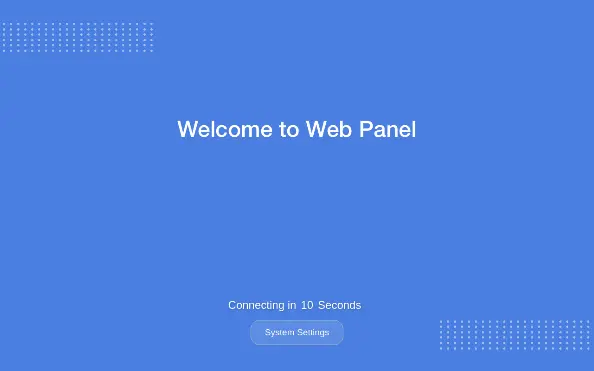
Upon the first power-up, the default screen will appear. Tapping the System Settings button allows access to the system settings login screen. The default password is 111111.
In the System Settings page, it is possible to configure information related to the device, including system information, display settings, diagnostics, and more.
System Information

| Setting | Description |
| HMI Name | Modify the HMI name here |
| Date/Time | Click to change the time information |
HMI Info Collector
| Setting | Description |
| Version | View the current version of the HMI Info Collector. |
| HMI Info Collector | Click to directly download a file that stores HMI information. This file can be provided for analysis in case the HMI encounters an unexpected error. |
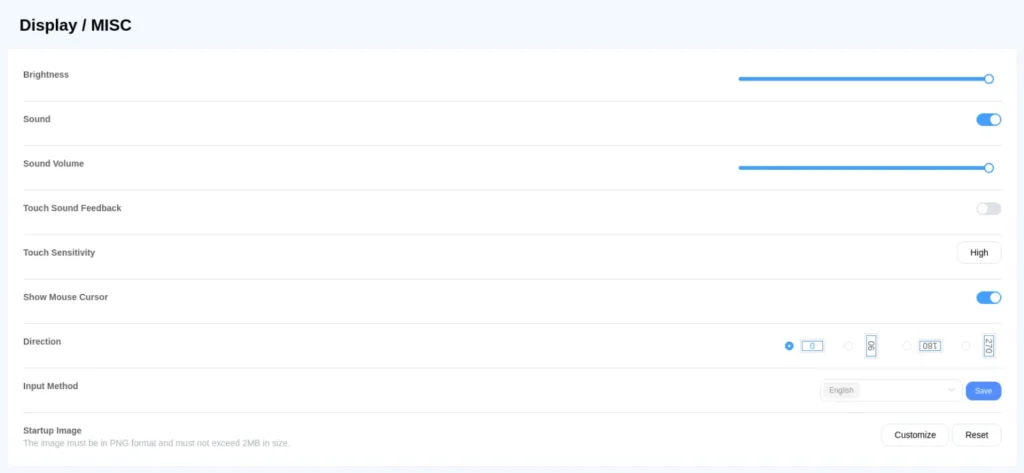
Display/Misc
| Setting | Description |
| Brightness | Adjust the brightness of the backlight. |
| Audio | Choose whether to enable audio. |
| Audio Volume | After enabling audio, adjust the volume level. |
| Touch Sound Feedback | When enabled, the touchscreen emits sound effects. |
| Touch Sensitivity | Set appropriate touch sensitivity for different environments. |
| Show Mouse Cursor | Enable to display the mouse cursor. |
| Direction | Adjust the display orientation of the HMI screen. |
| Input Method | Language of the keyboard popup when typing; supports multiple languages. |
| Startup Image – Customize | Allow customization of the startup screen. The countdown timer and System Settings button will be retained. |
| Startup Image – Reset | Reset to the default startup screen. |
Backlight Saver

| Settings | Description |
| Enable Timeout | When enabled, the backlight will turn off based on the idle timeout settings. |
| Idle Timeout (minutes) | Set the duration for the idle timeout. |