Introduction
All Maple Systems HMI Displays programmed with EBPro (EasyBuilder Pro), including every cMT X Series and cMT Series model, are compatible with an Omron EtherNet/IP NJ/NX Series. Configure your Controller and HMI/cMT with the following parameters to establish reliable communication.
Supported Series: OMRON EtherNet/IP NJ / NX1P Series PLC
Website: www.omron.com
HMI Settings
| Parameters | Recommended | Options | Notes |
|---|---|---|---|
| PLC type | OMRON EtherNet/IP (NJ Series) | ||
| PLC I/F | Ethernet | ||
| Port no. | 44818 | ||
| PLC sta. no. | 1 | ||
| On-line simulator | Yes | ||
| Multi-HMI connect | Yes | ||
| Array Index Register | Yes |
Instructions
NOTE:
- In Sysmac Studio, please select [Publish Only] for [Network Publish] when setting address tag.
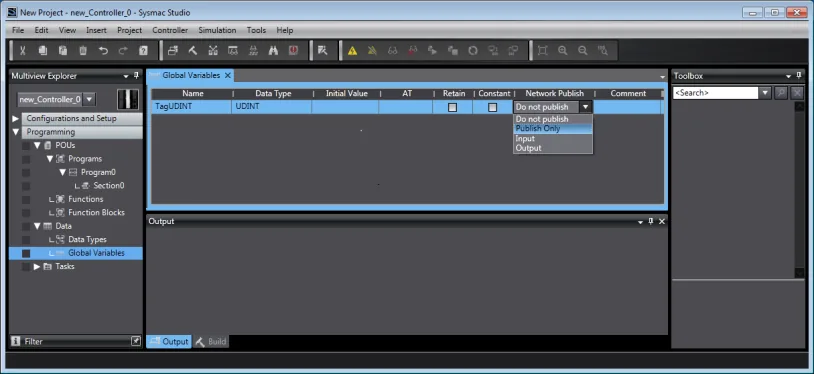
- When [Do not publish] is selected for a tag, different import methods may lead to different results. When import tags by [Get Tags from Device], the tag will be eliminated. If [Import tags] is selected, the tags will be imported, but the communication will not succeed.
- Bool data type cannot be mapped to contiguous memory addresses. To use this function, you need to allocate one word for each bool type variable. In the following case, please respectively set to
%W10.0,%W11.0,%W12.0. (Only required if absolute addresses are used)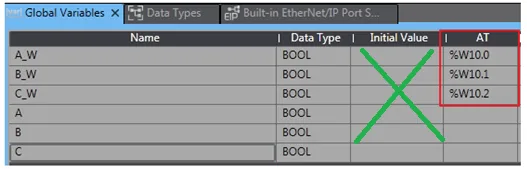
%Hand%Ware 16-bit addresses, so the following mapping method is recommended for better communication efficiency.- Tag1 array of [0..15] bool mapping to
%H200.00 - Tag2 array of [0..15] bool mapping to
%W200.00
- Tag1 BOOL Mapping to
%H200.00
- Tag1 array of [0..15] bool mapping to
- Avoid using the [Get Tag Info] method to obtain the structure tag, and use the [Import Tags] method.

Export Tags from Sysmac Studio
Export Global Variables from Sysmac Studio
Launch Sysmac Studio, under Global Variables create the address tags, and then select [Tools] » [Export Global Variables] » [CX-Designer]. This copies the variables to clipboard.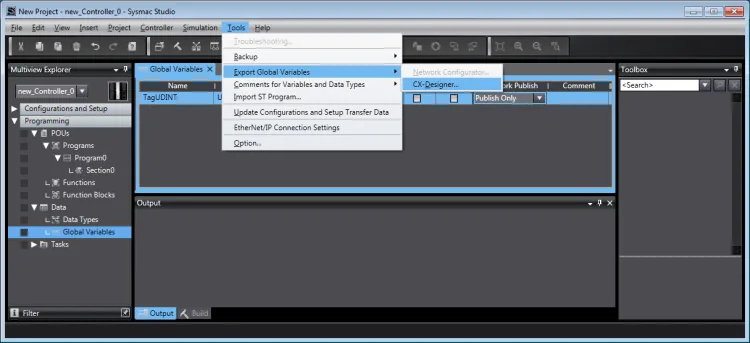
Save as ANSI-encoded TXT file
Open Notepad, paste the content and save as*.txt. For the Encoding option, select ANSI.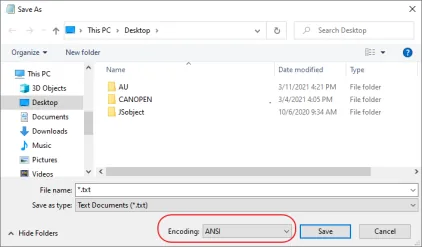
Add OMRON EtherNet/IP device in EBPro (EasyBuilder)
Launch EBPro (EasyBuilder Pro), open System Parameter Settings and add OMRON EtherNet/IP (NJ/NX series) as a new device.Import the TXT tag file
In the System Parameter Settings dialog, click [Import Tags] and select the.txtfile to be imported.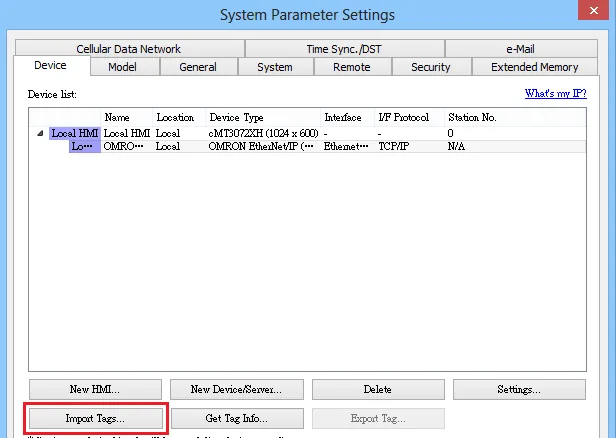
Choose binary encoding for integer types
When prompted, choose whether to enable SINT, INT, or DINT as binary.Confirm successful import
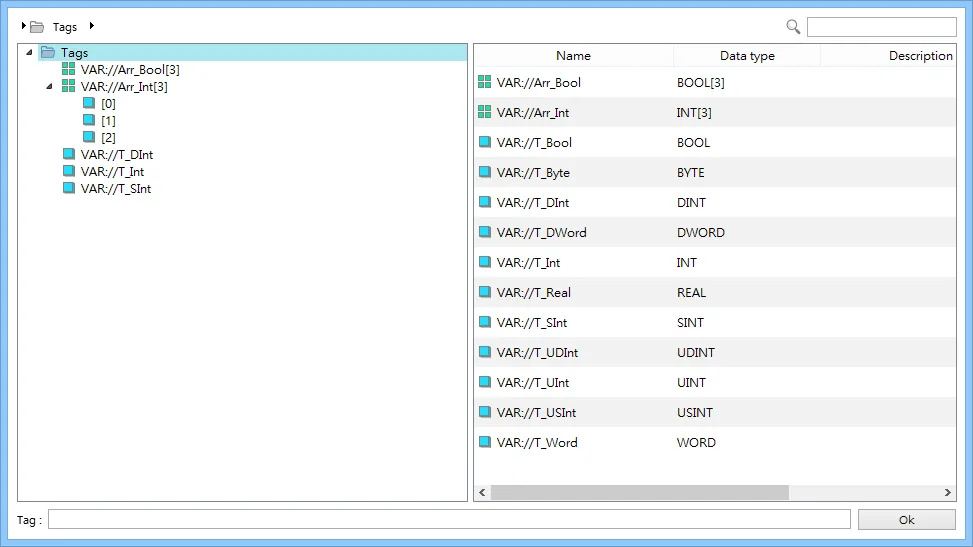
Imported tag information successful message is displayed when the import has succeeded.
Supported Data Types
Supported data types include: BOOL, SINT, BYTE, USINT, INT, WORD, UINT, DINT, REAL, UDINT, and DWORD. These data types support multiple dimensional arrays (array index must start from 0).
String length must be set to even. (Limitation of driver version v3.90 or earlier.)
String can use ASCII or UNICODE to communicate; it is recommended to use UNICODE.
NOTE: [Get Tag Info] — the obtained address may be incomplete. It is recommended to use the [Import Tags] function.
![EasyBuilder data format panel showing Encoding set to Unicode for an OMRON EtherNet/IP (NJ/NX Series) device with array tag VAR://Arr_Int[0].](https://media.maplesystems.com/wp-content/uploads/2026/06/10-easybuilder-string-unicode-encoding-omron-tag.webp)
![EasyBuilder address configuration dialog for OMRON EtherNet/IP (NJ/NX Series) showing tag VAR://Arr_Int[0], data type INT, and Element count set to 3.](https://media.maplesystems.com/wp-content/uploads/2026/06/11-easybuilder-array-element-count-index-register.webp)
| Data type | EasyBuilder data format | Memo |
|---|---|---|
| Bool | bit | |
| Byte | 16-bit BCD, Hex, Binary, Unsigned | 8-bit |
| SInt | 16-bit BCD, Hex, Binary, Signed | 8-bit |
| USInt | 16-bit BCD, Hex, Binary, Unsigned | 8-bit |
| Word | 16-bit BCD, Hex, Binary, Unsigned | 16-bit |
| Int | 16-bit BCD, Hex, Binary, Signed | 16-bit |
| UInt | 16-bit BCD, Hex, Binary, Unsigned | 16-bit |
| DWord | 32-bit BCD, Hex, Binary, Unsigned | 32-bit |
| DInt | 32-bit BCD, Hex, Binary, Signed | 32-bit |
| Real | 32-bit Float | 32-bit |
| UDInt | 32-bit BCD, Hex, Binary, Unsigned | 32-bit |
| LInt | 64-bit Signed | 64-bit |
| ULInt | 64-bit Unsigned | 64-bit |
| LWord | 64-bit Unsigned | 64-bit |
| LReal | 64-bit Float | 64-bit |
| String | ASCII | Max: 80 |
| Array | All of the above types |
NOTE 1: EBPro V6.03.02 or later supports 64-bit data types (cMT Series only), but note that the address limit range is 48 bits maximum.
NOTE 2: String array is not supported. Example: myString ARRAY[0..9] OF STRING[32]
PLC Settings
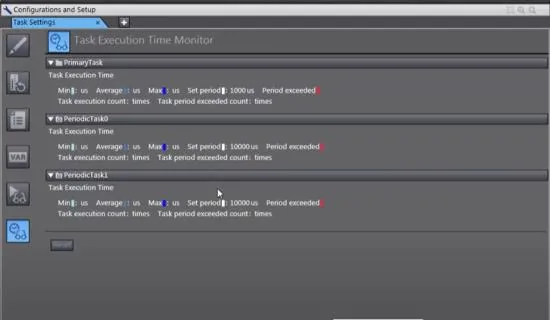
[Task Execution Time] / [Set Period] needs to be set reasonably, otherwise it will affect the response speed of the PLC.
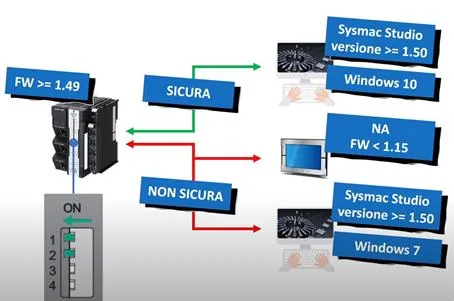
After firmware version V1.49, certain security features have been enabled. To establish communication, switch DIP switch 1 and 2 to the ON position, and then restart the PLC.
Wiring Diagram
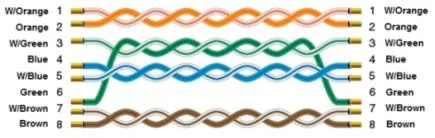
The diagram below shows the Ethernet cable wiring.