
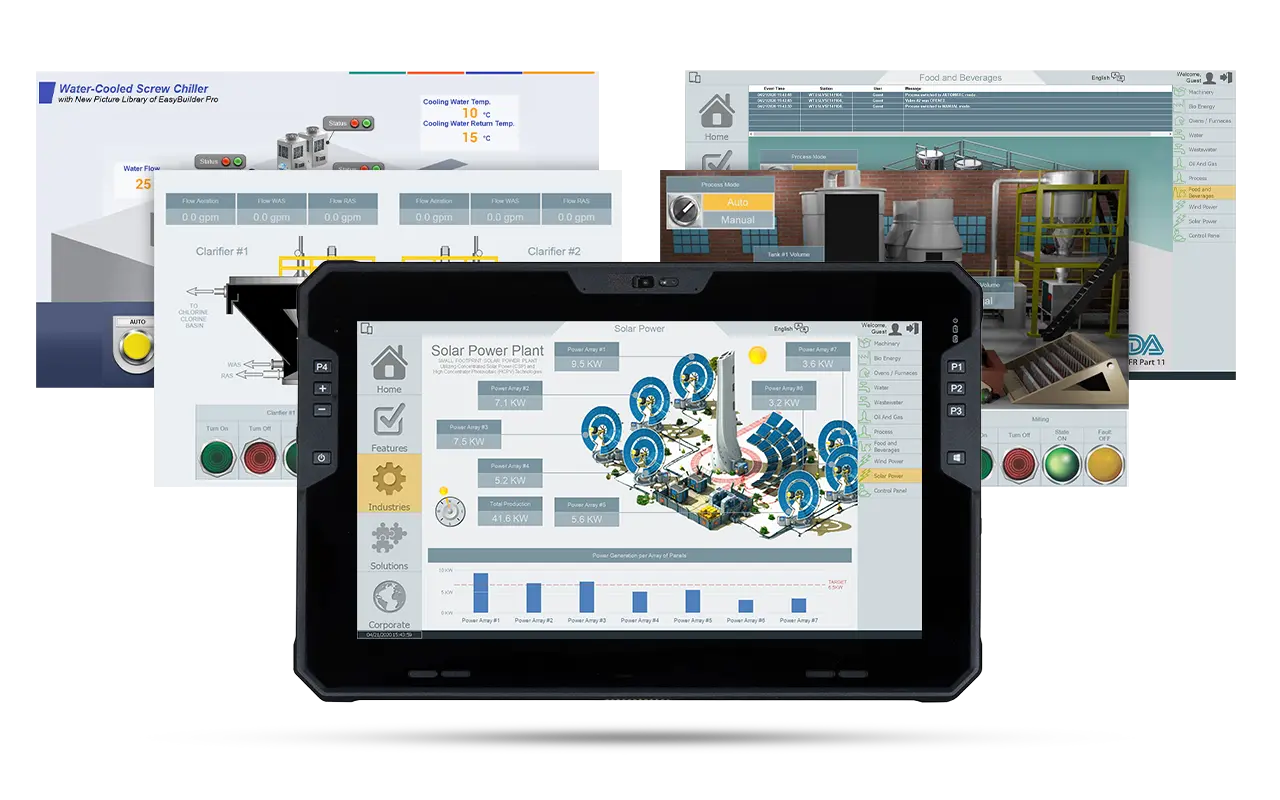
AVEVA Edge is an industrial software platform designed to create HMI and SCADA applications for PCs. It can run on anything from a high-performance Windows machine, to a lightweight embedded Linux device.
Imagine you have an existing AVEVA project, and you have it running on a Maple Systems IPC, but you want to connect to it via your Maple Systems rugged tablet to view and control your AVEVA project while moving about the facility. Given the flexibility of AVEVA Edge, and the full suite of tools offered by both our Windows and Android tablets, this is relatively easy to do.

Software Required
Hardware Required
Installing and Running AVEVA Edge
This section walks through installing AVEVA Edge, activating the runtime license, and launching your application on the runtime machine. You’ll download and install the software, register the license, connect from the development environment, and deploy the project. It also shows how to enable the built-in HTML5 web client so the application can be accessed from other devices on your network.
Installing the Runtime
We’ll start with the initial installation of the AVEVA Edge software.
Instructions: Installing the Runtime
Download the AVEVA Edge installer from their website
We’ll start by downloadingthe installer for AVEVA Edge from Maple Systems’ website.Run the Installer as an Admin
Once you download and extract the AVEVA installer, you’ll want to run “Setup.exe” as an administrator.You’d do this by right-clicking the line in your file explorer, and choosing “Run as Administrator”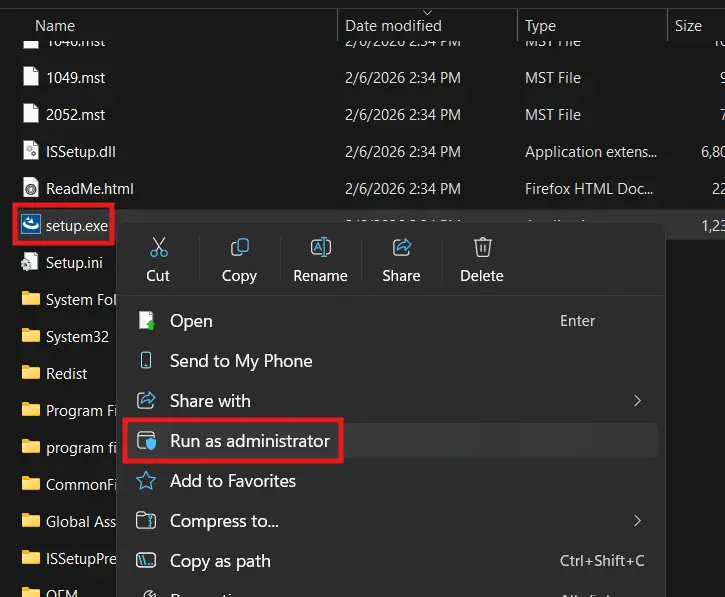
Select Which Features You Want
We’ll be sure to install as many features as we need for our application. Be sure to add the “Mobile Access Runtime” if you’d like to access your SCADA system from remote web browsers.If your installer isn’t allowing you to install the Mobile Access Runtime, you’ll want to follow this FAQ guide on enabling the prerequisites for AVEVA Mobile Access Runtime.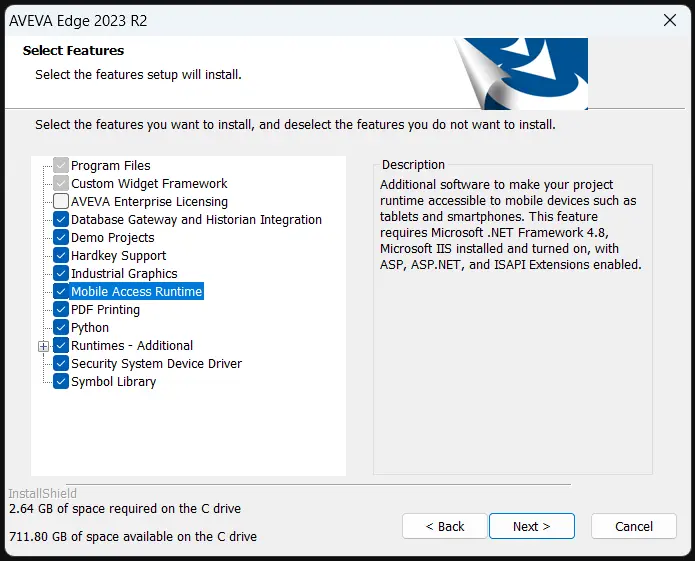
Activating your AVEVA Edge License
Next, you’d want to install and apply your AVEVA Edge license to your runtime machine. This will be done through the “AVEVA Edge Register” tool on your IPC, and it will automatically detect your software or hardware key.
Launch and Test the Application
Now we’ll send the Application from our Development machine to our runtime machine and test it.
Instructions: Launch and Test the Application
Launch the Remote Station
On your runtime machine, you’ll want to start the AVEVA Edge Remote Agent. If it’s your first time running it, you’ll need to set up a user for the remote agent.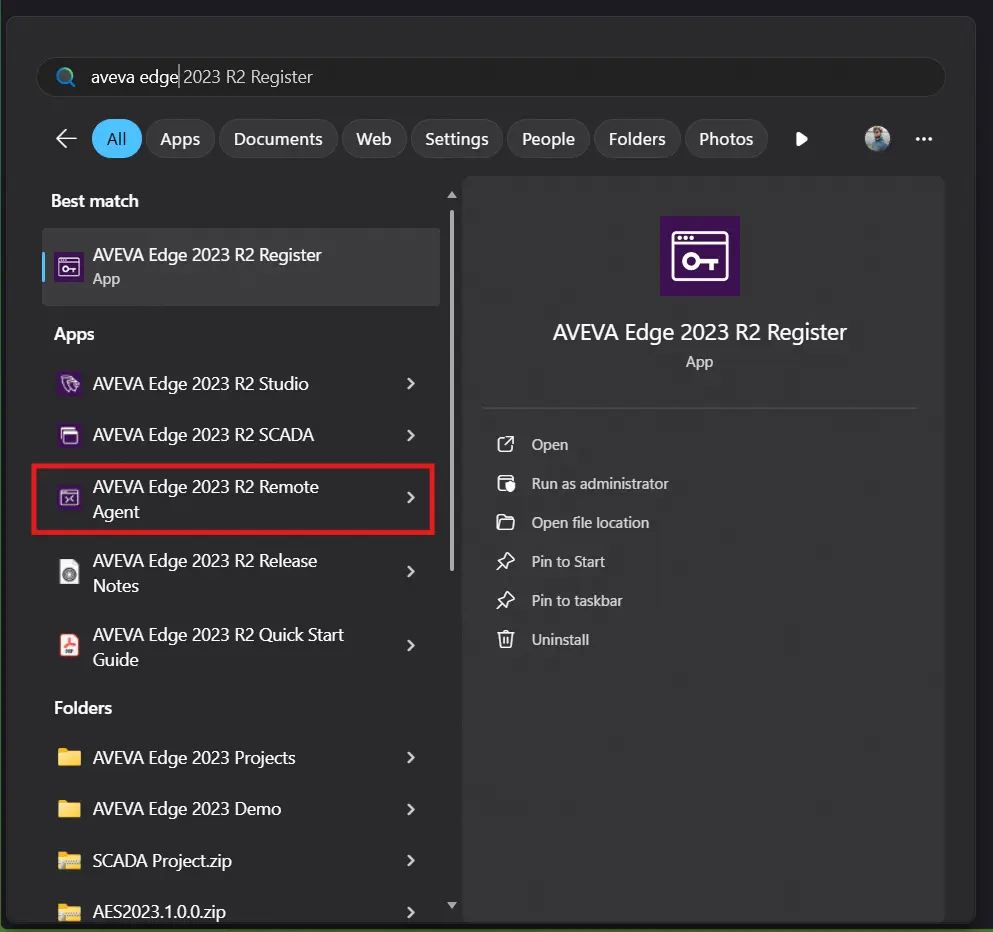
Connect to the Runtime machine
From your Development machine, you’ll want to run AVEVA Studio, and click “Connect” in the “Home” tag, you’ll enter your Runtime Machine’s IP address and click “Connect”. You’ll then want to log in as the user you set up on the runtime machine’s remote agent.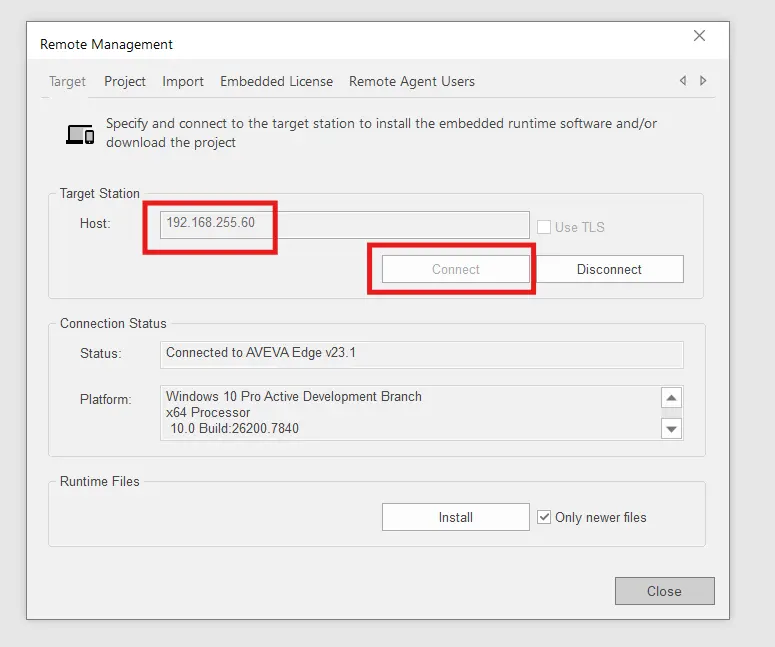
Download the Project
Now that we’re connected, we can click “Download” in the AVEVA Studio. On your runtime machine, you should see the log for the Remote agent start to react.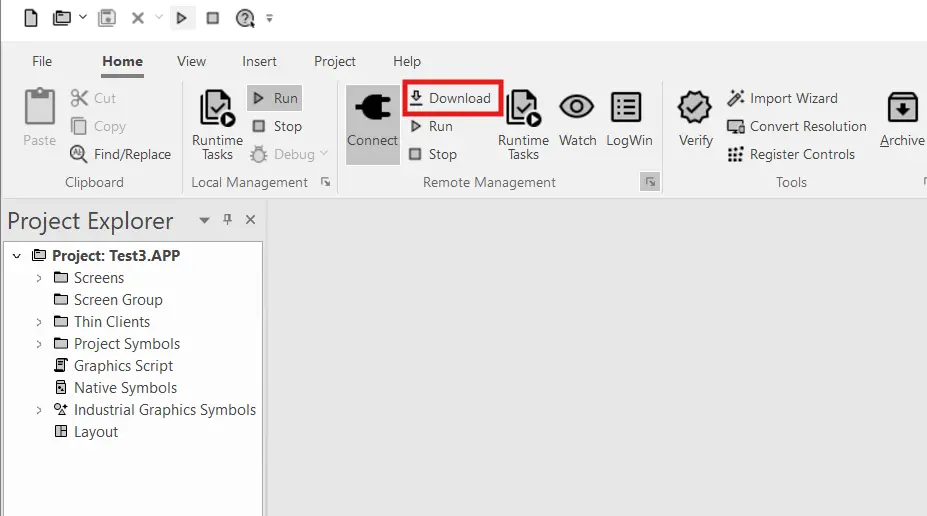
Running the Project
From here, all you’ll need to do is start the “AVEVA Edge SCADA” application installed alongside AVEVA Edge on your runtime device.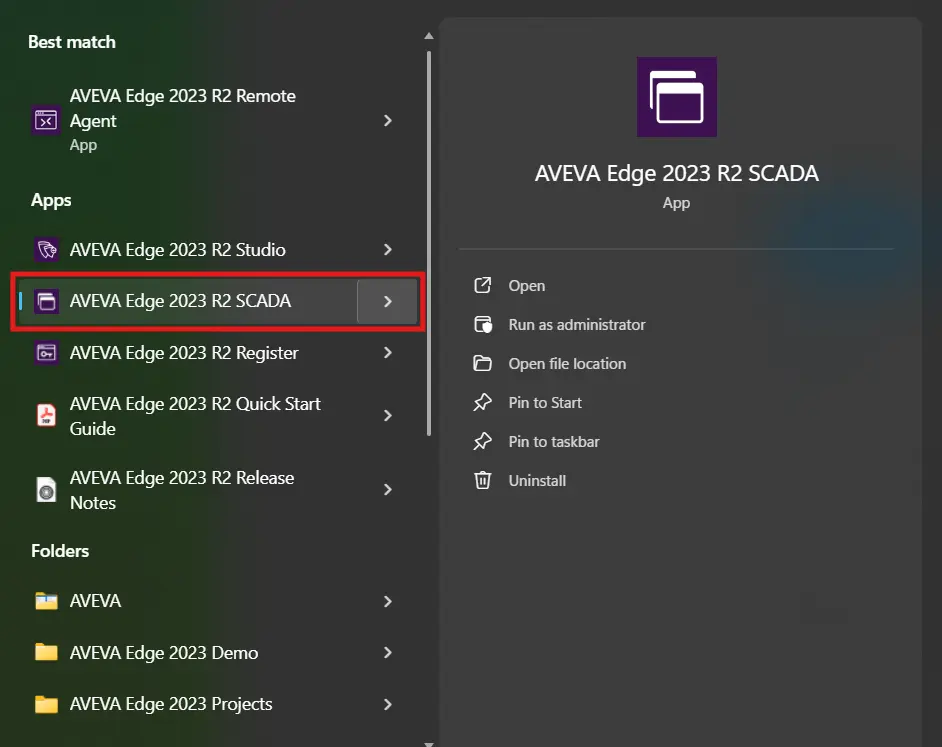
From here, you should be all set! You can also configure windows to launch AVEVA SCADA on boot, and you’ll have an automatic AVEVA Edge project running on your Maple Systems Industrial Panel PC.
Using the Built-in HTML5 Web Client
Now that we have our AVEVA Edge project running on one device. We’ll connect to this project from remote devices on our network via a web browser. This is going to be your best bet for connecting from an Android Tablet.
Instructions: Using the Built-in HTML5 Web Client
Enable Web-Based Screens in the Project
We’ll go back into our AVEVA project on the development screen, navigate to the “File” tab and select “Save All as HTML” to enable all of the screens of our project for web viewing.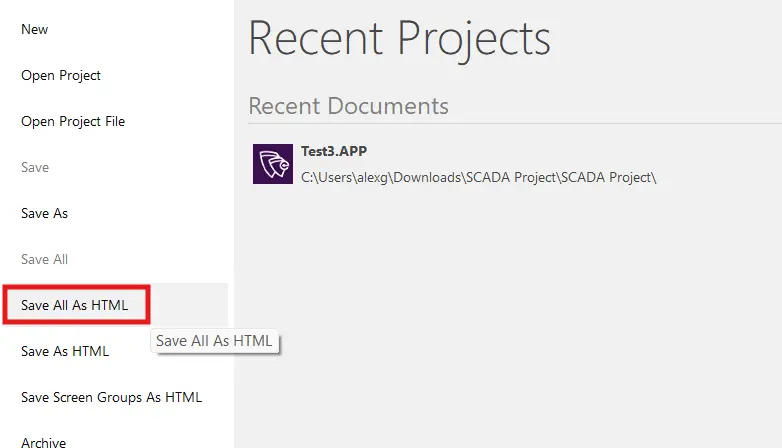
Save All your Screens as HTML
Alternatively, if you only want access to certain screens from the web, you can right-click those particular screens in your project and select “Save as HTML”.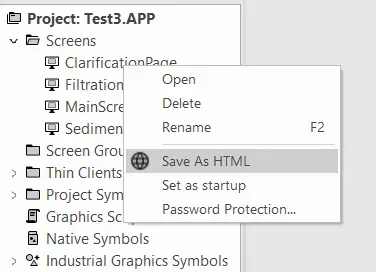
Get Your Runtime Device’s IP address
Once you’ve downloaded your project back to your runtime device and started the project like before, you’ll want to open your windows command prompt and type “ipconfig” to get your runtime device’s IP address.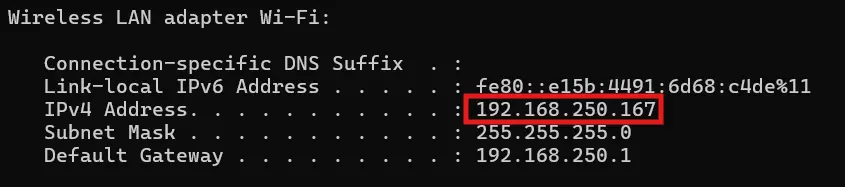
Deploy the Runtime and Access from a Browser
From here you’ll then open a web browser on your remote device and enter the following URL: “http://<runtime device IP address>/avevaedge2023/index.html?screen=<the name of the project screen you want to access>”. As an example, my project url will be “http://192.168.250.167/avevaedge2023/index.html?screen=MainScreen”.You’ll also want to make sure any network firewalls you have set up will allow your devices to connect over port 80 for HTTP and port 322 for HTTPS.
Then from here you have a centralized server for your AVEVA project, and you’ll be able to access it from anywhere in your local network, with any HTML5-compatible device. Whether it’s a Rugged Tablet, a Web HMI, or even a regular laptop or desktop.
Alternatively, you can also use the AVEVA Edge dedicated Secure Viewer Client instead.
Configuring and Connecting with AVEVA Secure Viewer
Now we’ll discuss the configuration and use of the AVEVA Secure Viewer Client that’s installed alongside the rest of the AVEVA software
Instructions: Configuring and Connecting with AVEVA Secure Viewer
Open the Secure Viewer Configuration App
To set the Secure Viewer URL, you’ll need to open the “AVEVA Edge Secure Viewer configuration” app that’s installed with the rest of the AVEVA Edge suite.If you’re not seeing the application in the default Windows menu, you can navigate to “C:/Program Files (x86)/AVEVA/AVEVA Edge Thin Client 2023” and open “ViewerCfg.exe” instead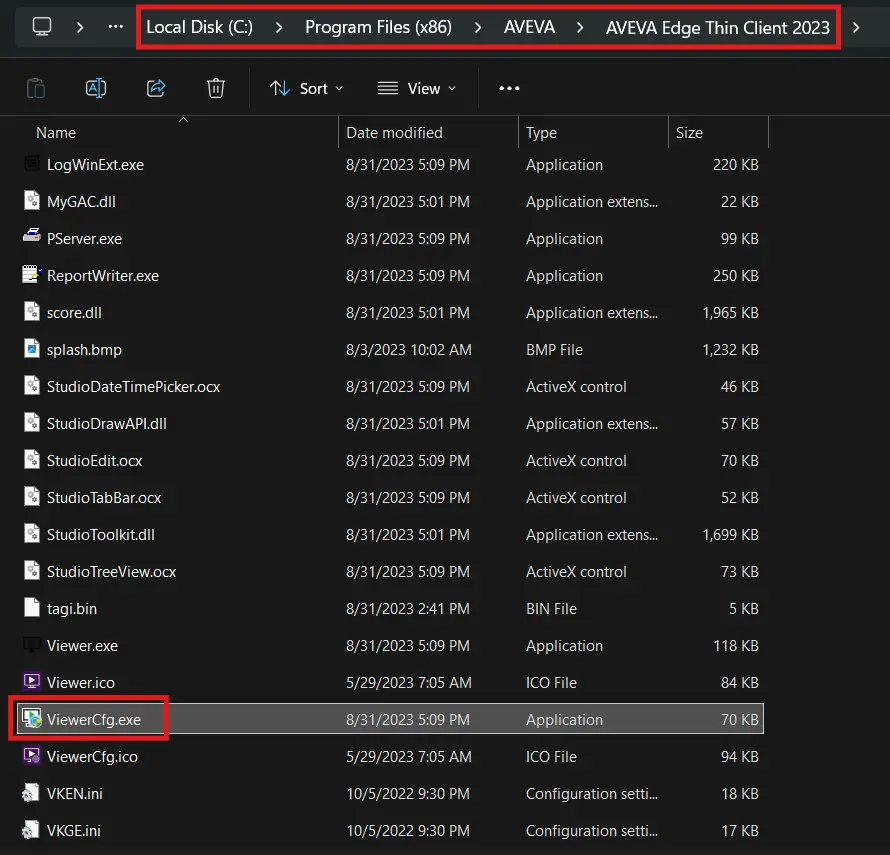
Set your IP and URL for Secure Viewer
Once you’re in the Configuration, you’ll want to set the IP address of your runtime device, along with the name of your Project in the URL. Once you’ve gotten all this set up, you’ll click save and close the configuration app.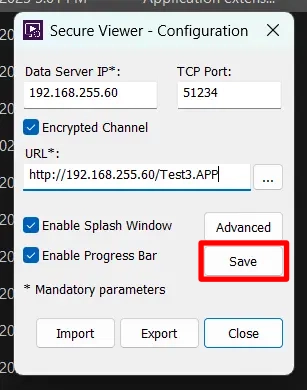
Run AVEVA Edge Secure Viewer
Now you’ll want to run AVEVA Edge Secure Viewer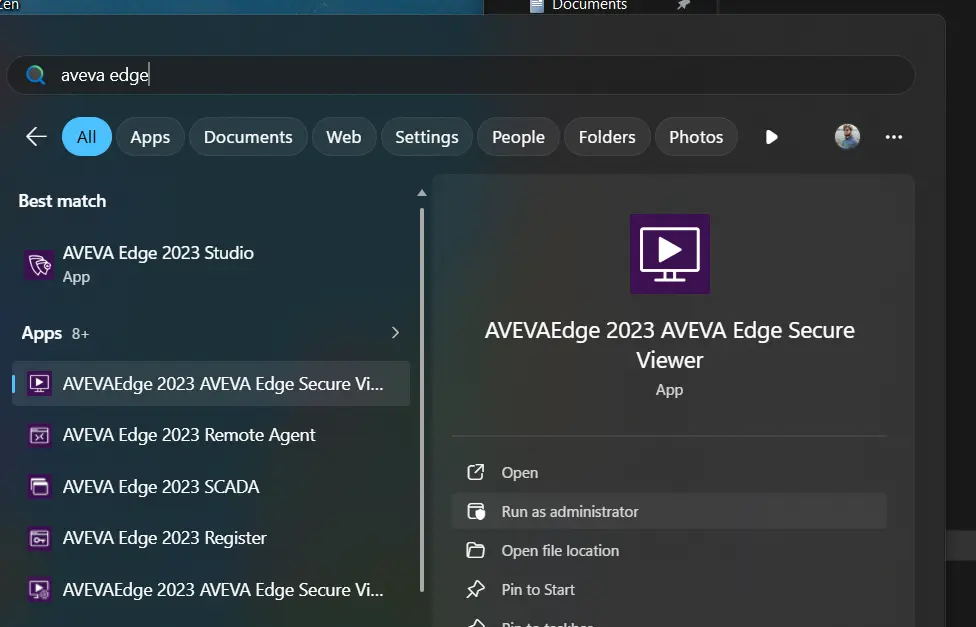
Final Thoughts
If we leverage AVEVA Edge’s multiple different client connections, we can connect any Maple Systems rugged tablet to our wider SCADA system, without having to compromise portability. Operators will be able to tweak values, read reports, and diagnose alarms while on the move throughout the facility with ease!
Resources & Documentation
The following guides and documentation are specific to the hardware used in this integration tutorial and will help you with setup, configuration, and programming:
Looking for additional learning resources? Explore our library of tutorials, example projects, and software tools to help you get the most out of your system:
Also, browse our Support Center for a complete list of installation guides, FAQs, and additional technical documentation.

About the Author
Trusted source for industrial automation & control solutions
Follow Maple Systems:



