Introduction
All Maple Systems HMIs programmed with EBPro (EasyBuilder Pro), including every cMT X Series and cMT Series model, are compatible with Beckhoff TwinCAT 3 ADS/AMS (Ethernet). Configure your Controller and HMI/cMT with the following parameters to establish reliable communication.
Supported Series: CX8000,CX90x0,CX1010,CP62xx,CX5010,CP62xx,CX1020,CX2020,CPxxxx,C6920,CX2030,CPxxxx,CP6930,CX2040,C65xx,C69xx
Website: http://infosys.beckhoff.com/
HMI Settings
| Parameters | Recommended | Options | Notes |
|---|---|---|---|
| PLC type | Beckhoff TwinCAT 3 ADS/AMS (Ethernet) | ||
| PLC I/F | Ethernet | ||
| Port no. | 48898 | ||
| ADS port | 851 | 851, 852, 853, 854 |
Device Address
| Bit/Word | Device | Format | Range | Memo |
|---|---|---|---|---|
| B | IX | DDDDDdd | 0 ~ 6553515 | *Note |
| B | QX | DDDDDdd | 0 ~ 6553515 | *Note |
| B | MX | DDDDDdd | 0 ~ 6553515 | |
| B | IX_Bit | DDDDDo | 0 ~ 65537 | *Note |
| B | QX_Bit | DDDDDo | 0 ~ 65537 | *Note |
| B | MX_Bit | DDDDDo | 0 ~ 65537 | |
| W | IW | OOOOOO | 0 ~ 65535 | *Note |
| W | QW | DDDDD | 0 ~ 65535 | *Note |
| W | MW | DDDDD | 0 ~ 65535 | |
| W | ID | DDDDD | 0 ~ 65535 | *Note |
| W | QD | DDDDD | 0 ~ 65535 | *Note |
| W | MD | DDDDD | 0 ~ 65535 |
NOTE: The I addresses and Q addresses are mapped to M addresses. To use I addresses or Q addresses, please use Beckhoff TwinCAT PLC – Free Tag Names (Ethernet) driver instead.
TwinCAT 3 PLC Settings
To connect Beckhoff devices, HMI’s information must be registered to PLC first. The following steps describe how to register HMI’s information into Beckhoff devices.
Choose Target System Device
Double click [SYSTEM], and then select [Choose Target System]. Select the device you are connecting.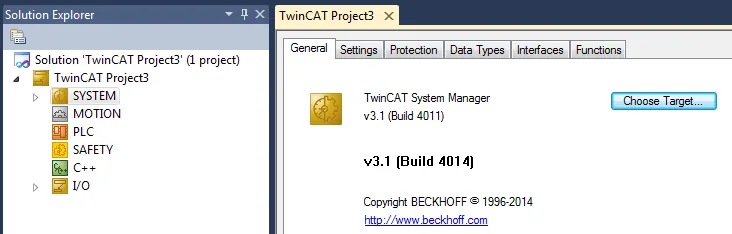
Add HMI Route Information
Expand the SYSTEM layer, select [Routes]. Click [Add] to add HMI information as below.n- Name: A user-defined namen- AMS Net ID: must be HMI’s IP address + u0022.1.1u0022n- Transport Type: TCP_IPn- Address: HMI’s IP address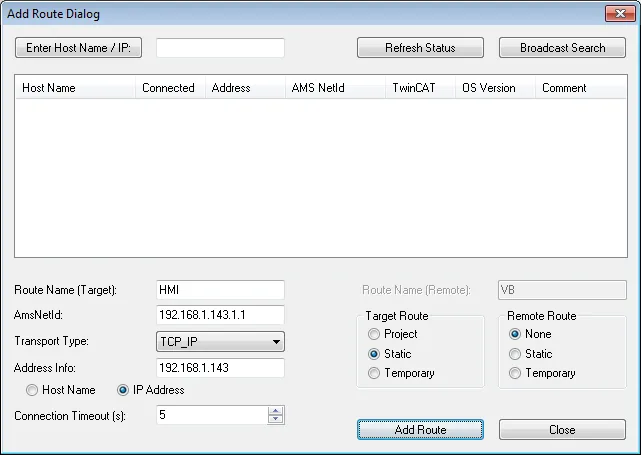
Verify and Apply Route Configuration
If added successfully, you will see a new item in Remote Computers. Click [Apply] to apply the configuration.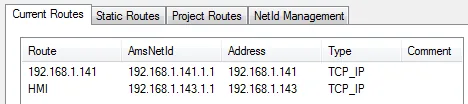
Activate TwinCAT Configuration Settings
Select [TwinCAT] menu, and then select [Activate Configuration] to apply the new settings.
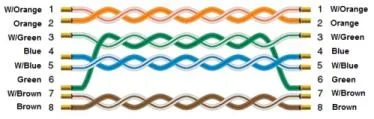
Wiring Diagram
The diagram below shows the Ethernet cable wiring.