
Legacy 7.0" High Performance HMI with CODESYS
cMT3072XH2v2-CODESYS is the replacement for the cMT3072X2v2
This is a Legacy product and is no longer available for purchase. Please review the information on this page and call (425)-745-3229 or email [email protected] if you have further questions.
Share the product:
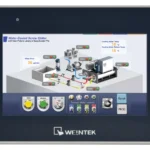
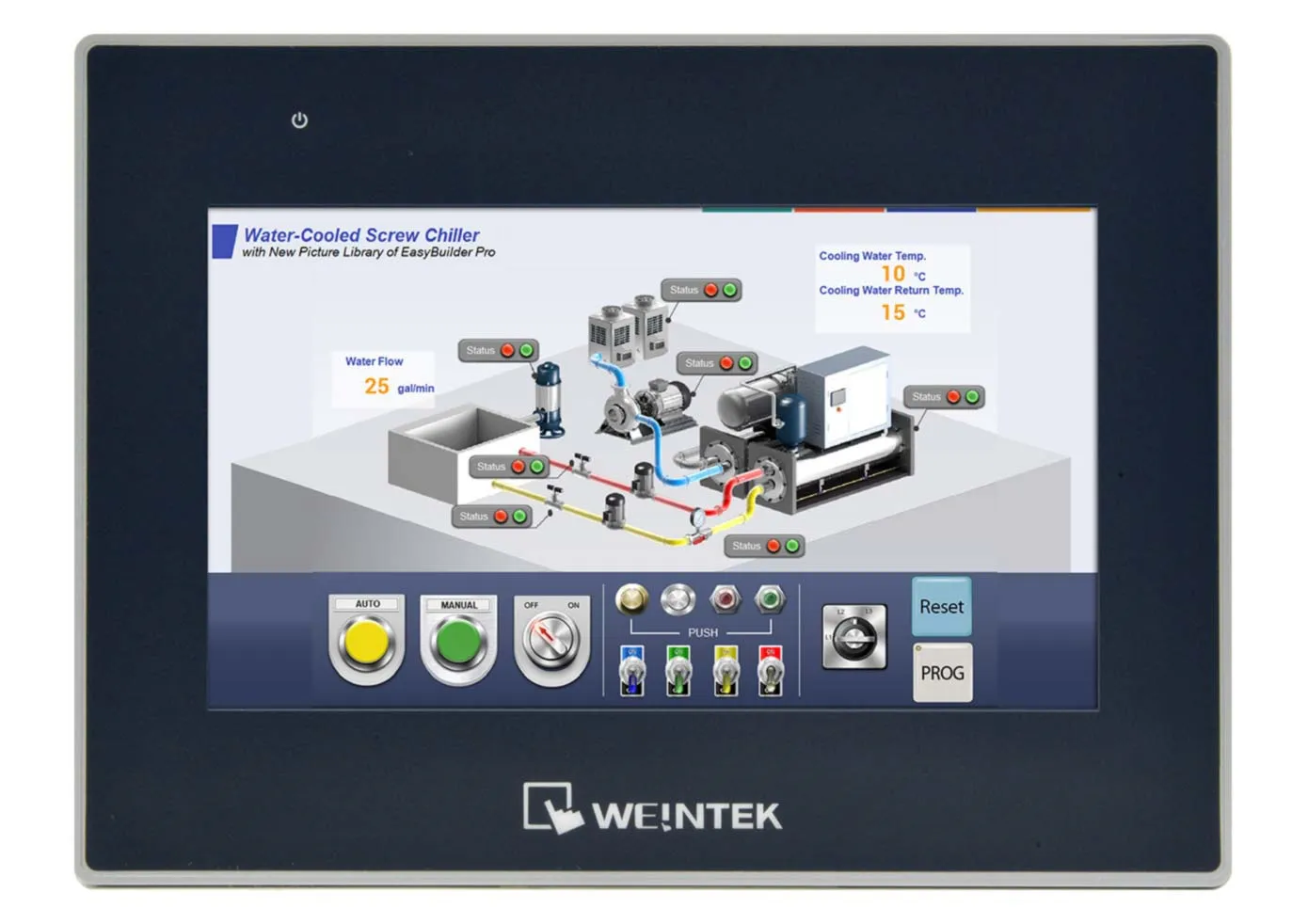
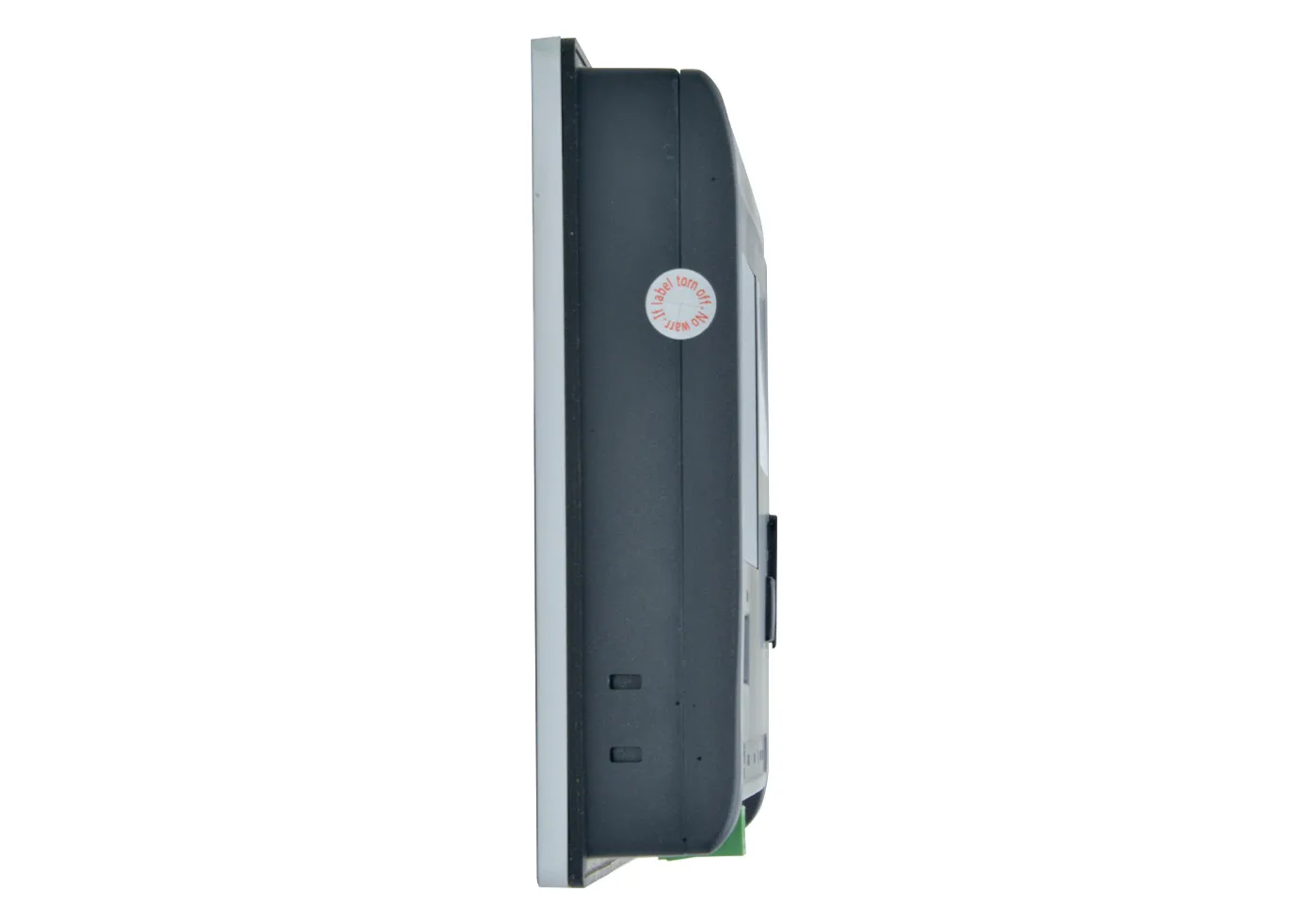
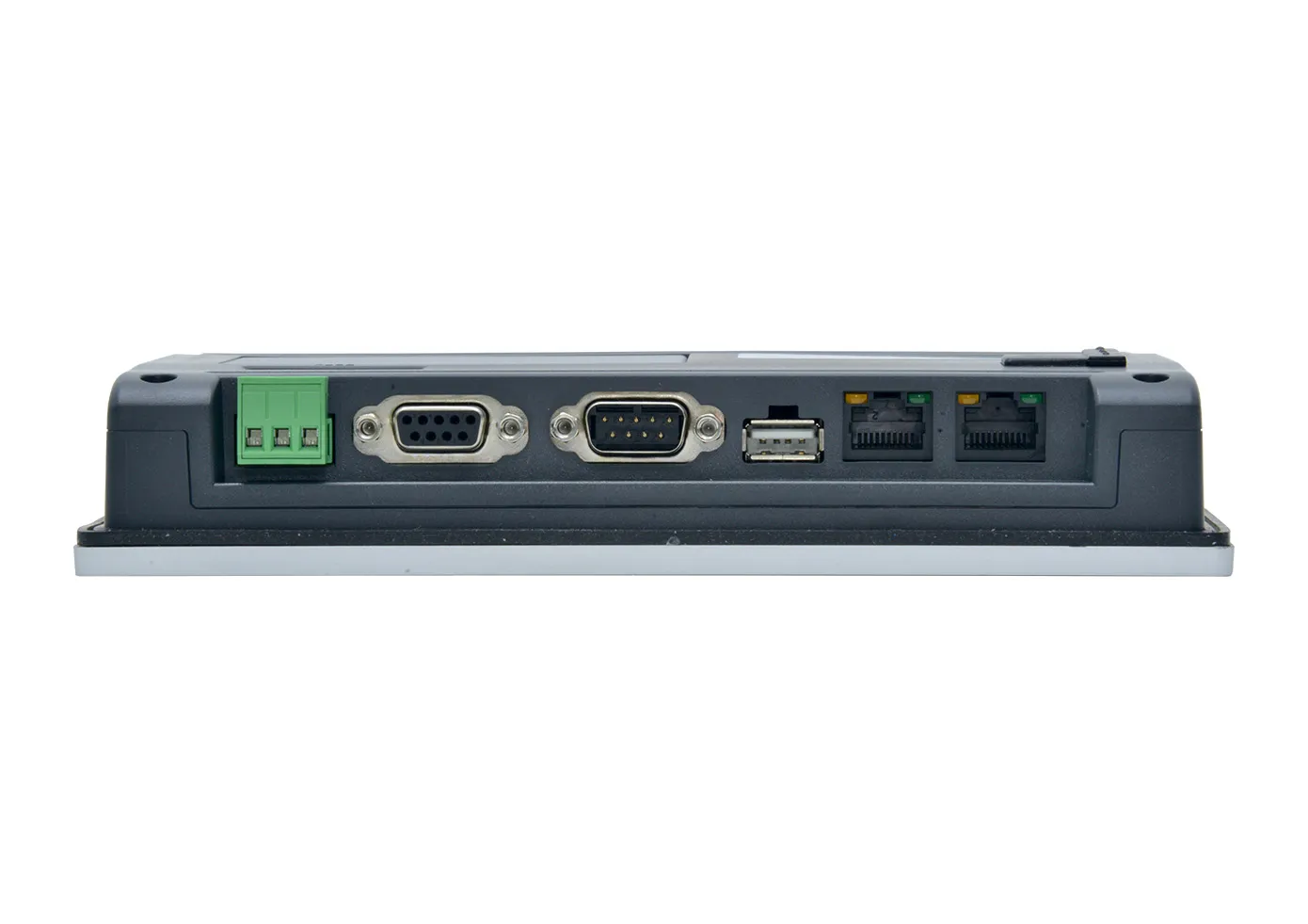
cMT3072X2v2 has reached end of life. All of the current cMT3072 HMIs are replacement options and will fit in the same panel cut-out. They also have more features like higher screen resolution and CANbus, but your project should work just the same in the newer HMI.
If your new HMI comes with a higher resolution than the legacy HMI, the aspect ratio will be different. EBPro will scale your images accordingly, however, if they do not look high quality you will need to reimport them into your project.
Converting your Legacy Product to a Newer HMI
To convert a Standard/Advanced project to a cMT Series project, open the System Parameters and click on the Model tab. Select the cMT Series model you want to use and click OK to close the System Parameters window. If the screen resolution of the selected cMT Series is different than the original Basic/Advanced HMI, the “Resize Pop-up Windows/Objects” dialog will pop up. It is recommended that all the check boxes are selected and then click OK.

When converting a Standard or Advanced HMI project to a cMT Series project, there are some possible issues you may need to contend with due to the differences between the Advanced/Basic HMIs and the cMT Series HMIs.
Note: It is not possible to convert a cMT Series project to a Standard/Advanced Series project.
Here is a short video showing how easy it is to convert an HMI to a cMT device.
More information and troubleshooting tips:
Basic Security vs. Enhanced Security
Only Enhanced Security can be selected when creating a new cMT Series project. However, if using Basic Security in the Standard/Advanced project, the converted project will retain the
Basic Security settings. Nevertheless, if you will be using cMT-Viewer, it is recommended that you switch to Enhanced Security for the reasons outlined in the next paragraph.
When using Enhanced Security, only PLW registers can be used for the Control Address. Since the cMT Series have a built-in cMT Server, a cMT Viewer can connect to a cMT Series HMI and run the project locally. PLW (Private Local Word) registers are used locally in the cMT Viewer to allow a user to log in and out of the HMI without affecting the actual physical HMI. This way, one user can be logged in locally to the HMI while a different user can be logged in independently using cMT-Viewer.
Stacked Objects
In a cMT Series project, you cannot stack objects one on top of the other and trigger them all by pressing the top button. Only the top button will activate.
In most cases, the Combo Button can be used to recreate the functionality of the stacked objects. For example, if several Toggle Switches are stacked one on top of the other to
simultaneously turn on multiple bits with the push of a button, the Combo Button can be configured to turn on multiple bits with a single press of the button.
Under the Tools menu in EBPro, there is a tool to “Find Overlapping Objects.” Right next to it is an option to “Convert to Combo Button.” This can be used to automatically convert stacked objects to a single Combo Button.
System Keypad
cMT Series HMIs have a built-in System keypad that can be used to enter numbers in a Numeric Object and ASCII characters in an ASCII Object instead of the Custom keypads on Windows 50 – 65.
The Custom keypads for the Basic/Advanced Series will not work in a cMT Series project because of the issue with stacked objects described above. The Custom keypads on Windows 50 – 65 for the cMT Series have been modified so they do not have stacked objects.
Therefore, it is recommended that any Numeric or ASCII objects in the converted project be
modified so they use the System keypad.

Another option is to copy the keypads on Windows 50-65 from a cMT Series project of the same model into the converted project. Then the “Custom keypad” option can be used.
Capacitive Touchscreen
Since the cMT-Series HMIs have
capacitive touchscreens instead of resistive touchscreens, some objects like
the Trend Display work differently in a cMT Series project. For example, in a
Standard/Advanced Series project, the Trend Display has a scroll bar at the bottom
that can be used to scroll back and forth on the X-axis. In a cMT Series
project, there is no scroll bar. Instead, you can simply swipe your finger left
and right on the Trend Display to move back and forth on the X-axis.
Data Sampling with cMT Series
Data sampling is implemented a little differently in the cMT Series. Here is a brief description of how it works. For more information, refer to “Chapter 8 – Data Sampling” in the “EBPro-Programming Manual”:
History file Disabled
With History file disabled, data is stored in HMI RAM memory. When 10,000 records are reached, the oldest 1000 are deleted from the HMI memory, with 9000 remaining. When 10,000 records are reached again, the next 1000 oldest record are deleted from HMI memory, so that at any one time the number of records in memory and being displayed on a Trend Display is between 9000 and 10,000 data points.
If the HMI is rebooted, data is erased and starts recording new data.
History file Enabled (All records in one file)
Save to HMI memory (10,000 limited)
With History file enabled, data is stored in a data log file in HMI memory. When 10,000 records are reached, the oldest 1000 are deleted from the HMI memory. When 10,000 records are reached again, the next 1000 oldest record are again deleted such that the
number of records will always range from 9000 to 10,000.
Control Register:
1 (Clear): Clears the data in HMI memory
2 (Sync): N/A
3 (Sync and Clear): Clears the data in HMI memory
Save to HMI memory (until space full)
Data is saved in the data log file (cMT_log000.db) in HMI memory until the memory is full.
Note: When converting the cMT_log000.db file to XLSX, Excel creates a new tab
at 60,000 records.
Save to USB disk or SD card
Creates a *.db file on USB disk initially but it is empty. After 10,000 samples, the data is written to the USB disk. The Trend Display continues to show all the data, as does the History Data Display. Every 1000 samples, the data log is updated with the most recent 1000 records.
If “Auto sync. Periodically” is selected, the data is automatically backed up to the USB disk or SD card each designated time period.
Control Register:
1 (Clear): Clears the data in HMI RAM memory
2 (Sync): Copies data from HMI RAM memory to USB flash drive
3 (Sync and Clear): Copies data from HMI RAM memory to USB flash drive, then clears data in HMI RAM memory
If data has already been sync’d to USB flash drive, that data will still appear in the Trend Display. Subsequently, there will be a hole where the data was deleted from HMI memory
if it didn’t get sync’d to USB.
History file Enabled (Customized file handling)
Save to HMI memory (until space full)
Data is stored in a data log file in HMI memory. When 10,000 records are reached, the oldest 1000 are stored in the designated data log folder in a separate file. When a new file is created according to the customized file handling settings, all the data for the previous session is stored in the data file in the data log folder and a new data log file is
created in HMI memory for the new session.
Data is saved in HMI memory until the memory is full. The Preservation limit applies according to the number of files selected.
Writing a 1 to the Control Register clears the data log in the temporary HMI memory but not the data files in the data log folder. The data log files in the data log folder can be cleared in the System Settings window History tab.
Save to USB disk or SD card
Every time a new file is created, the Trend Display and History Data Display refresh and only display the data from the new data file.
History
Data Display (Clear, Sync; how does it work with backing up data files)
“Clear” clears the data from the current datalog file in HMI memory or external memory (USB/SD card). Older datalog files are not affected.
Preservation Limit
Number of days selected plus the partial current day. At midnight, the oldest day is deleted as the new day starts.
Option List
With the cMT Series, the Option List is not used to select history files for a Trend Display or History Data Display. Rather, an Option Button (“gear” icon) can be enabled in the Display Object Properties, which allows you to select the date for the history file you want to view.
Event/Alarm Logging with cMT Series
Event/Alarm logging is implemented a little differently in the cMT Series. Here is a brief description of how it works. For more information, refer to “Chapter 7 – Event Log” in the
“EBPro-Programming Manual”:
History files Disabled
With History file disabled, events are stored in HMI RAM memory. When 10,000 events are reached, the oldest 1000 are deleted from the HMI memory, with 9000 remaining. When 10,000 events are reached again, the next 1000 oldest events are deleted from HMI memory, so that at any one time the number of events in memory and being displayed on an Event Display is between 9000 and 10,000 events.
If the HMI is rebooted, all events are erased and the HMI starts recording new events.
History files Enabled
Save to HMI memory (10,000 limited)
With History file enabled, events are stored in an event log file in HMI memory. When 10,000 events are reached, the oldest 1000 are deleted from the HMI memory. When 10,000 events are reached again, the next 1000 oldest events are again deleted such that the number of
events will always range from 9000 to 10,000.
Save to HMI memory (until space full)
Events are saved in the event log file in HMI memory until the memory is full.
Save to USB disk or SD card
Events are initially stored in HMI RAM memory. Creates a *.db file on USB disk/SD card initially but it is empty. When 10,000 events are reached, the first 10,000 are written to the USB disk or SD card. Subsequently, with each additional 1000 events, the events are
written/appended to the event log file on the USB disk or SD card.
If “Auto sync. Periodically” is selected, the events are automatically backed up to the USB disk or SD card each designated time period.
Option List
With the cMT Series, the Option List is not used to select history files for an Alarm Display or Event Display. Rather, an Option Button (“gear” icon) can be enabled in the Display Object Properties, which allows you to select the date for the history file you want to view.
Are EBPro projects backwards compatible with older versions of EBPro and EZwarePlus?
EBPro projects are not backwards compatible with EZwarePlus or older versions of EBPro.
Newer versions of EBPro will save a copy of the project created in an older version when it is modified. This older copy will have the version number of the older software appended to it and will be saved to the same directory.
My upgraded model has a capacitive screen instead of resistive, how do I scroll left and right now without the scroll bar?
In Standard/Advanced series projects, the Trend Display has a scroll bar at the bottom that can be used to scroll back and forth on the X-axis. With your new, capacitive screen display, you can simply swipe your finger left and right on the Trend Display to move back and forth on the X-axis.
What if I have multiple older HMIs still in operation out in the field?
You will have to maintain separate projects. Once your project is converted from HMI series to cMT series, it cannot go back to HMI. If project updates are needed, make sure to update the HMI project first, save it, then convert that to cMT, and save that separately.
What if the Screen Resolution on my new HMI is different than my old HMI?
No worries. EBPro will fix it for you. If the screen resolution on the selected cMT series HMI is different than the original older HMI, a “Resize Pop-up Windows/Objects” dialog box will pop up. It is recommended that all the check boxes are selected and then click OK and you should be good to go.
Is my repair covered under the product warranty?
All units will be tested and evaluated to verify customer claims of defect. If we determine that the repair is due to a manufacturing defect or out of box failure, and the unit is still within the product warranty period, Maple Systems will, at its opinion, repair or replace the unit.Please note, if the serial number is damaged in any way and the unit is still within warranty period, the warranty will be voided. If we determine that the repair is NOT due to a manufacturer defect or out of box failure, but instead due to customer abuse or other exceptions described within the product warranty, you will be charged a repair fee.
What is your Repair warranty?
Repairs have a 90-day warranty period.Datasheet
Software
Manuals & Guides
- EBPro Quick Start Guide
- EBPro Programming Manual
- cMT Quick Start Guide
- HMI5000L Series Installation Guide
Tech Notes
Help Topics
Videos
- EBPro Software Training Playlist
- How to Convert HMI project to a CMT Project
- Replacing EasyPrinter with FTP
- Converting to a Combo Button
Sample Projects
Additional Resources