

Imagine you’re in charge of a package sorting plant. You have various cMT devices managing which packages go where. Imagine you’d need to tweak a value on a device on the other end of the plant from where you are right now. You don’t have access to a remote tool like cMT Viewer, and you also need to download the most recent data logs from that device. With a computer and a web browser, you’ll be able to access your Maple Systems HMI with EasyWeb.

Software Required
- Any modern web browser
Hardware Required
Connecting to EasyWeb
This section explains how to access the EasyWeb client from a PC on the same local network as your HMI. It covers verifying LAN connectivity, navigating to the HMI’s IP address in a web browser, and signing in with administrator credentials to begin remote access.
Initial Connection
First we’ll describe how to access the EasyWeb client of a cMT-series HMI.
Instructions: Initial Connection
Connect over the same LAN
Ensure that the HMI and PC are on the same Ethernet network and subnet as each other.This typically means each device has IP addresses that are in line with each other’s subnet masks (255.255.255.0 by default)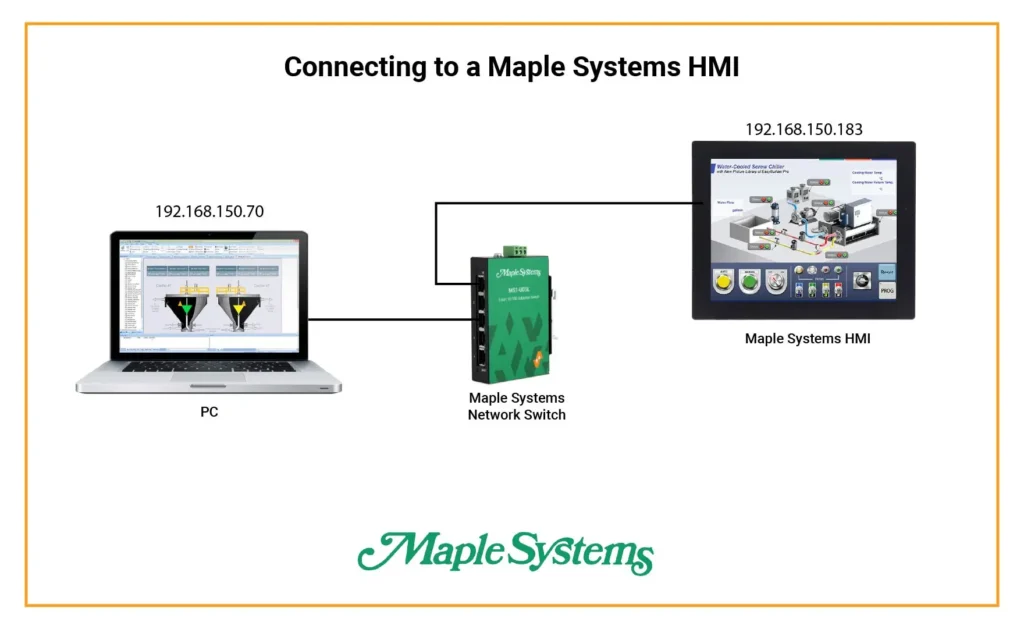
Connect to your HMI’s IP address
Next, go into your web browser of choice, and navigate to your HMI’s IP address.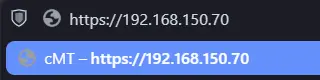
Sign in as an HMI admin
Once we navigate to the HMI’s webpage, we’ll be met with an admin login screen. We’ll then enter the admin user password for our HMI (111111 by default).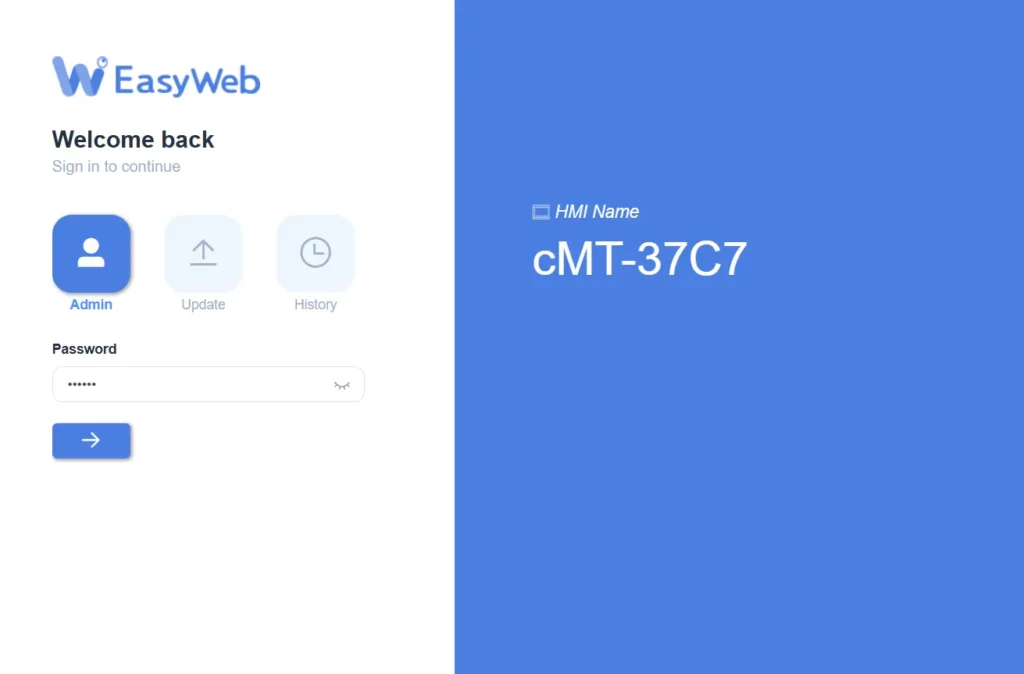
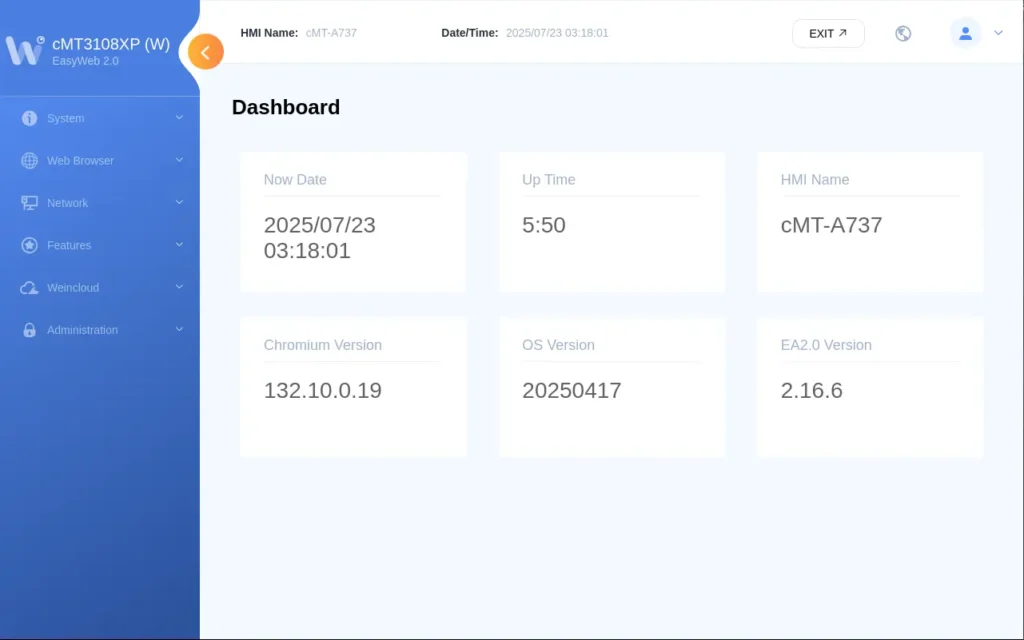
From here, we’ll be able to access the various features of EasyWeb.
Exploring the Features of EasyWeb
This section highlights the key capabilities available within EasyWeb. It covers enabling and configuring Project WebView, managing and backing up your HMI project, adjusting email and security settings, and accessing data, event, and operation logs directly from a web browser.
Enabling and Configuring Project WebView
To start, we’ll enter the project on the cMT so we can tweak whatever settings we need to in the project.
Instructions: Enabling and Configuring Project WebView
Quickly Accessing the HMI Project
Firstly, to access the HMI project from a web browser for only the current session, we’d want to click on the “Admin” dropdown and select “WebView”.
Accessing WebView Settings
However, to change the homepage of our HMI webpage to the HMI project, we’ll go into the “Features” tab. We’ll then click “WebView Setting”.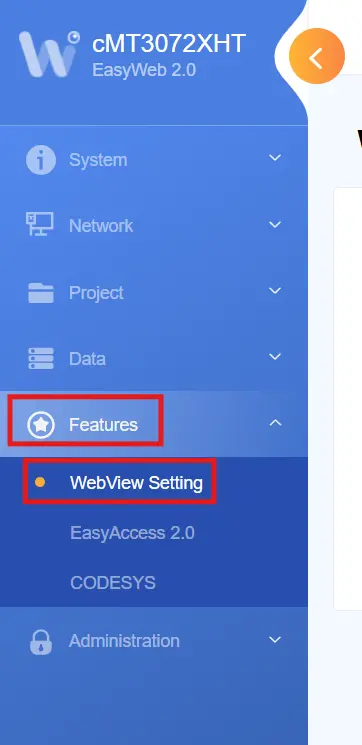
Setting WebView as the Homepage
From here, we’ll be able to enable WebView and set it as our EasyWeb homepage.From here, we’ll also be able to set the password settings for the “control user” which allows us to change the password for logging into our WebView.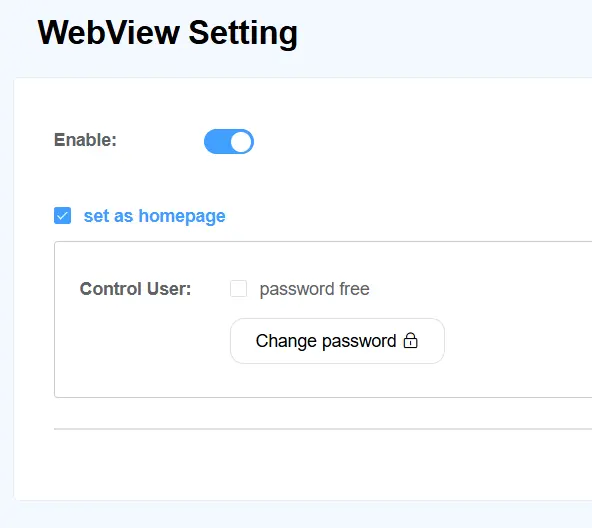
Project Configuration
Now that we have that configured, we’ve discovered that we need to change a tag assignment in the project. Luckily, we’re able to re-download our EBPro project from EasyWeb.
Instructions: Project Configuration
Navigate to Project Settings
To start, we’ll navigate to the “Project” tab of EasyWeb.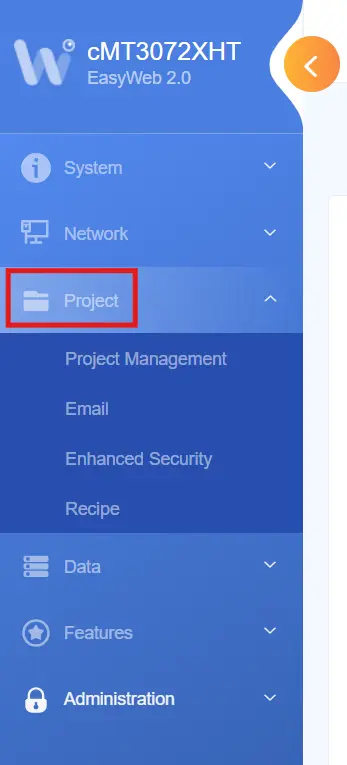
Managing Project from EasyWeb
From here, we’re able to do various things from the project level, like restarting the project, re-downloading it, or backing up our project from the web view.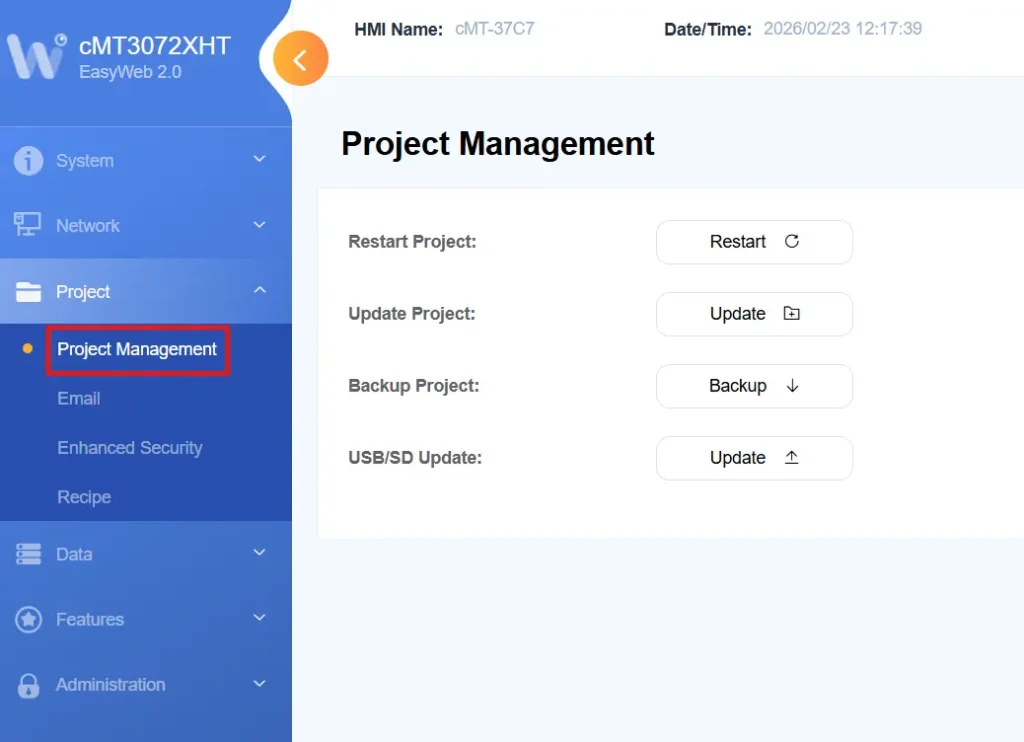
Managing Email Settings
Navigating to the “Email” tab, we’re able to tweak all of the email settings in our project from our EasyWeb view. This includes our SMTP settings and our registered email contacts.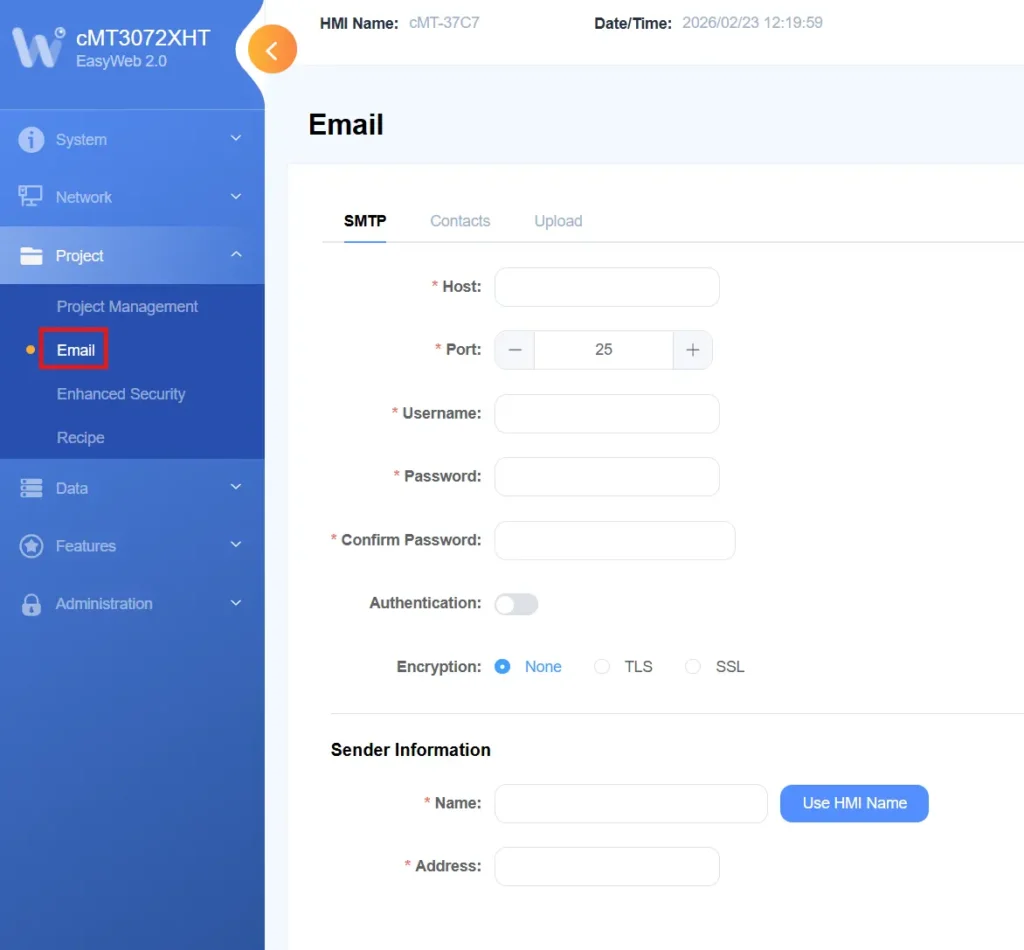
Managing HMI Security Settings
If we go to the “Enhanced Security” tab, we’re able to change our HMI users, add or remove users, and import a User Accounts file from EBPro.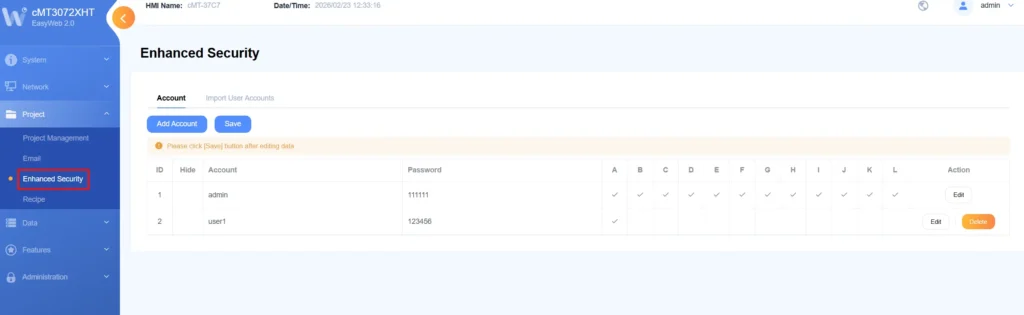
Managing the Recipe Database
Finally, if we navigate to the “Recipe” option of the Project settings, we’re able to update, backup, and clear all of our recipe databases.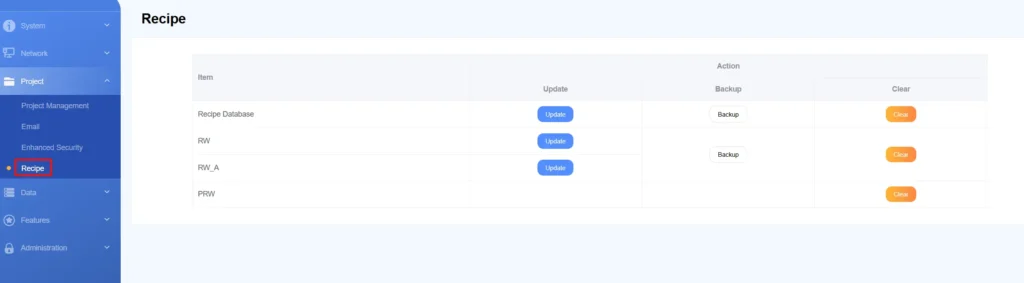
Accessing HMI Logs
Now that we’ve fixed the HMI project through a re-download, we can access and download our data logs from EasyWeb as well.
Instructions: Accessing HMI Logs
Accessing Data Logs
If we navigate to the “Data Log & Trend Display” option of the “Data” tab, we’re able to view the currently running data logs and data trends from the HMI, as well as download and export these logs.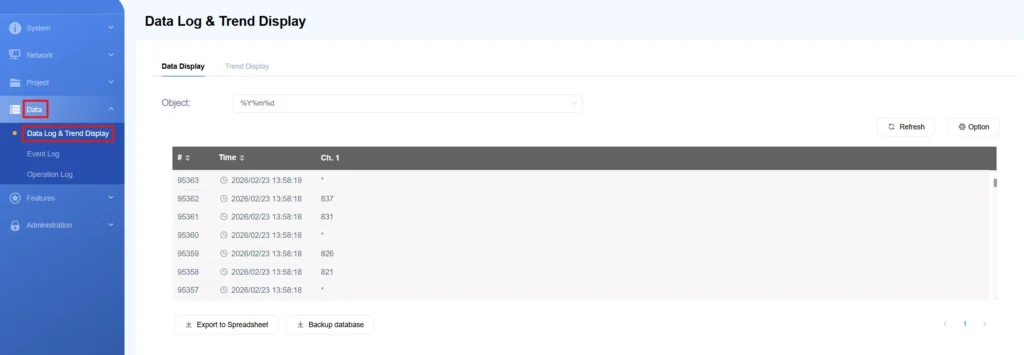
Accessing the Event Log
By navigating to the “Event Log” option, you’re also able to see the alarm log from the HMI, as well as export and backup a copy of the Event Log.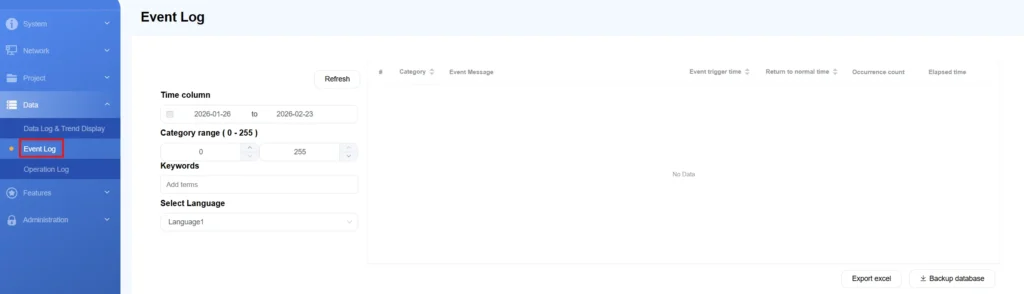
Accessing the Operation Log
If we navigate to the “Operation Log” option, we can download a backup of the operation log from the HMI as well.
Final Thoughts
Equipped with EasyWeb and project WebView, we’re able to access our Maple Systems HMI to tweak our project settings, download and view our logs, and access our HMI’s project to tweak values within it. If you pair WebView with EasyAccess 2.0, you can also access all of these settings from remote networks outside of the HMI’s local network.
Resources & Documentation
The following guides and documentation are specific to the hardware used in this integration tutorial and will help you with setup, configuration, and programming:
Looking for additional learning resources? Explore our library of tutorials, example projects, and software tools to help you get the most out of your system:
Also, browse our Support Center for a complete list of installation guides, FAQs, and additional technical documentation.

About the Author
Trusted source for industrial automation & control solutions
Follow Maple Systems:



