
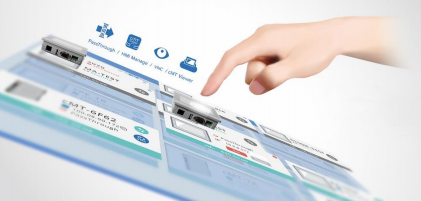
EasyAccess 2.0 is a secure access utility that allows any PC, Android, or iOS device to connect remotely to any Maple Systems HMI. It creates a secure VPN tunnel to your HMI’s local network, allowing you to use cMT Viewer from a remote network, while staying responsive and secure by default. EasyAccess 2.0 also supports PLC passthrough, allowing you to remote into your PLC through the same secure network tunnel you can view your HMI through.
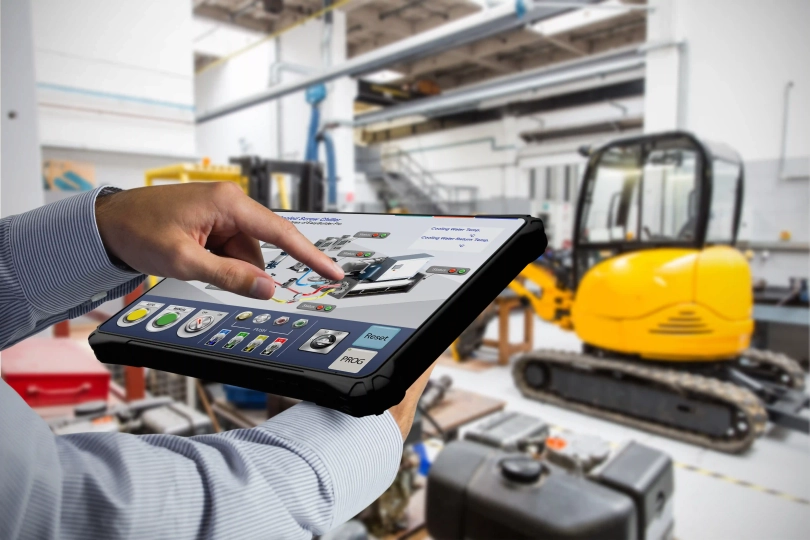
Picture this: you are an OEM with Maple Systems HMI projects deployed across multiple locations nationwide. When a plant several states away needs a small update, you need a reliable way to access that HMI remotely. With the right setup, you can connect to the unit and download the updated project without traveling on site.
Or, picture you’re working as part of a central support team that’s remotely supporting local maintenance teams at different plants across the country. One of your operators reports some odd data coming from their PLC, and you’ll need a way to remote into their HMI, and pass through it to monitor their PLC.
Software Required
- EasyAccess 2.0
- a Weincloud Domain and account
Hardware Required
- Any Maple Systems HMI
- Any computer, Android, or iOS device that supports EasyAccess 2.0 client software
Configuring Weincloud
As the very first step, we will configure your Weincloud domain and prepare it to register and manage your HMI devices securely.
Activating an HMI
To start, we’ll want to make sure our HMI is registered and activated in our Weincloud domain account.
Instructions: Activating an HMI
Getting our HMI Hardware Key
First, we’ll want to go into our HMI’s system settings, and navigate to the EasyAccess 2.0 page and note our HMI’s Hardware Key.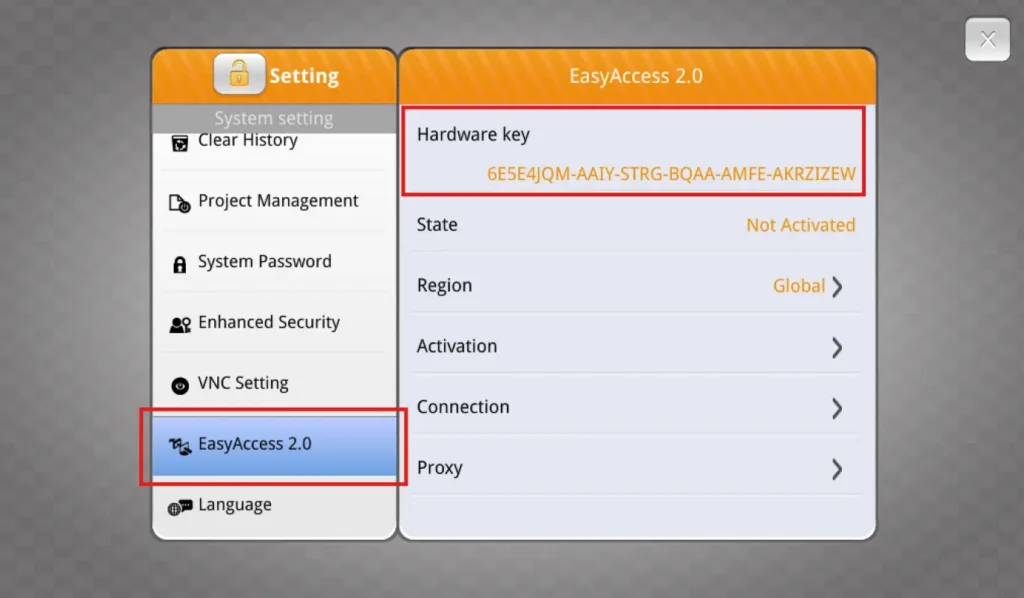
Log in to Weincloud
Afterwards, we’ll want to log in to Weincloud through our domain.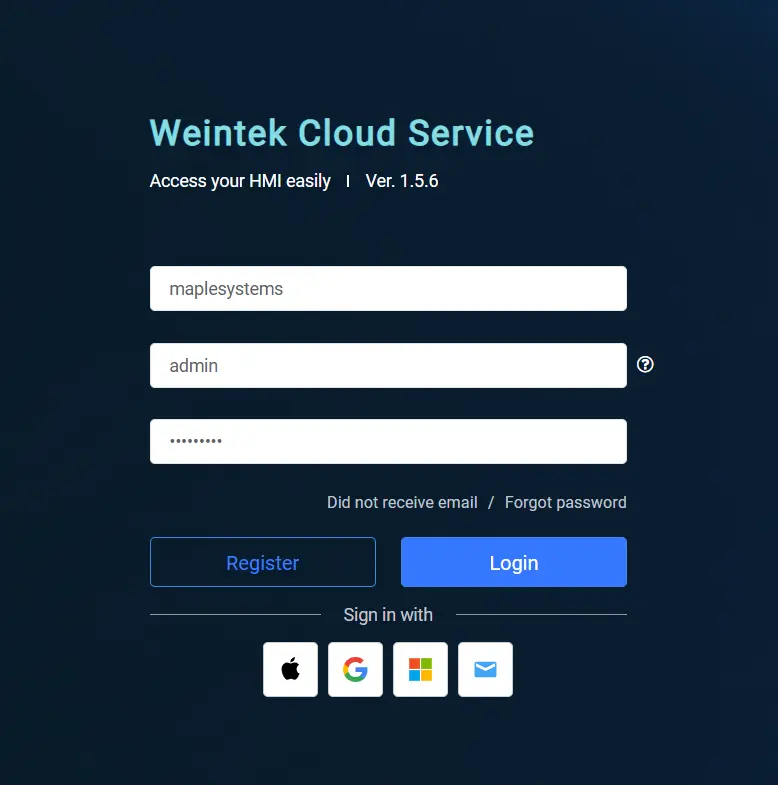
Add the HMI
We’ll then click the blue “+” button on the Directory page to add a new HMI to our domain.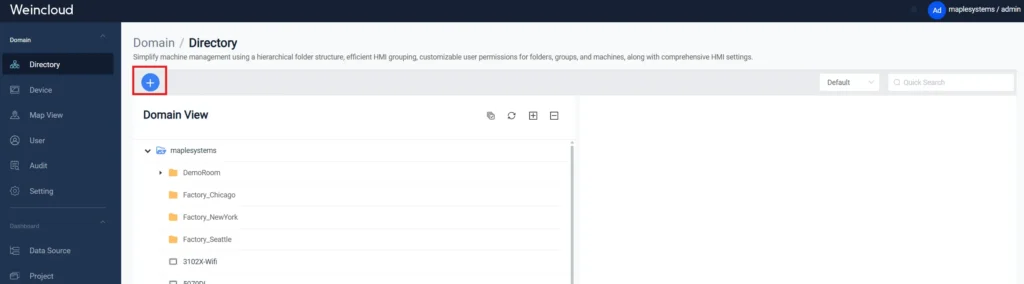
Different Options for Activating our HMI
Next, we’ll choose EasyAccess 2.0, and from here we can either activate a 30-day free trial of EasyAccess 2.0 for our HMI, or use an EasyAccess 2.0 License to activate our HMI. We’d select this from the “Action Type” dropdown.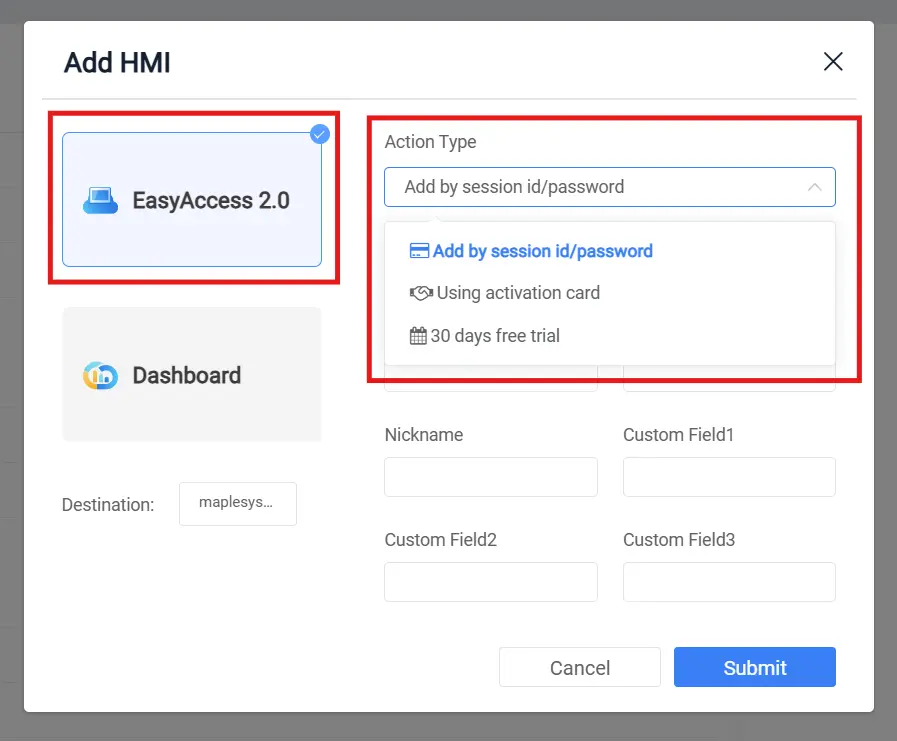
Entering our HMI’s Hardware Key
With either option, this is where we’d enter our HMI’s hardware key to register it in our Weincloud domain. We can also give our HMI a nickname for future reference.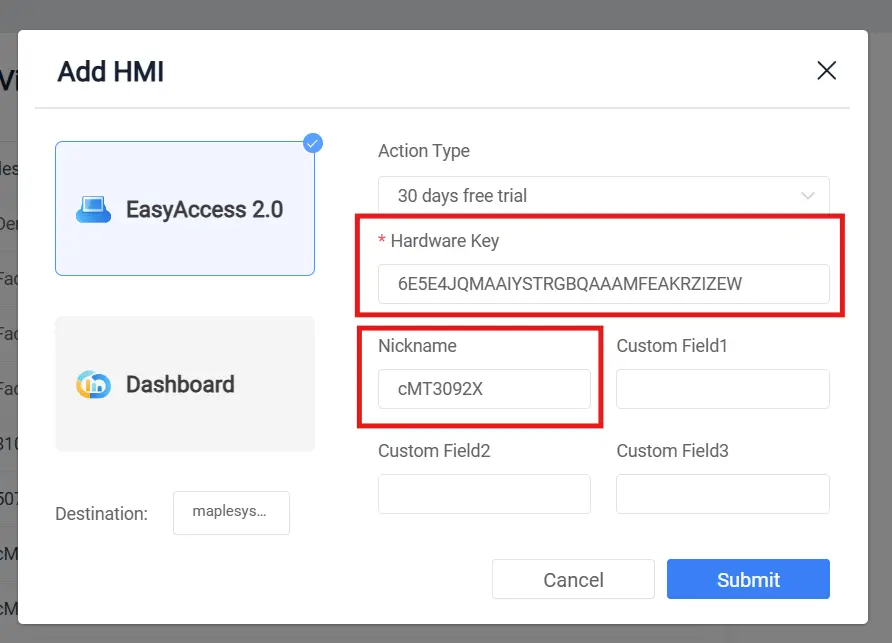
Connecting our HMI
Once the HMI is activated, it must be linked to an EasyAccess 2.0 server to enable secure remote connectivity.
Connecting our HMI to an EasyAccess 2.0 Server
Next, we’ll connect our HMI to our EasyAccess 2.0 server.
Instructions: Connecting our HMI to an EasyAccess 2.0 Server
Selecting an EasyAccess 2.0 Server
In the EBPro project of our HMI, we’ll go into our System Parameters, and under the “Remote” tab, we’ll make sure EasyAccess 2.0 is on the Global server, and started on HMI power on.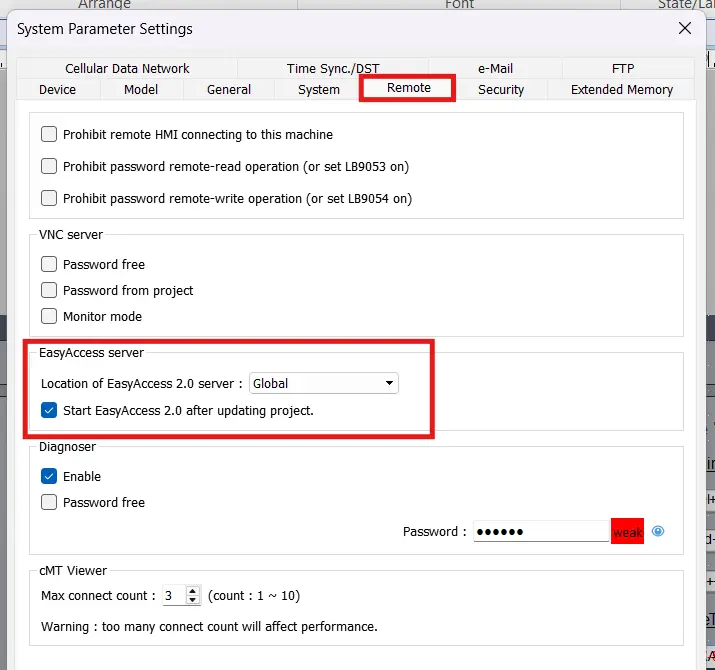
Checking the Status of our EasyAccess 2.0 Connection
Then we can either navigate to window 76 within our project, or we can go into the EasyAccess 2.0 page of the System Settings menu to check our EasyAccess 2.0 connection status.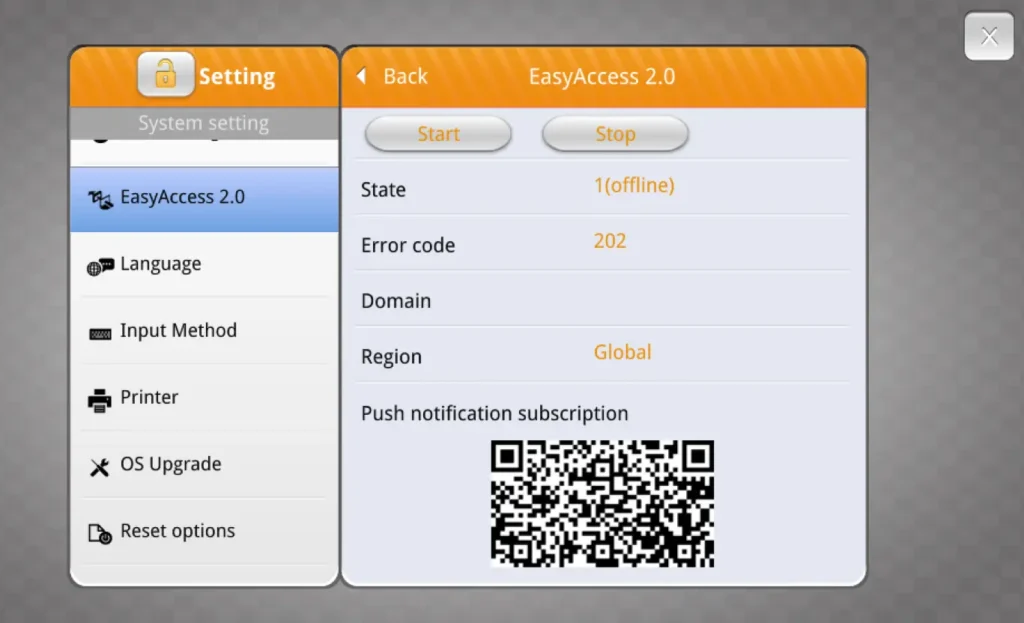
Ensure the HMI is Able to Access the Internet
We’ll then want to make sure that the HMI is connected to a network that can access the internet from LAN1. We’ll also want to go into the network settings of our HMI and ensure the gateway and DNS settings are correct.Typically, you’ll want to set your HMI DNS settings to 8.8.8.8 to connect to EasyAccess 2.0 properly.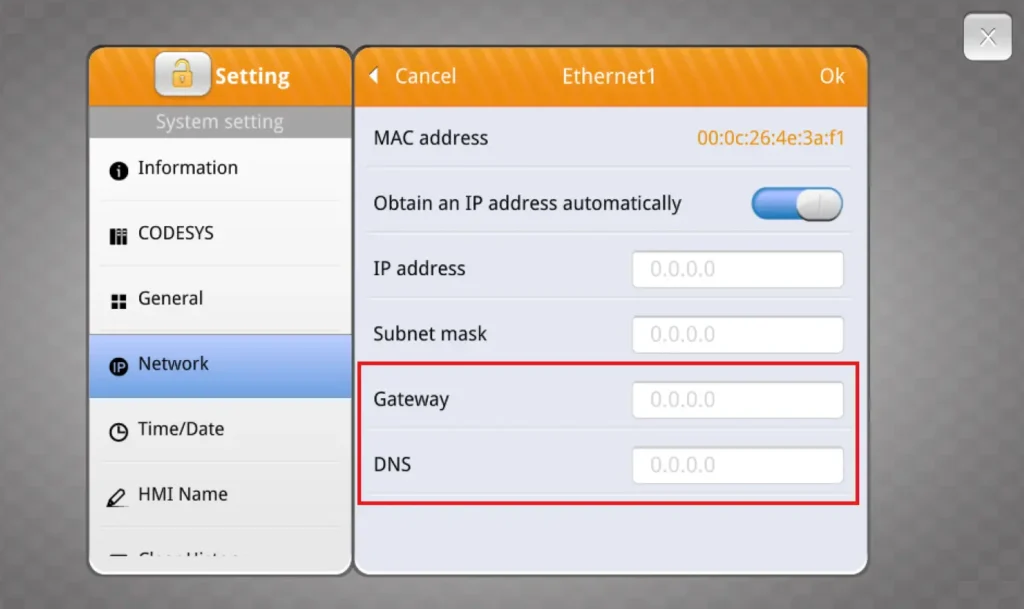
Remoting into our HMI
After the HMI is connected to the server, you can establish a secure remote session using the EasyAccess 2.0 client software.
Downloading and Using EasyAccess 2.0
Now we’ll start setting up our EasyAccess 2.0 client on our remote monitoring device.
Instructions: Downloading and Using EasyAccess 2.0
Downloading EasyAccess 2.0
To start, we’ll want to download the EasyAccess 2.0 client and install it to our monitoring computer.I’m going to keep to all the default options in the install wizard, but feel free to tweak these options how you see fit.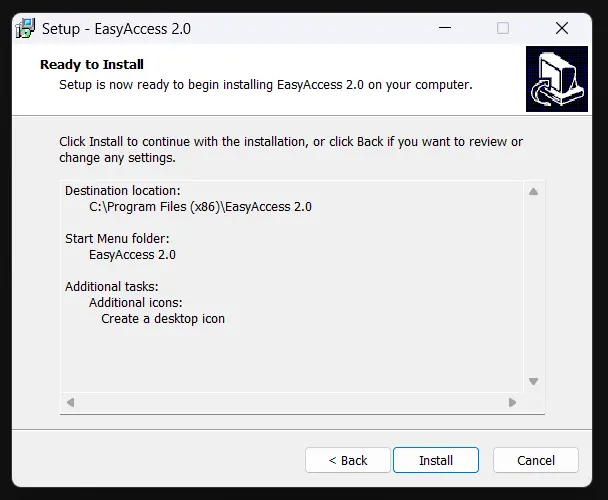
Log In to the EasyAccess 2.0 Servers
Once EasyAccess 2.0 finishes installing, we’ll then launch the client, and log in to our Weincloud domain and account.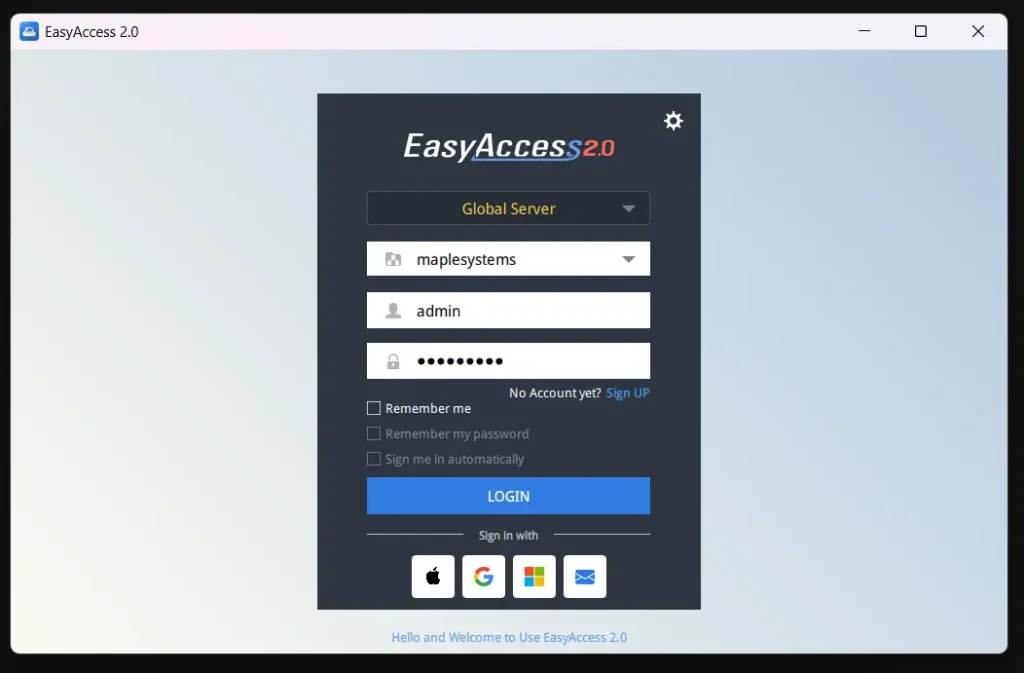
Connecting to our HMI
If our HMI is online and activated, we’ll see it in the list of HMIs to connect to in the main EasyAccess 2.0 HMI list. We’ll connect to it by pressing the button with two arrows in it to establish a connection to the HMI.If you don’t see your HMI in this list, refer to the EasyAccess 2.0 troubleshooting guide to get your HMI properly connected.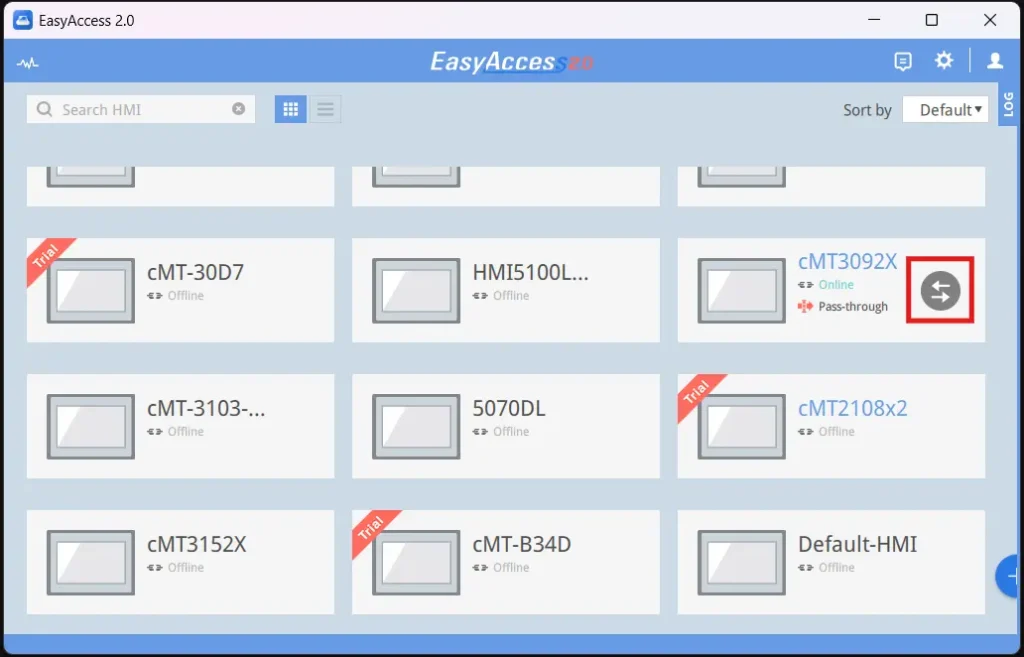
Remoting Into the HMI Project
Once you’re connected to the HMI, you can press the “cMT Viewer” button to remote into your HMI’s project via cMT Viewer.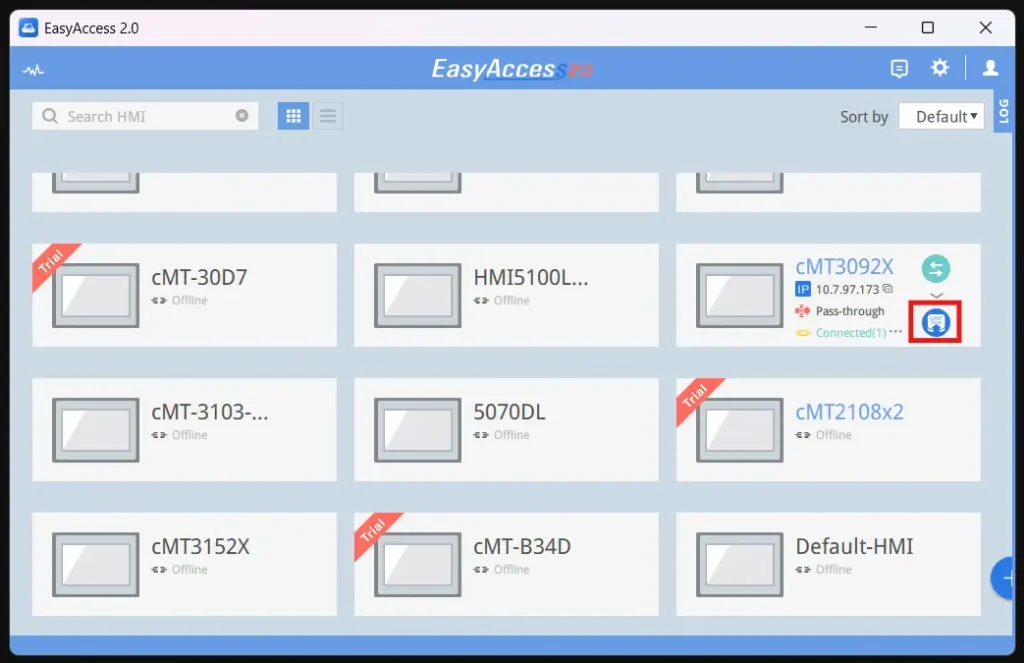
With the setup from this tutorial, you should now be able to connect to and remote into any Maple Systems’ HMI from anywhere in the world.
Final Thoughts
If we return back to both of our examples from earlier, they can both be solved with EasyAccess 2.0.
EasyAccess 2.0 would allow our OEM to remote into their HMIs instead of traveling to them. This allows them to monitor the live data on the HMI and even to re-download their project to the device. This allows them to troubleshoot and tweak each of their projects without needing to travel every time a project needs a small tweak.
Our remote support team would also be able to use EasyAccess 2.0’s PLC pass-through feature for their needs. The PLC pass-through feature would allow them to live monitor the PLC attached to their HMI. As with the HMI itself, they’d also be able to re-download the PLC project through the pass-through. This, allows our remote support team to provide full support for all of their remote units without needing to always dispatch support reps to these remote locations.
Resources & Documentation
The following guides and documentation are specific to the hardware used in this integration tutorial and will help you with setup, configuration, and programming:
Looking for additional learning resources? Explore our library of tutorials, example projects, and software tools to help you get the most out of your system:
Also, browse our Support Center for a complete list of installation guides, FAQs, and additional technical documentation.

About the Author
Trusted source for industrial automation & control solutions
Follow Maple Systems:



