
Applicable Model(s): cMT Series
Summary
You may wish to connect a printer to your cMT or HMI that is not listed in the default printer list within your EasyBuilder Pro project. This technical note will describe how to select a compatible printer, connect to it with IPP, and print your screen with a printer not available by default within EBPro.
System Requirements
cMT OS version 20230301 or Later
Printer must support PCL5, CUPS, and IPP protocols
Solution
Additional information on each of these steps can be found in the EBPro manual under section 23.
Network Connected Printer
Some printers will be accessible by the HMI when connected over the network or USB.
1.
Tap the System settings button in the upper left corner of the unit.
2.
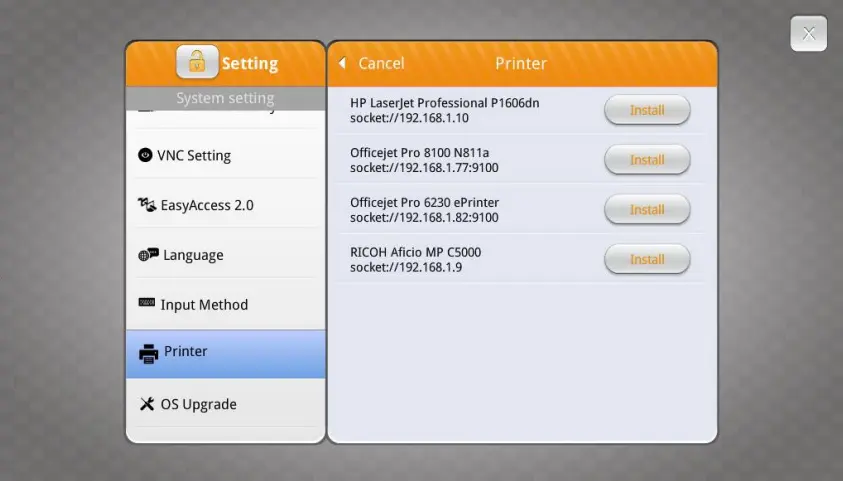
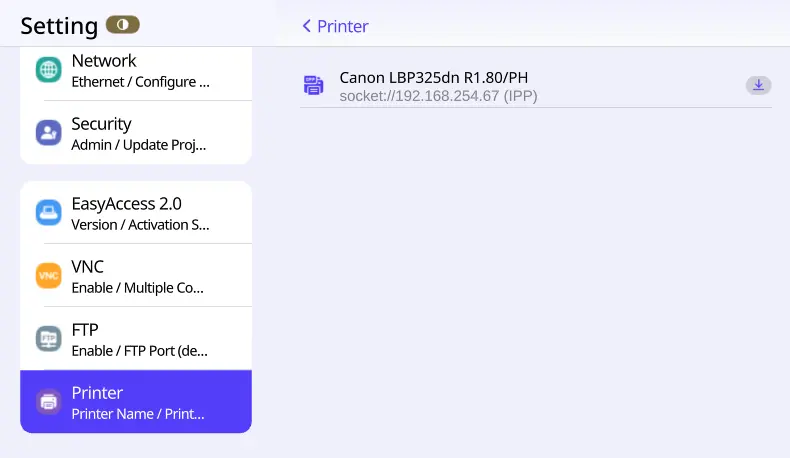
Find the Printer tab and press “Install network printer”. The HMI will then automatically search for printers on the same network.
3.
Press install to add the selected printer to your HMI. Only one printer may be installed at a time.
IPP connected printer
If the desired printer is not found by the HMI, IPP may be able to connect to the printer.
1.
Within your EBPro project navigate to the system parameters > Model tab.
2.
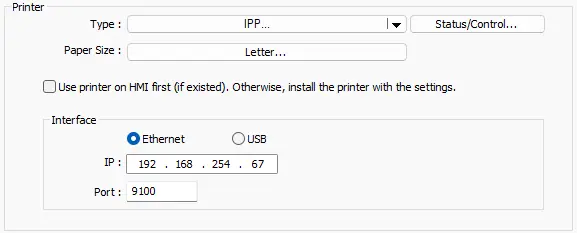
Select IPP under Printer.
3.
Select Letter for paper size.
4.
Leave “Use printer on HMI first” unchecked.
5.
Set your interface to ethernet and the IP address of the printer, or to USB. The default port is 9100.
6.
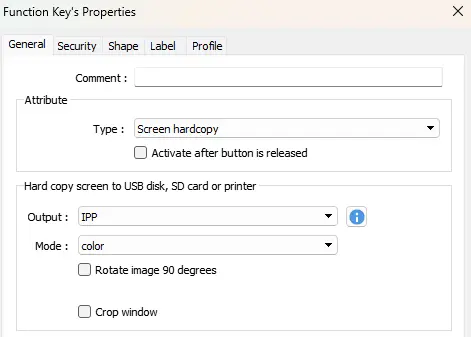
Add a function key object with the Attribute set to Screen Hardcopy and Output set to IPP.
7.
Download your updated project to the HMI.
8.
Wait a minute or two for the printer to be detected, then press print.
The printer should now print a copy of your cMT screen.
PPD file
If a printer is not seen on the network or through IPP you may need to install a PPD file.
PostScript printer Description files are used to describe a printer’s features and capabilities to Linux operating systems. These files can be found on most printer manufacturers’ downloads page, often bundled with drivers.
1.
Install the PPD file by placing it in the PPD directory of the EBPro Installation.
2.
Restart EBPro, open the system parameters model tab, select the printer menu, and press refresh. This will have EBPro search for updated files from the PPD directory.
3.
Select the printer you are interested in, the rest of your settings should match the IPP process described above.
Troubleshooting
Printer can’t be found on network.
- Check that the Subnet of the Printer and HMI are the same.
- Confirm that you can ping both the printer and the HMI from a PC on the same network.
- Confirm that the printer supports the required protocols and that the HMI OS is 20230301 or higher.
Pressing print results in an error on the printer
- Check that the printer paper size in the project matches what is available on the printer.
- The test page will default to A4, most printers in North America use Letter size.
- Cancel the print job on the printer to clear the error.
Unable to find a PPD file for printer
- Try using network printer and IPP first.
- If a PPD file isn’t available on the manufacturers website check that the printer supports PCL5, CUPS, and IPP.
- The PPD file may be under the printer manufacturer’s Linux drivers, HP has this stored separately from their standard drivers.
- Try a generic Linux print library for your printer brand. These community supported drivers may have the correct PPD file.
I have IPP set correctly but still can’t connect.
- Check your printer settings to confirm that IPP is enabled.
- Some printers require Bonjour to be enabled as well.