
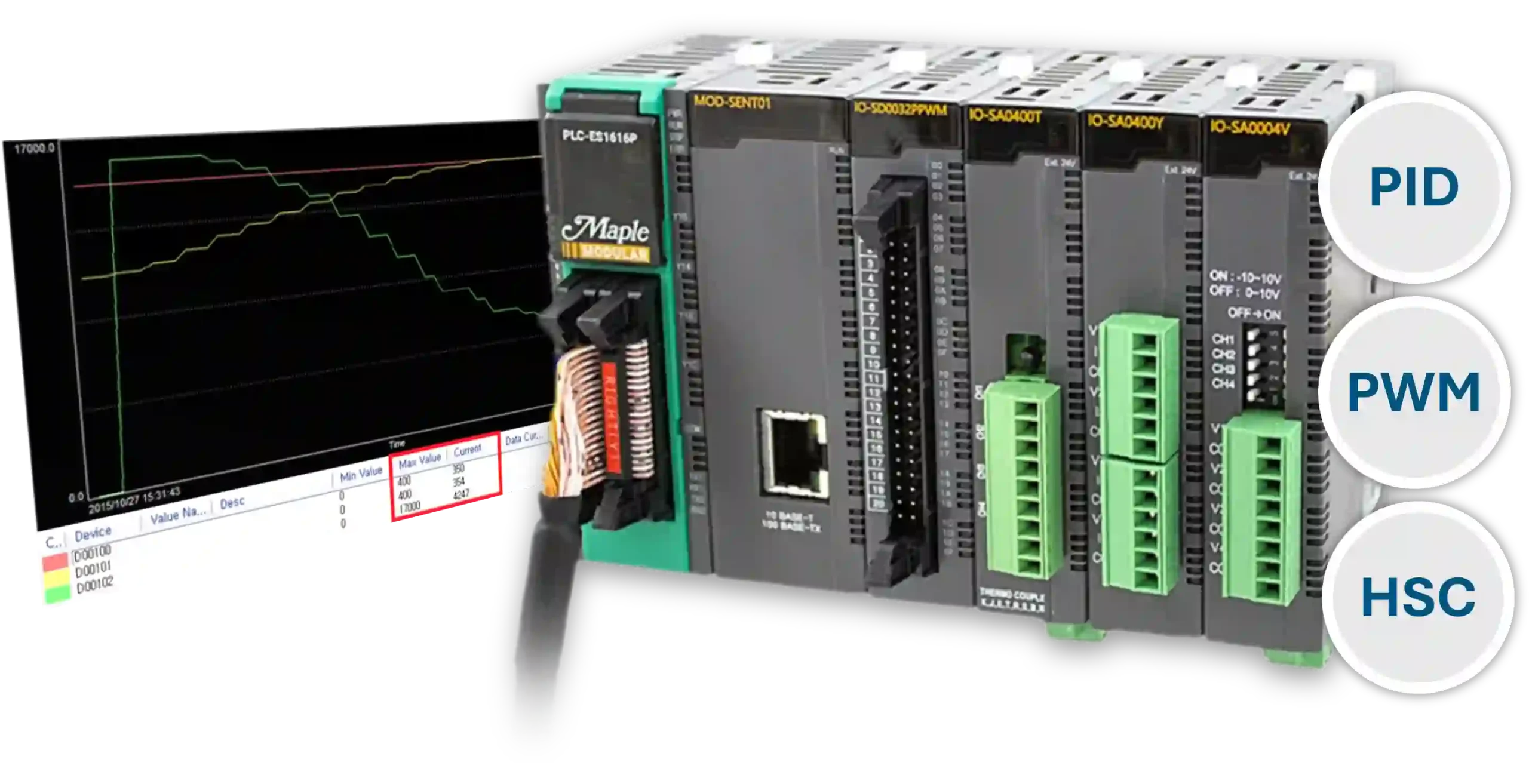
In this integration tutorial, you will learn how to use a PID loop, Pulse Width Modulation (PWM), and a High-Speed Counter to control motor speed. The PID operates in a closed-loop system, controlling the PWM output while using encoder RPM from the high-speed counter as the feedback response. All configuration in this example is completed in MapleLogic.
If you are unfamiliar with PID, PWM, or HSC functionality in MapleLogic, review the following tutorials before continuing.
- What is a PID Controller?
- How to Control the Temperature of a Heater using a PID Loop
- What is a High Speed Counter and How is it Used with an Encoder?
- What is Pulse Width Modulation?
- How to Control the Speed of a Motor Using Pulse Width Modulation
If you are already familiar with the topics above, continue with the tutorial below.
Software Required
Hardware Required
- Maple Modular PLCs – Any Maple Modular PLC.
- PWM Module + Kit – A terminal block must be used with the PWM module.
- HSC Module + Kit – A terminal block must be used with the HSC module. See the wiring and configuration below.
- Two-Phase Quadrature Encoder – Encoder model used in this example: C38HG5-100B-G24N
- 12–24V DC Motor – Motor model used in this example: XD-3420
- DC Motor Drive Module – Drive module used in this example: 200206_FBA
- (2) 24 VDC Power Supplies (4010-0011)
Wiring Diagrams
The diagram below shows a closed-loop motor speed control system that uses a PID loop, PWM output, and a High Speed Counter. The Maple Systems PLC connects to both a PWM module and an HSC module. A quadrature encoder connects to the HSC module terminal block. The PWM output passes through a DC motor drive module and controls a 24V DC motor.
See the wiring table below.
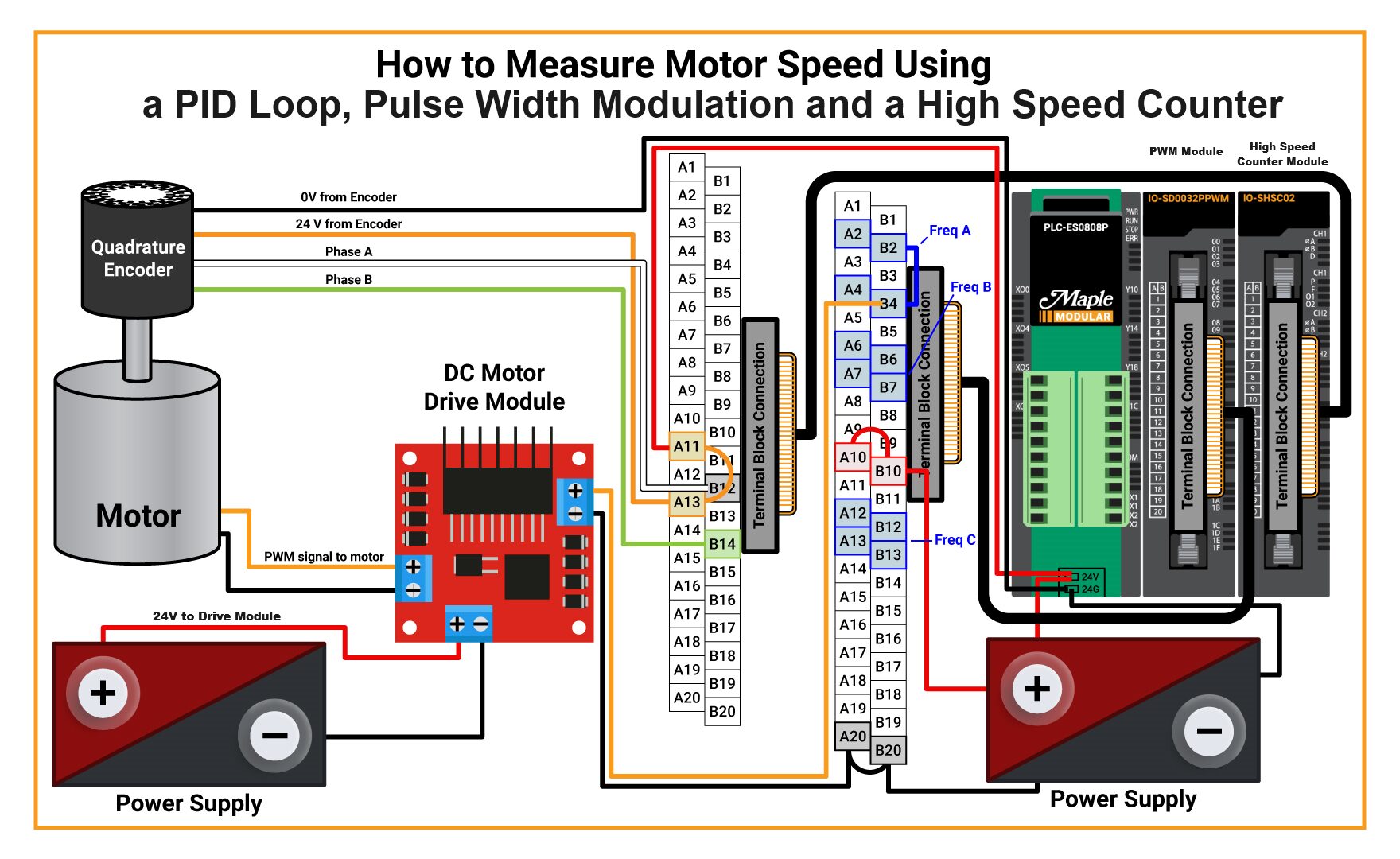

This example uses a second power supply. You can use a single power supply if it provides enough current for the system.
Configure the High-Speed Counter Module
Configure the IO-SHSC02 module in MapleLogic so the encoder can provide RPM feedback for the PID loop.
Instructions: Configure the High-Speed Counter Module
Go online with the PLC
Connect to the PLC and place it in RUN mode. The PLC must be online before the HSC configuration window can be opened and edited.You cannot configure the HSC module offline.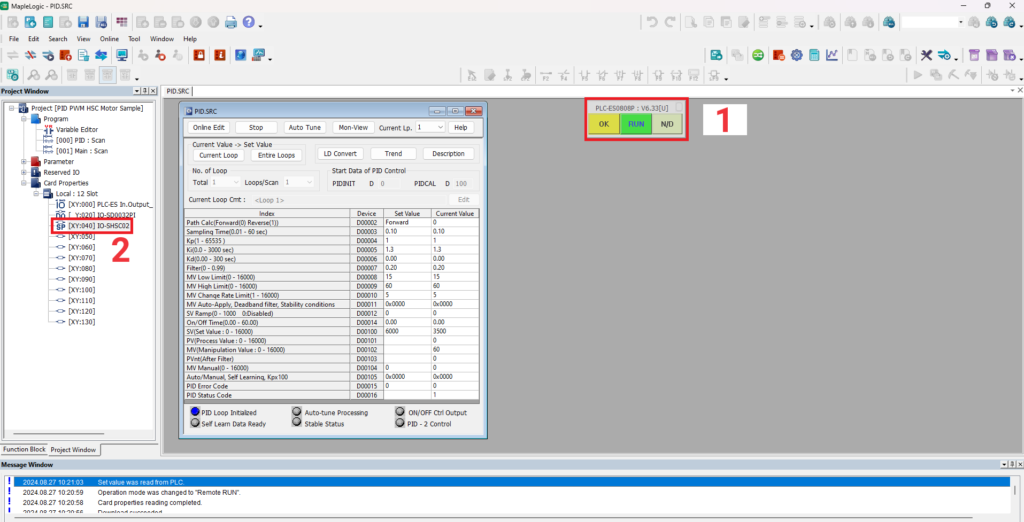
Open the HSC module configuration window
Under the local I/O chassis in MapleLogic, double-click the IO-SHSC02 module to open the High-Speed Counter configuration GUI.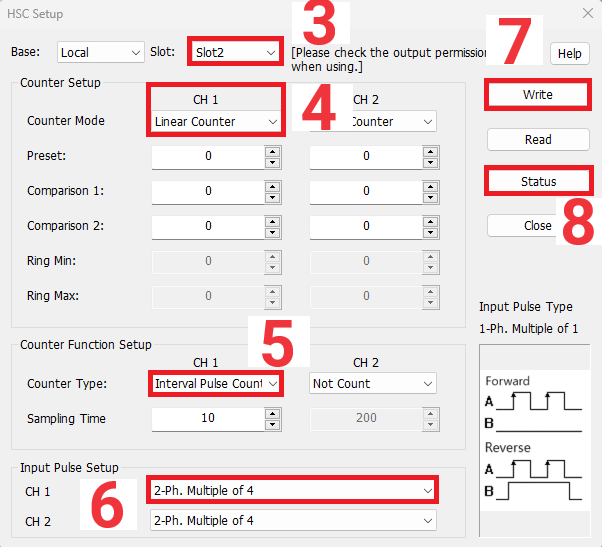
Confirm slot assignment and counter mode
Verify that the slot is automatically detected correctly. In this example, the HSC module is installed in Slot 2. Then select the counter mode. This example uses Linear mode so the counter tracks pulses in one direction.To learn more about Linear and Ring counter modes, review the high-speed counter tutorial linked earlier.Set the counter function and sampling method
Select Periodic Pulse Count in the Counter Function Setup. Then set the sampling time used to periodically capture encoder counts.If no counter function is selected, the module will not return a usable count.Configure encoder input type
In Input Pulse Setup, select 2-Phase, Multiple of 4 for the quadrature encoder used in this project.This setting matches the encoder feedback method used in the demo.Write settings and view live status
Click Write to save the module settings, then click Status to confirm live values are being read from the encoder.
Above is the High-Speed Counter module configuration GUI. This window is only available when the PLC is online.
Configure the PID Loop
Set the PID parameters used to control motor speed based on encoder feedback.
Instructions: Configure the PID Loop
Open the PID configuration window
Open the PID configuration window in MapleLogic for the control loop used in this project.Review the Maple Systems PID tutorial if you need a refresher on each parameter.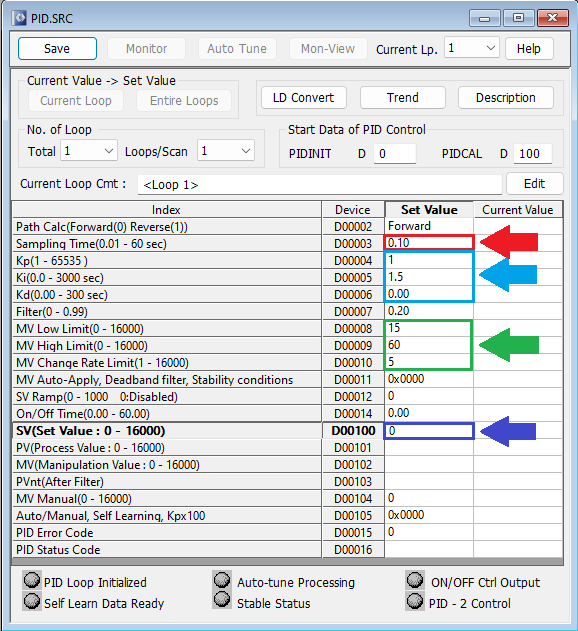
Set a low sampling time
Configure a low sampling time for this demo so the PID loop reacts quickly to changes in motor speed.Tune Kp and Ki values
Set low Kp and Ki values. In this sample project, those values were determined through trial and error and may differ for your application.Your final PID values will depend on the motor, encoder, mechanics, and load.Set MV limits
Set the Manipulative Value low limit to 15 and the high limit to 60. Even though the PWM module can output 0–100% duty cycle, the motor in this example only responds meaningfully between 15% and 60%. Set the MV change rate limit to update every 5 seconds.These limits were determined experimentally for the motor used in the demo.Leave the initial set value at zero
Set the initial set value to 0. In this project, the actual target speed is assigned later by ladder logic automation.
To get a better understanding of PID control, refer to What is a PID Controller. For a more detailed explanation of PID configuration in MapleLogic, refer to How to Control the Temperature of a Heater using a PID Loop.
Ladder Logic
In the following logic, we enable the PWM channel and high-speed counter, calculate RPM, and send PWM duty cycle and RPM values into the PID registers so the PID can control motor speed.
Build the Ladder Logic for Closed-Loop Speed Control
Program PWM output, high-speed counting, RPM calculation, PID process values, and automated speed changes in MapleLogic.
Instructions: Build the Ladder Logic for Closed-Loop Speed Control
Enable PWM output
Enable PWM output channel 4, initialize the PWM output frequency, and set the duty cycle ramp time. In this project, rung 2 enables the PWM module output CH4, rung 4 initializes the PWM frequency, and rung 6 sets a 2-second duty cycle ramp time.For more information, review the PWM tutorial linked earlier.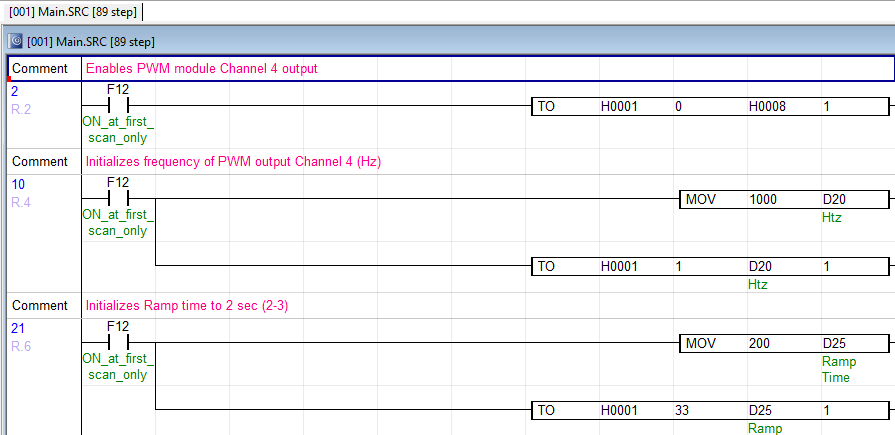
Enable and start the high-speed counter
Use HSC module internal memory bits to enable the count and start the high-speed counter. In this example, Y44 and Y46 are enabled because the HSC module is installed in Slot 2 of the I/O chassis.These registers must be enabled from the HSC module internal memory.
Read encoder counts from HSC shared memory
Use DFRO instructions to retrieve the current count, previous pulse count, and current pulse count from HSC shared memory. These are 32-bit values, so double-word instructions are required.Reading buffer memory 0 also reads 1, buffer 8 also reads 9, and buffer 10 also reads 11.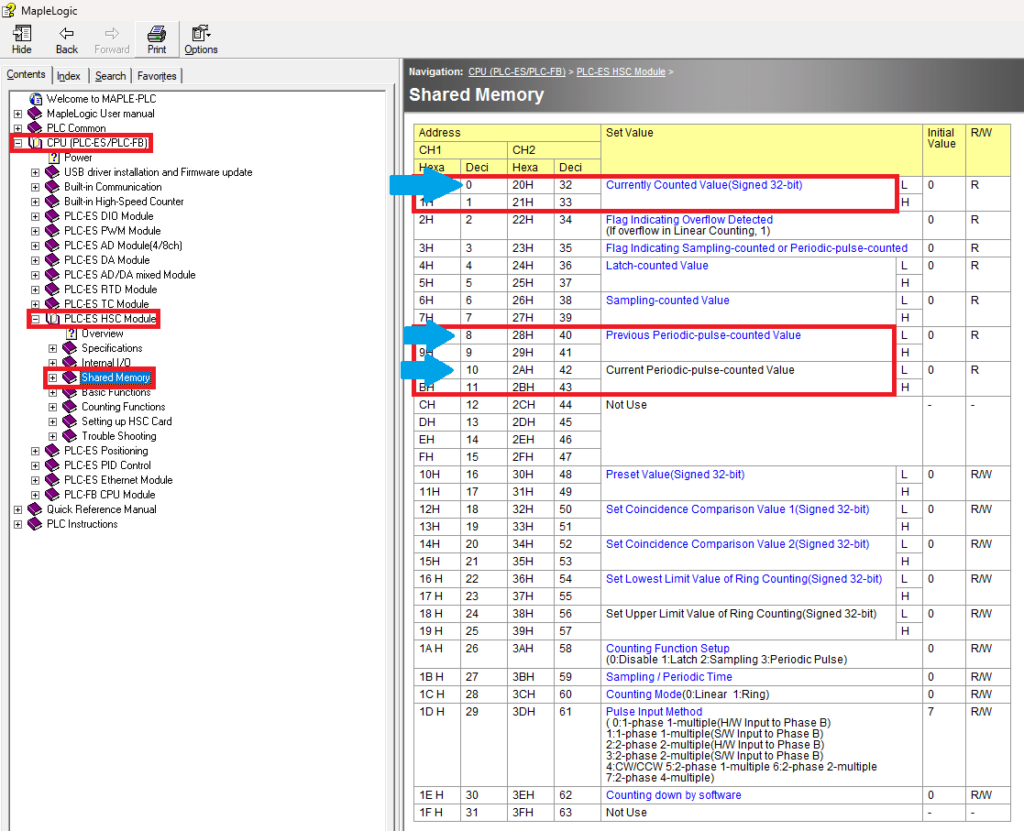
Calculate RPM from encoder pulses
Subtract the current pulse count from the previous pulse count, divide the result by 40, and multiply by 60 to calculate RPM. The final RPM value is stored in D225.The value 40 represents 40 pulses over 10 milliseconds based on the configured sampling time.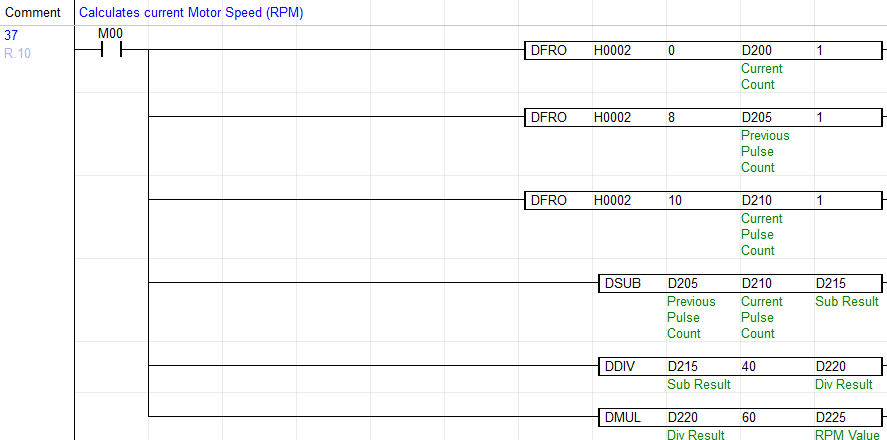
Move RPM into the PID process value
Send the calculated RPM value in D225 into the PID Process Value register D101 so the PID loop can compare actual speed to the target speed.
Create an automated setpoint example
Use ladder logic to move different RPM set values into D100 based on timing and conditions. In this sample, the motor starts at 4500 RPM, then moves to 6000 RPM, then drops to 5000 RPM after timed conditions are met.This simulates a conveyor application responding to changing load conditions.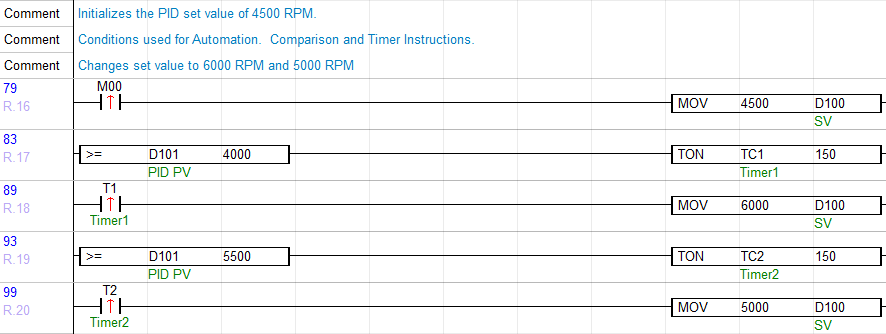
Move PID output to PWM duty cycle
Send the PWM duty cycle register for CH4 into the PID Manipulative Value so the PID loop directly controls motor speed through PWM duty cycle changes.
Enable PWM Output
Configure the PWM channel that the PID loop will use to control motor speed.
Instructions: Enable PWM Output
Review the PWM logic
Open the PWM ladder logic in MapleLogic and confirm the output channel used in this project is CH4.For additional background, review the Pulse Width Modulation tutorial before continuing.Enable the PWM output channel
Use rung 2 to enable PWM module output CH4 so the PLC can begin driving the motor control output.Initialize the PWM frequency
Use rung 4 to initialize the PWM output frequency in hertz for CH4.Set the PWM duty cycle ramp time
Use rung 6 to initialize the duty cycle ramp time to 2 seconds for smoother motor response.
For a more detailed explanation of PWM configuration, refer to How to Control the Speed of a Motor Using Pulse Width Modulation.
Enable and Start the High-Speed Counter
Start the high-speed counter so encoder pulses can be measured and used as PID feedback.
Instructions: Enable and Start the High-Speed Counter
Review HSC internal memory
Open the MapleLogic help files and review the HSC module internal memory required to enable and start counting.The required memory bits depend on the installed slot position of the HSC module.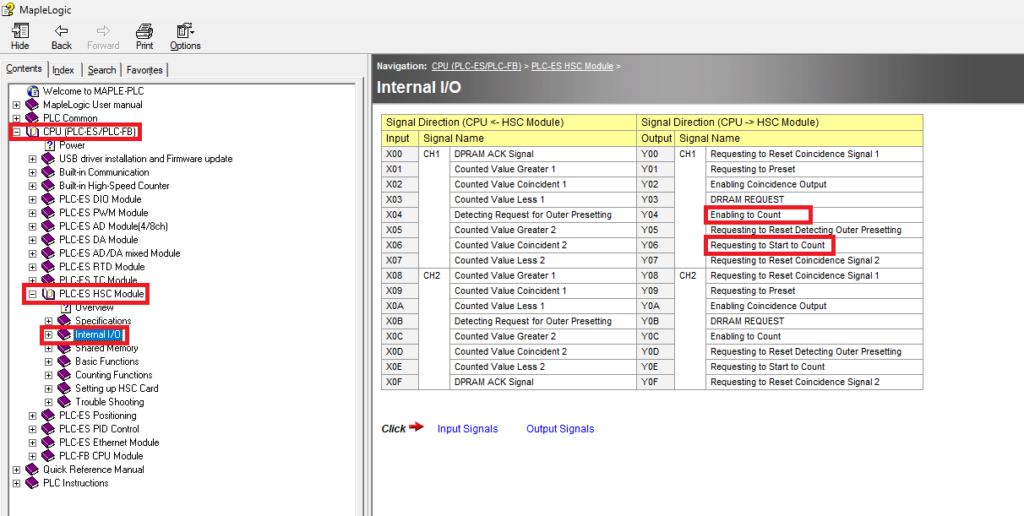
Enable the HSC count
Use rung 8 to enable the HSC count and start the module.Use the correct internal memory bits
Enable Y44 and Y46 because the HSC module in this project is installed in Slot 2 of the I/O chassis.These internal memory registers must be enabled for the counter to run correctly.
Please refer to the HSC module internal memory in the MapleLogic help files to enable the count and start the count.
Calculate RPM from Encoder Feedback
Read encoder count data from HSC shared memory and convert it into an RPM value.
Instructions: Calculate RPM from Encoder Feedback
Review HSC shared memory
Open the MapleLogic help files and identify the HSC shared memory addresses for Current Count, Periodic Pulse Count, and Current Pulse Count.Read encoder counts with DFRO
Use the first three lines of rung 10 to execute DFRO instructions that read the current count, previous pulse count, and current pulse count from the encoder.DFRO is a double-word FROM instruction and must be used because these values are 32-bit.Verify double-word reads
Confirm that buffer memory 0 also reads 1, buffer memory 8 also reads 9, and buffer memory 10 also reads 11 when retrieving encoder data.A normal single-word read will not return the correct encoder value.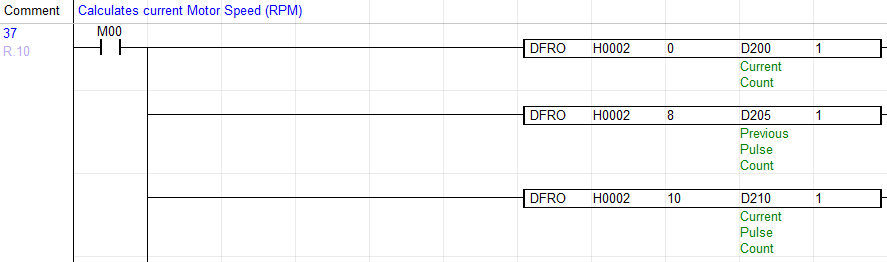
Subtract the pulse counts
Subtract the current pulse double word D210 from the previous pulse double word D205 and store the result in D215.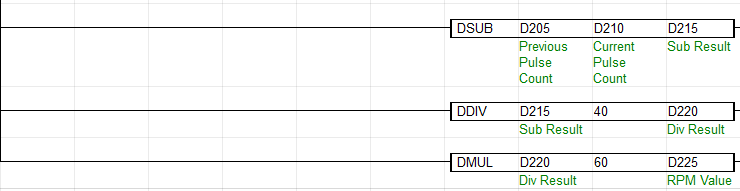
Scale the pulse count
Divide D215 by 40 and store the result in D220. In this project, 40 represents 40 pulses over 10 milliseconds based on the configured HSC sampling time.Convert the result to RPM
Multiply D220 by 60 to convert the scaled value into rotations per minute and store the final RPM result in D225.
The RPM value calculated from the encoder will be used as the process feedback for the PID loop.
Move RPM into the PID Process Value
Send the calculated RPM into the PID loop so it can compare actual speed to the target setpoint.
Instructions: Move RPM into the PID Process Value
Review the PV transfer logic
Open the rung that moves the calculated RPM into the PID Process Value register.Write RPM into the PID PV register
Use rung 12 to move the RPM value in D225 into the PID Process Value register D101.
Create an Automated Speed Control Example
Use timed ladder logic to automatically change the motor speed setpoint during operation.
Instructions: Create an Automated Speed Control Example
Set the initial target speed
Use rung 16 to move 4500 RPM into the set value register D100 when M00 is enabled.Start the first timer condition
Use rung 17 to trigger a 15-second ON timer when D100 is greater than or equal to 4000.Increase the setpoint to 6000 RPM
Use rung 18 to move 6000 RPM into D100 after the first 15-second timer completes.Start the second timer condition
Use rung 19 to trigger another 15-second ON timer when D100 is greater than or equal to 5500.Decrease the setpoint to 5000 RPM
Use rung 20 to move 5000 RPM into D100 after the second 15-second timer completes.
This automation example simulates a changing load condition, such as a conveyor motor that must increase or decrease speed during operation.
Move the PID Output to the PWM Duty Cycle
Allow the PID loop to control motor speed by writing its manipulative value to the PWM duty cycle register.
Instructions: Move the PID Output to the PWM Duty Cycle
Review the final PID output rung
Open the rung that sends the PID output to the PWM duty cycle register.Write the PID MV to the PWM duty cycle
Use rung 22 to send the CH4 PWM duty cycle register into the PID Manipulative Value so the PID loop can automatically control motor speed.
Online Simulation
Monitor the PID loop online and simulate changing motor speed conditions in MapleLogic.
Instructions: Online Simulation
Establish online communication
Connect to the PLC using Online > Link+Download+Monitor so the project is running and available for live monitoring.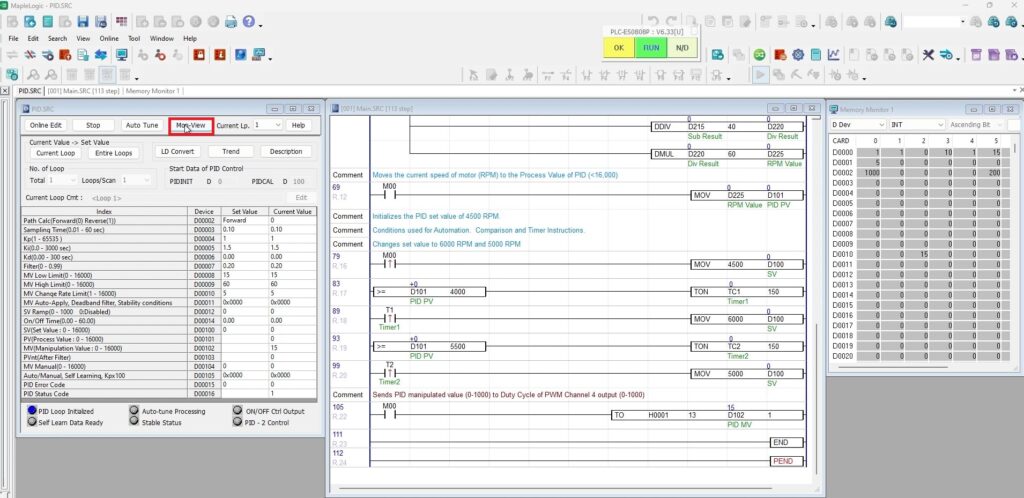
Open Mon-View
Click Mon-View to monitor the initial PID values before starting the logic.Enable the motor logic
Highlight M00 and press Shift + Enter to initiate the motor and enable the HSC count, RPM calculation, PID process value updates, and PWM duty cycle control.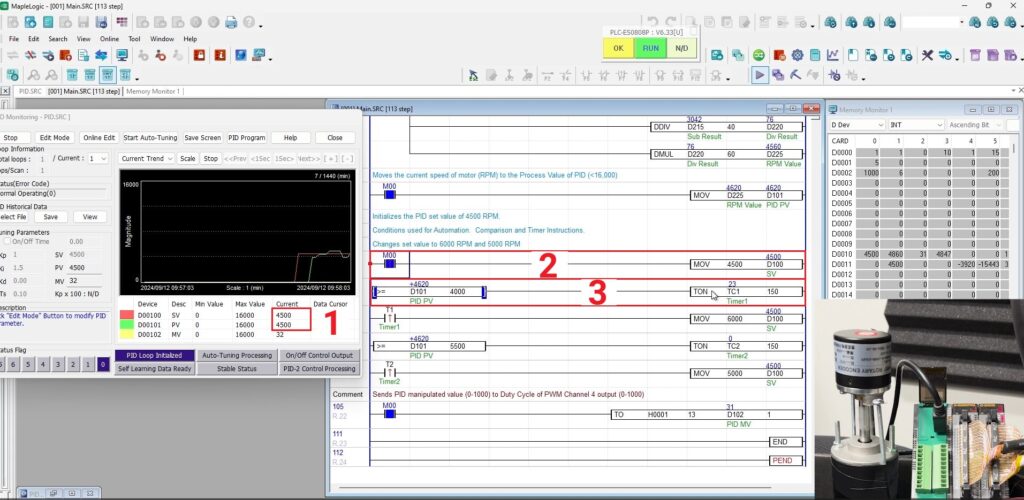
Monitor the 4500 RPM stage
When M00 is enabled, the process value begins oscillating toward the initial set value of 4500 RPM. Once the RPM value reaches 4000 or greater, a 15-second ON timer is triggered.Monitor the 6000 RPM stage
After the first timer completes, the ladder logic moves the set value to 6000 RPM. The process value then oscillates toward the new target speed. When the RPM value reaches 5500 or greater, another 15-second ON timer is triggered.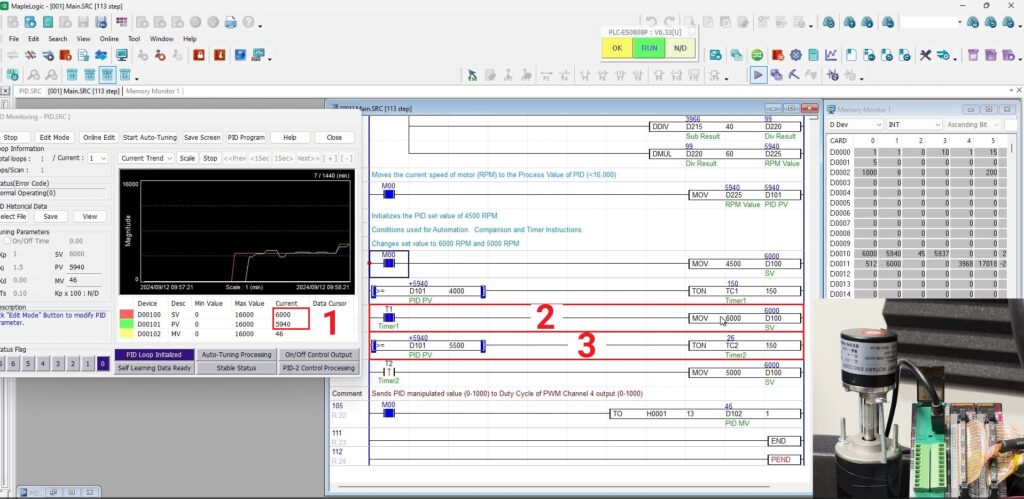
Monitor the 5000 RPM stage
After the second timer completes, the ladder logic moves the set value to 5000 RPM. The process value then adjusts and oscillates toward the final target speed.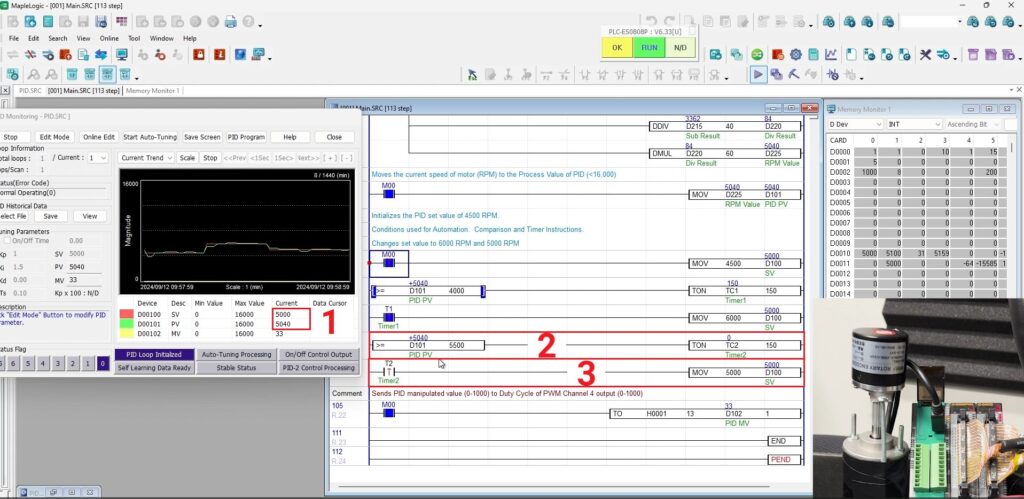
This simulation demonstrates how the PID loop responds as the target motor speed changes from 4500 RPM to 6000 RPM and then to 5000 RPM in MapleLogic.
Sample Project
This integration tutorial uses the MapleLogic sample project.
Resources & Documentation
The following guides and documentation are specific to the hardware used in this integration tutorial and will help you with setup, configuration, and programming:
- MapleLogic User Manual
- Maple Modular User Manual
- PID User Manual
- PWM Module User Manual (coming soon)
- High Speed Counter Module User Manual
- Digital Module User Manual (refer to the IO-SD0032PPWM)
Looking for additional learning resources? Explore our library of tutorials, example projects, and software tools to help you get the most out of your system:
Also, browse our Support Center for a complete list of installation guides, FAQs, and additional technical documentation.

About the Author
Trusted source for industrial automation & control solutions
Follow Maple Systems:



