
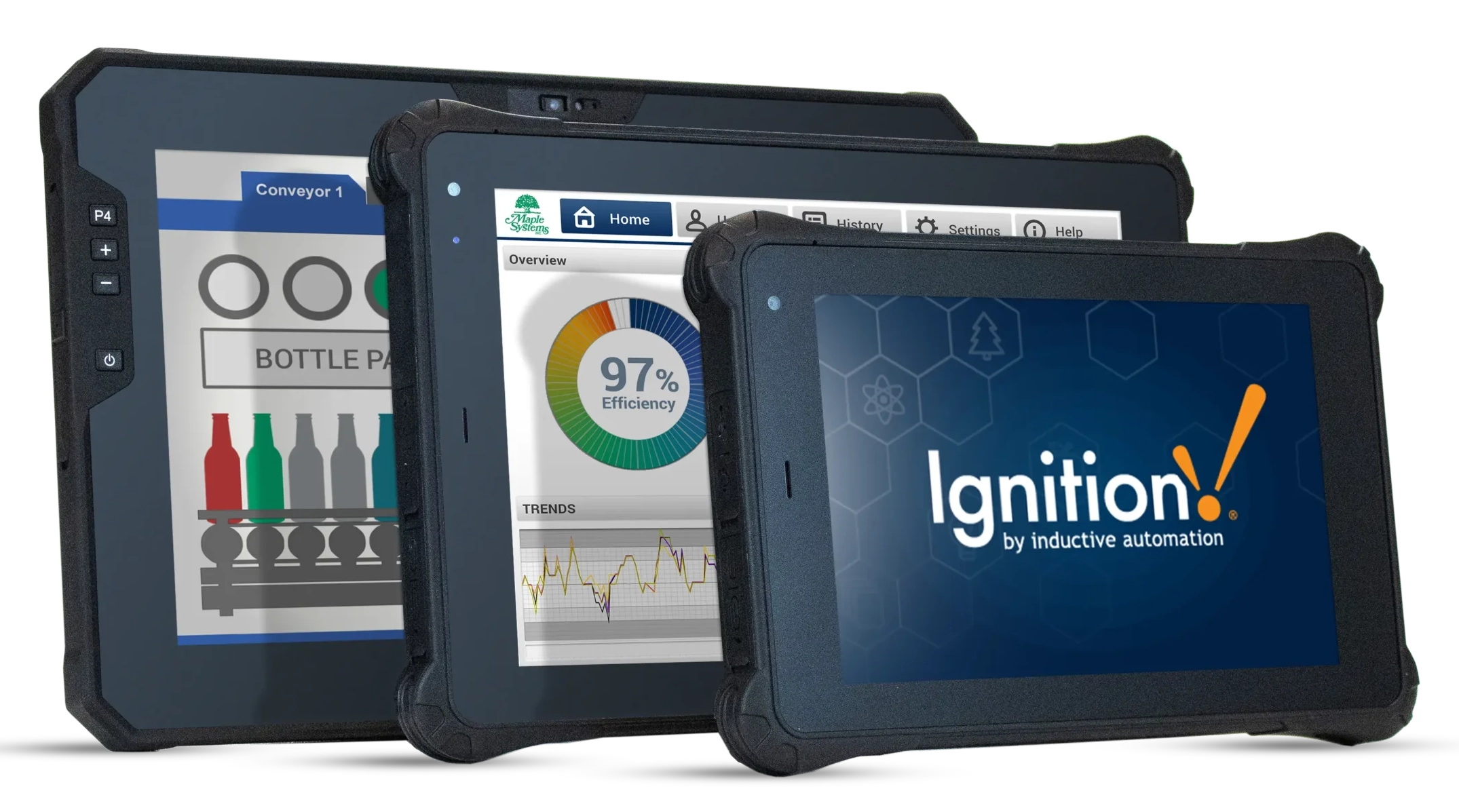
Ignition is an industrial application platform used to create SCADA systems (Supervisory Control and Data Acquisition), and lay an infrastructure for IIoT (Industrial Internet of Things). It mainly acts as a central hub for connecting all the data within an industrial facility. Ignition connects to almost any industrial device (via OPC UA or MQTT), and can host or talk to any SQL database. As a web-based platform, Ignition allows you to install one server, and access it from any web browser.
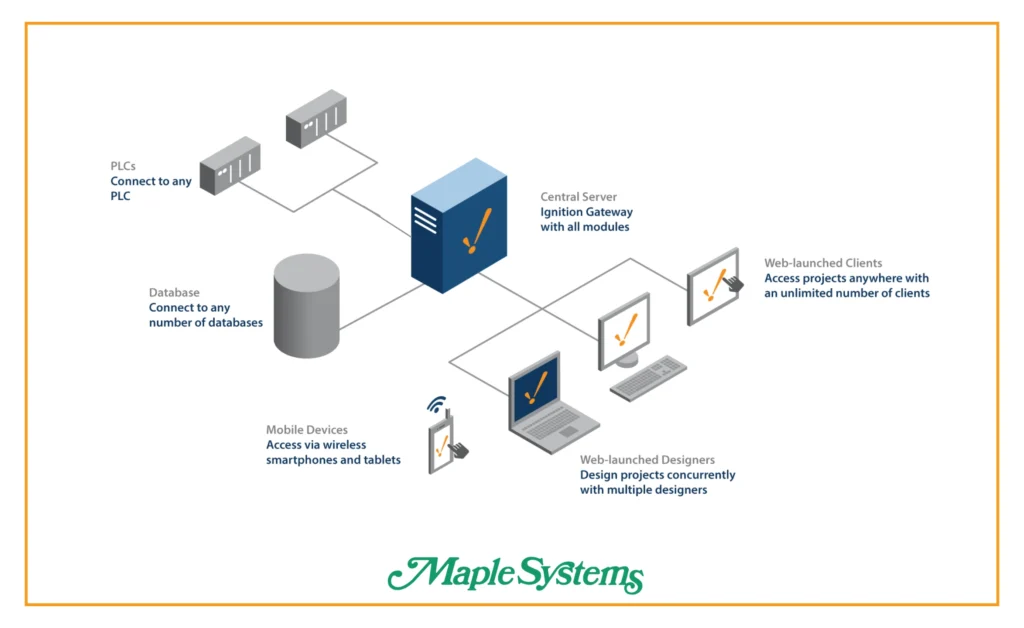
Imagine you have an Ignition project that interfaces with your PLCs, and you have an ignition server set up on a Maple Systems IPC. But you want to be able to connect to it from anywhere in your facility. This is where Maple Systems rugged tablets come in. By installing Ignition Perspective on our rugged tablet, we’re able to remote into our Ignition project from anywhere in our facility.
Software Required
- Ignition Gateway
- Any web browser
- Ignition Perspective (for Android rugged tablets)
Hardware Required
- Any Maple Systems Industrial Panel or Box PC running Ignition Gateway
- Any Maple Systems Rugged Tablet
These are going to be the main way to connect to an Ignition Gateway that’s already running. But if you don’t already have an Ignition Gateway running, setting one up is pretty easy.
Setting up an Ignition Gateway on your Industrial PC
Installing and Configuring Ignition
If you need to get an Ignition server started, it’s as simple as installing the server, and getting it running on a PC.
Instructions: Installing and Configuring Ignition
Ignition initial download
First, we’ll download the windows version of Ignition from their website, and run the installer .exe file.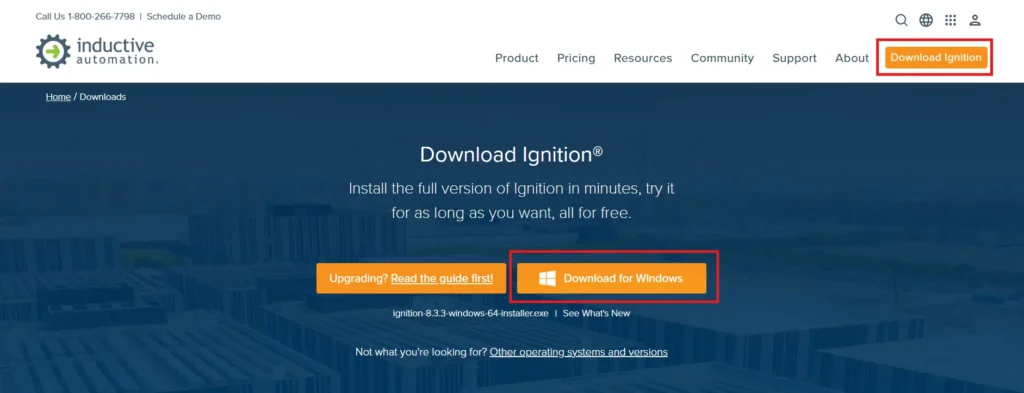
Using the Install Wizard
Then we’ll go through the install wizard, I’ll leave everything as defaults for the sake of simplicity.You can feel free to tweak any settings as you wish, but the defaults should work for our purposes.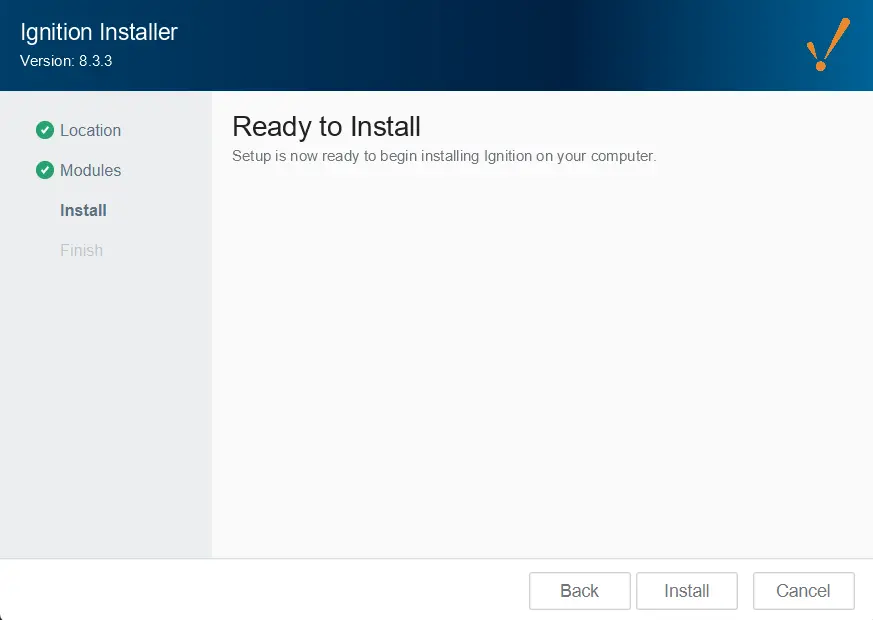
Connecting to Your New Ignition Server
Now that we’ve installed and configured our initial Ignition Gateway server, you’ll notice that there isn’t any sort of desktop icon or client to connect to. Ignition gateway servers act as a web server that runs in the background of your computer, and you need to connect to it via a web-based client like a web browser.
Ignition Browser connection
Connecting to an Ignition Server through a web browser is the simplest and easiest way to get connected and configured.
Instructions: Ignition Browser connection
Connecting our Devices
To start, we’ll want to set up our Maple Systems PC to be on the same network, and the same subnet as your Ignition server, which means both devices have matching IP addresses based on the subnet mask of the two devices.One way to test if your devices are connected is to open a windows command prompt on one of your devices, and type “ping <IP address of the other device>”. If you get a reply, your devices are connected.Navigating to the Ignition Server
Once we have our devices connected, linking to your Ignition Gateway is as simple as opening up a web browser and typing in “http://<IP address of your gateway device>:8808”The screenshot demonstrates an ignition server on the same computer as the web browser.
Connecting via Perspective Workstation
Alternatively, Ignition provides a client application that acts as it’s own client for connecting to Ignition projects. This is useful if you only want to connect to your ignition gateway from a device, you now have a dedicated desktop app to do so.
Instructions: Connecting via Perspective Workstation
Connect to an Ignition Gateway
The only way to download Perspective Workstation is from the Web client for Ignition Gateway. So we’ll need to connect to an Ignition gateway through a web browser to start.Download Perspective Workstation
Once we’ve connected to our Ignition Gateway, we’ll navigate to “Home > Perspective > Downlaod” and download the installer for windows.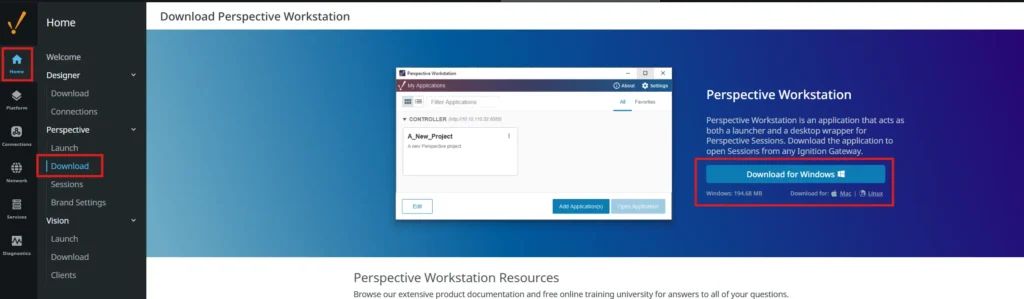
Select the Gateway
Once you’ve downloaded and Installed Perspective Workstation, you’ll simply want to “add” your gateway to your client.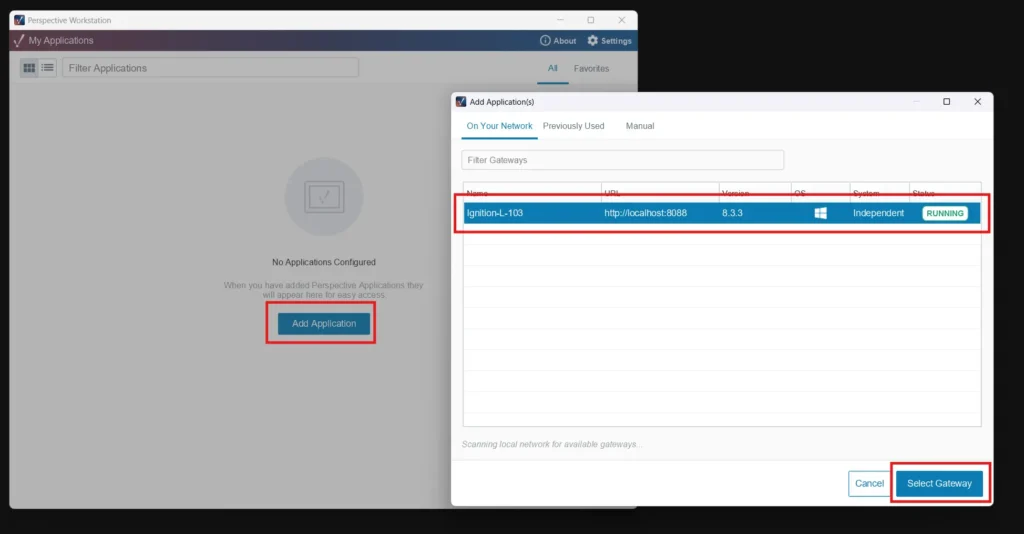
Connect to the Gateway Project
Once you’ve added your gateway, you’ll see it saved to your main menu of the Perspective Workstation. You’ll then simply want to select a project on that gateway, and click “Open Application” to connect to it.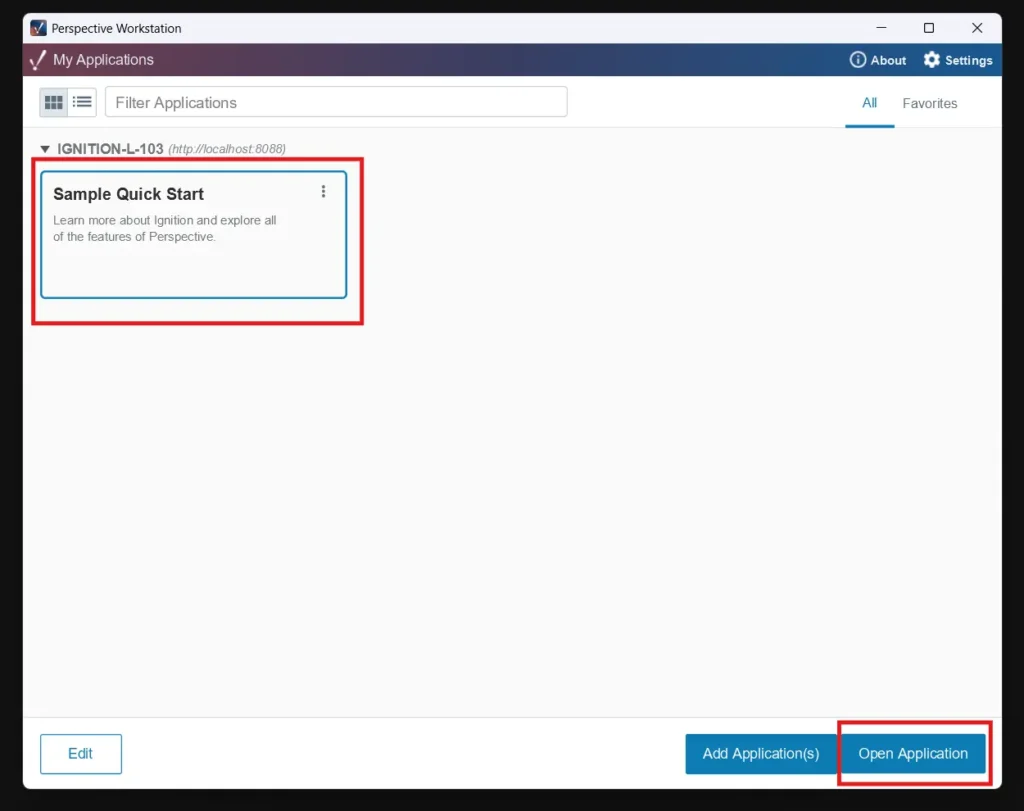
From here, you’d usually create your own Ignition project for your individual needs. If you’d like to learn more about how to do this, you’ll want to refer to Ignition’s documentation on that matter.
Final Thoughts
Right out of the box, Ignition provides us with the tools to connect from anywhere in our facility with ease. And with the power of Maple systems’ rugged tablets, our operators are able to stay connected to our ignition project while remaining on the move throughout the plant floor.
Operators can monitor real-time data, respond to alarms, and make adjustments without being tied to a fixed workstation. Whether troubleshooting a specific machine or overseeing an entire production line, having access to the same centralized Ignition interface ensures consistency and efficiency across operations.
If we leverage Ignition’s browser-based access alongside Maple Systems’ rugged tablets, we’re not just improving visibility, we’re enabling faster decision-making, reducing downtime, and empowering our team to interact with our system wherever it’s needed most.
Resources & Documentation
The following guides and documentation are specific to the hardware used in this integration tutorial and will help you with setup, configuration, and programming:
Looking for additional learning resources? Explore our library of tutorials, example projects, and software tools to help you get the most out of your system:
Also, browse our Support Center for a complete list of installation guides, FAQs, and additional technical documentation.

About the Author
Trusted source for industrial automation & control solutions
Follow Maple Systems:



