4.3" HTML5 Web HMI with Blank Overlay
$359.00
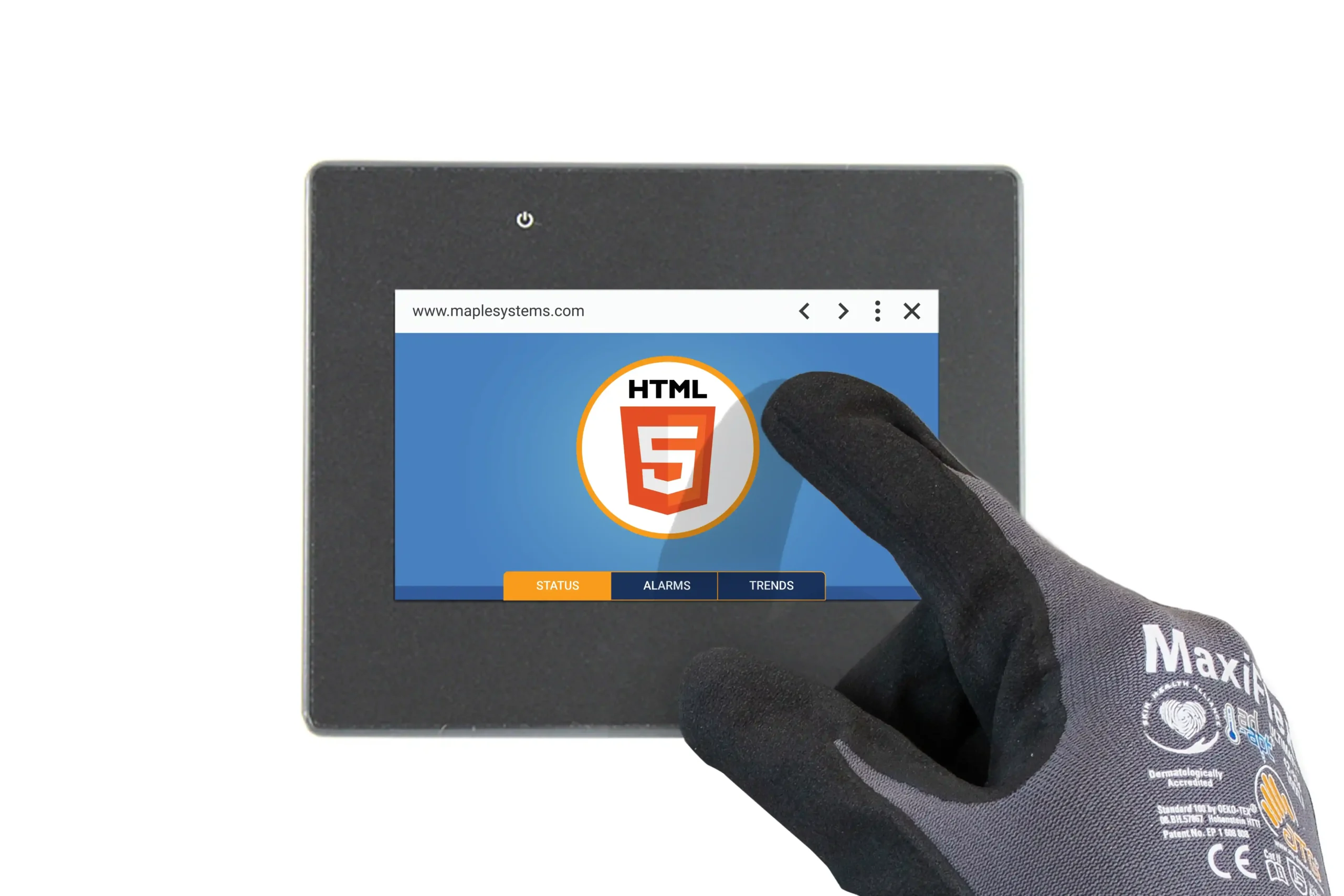
Our cMT2058XHW is equipped with a powerful quad-core CPU, 4GB Flash memory, and 1GB RAM, and a PCB coating, enabling it to handle complex tasks with ease. Designed for endurance, this 4.3″ resistive touch Web HMI with Chromium Version 132, a blank overlay, NEMA4 certified and has an IP66 rating, providing exceptional dust and water resistance, making it suitable for the most demanding industrial environments.
- US-based technical support.
Share the product:
System
| CPU | Quad-Core RISC |
| Memory (eMMC) | 4GB |
| Memory (RAM) | 1 GB |
I/O Ports
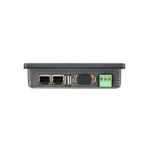
| Ethernet/LAN | LAN 1: 10/100/1000 Base-T x 1; LAN 2: 10/100 Base-T x 1 |
| CANbus | N/A |
| USB Host Ports | USB 2.0 x 1 (Type A) |
| USB Client Ports | N/A |
Display
| Resolution | 800 x 480 |
| Luminance (cd/m^2) | 530 |
| Colors | 16.7 M |
| Display Type | 4.3" WVA |
| Size (W x H) | 3.74 x 2.13 inches [95 x 54 mm] |
Touch Screen
| Type | 4-wire resistive touch |
Electrical
| Input Power | 12.2 W |
| Power Isolation | Built-in |
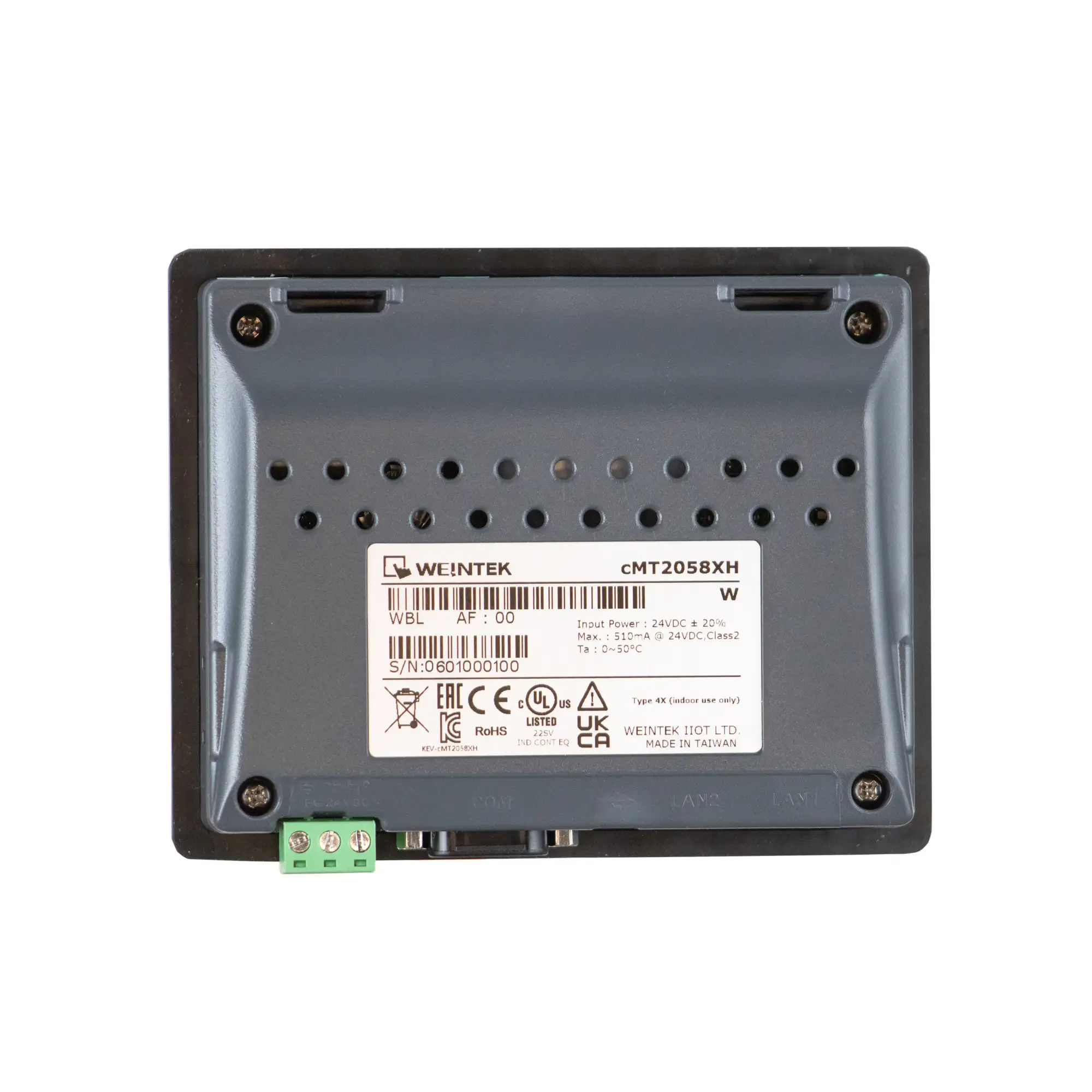
| Input Voltage | 24 ± 20% VDC |
| Input Current | 510 mA @ 24 VDC |
Mechanical
| Vibration Endurance | 10 to 25Hz (X, Y, Z direction 2G 30 minutes) |
| Enclosure Material | Plastic, charcoal grey |
| PCB Coating | Yes |
| Dimensions WxHxD | 5.04 x 4.02 x 1.26 inches [128 x 102 x 32 mm] |
| Panel Cutout (inches) [mm] | 4.69 x 3.66 [119 x 93] |
| Weight | Approx. 0.6 lbs. [0.27 kg] |
| Mounting | Panel mount |
| Shock (Operation) | 25 g acceleration for 11 ms |
Environmental
| Operating Temperature | 32° ~ 122°F (0° ~ 50°C) |
| Storage Temperature | -4~140°F [-20~60°C] |
| Relative Humidity | 10% ~ 90% (non-condensing) |
Certification
| UL Type Rating | UL Type 4X (indoor use only) |
| NEMA Rating | NEMA 4 |
| IP Rating | IP66 Compliant Front Panel |
| CE | Yes |
| UL | cULus Listed |
| RoHS | Yes |
- Chromium Based Browser Version 132
What is a Web HMI?
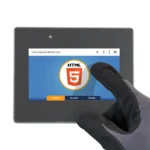
Web HMIs (Human Machine Interfaces) are display units that use a Web Browser to act as a Web Client to visualize internal contents of PLCs and other devices. They offer a versatile and secure means to extend access to a central server. Especially designed for industrial applications, Web HMIs are durable, cost-effective, and user friendly, no communication cables needed, no programming software or programming hours spent.
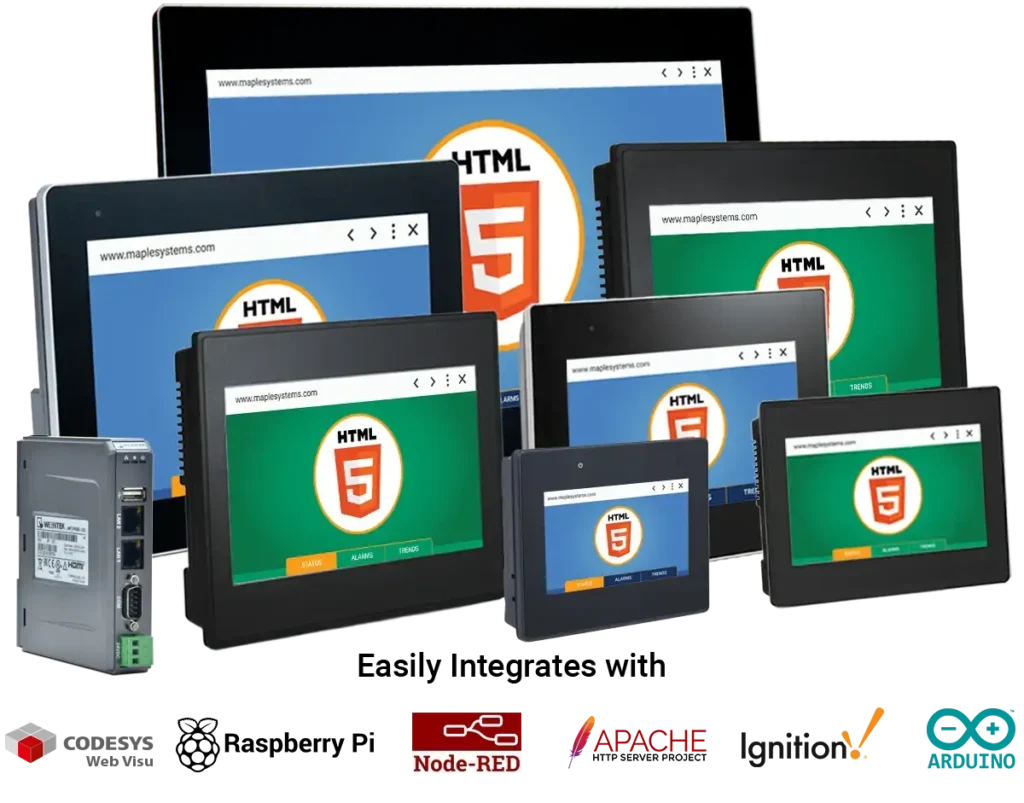
What web servers are supported on your Web HMIs?
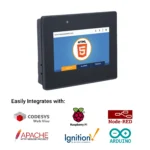
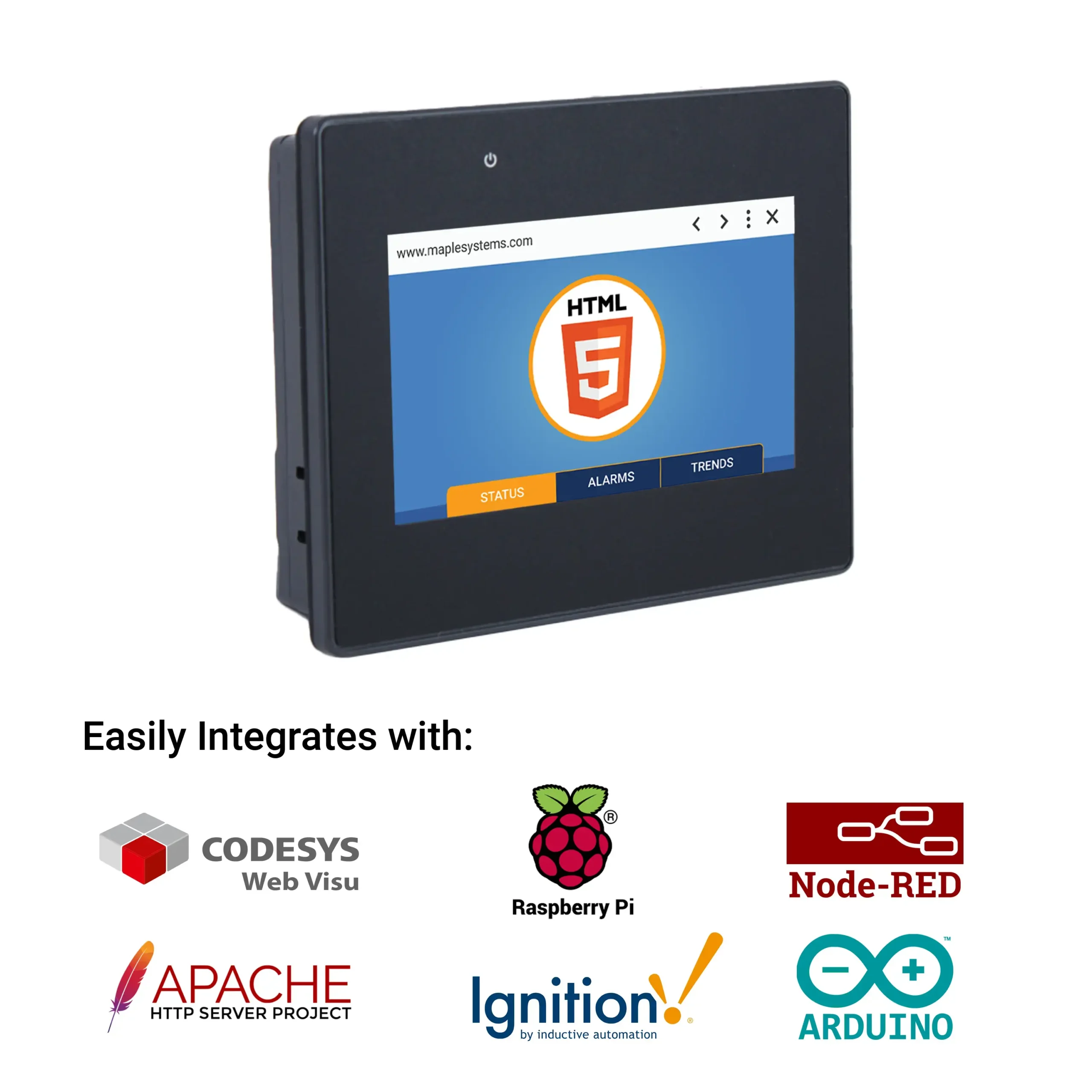
All of them, examples include: CODESYS Web Visu, Ignition SCADA, Node-RED, Arduino, SpiderControl, Raspberry Pi, Apache, and more?
What Visualization Software is used on your Web HMIs?
No software needed, simply enter the IP or URL Address of your target device and you’re up and running.
Do Web HMIs work with HTTPS?
Yes, our Web HMIs run web-based applications. This refers to any program that runs on a server and is accessible via a web browser using HTTP/HTTPS. these applications can range from simple dashboards to complex SCADA system interfaces used to control and monitor extensive industrial processes. Custom web applications may also be employed, allowing for maximum flexibility.
Do Web HMIs work with USB Scanners and/or other HID devices?
The USB port only supports mouse or keyboard devices. Additional human interface devices (HID) would have to be connected to an HMI that would send that information to a webserver, and that information can be viewed on the Web HMI.
Any device that has a web-based application can be viewed on our Web HMIs.
Is it possible to integrate a Web HMI with an Allen Bradley HMI?
Yes, you can connect several Web HMIs to Allen Bradley HMIs. Web HMIs cab be added to almost any project in place of a standard HMI. Display Visualizations made in CODESYS, AVEVA Edge, or any web-based application with ease.
Web HMIs function solely as client devices, meaning they rely on a connection to a central server to access services and process data. The Web HMI simply acts as an extension of the server’s interface, connecting to the server over Ethernet to display data and provide a means for operators to send input back to the server.

As you can see in the above diagram, using Web HMIs can result in a more efficient network that requires less hassle to implement and expand. Adding new Web HMIs to your system is trivial compared to the alternative:
- Streamlined Connection: Fewer components, no need for complex wiring. Easily mounted and connected to your existing network infrastructure. Connecting to power and the local network are all you need to do to get online.
- User-Friendly Configuration. Plug and Play approach. Simply enter the server’s URL or IP address into the Web HMI’s connection menu and you’re ready to go.
- Reduced IT Burden: No need for extensive software installations or updates since the Web HMIs rely on web-based applications. Centralized management from the server ensures all panels are always up to date with the latest features and security patches.
- Simple Expansion: Since adding a new Web HMI is as easy as connecting it to a network and entering the server URL into the connection menu, there is no need for extensive configuration or additional hardware investments.
- Cost-Effective Growth: This streamlined process enables quick and cost-effective expansion, allowing you to scale your operations with minimal effort.
- Flexible Deployment: Web HMIs are easy to install in various locations across your facility, providing consistent access to essential data and controls.
- Energy Efficient: Web HMIs typically consume significantly less power than traditional HMIs since all the heavy lifting is done by the central server. This is particularly important in environments where multiple devices are in continuous operation.
- Environmental Benefits: By lowering power consumption, Web HMIs contribute to more sustainable operation, aligning with green initiatives and reducing your facility’s carbon footprint.
By leveraging the processing power of a centralized server, Web HMIs present a streamline approach that can cut down development and installation time, while increasing overall efficiency across your control system. Simple wiring also means that installing a new Web HMI requires connections to power and the local network, nothing more.
What communication drivers are needed for your Web HMI to connect to my PLC?
No communication drivers are needed as our Web HMIs are equipped with open-standard HTML5 Protocol.
How long will it take me to set up my cMT series Web HMI?
Not long at all, it super quick and easy:
After powering on the HMI, a countdown screen will be displayed. If no action is taken within the countdown period, the screen redirects to the designated Default Website.
Click the [System Settings] button and enter the system password (default: 111111, if not try m1111111) to access the system settings menu. Here, configure the Web Browser, Network, change the system password and adjust any other settings to your preference.
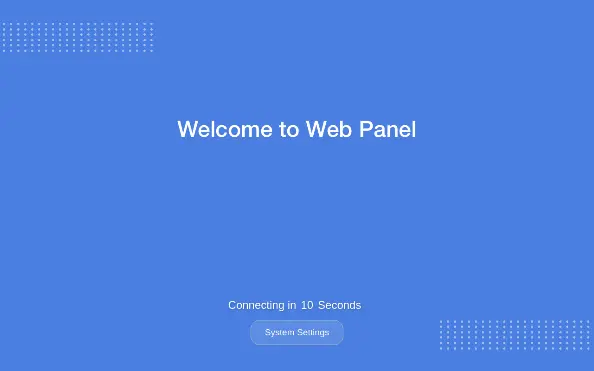
The built-in browser will browse to the default website after seconds defined in [Countdown before Start] setting. To change the default website and countdown time, open the [Web Browser Setting] tab.
Increase the countdown time if the web server starts slower than the browser.
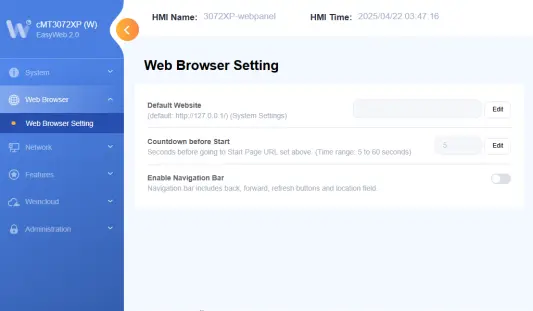
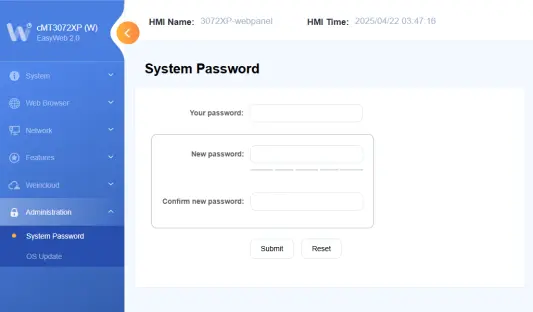
To change the system password, open the [Administration] tab. Enter the current password, then the new password, and confirm the new password to complete the update.
How do I locate general network information and the IP Address on your Web HMIs
WP4000 Series
Device information for our WP4000 Series Web HMIs, such as the Product Name, MAC Address, IP Address, Subnet Mask, and Default Gateway addresses, can be found in the 3rd menu tab on the left, after start up.

cMT Series
Device information for our cMT Series Web HMIs can be found in the System Settings menu located on the bottom of the startup window.
Where do I input the URL address for the website I want to visit from my Web HMI?
WP4000 Series
The second icon on the left is the URL Selection Page, where you can specify up to 5 website URLs for the Web HMI to be able to quickly visit on start up. Click on the button to the left of the URL, cycle power and the Web HMI will start up to that website automatically.

cMT Series
After clicking into the System Settings from the start-up screen, you will enter your URL in the Web Browser Settings Tab, Default Website field.
How do I change the IP Address on a Web HMI?
WP4000 Series
You can change the IP Address on our Web HMIs by accessing the top/first menu on the left, with the "gear" icon, after start up.

cMT Series Web HMI
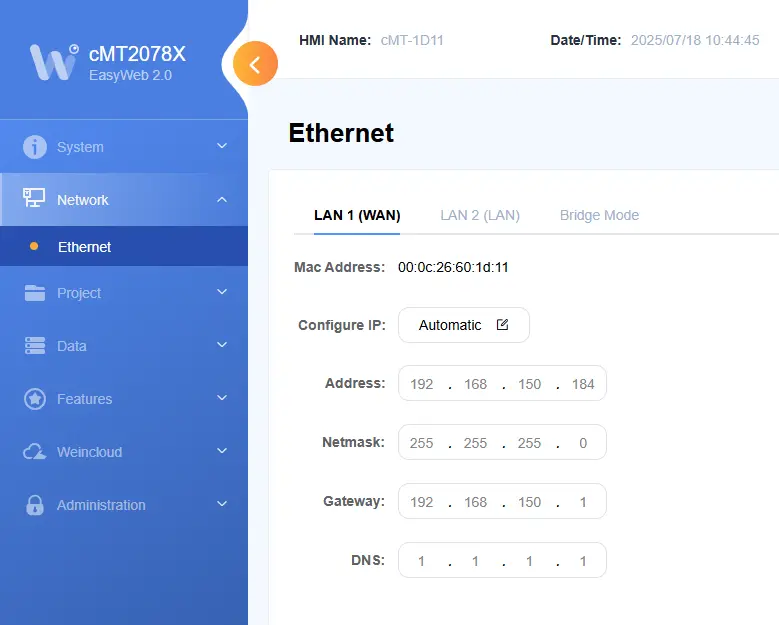
You can change the IP Address for the cMT Web HMIs in the Network Tab, then click Ethernet.
Documents
Manuals
Certifications
- UL Certification Declaration – cMT Series
- CE UK Declaration of Conformity – cMT2058XH, cMT2058XHW
- RoHS Declaration of Conformity (all series)
- REACH EU Declaration of Conformity
- Russian Iron and Steel Declaration
- Trade Agreement Act Declaration of Conformity
- EU Declaration of Conformity (Battery Regulations)
- Country of Origin Certification
CAD Files
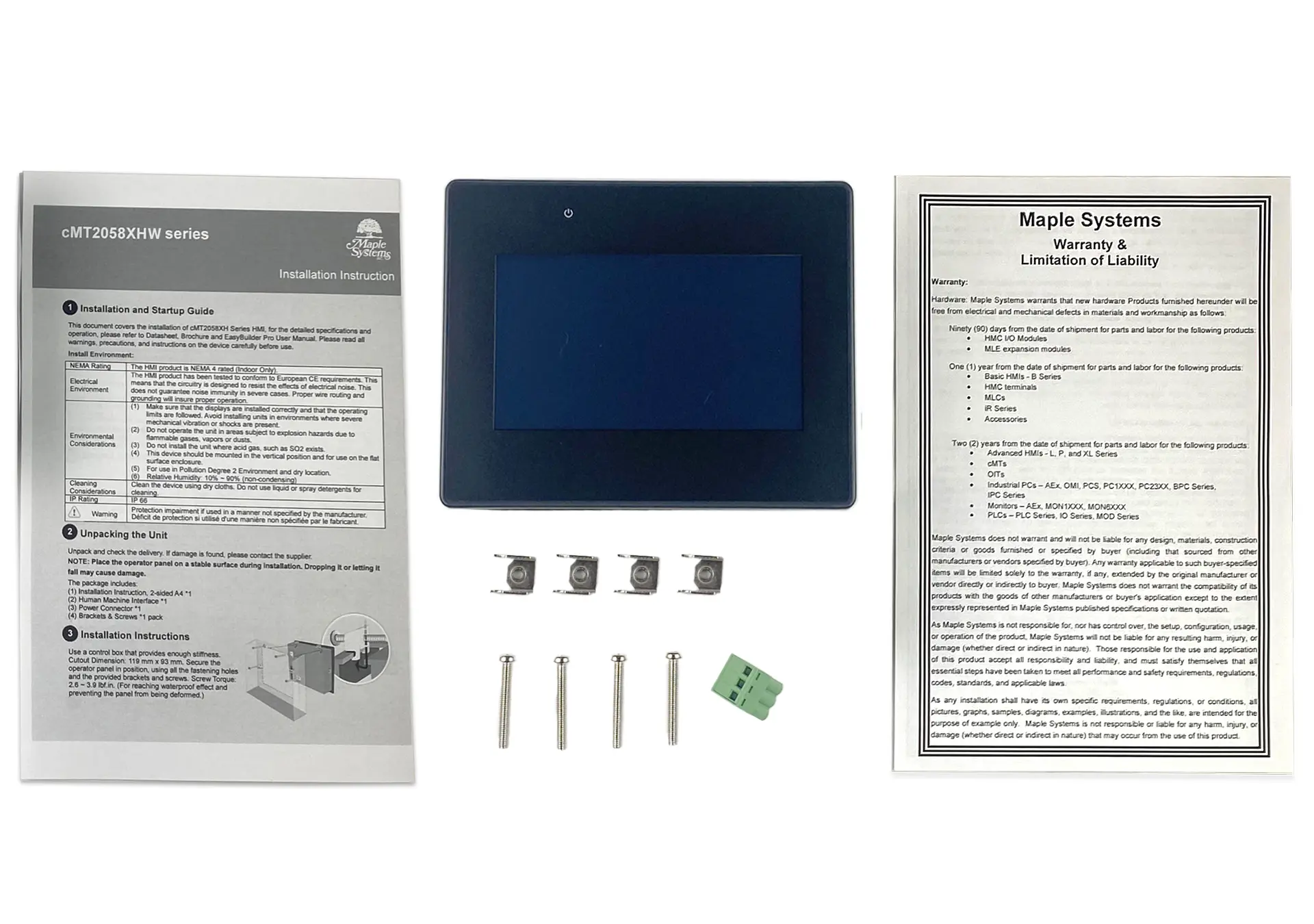
When you order the cMT2058XHW the following items are included in the box:
- cMT2058XHW Web HMI
- Warranty Statement
- Installation Instruction
- 1 x Power Connector
- 4 x Mounting Clips