
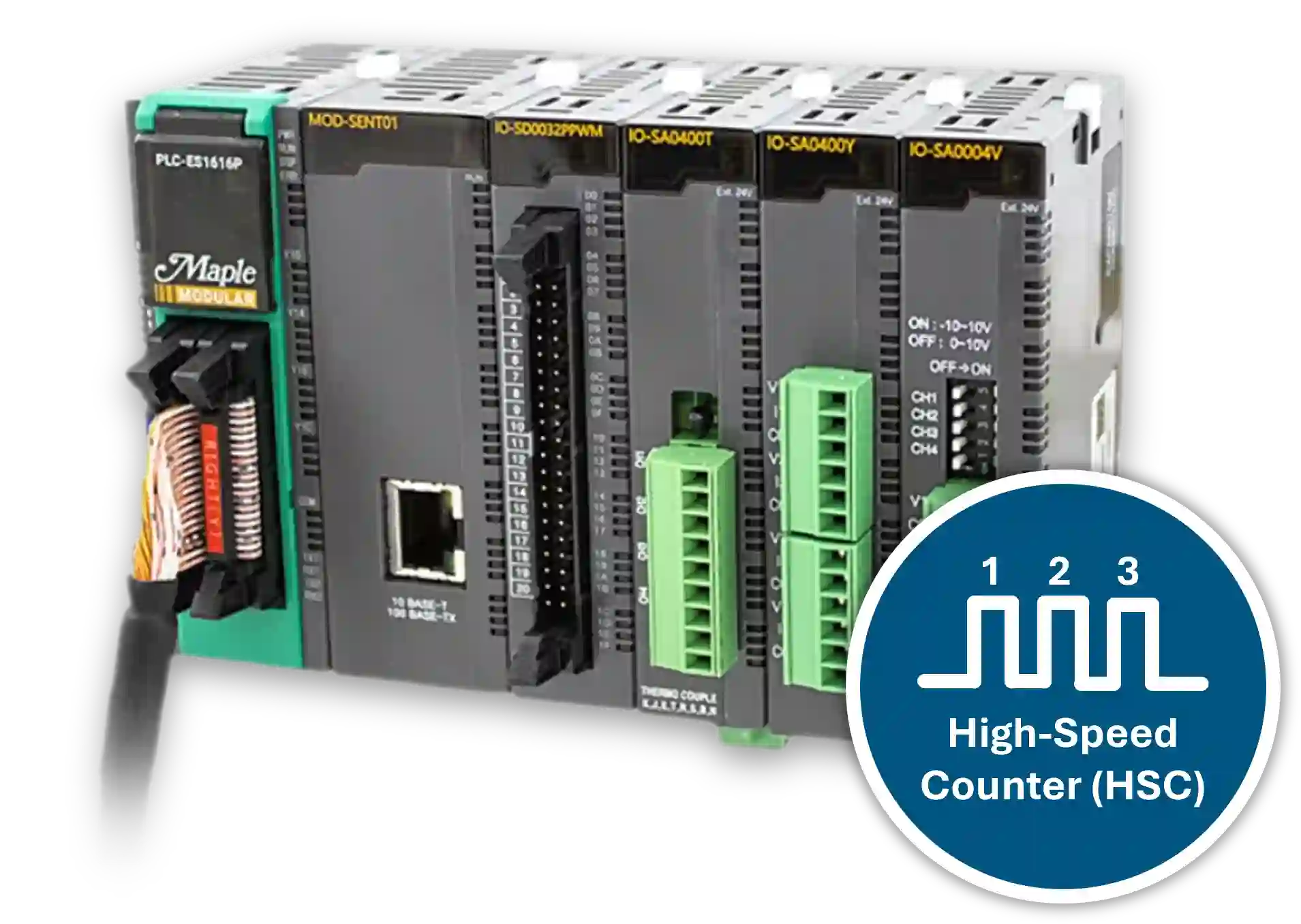
In this integration tutorial, you will learn what high-speed counters are, how encoders work, and how both are used together in industrial control environments. You will also learn how to configure a high-speed counter in MapleLogic.
What is a High Speed Counter?
A high-speed counter is a control-system feature designed to count pulses or events at a rate that standard PLC inputs may miss. It captures fast input transitions accurately and is commonly used when precise pulse counting is required.
In industrial automation, high-speed counters are often used for product counting, rotational feedback, speed monitoring, and motion control. High-speed inputs typically support frequencies up to 100 kHz.
How High-Speed Counters Work
High-speed counters operate differently from standard PLC inputs. Instead of relying on the normal PLC scan cycle, they monitor dedicated high-speed inputs that are capable of detecting very fast signal transitions.
The following characteristics allow high-speed counters to accurately process fast pulse signals:
- They monitor dedicated high-speed digital inputs.
- Each pulse received increments or decrements the counter value.
- They operate independently of the normal PLC scan cycle.
- Many high-speed inputs support frequencies up to about 100 kHz.
Because of these capabilities, high-speed counters can reliably process signals generated by encoders and other high-frequency sensors used in industrial automation.
Industrial Automation Applications
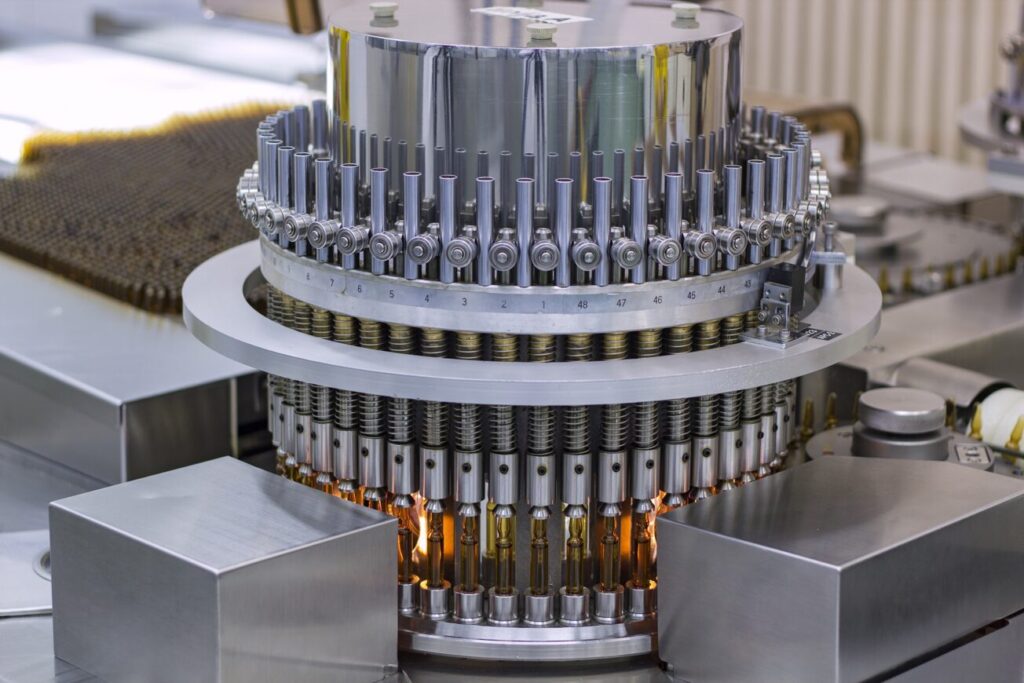
In manufacturing environments, high-speed counters are frequently used to count fast-moving products, detect events on production lines, or monitor repetitive machine motion.

Motion Control Applications
High-speed counters are also essential in motion control systems. When paired with encoders, they allow PLCs to measure position, speed, and direction of rotating or moving equipment such as motors, robotic arms, and CNC machines.


What is an Encoder?
An encoder is a sensing device used in automation systems to provide feedback about the motion of a machine or mechanical component. By converting movement into electrical signals, encoders allow a control system such as a PLC to monitor position, speed, direction, or distance traveled.
Encoders are commonly used in industrial applications where precise motion control is required, such as motors, conveyors, robotic systems, and CNC equipment.
Linear and Rotary Encoders
Encoders are generally classified based on the type of motion they measure. The two most common types are linear encoders and rotary encoders.
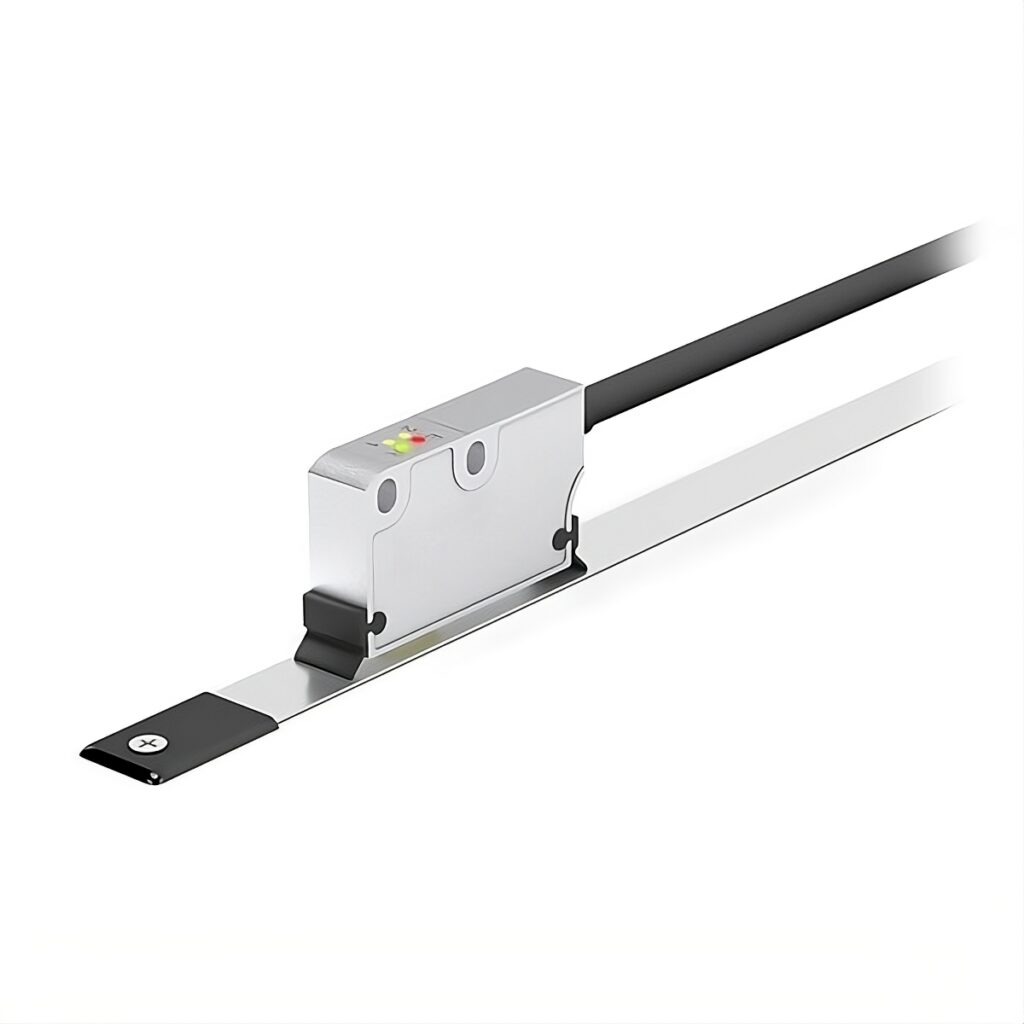
Linear encoders measure movement along a straight path. They are often used in positioning systems such as cut-to-length machines or linear motion stages. As an object moves, the encoder produces signals that allow the control system to determine the distance traveled.
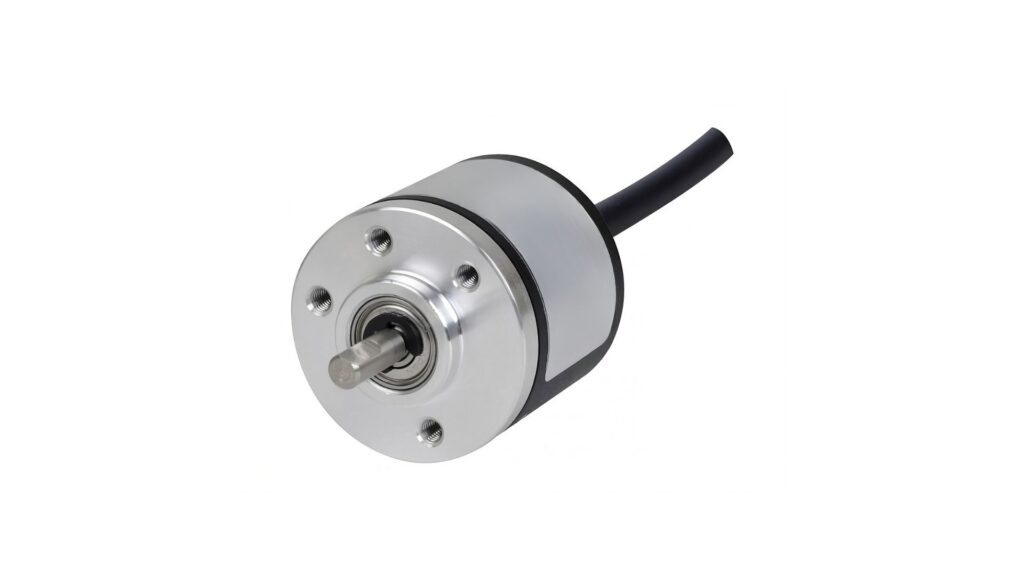
Rotary encoders measure rotational movement, such as the rotation of a motor shaft. The encoder converts the angular position of the shaft into electrical signals so the control system can determine rotational speed, direction, or position.
Depending on the design, rotary encoders may also be referred to as hollow shaft encoders or thru-bore encoders.
Absolute vs Incremental Encoders
Encoders can also be categorized by how they report position information. The two most common signal types are absolute encoders and incremental encoders.
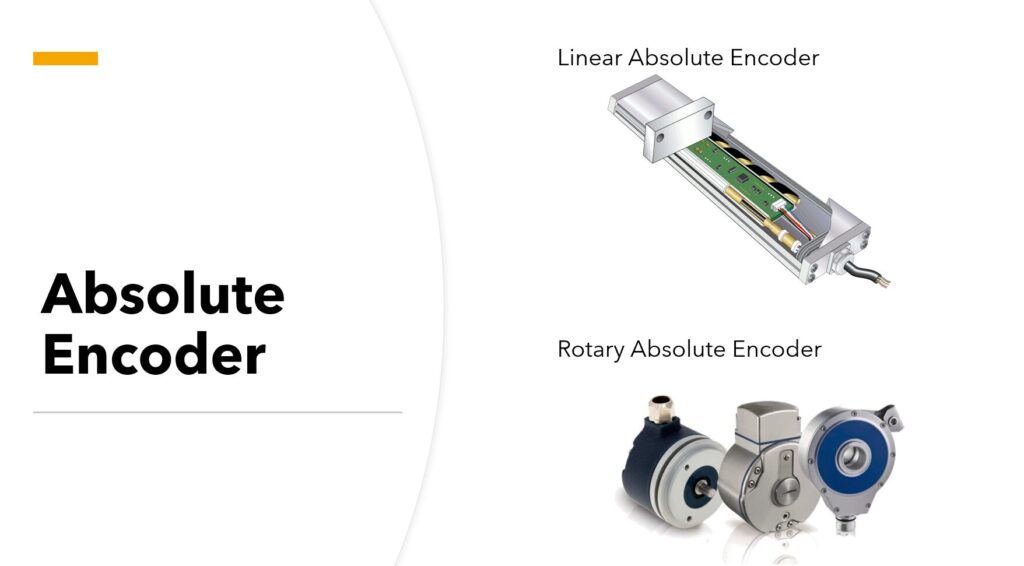
Absolute encoders provide a unique digital value for every position of the encoder shaft. This means the system always knows the exact position of the object, even after power is lost.
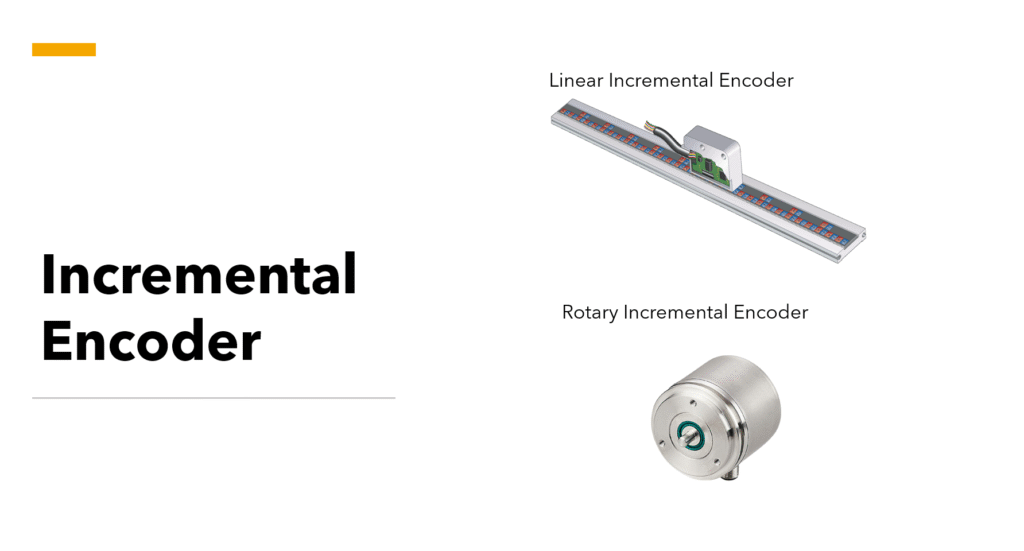
Incremental encoders measure movement by generating pulses as the shaft rotates. The control system determines position by counting these pulses. Because the position is calculated relative to a reference point, incremental encoders must typically be re-homed after a power loss.
In simple terms, incremental encoders measure movement relative to a reference point, while absolute encoders report the exact position directly.
Using a High Speed Counter with an Encoder
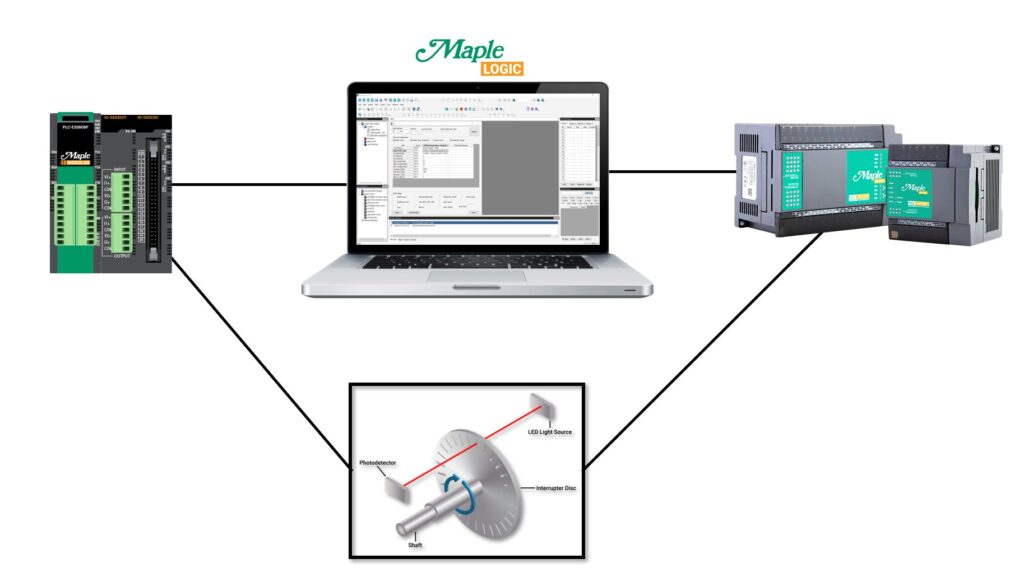
Using a high-speed counter with an encoder means connecting the encoder output to the counter input so the PLC or HSC module can measure pulses accurately. Encoders produce digital square-wave signals that represent movement increments, which can then be used to measure speed, direction, or position.
The high-speed counter receives and processes these pulses. As the encoder generates pulses, the counter tallies them to determine position. By analyzing pulse order and edge transitions, the control system can also determine direction.
Below is an example of an incremental optical encoder.
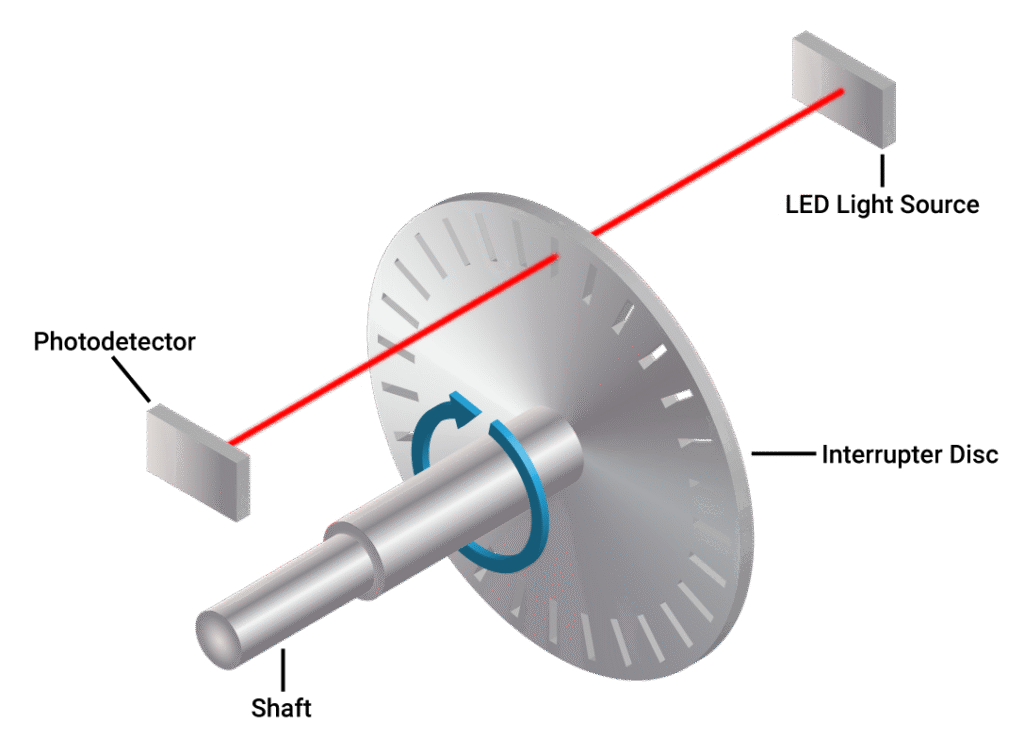
It uses a beam of light passing through a patterned disc. A photo-sensing device interprets the light pattern and turns it into a feedback signal.
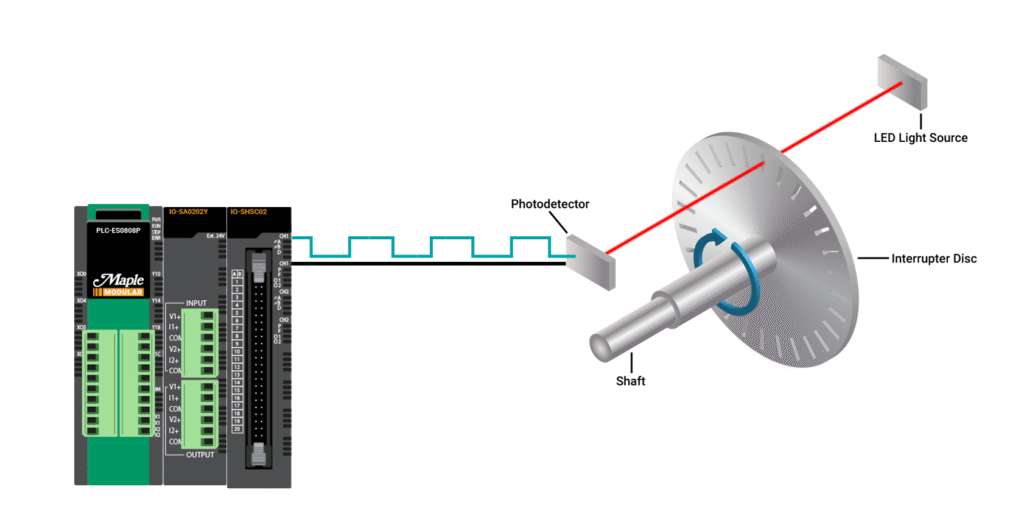
Those pulses are then converted into a square-wave signal and sent back to the processor, such as a Maple PLC or high-speed counter module, through the encoder output.
How does the PLC interpret the signal from an Encoder?
Single Phase (1x) High Speed Counter
A single-phase high-speed counter uses one input signal and counts one edge transition, typically the rising edge. Each rising edge increments the count by one.
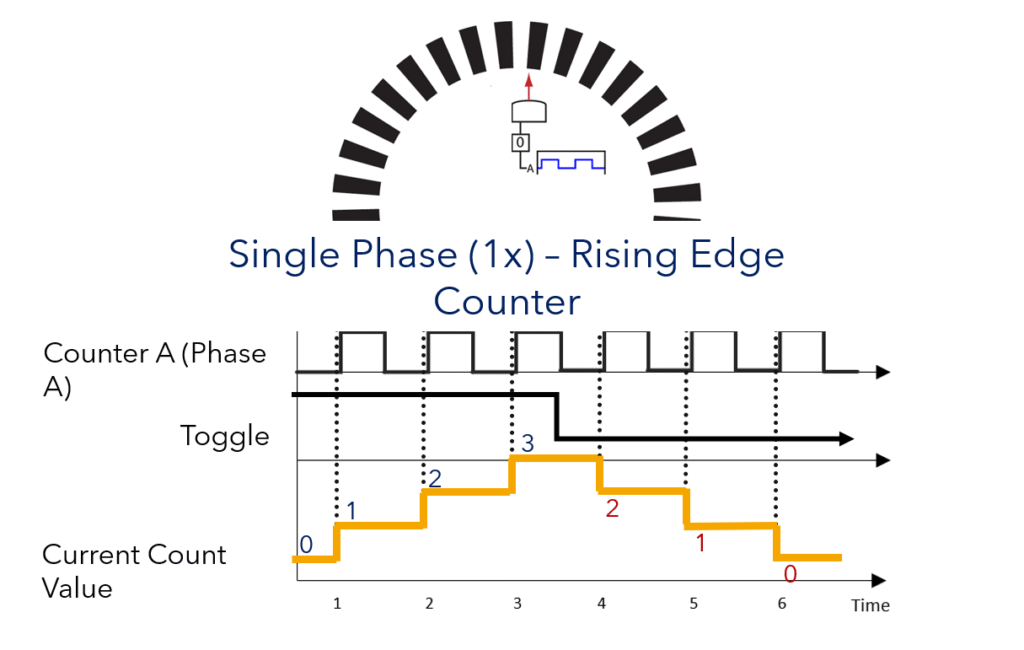
This mode is useful when only pulse counting is needed and direction feedback is not required.
Single Phase (2x) High Speed Counter
A single-phase 2x high-speed counter counts both the rising and falling edges of one signal. This provides greater precision than a single-edge counter because it counts twice as many transitions.
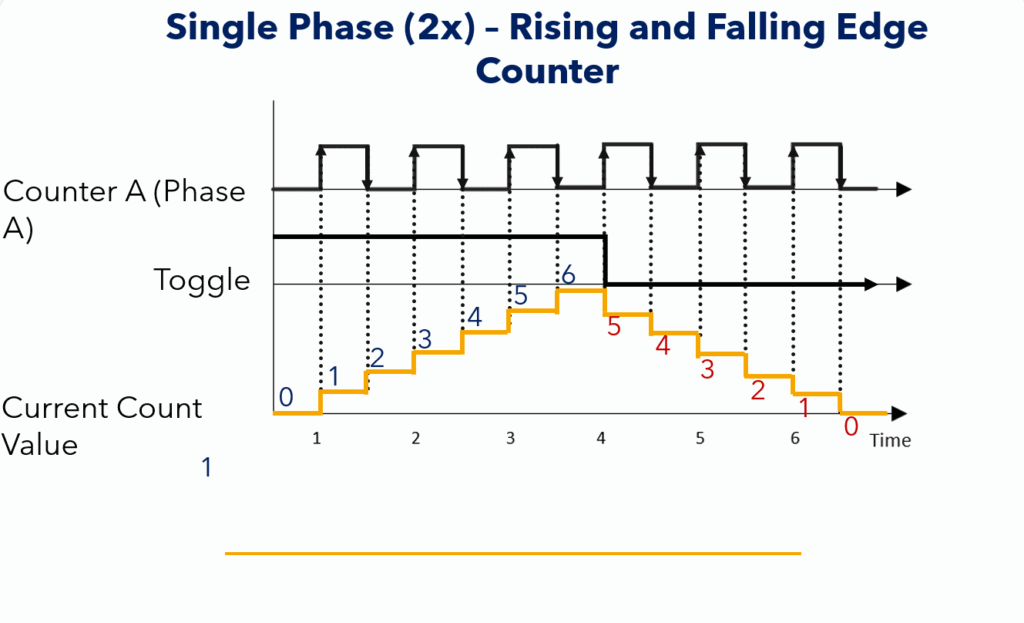
Each rising and falling edge increments the counter by one, giving higher resolution from the same signal source.
Quadrature Mode (4x) – 2 Phase x Rising and Falling Edge Counter
A quadrature counter uses two signals that are 90 degrees out of phase, typically called Channel A and Channel B. This allows the PLC to count pulses and determine direction of motion at the same time.
In a 4x quadrature mode, the counter evaluates both the rising and falling edges of both channels, which gives the highest resolution of the modes shown here.
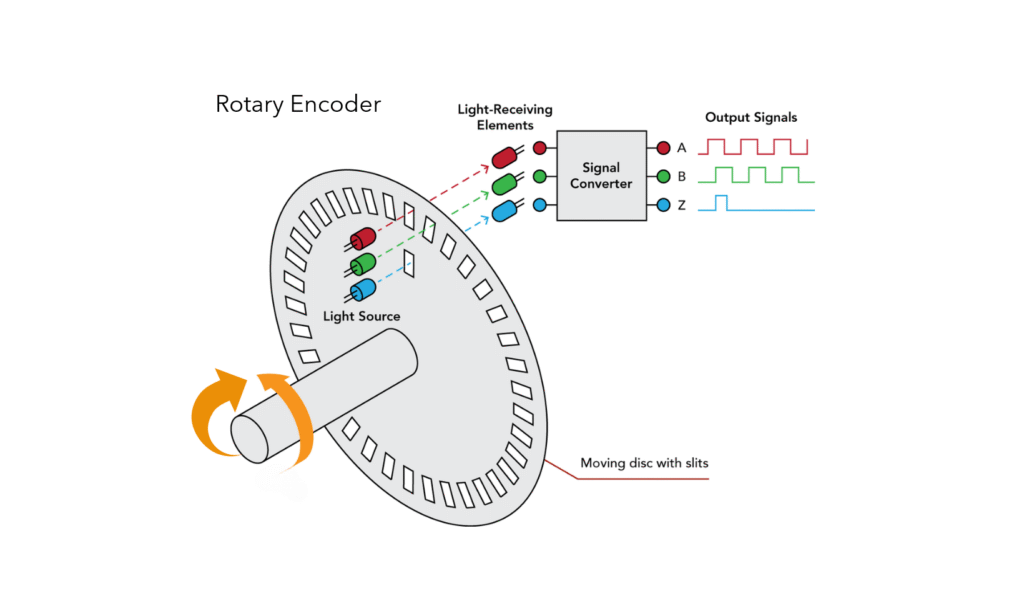
Single-channel encoders can measure movement magnitude, but they cannot determine direction. Quadrature encoders solve this by using two offset signals.
If Channel A leads Channel B, rotation is in one direction. If Channel B leads Channel A, rotation is in the opposite direction.
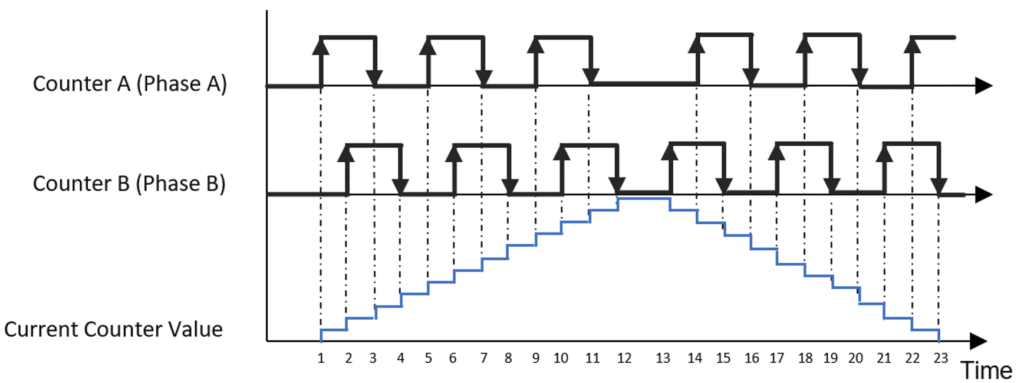
By counting both channels and evaluating the phase relationship, the PLC can track both pulse count and direction.
High Speed Counter Configuration in MapleLogic
You can configure a high-speed counter with Maple Modular and Maple Micro PLCs in MapleLogic. An HSC expansion module is available only for Maple Modular PLCs.
Create a High Speed Counter Program in MapleLogic
Start a new HSC program in MapleLogic so you can configure high-speed counter behavior for your PLC project.
Instructions: Create a High Speed Counter Program in MapleLogic
Start a new MapleLogic project
Create a new project in MapleLogic using either a Maple Modular PLC or a Maple Micro PLC.
Create a new special program
Right-click Program and select New Program to add a new program to your project.
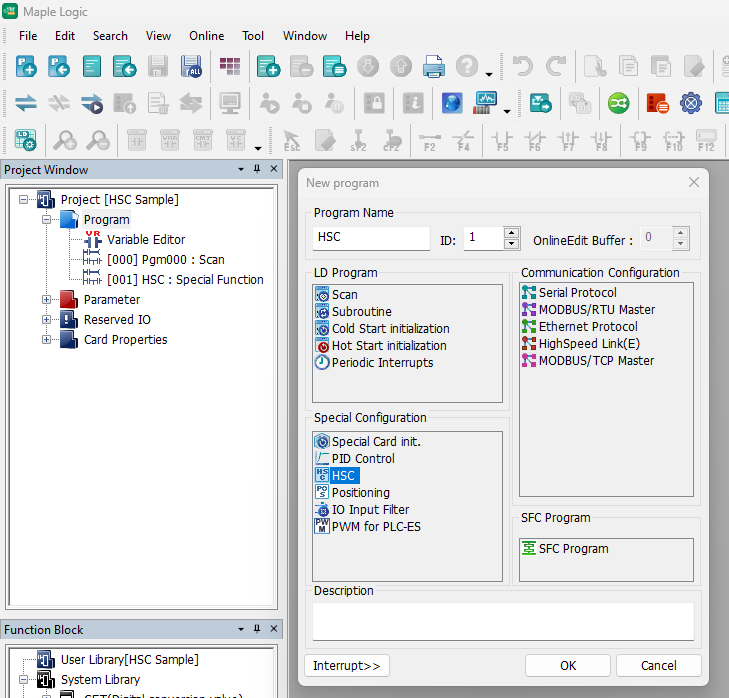
Select HSC under Special Configuration
Choose HSC under Special Configuration to create a High Speed Counter program.
Open the HSC program window
After creating the HSC program, the HSC Program Window opens and you can begin configuring the counter behavior.
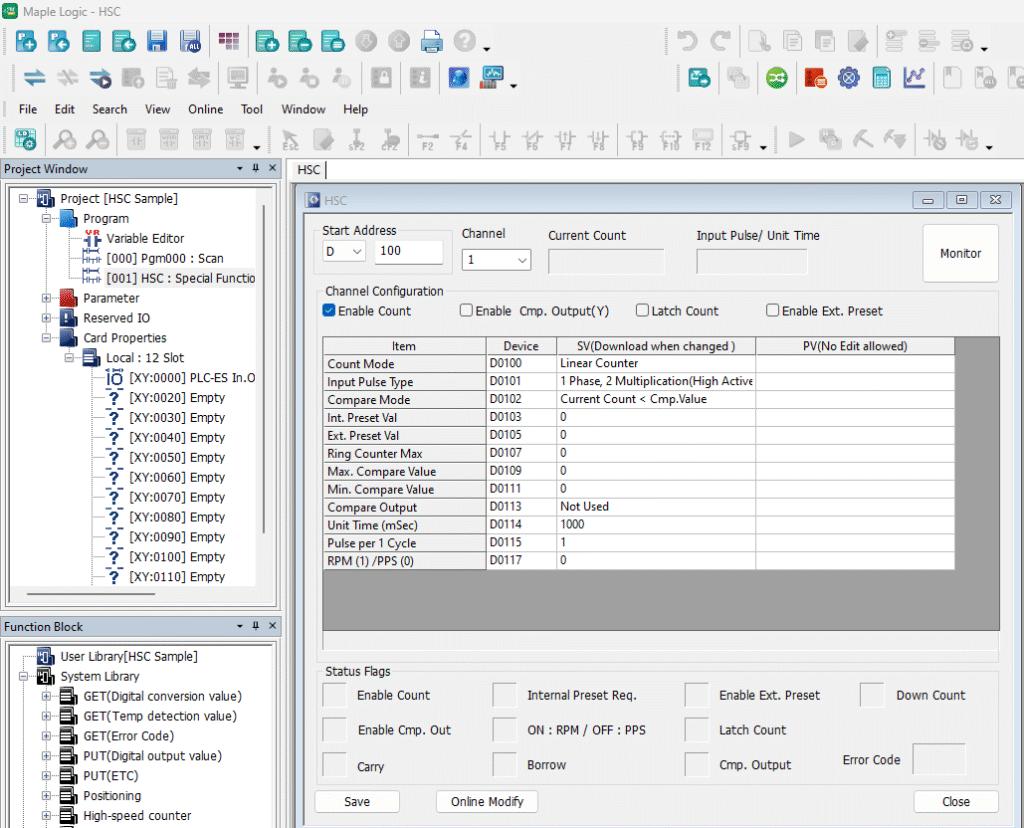
Select the Counter Mode and Input Pulse Type
Choose the correct counter mode and pulse type based on your encoder and application requirements.
Instructions: Select the Counter Mode and Input Pulse Type
Choose a counter mode
Select either Linear Counter or Ring Counter in the HSC program window.
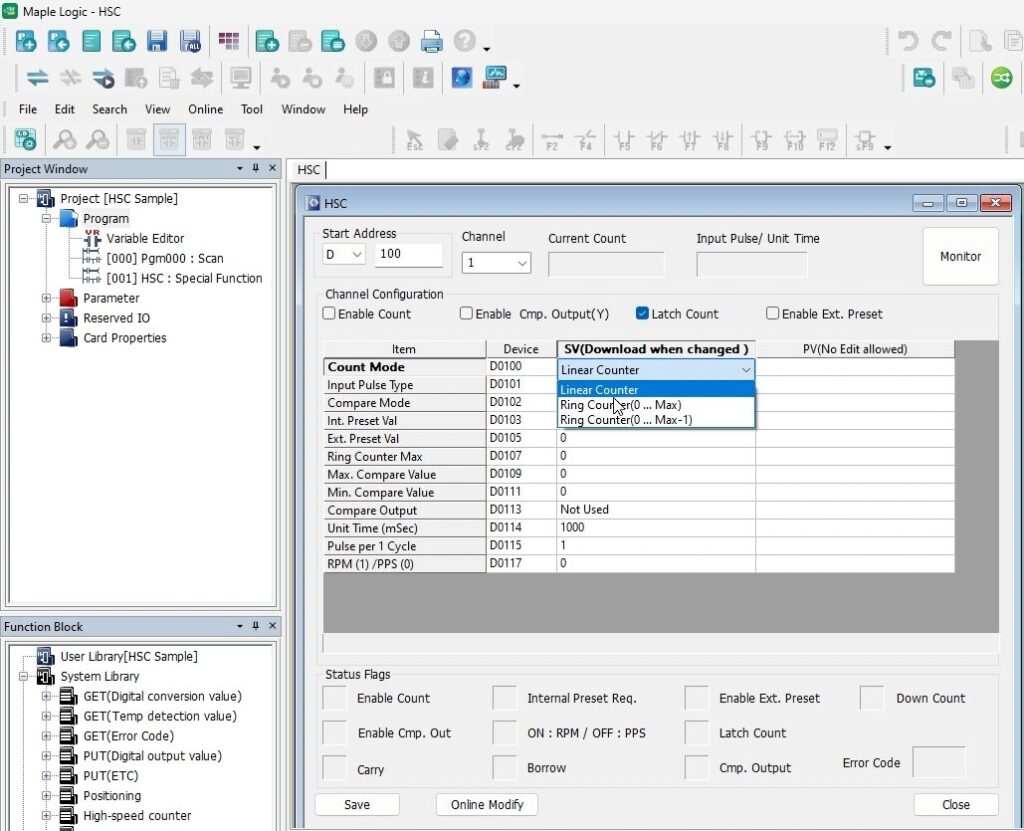
Use Linear Counter for single-phase counting
Choose Linear Counter if you want one-direction counting, such as single-phase HSC behavior.
Use Ring Counter for rotational sequences
Choose Ring Counter if your application uses a rotational or closed-loop sequence, such as a rotary encoder on a motor.
Choose the input pulse type
Select either One Phase or Two Phase depending on the encoder signal type used in your application.
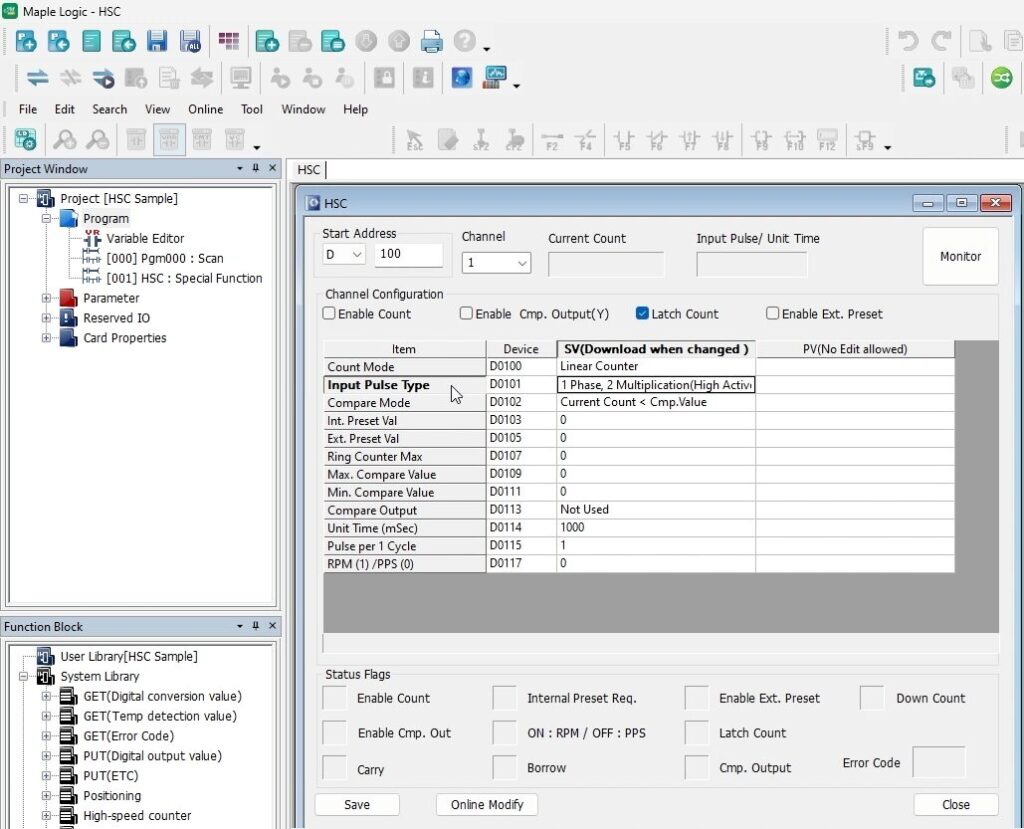
Use One Phase for a single signal input
Choose One Phase if the counter will use a single input pulse signal to increment the count.
Use Two Phase for quadrature encoder signals
Choose Two Phase for quadrature encoder feedback. In a 2-phase 4-multiplication setup, the counter increments by 4 for each complete quadrature cycle.
Configure Compare Mode, RPM or PPS, and Enable Count
Set the compare options, measurement values, and enable the counter so the HSC can begin operating correctly.
Instructions: Configure Compare Mode, RPM or PPS, and Enable Count
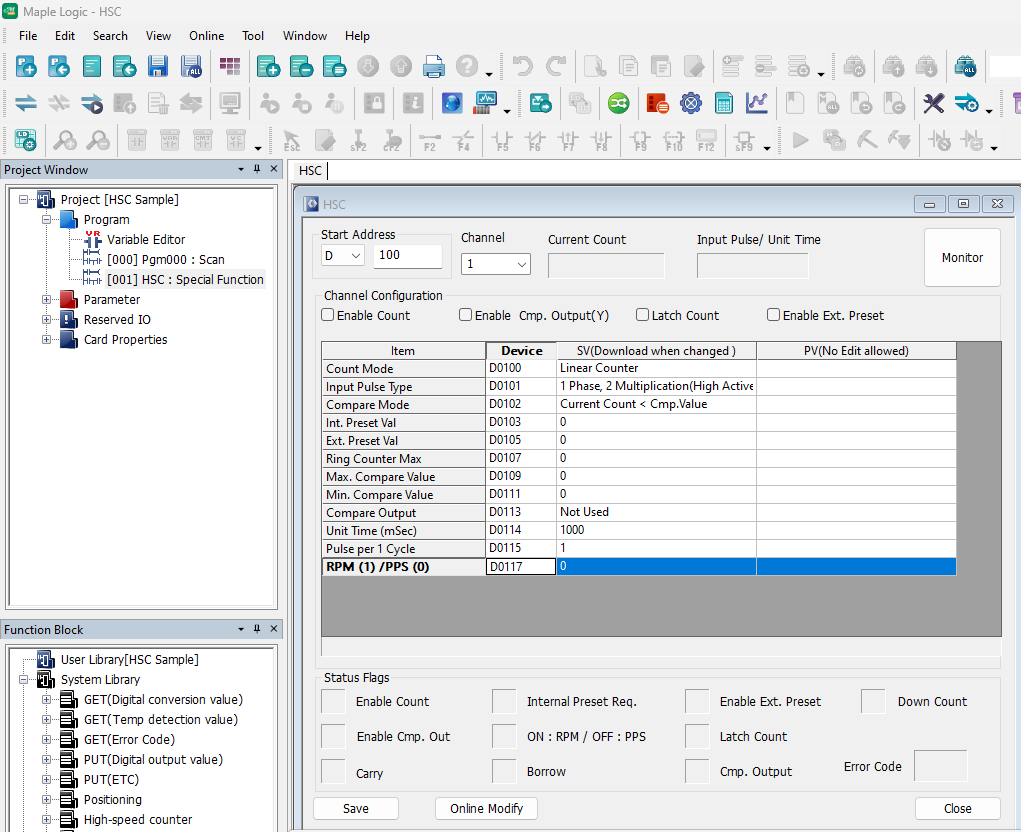
Configure Compare Mode if needed
Use Compare Mode when you want the counter to trigger an action after reaching a predefined value or state.
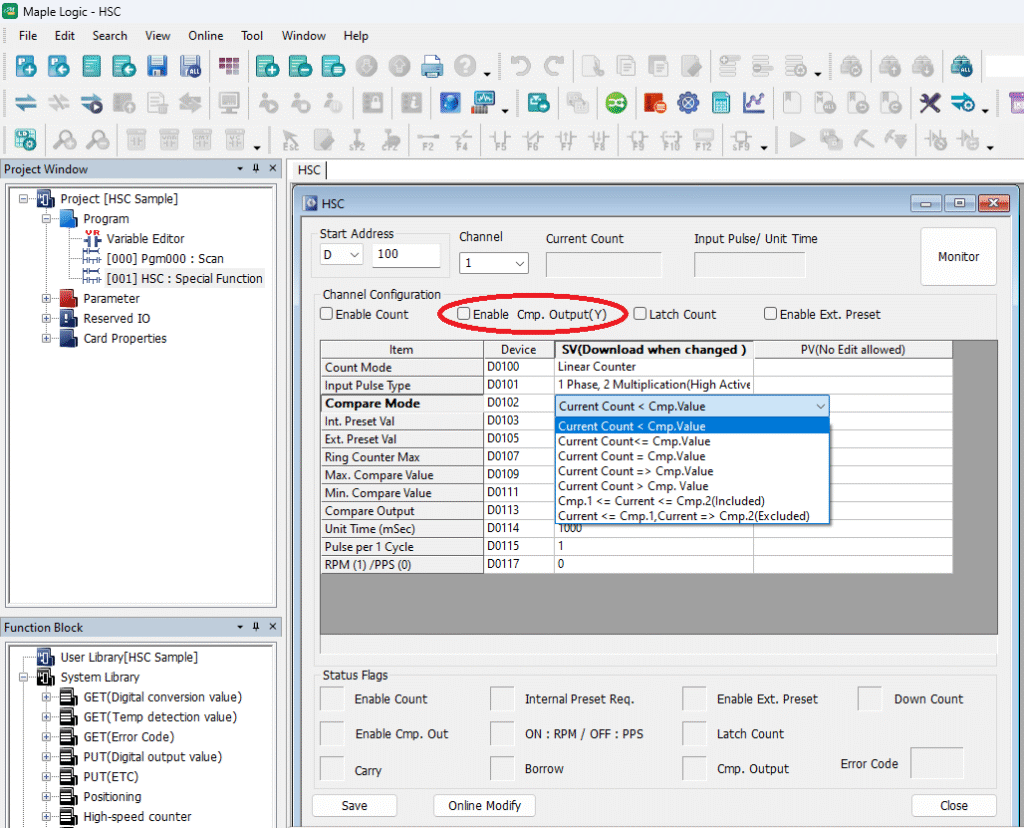
Enable compare output
Select Enable Compare Output (Y) in the Channel Configuration window if you want to use compared output signals.
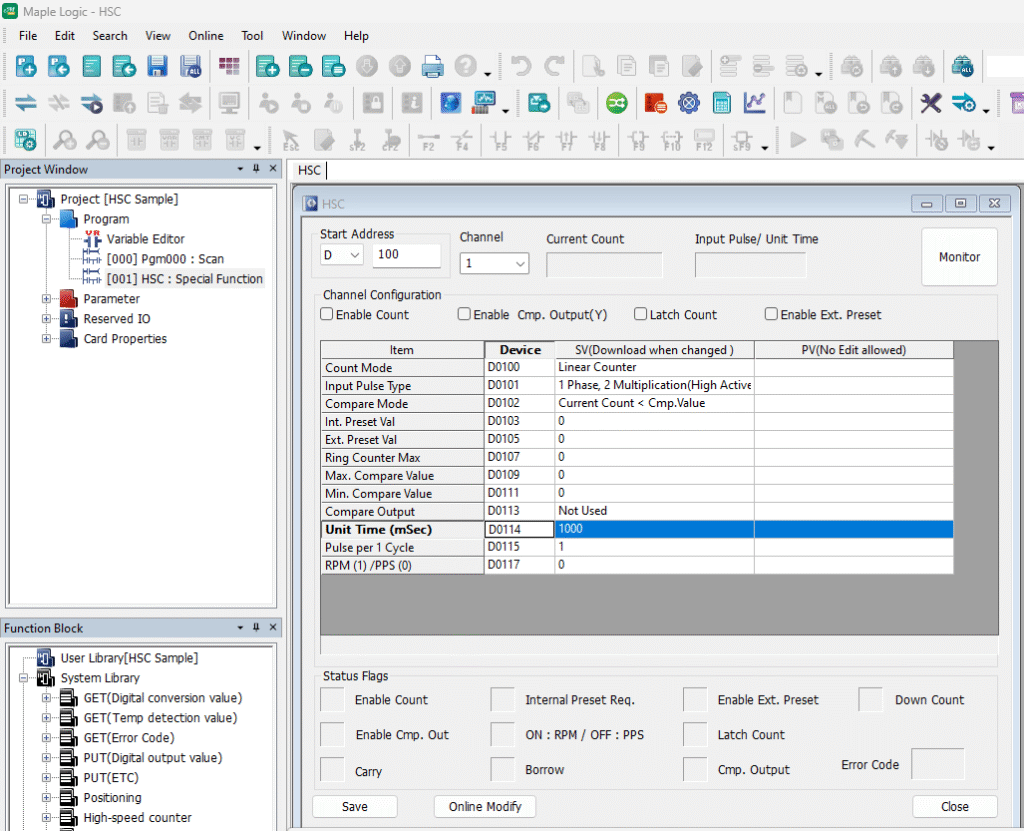
Set the unit time
Enter a Unit Time value so RPM or PPS can be measured. The default value is 1000 ms.
Set the pulse-per-cycle value for RPM
Configure the pulse-per-1-cycle value to something other than 0 when measuring RPM. Use a value of 1 for RPM. Leave it at 0 for PPS.
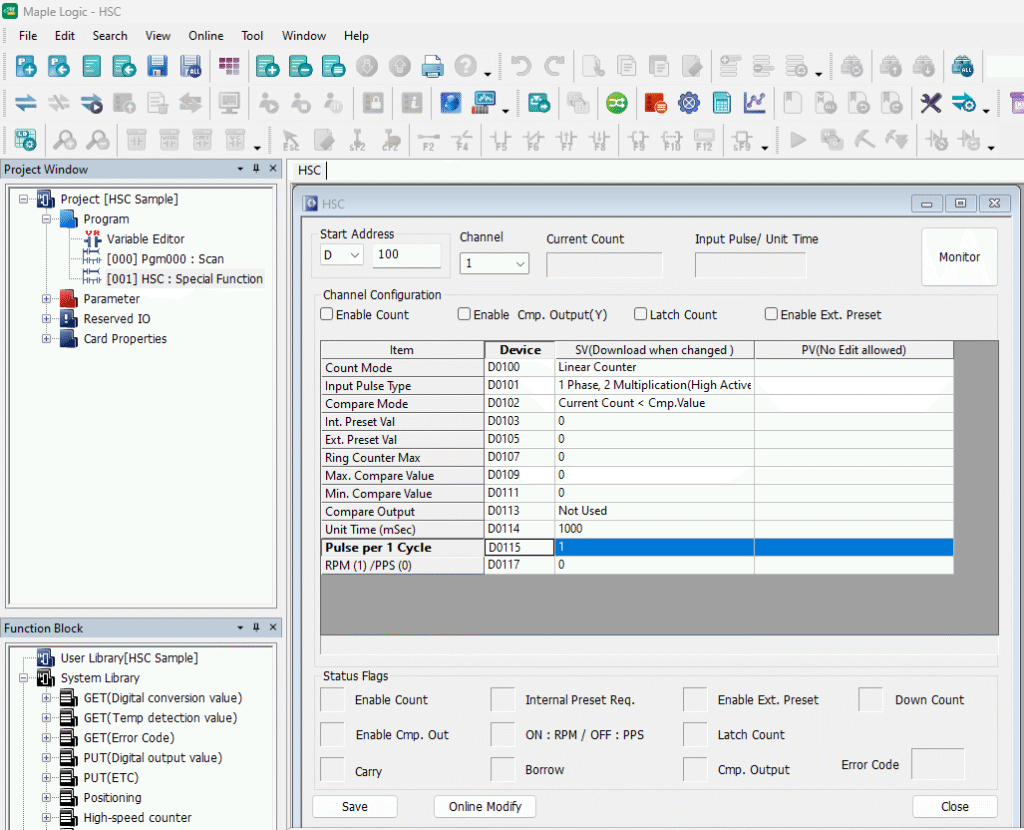
Confirm where RPM or PPS values are stored
Check the RPM/PPS selection status area so you know where the resulting measurement values will be stored.
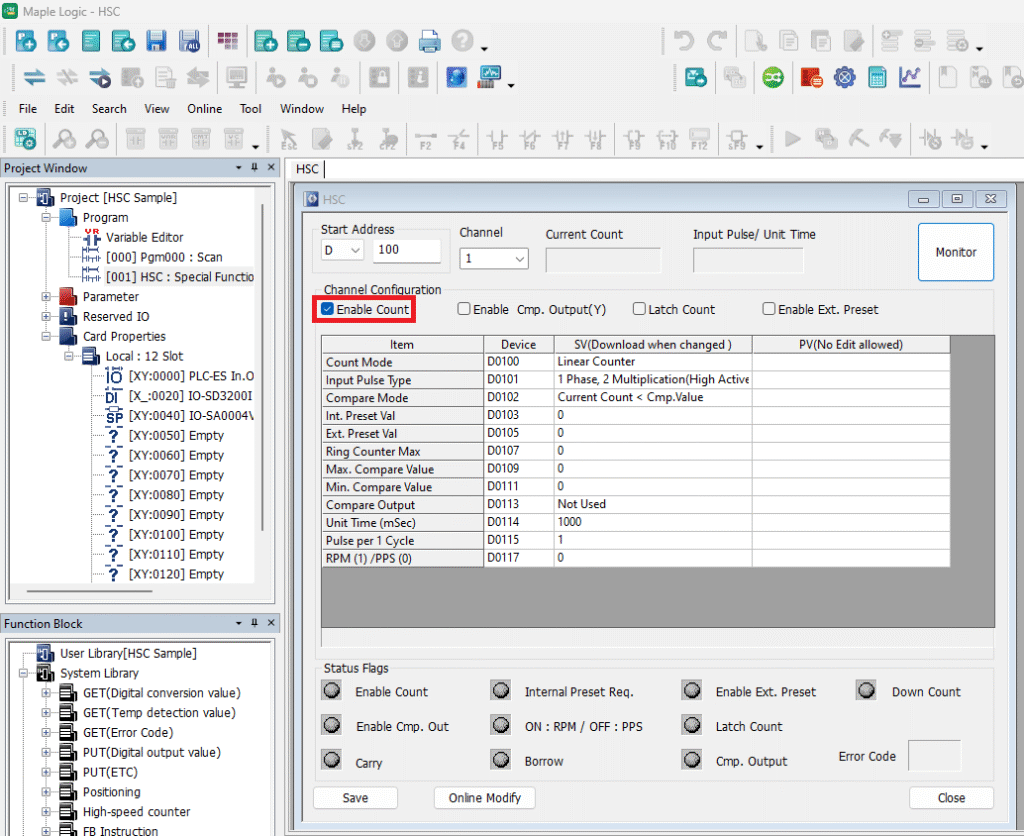
Enable the count
Check Enable Count so the High Speed Counter can begin operating.
Resources & Documentation
The following guides and documentation are specific to the hardware used in this integration tutorial and will help you with setup, configuration, and programming:
- MapleLogic Programming Software
- MapleLogic User Manual
- Maple Modular User Manual
- Maple Micro User Manual
- High Speed Counter Module User Manual
Looking for additional learning resources? Explore our library of tutorials, example projects, and software tools to help you get the most out of your system:
Also, browse our Support Center for a complete list of installation guides, FAQs, and additional technical documentation.

About the Author
Trusted source for industrial automation & control solutions
Follow Maple Systems:
Share:



