
Positioning programs generate Pulse Train Output (PTO) signals to precisely control the position and speed of a stepper or servo motor. They are also referred to as PTO, position, and pulse-direction functions. In this integration guide, you will learn how to connect a Maple HMI, a Maple PLC, and a stepper driver to control motor position and speed. You will also learn how motor positioning works, how to program different position controls in MapleLogic, and how to connect all devices together.
Software Required
- EBPro (HMI programming software)
- MapleLogic (PLC programming software)
Hardware Required
- Any Maple Systems HMI
- Any Maple Systems PLC
- A stepper motor driver
- A stepper motor
Getting Started with Positioning
When discussing positioning, or precision positioning, we are referring to rotating a motor by an incremental amount to reach a desired position. For example, in a CNC machine where the spindle needs to move 6 inches, a controller can send a precise number of pulses to translate the motor’s rotation into linear distance.
How do pulse outputs translate into motor rotation?
A stepper motor has a fixed number of steps per rotation. Each pulse from the motor driver causes the motor to take one step.
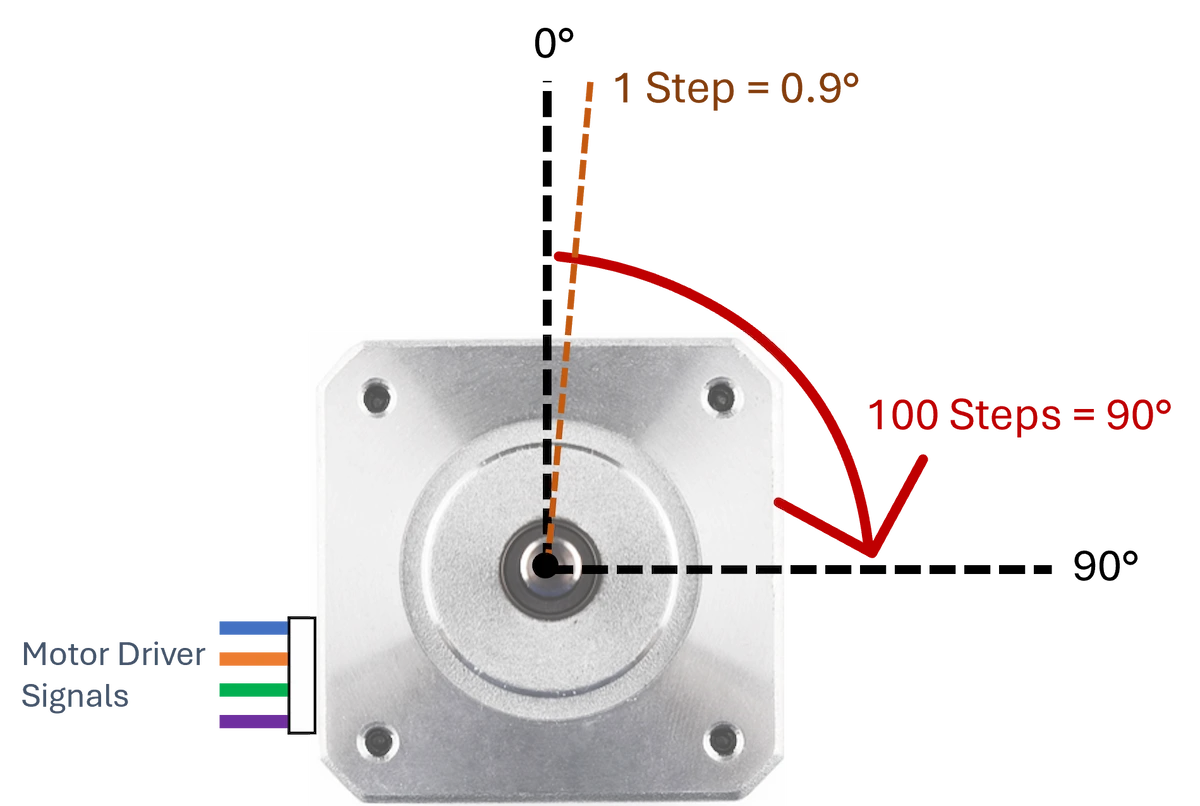
For example, a stepper motor with 400 steps per rotation requires 100 pulses for a quarter rotation and 400 pulses for one full rotation. Each step equals 0.9 degrees of shaft movement.
How do PTO signals control motor speed?
Pulse Train Output (PTO) signals are electrical signals that a controller, such as a PLC, outputs to precisely control positioning and speed. PTO signals differ from Pulse Width Modulation (PWM) signals because only the frequency changes while the duty cycle stays at 50%. To learn more about PWM, see our tutorial on How to Control the Speed of a Motor Using Pulse Width Modulation.
Speed is controlled by adjusting the number of pulses output per unit of time.
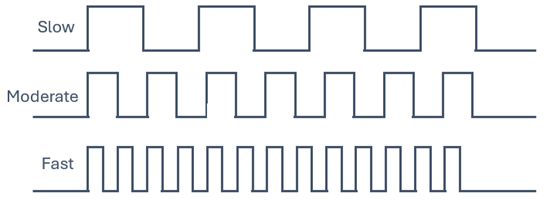
Sending 400 pulses per minute rotates the shaft one full revolution per minute. Sending 4000 pulses per minute rotates it 10 revolutions per minute.
In this example, a Maple HMI, a Maple PLC, a motor driver, and a stepper motor are used to build a simple motor positioning demo with visual controls and PLC logic.
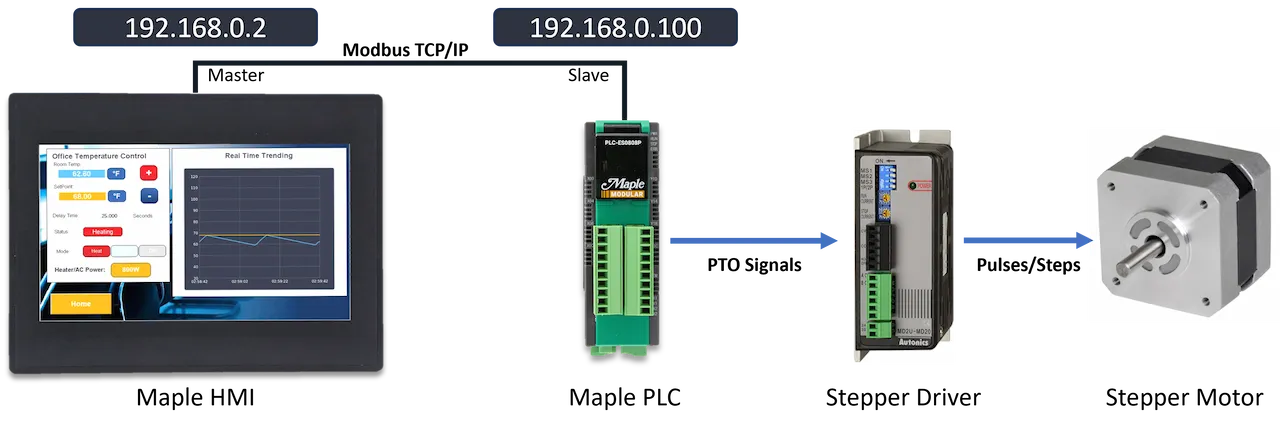
A typical positioning system uses a PLC to determine what signals are needed for a given position and speed. Those signals go to a dedicated motor driver, which interprets the commands and sends the required pulses to the motor. The motor driver must match the specification requirements of the stepper motor.
An HMI is not required for positioning, but it makes it easy to visualize data, enter position values, and control the motor. A stepper motor is used here because it allows open-loop positioning control without requiring feedback sensors.
Maple Systems PLCs
Before configuring the positioning program, it helps to understand the digital I/O layout of the Maple PLC CPUs and how they are used in positioning control.
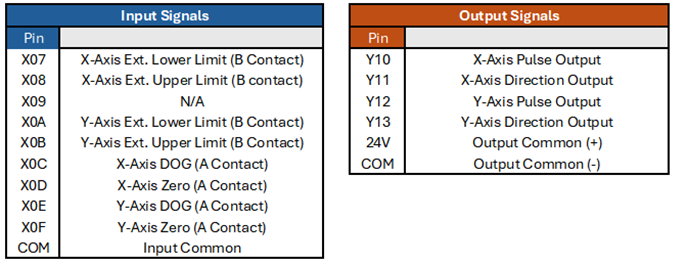
Digital inputs are available for implementing upper and lower limit switches for each axis by wiring them to physical sensors. Additional inputs support Origin Point Return (OPR) control, which is covered later in this guide.
Both the Modular and Micro PLC models use four digital output pins to send PTO signals for up to two axes. Pins Y10 and Y12 send pulse signals to control how many steps the motor takes. Pins Y11 and Y13 set the direction of rotation. The figure below shows how positioning signals flow from the PLC to the motor driver.
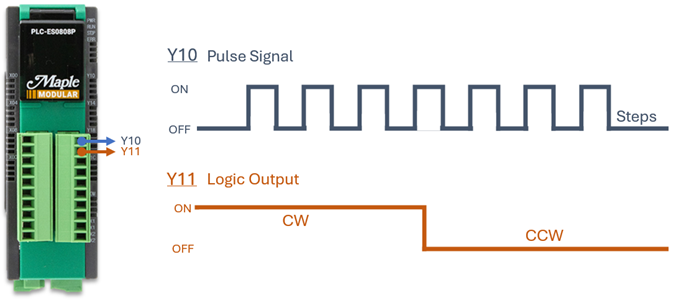
Y10 controls the pulse count (how many steps to take), and Y11 controls direction. When Y11 is ON, the driver sends clockwise (CW) positioning pulses. When Y11 is OFF, the driver sends counterclockwise (CCW) pulses.
Note: Maple PLCs support two-axis position control, but this guide covers single-axis programming for simplicity. Refer to the position control manual for two-axis configuration.
Positioning Examples
There are many ways to program motor positioning, from simple jogging to complex multi-step sequences. The Maple PLC supports three main positioning control functions:
- Manual positioning generates a general-purpose pulse output to make small mechanical adjustments. This method is commonly referred to as jogging or inching, and is useful for repositioning to a desired location incrementally.
- Positioning instructions allow users to pre-program known movements that can be triggered in single steps or as a continuous sequence. Like the predetermined movements of a robot arm, each step can be fine-tuned to meet specific positioning requirements.
- Origin Point Return (OPR) establishes a home position and allows the system to return to it in a controlled manner. The PLC’s digital inputs are used to detect position limits and trigger the return sequence.
Most real-world systems combine these methods. For example, a machine may run pre-programmed positioning sequences for normal operation while also supporting manual jogging for fine adjustments.
Positioning Configuration and Parameters
When creating a new positioning program, start by setting the starting address for all control registers, then configure the axis parameters. The first two tabs in the positioning program cover the starting address and parameters for both axes.
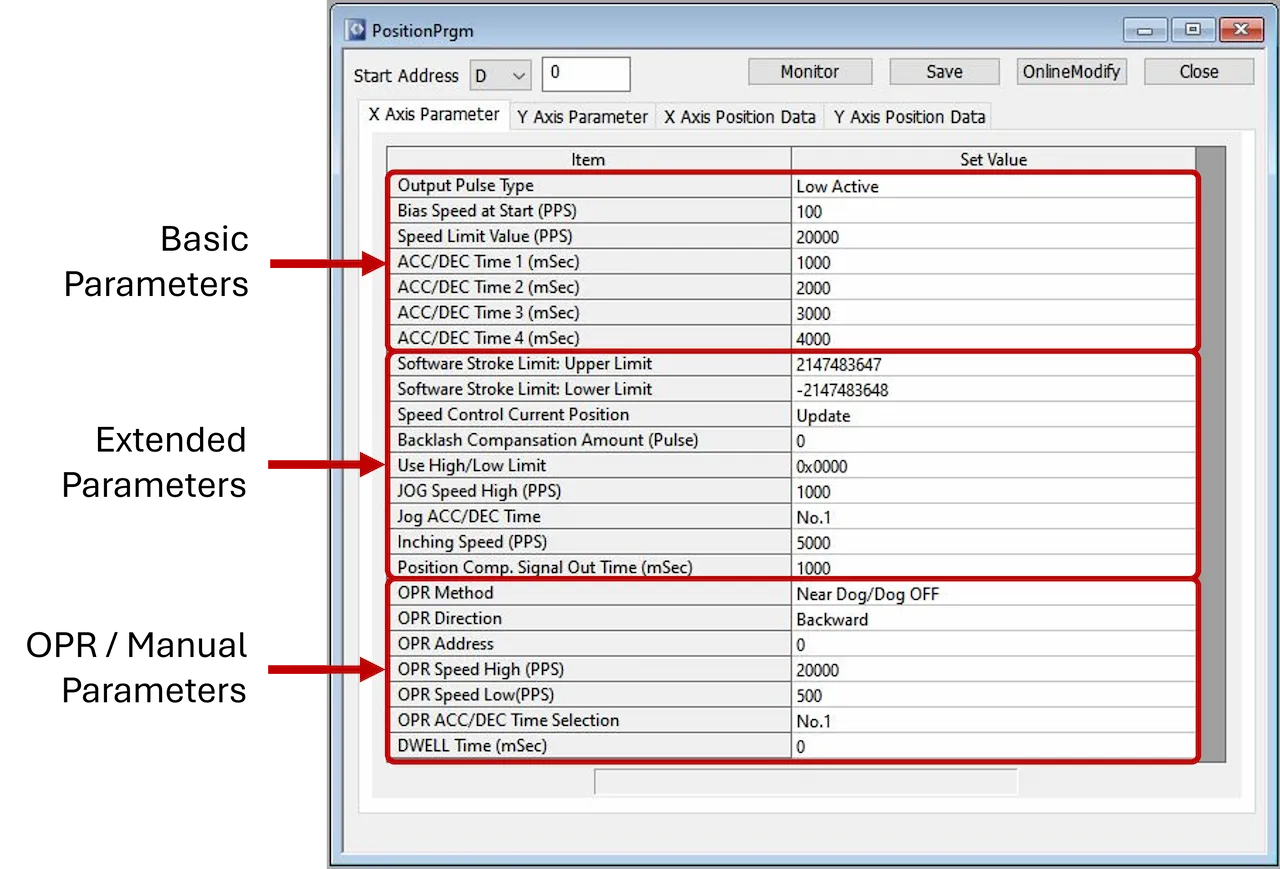
- Start Address: Sets the register range used for operation data. Setting the start address to D0 assigns D0–D19 for position control monitoring and command.
- Basic Parameters: Set the output pulse type and primary speed settings.
- Extended Parameters: Configure position limits, JOG speed settings, and completion signals.
- OPR Parameters: Configure OPR method, speed limits, and direction for Origin Point Return control.
How are position instructions pre-configured?
The Position Data tabs let you configure up to 30 position steps per axis. Click the “Position Data” tab for the desired axis to access these settings. Each step can have its own control function, acceleration/deceleration times, operational speed, and position address.
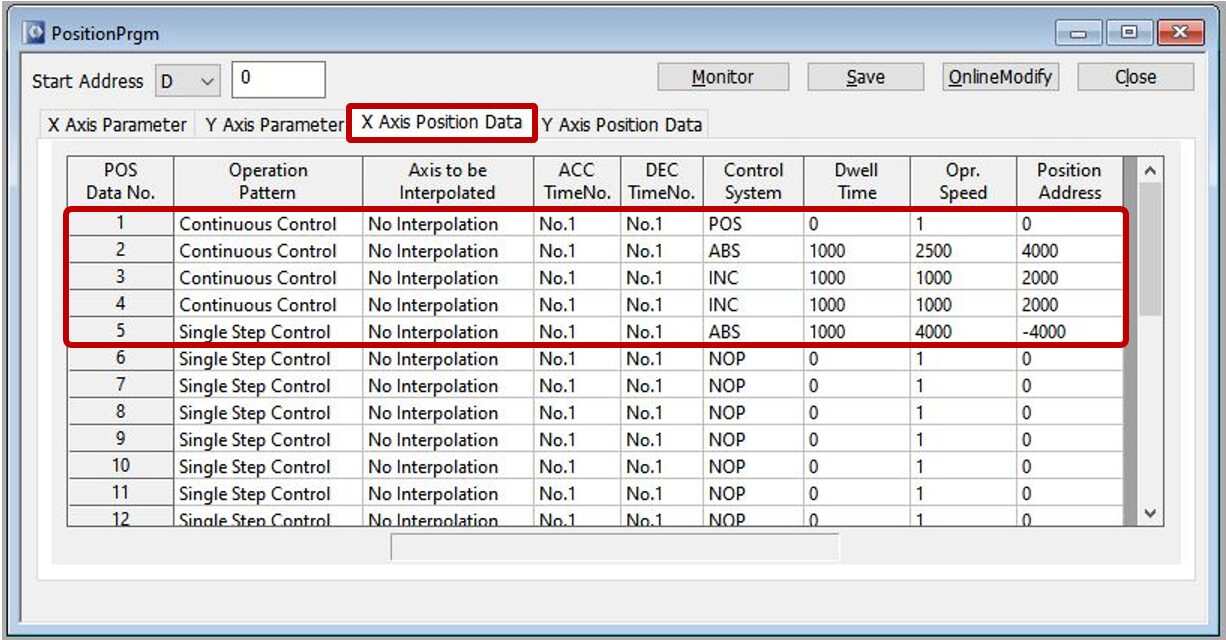
In the example above, five position steps are configured for the X-axis. Step 1 sets the current position to 0 (POS). Step 2 moves to an absolute position of 4000 steps (ABS). Steps 3 and 4 each increment forward by 2000 steps (INC). Step 5 returns to an absolute position of -4000 steps (ABS).
How is position monitored?
There are two ways to monitor motor operations. The first is the monitor window in MapleLogic when connected online to the PLC. The second is to read specific data registers directly.
Click the “Monitor” button in the top-right corner of the positioning program (shown in Figure 5) to open the monitor window. The example below shows the monitor window while online with an active positioning project.
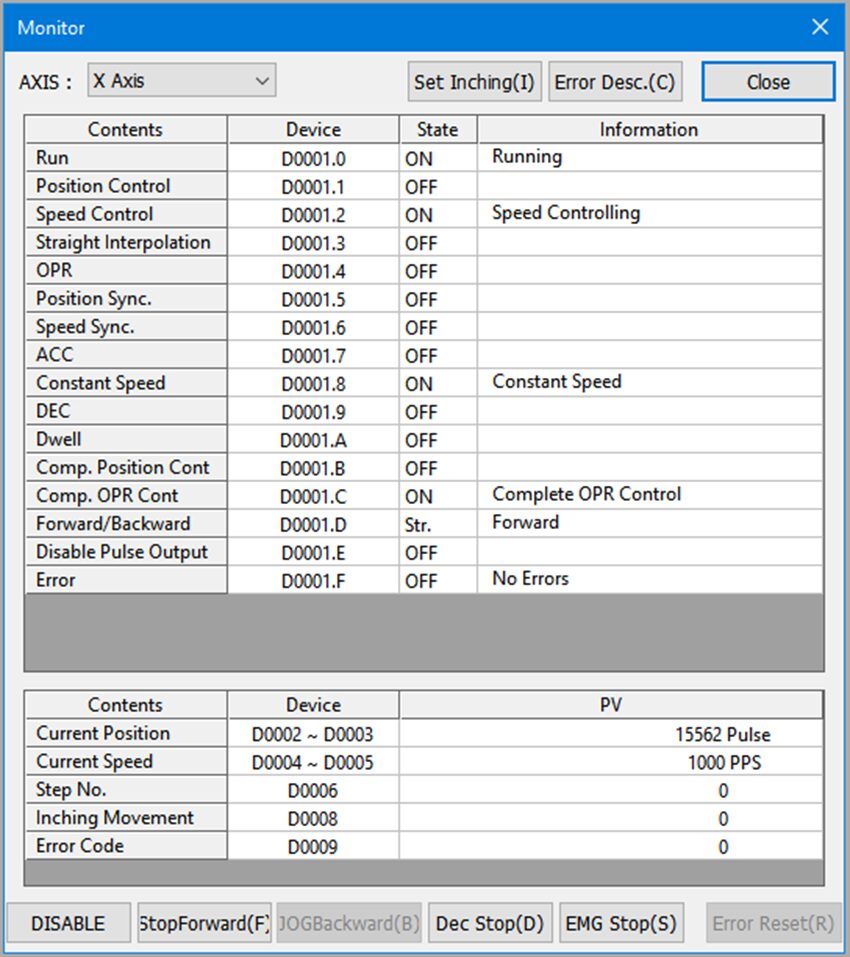
All positioning data is also accessible through the register addresses. If the program starts at D0, registers D0–D19 are used for monitoring and controlling the positioning program. Use the operation data table below as a reference:
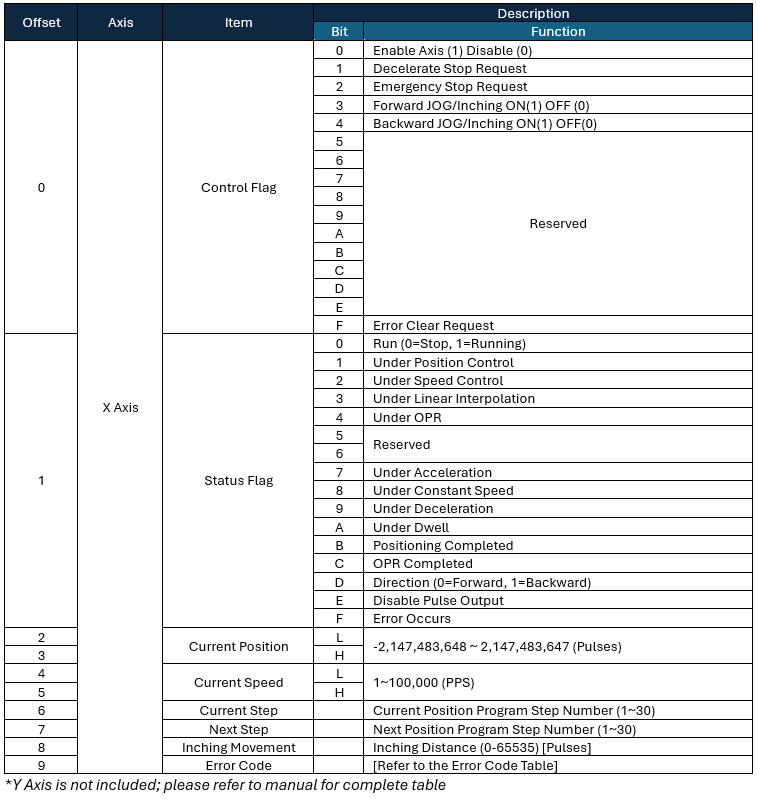
Positioning Commands
The following expandable sections cover the three main positioning commands available on Maple PLCs, each with a video demonstration and usage examples.
Manual Positioning
Use the JOG operation to move the axis forward or backward with the speed values configured in the extended parameters of the position program.
Instructions: Manual Positioning
Review the manual positioning example
Watch the example below to see how manual positioning works with the JOG operation.
Use the JOG operation for manual movement
Use the JOG operation to perform general-purpose manual positioning. The JOG operation uses the speed settings configured in the extended parameters section of the position program.
Open the X-axis control flag table
Use the operation data table below to identify the control flag register bits required to jog the X-axis forward or backward.
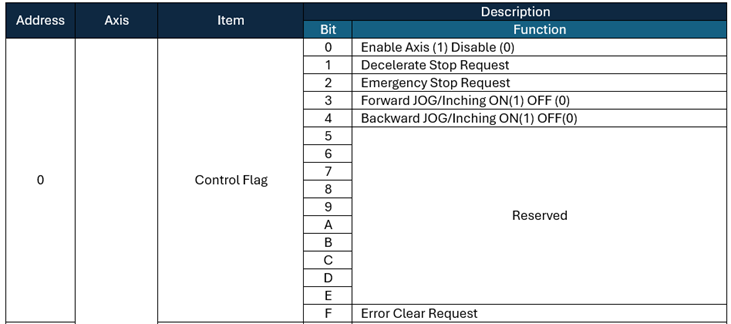
Enable forward JOG
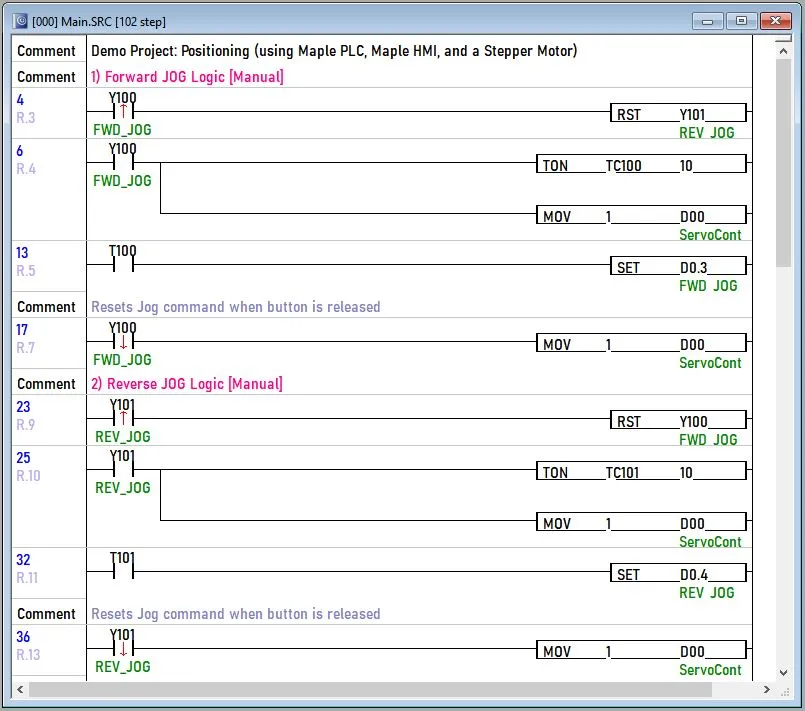
If the positioning program starts at D0, turn on bits D0.0 and D0.3 to enable the forward JOG command.
Enable backward JOG
To enable backward JOG, turn off D0.3 and turn on D0.4 while using the same starting address.
Review Y-axis control details if needed
Refer to section 1.6 in the positioning user manual for the full operation data table for Y-axis control.
Positioning Instructions (PSTRTn)
Use the PSTRTn instruction in MapleLogic to execute position data, OPR control, and high-speed OPR control for the X or Y axis.
Instructions: Positioning Instructions (PSTRTn)
Review the PSTRTn instruction
Watch the example below to see how the PSTRTn instruction works in MapleLogic.
Add the PSTRTn instruction in logic
Use the PSTRTn instruction in your ladder logic and enter the required parameters for the operation you want to execute.

Set the PSTRTn parameters
Configure the parameters as follows: n is the axis number (X=1, Y=2), n1 is the slot number (CPU = 0 or H0), n2 is the position data number (1–30 for position data, 9001 for OPR, 9002 for high-speed OPR), and n3 is the result flag.
Use position data control
Use a position data number from the X or Y Position Data tabs to execute preconfigured positioning steps through logic.
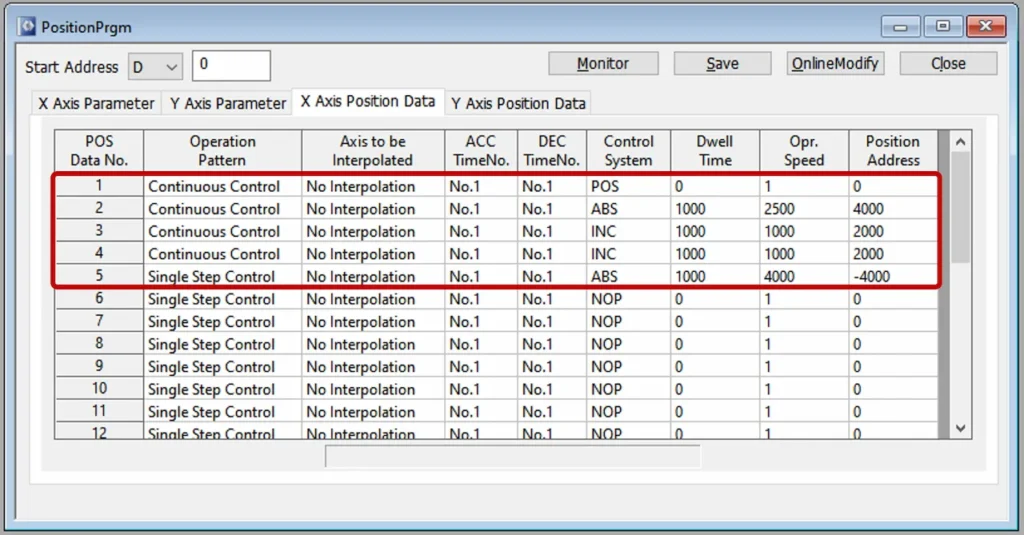
Configure each position data entry
For each position data entry, configure the step type, acceleration and deceleration times, control system, operating speed, positioning address, and dwell time.
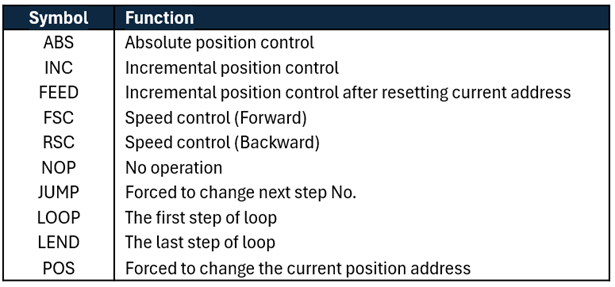
Run a position data example
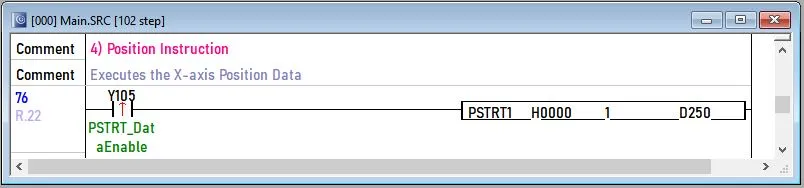
Using the X-axis position data from Table 4, turn ON Y105 to perform position control from No.1 to No.5. Check D250 to view any errors that occur.

Use OPR control
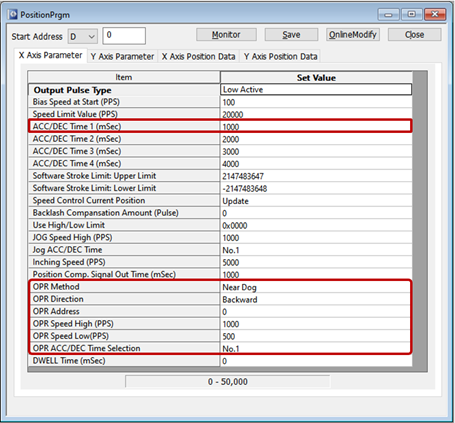
Use OPR control when you want the axis to return to the origin point by using the OPR parameters configured in the X or Y axis parameter tab.
Run an OPR control example
Using the X-axis parameter data from Figure 8, turn ON X100 to enable OPR control.

Use high-speed OPR control
Use high-speed OPR control when you want to use the same OPR parameters but skip the OPR low-speed parameter as the axis reaches the origin point.

Enable high-speed OPR control
Turn ON X0 to enable high-speed OPR control in this example.
Position Control (POSCTRL)
Use the POSCTRL instruction in MapleLogic to perform position control without relying on preconfigured position data.
Instructions: Position Control (POSCTRL)
Review the POSCTRL example
Watch the example below to see how the POSCTRL instruction works in MapleLogic.
Add the POSCTRL instruction in logic
Use the POSCTRL instruction when you want to perform position control without using stored position data. This instruction can change the current position address, change the speed parameter, run inching operations, and more.

Set the POSCTRL parameters
Configure the instruction parameters as follows: n1 is the slot number (CPU = 0 or H0), n2 is the control parameter or command code, and n3 is the result flag.
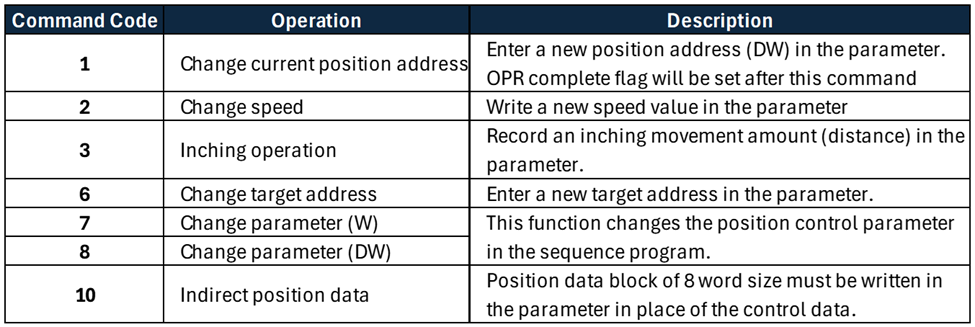
Choose a command code
Review the available position control parameters and select the command code that matches the operation you want to perform.
Determine the required registers
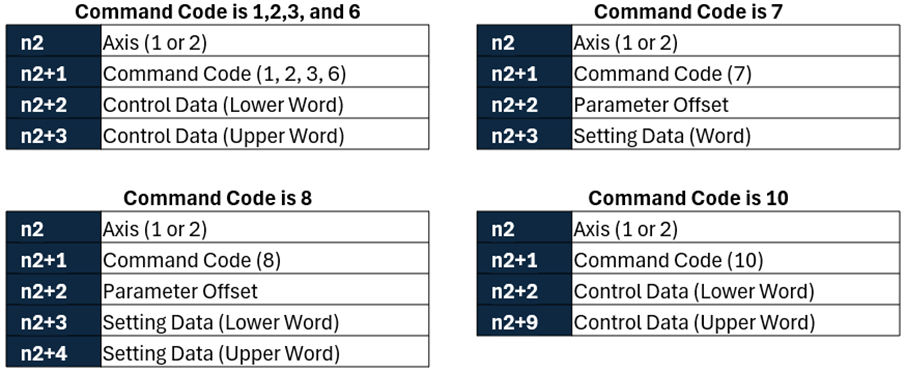
After selecting a command code, use the register parameter table below to identify which device memory addresses you need to populate before executing the instruction.
Review the inching operation example
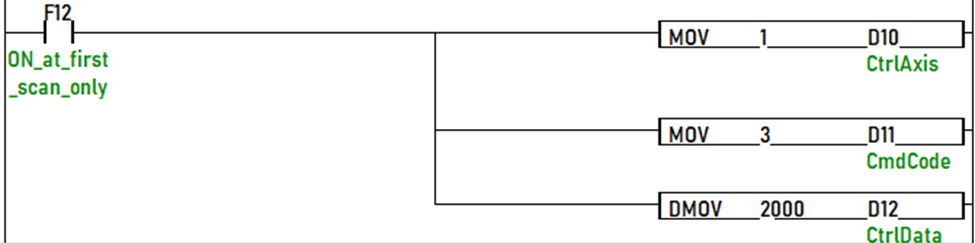
This example uses command code 3 together with the device memory code shown in Table 6 to initiate an inching operation.

Populate the command registers
Use D10 as the start of the position command code data. Populate the required addresses before executing the POSCTRL instruction.
Configure the axis and command code
For this example, use axis X with inching command code 3. Move 1 into D10 for the axis and move 3 into D11 for the command code.
Set the pulse count and run the instruction
Move a double word value of 2000 into D12 for the pulse count. When X01 turns ON, the POSCTRL instruction rotates the motor forward 2000 steps.
Review the manual for other command codes
Refer to section 1.8.2 in the Position User Manual for more information and detailed instructions on the other POSCTRL command codes.
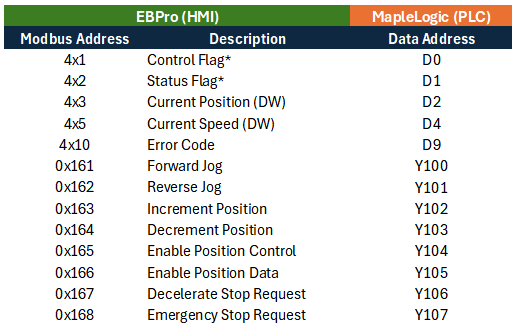
After all configuration is complete, use the Modbus address table below to map the addresses used to control the stepper motor from the HMI.
Configuring the Communication Protocols
This section covers configuring Modbus TCP/IP communication between the HMI and PLC in both MapleLogic and EBPro.
PLC Configuration in MapleLogic
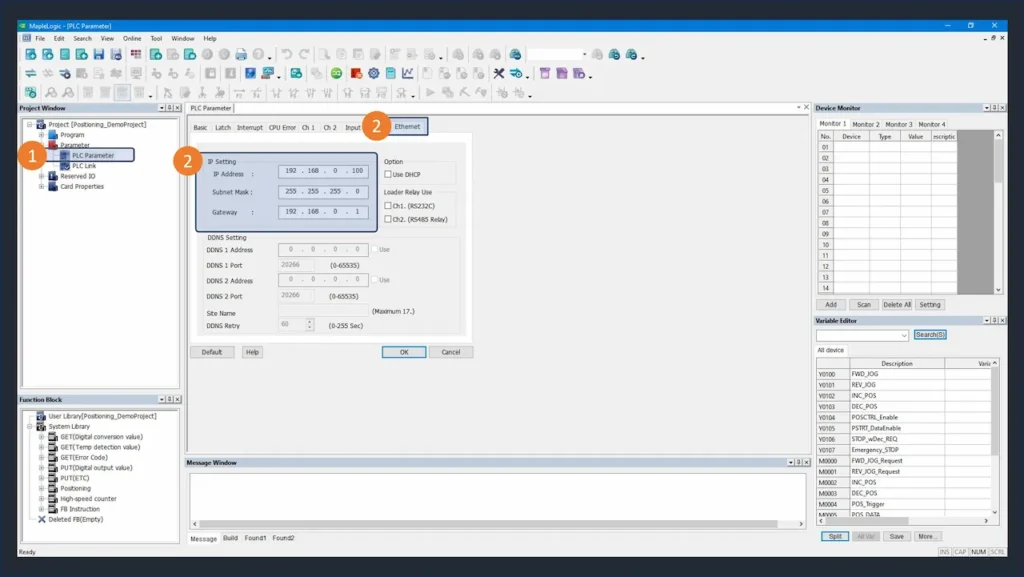
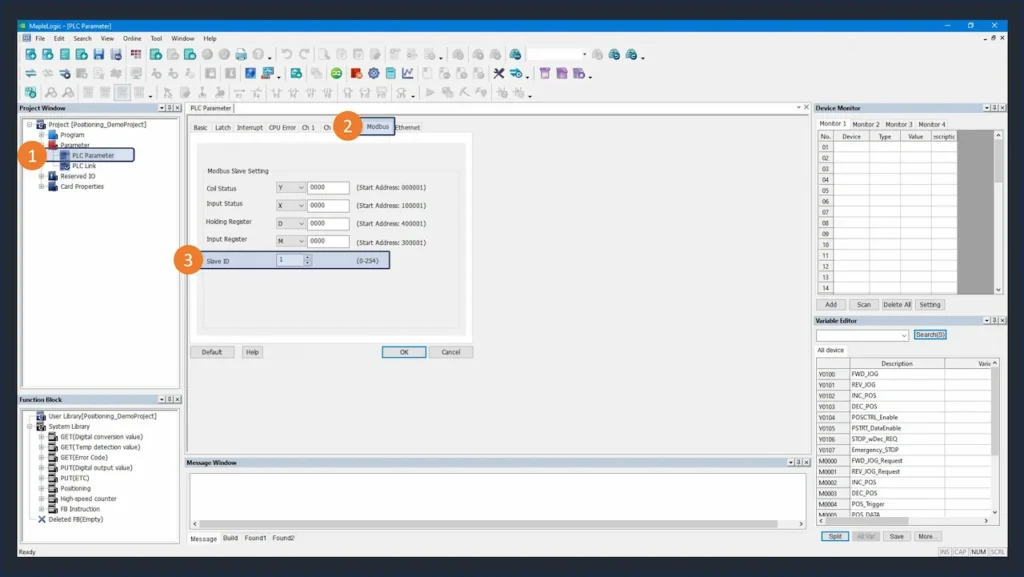
Configure the Ethernet IP address and Modbus slave ID in MapleLogic so the HMI can communicate with the PLC over Modbus TCP/IP.
Instructions: PLC Configuration in MapleLogic
Configure Ethernet Settings
Double-click the PLC Parameter window. Open the Ethernet tab and set the IP address to 192.168.0.100. The HMI will use this address to communicate with the PLC over Modbus TCP/IP.
Set the Modbus Slave ID
Open the Modbus tab of the PLC Parameter window and set the slave ID to 1. The addresses shown in this tab are the Modbus registers the HMI will access over Modbus TCP/IP.
HMI Configuration in EBPro
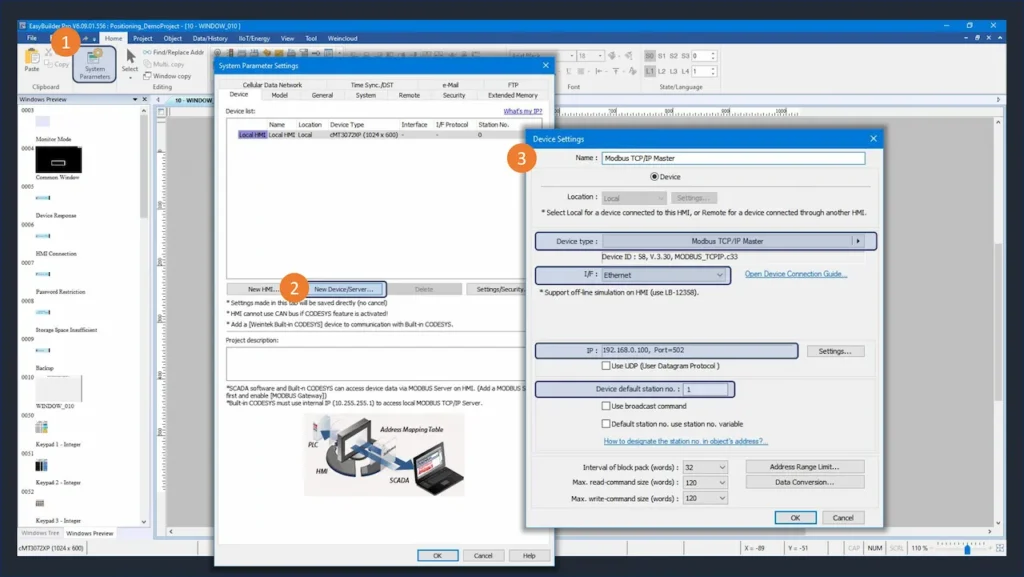
Set up Modbus TCP/IP Master communication in EBPro to connect the HMI to the PLC.
Instructions: HMI Configuration in EBPro
Configure Modbus TCP/IP Master
Open a new project in EBPro and go to System Parameters. Click “New Device/Server…” and select “Modbus TCP/IP Master”. Set the IP address to 192.168.0.100 and the station number to 1 to match the PLC settings.
For more information on setting up Modbus communication, see our How to Set Up your Maple PLC and Maple HMI using Modbus RTU and TCP Communications tutorial.
PLC Project
The PLC program uses a simple scan program with ladder logic to control the stepper motor. It uses contacts, timers, set bits, and reset bits to handle JOG commands, position control, position instructions, and stop commands.
Building the PLC Positioning Program
Create the scan program in MapleLogic with ladder logic for JOG commands, position control, position instructions, and stop commands.
Instructions: Building the PLC Positioning Program
Program Forward and Backward JOG Commands
Create logic using the X-axis control flag register. Set D0.3 to enable forward JOG and D0.4 to enable backward JOG. Add a one-second timer before each JOG command activates to prevent accidental triggering. When the JOG button is released, write the value 1 to D0 to re-enable the X-axis for further control.
Program the Position Control (Inching) Instruction
Use the POSCTRL instruction for inching operations. On the first scan, move values into the command registers:
– D100: axis number (1 = X-axis)
– D101: control code (3 = inching)
– D102: pulse count
Use Y102 and Y103 to increase or decrease D102 by 1000 pulses. When X01 turns ON, the inching command executes and the motor rotates the specified number of steps.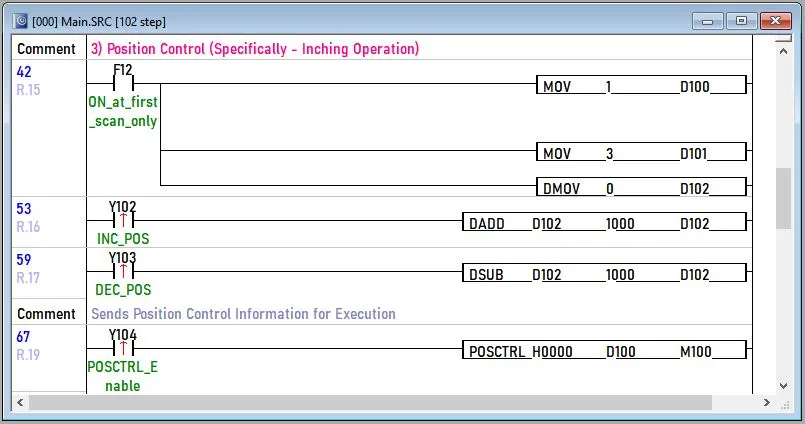
Configure Position Data and Add Position Instruction Logic
Open the Position Data tab in the positioning program and configure the five X-axis steps (as described in the Positioning Configuration section above). Then add the PSTRTn instruction to logic: set n=1 (X-axis), n1=0 (CPU slot), n2=1 (start from position data step 1), and assign a result flag register for n3. When Y105 turns ON, the instruction executes all steps in sequence and stops after the continuous control ends at step 5.
Add Stop Commands
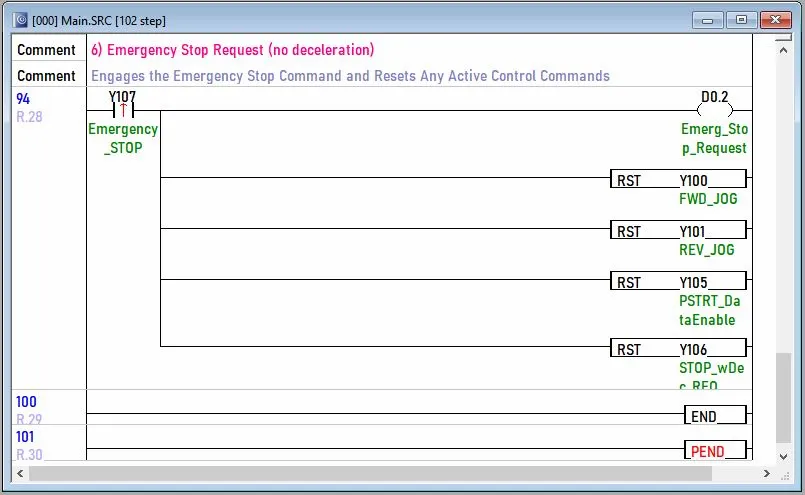
Add two stop commands to the program:
– Deceleration stop (D0.1): stops the motor gradually with controlled deceleration
– Emergency stop (D0.2): stops all operations immediately with no deceleration
Always include both stop types in every positioning program.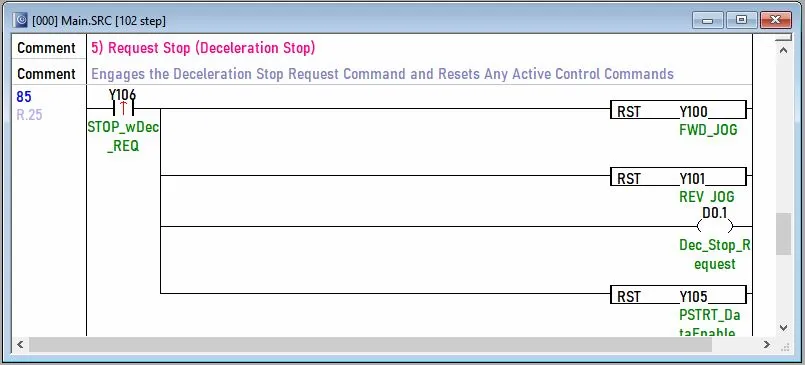
HMI Project
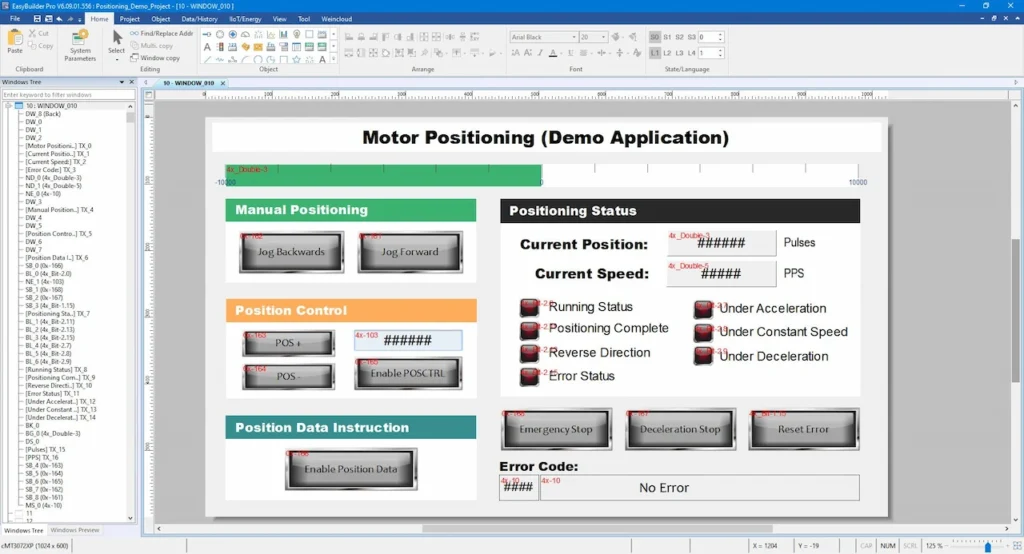
With communication configured and the PLC program built, create the HMI screen in EBPro. The screen needs objects for each Modbus register in Table 8 — numeric displays for monitoring, push buttons for commands, and bit lamps for status indicators.
Creating the HMI Project in EBPro
Build the HMI screen in EBPro with controls and indicators for all positioning functions.
Instructions: Creating the HMI Project in EBPro
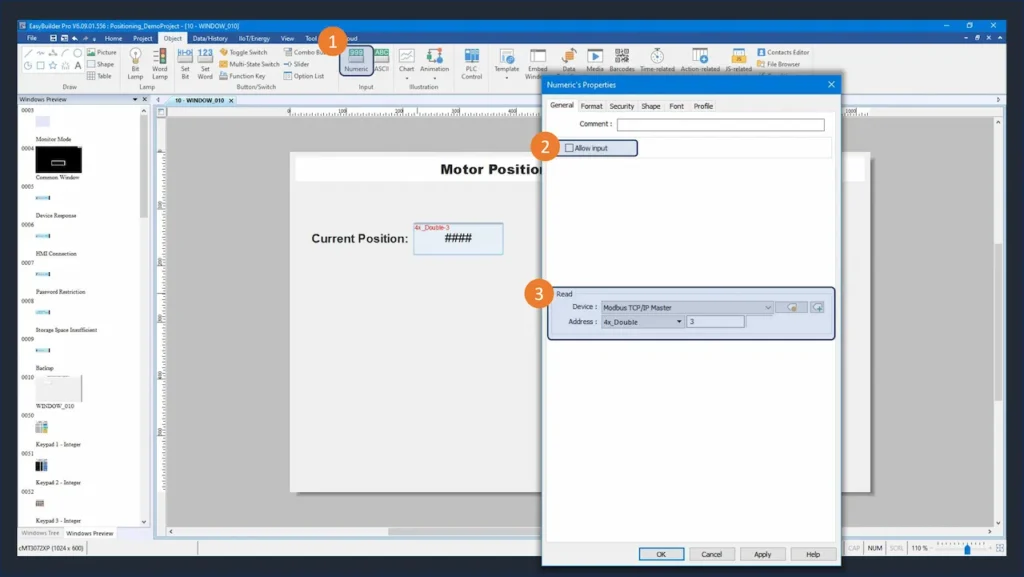
Add a Numeric Display for Motor Position
Go to the Object tab and click “Numeric”. Select the Modbus TCP/IP Master device and set the address to the current position register. Leave “Allow Input” unchecked since this register is read-only. Select “4xDouble” as the address type because the position register is a double word.
Add Push Buttons for JOG Commands
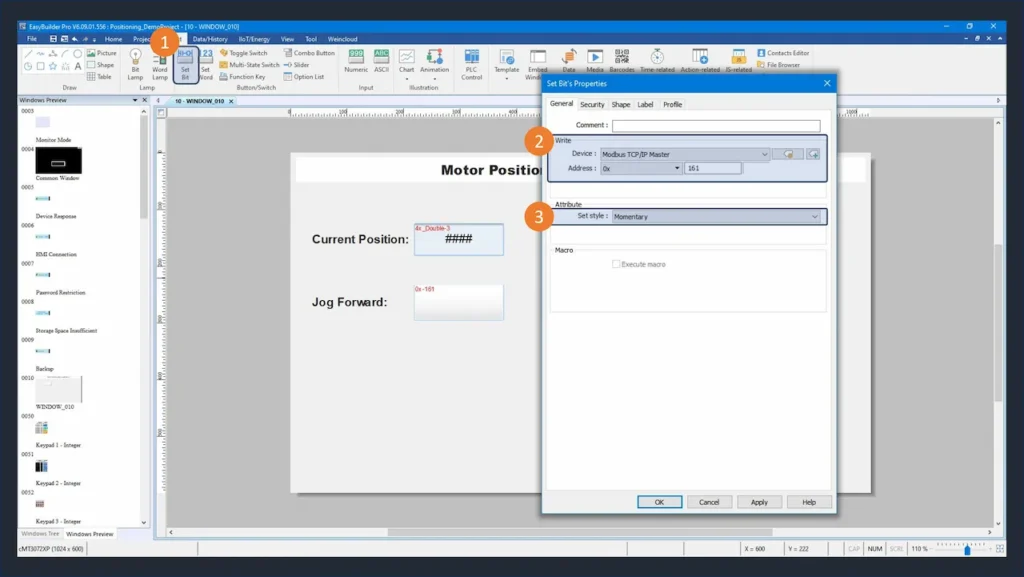
Click “Set Bit” to add a push button. Set the Modbus address to the forward JOG register and select “Momentary” as the button style. Repeat for the backward JOG command.
Add Bit Lamps for Status Monitoring
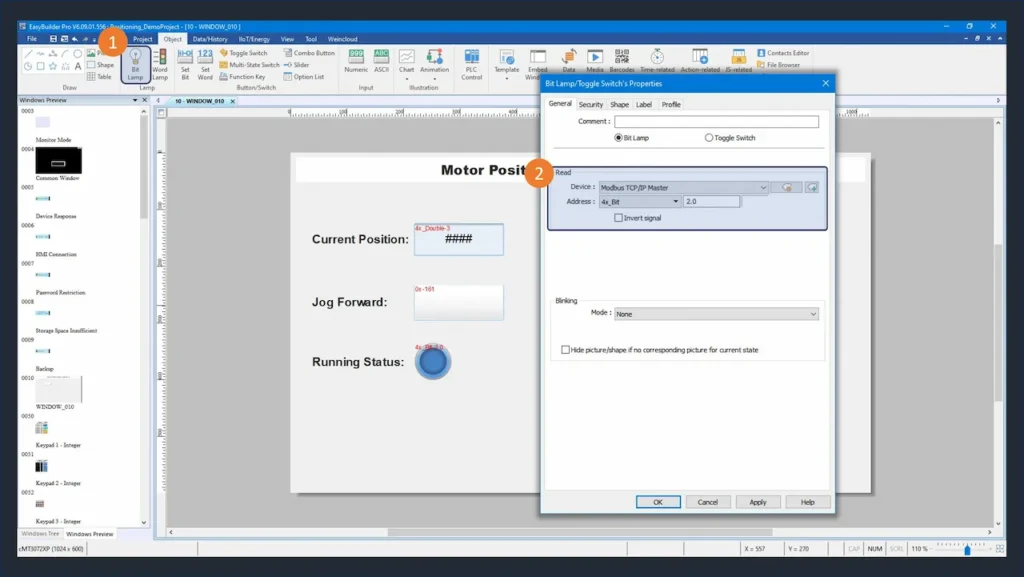
Click “Bit Lamp” and set the Modbus address to the run/stop status register (D2.0). This indicator will show whether the motor is currently running or stopped.
Complete the HMI Screen
Repeat the process to add objects for all registers listed in Table 8. The finished screen should include JOG command buttons, Position Control inputs, Position Instruction triggers, status bit lamps, and a current position numeric display.
Running the Applications
Wire up all devices, supply power, and download the programs to your HMI and PLC. Once both devices are running, use the HMI to trigger JOG commands, execute position instructions, and monitor the motor’s current position in real time.
Sample Project
This tutorial uses these downloadable HMI and PLC sample projects to recreate the positioning demo application described in this guide.
Video Tutorials
The following video tutorials cover each positioning command type in detail:
- Manual Positioning with Maple Systems PLCs — JOG forward and backward using manual position commands
- Position Control with Maple Systems PLCs — positioning and speed control using built-in positioning special programs
- Positioning Instructions with Maple Systems PLCs — complex path instructions for robotics and CNC machining
- How to Set Up Maple PLC and Maple HMI using Modbus RTU and TCP Communications — Modbus RTU and TCP setup between a Maple PLC and HMI
Resources & Documentation
The following guides and documentation are specific to the hardware and software used in this tutorial and will help with setup, configuration, and programming:
Looking for additional learning resources? Explore our library of tutorials, example projects, and software tools to help you get the most out of your system:
Also, browse our Support Center for a complete list of installation guides, FAQs, and additional technical documentation.

About the Author
Trusted source for industrial automation & control solutions
Follow Maple Systems:
Share:



