
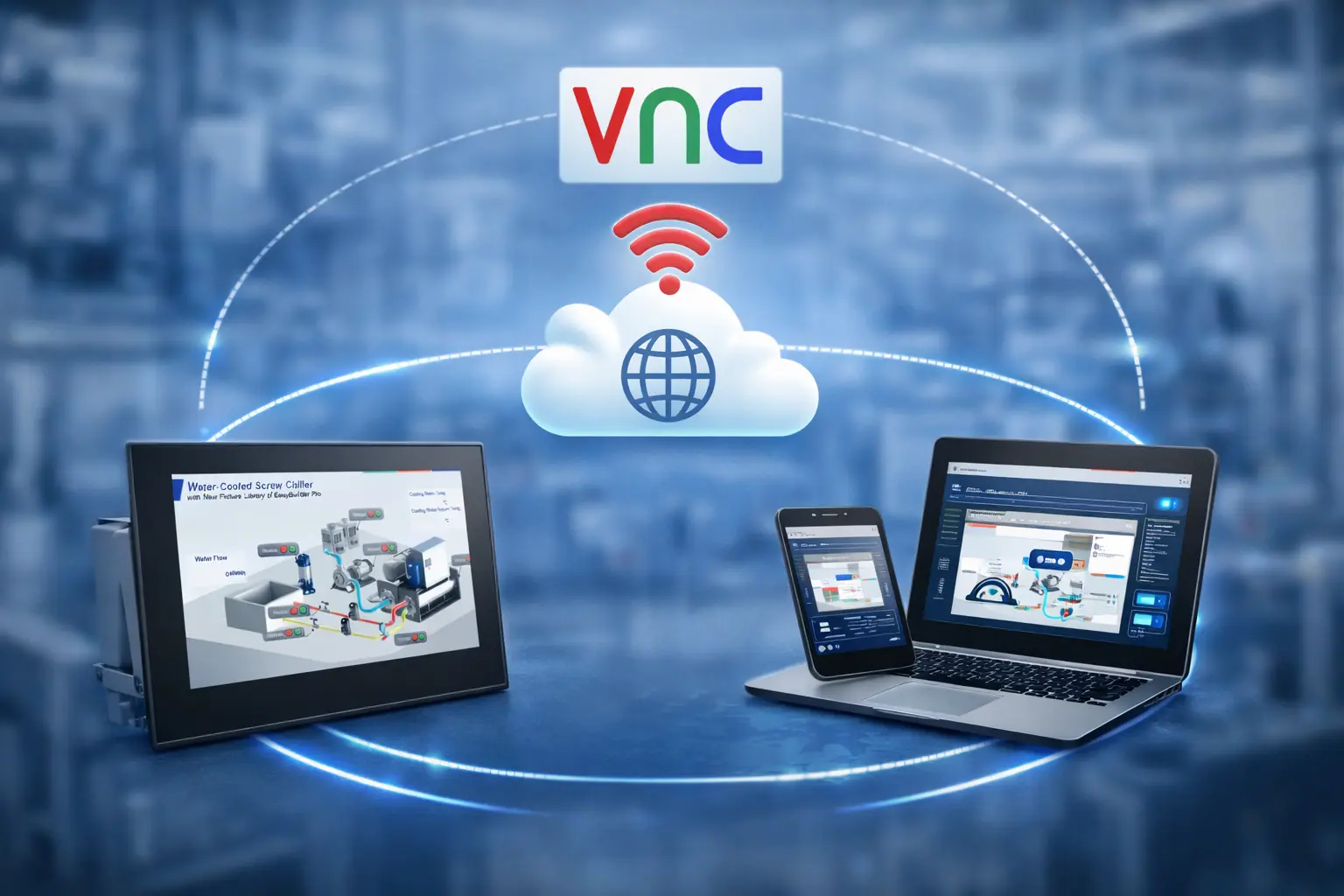
Imagine an industrial manufacturing plant where some of the manufacturing machines are in a dangerous environment. They’re connected to a device network, but you don’t always want to send your operators into a hazardous environment to tweak project or PLC settings. This is where a remote HMI access solution like VNC can help.

Software Required
- Any VNC Viewer Client (I’ll be using VNC Viewer for this Tutorial)
Hardware Required
Connecting from a PC
Before connecting to Maple Systems’ HMI via VNC, we’ll need to enable the VNC server on our HMI itself. This process looks slightly different based on the HMI series of the device.
Enabling VNC on an HMI5000 series
We’ll start with our legacy series of HMI devices, the HMI5000 series.
Instructions: Enabling VNC on an HMI5000 series
Accessing the System Settings
First, we’ll open the system settings on our HMI, we’ll do this by pressing the arrow icon in the lower right-hand corder of the screen, selecting the gear icon from this menu, and finally entering the admin password for the HMI (111111 by default).If you don’t see the arrow icon, you likely have it disabled in your EBPro project settings. you can find this option in “System Parameters > System” as “Hide Start button”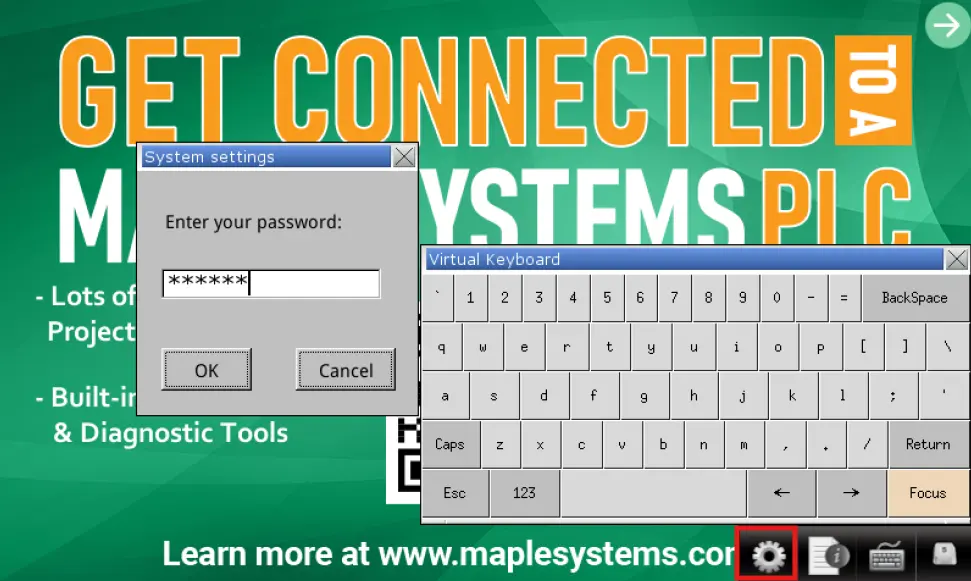
Navigating to the VNC tab
Click the “Network” tab, and be sure to note the IP address of the HMI, and then select the last tab on the right, or scroll to the last tab on the right using the “Prev” and “Next” buttons at the bottom.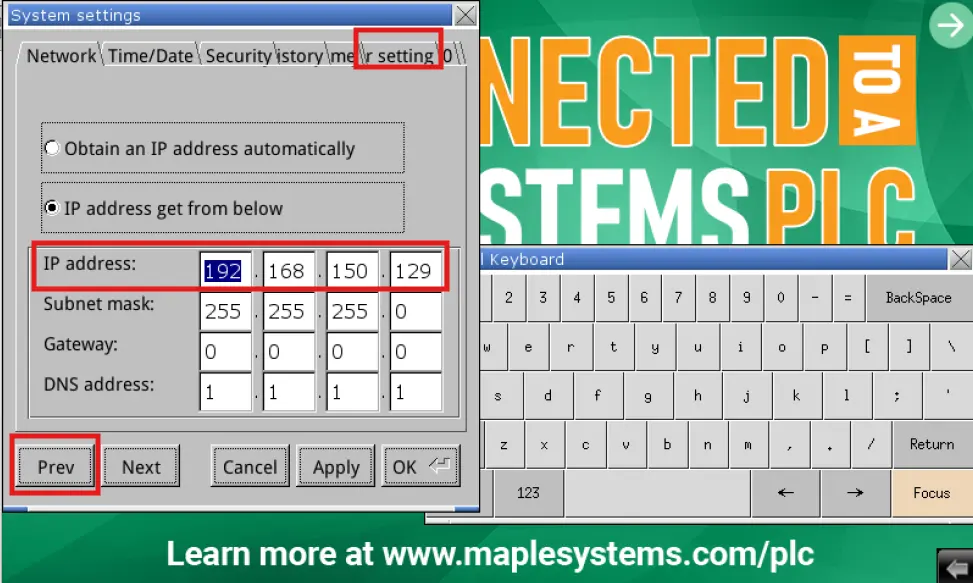
Enabling the VNC Server
We can set a password to connect via VNC by pressing the “VNC login password” button, then we’ll click “Start VNC”, click “apply” and then “Ok” and we’ll have started the VNC server on our HMI.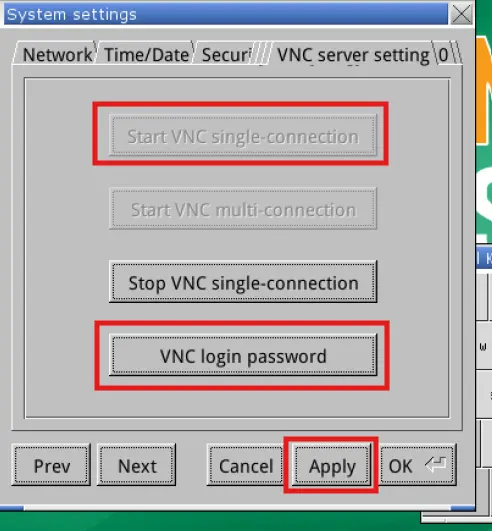
Enabling VNC on a cMT series HMI
Now we’ll go over enabling the VNC server on the HMI.
Instructions: Enabling VNC on a cMT series HMI
Accessing the System Settings
To start, you’ll want to press the transparent button on the top left-hand corner of the screen to enter the cMT’s system settings. From here, you’ll either want to click the lock icon in the top left, and enter your HMI’s admin password (111111 by default), or enter your admin password when you’re prompted to in the next step.If you don’t see the transparent button, you likely have it disabled in your EBPro project settings. you can find this option in “System Parameters > System” as “Hide Start button”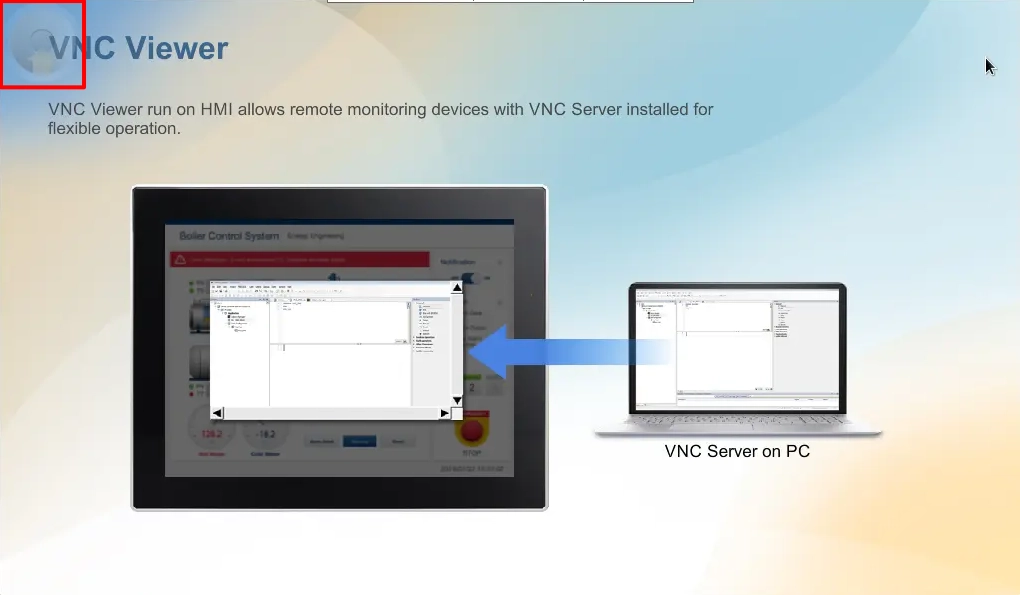
Enabling the VNC Server
We’ll firstly make sure to note the IP address of our HMI, then scroll to the VNC settings on the left hand side, and “Start VNC”. We can also set a VNC login password if we wish to do so.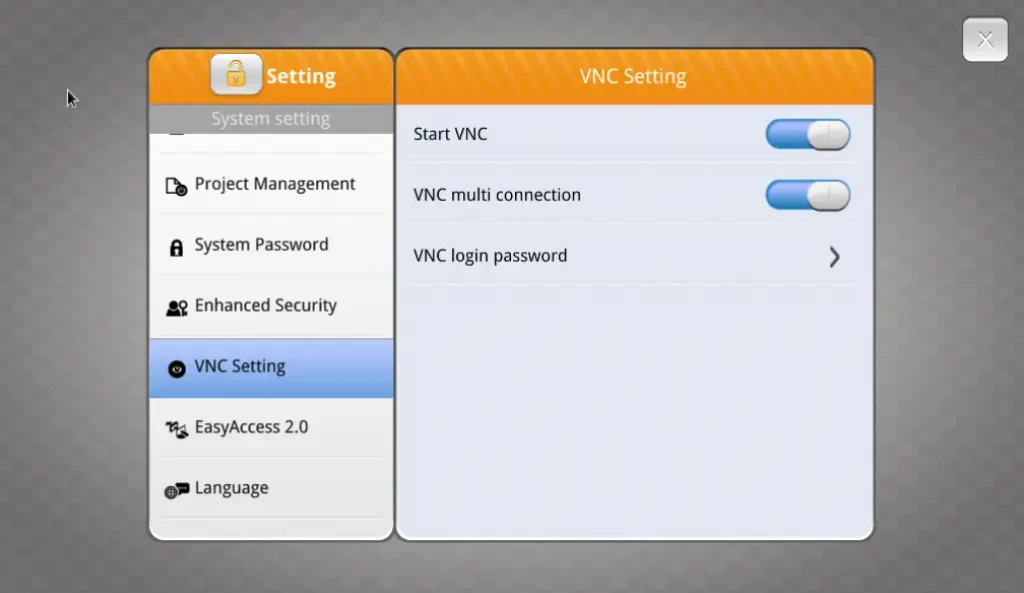
Connecting via VNC Viewer
Now that we’ve enabled the VNC server on our HMI, we’ll need to move to our PC to set up our VNC client for remote connection.
Instructions: Connecting via VNC Viewer
Ensure our Devices are on the Same Network
We’ll be sure to connect our HMI and PC to the same network, and configure the IP addresses of both devices to be on the same subnet as each other.The subnet mask of all Maple Systems HMIs is 255.255.255.0 by default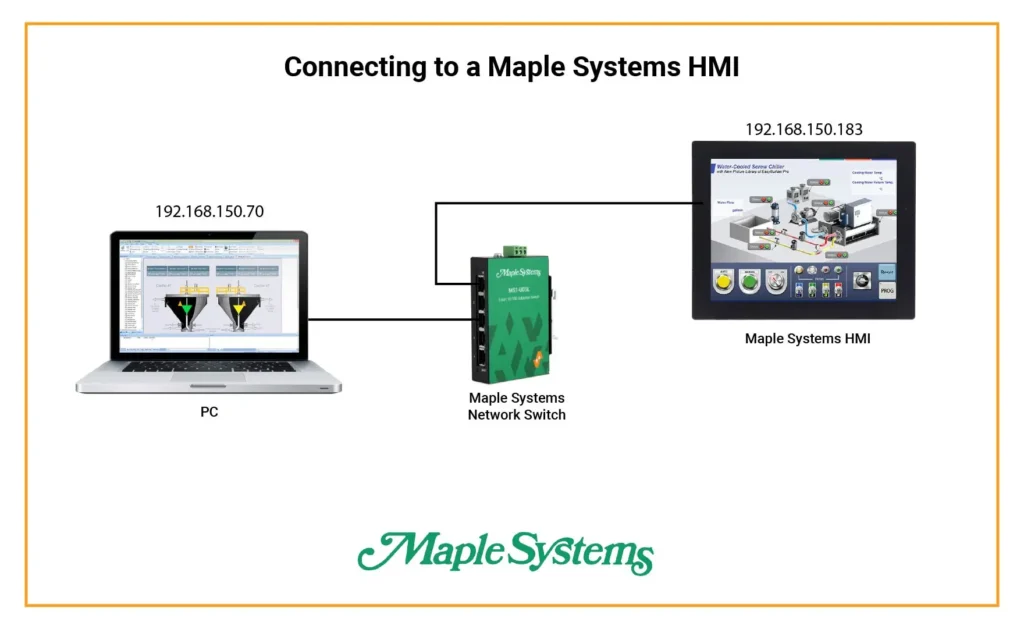
Download and Install a VNC Client Software
For this tutorial, I’ll be using VNC Viewer, but feel free to download and install whichever VNC client you’d prefer.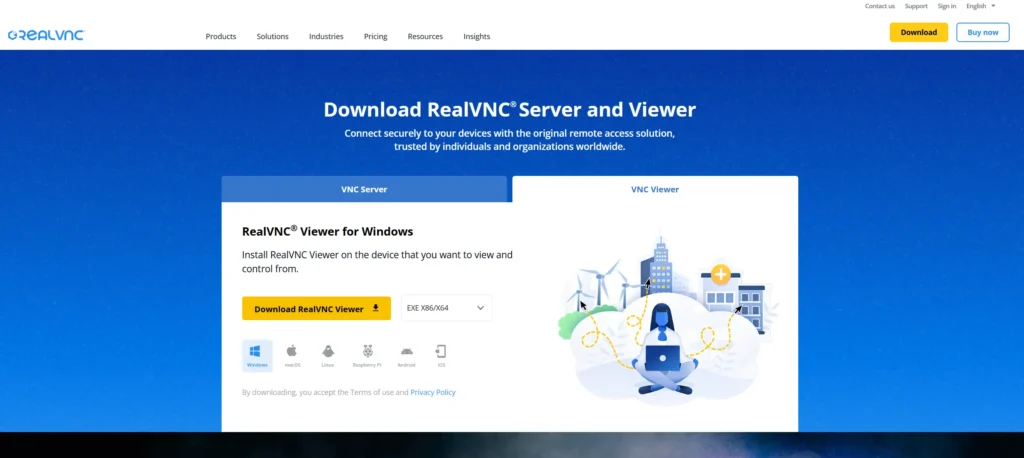
Enter the HMI IP Address
We’ll enter our HMI’s IP address into our VNC client.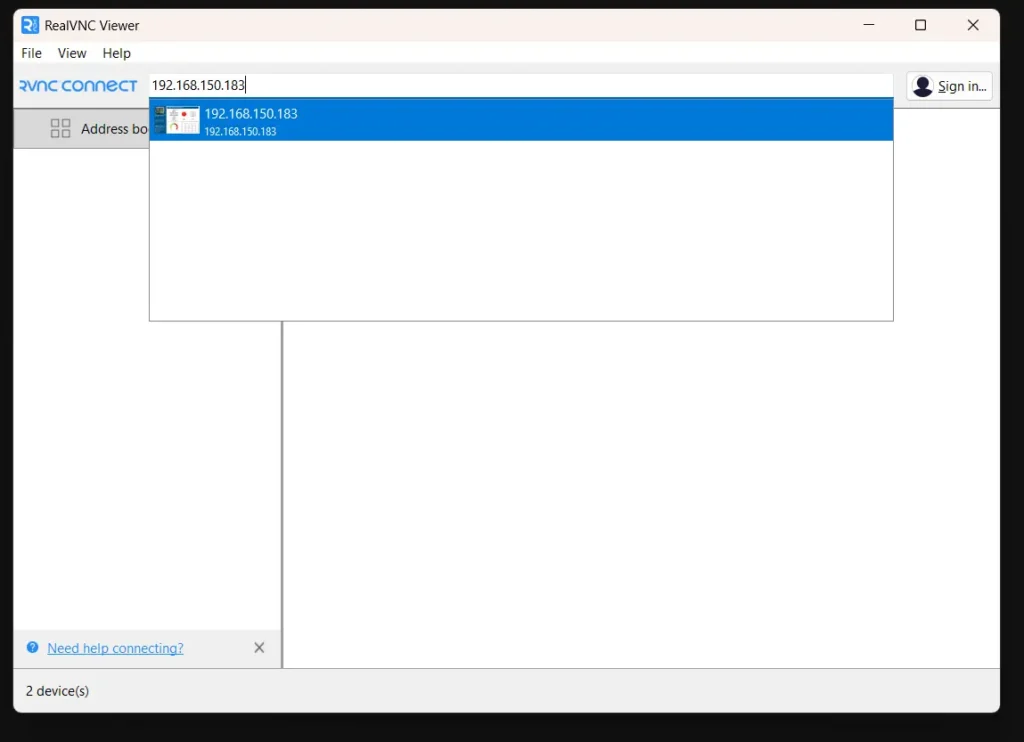
Connect
We’ll connect to our HMI, log in with the password we set earlier, and we’re connected and able to control our HMI screen as if we were standing in front of it!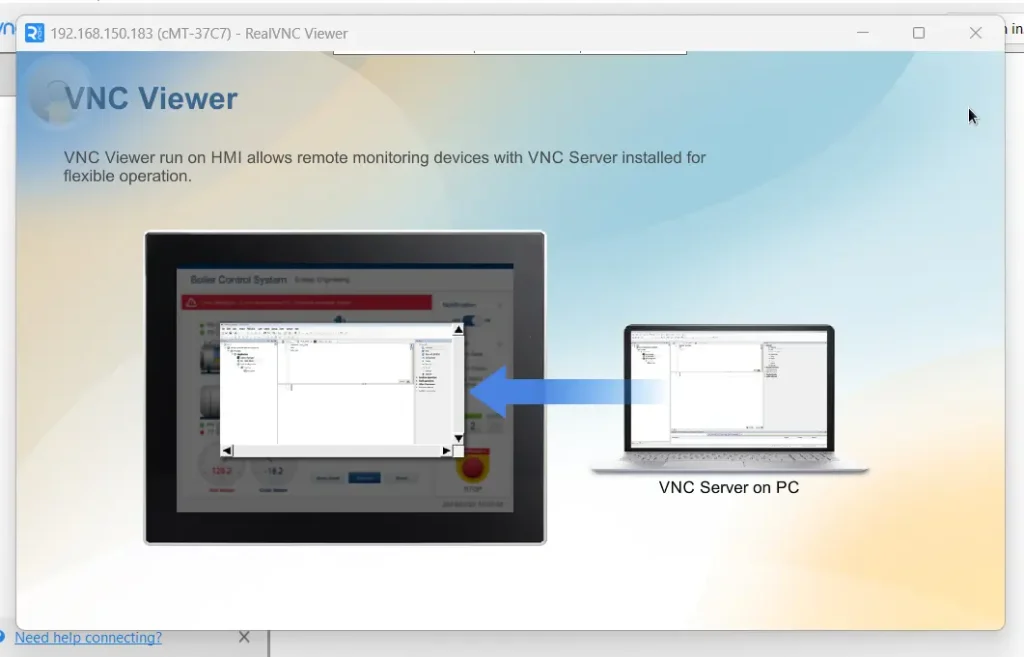
Final Thoughts
With a remote access solution like the built in VNC server in Maple Systems HMIs, we’re able to protect our operators from the harsh conditions our HMI is built to withstand. For remote connections from outside of our local network, we also have EasyAccess 2.0, which can also leverage cMT Viewer as well.
Resources & Documentation
The following guides and documentation are specific to the hardware used in this integration tutorial and will help you with setup, configuration, and programming:
Looking for additional learning resources? Explore our library of tutorials, example projects, and software tools to help you get the most out of your system:
Also, browse our Support Center for a complete list of installation guides, FAQs, and additional technical documentation.

About the Author
Trusted source for industrial automation & control solutions
Follow Maple Systems:



