
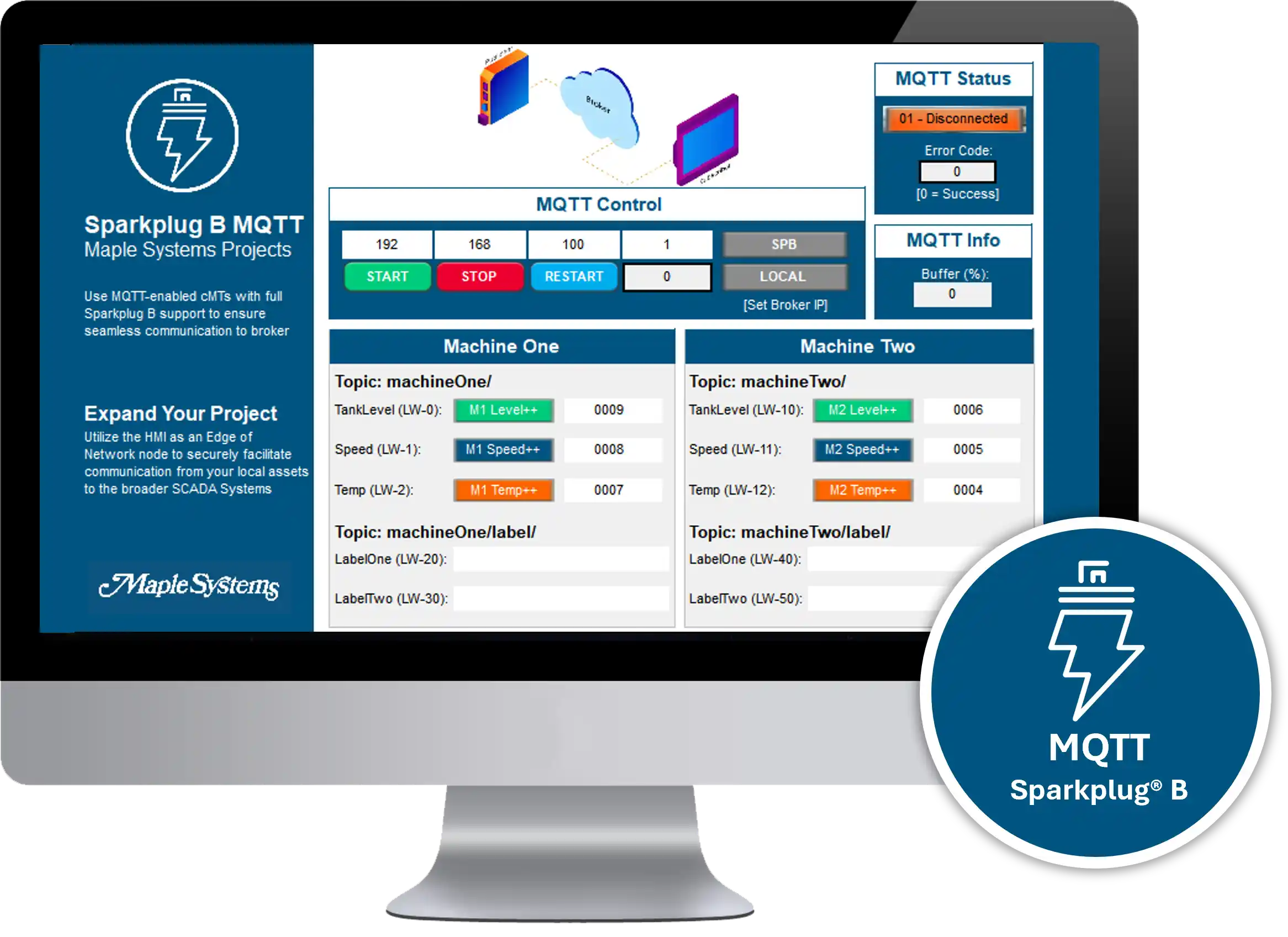
While MQTT is a fantastic transport protocol, it’s a bit like a blank sheet of paper: you can write whatever you want on it, but that flexibility often leads to a “Wild West” of inconsistent data. Sparkplug B is a rulebook that turns that blank sheet into a standardized form.
It defines a strict topic structure, a high-efficiency payload, and integrated state management. This ensures your data has instant meaning, your topics are always organized, and your system can distinguish between a “zero” reading and a dead connection.
The Wild West of Regular MQTT

Imagine you’re in Operations, monitoring multiple plants using MQTT with Maple Systems’ HMIs. You notice a production count that hasn’t changed in an hour. Is the machine idling? Is the sensor broken? Or did the HMI lose its internet connection? Without built-in state management, regular MQTT often leaves you staring at “stale” data, unable to tell if the value is current or just the last thing the broker heard before a crash.
Now, Engineering adds a new production line with a completely different PLC. Because regular MQTT has no set “grammar,” you’re stuck manually mapping every new tag to a new topic string in your broker. It’s a tedious, error-prone process that turns a simple expansion into a weekend-long headache.
How Sparkplug B Provides a Solution
Sparkplug B solves all of these issues through three core features. First, state awareness. Sparkplug B requires “birth” and “death” certificates for when a device goes online and offline, allowing the broker to know for sure when a device goes offline. Sparkplug B also offers tag auto-discovery. Each edge device (like Maple Systems’ HMIs) announces the tags it’s publishing and subscribing to, allowing you to plug in a fresh device with new data, and have it automatically slot itself into place in your broker using the third main benefit, a unified tag language. Sparkplug B enforces a strict topic structure for all of it’s data, ensuring that no matter what format your device data is in, it’ll look and act the same way in your SCADA system.
How to Configure Sparkplug B on a Maple Systems HMI
In this tutorial, You’ll learn how to connect a Maple Systems HMI to a Sparkplug B MQTT broker. We’ll cover initial setup of an Ignition Sparkplug B broker, initial HMI connection to that broker, and attaching local tags from our HMI to our Sparkplug B broker.
Software Required
Hardware Required
Configuring our EBPro Project
For this Tutorial, I’m going to be using the Sparkplug B MQTT Sample Project. It will expose a ton of local HMI registers to the screen that we can then tie to our Sparkplug B connection.
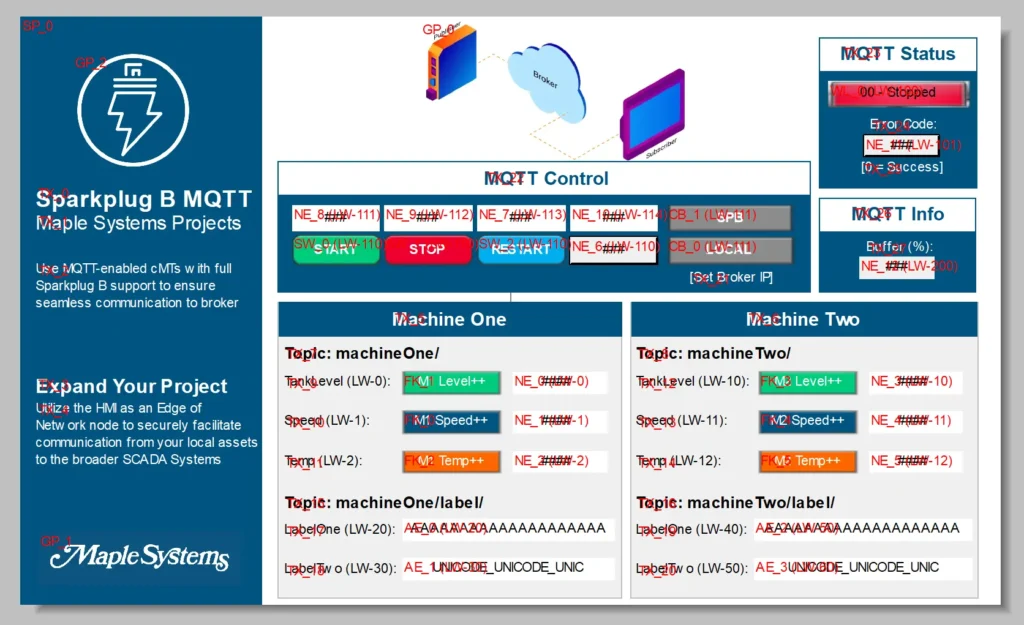
Now that we have a base EBPro project, we’ll start by creating an initial Sparkplug B connection in our EBPro project.
Configuring our Sparkplug B Connection
Now that we have an EBPro project initialized for exposing the Sparkplug B values and control addresses, we’ll configure our Sparkplug connection from EBPro.
Instructions: Configuring our Sparkplug B Connection
Going into MQTT settings
We’ll start by going to the “IIoT/Energy” tab and going into our MQTT settings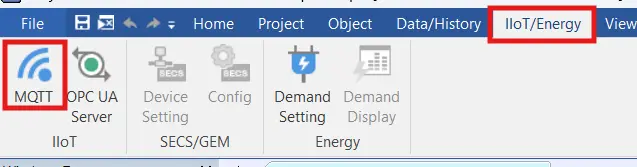
Initial MQTT settings
We’ll then enable MQTT, and set our Cloud service to “Sparkplug B EoN”. Here is where we’ll also set our broker’s IP address and port number here.If you don’t already have a Sparkplug B broker set up, be sure to take note of this IP address for when you’re setting it up later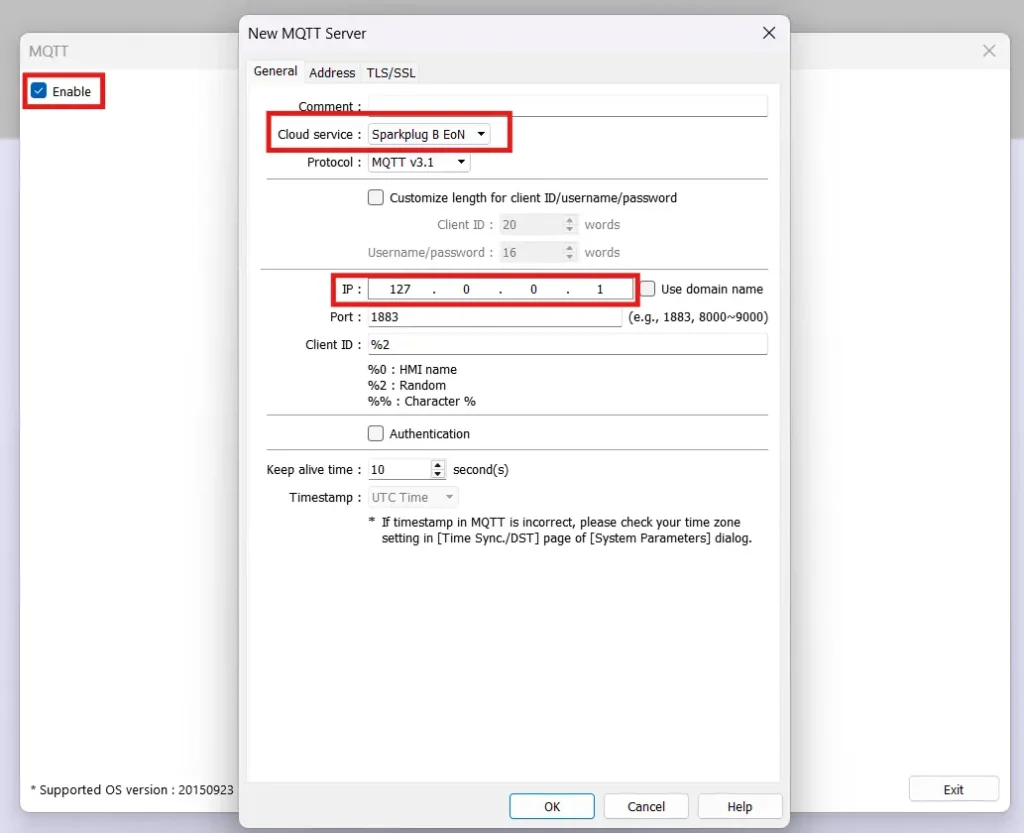
Enter MQTT User Credentials
Then we’ll add some user credentials we’ll use to log into our broker.Once again, if you don’t have a broker already set up, be sure to keep these user credentials in mind to create a user on the broker side for the HMI to log in as.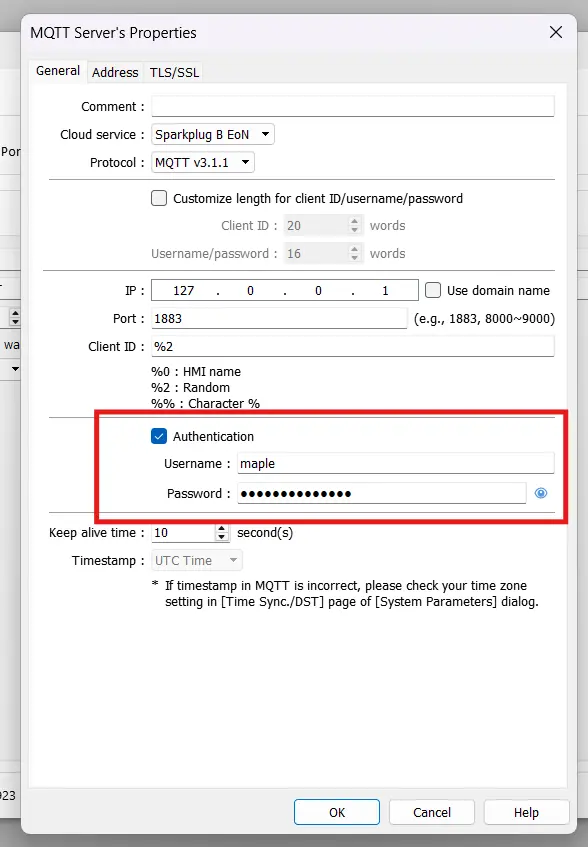
MQTT Address Settings
We’ll then go to the “Address” tab, and set a status address, and a control address. I’m using LW-100 and LW-110 respectively.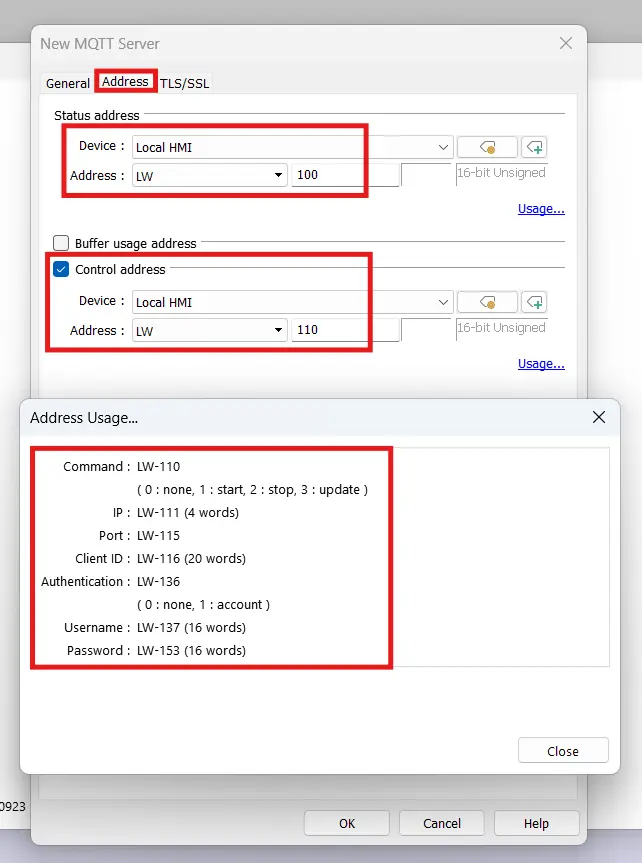
Main MQTT Window Configuration
Then we’ll go back to the main MQTT window, under the General tab, we’ll fill out the Group ID and edge node ID with the same names we created on the Ignition side. (I’m entering “maple” and “cmt” respectively on my server).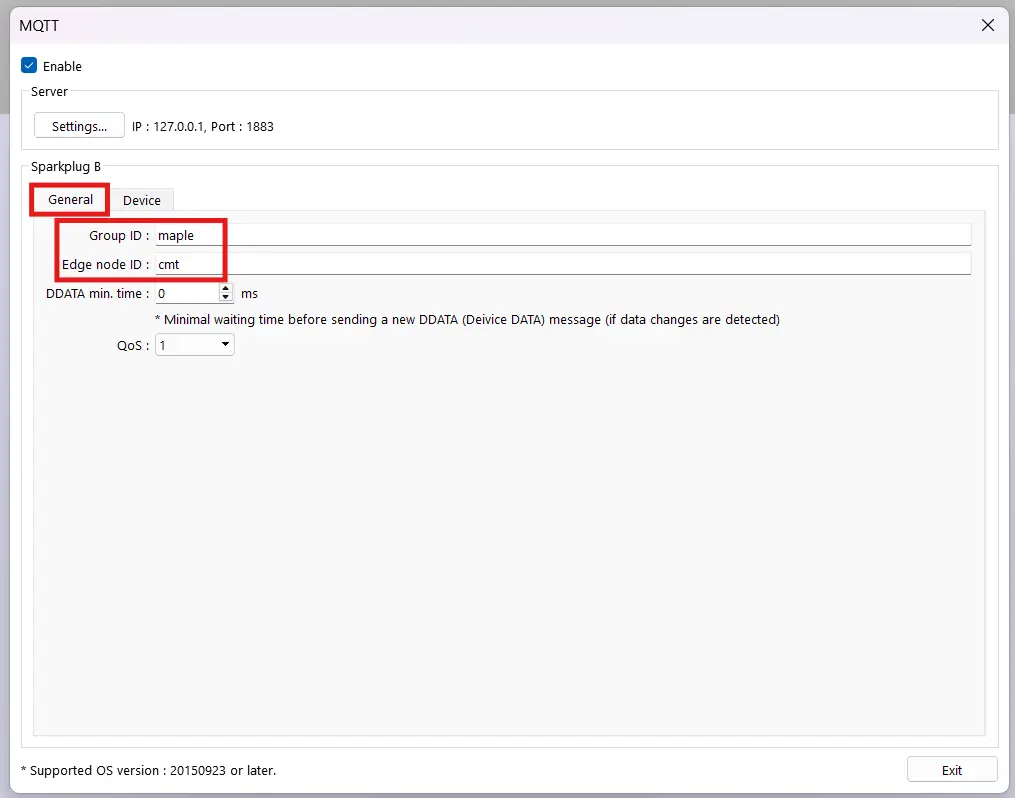
Next, we’ll configure our EBPro project to subscribe from and publish to MQTT topics. The auto-discovery feature of Sparkplug B brokers makes this step rather easy, allowing us to shape the data in our HMI to bridge the gap between our PLC and our SCADA broker.
Subscribing and Publishing from EBPro
Now we’ll tie some of our HMI tags to MQTT topics
Instructions: Subscribing and Publishing from EBPro
Re-Opening MQTT settings
If you’ve closed them, we’ll re-open our MQTT settings here (IIoT/Energy > MQTT)Creating a New Tag Group
We’ll go to the “Device” tab of our MQTT settings, and create a “New Group”. You can double-click the name to rename it to something meaningful.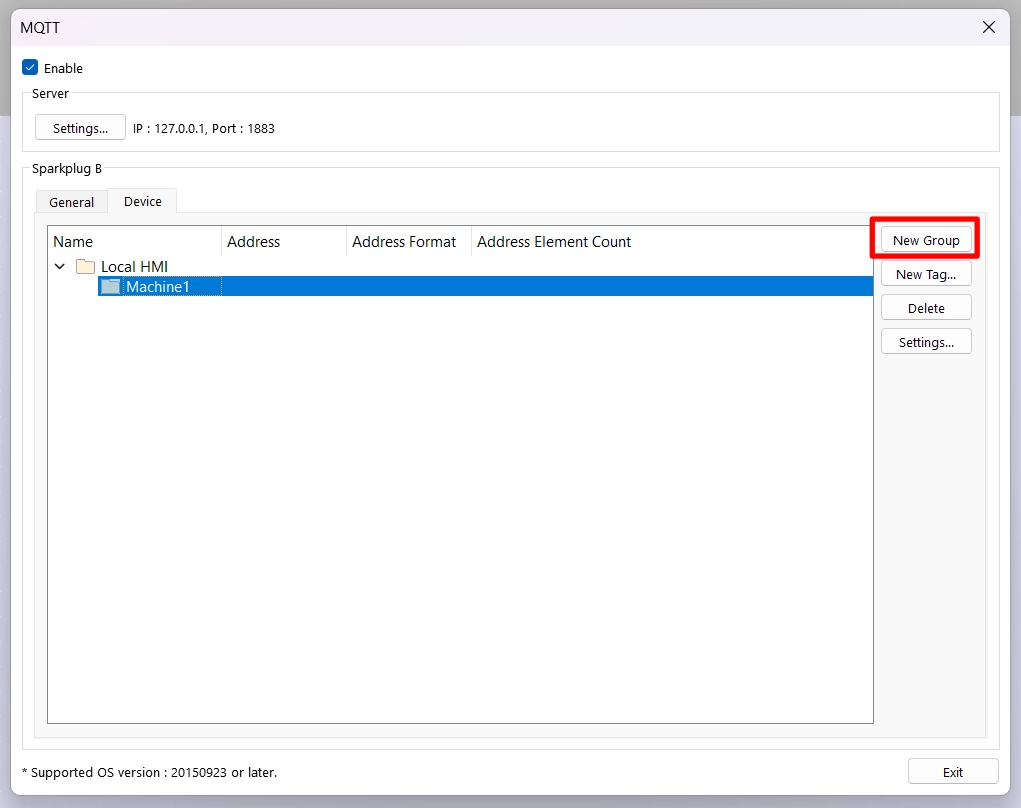
Creating a New Tag
Now we’ll add a new tag to this group. You’ll want to name it something meaningful, and attach it to it’s respective local HMI address as well.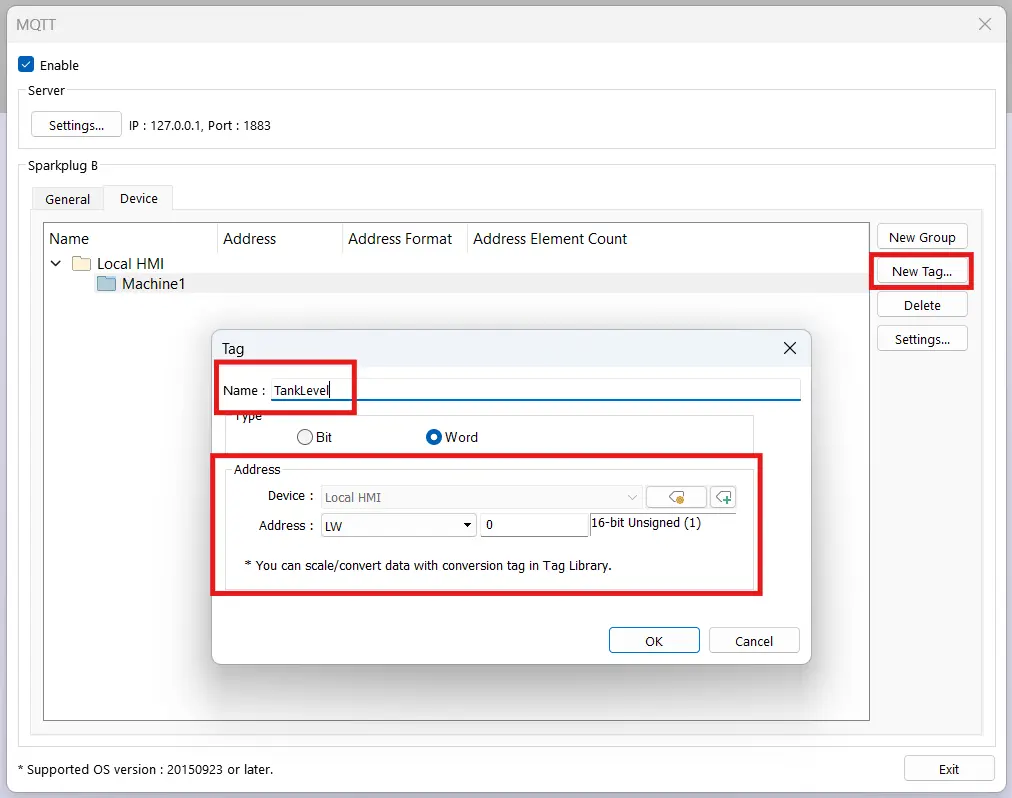
Filling out our tags
We’ll repeat the step above until we have all of the tags and groups that we need for our application.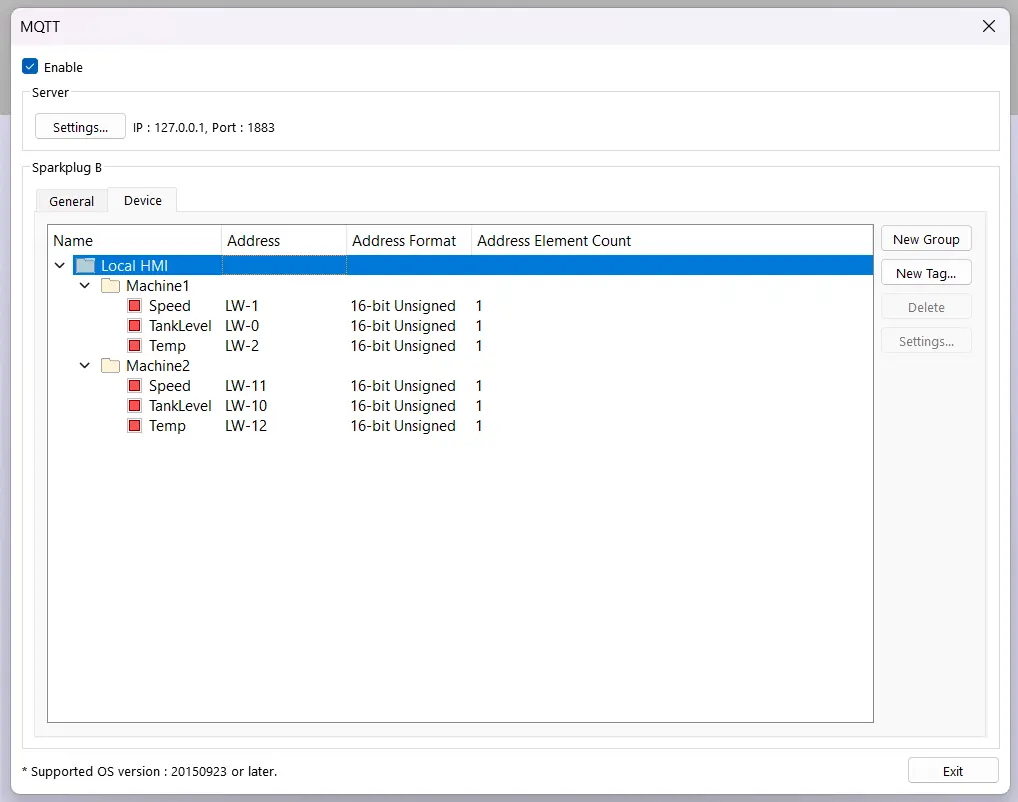
If you already have an Ignition Server set up with MQTT, you should be able to connect to it from your Maple Systems HMI. But if you don’t already have an Ignition broker, the following steps will help you set one up. We’ll also go over the configuration to properly allow an HMI connection.
Setting Up the Broker
Installing and Configuring Ignition
To start, we install and set up our Ignition gateway so that we can configure it to act as our Sparkplug B Broker.
Instructions: Installing and Configuring Ignition
Ignition initial download
First, we’ll download the windows version of Ignition from their website, and run the installer .exe file.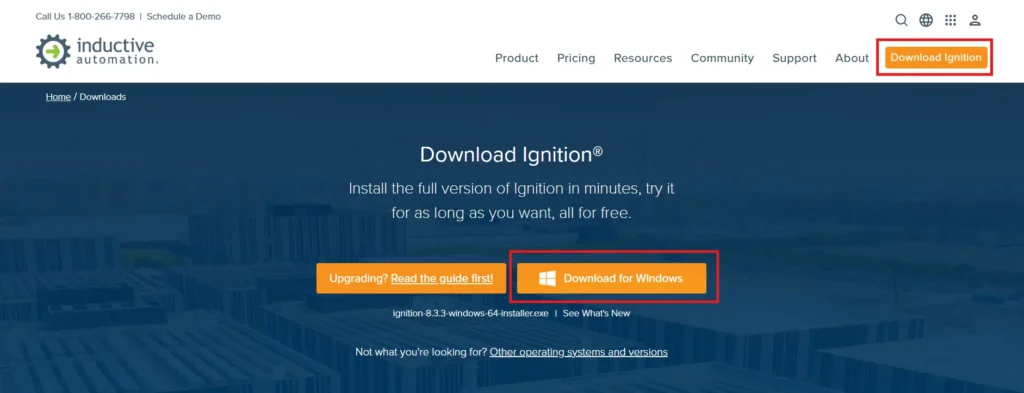
Using the Install Wizard
Then we’ll go through the install wizard, I’ll leave everything as defaults for the sake of simplicity.You can feel free to tweak any settings as you wish, but the defaults should work for our purposes.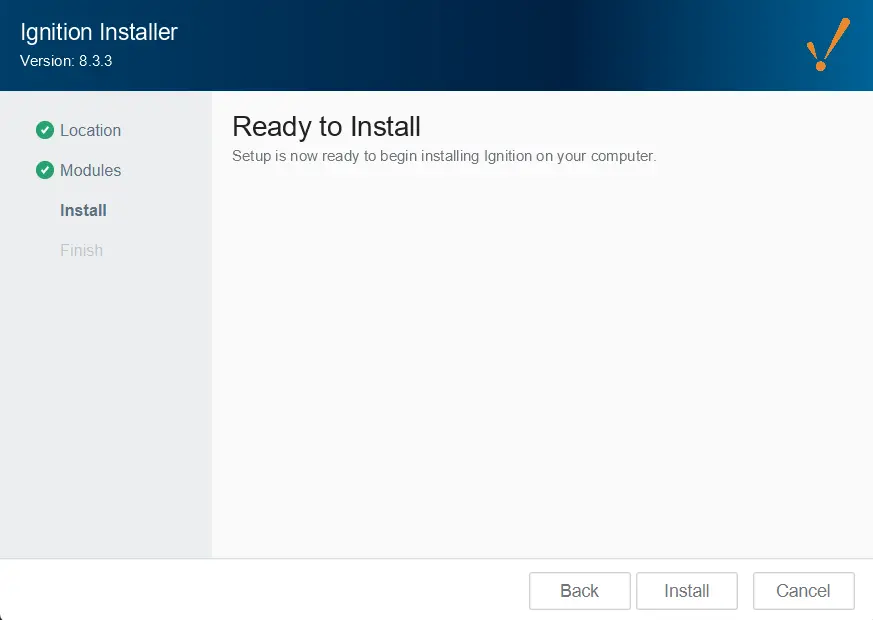
Selecting our Ignition version
You’ll either be prompted to, or you can navigate to 127.0.0.1:8088 to choose which version of Ignition you’ll install. We’ll be using the full edition.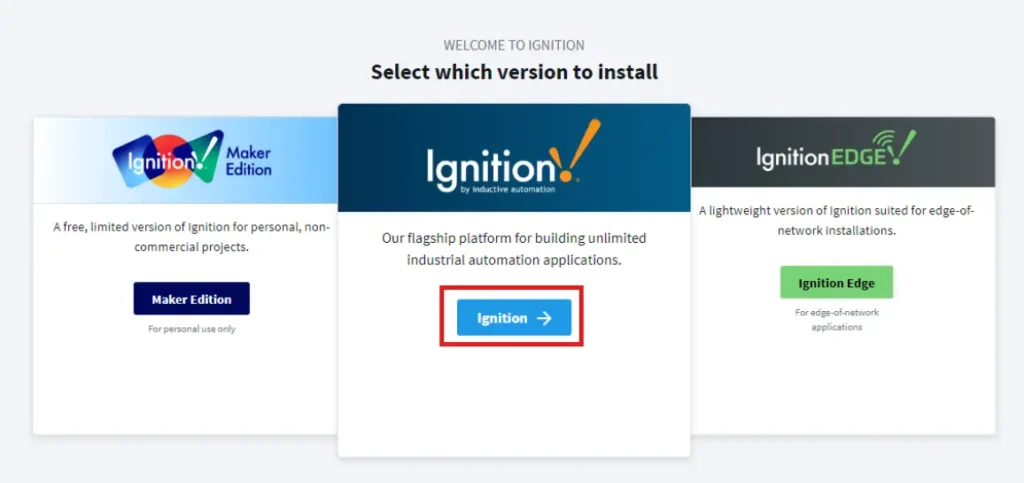
Creating an Ignition User
Now we’ll create an admin user for our Ignition Gateway.Keep in mind this user will have full admin privileges in your Ignition server.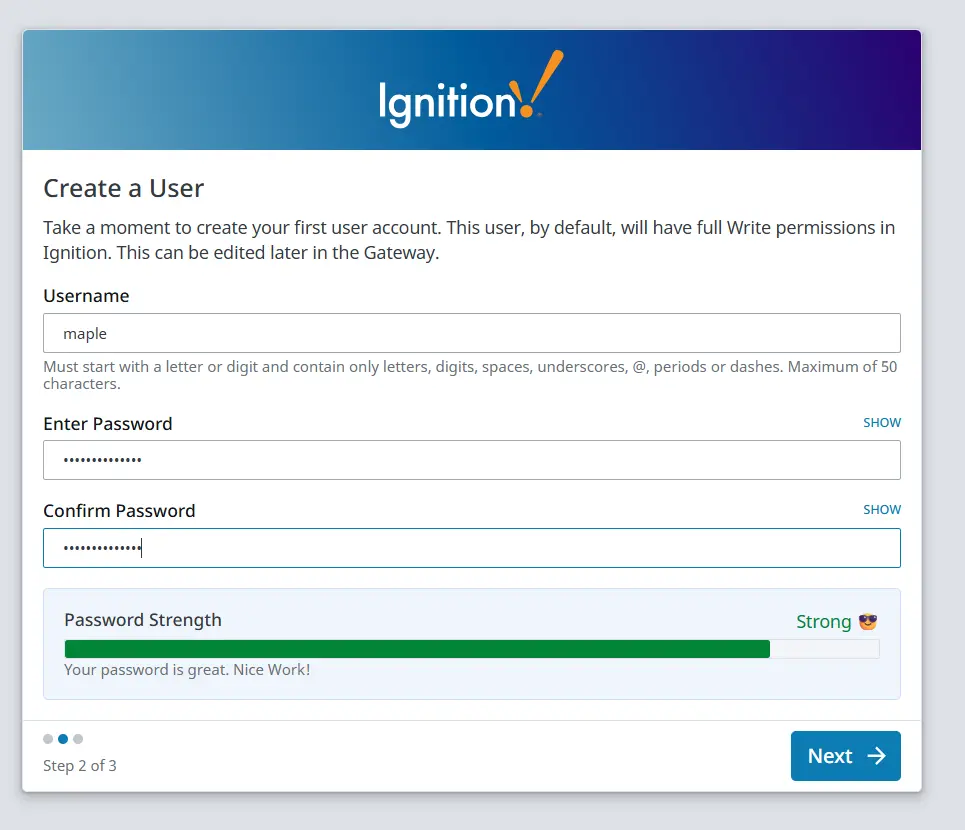
Enabling Quick Start
We won’t get into the weeds of creating an Ignition project, so we’re going to enable the Ignition quick start. This will prompt you to log in as the admin user you just set up in the previous step.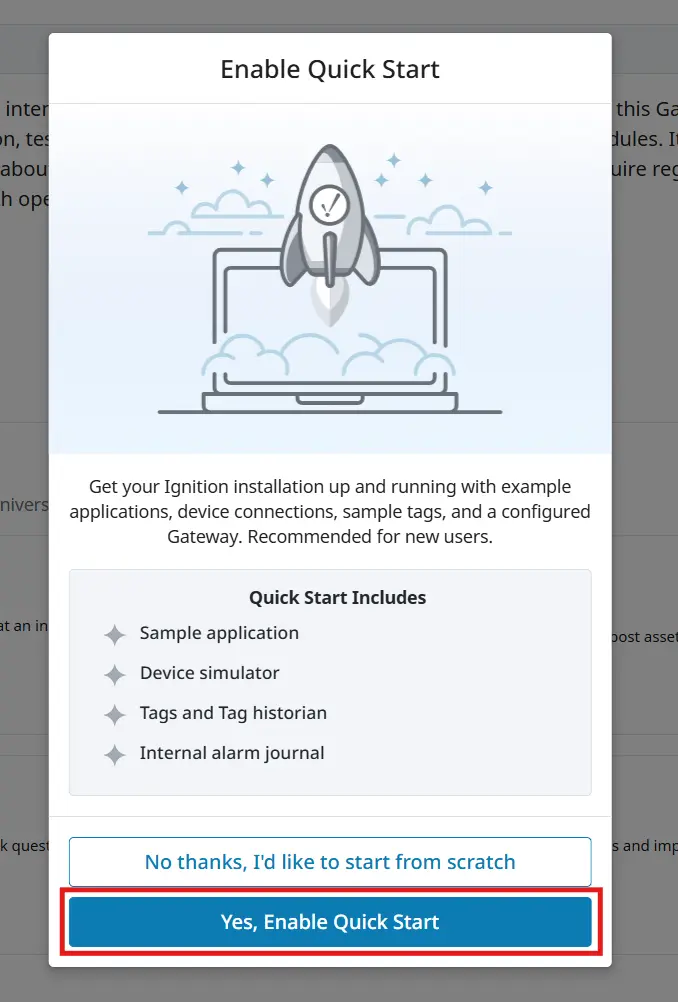
Now that we have Ignition gateway installed on our computer, we’ll set it up to serve as an MQTT broker.
Configuring our Sparkplug B Broker
Now we’ll install the Ignition modules we need to create our Sparkplug B broker, and configure our connection for EBPro
Instructions: Configuring our Sparkplug B Broker
Downloading MQTT Modules
We’ll need to download the 3rd-party modules for MQTT in Ignition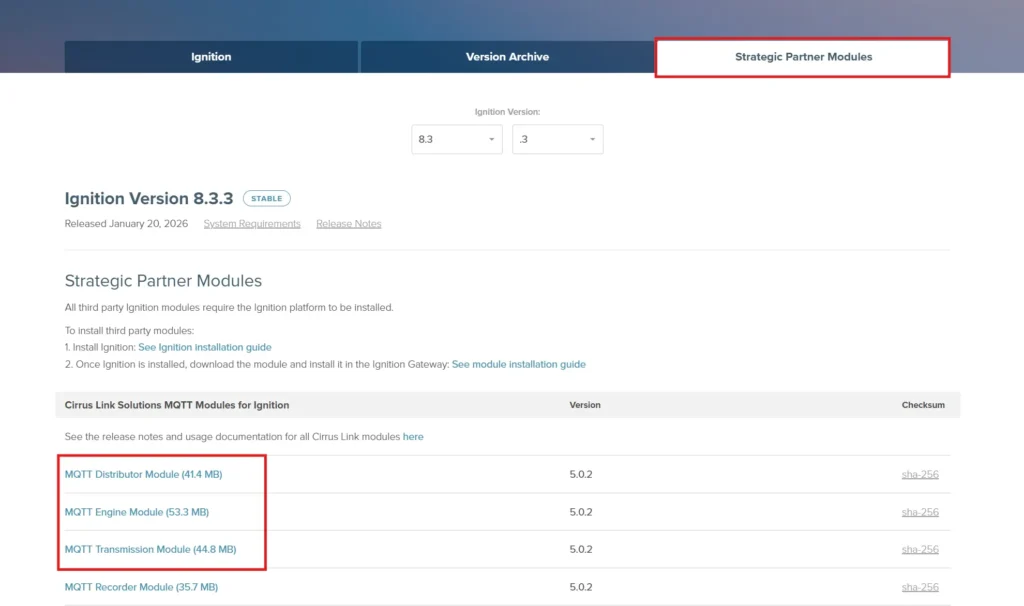
Installing Ignition Modules
Now we’ll go back to our Ignition Gateway, and go to “Platform > Modules” and select “Install or Upgrade Module”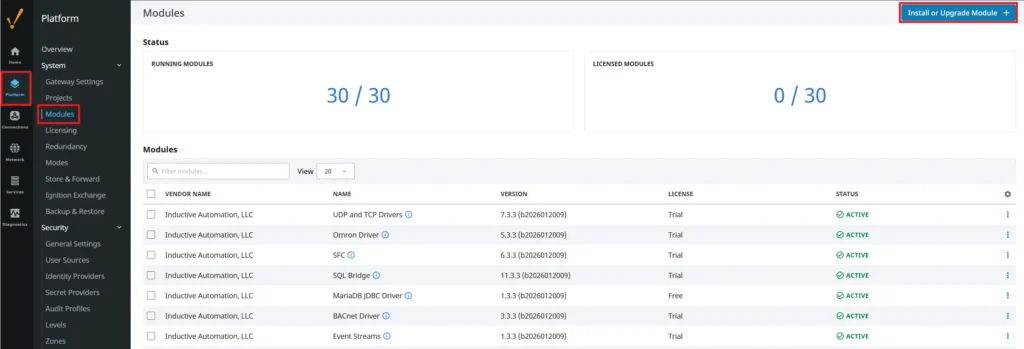
Installing MQTT Distributor From File
You’ll want to start with the MQTT Distributor module, so we’ll select that one from the “Choose File” menu, select “Install Module” and agree to the License and Certificate.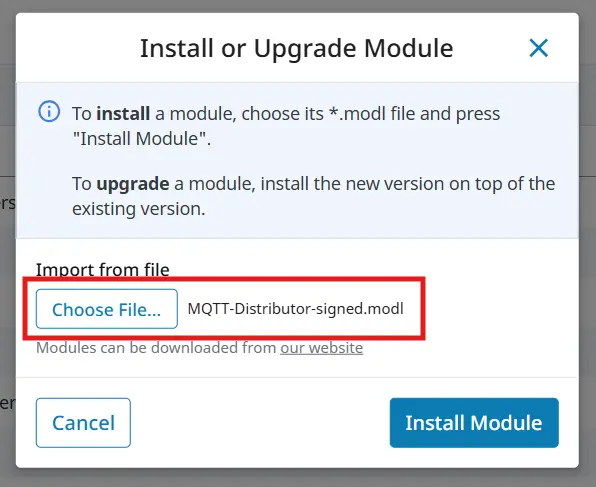
Installing the other two MQTT Modules
You’ll want to repeat the same process for the other two MQTT modules, and re-start your Ignition gateway. Afterwards, you should see all 3 MQTT modules are installed and running.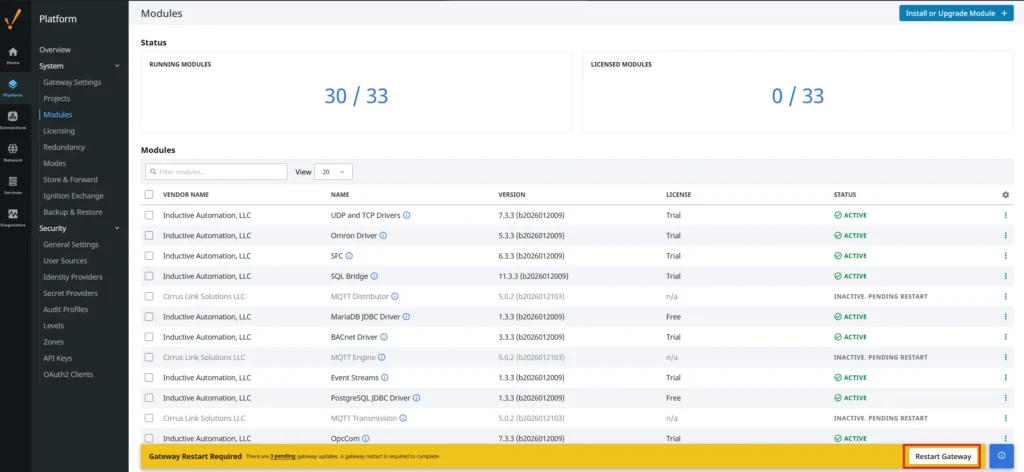
Configuring the MQTT Engine
Now that we’ve installed and enabled our MQTT modules, you’ll want to go to “Connections > MQTT Engine > Settings”, and un-check “Block Node Commands” and “Block Device Commands” and click “Save Changes” in the top-right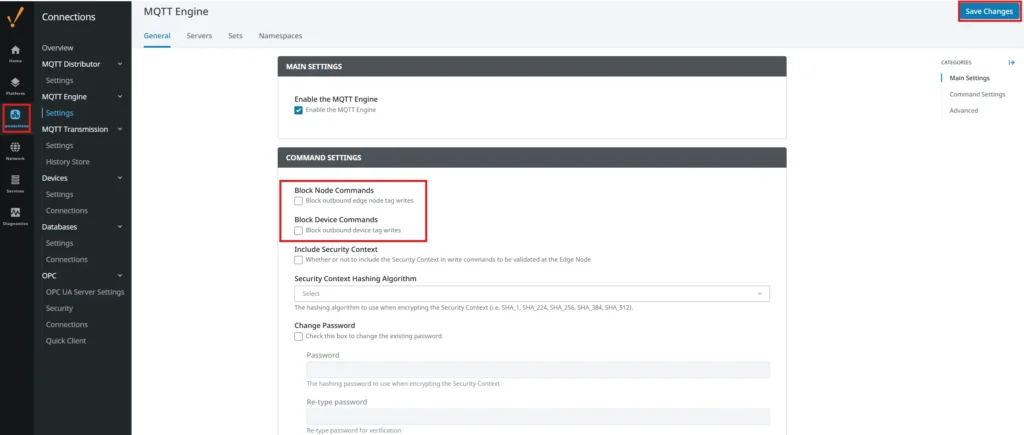
Creating a New Server Set in Transmission
Now we’ll go into the “MQTT Transmission” settings, and go into the “Sets” tab. We’ll add a new server set and set the server name and host ID to something that we’ll remember later.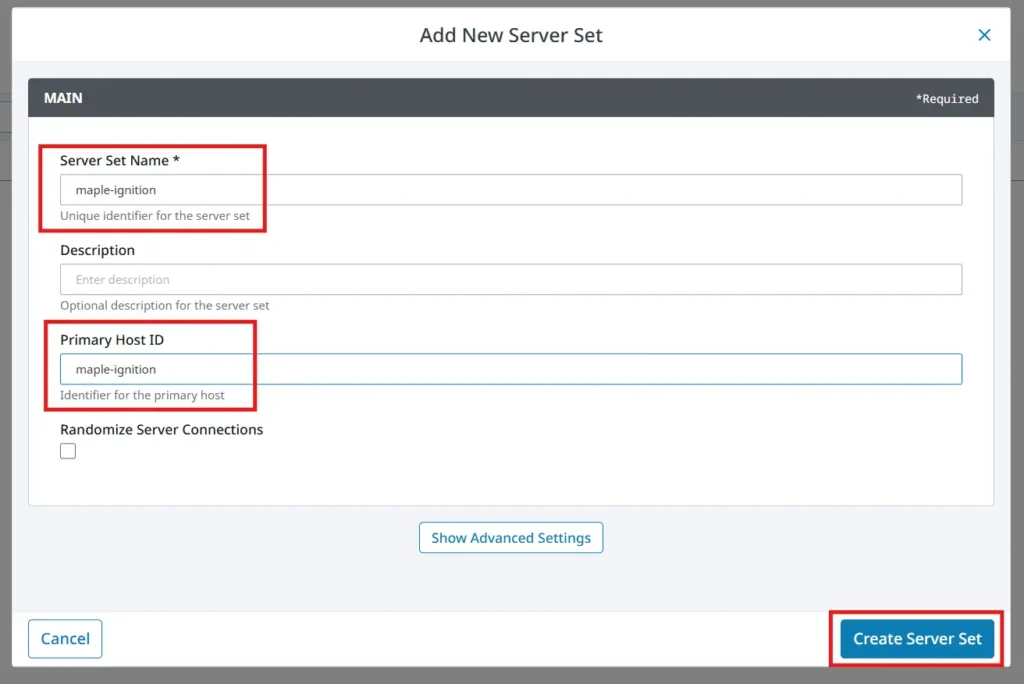
Creating a Transmitter
Now we’ll go into the “transmitters” tab and add a new one. Name it something meaningful, set the “tag provider” to “default” and set the “Server Set” to the server set we just created.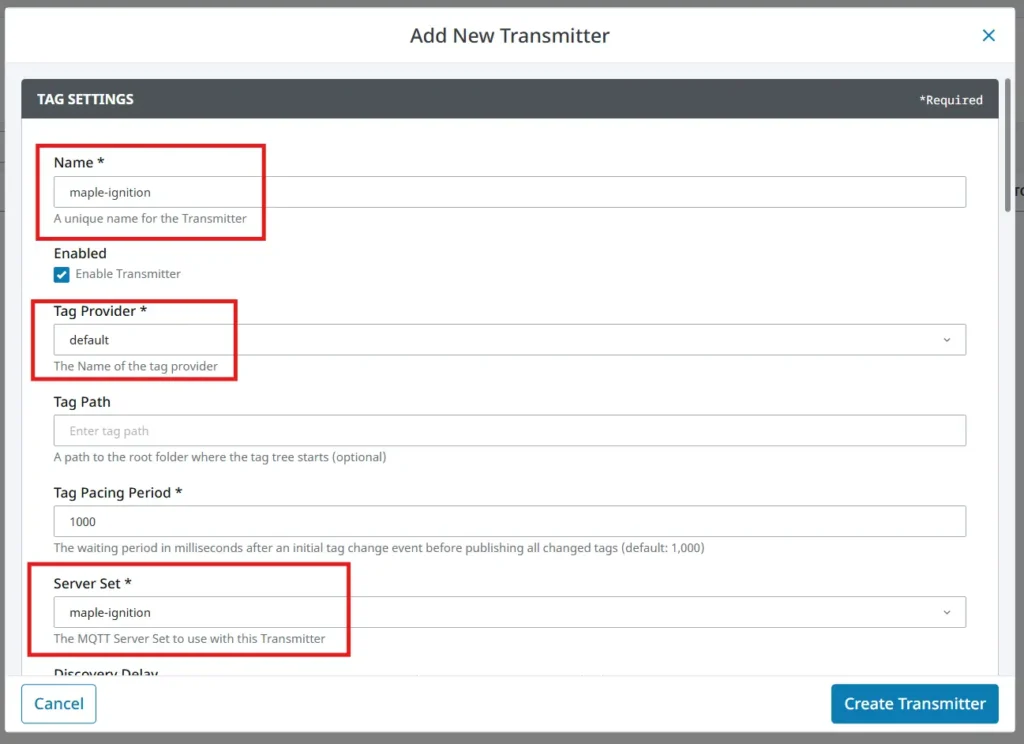
Configuring the Transmitter Further
Now scroll down and set the Group ID and Edge node ID to things we’ll remember. And we’ll hit “Create Transmitter”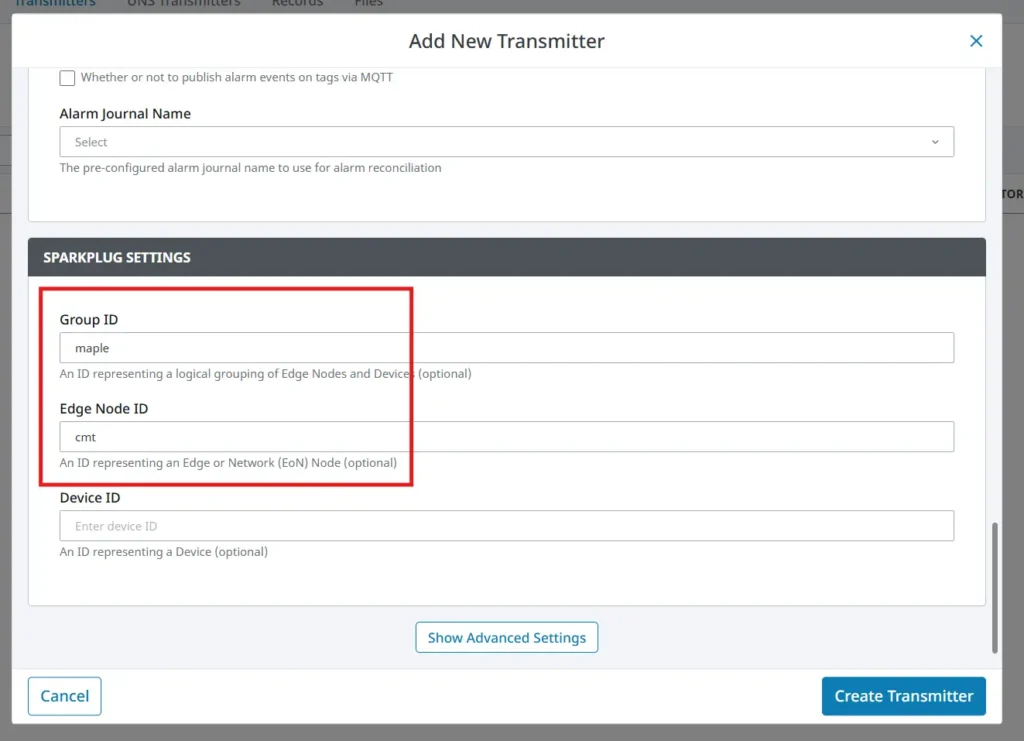
Setting our Server to our new Set
Now we’ll go to the “Servers” tab, and edit the “Chariot SCADA” server. We’ll set the “Server Set” to our server set, and ensure we have our username and password set to what we want.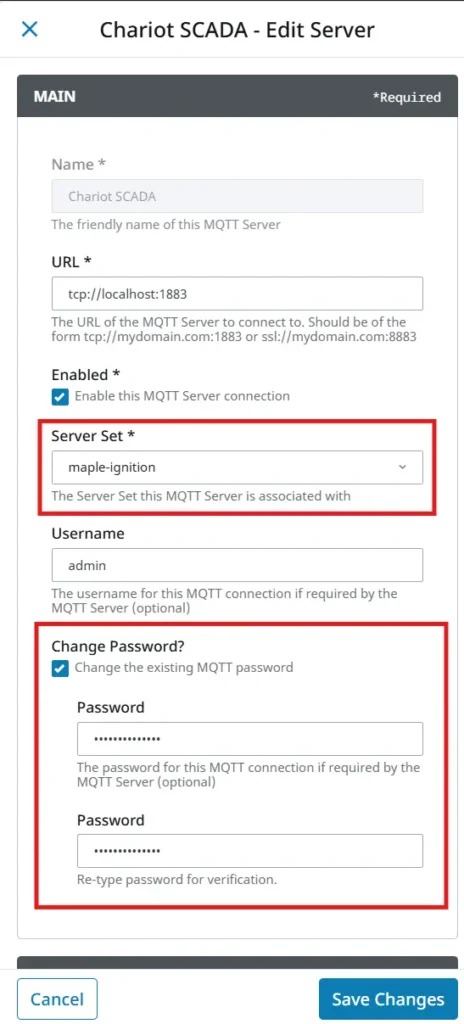
Creating a User That Will Connect to the MQTT Server
We’ll then head to the MQTT Distributor settings, go to the “Users” tab, and add a new user. These will be the user credentials we created on the EBPro side.You can simply edit the admin user to have the HMI log in as the admin, but it’s best practice to create a user specifically for the HMI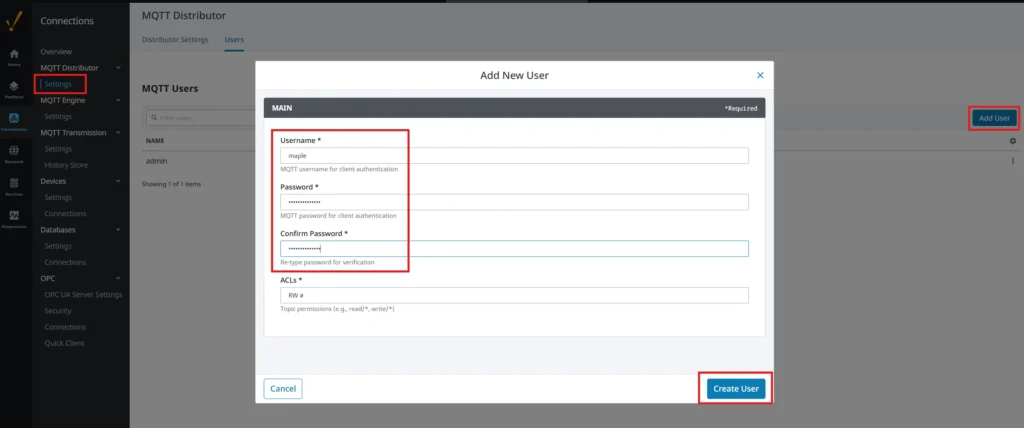
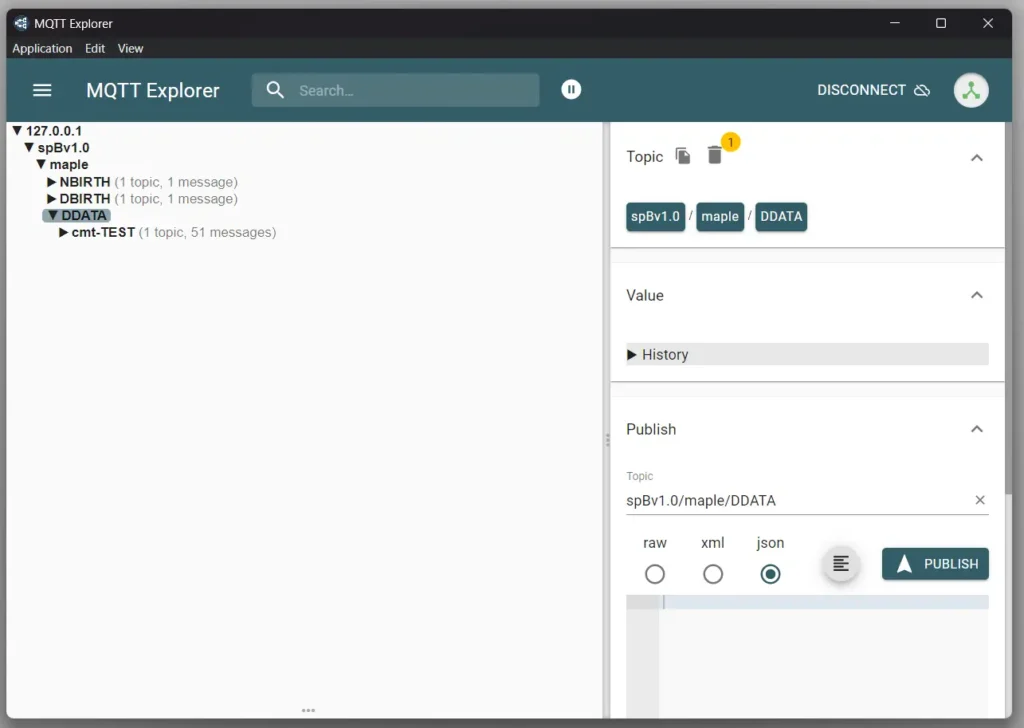
After setting up your EBPro project and your Ignition server, you should be able to see them connecting to each other and sending MQTT data back and forth!
Final Thoughts: Taming the MQTT Wild West
If we re-visit our plant operator stuck with a regular MQTT broker, changing to a Sparkplug B broker helps to ease all of their pain points.
No more wondering if a static production count means an idle or broken machine. Sparkplug B’s birth and death certificates let you know right away when a machine disconnects or goes down, no more misleading “stale” data.
Furthermore, adding a new machine no longer takes a full weekend to integrate. Sparkplug B’s auto-discovery means that when Engineering brings a new PLC and HMI online, there is no unique tag structure or inconsistent naming. The broker takes the strict topic structure from the HMI and automatically slots it in where it belongs in your SCADA system, making expansion easy.
By pairing Maple Systems HMIs with the Sparkplug B standard, you are doing more than just moving data; you are building a scalable, self-aware IIoT ecosystem that is ready to grow as fast as your operation does.
Resources & Documentation
The following guides and documentation are specific to this product and will help you with setup, configuration, and programming:
Looking for additional learning resources? Explore our library of tutorials, example projects, and software tools to help you get the most out of your system:
Also, browse our Support Center for a complete list of installation guides, FAQs, and additional technical documentation.

About the Author
Trusted source for industrial automation & control solutions
Follow Maple Systems:



