
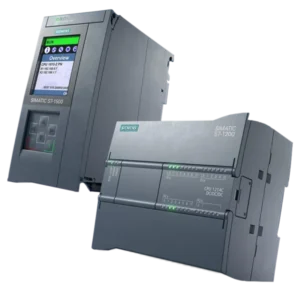
The Siemens S7-1200 and S7-1500 are compact, modular programmable logic controllers (PLCs) designed to handle a wide range of tasks, from small to large-scale applications. The S7-1200 is ideal for small to medium-sized projects, while the S7-1500 is better for medium to large-scale automation needs. Both PLCs are part of the SIMATIC controller series and are programmed using the Totally Integrated Automation (TIA) Portal.
Browse our Siemens S7-1200 and S7-1500 connection guide below for more information on how to connect to your Maple Systems HMI. The guide includes step-by-step connection instructions, controller info sheets, and more.
Addressing Schemes
EBPro contains two distinct drivers for the S7-1200 and S7-1500, one for absolute addressing, and another for symbolic addressing. Because EBPro uses different drivers for these addressing schemes, it is helpful to review the differences between them before moving forward.
Absolute Addressing
Absolute addressing is a method of directly accessing specific memory locations, inputs, outputs, and data within a PLC by their fixed addresses. Addresses are fixed rather than being addressed by symbolic names or variables. This addressing scheme is straightforward and enables precise control of the hardware, but may be more difficult to read and maintain over time.
Let’s say that we wanted to access a specific byte in the output module of an S7-1200/1500 PLC. In EBPro you may access this by selecting the QB device type and using four decimal values to refer to the specific register, such as QB-1101. At first glance this method seems fine, and for many programmers this may be a perfectly reasonable choice, especially when working alone or on a smaller system.
However, in large systems that may have a team working on a single project, this method may become complicated. Sifting through code to troubleshoot an issue, or when a new programmer is picking up development may be time-intensive.
Symbolic Addressing
In contrast, symbolic addressing uses variables instead of direct memory references, meaning that programmers can create descriptive variable names that are easier to understand at a glance. With symbolic addressing, programmers create variables commonly known as “tags” that are associated with a memory address, providing the same level of access as absolute addressing, but written in a form that is easier to read.
Going back to our previous example, let’s say that an output register will be controlling indicators that activate when a fluid tank is full. With symbolic addressing, the programmer may create a tag called tank_full for the QB-1101 address, making the purpose of this register more obvious, and allowing them to be organized with other relevant addresses.
While symbolic addressing does introduce another configuration step in the form of building up a tag library, it results in a project that is easier to configure and maintain overtime. Absolute addressing, despite being less readable, has the advantage of uniformity. Also, absolute addressing may be preferable for highly experienced programmers or those who use other means to track their addressing.
Quick Start Guides
Our Quick Start guides are here to help you get your HMI and PLC talking to each other as quickly and painlessly as possible. Our guides for the S7-1200 and S7-1500 are divided into two parts, one for those using absolute addressing and another for symbolic addressing.
Absolute Addressing Configuration
This guide walks you through connecting a Siemens S7-1200 or S7-1500 PLC to EBPro, configuring communication settings, and using PLC addresses in your HMI project. Follow these steps to establish a successful connection and begin building and testing your screens with confidence.
Instructions: Absolute Addressing Configuration
Start a New EBPro Project and Select Your HMI
Open the EBPro application and start a new project, or load an existing project. In the New Project window, select the Maple Systems HMI that you will be using.

Add the Siemens S7 PLC Device
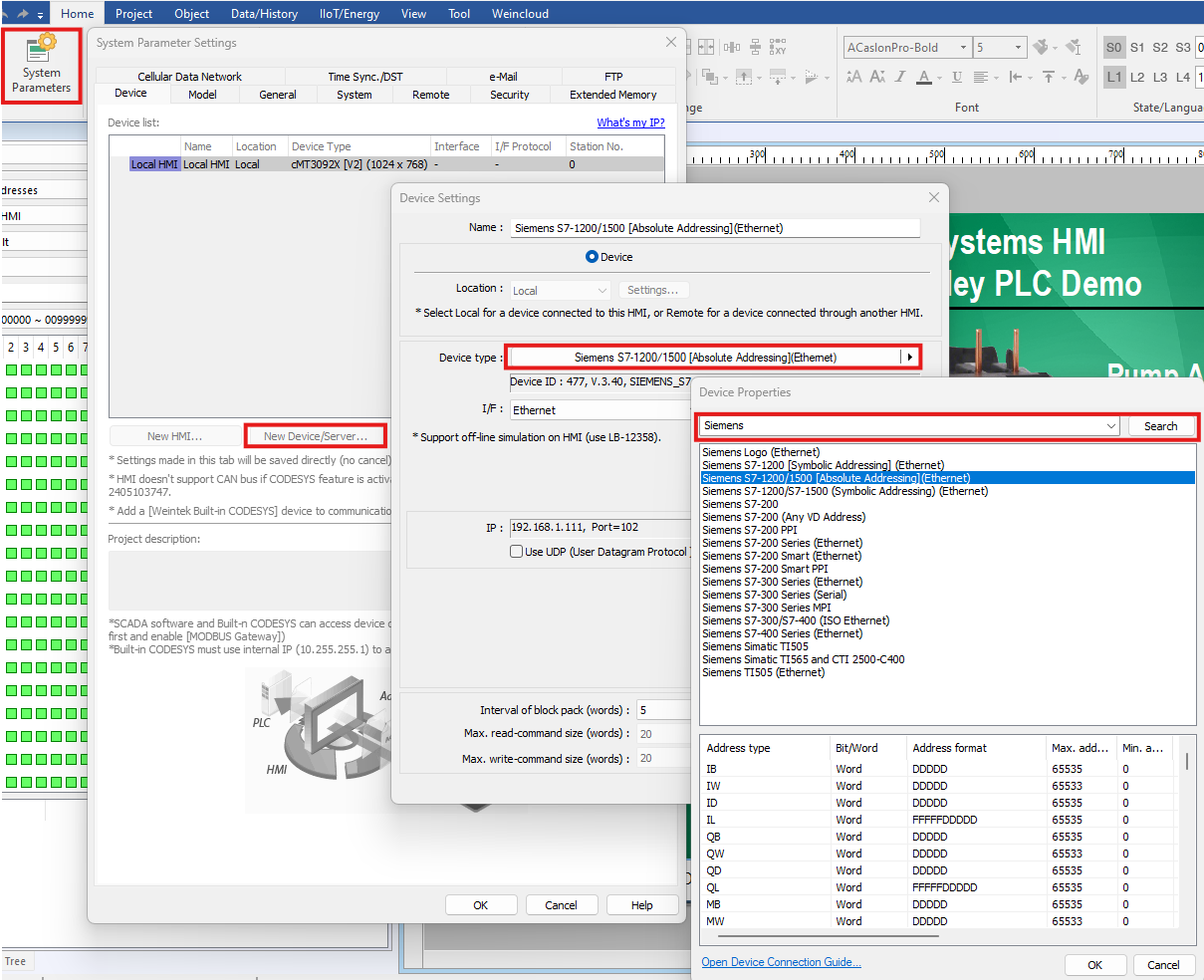
In the System Parameters window, click New Device/Server. Click on the Device Type field, then in the next window, type Siemens into the search bar at the top. Click Search. Then, Select the Siemens S7-1200/1500 [Absolute Addressing] (Ethernet) driver from the list, then click Ok to confirm.
Enter the PLC IP Address and Confirm Communication Settings
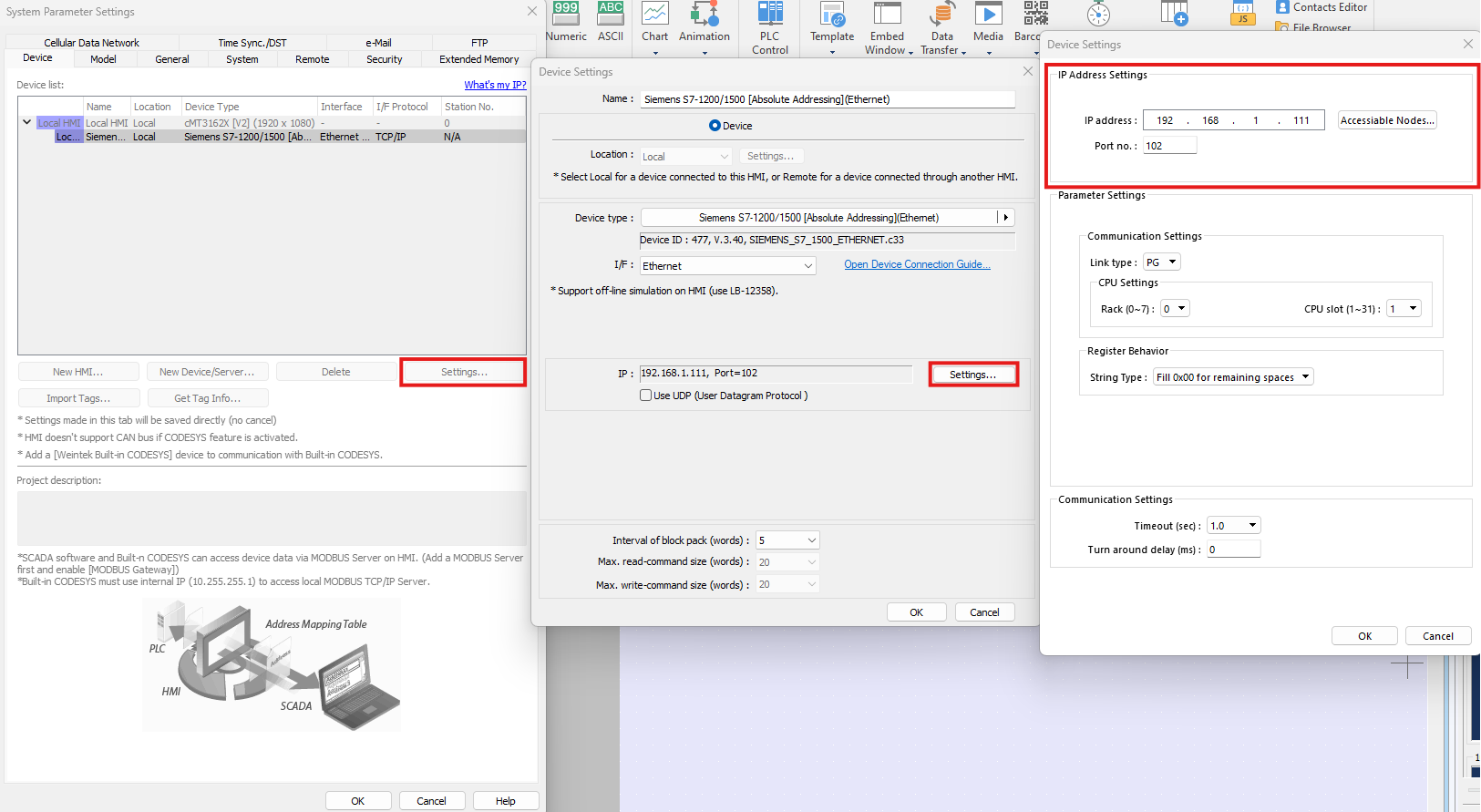
In the System Parameters window, select the Siemens S7 device from the list, then click Settings. In the following window, click the Settings button shown next to the device IP address. Assign an IP address for the Siemens device, and adjust the communication settings if necessary. The IP address set here needs to match the configuration settings on the PLC hardware itself to connect successfully.
Place an Object and Link It to a PLC Address
You may now assign objects to read or write to addresses on the PLC. Let’s add a Bit Lamp object to our project to use as an example. To do this, navigate to the Object menu and select the Bit Lamp object. In the Properties window, select the Siemens PLC from the Device dropdown, then configure the register type and address.

Test Communication Using Online Simulation
To test communication without using an HMI, use an Ethernet cable to connect the Siemens PLC to the same network as your development PC. Once connected, the online simulation mode in EBPro can be used to simulate HMI communication. To learn more about HMI project simulation, check out our Try Before You Buy page.
Symbolic Addressing Configuration
This guide walks you through connecting a Siemens S7-1200 or S7-1500 PLC to EBPro using symbolic addressing, importing your PLC tags, and using those tags in your HMI project. Follow these steps to configure communication, bring in your tag database, and begin building and testing your screens with confidence.
Instructions: Symbolic Addressing Configuration
Start a New EBPro Project and Select Your HMI
Open the EBPro application and start a new project, or load an existing project. In the New Project window, select the Maple Systems HMI that you will be using.
Add the Siemens S7 PLC Using Symbolic Addressing
In the System Parameters window, click “New Device/Server.” Click on the “Device Type” field, then in the next window, type “Siemens” into the search bar at the top. Click “Search”.
Select the “Siemens S7-1200/1500 [Symbolic Addressing] (Ethernet)” driver from the list, then click “Ok”to confirm.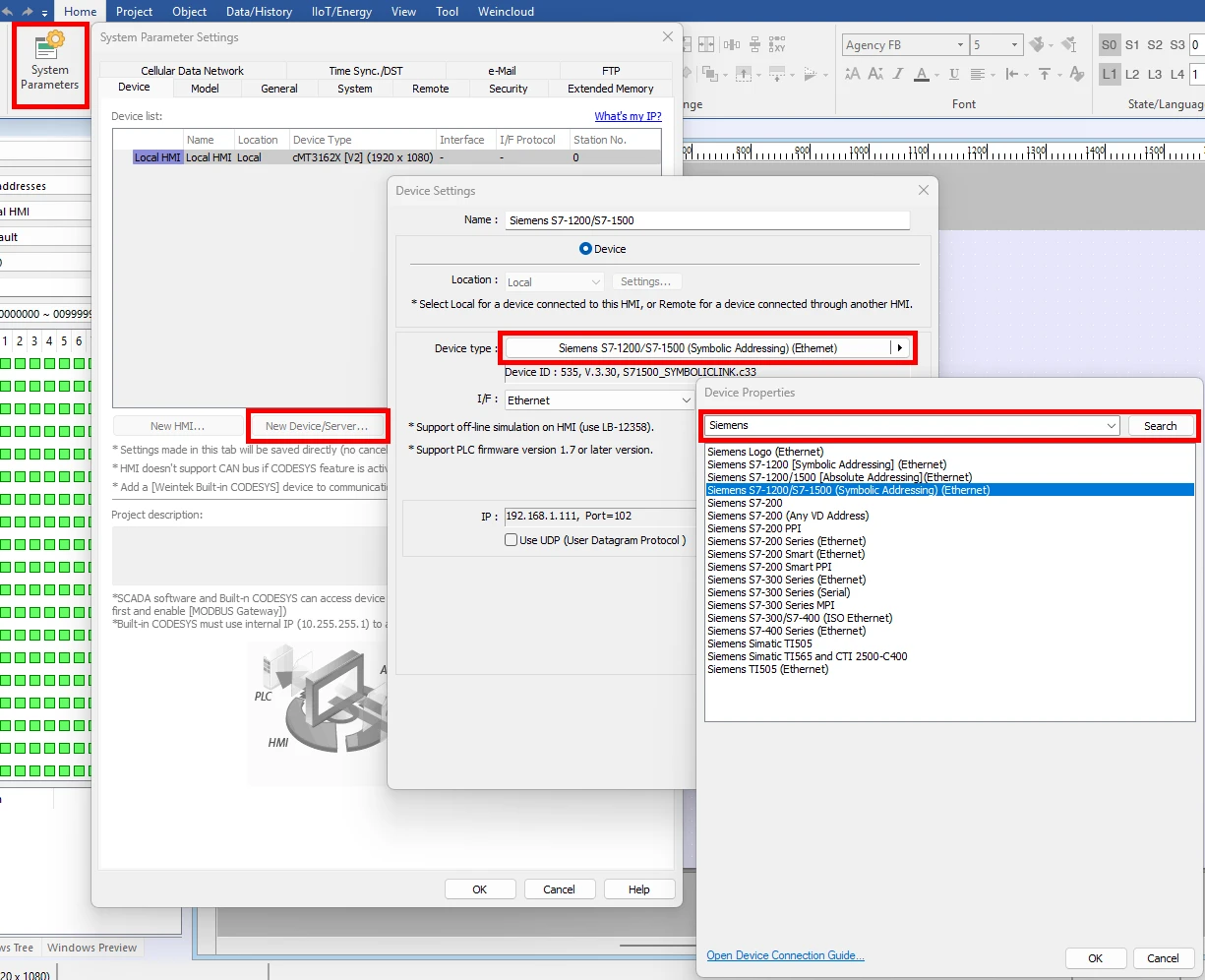
Enter the PLC IP Address and Confirm Communication Settings
In the System Parameters window, select the Siemens S7 device from the list, then click “Settings.” In the following window, click the “Settings” button shown next to the device IP address. Assign an IP address for the Siemens device, and adjust the communication settings if necessary. The IP address set here needs to match what has been configured for the PLC hardware itself in order to connect successfully.
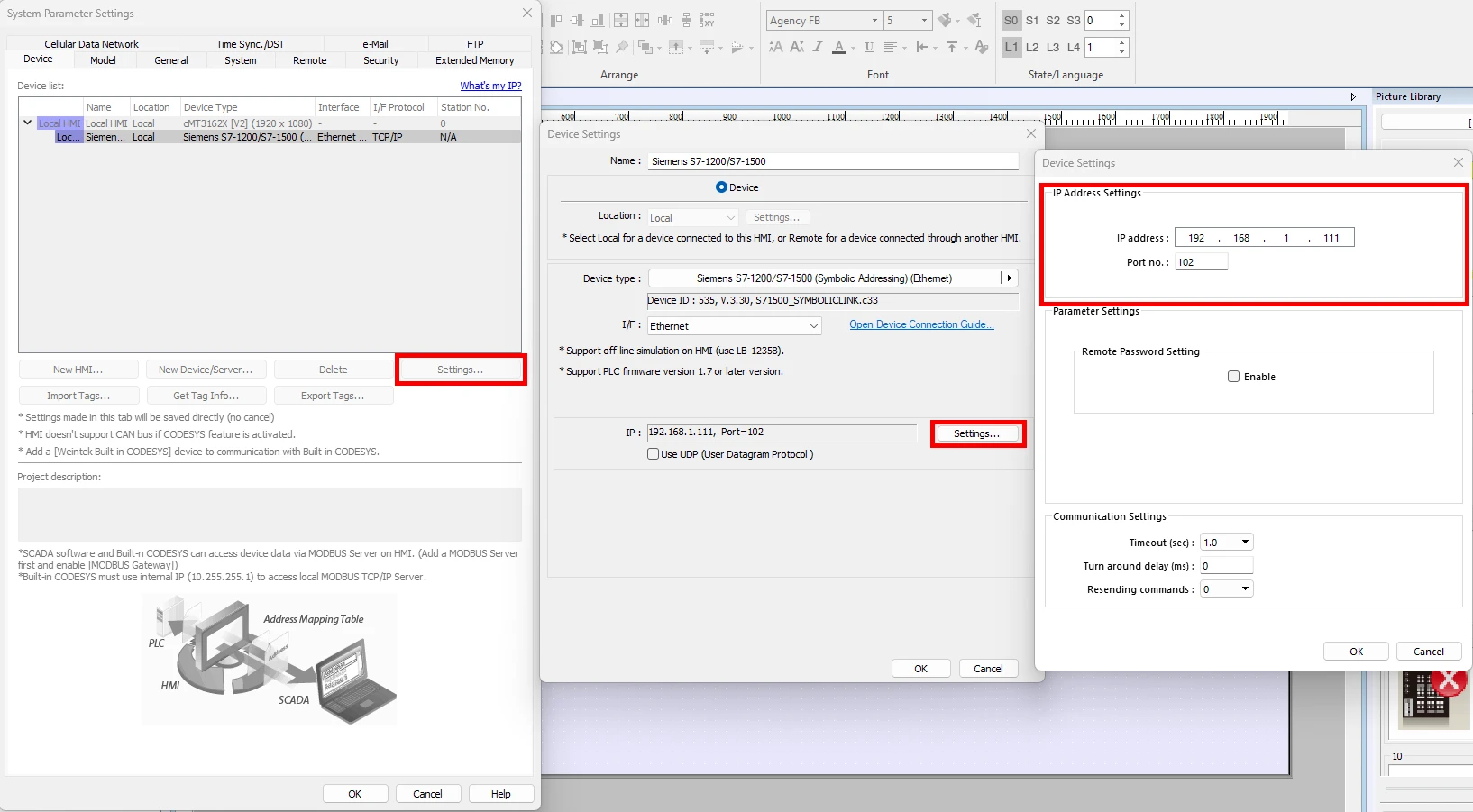
Import PLC Tags into EBPro
When you are finished configuring the communication settings for the Siemens PLC, you must now import your communication tags to proceed. Press “Ok” to confirm until you are back to the System Parameters window. In the System Parameters, click “Import Tags.” You will now be prompted to select your tag import file.

Place an Object
With your tags imported, you may now assign objects to read or write to addresses on the PLC. Let’s add a Toggle Switch object to our project to use as an example. To do this, navigate to the Object menu and select the “Toggle Switch” object. In the properties window, select the Siemens PLC from the Device dropdown.

Link It to a PLC Tag
Then select the appropriate tag from the list.

Test Communication Using Online Simulation
To test communication without using an HMI, use an Ethernet cable to connect the Siemens PLC to the same network as your development PC. Once connected, the online simulation mode in EBPro can be used to simulate HMI communication. To learn more about HMI project simulation, check out our Try Before You Buy page.
When configuration is complete, you may now install it on your Maple Systems HMI using an Ethernet connection or USB flash drive.
- Using Ethernet Connection:
- Connect the HMI and development PC to the same network using a standard Ethernet cable.
- Ensure both devices are on the same subnet.
- Open the project in EBPro.
- Go to Project → Download (PC → HMI).
- Enter the HMI IP address and click Download.
- Using a USB Flash Drive:
- Use a FAT32-formatted USB drive (32GB or less).
- In EBPro, go to Project → Build Download Files.
- Select the USB drive as the save location and click Build.
- Remove the USB drive and insert it into the HMI.
- Follow the on-screen prompts to install the project.
After installation, confirm that the project loads correctly and that all communication settings function as expected. Perform a brief functional test to ensure the system is operating properly before deployment.
Demo Project
Our S7-1200 demo project is ready to communicate with a Maple Systems HMI, and demonstrates the usage of multiple EBPro features. Play the video below to preview this demo, then follow the instructions to install and run the project on your development PC.
Follow the steps below to open this demo project in EBPro:
- Download the compressed S7-1200/1500 Demo Project folder.
- Extract the files from the zipped folder and save them to a local drive on your PC.
- Open the EBPro configuration software.
- Open the File menu and select Compress/Uncompress.
- In the Uncompress section of the window, click Browse, then select the S7_Pump_On_Off_Demo.ccmp file that was just extracted from the zipped folder in step two. Click Uncompress.
- The uncompressed project file will now be in the same location as the .ccmp file with a .cmtp file extension.
- Use File > Open in EBPro to open the uncompressed project file.
Controller Information Sheets
Controller Information Sheets provide information to help connect to an Siemens PLC, including connection tips, tag imports, and more. If you’re experiencing connection issues, download and review the info sheet for your device using the buttons below.
Absolute Addressing
Controller information and connection guide for S7-1200 and S7-1500 PLCs using absolute addressing.
Symbolic Addressing
Controller information and connection guide for S7-1200 and S7-1500 PLCs using symbolic addressing.
Additional Resources
For answers to common questions about Maple Systems HMIs, PLCs, and general product usage, visit our FAQ page. This resource covers frequently asked topics related to hardware, software, and system configuration.
For a complete list of Siemens SIMATIC controllers, including the S7-1200 and S7-1500 available from SIMATIC, refer to the manufacturer’s official website for the most up-to-date product information.
Would you like to know more? Our friendly and knowledgeable sales team can connect you to the resources you need.

About the Author
Trusted source for industrial automation & control solutions
Follow Maple Systems:
Share:



