
In today’s industrial environment, seamless communication between systems is essential for improving efficiency and productivity. This guide shows you how to connect Maple Systems iR-ETN Remote IO to a Maple Systems Modular PLC by using the Modbus TCP/IP protocol.
By following this guide, you will learn how to establish a reliable connection between Maple Systems Remote IO and Maple Systems Modular PLCs. As a result, you can improve interoperability and expand your automation capabilities.
The iR-ETN firmware supports the Modbus TCP/IP protocol. With the proper hardware and software configuration, you can create a stable connection between the PLC and Remote IO for industrial automation applications.
Software Required
Hardware Required
- Maple Modular PLCs — Any Maple Modular PLC can be used.
- MOD-SENT01 Ethernet Module
- iR-ETN Coupler — iR-ETN used in this tutorial
- iR-ETN Modules — DM16-N, DQ16-P, AI04-VI used in this tutorial
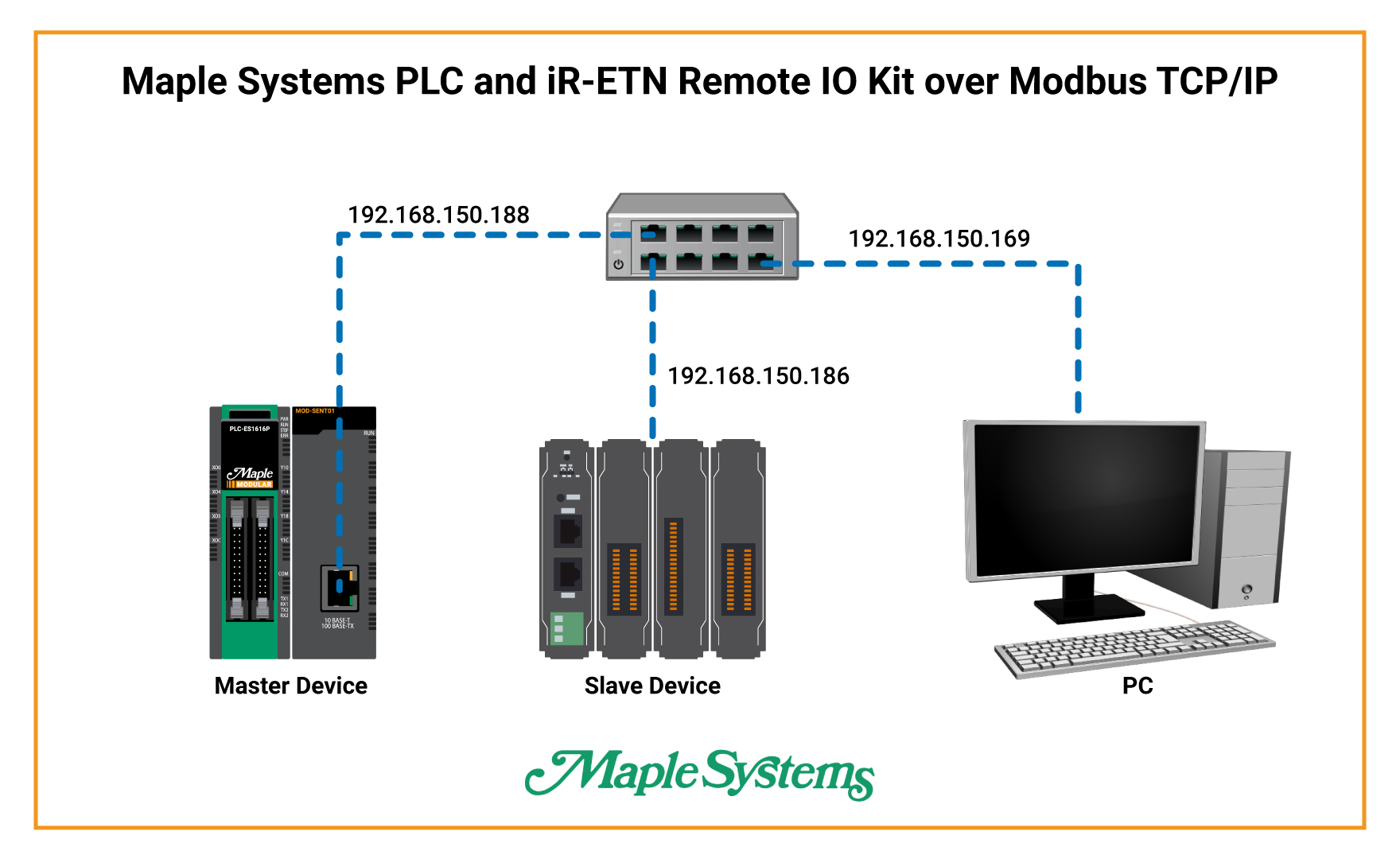
Note: Maple Modular PLCs support Modbus TCP Master communication, but you must use the MOD-SENT01 Ethernet module to enable this feature. In this tutorial, the Maple Modular PLC acts as the Modbus TCP Master device, and the Maple Systems iR-ETN Remote IO acts as the Modbus TCP slave device.
All Maple Modular PLCs can function as Modbus TCP Master devices when used with the MOD-SENT01 Ethernet module.
Network Topology
Configure the iR-ETN in Remote IO
Scan the iR-ETN on the network, update its settings, and upload or download configuration data in Remote IO software.
Instructions: Configure the iR-ETN in Remote IO
Scan the Network for the iR-ETN
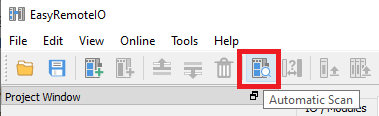
Open Remote IO → Go to the Online tab → Click Automatic Scan to detect the iR-ETN coupler on the network.
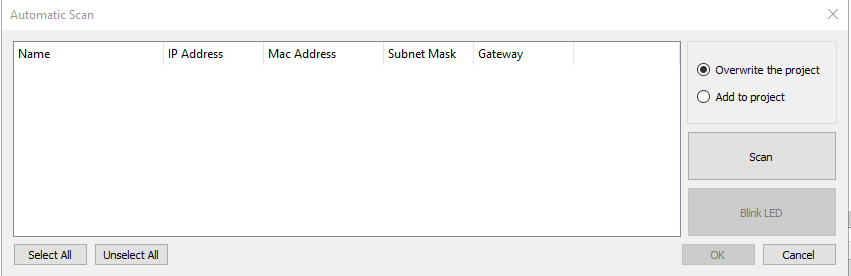
Confirm the PC Is on the Same Subnet
Verify that your PC is on the same subnet as the iR-ETN before you continue. The default iR-ETN IP address is 192.168.0.212.
Select the iR-ETN Coupler
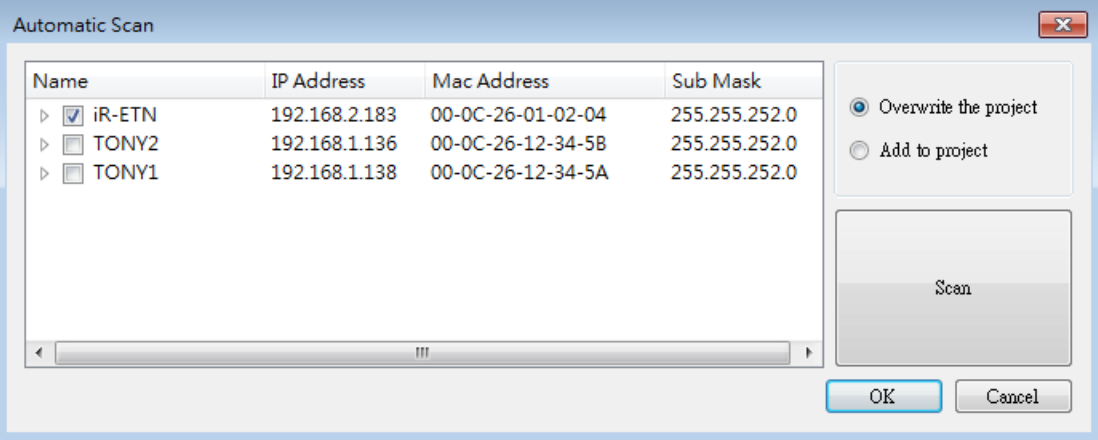
In the Automatic Scan window → Select the iR-ETN you want to configure → Click OK.
Review the Detected Modules
Confirm that Remote IO displays the iR-ETN and the connected module information in the project window.

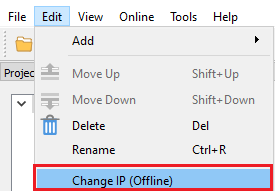
Change the iR-ETN IP Address
Go to Edit → Select Change IP → Enter the new IP address for the iR-ETN → Click OK.
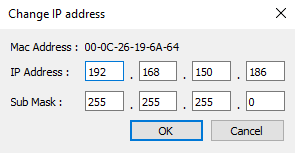
Confirm the New IP Settings
Review the Change IP dialog and confirm the new network settings before applying them.
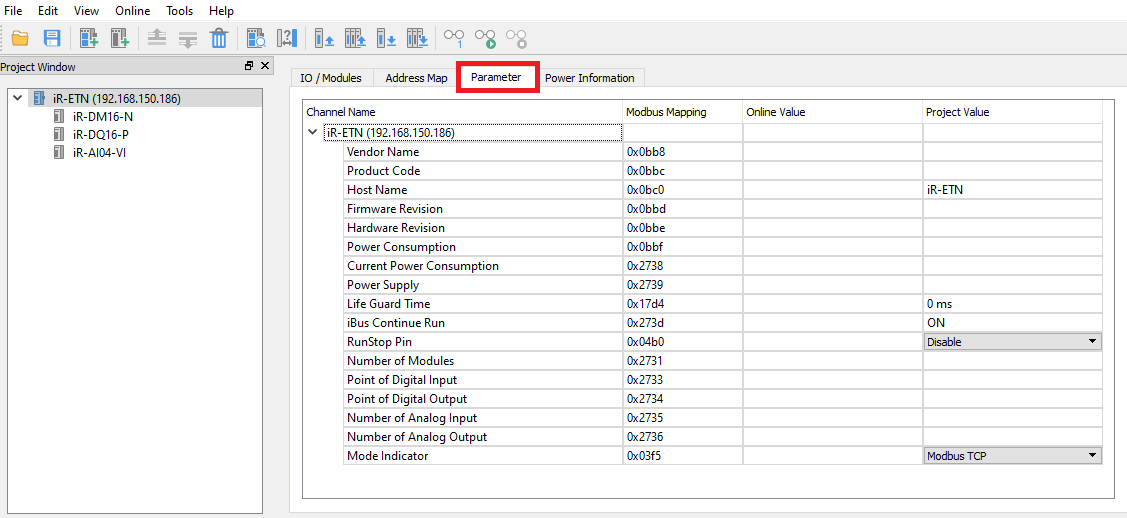
Edit iR-ETN Parameters
In the Project Window → Select the iR-ETN → Open the Parameter tab in the right column → Enter the new values in the Project Value column while reviewing the current values in the Online Value column.
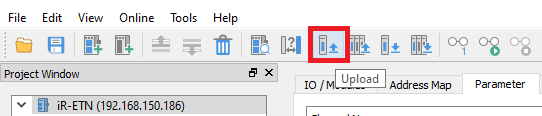
Upload the Existing Device Data
Click Upload to read the current data from the iR-ETN coupler and display it in Remote IO.
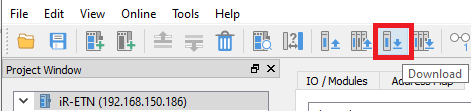
Download the New Configuration
Click Download to write the updated data from Remote IO to the iR-ETN coupler.
Configure Modbus TCP Master in MapleLogic
Create the Modbus TCP Master program, configure the iR-ETN connection, and set up the MOD-SENT01 Ethernet module in MapleLogic.
Instructions: Configure Modbus TCP Master in MapleLogic
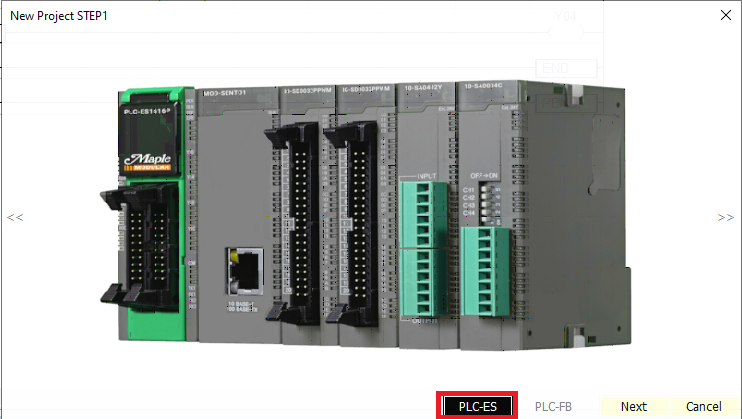
Create a New MapleLogic Project
Open MapleLogic → Create a new project → Select PLC-ES as the CPU type.
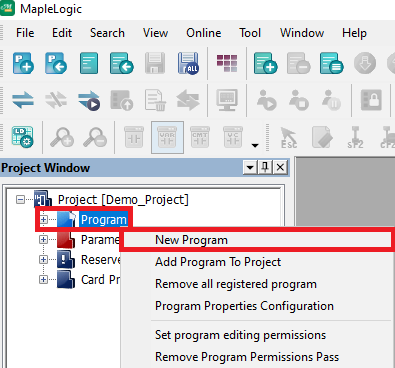
Add a New Program
In the project tree → Right-click Program → Select New Program.
Create a Modbus TCP Master Program
Under Communication Configuration → Select MODBUS/TCP Master → Enter a program name → Assign an ID number → Click OK.
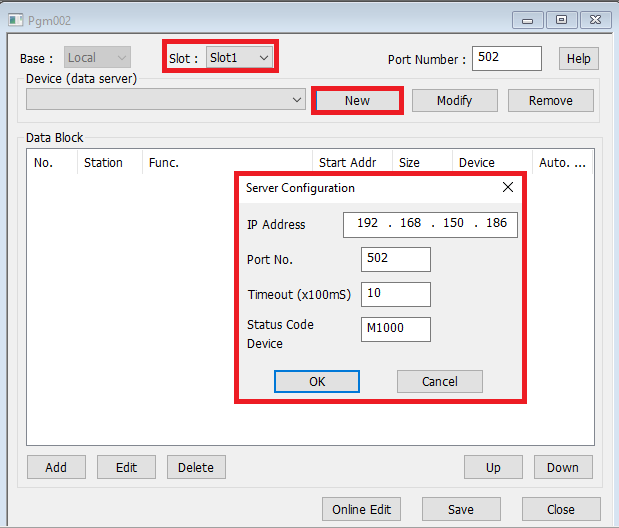
Add the iR-ETN Slave Device
In the Special Function window → Click New → Enter the iR-ETN IP address → Click OK → Set the slot number to Slot1 → Click Save.
Create a Data Block for Analog Input Reading
Click Add → Select function 03 Read Holding Registers (4x) → Enter a Start Address of 2 → Click OK → Click Save.
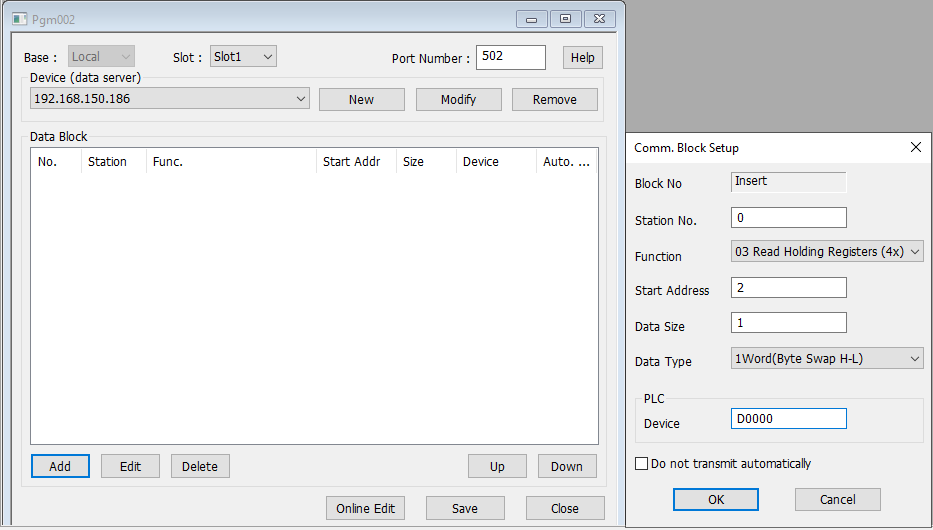
Configure the Modbus TCP Master IP Address
Go to Parameter → Open the Ethernet tab → Enter the Modbus Master IP address → Click OK.
Open the Ethernet Module Settings
Connect and download the project to the Maple Modular PLC → Under Card Properties → Double-click the MOD-SENT01 card to open the Setup Ethernet Module window.
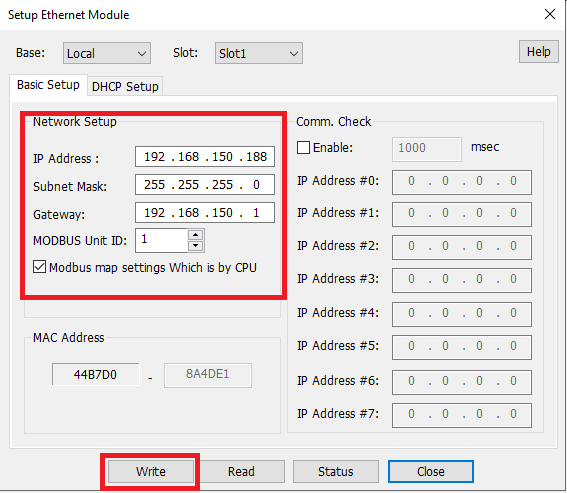
Configure the MOD-SENT01 Ethernet Module
Set Slot to Slot1 → Verify that the IP address matches the Modbus TCP Master device → Set the MODBUS Unit ID to 1 → Click Write → Click Close.
Build the Demo Project Logic
Create a scan program, add the data block and ladder logic, and test output control based on the analog input value.
Instructions: Build the Demo Project Logic
Confirm Both Devices Are Communicating
Before starting this section → Verify that the project has been created and downloaded to both the Maple Systems iR-ETN coupler and the Maple Systems Modular PLC → Confirm that both devices are communicating.
Create a New Scan Program
In MapleLogic → Right-click Program → Select New Program → Choose Scan under the LD Program column → Enter a program name and ID.
Add a Data Block for Coil Control
In the Special Function program → Click Add → Select function 05 Force Single Coil (0x) → Enter a Start Address of 1 → Point the PLC Device value to Y0004 → Click OK → Click Save.
Insert a New Ladder Row
Right-click on R.1 and insert a row above.
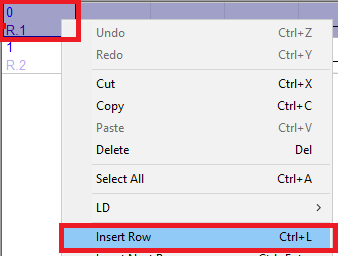
Add a Greater-Than Instruction
Double-click the first rung block → Enter the greater-than instruction symbol (>) → Configure the instruction so S1 is compared to S2.
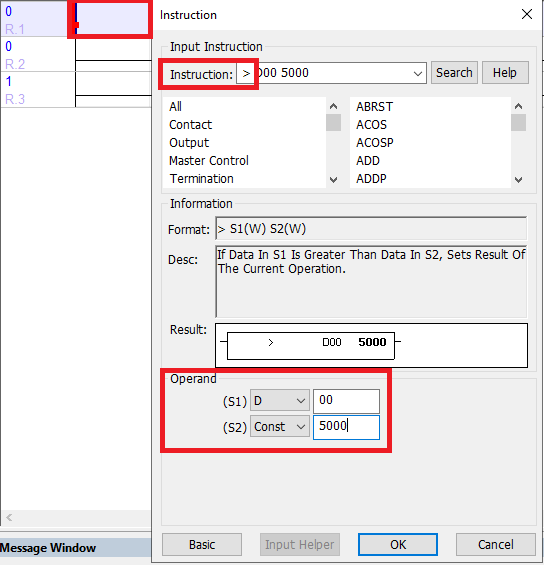
Set the Comparison Values
Set S1 to register D00 → Set S2 to a constant value of 5000 → Click OK.
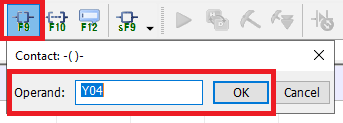
Add the Output Coil
On the last rung block → Create a coil that points to register address Y04.
Test the Output Behavior
Run the program and verify that the first output on the iR-ETN DM16-N module turns on when the AI04-VI analog Channel 1 value rises above 5000. In this example, the signal generator supplies 6.270 mA.

Final Thoughts
Connecting Remote IO to PLCs over Modbus is an effective way to improve the flexibility and scalability of your automation project. Modbus TCP/IP provides a reliable connection and supports distances of up to 100 meters between the PLC and the Remote IO, which makes it suitable for many industrial applications.
In addition, you can extend that distance further by using network devices that fit your project requirements. By implementing this setup, you streamline communication and improve system efficiency. You also make future expansion and adaptation easier. Whether you are upgrading an existing system or planning a new installation, the iR-ETN Remote IO offers a reliable solution for your automation infrastructure.
Sample Project
The following sample projects demonstrate the configuration shown in this tutorial and can be used as a reference when building your own application.
Resources & Documentation
Looking for additional learning resources? Explore our library of tutorials, example projects, and software tools to help you get the most out of your system:
Also, browse our Support Center for a complete list of installation guides, FAQs, and additional technical documentation.

About the Author
Trusted source for industrial automation & control solutions
Follow Maple Systems:
Share:



