
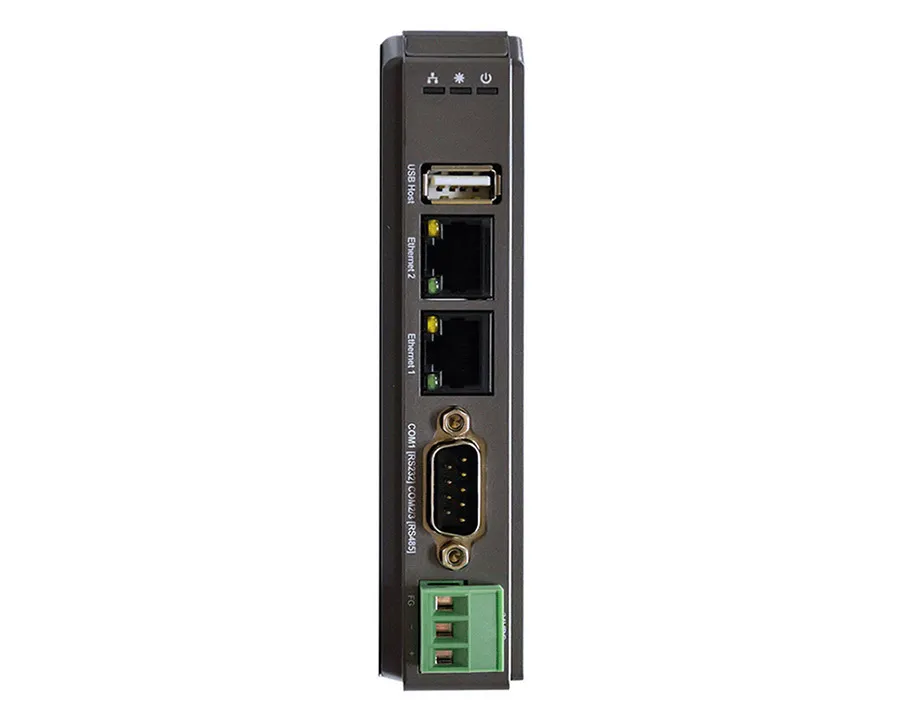
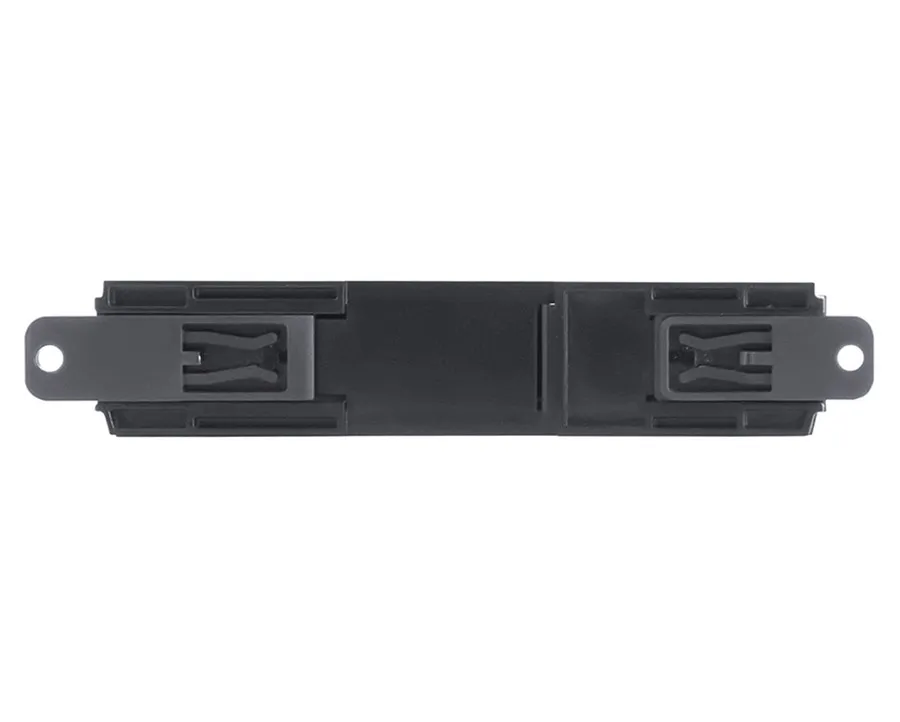
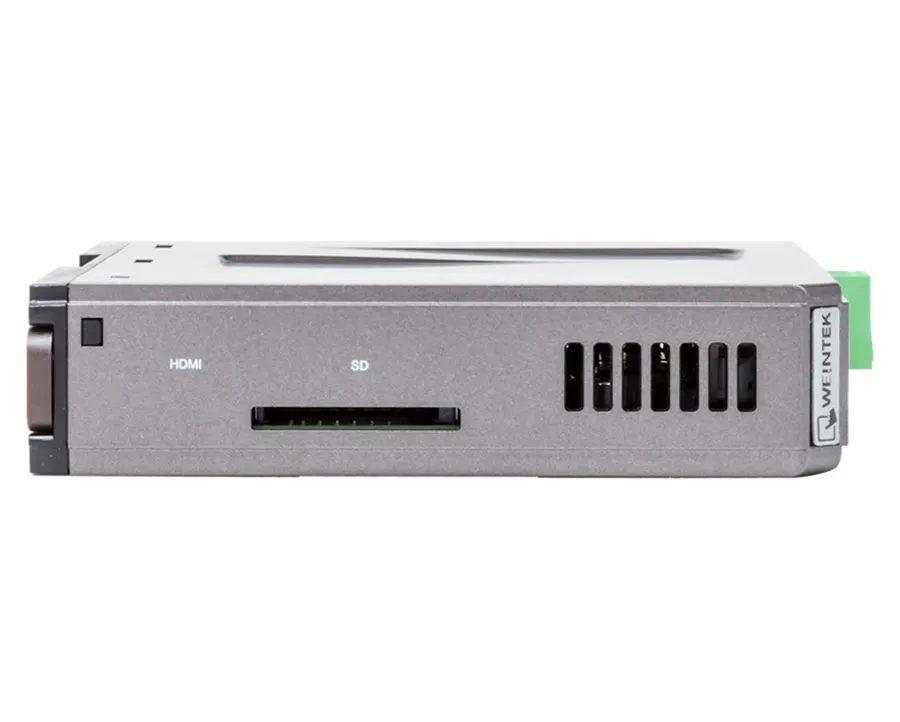
Standard Headless HMI with EasyAccess license
cMT-SVRX-822 replaces the cMT-SVR-102
For side-by-side comparison and additional upgrade options, check out our Compare Models tool for more information.
Share the product:
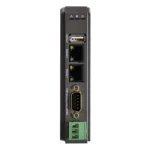
|
Filters |

|
|
|---|---|---|
| Loading product data… | ||
Are you still using EZware Plus?
You can quickly convert and import your existing EZware Plus project into EBPro with a few simple steps:
- Download both software versions for FREE, from our Support Center.
- Follow Tech Note 5125 to convert your project.
What if I have multiple older HMIs still in operation out in the field?
You will have to maintain separate projects. Once your project is converted from HMI series to cMT series, it cannot go back to HMI. If project updates are needed, make sure to update the HMI project first, save it, then convert that to cMT, and save that separately.
Can I use a headless HMI without a display?
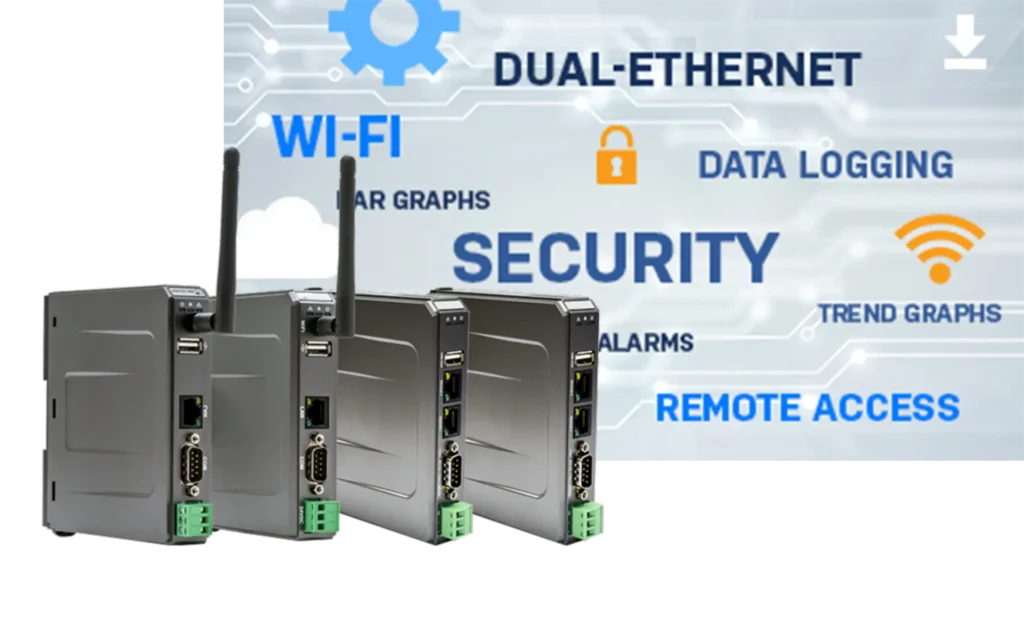
Yes, our headless (without an integrated display) units are fully functional HMIs. Utilizing EBPro software, you can configure the headless device to communicate with your PLC/controller the same way you would program any Maple Systems HMI. If a display is required, a Windows® PC, Apple or Android smart device, or one of our cMT iV Series Displays or Web HMI’s can be used. The CMT-FHDX devices can be paired with any HDMI supported Monitor or large screen TV, as well as your Windows PC.
Can I use a Smart Phone to communicate with a Maple Systems cMT HMI?
Yes! We have several remote access solutions and each one is different, but generally, all work in similar ways. Keep in mind that each remote access solution will work slightly differently and have their own set of features. Depending on your specific situation, there may be several remote access solution that will work, only you can decide what is best for your specific situation.
EasyAccess2.0
EasyAccess2.0 is a secure access utility that enables remote access to Maple Systems’ HMI and cMT Series devices. View and control any remote HMI with EasyAccess 2.0 from a PC or mobile device, allowing you to resolve issues immediately as they arise from anywhere in the world.
- Control your remote HMIs as though you’re standing in front of them.
- Upload/Download projects to modify and test your HMI Programs.
- Interact with connected PLCs using the PLC Passthrough mode.
cMT Viewer
cMT Viewer is remote connection software built into our EBPro HMI configuration platform. It works with select Maple Systems IIoT-ready HMIs and can run on PCs, Panel PCs, iPads, and Android tablets. Also, with cMT Viewer, you can easily monitor and manage your devices from anywhere.
Key benefits include:
- Free download for quick setup
- Monitor up to 50 HMIs simultaneously
- Faster connections with less bandwidth (only application data is exchanged)
To learn more, read our article What is cMT Viewer?
WebView
WebView enables you to point your browser to the supported HMI’s IP address on your local network and log in. Now you have access to all the functions, data, and project screens from your HMI application. You can access system settings, navigate to any window, and fully control your HMI from anywhere. It works just like VNC, but without requiring you to download or install any additional software!
VNC
VNC (Virtual Network Computing) server is built in on all our HMIs. Any third party VNC viewer client can log into a Maple HMI to see and control exactly what’s shown on the HMI screen. Configurable options on the Maple HMI include: set a password, enable monitor mode (view only – no control), allow single connection or multiple connections.
What is EasyAccess 2.0?
EasyAccess 2.0 offers the ability to remotely monitor and control a Maple Systems HMI and connected PLC from literally anywhere in the world.EasyAccess 2.0 integrates perfectly with a wide variety of displays including desktop PCs, laptops, tablets, and smart phones, making it easier than ever to connect to operational equipment in the field. What if you could instantly access display information from a plant floor HMI or PLC from the comfort of your office, your living room, or even thousands of miles from the factory?
With EasyAccess 2.0, all of this and more is possible. A remote supporting service, EasyAccess 2.0 offers the ability to easily monitor and troubleshoot Maple Systems HMIs (and connected PLCs) from a remote location as long as an Internet connection is available. Similar to instant messaging software such as Skype, Facebook Messenger, or WhatsApp, EasyAccess 2.0 allows you to instantly communicate with your HMI without spending time memorizing the HMI’s IP address, or configuring complicated port mapping.
As its name implies, EasyAccess 2.0 makes remote monitoring and troubleshooting Maple Systems HMIs efficient and easy.

Why would I use a headless HMI unit instead of a touchscreen HMI?
Most HMIs have a built-in touchscreen to provide feedback and allow input from on-site personnel. If that is all that’s required, a standard HMI may be sufficient. On the other hand, if you have limited panel space, no need for a touch screen, and want the convenience of monitoring and accessing your system without having to walk to where the HMI is physically located, one of our headless HMIs would be a great option. Utilize your Apple or Android smart phone or tablet to access unit remotely.Why would I use a HMI without a display?
Maple Systems’ HMIs without a display are a great solution if you need a gateway between your control system and the supervisor’s office. Many MES (Manufacturing Execution Systems), ERP (Enterprise Resource Planning), SCM (Supply Chain Management), and MRP (Material Requirements Planning) software does not support the myriad of communication drivers used in industrial PLCs, and therefore are unable to collect data directly from the plant floor.
However, most do support Modbus TCP/IP protocol since it is widely used, non-proprietary, and openly available. Add a headless HMI to your control system, using one of the Ethernet ports to connect it to the corporate LAN. The headless HMI will collect data from the plant floor, translate it to Modbus and send it to the office computer.
Datasheet
Software
Manuals & Guides
Tech Notes
Help Topics
Videos
Sample Projects
Additional Resources