
OPC UA (Open Platform Communications Unified Architecture) is a vendor-neutral industrial communication standard that simplifies how HMIs, PLCs, and SCADA systems securely share data. By converting raw machine values into structured, meaningful information, OPC UA reduces integration complexity and enables a more scalable, future-ready automation architecture. This makes it an ideal choice for modern industrial environments that rely on clear, reliable data across multiple devices and vendors.

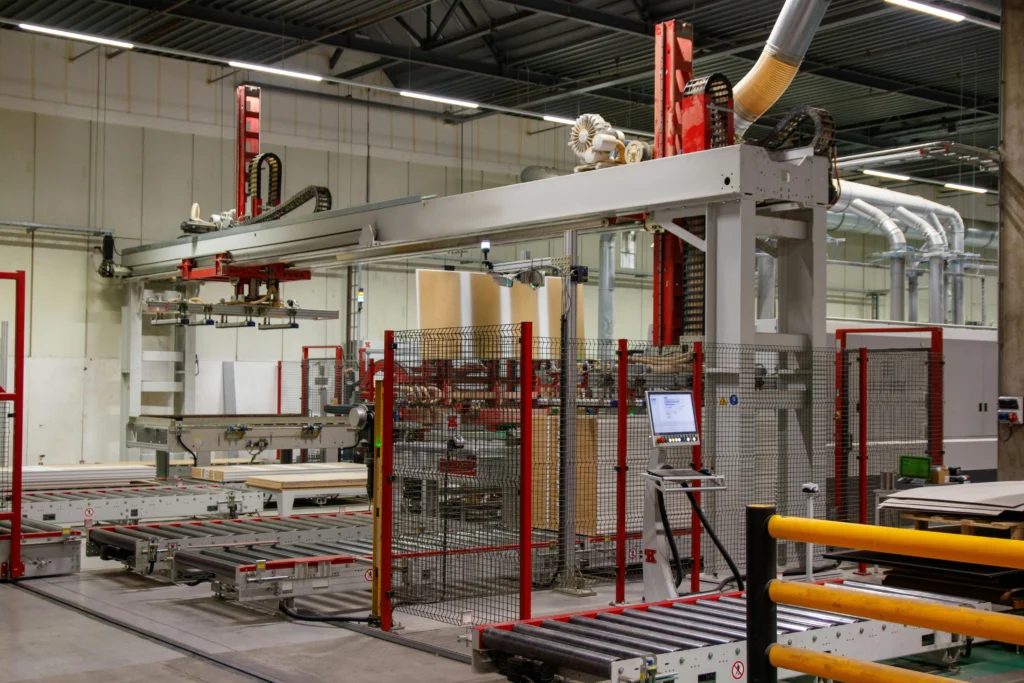
Picture an industrial plant with multiple machines that house various different PLCs, each one preferring a particular communication driver. Operations wants to hook up all of these devices to a centralized SCADA system that will be able to aggregate all of this data, while maintaining a working history of this data. Since this SCADA system will be accessed remotely, the Engineering team is concerned about exposing the PLC tags and addresses to the HMI, let alone the SCADA system.
Configuring an OPC UA client on our Maple Systems HMI will allow us to connect to every brand of PLC we have, and creating an OPC UA server on the same HMI will allow it to pipe that same info up to a centralized SCADA system. And both ends will be formatted in a way that abstracts our PLC registers, and attaches meaningful labels to our data. So OPC UA integration on a Maple Systems HMI will serve as an ideal solution.
In this tutorial, you’ll learn how to connect a Maple Systems HMI to an OPC UA setup. We’ll cover project initialization, importing OPC UA tags into an HMI project, and connecting your HMI to OPC UA as both a client and as a server.
Software Required
- EBPro
- Any functioning OPC UA server (I’ll be using the server-side of this tutorial as an example)
Hardware Required
- Any Maple Systems HMI
- An Ethernet network connection to your OPC UA server
Configuring the HMI as an OPC UA Server
To start, we’ll set up an HMI as an OPC UA server. But first we’ll create a screen that will expose some local registers to the HMI screen.
HMI Project Initialization
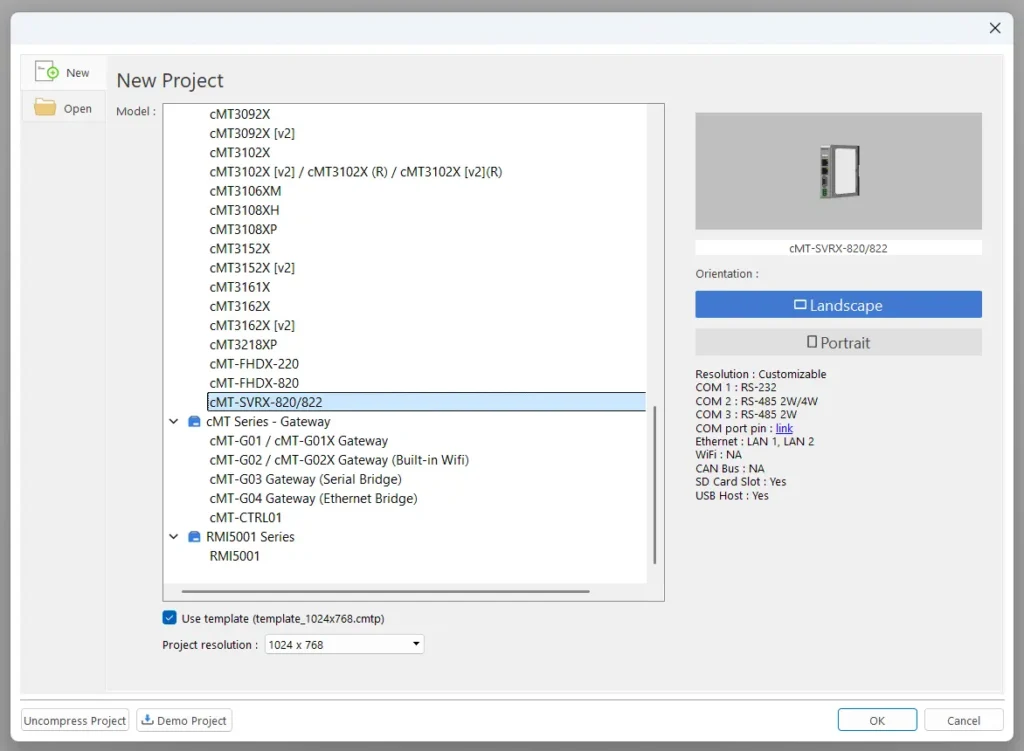
1. We’ll start by creating a fresh project in EBPro (I’ll be using the cMT-SVRX-820 for a server in this tutorial).
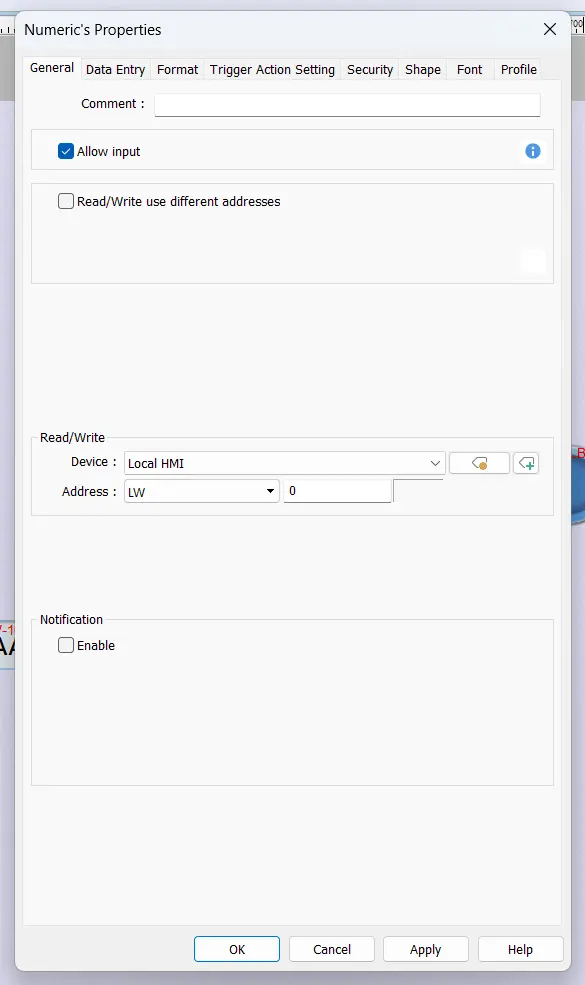
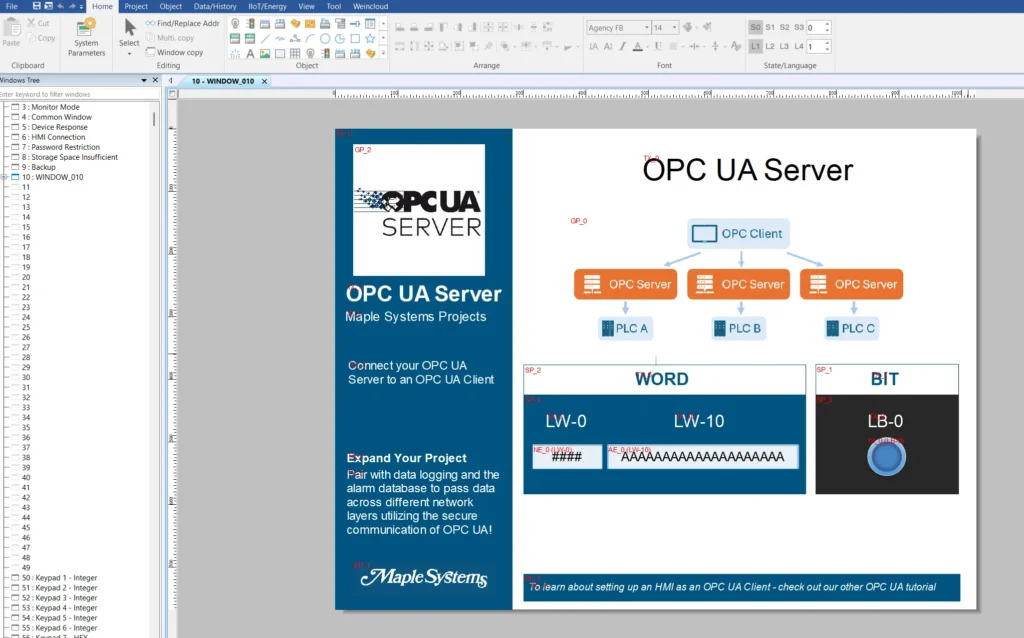
2. Then we’ll make a numeric object pointing to LW-0.
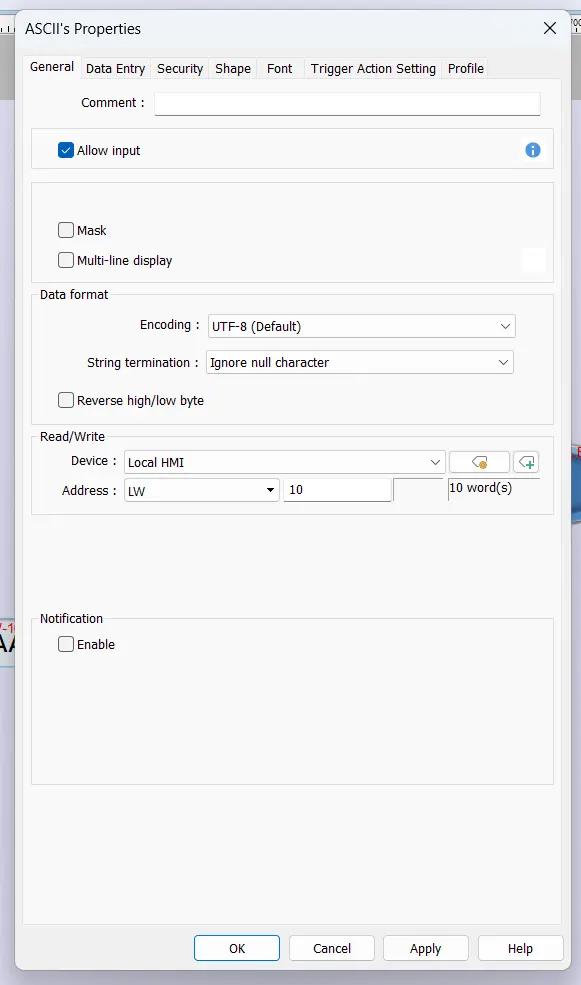
3. We’ll also make an ASCII object pointing to LW-10, and the 9 words after it.
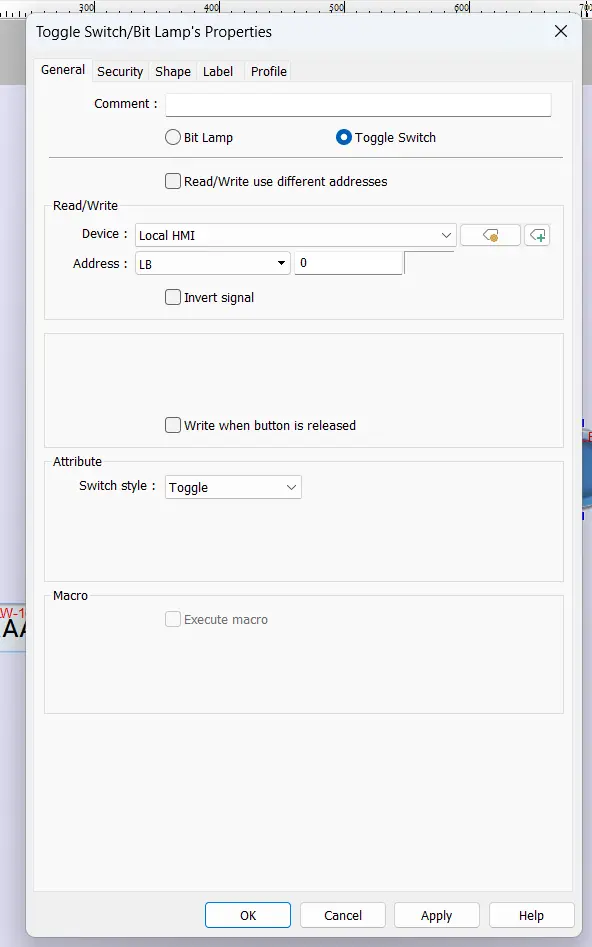
4. Finally I’ll add a toggle switch pointing to LB-0.
5. After adding some labels to clarify the page, it should look something like this.
Initial Server Configuration
Now that we have an HMI screen exposing some local drives, we’ll start configuring our OPC UA server in EBPro. This will expose the PLC registers to the HMI, but the SCADA system will only see our OPC UA tags.
OPC UA Server Configuration
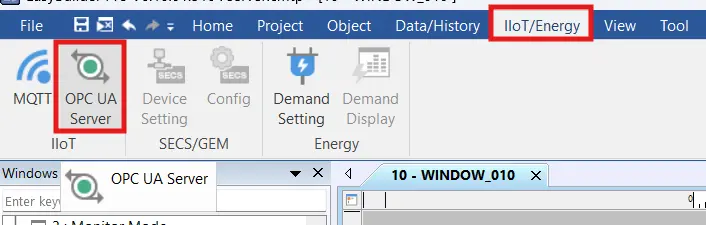
1. We’ll go to “IIoT/Energy” and select the “OPC UA Server” button.
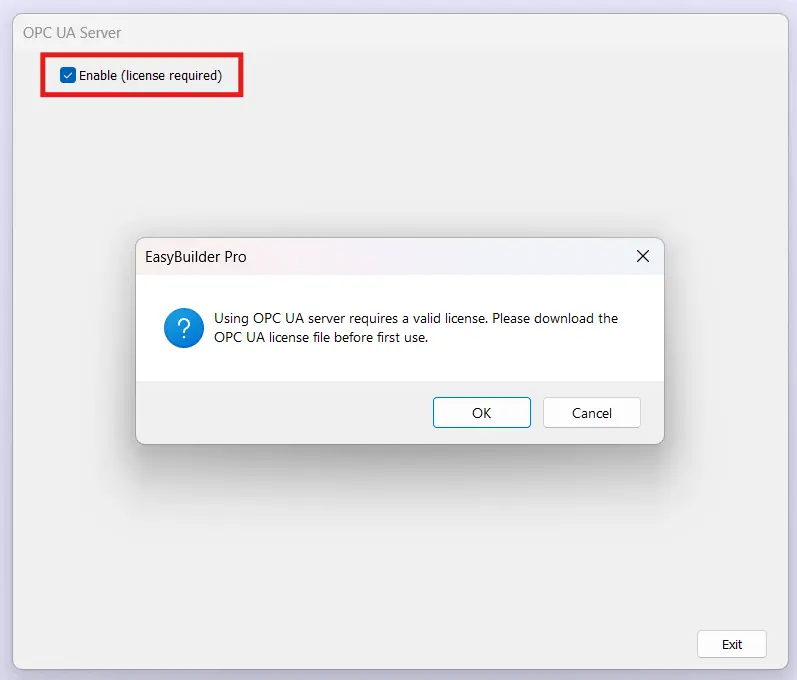
2. Then we’ll “Enable” our OPC UA server. Depending on your device, you may need to acquire a license for your OPC UA server. If your EBPro project doesn’t prompt you with the alert shown below, your HMI has built-in Client and Server functionality and no additional license is needed.
3. From here, you’ll see your OPC UA server settings pop up. Configure your server settings however you like and make sure to note your OPC UA server port and your HMI’s IP address, this will be important for your Client to connect properly.
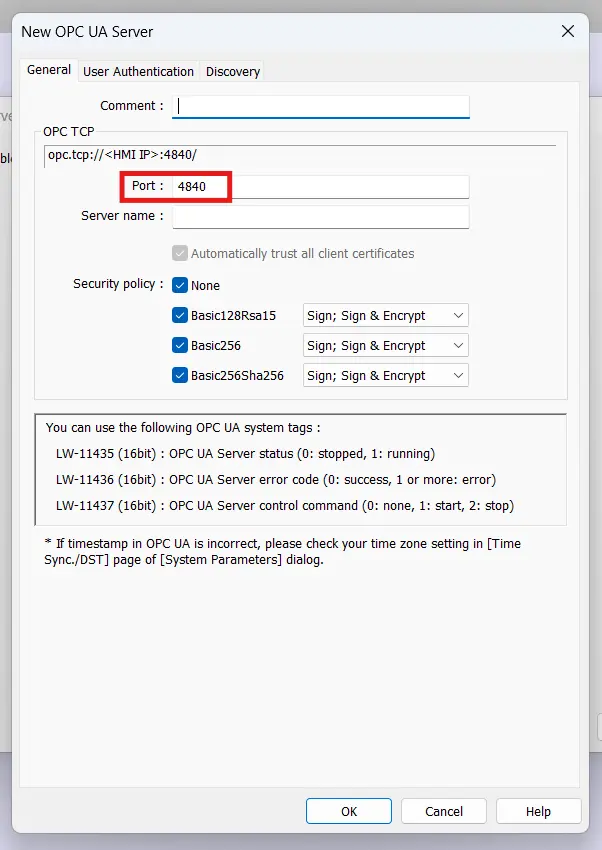
We’ll tie some of our exposed local tags to the OPC UA server
Connecting local HMI registers to OPC UA tags
1. To start, we’ll re-open the “OPC UA Server” object in the “IIoT/Energy” tab.
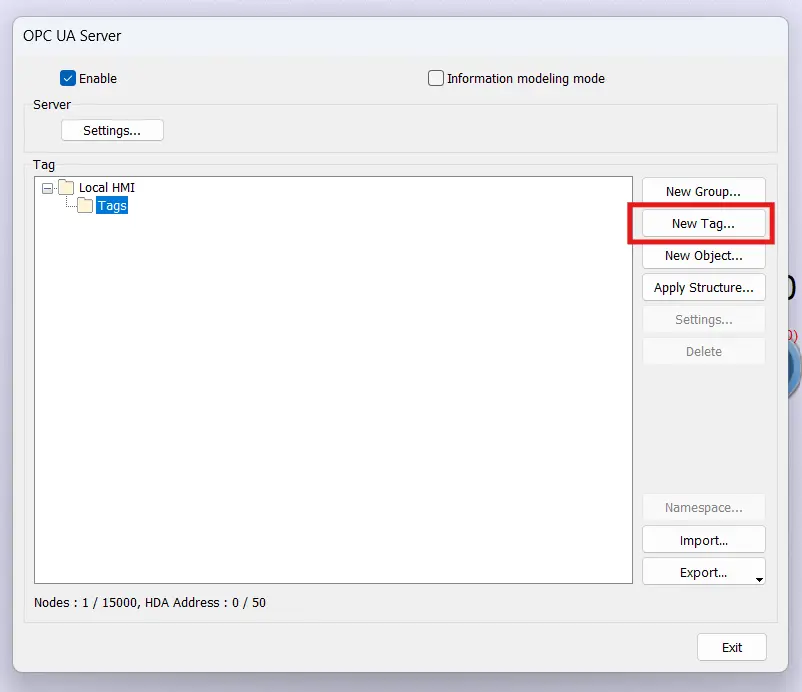
2. From here, we’ll start by selecting the “Tags” group and clicking the “New Tag” button.
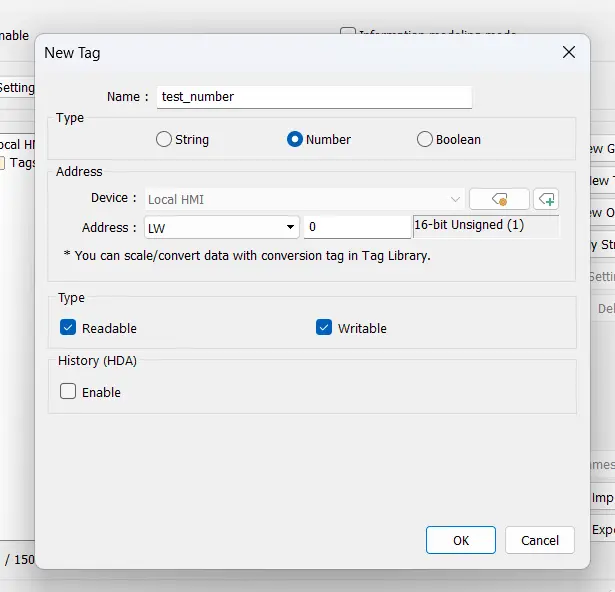
3. Now we’ll be able to set our OPC UA tag type and address. I’ll expose LW-0 to my server as a number type, and make sure to mark it as both readable and writable.
4. I’ll do the same for my boolean at LB-0 and my string at LB-10 so my tags list looks like this.
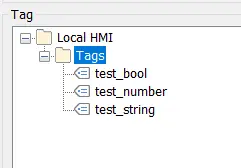
Now we have our first HMI set up as an OPC UA server, we’re able to set up our client side on a separate HMI.
Configuring the HMI as an OPC UA Client
Let’s suppose that the engineering team comes back with concerns about PLC tags being exposed to certain HMIs. So they’d like to add OPC UA obscuring on the HMI level. You’d do this by configuring your PLC as an OPC UA server, and your HMI as an OPC UA client.
To configure our HMI as an OPC UA client, we’ll want to set up the OPC UA Driver in our EBPro project.
Adding and configuring the OPC UA Client Driver
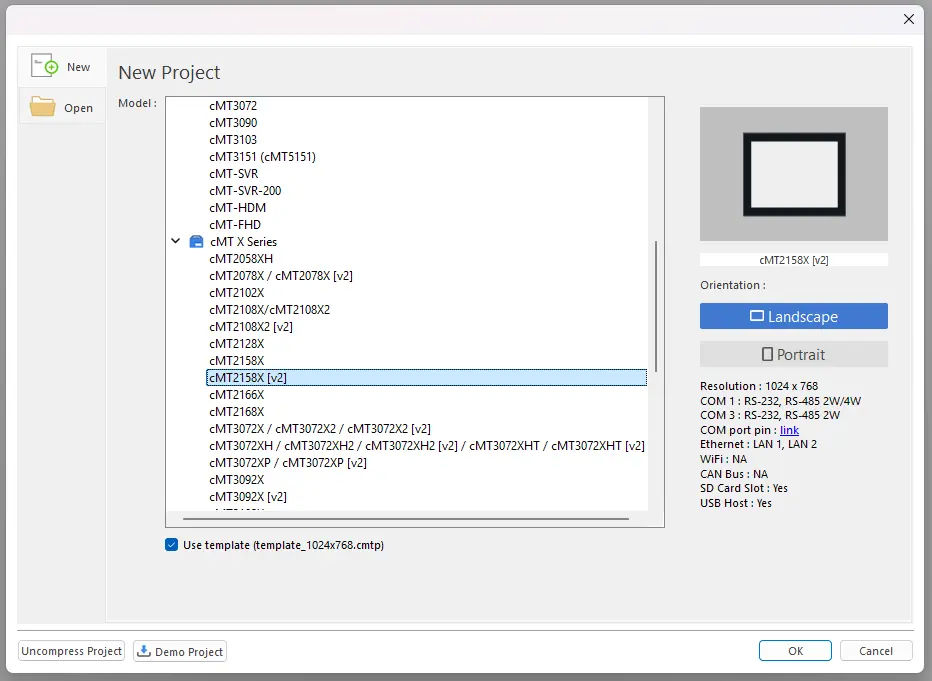
1. We’ll start by creating another new project (I’m using a cMT2158X [v2] for this tutorial).
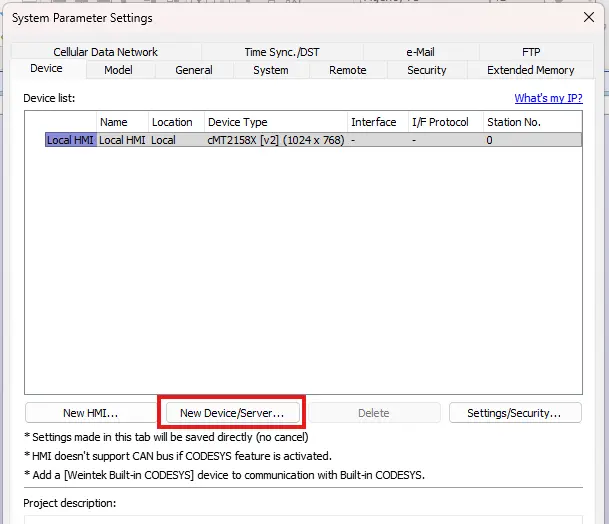
2. Then we’ll create a new Device and select “OPC UA Client”
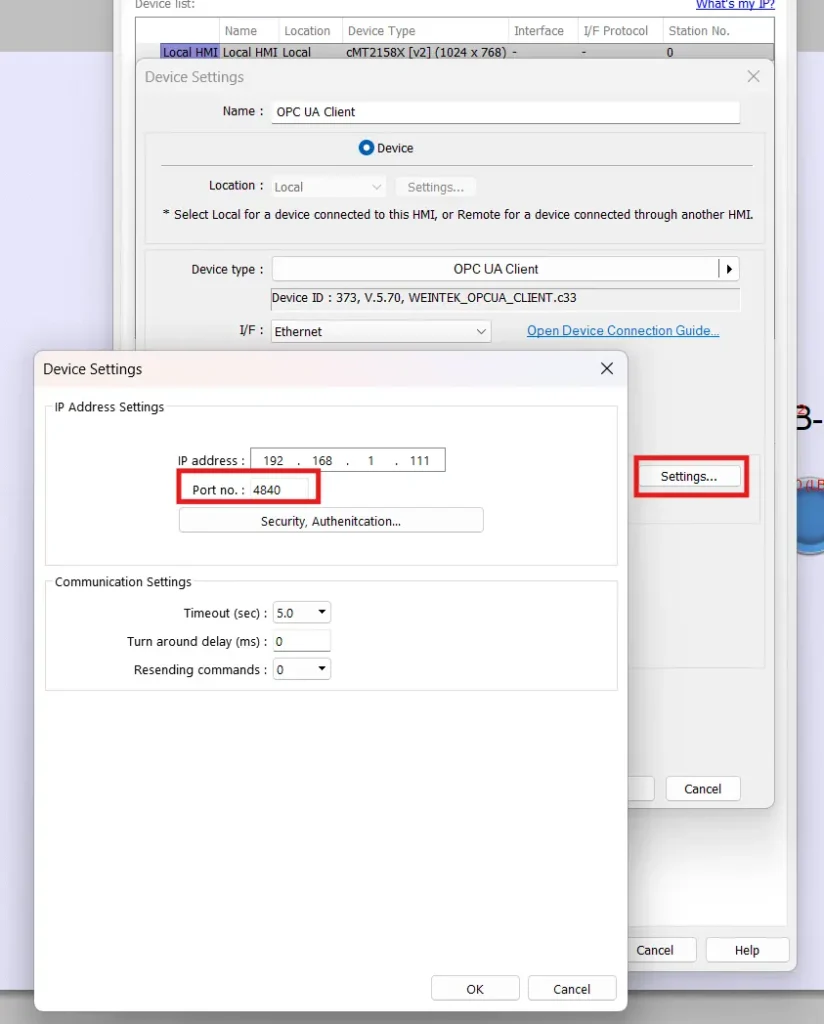
3. Then we’ll want to make sure our IP address and port number matches those on our OPC UA server.
Importing our OPC UA Tags
Now we’ll want to import our OPC UA tags. There are two ways to go about this, depending on your OPC UA server.
Importing directly from an OPC UA server
If you are able to connect to your OPC UA server from your computer, you’ll also be able to import your tags via this connection.
Importing tags directly from the server
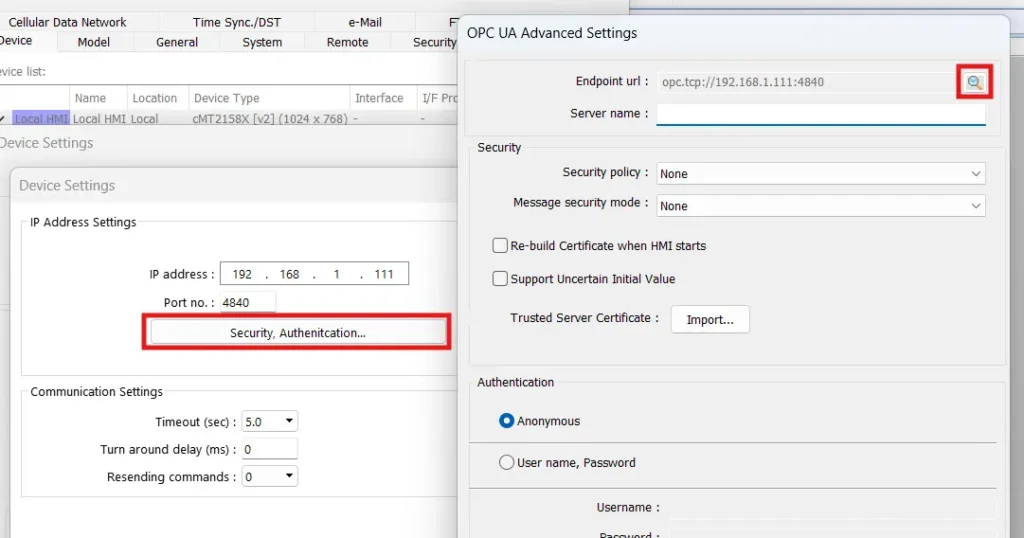
1. To start, we’ll want to open up the “advanced” settings via the “Security, Authentication” button in the OPC UA device settings, and then pressing the magnifier icon.
2. If your computer discovers your server, you can then select the same security settings as your server and “apply” and EBPro will auto-fill your security credentials.
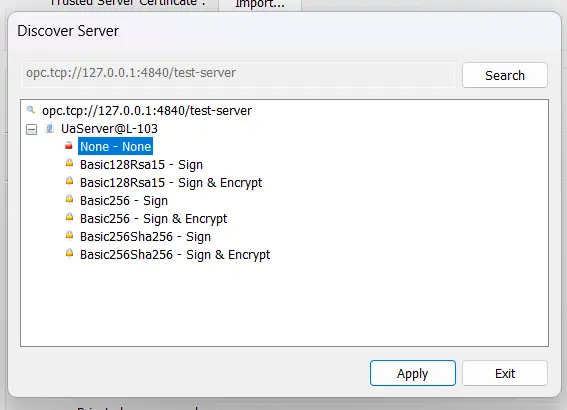
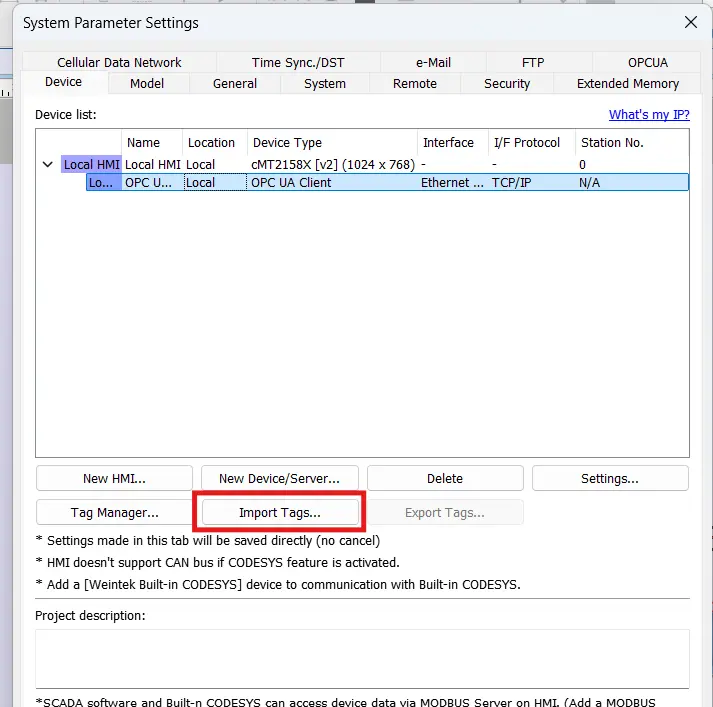
3. Now we hit “ok” all the way back to the “System Parameters” screen, then click “Tag Manager” at the system parameters page. If you get a “Connection failed” error message, double check that your IP address and communication parameters are correct.
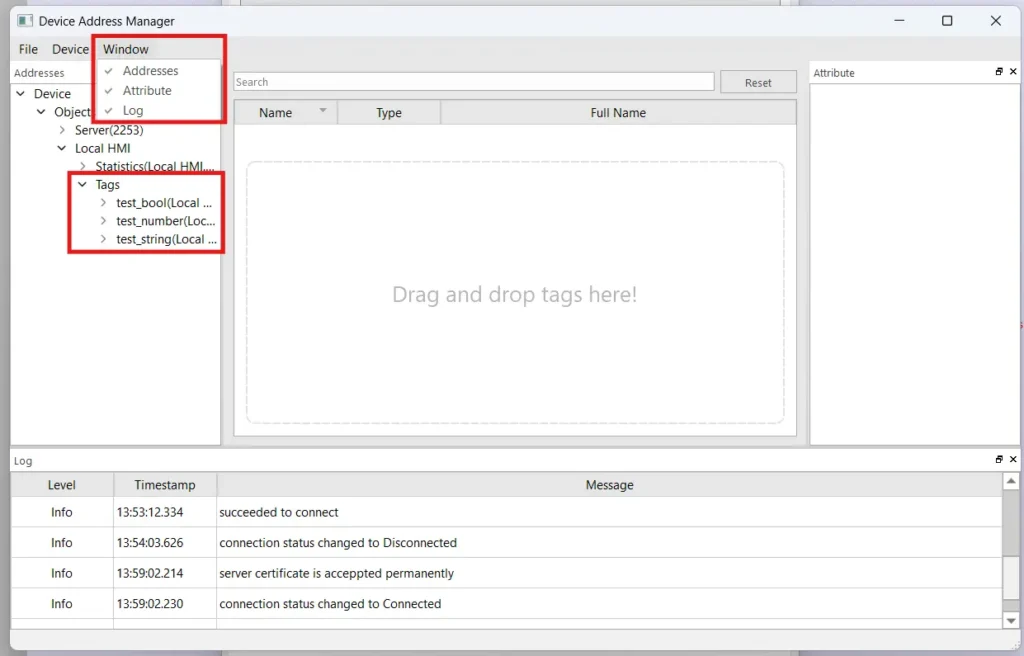
4. From here, we’ll want to make sure we’re able to see the OPC UA addresses by going to “window” and enabling “addresses”. Now we should be able to see the hierarchical tags defined in the server.
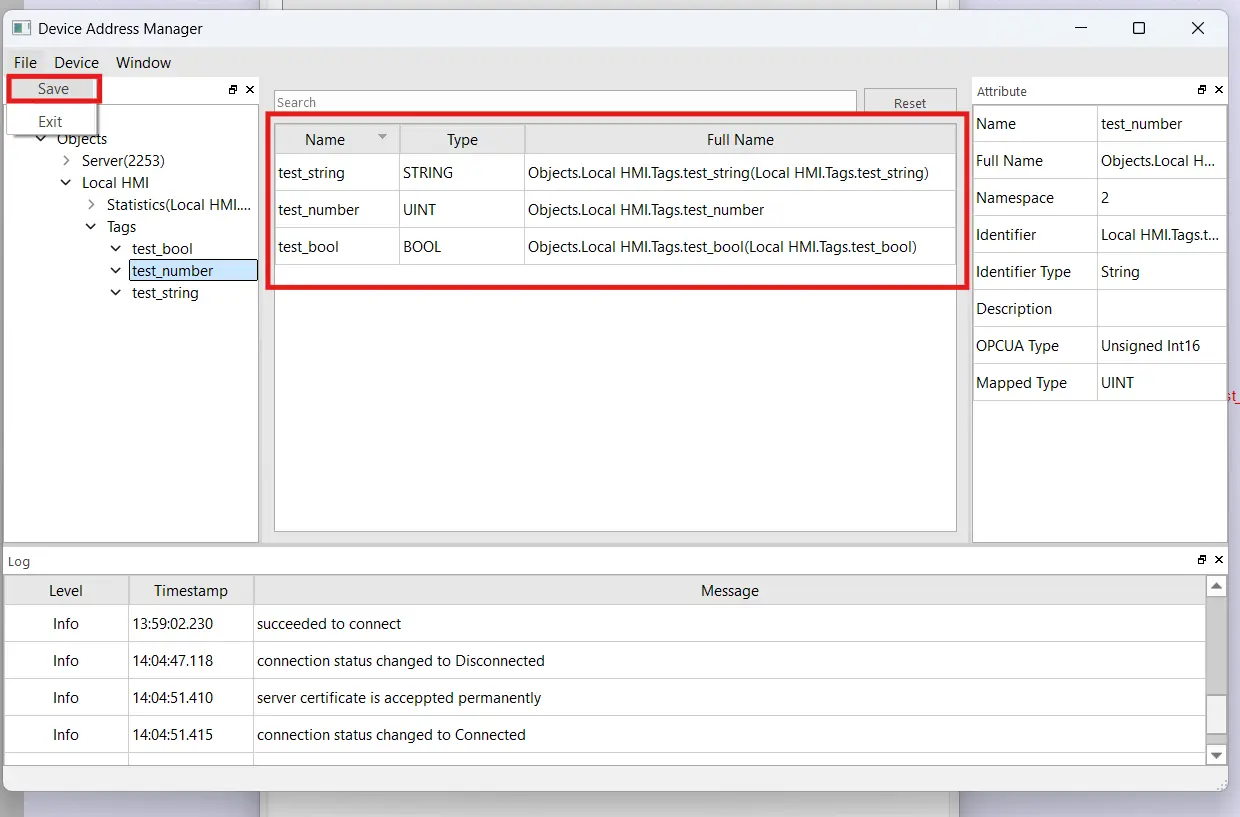
5. We’ll be able to drag and drop tags from the “addresses” tab, into the center pane. Once we’ve selected all the tags we want to work with, we’ll select “File > Save” and exit out. Then we’ll be able to access the tags in the rest of the project.
Importing OPC UA from an export file
As a backup, or if you can’t connect to your sever via your PC, you can also import all your OPC UA tags via an exported .xml file. How you get this file will depend on the OPC UA server you’re using
Importing via a tag file
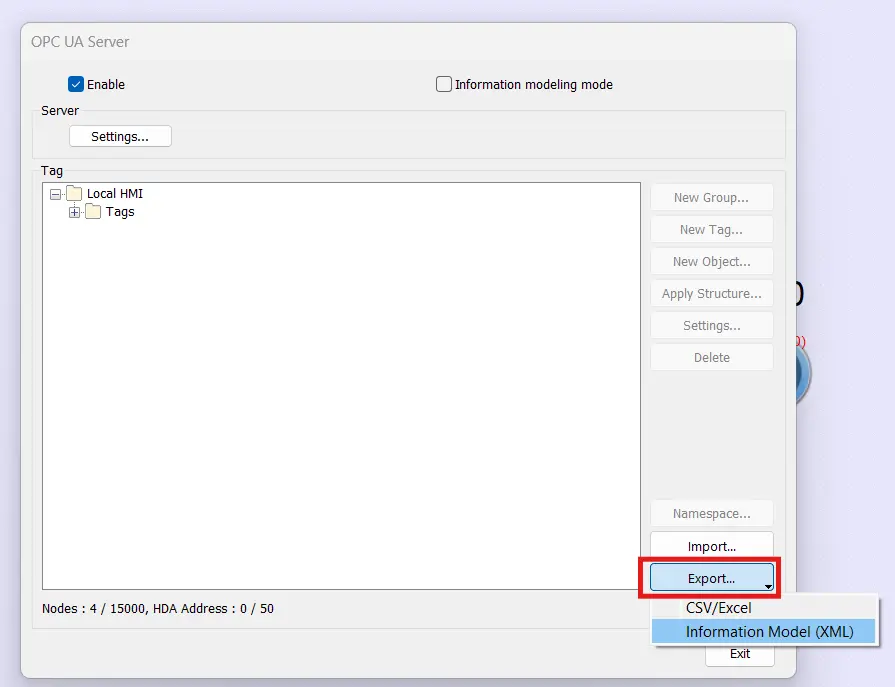
1. First, we’ll want to go back to our OPC UA server and export all of our tags into an .xml file. In my case, I’ll go back to my OPC UA “server” project and export my tags from the “OPC UA Server” settings in “IIoT/Energy”. This step will vary depending on the OPC UA server you’re connecting to.
2. Once we’ve saved the XML file to the computer, we’ll head back to the client project and select “Import Tags” from the System Parameters screen.
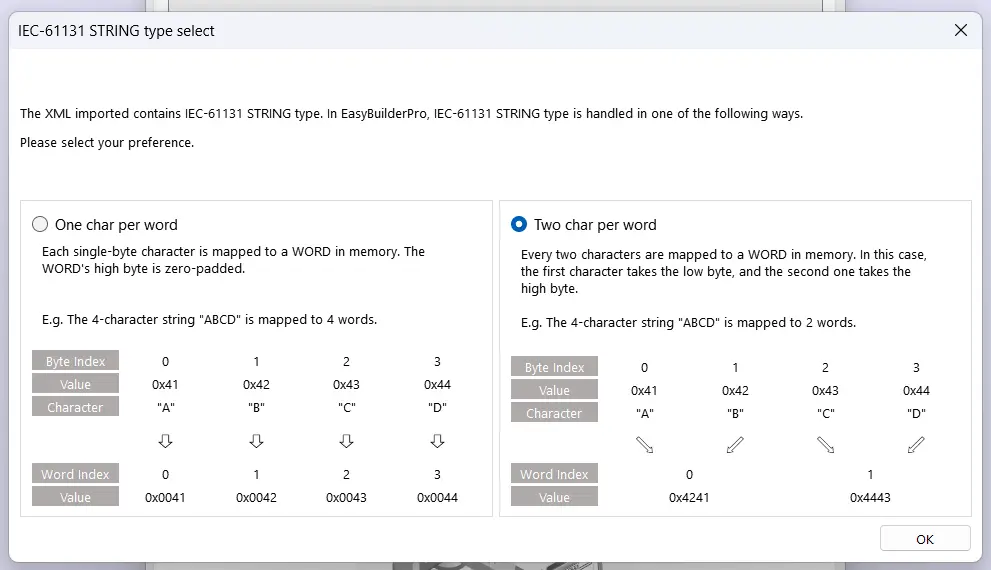
3. We’ll want to select the same word size we exported with, in my case I’m selecting “two chars per word”, and this is usually the best option, but it will vary depending on your server.
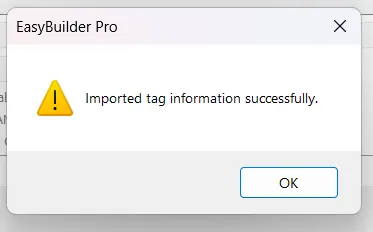
4. Once you navigate to your .xml file on your computer and select it. EBPro should import your tags with no issue.
Finishing up our client project
Now that we have our OPC UA tags imported, we can add them to our Client project the same way we’d add PLC tags
Exposing our OPC UA tags to the screen
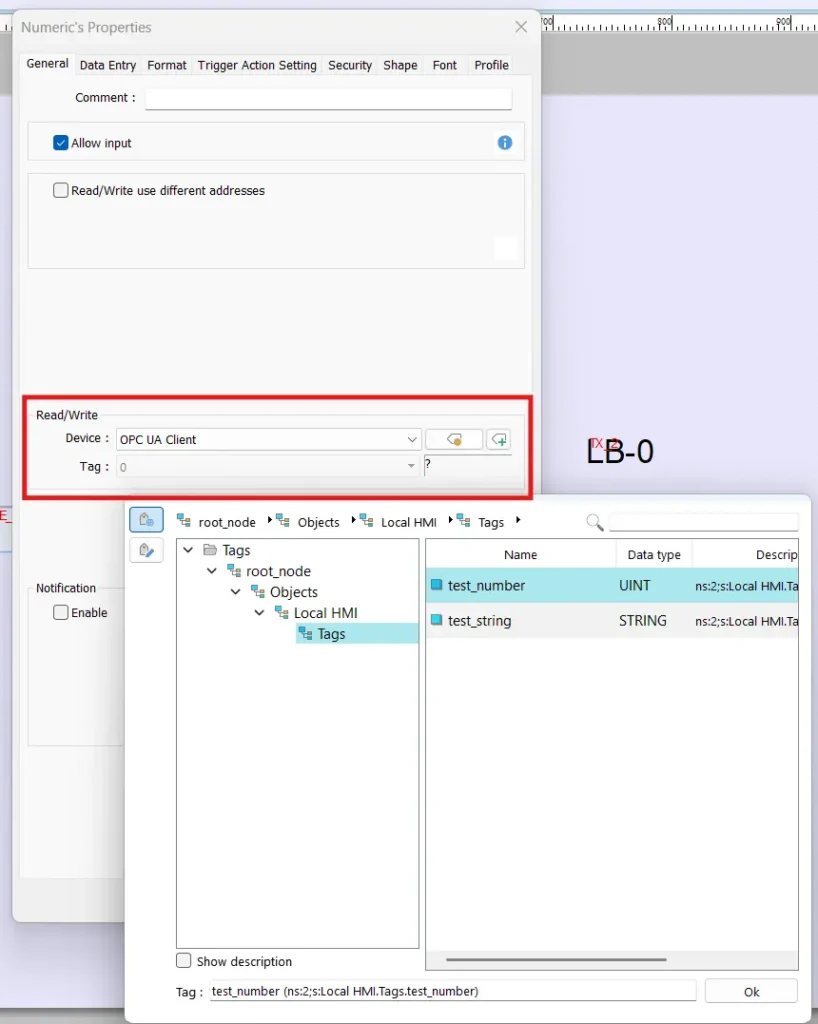
1. First, we’ll create and add a numeric object to the screen the same way we did for the server project, but instead we’ll select the OPC UA device we just set up, and browse through the tags until we find a tag to tie this object to.
2. Then we’ll do the same thing with an ASCII object and a bit lamp on this screen as well. When we’re done creating the project, you should have something like this
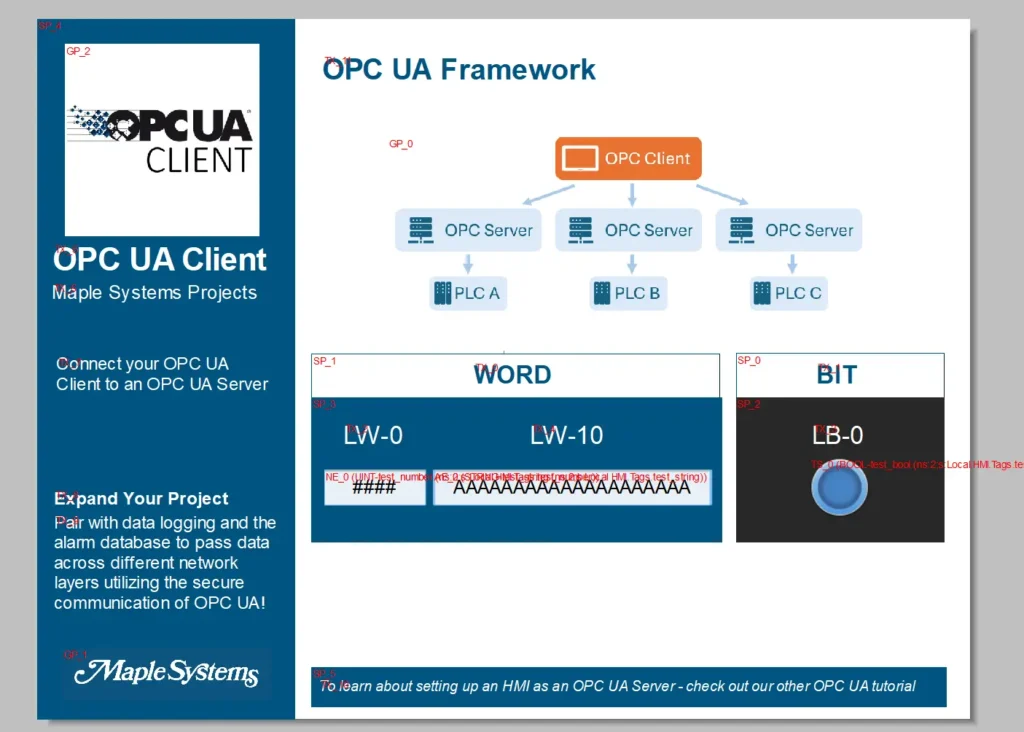
Note: this screenshot is from the OPC UA Client Sample Project.
From here, you should now be able to connect your OPC UA client to your OPC UA server and see your data change across both in real time!
If you’d like a jump start on your own OPC UA integration, feel free to download the sample projects that come along with this tutorial.
Final Thoughts
If we come back to the example above, configuring their Maple Systems HMIs as an OPC UA client allows them to poll OPC UA tags from their PLCs. This allows the data to have self-documenting meaning behind it, and will abstract the underlying PLC registers and addresses from the HMI. This keeps things secure and uniform for the entire data flow. This abstraction also allows the various different communication protocols from the PLCs to be unified under one OPC UA format.
If they then configure an OPC UA server on their HMI, they’ll be able to transfer that meaningful data from the PLC all the way up to a central remote SCADA system for Operations. And OPC UA communications are secure by default, making sure that everything is safe and abstracted for the Engineering team’s worries. The central SCADA client will also have access to built-in historical data, meaningful data structures, and plug-and-play scalability.
Resources & Documentation
- EBPro Programming Manual
- OPC UA Setup Overview
- OPC UA Client Controller Information Sheet
- Technote on activating an OPC UA license
More
Tutorials
Sample Projects
Software Downloads
See our Support Center for a complete list of Quick Start and Installation Guides
