

Imagine a mid-sized manufacturing plant with multiple machines housing their own Maple Systems PLCs and HMIs. Each machine has a recipe the HMI sends to the PLC for production. When we need to change or tweak this recipe, normally we’d need to go to or remote into each machine individually and manually change the recipe on each HMI.
Let’s also imagine that Operations requests that we send all of the data from each of these machines up to an AWS web server for a new ERP system they’re using to track production and inventory.
SQL is a method for creating relational databases to better organize, secure, and retain data. Relational databases using SQL are natively supported by web technologies, so any data you store in an SQL database is able to send up into the cloud and be consumed by anything, be it a remote SCADA system (like Ignition or AVEVA), a cloud-based web server (like AWS or Azure), or even an MQTT broker. SQL also offers performant data consolidation and migration, with long-term retention and reporting built in.
In this tutorial, you’ll learn how to connect a Maple Systems HMI to a Microsoft SQL server. We’ll cover installation of the Microsoft SQL server, configuration of a database on the server, and EBPro settings to connect your project to that database.
Software Required
- EBPro
- A Microsoft SQL server or MySQL server to connect to (I’ll be using a Microsoft SQL server for this tutorial).
Hardware Required
- Any Maple Systems HMI that supports SQL server connections (I’ll be using a cMT3152Xv2).
Installing Microsoft SQL
Maple Systems HMIs support connections to either Microsoft SQL servers, or MySQL servers, but I’ll be going step by step through the installation and configuration of a Microsoft SQL server.
Initial installation
1. To start we’ll go to the Microsoft SQL Download page and download the express version of SQL.

2. We’ll open the .exe file and select [Custom] as the installation type.

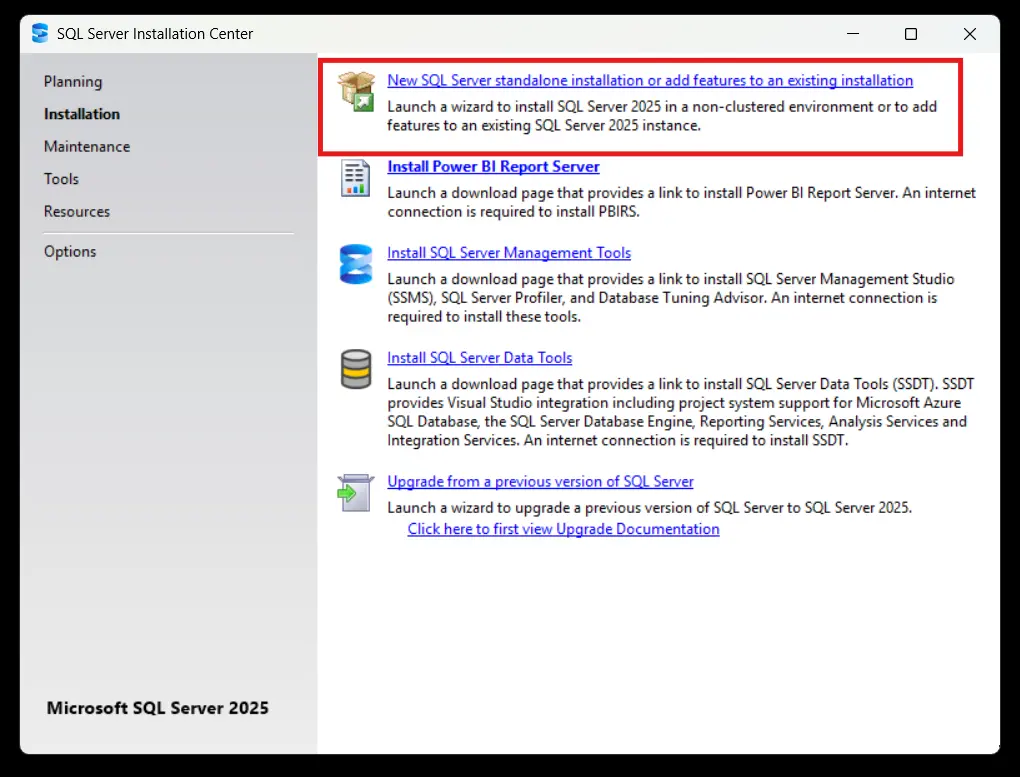
3. We’ll select “New SQL Server stand-alone installation”.
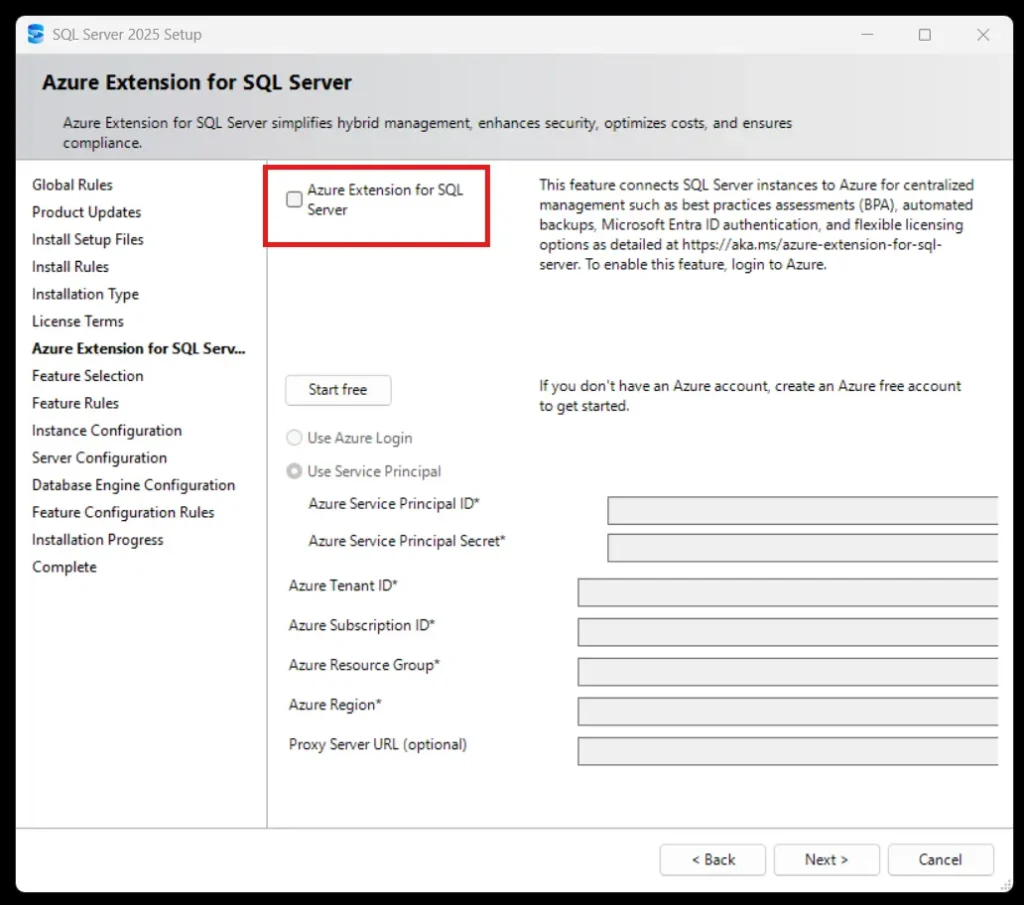
4. We’ll stick to mostly defaults until we get to the “Azure Extension”. If you’d like to connect your database to an Azure cloud server, you can leave this enabled, but that is outside of the scope of this tutorial, so I’ll leave it disabled.
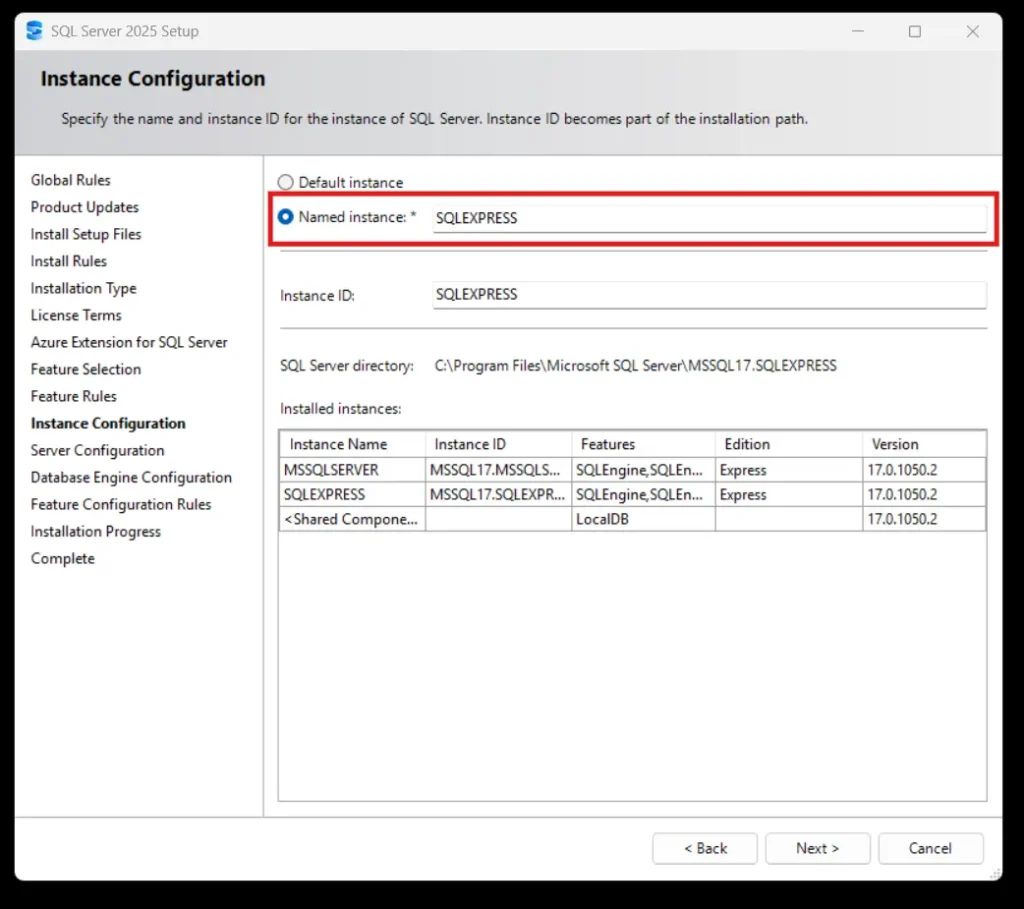
5. we’ll continue hitting “Next” on the defaults until we get to the “Instance Configuration”. We’ll change the server name to something memorable.
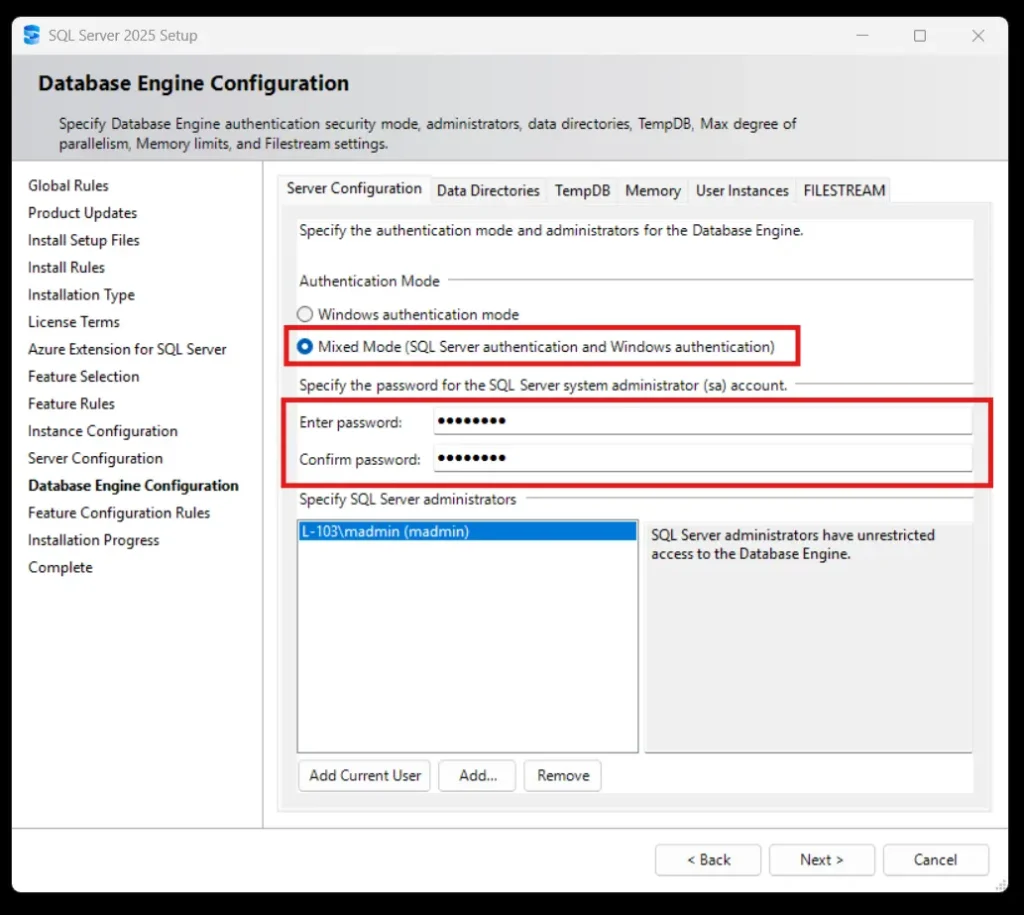
6. Next, at “Database Engine Configuration” You’ll want to select “Mixed Mode” and set a password for your server.
7. Then follow prompts and wait until SQL finishes installing.
Database Configuration
Now that we’ve installed our SQL server, we’ll configure some of our communication settings.
SQL synchronization and configuration
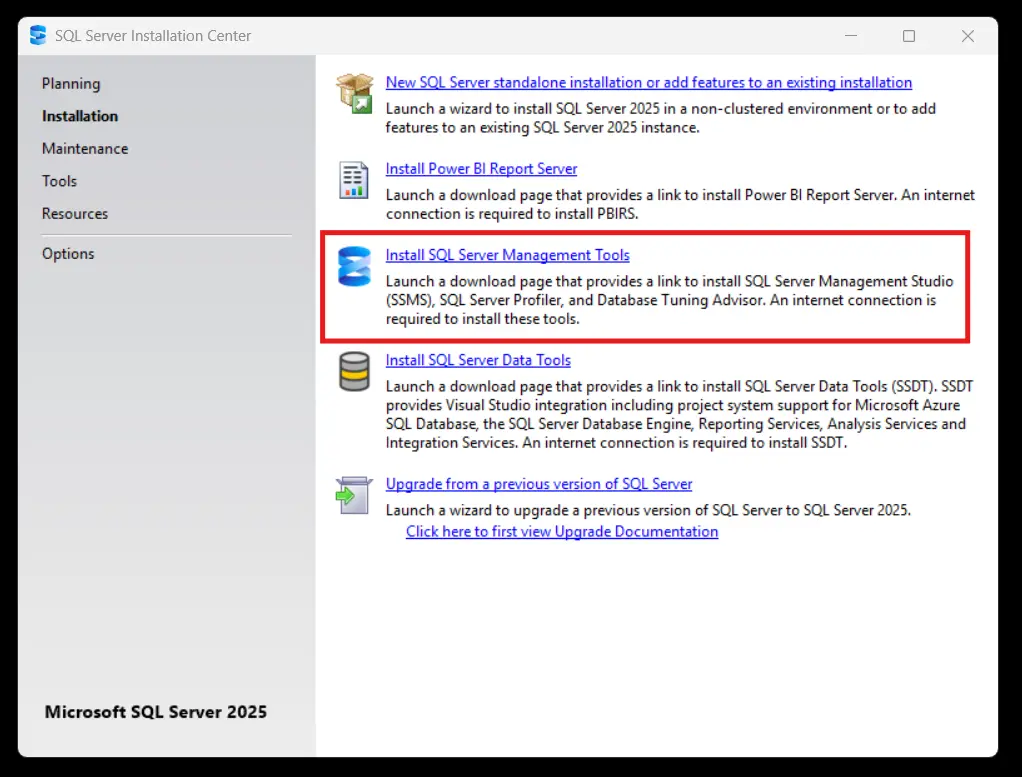
1. First, we’ll install “SQL Server Management Tools” to our computer as well. Re-open the installation .exe and select “Install SQL Server Management Tools”.
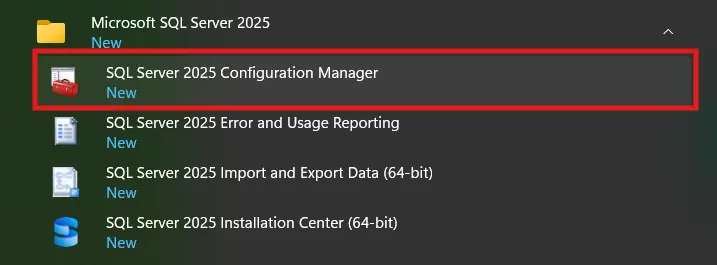
2. Once we install that, we’ll go into the SQL Server Configuration Manager in our Windows apps.
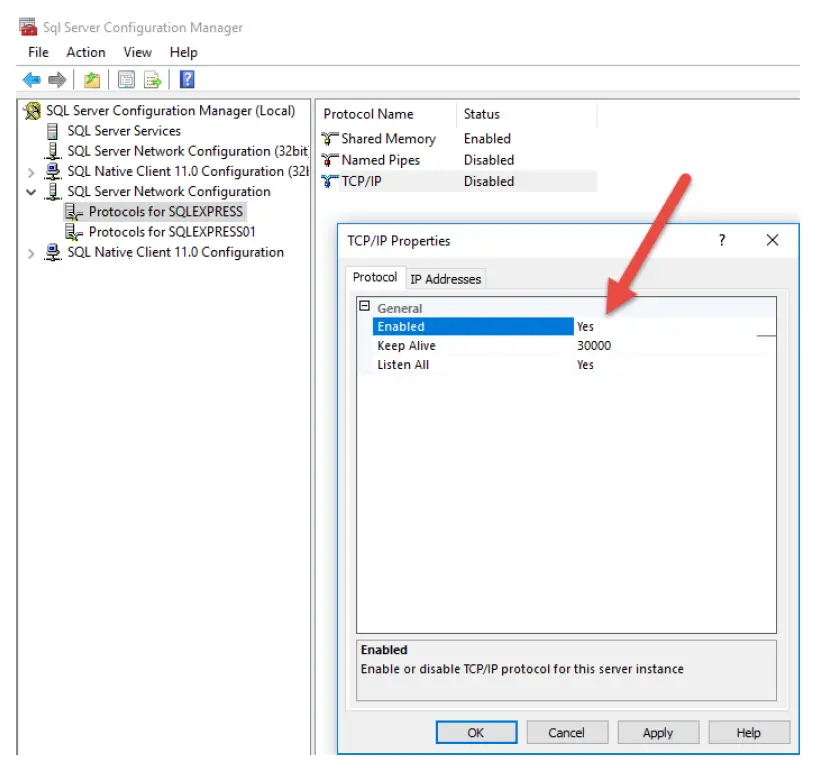
3. Then we’ll go into the “SQL Server Network Configuration” and enable TCP/IP on the server.
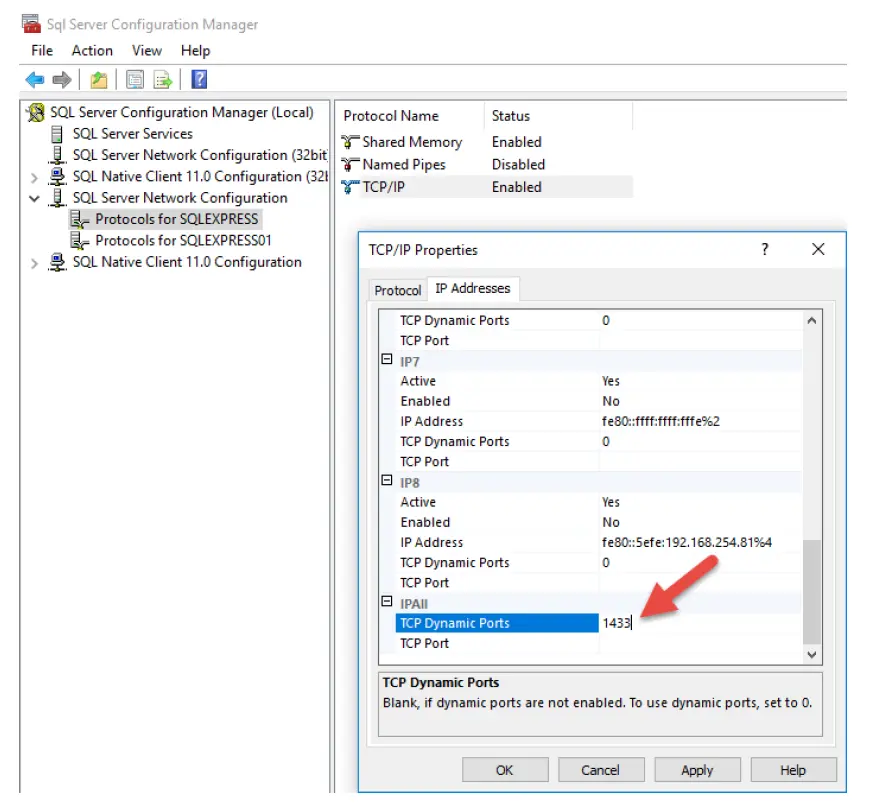
4. We’ll also go into the “IP Addresses” Tab and change the TCP Dynamic Ports to “1433”.
5. These changes won’t apply until we restart our server. So we’ll go up to “SQL Server Services” and restart our server we just installed.
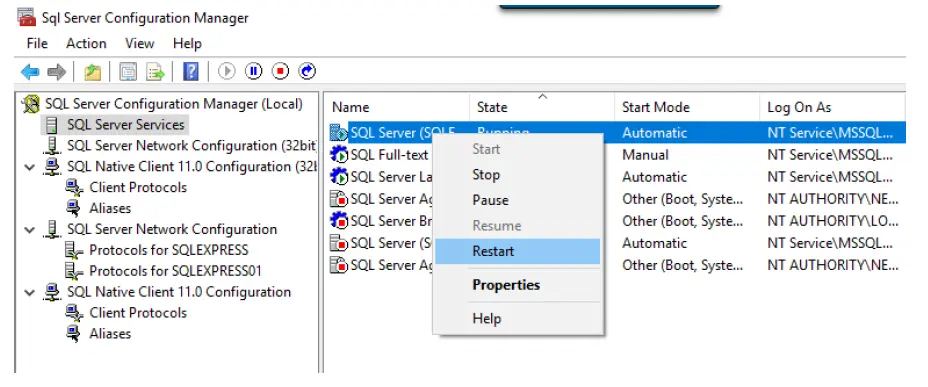
Now we’ve got our server ready to go. If your computer and network’s security is locked down, you may need to allow your database through your Windows firewall. If that’s the case, here’s how you’d do it.
Opening firewall ports
1. Navigate to your computer’s “Control Panel > System and Security > Windows Defender Firewall”.
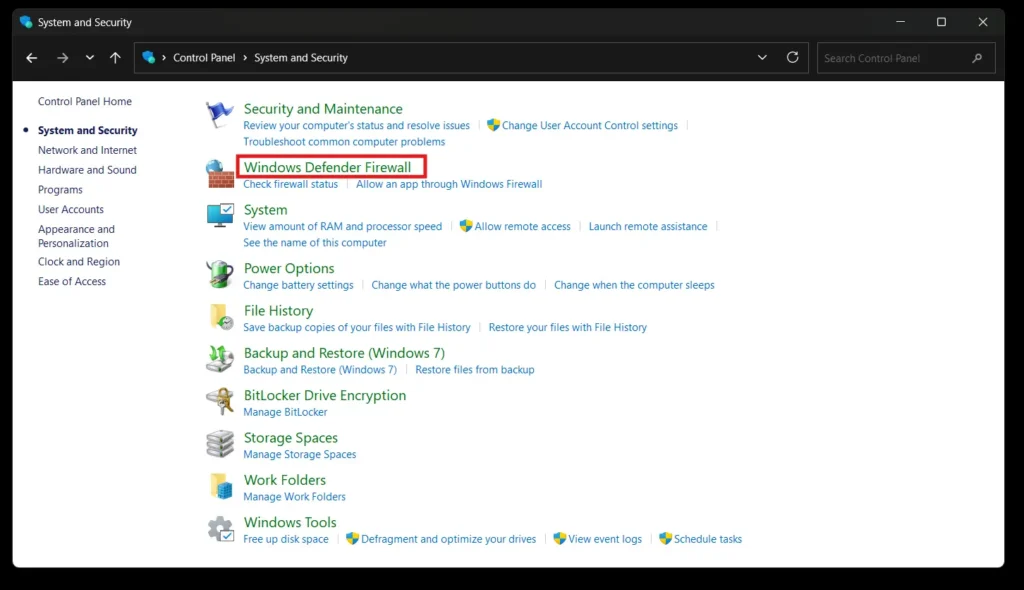
2. Go into “Advanced settings”.
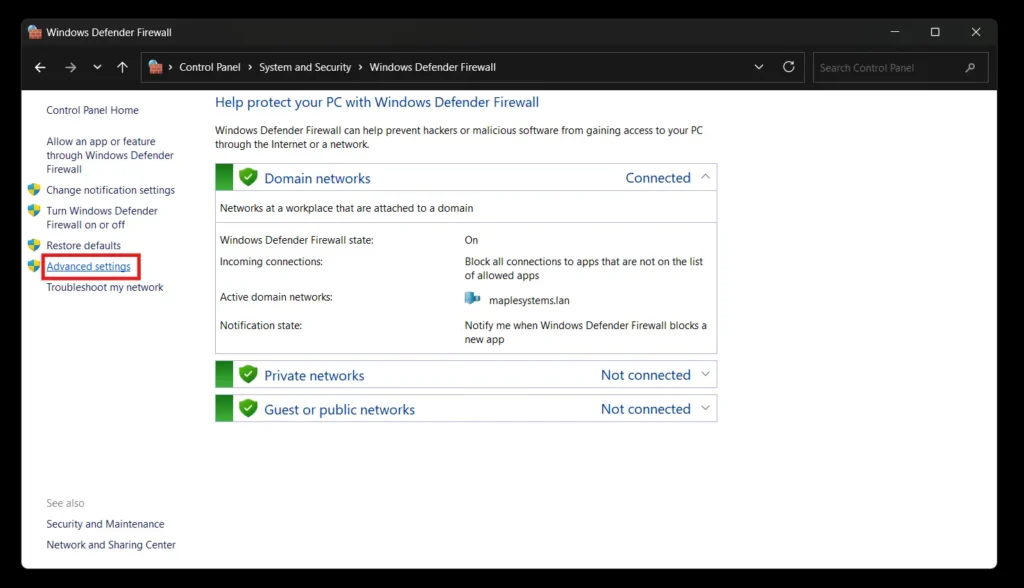
3. Right-click “Inbound Rules” and create a new rule.
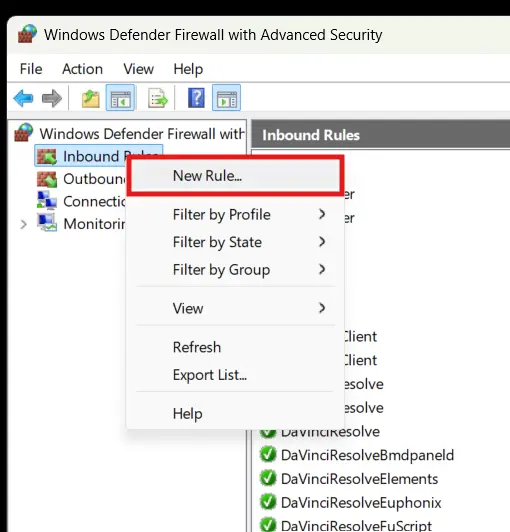
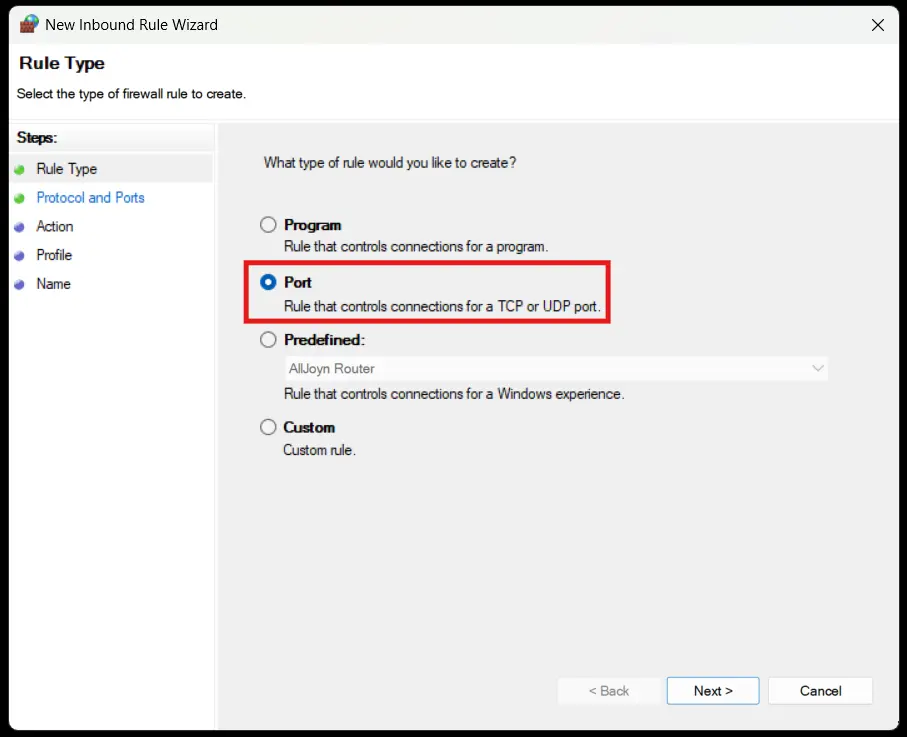
4. Specify that we’re opening a port.
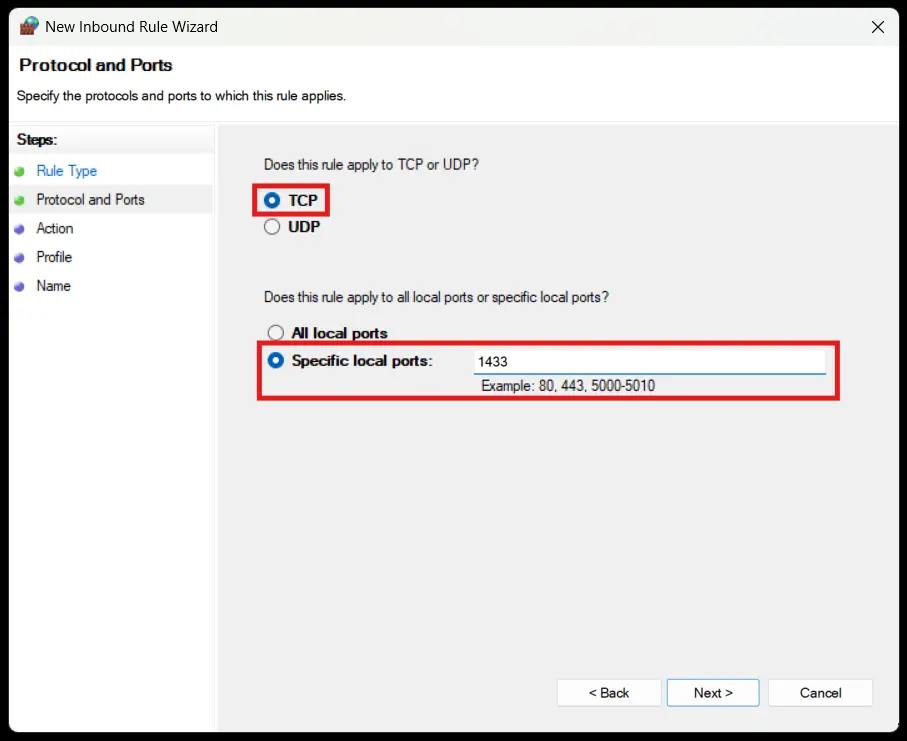
5. Open up the same TCP port that we just configured for our SQL server (1433 in my example).
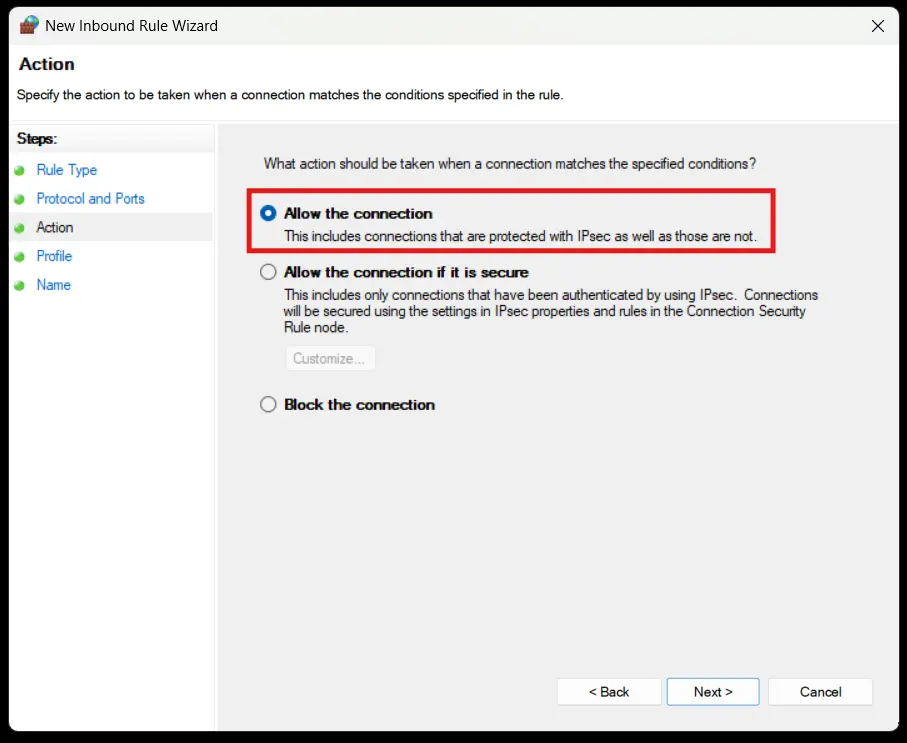
6. Allow the connection and select the network types as you see fit.
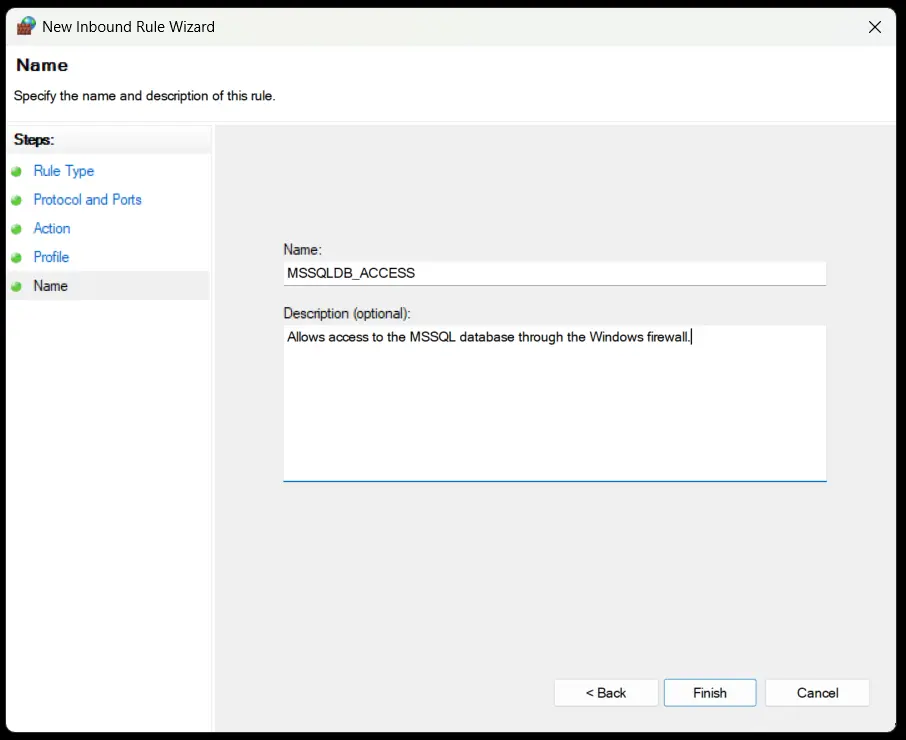
7. Finally, we’ll name our firewall rule something meaningful and click “Finish”.
Configuring the Database Server
Now that we have our SQL database installed, we’ll initialize our DB in the server management studio
Initializing our DB in the Server Management studio
1. Launch SQL Server Management Studio.
2. Connect to your same database, and log in as a user.

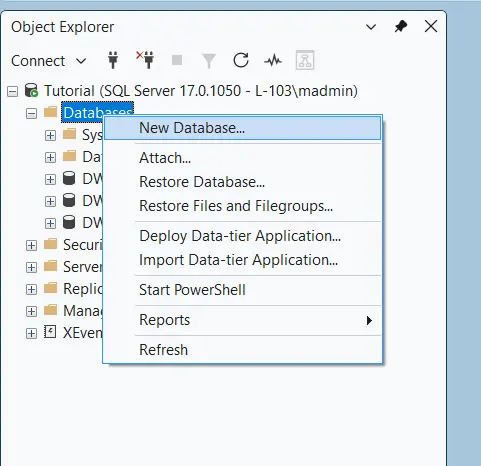
3. Right-click on “Databases” and select “New Database”.
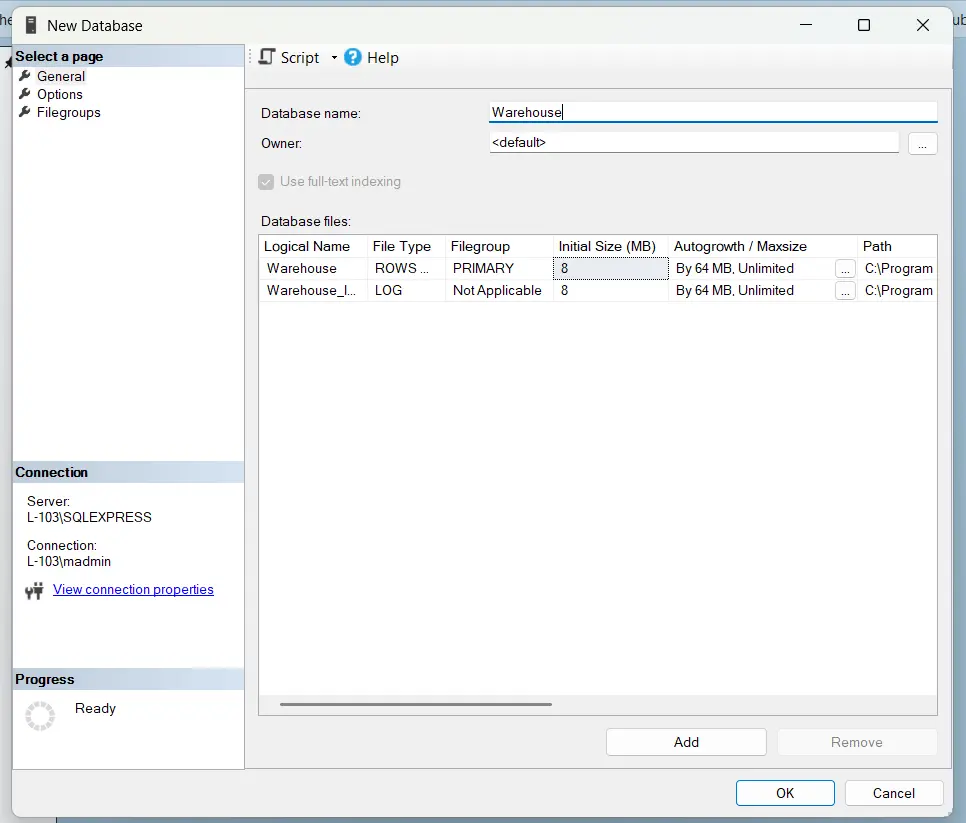
4. Name your database something meaningful.
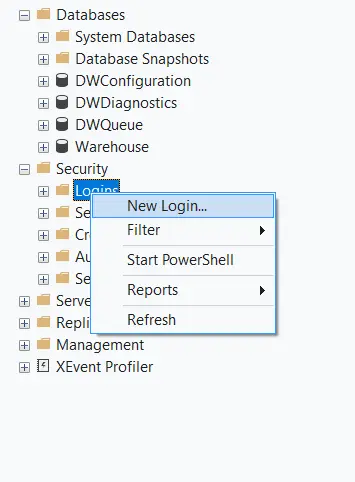
5. Now go into “Security” and right-click “Logins” and create a new login.
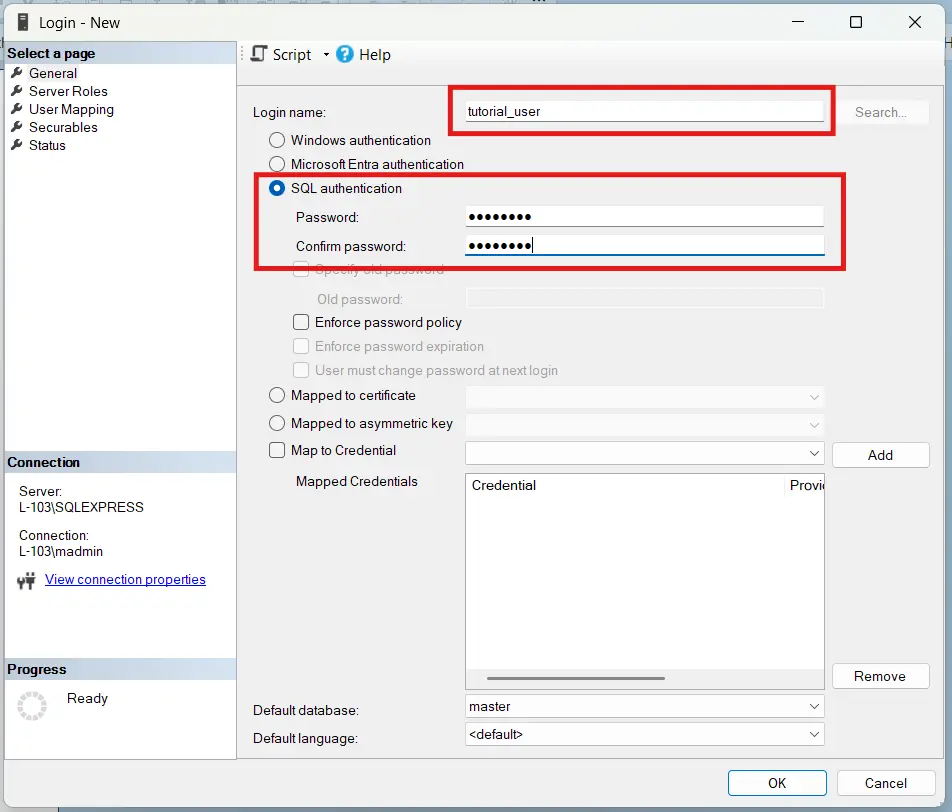
6. Create a username and password for your database user.
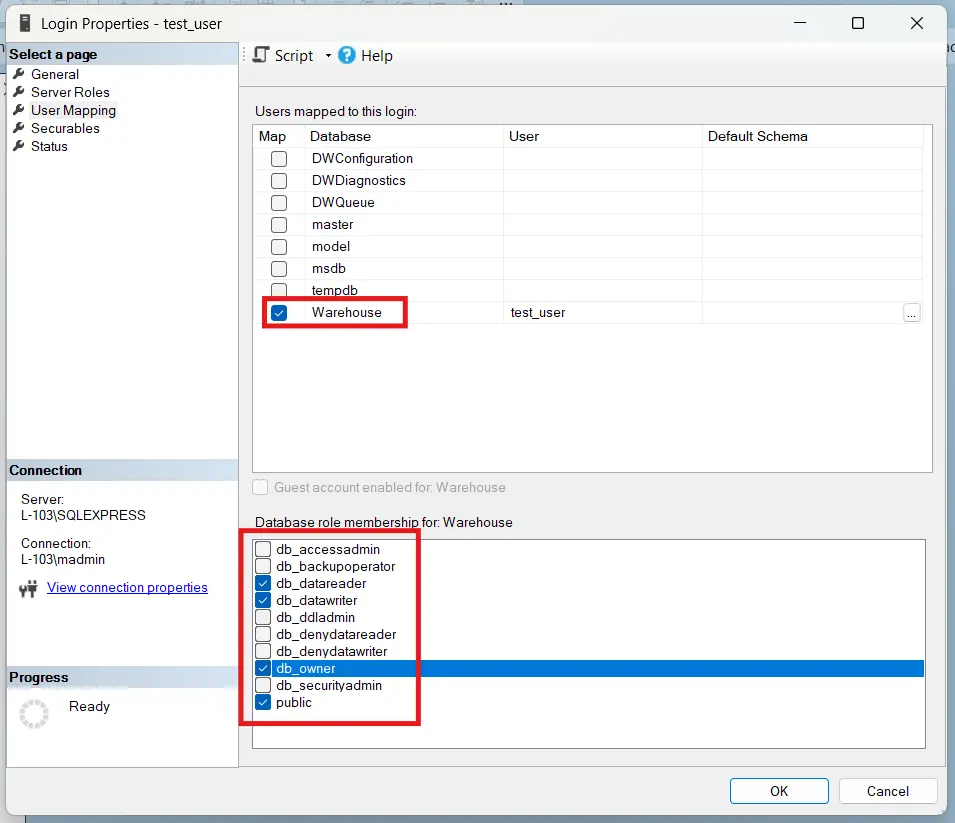
7. Go to “User Mapping” and map your new user to your new database, and set your new user as a “db_datareader”, “db_datawriter”, and “db_owner”.
Connecting EBPro to the Database Server
Now that we have our database set up, it’s time to connect to it from our EBPro project. To start, let’s build a project and connect it to our SQL server.
EBPro project initialization
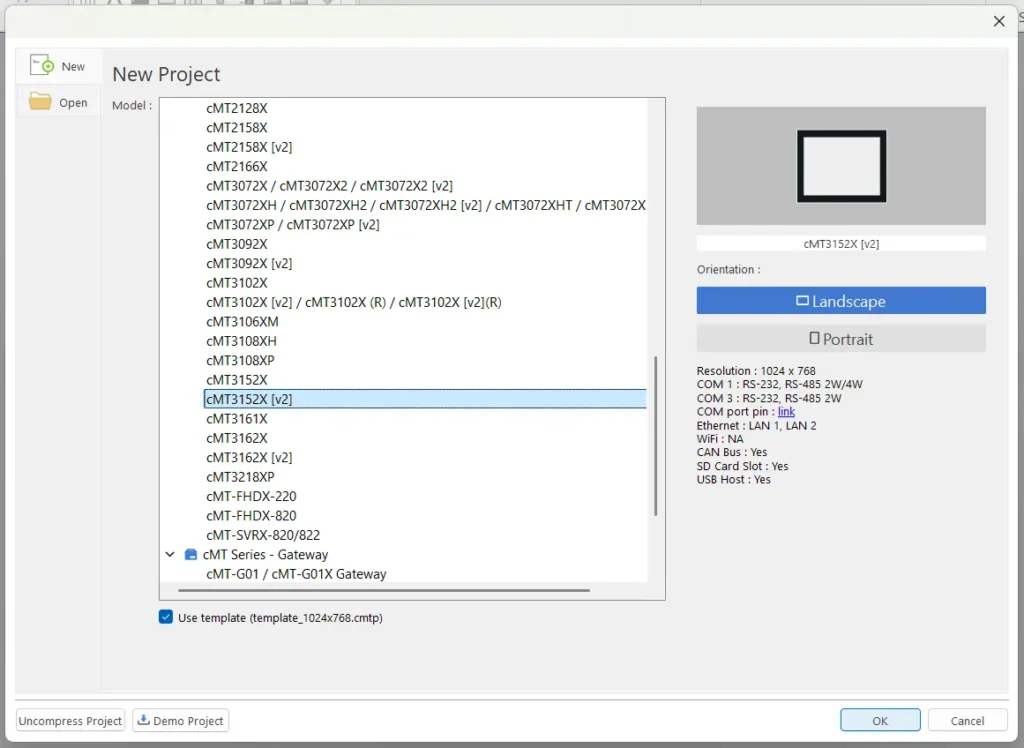
1. To start, we’ll create a new EBPro project for a cMT HMI that supports an SQL connection.
2. Go to “Data/History > Database Server” and create a new database connection.

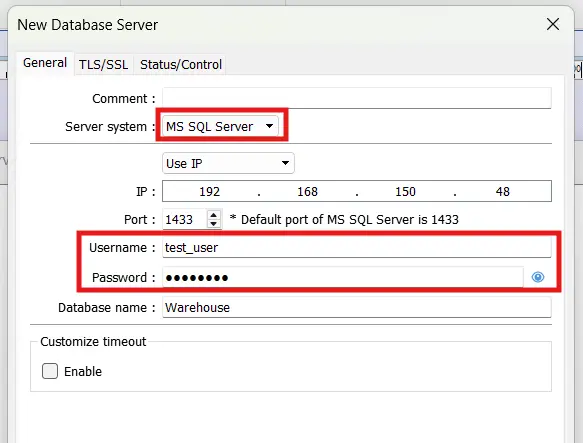
3. Choose “MS SQL Server”, configure your IP address, assign your port to what you set your database server to, and sign in with your database user credentials.
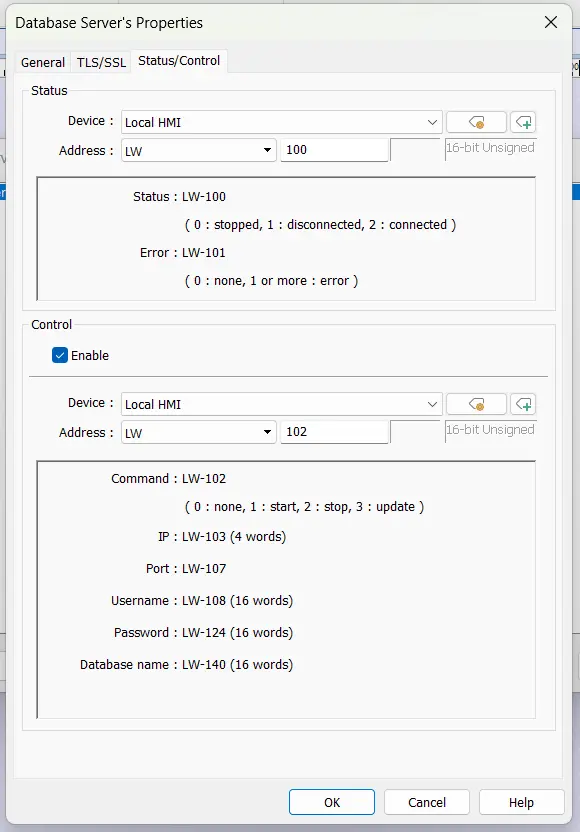
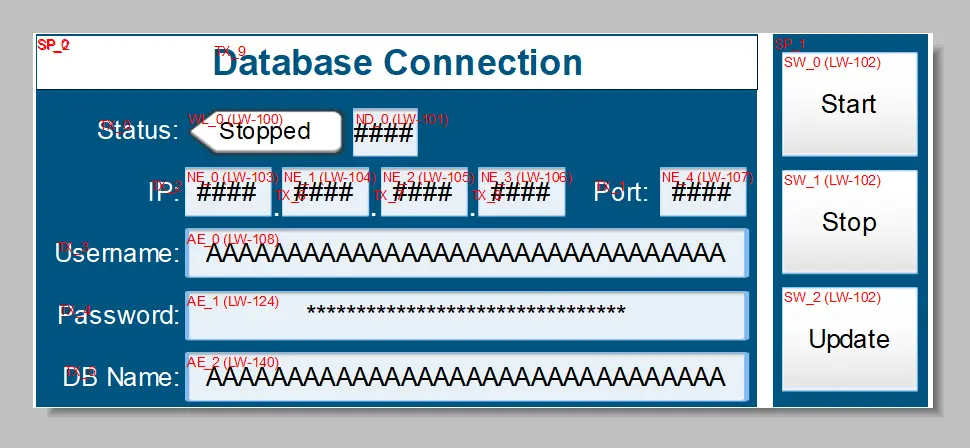
4. I’m also going to go over to the “Status/Control” tab and set the Status address and Control address to LW-100 and LW-102.
5. I recommend adding in some objects into your project that allow you to see and edit the status and parameters of your database connection. I’ve exposed the status and control bits like so:
Sending our Data to the Server
Now that we have our initial connection settings set, we’ll start configuring the data we’ll send to our database.
Data Sampling Synchronization
To start, we’ll send our data sampling to our SQL server.
Sending data logging to the SQL server
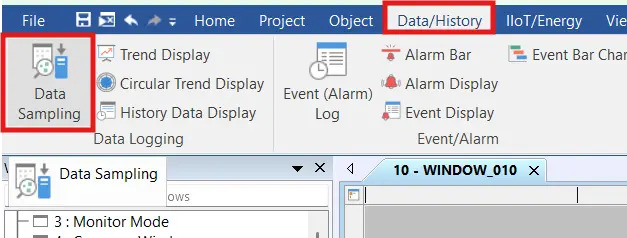
1. Let’s start by defining a data sample object. We’ll go to “Data/History > Data Sampling” and create a new sampling object.
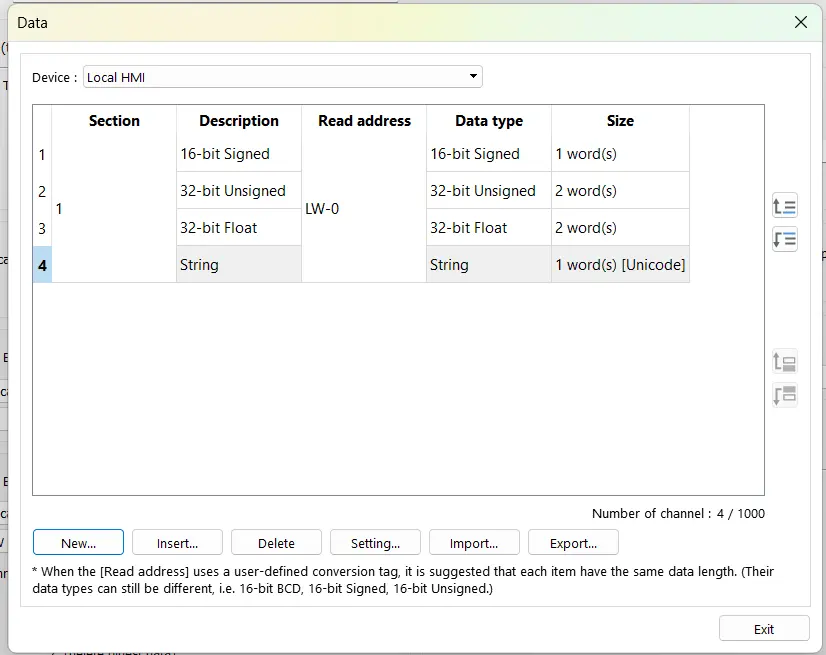
2. We’ll start by defining an address to read from the “Data Record” section. The way we format this data will be how the data appears in our database table, so we want to make sure this is how we want it. I’ll define my data like so for example:
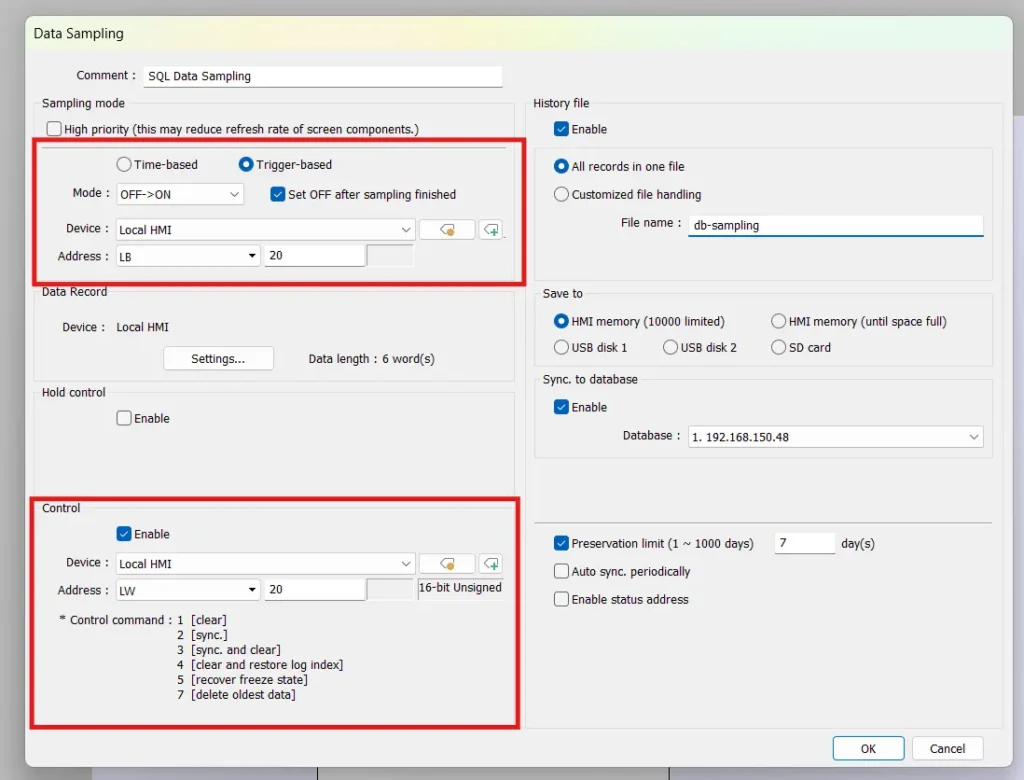
3. Once we set up our data, we’ll want to enable history files, and enable “sync to database” so that we establish a connection to our SQL database.
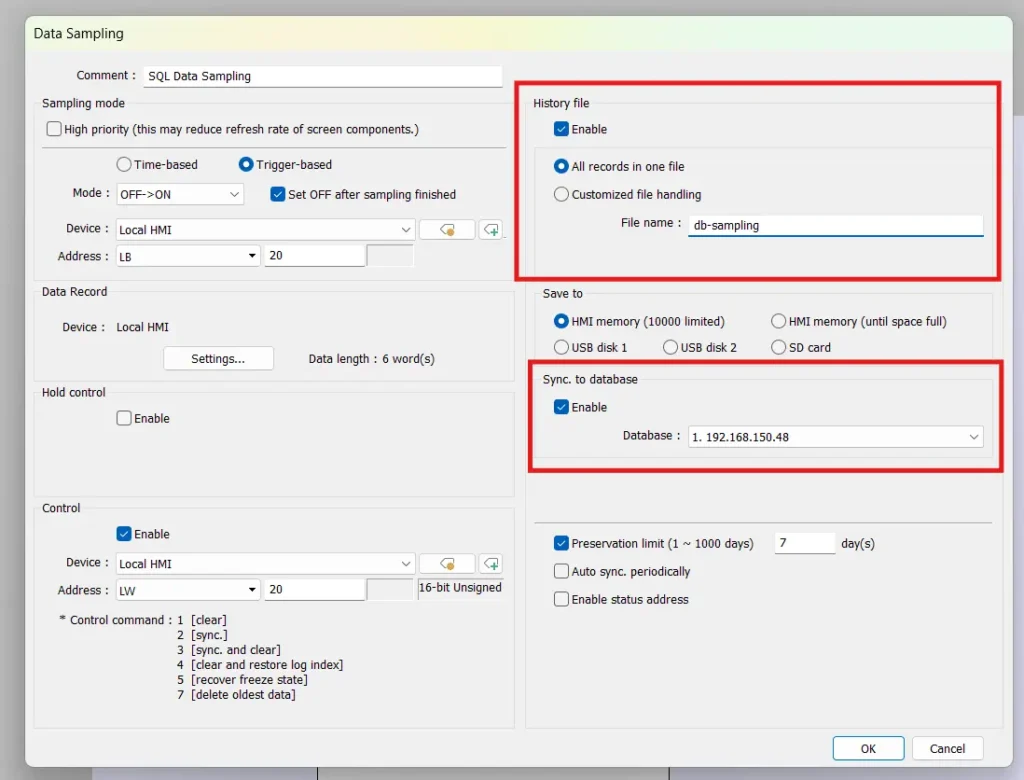
4. For this tutorial, I also recommend changing our sampling method to “trigger-based”, and enable the “control” address. This gives us greater control on when samples are collected on the HMI, and subsequently passed to the database.
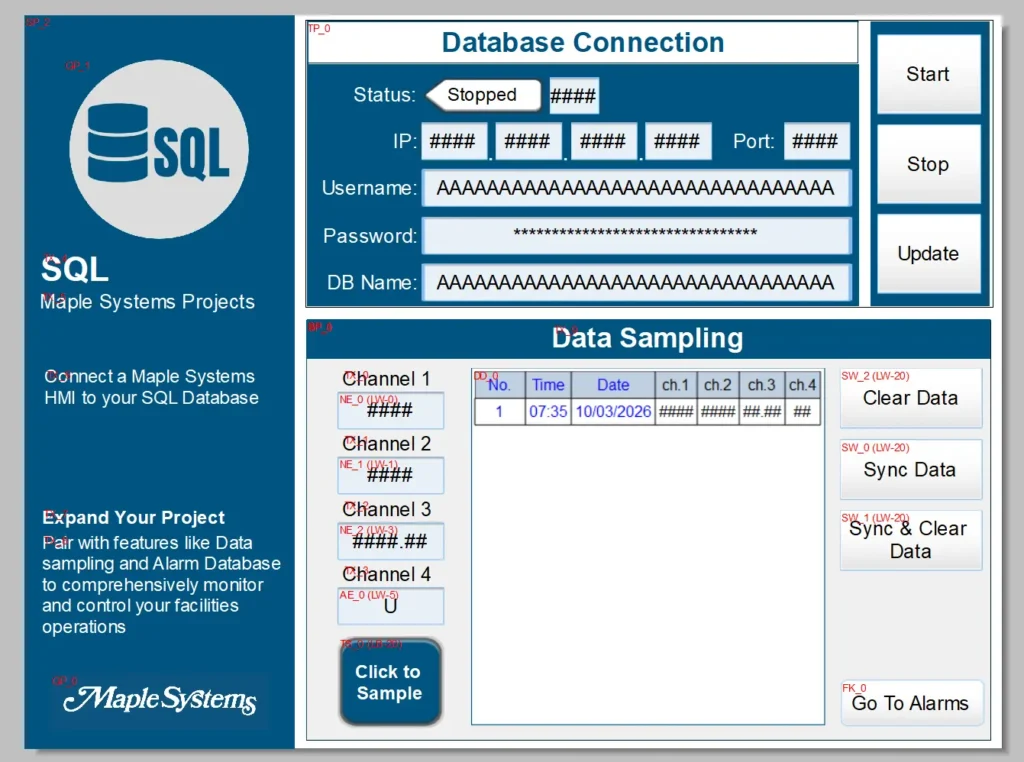
5. We’ll also want to add set word objects to send commands to our control address, trigger our data sampling, as well as numeric and ASCII objects to our actual sampling addresses to send test values to our database. I’m also adding a historical data display to show what’s being sampled on the HMI itself. The final page should look like this:
Event and Alarm Synchronization
We can also do the same with our Alarm data.
Sending event/alarm data to the SQL server
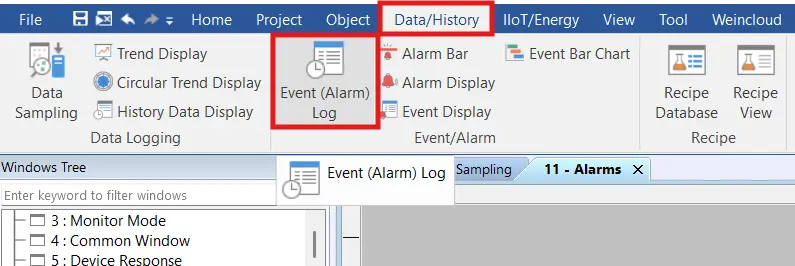
1. Alarm data synchronization will be similar to the data sampling synchronizing. We’ll start by going to “Data/History” and selecting “Event (Alarm) log”.
2. We’ll then go over to the “History/Control” tab, enable history files, and enable “sync to database”. I’m also going to enable and set a control address to retain manual control of how our alarms are sent to the database.
3. We’ll want to add some alarms, and create a new screen with set word objects tied to our alarm control bits. I’m also copying over the general database controls, and some numeric objects tied to the LW addresses I’m watching in my alarms. The finished new window should look like this:

Querying our Data From the Database
Now we’re successfully sending our data to our SQL server, but we can also query tables on our database right from the HMI as well.
Database Configuration for HMI Queries
Creating a Table to Query
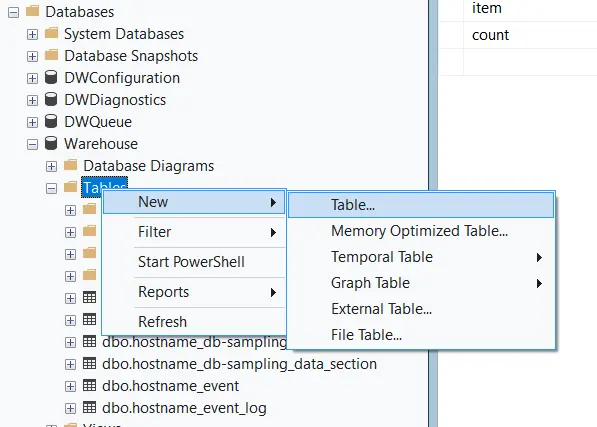
1. Go into SSMS, and expand the database we want to make a table in (“Warehouse” in my example) and right-click “Tables” to create a new table.
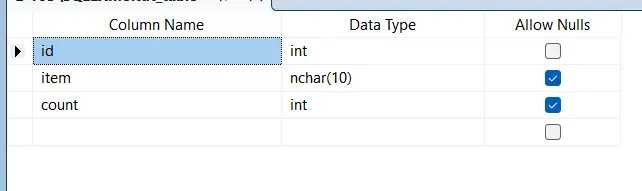
2. We’ll then create your table column names and data types. The only column you want to make sure to include is something to set as a primary key (“id” in my case).
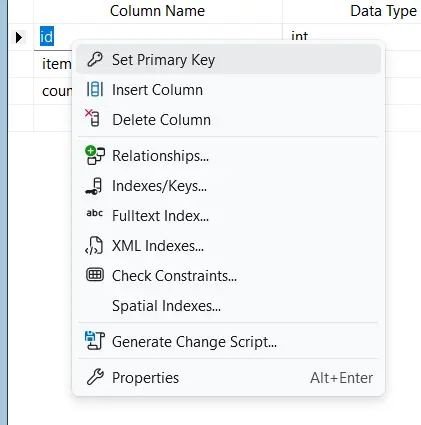
3. To set a column as a primary key, we simply right-click it and select “Set Primary Key”.
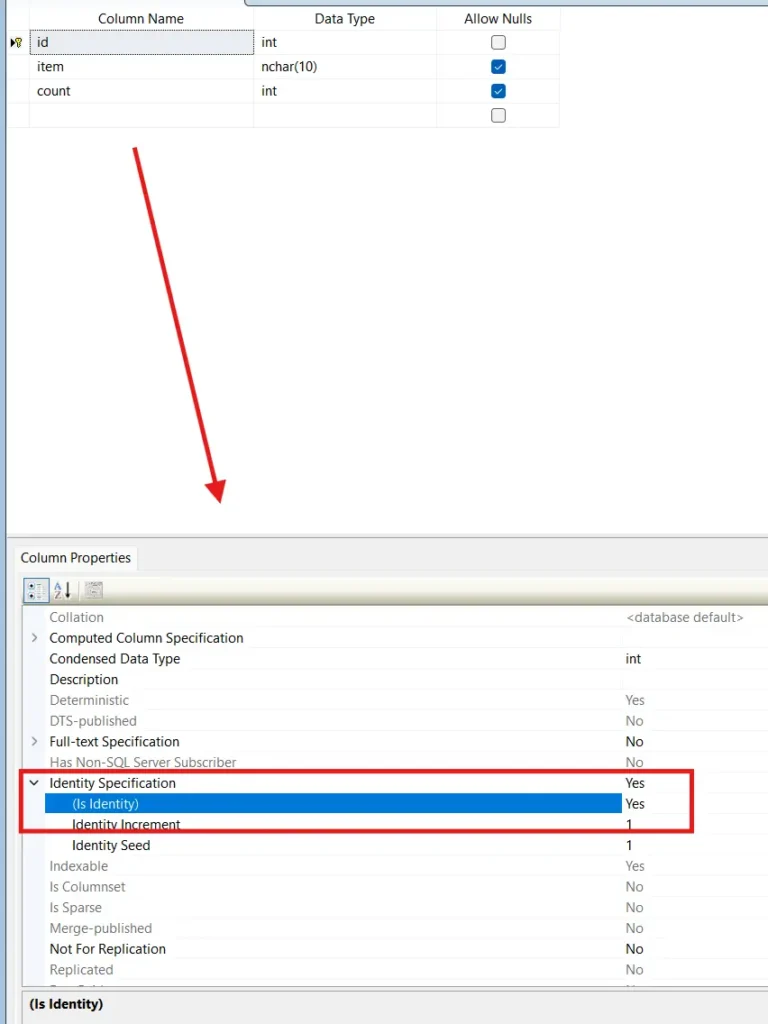
4. EBPro also requires us to set this column to auto-increment, which we’ll do by selecting our primary key column, going down to the Column Properties, and setting “Identity Specification > (Is Identity) to “Yes”.
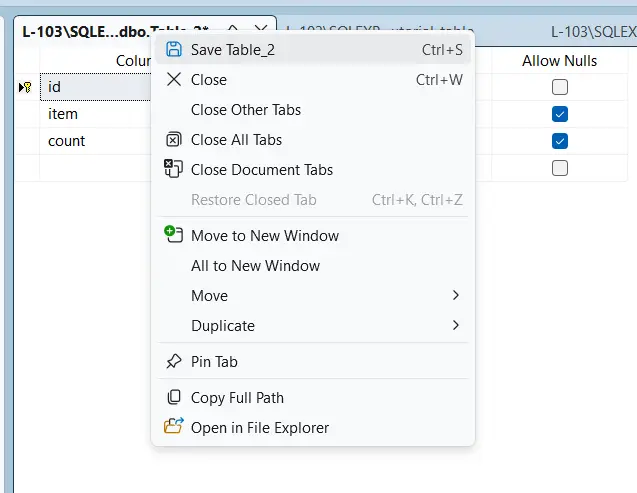
5. Now we save our table by pressing Ctrl + S or right-clicking the tab and choosing “save”, and naming our table something meaningful.
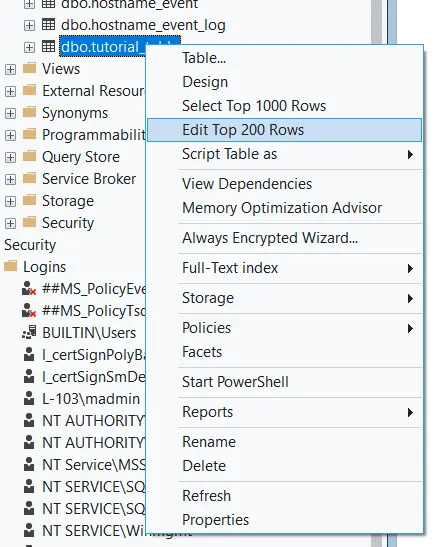
6. Then we’ll right-click our new table name and select “Edit Top 200 Rows” so we can fill in some data for our HMI to query.
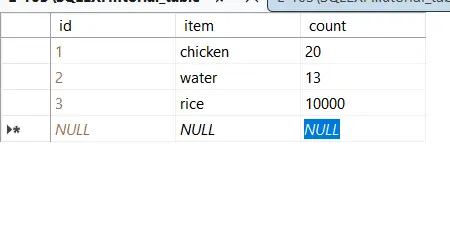
Now that we have a table in our database, let’s set up a query object in EBPro.
Querying our SQL databases from EBPro
1. We’ll start by going back to “Data/History”, selecting “SQL Query”, and creating a new query object.

2. In the settings for the query object, we’ll want to make sure to fill out the table name properly, and select “Import from Server” to pull our schema in from the database server.
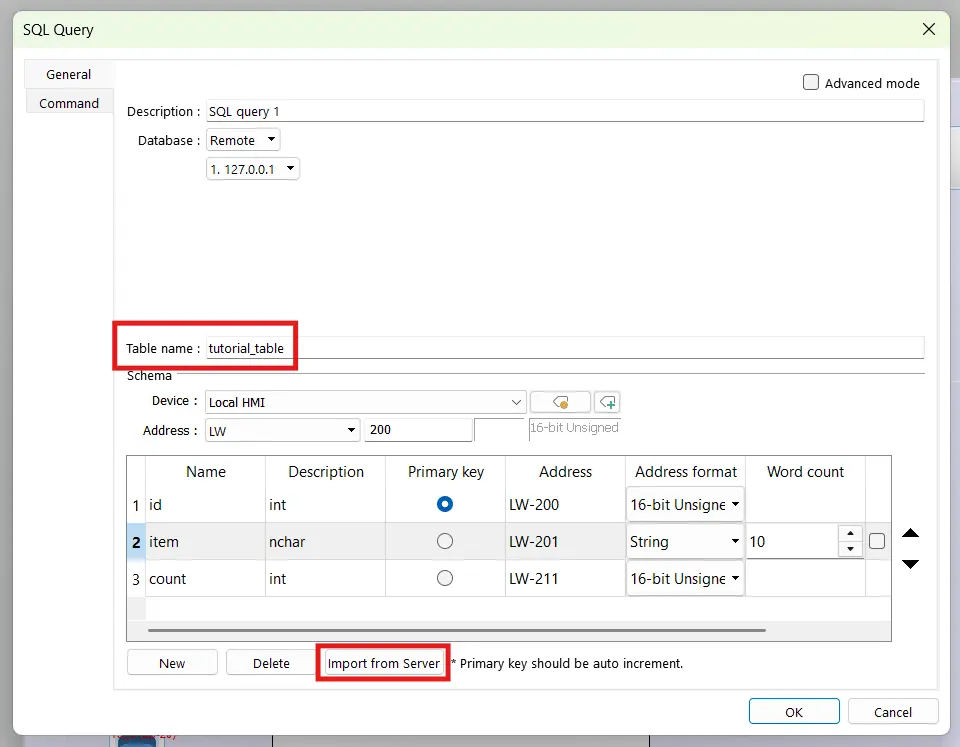
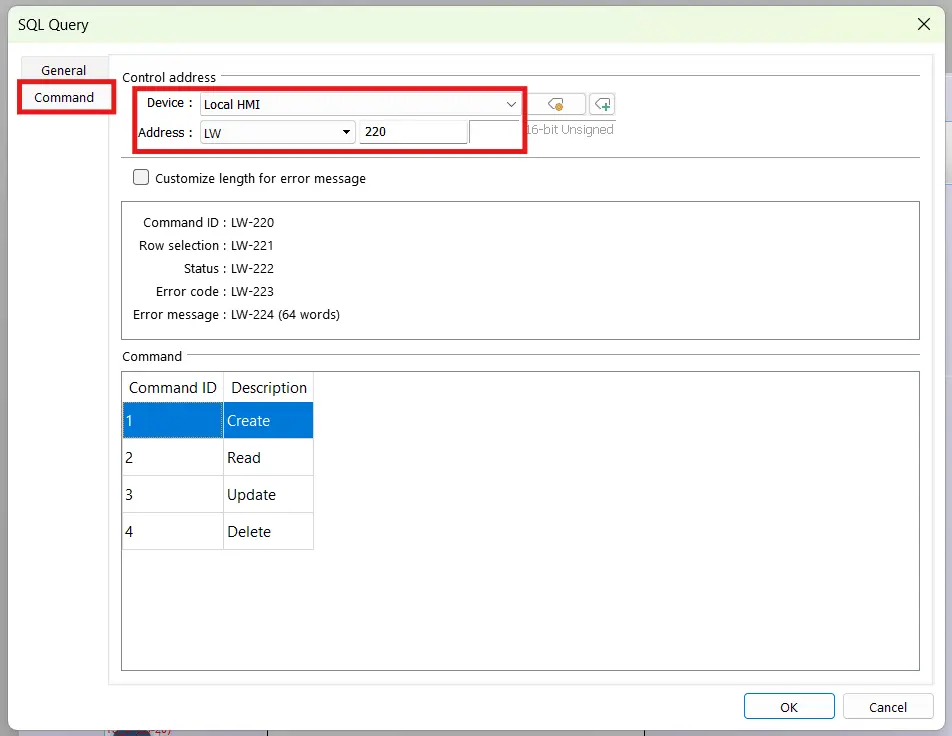
3. Once we confirm that the data types and address registers are correct for our schema, we’ll swap to the “Command” tab and register a control address for our query.
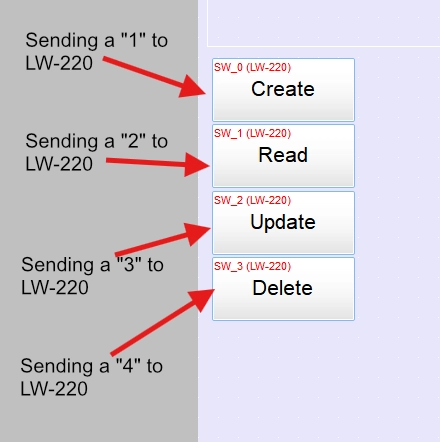
4. Then we’ll want to set up some set-word objects tied to our control address to perform our SQL query options.
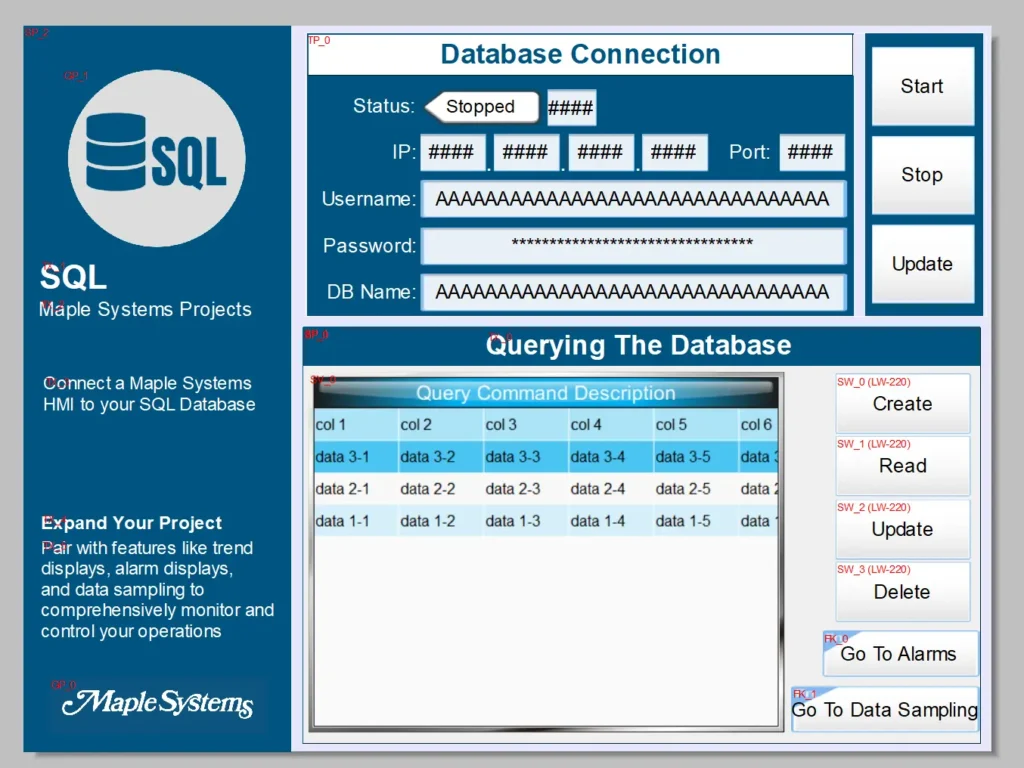
5. Next we’ll make a query result viewer tied to the query object we just made, so we have a view into our query results. After dropping this result viewer into a new “query” page, you should have a setup like this.
You should now be able to connect to your database and interact with it. If you’d like a jump start on all of the pages described in this tutorial, you can download the sample project for this tutorial.
Final Thoughts
If we return to the manufacturing plant above, implementing an SQL integration will serve them very well. When you leave all your recipes on the HMIs individually, keeping any recipes synced between different machines can be difficult to do. If we configure our HMIs to source their recipes from an SQL query object, we would only need to change the recipe through an SQL client once, and that change would populate the new recipe to every HMI in the plant. This could turn multiple different recipes into one “master” recipe that we’re always sure is fully synchronized across all of our machines.
Also, SQL’s natural integrations with web technologies make SQL a natural choice for piping floor data up to any ERP system that lives on the web. Also, instead of saving metrics like uptime, production count, and downtime alarms to an external USB drive physically attached to the HMI that needs to be retrieved manually, we can sync all of that data to our SQL database. And if we’re pushing that SQL data to a centralized web server, operations can poll and track all that data from the comfort of home halfway across the world.
Resources & Documentation
More
Tutorials
Sample Projects
Software Downloads
See our Support Center for a complete list of Quick Start and Installation Guides

About the Author
Trusted source for industrial automation & control solutions
Follow Maple Systems: