
If you have more than one industrial plant, or even more than one machine, collecting metrics like uptime/downtime, total product count for the day, or even fault history can be a bit of a hassle to aggregate. Usually requiring you to remote into each machine one by one using a tool like cMT Viewer. Controlling these machines simultaneously can also be a hassle. If you wanted to start an entire plant for the day, you would need to start each machine one at a time.
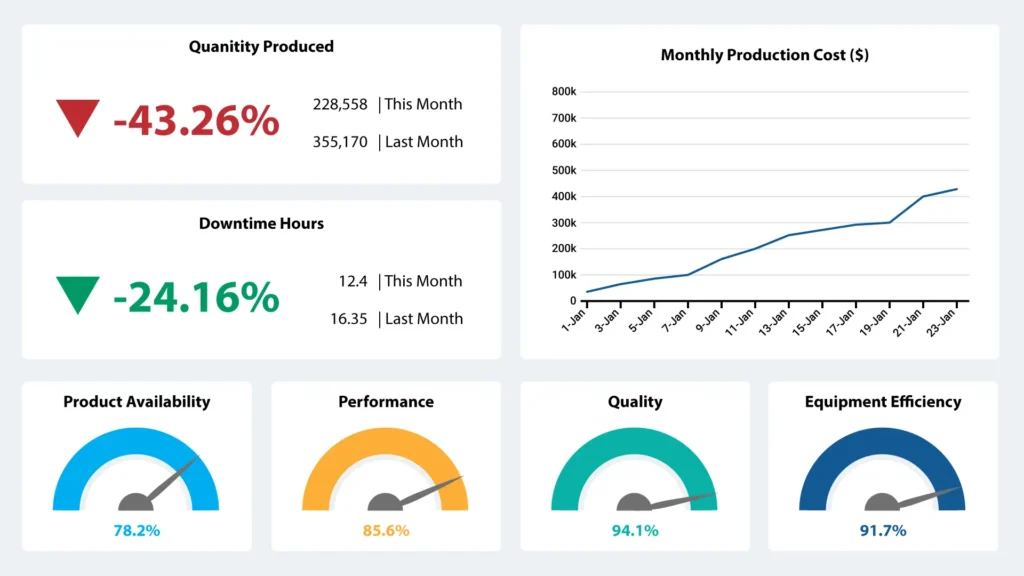
This is where MQTT can come in handy. MQTT is a communication protocol that allows various internet-enabled devices to publish data to a centralized server, often called a “broker”, and allows for devices to subscribe to the data published to that broker by other devices. MQTT’s natural data consolidation, publish/subscribe framework, and its durability to low-bandwidth connections make it an ideal solution to set up an Industrial Internet-of-things.
In this tutorial, you’ll learn how to configure your Maple Systems HMI as an edge gateway for an MQTT network. We’ll cover how to publish tags from the HMI to the MQTT broker, how to subscribe to MQTT values and write them to tags on the HMI.
Software Required
- EBPro.
- any MQTT Broker (I’ll be using Mosquitto‘s public test server as an example).
- (Optionally) an MQTT client software (I’ll be using MQTT Explorer for this tutorial).
Hardware Required
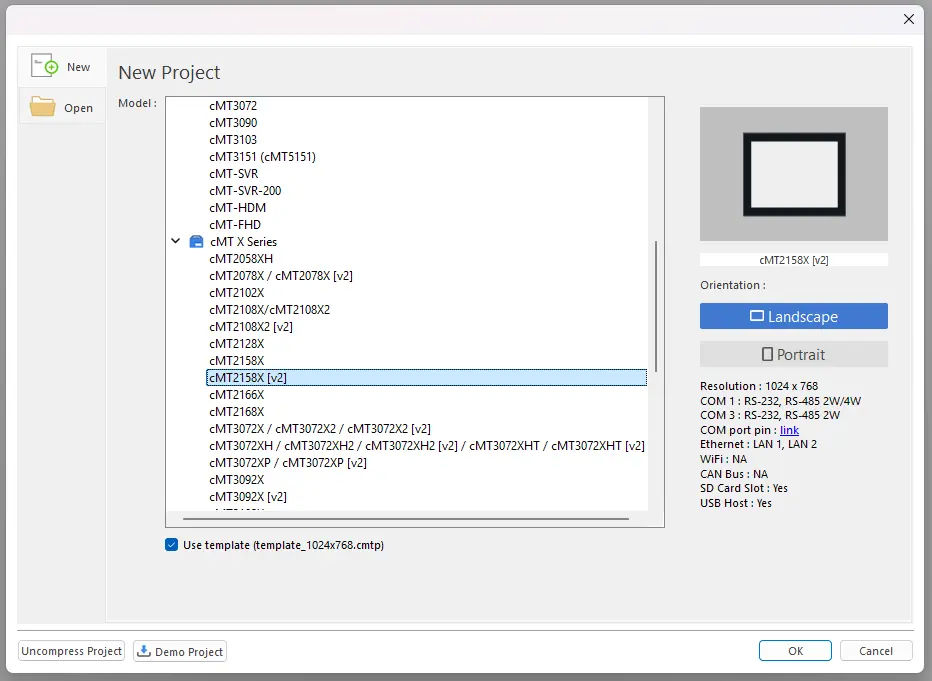
- Any Maple Systems HMI (I’ll be using a cMT2158Xv2 for this tutorial).
- A Network Connection that has access to your MQTT broker.
EBPro Project Setup
To start, we’ll set up an EBPro project with a handful of numeric entries so we can see our MQTT connection working.
Initializing the Project
1. Open up EBPro and create a new project.
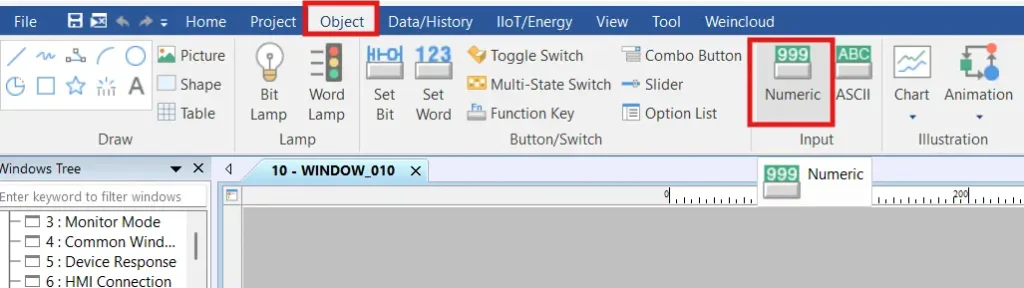
2. Select “Object > Numeric” from the menu bar.
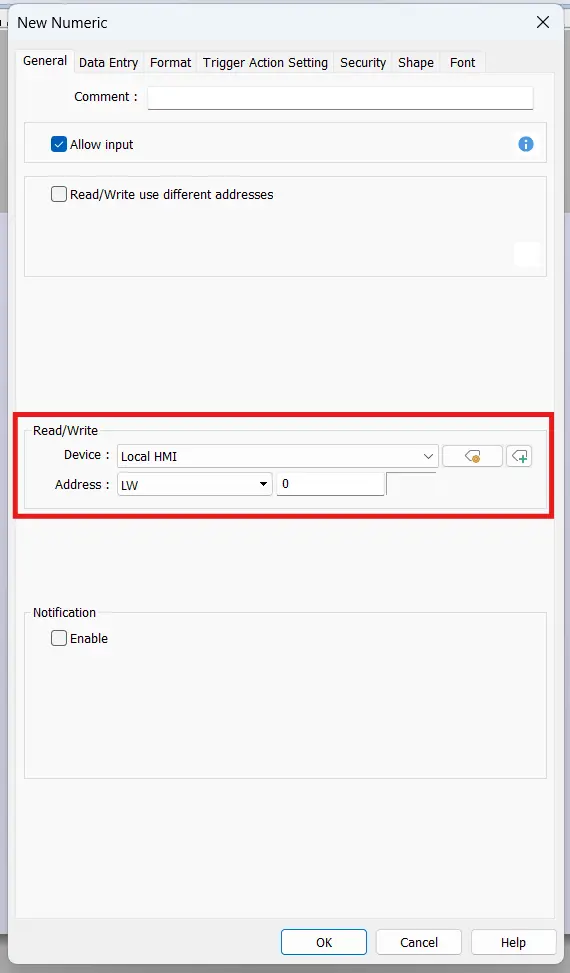
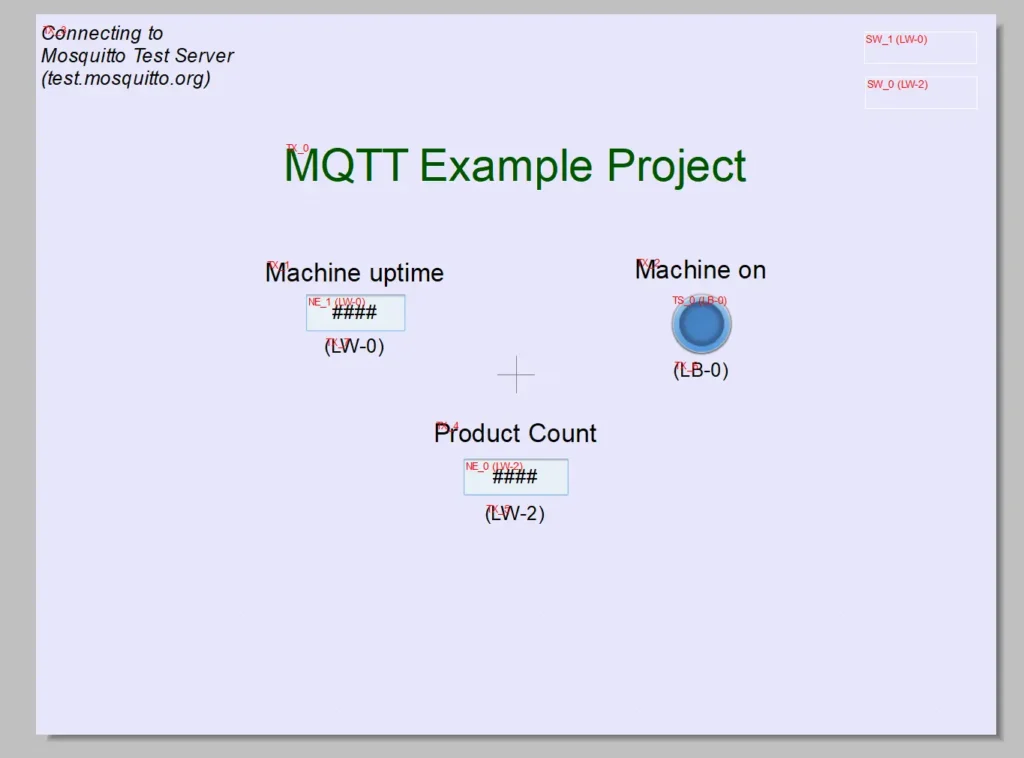
3. Point the numeric object to LW-0 and place the numeric entry object on the screen. This will represent my machine uptime in seconds
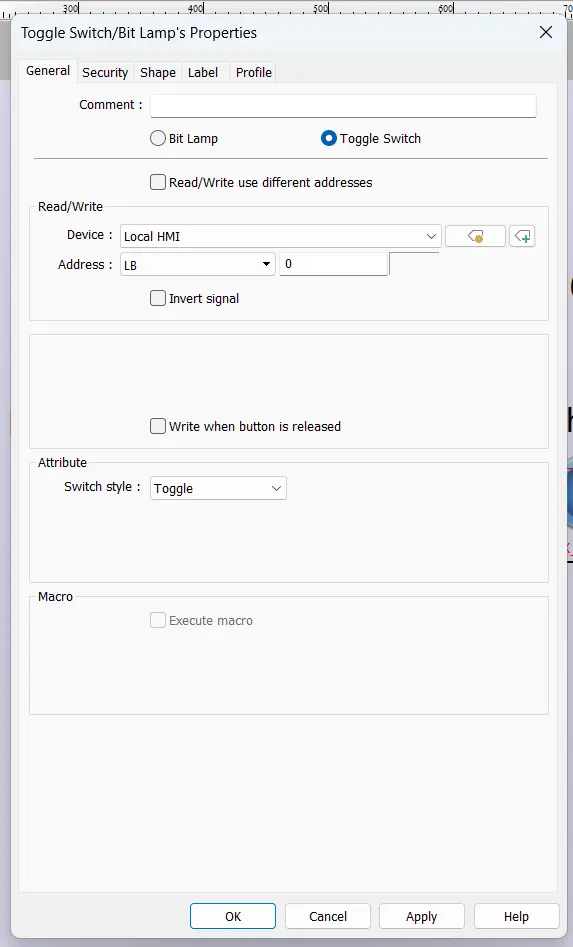
4. I’m also creating a Bit Lamp and attaching it to LB-0, which will serve as an indicator for the machine being on.
5. Finally, I’m adding another Numeric Object and pointing it to LW-2 to represent the count of products the machine has processed since turning on.
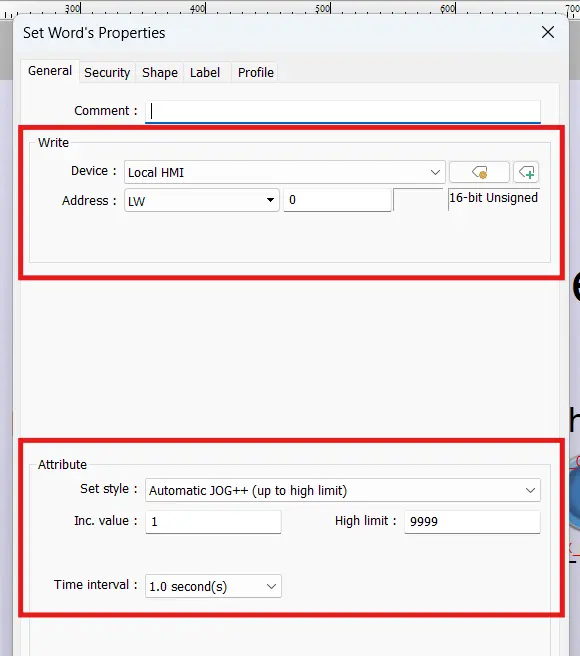
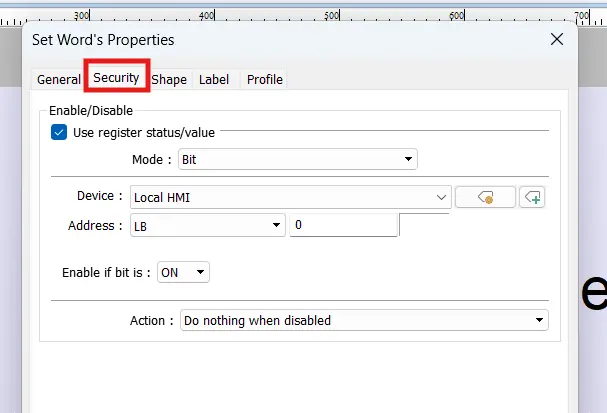
6. I’m also creating two set word object to increment LW-0 and LW-2 whenever the machine bit (LB-0) is set to on. Make sure to set these set word objects to only be enabled when LB-0 is on in the security tab.
7. I’ve also added some labels to my project to make things a bit more visually clear. That will look like this:
MQTT Connection Settings
Now that we’ve set up our screen for changing and monitoring our MQTT data, we’ll configure our MQTT connection to the broker through the MQTT object in EBPro.
MQTT Object Setup
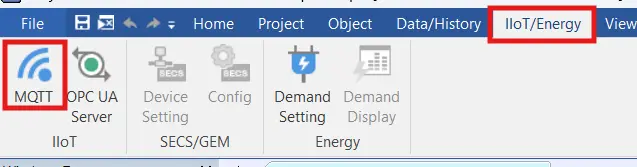
1. Select “IIOT/Energy > MQTT” from the menu bar.
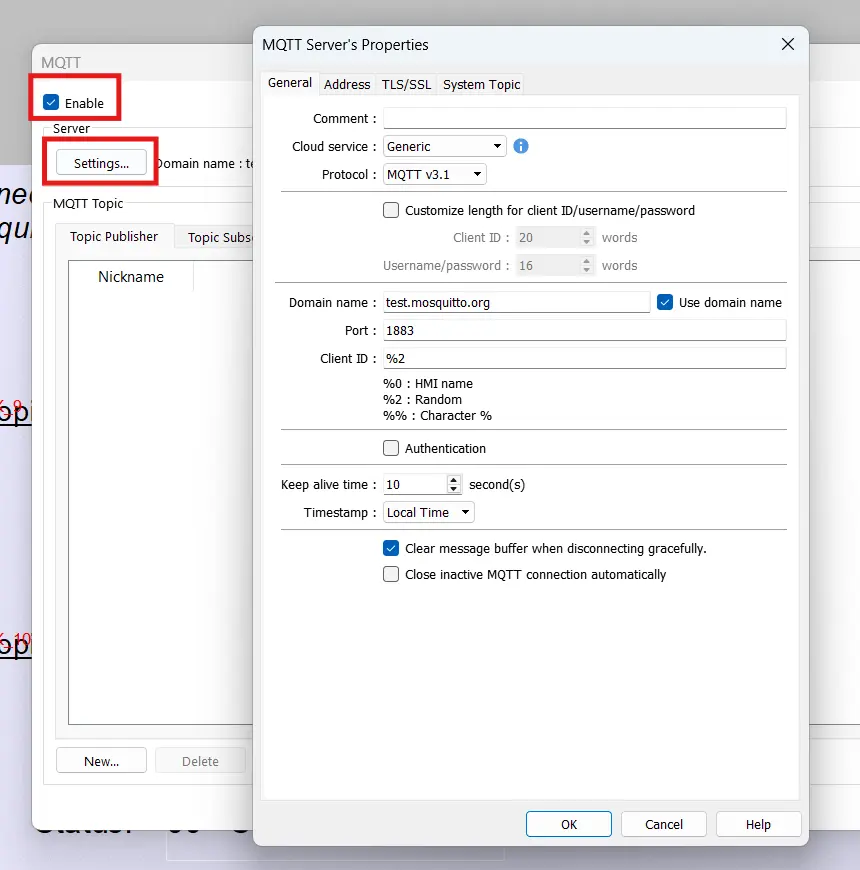
2. Enable MQTT and enter your broker’s address and settings. For this tutorial as an example, I’m connecting to Mosquitto’s public test broker, but if you have an MQTT broker set up already, this is where you’d enter your broker’s IP address or domain name.
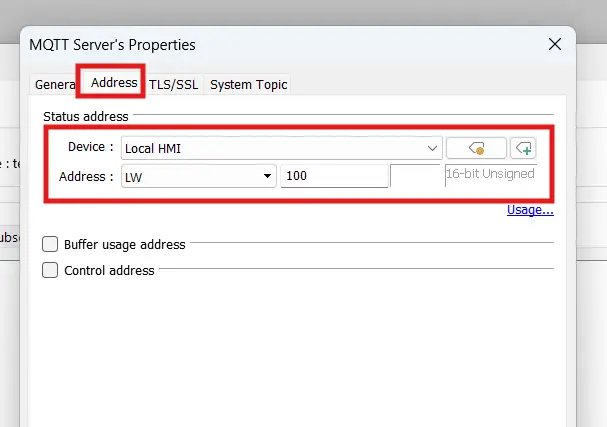
3. In my example, I’m going into the “Address” tab to change my status address to LW-100 so it doesn’t interfere with my data.
Attaching HMI Tags to MQTT Topics
Now that we’ve set up our MQTT connection, we’ll configure how our local registers will connect to our MQTT topics.
Publishing From our HMI
To start, we’ll configure HMI tags that will publish to our MQTT broker
MQTT Topic Publishing Configuration
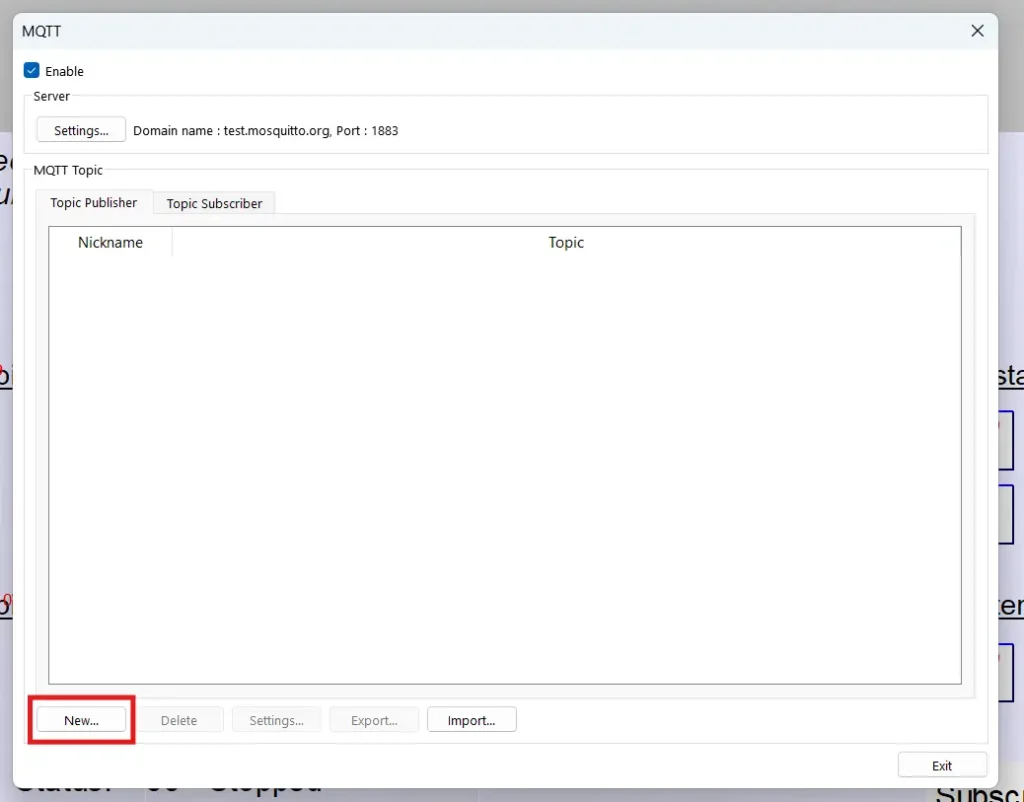
1. To create topics and assign memory addresses to them, we’ll click on “New” in the MQTT dialog window.
2. Enter <name>/MachineOne/stats under “Topic” where the <name> is a unique identifier for your HMI. Leave the “sending mode” to “Address (Auto.)” and check the “Value-trigger-based” checkbox.
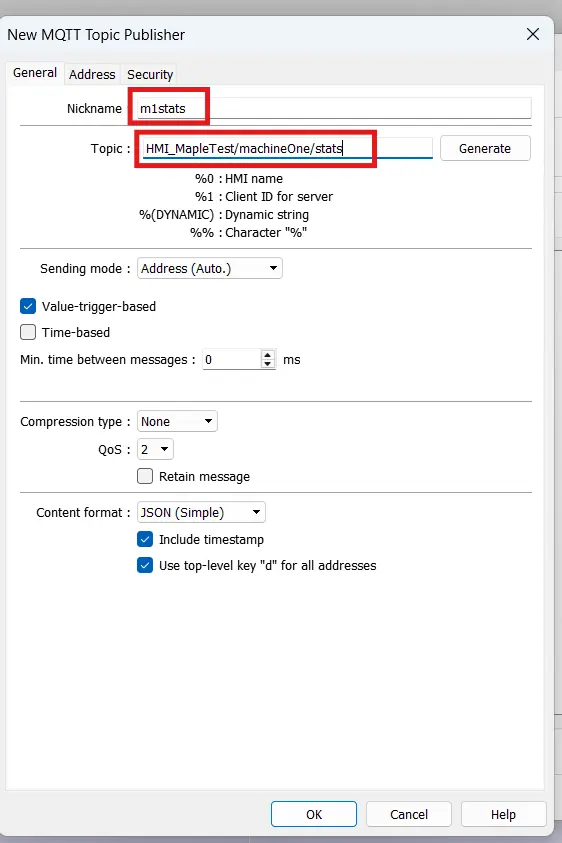
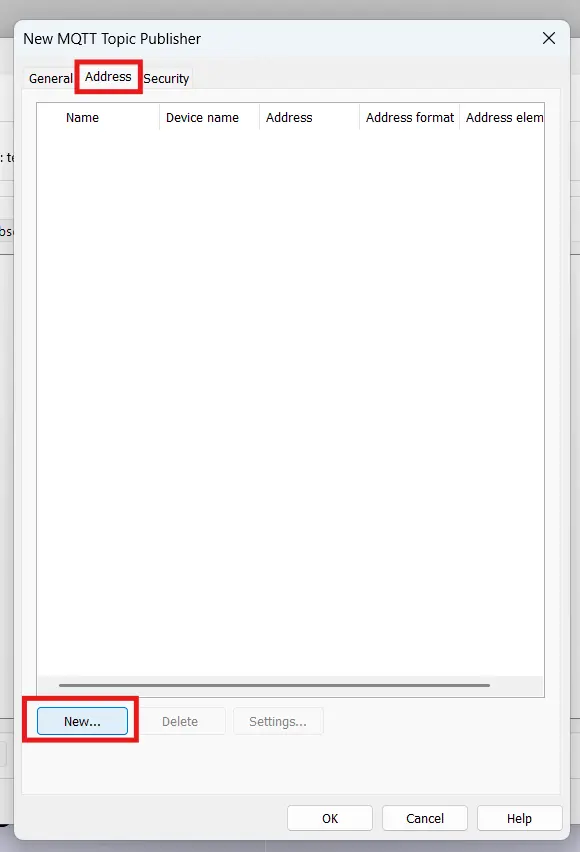
3. Now to assign an address to the topic, we’ll go to the “Address” tab and click “New”.
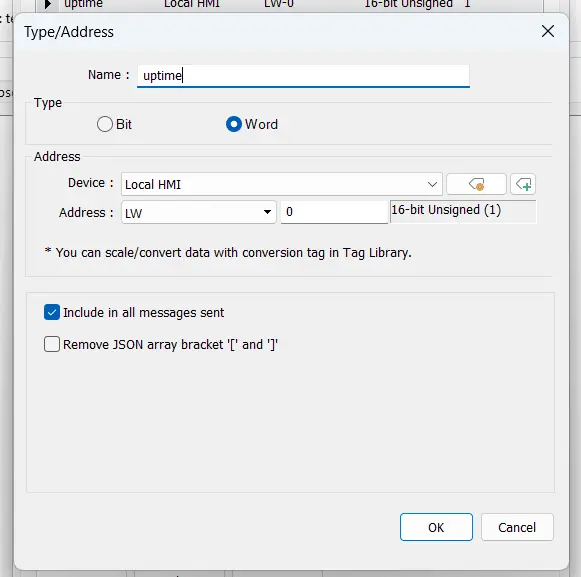
4. We’ll enter a name for our tag, set it to “word” and make sure it’s pointed to LW-0 on the Local HMI.
5. We’ll also tie another address to this topic named “productCount” of type “Word” tied to LW-2.
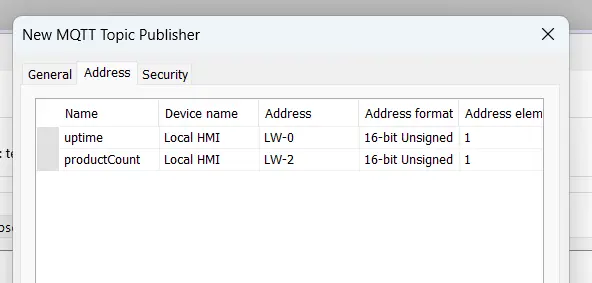
6. click “OK” and the topic should appear in your topic list.
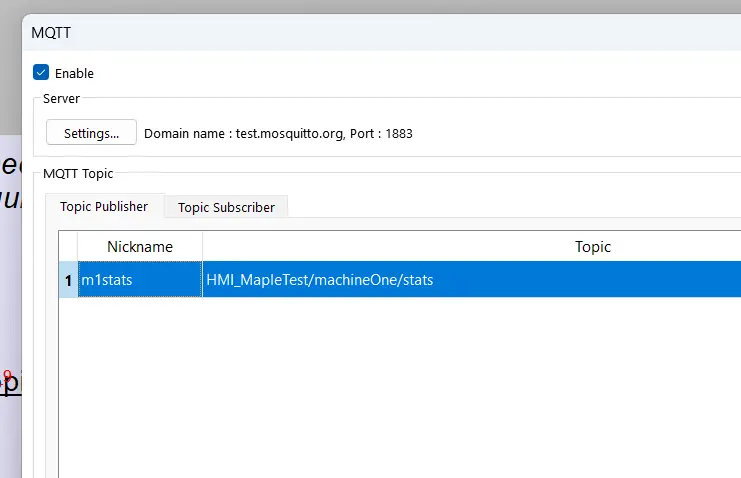
From here, you should be free to connect your HMI to your broker, and see your local registers publish to the broker. Now we’ll go over how to configure topic subscriptions.
Subscribing HMI Values From our Broker
MQTT Topic Subscribing Configuration
1. Go back into the “IIoT/Energy” and select “MQTT”. You’ll now want to go into the “Topic Subscriber” tab instead and create a new topic as well.
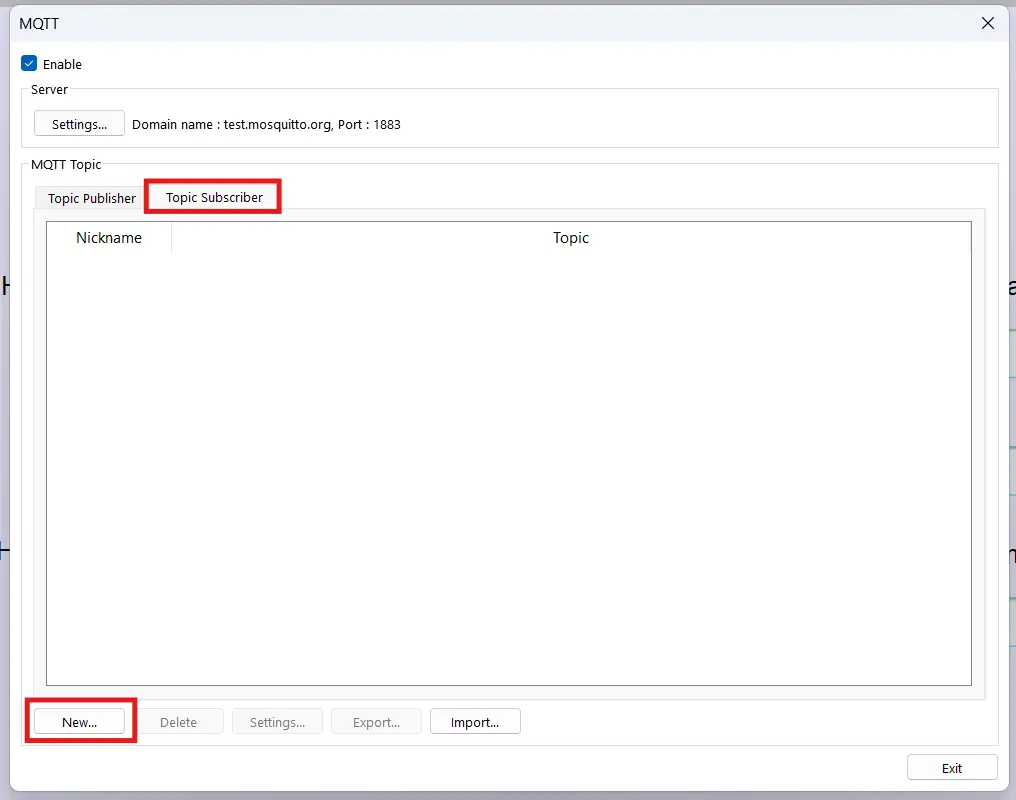
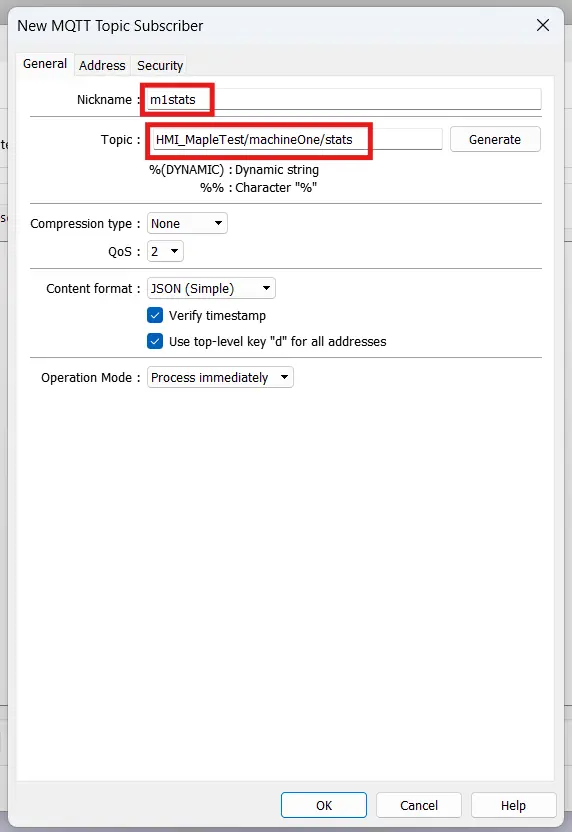
2. Like before, we’ll create a nickname “m1stats”, and outline the topic with the same <name>/machineOne/stats, and I’ll keep everything else at defaults.
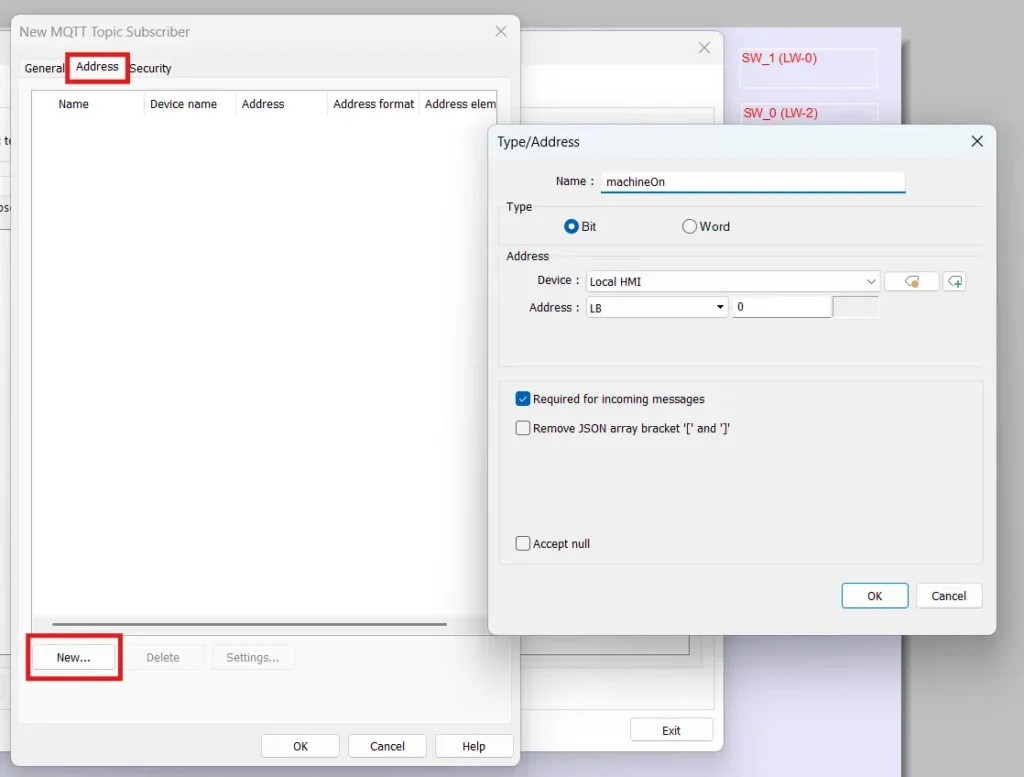
3. Then we’ll move over to the “Address” tab and assign LB-0 to “MachineOn”, similar to how we assigned our publishers.
After pressing “OK” your subscriber tab should look similar to your publisher one.
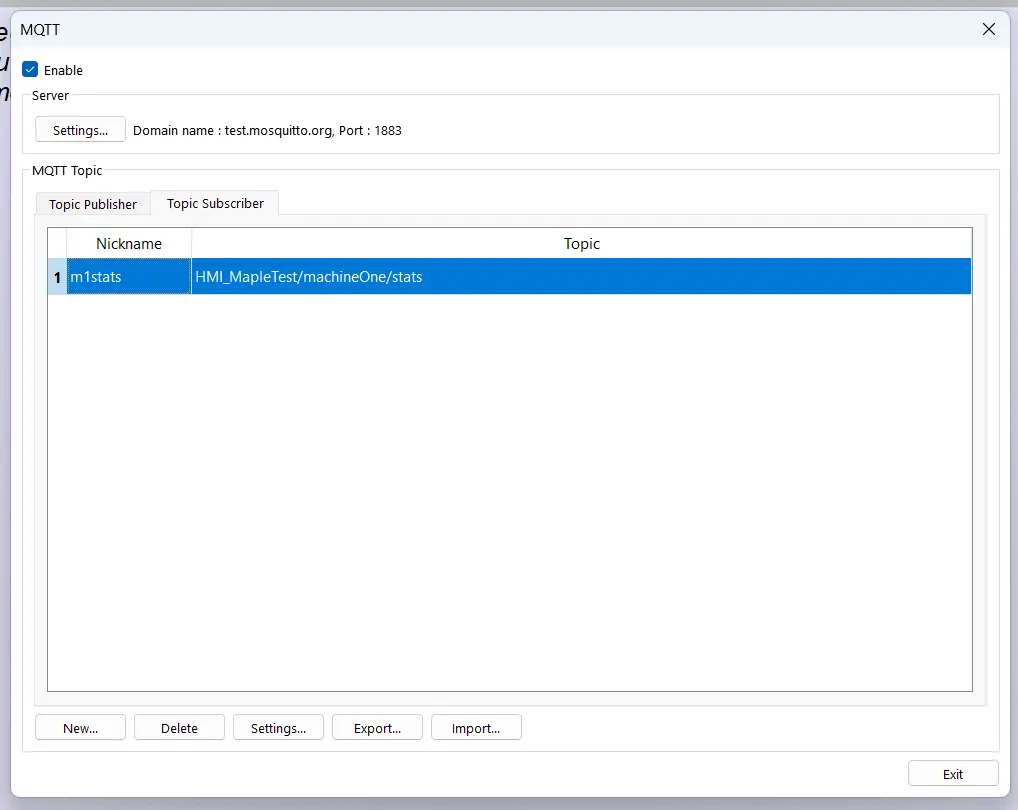
Now when you start an online simulation, or connect your HMI to the internet, you’ll connect to the MQTT broker to publish and subscribe your data. To better see these updates on the broker side, we’ll also connect through another MQTT client.
Tying it All Together
MQTT Explorer Configuration
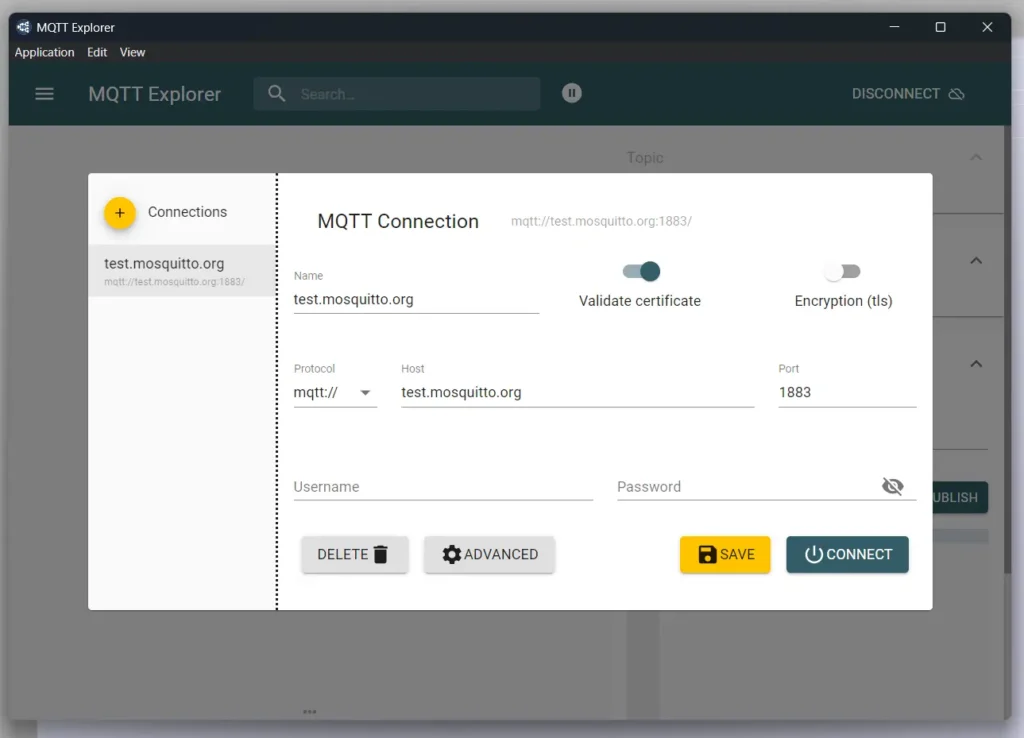
1. To start, you’ll want to point your MQTT Explorer to your MQTT broker, in my example, I’m using the mosquitto test broker, which you’d connect to with these settings:
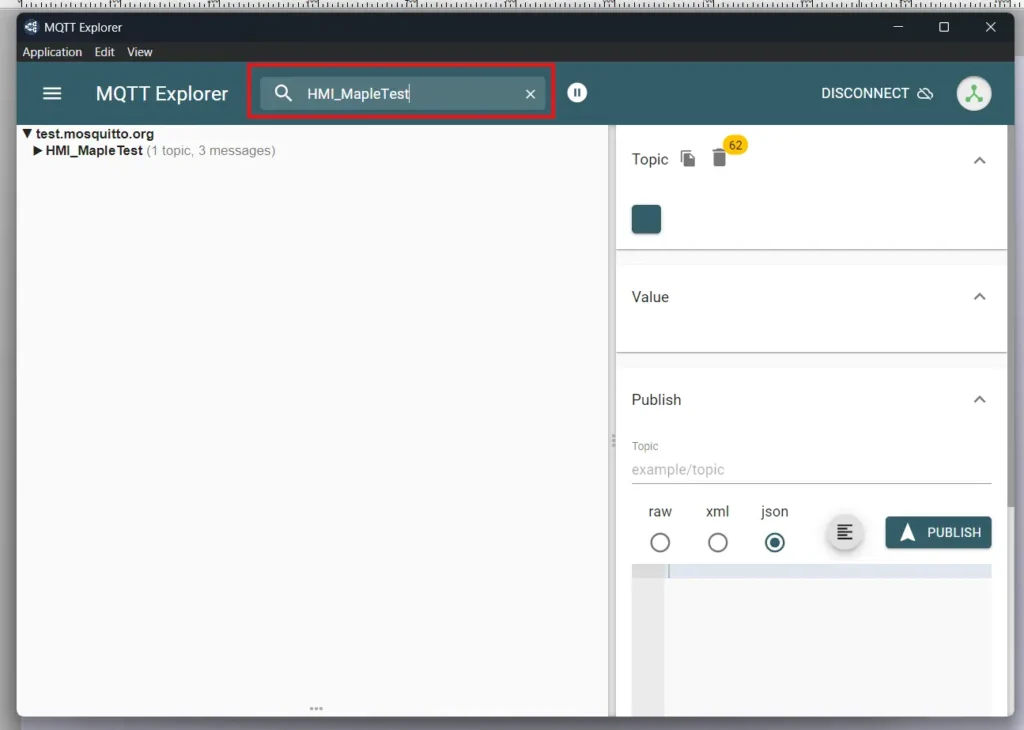
2. If you’re using the mosquitto test broker, you’ll want to sort based on the topics you’re publishing to. This would be the “<name>” you created in EBPro above. In my case this is “HMI_MapleTest”.
3. In MQTT Explorer, you can now create an MQTT message to publish to the broker with the info “machineOn”: [true].
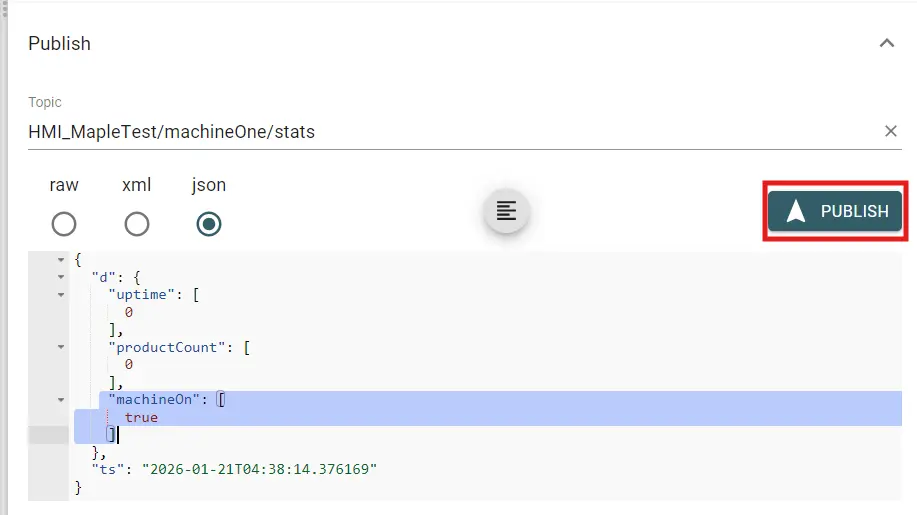
4. Publishing this message from MQTT Explorer will turn on LB-0, which will enable LW-0 and LW-2 to change on the HMI side, which triggers the project to publish the new data to the MQTT broker, which we can see in real time in MQTT Explorer.
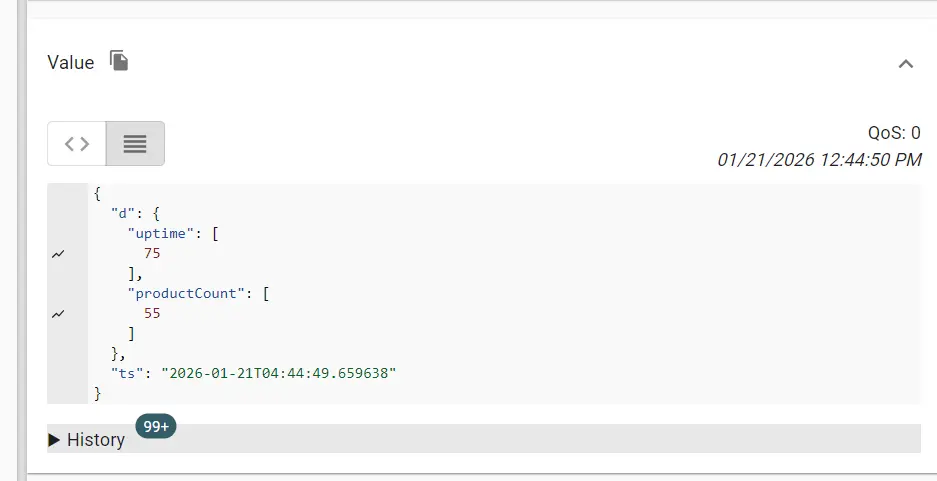
Once you have this data being uploaded to your broker, you’ll be able to aggregate this data however you wish with the MQTT dashboard of your choice.
You can also download our sample project to get started with MQTT on your own HMI.
Final Thoughts
If we come back to the example above, Maple Systems’ MQTT integration would be a perfect fit for a wide range of industrial environments. From food packaging, to gas and energy, to water treatment, and any other industry that involves multiple machines. Every one of Maple Systems’ HMIs could be set to publish their data to a unified data broker, which would allow us to consolidate and compare this data, and allow us to see when even a single machine is down or under-performing from one convenient dashboard.
An MQTT broker also allows us to control all of our machines from that dashboard as well. If we set up our HMIs to subscribe to an “on” bit that we have a toggle for in our MQTT dashboard, then we can start an entire plant with the press of a single button from anywhere in the world. And MQTT’s durable message delivery infrastructure will ensure that we get all our information, and that all of our controls reach their destination.
Resources & Documentation
- EBPro Quick Start Guide
- EBPro Programming Manual
- MQTT Setup Tech note this Tutorial is based on
- MQTT User Manual
More
Tutorials
Sample Projects
Software Downloads
See our Support Center for a complete list of Quick Start and Installation Guidesand Installation Guides

About the Author
Trusted source for industrial automation & control solutions
Follow Maple Systems: