
In this tutorial, you’ll learn how to use the Maple Systems PLC Protocol Drivers in EBPro to connect a Maple Systems HMI to a Maple Systems PLC. We’ll cover all the configuration steps in EBpro and MapleLogic for both serial and Ethernet connections, as well as out-of-the-box initialization and setup for both devices. This tutorial will also feature small sample projects to help you get started.
Software Required
Hardware Required
- Any Maple Systems HMI (We’ll be using the cMT2158Xv2 as an example)
- Any Maple Systems PLC (We’ll be using the PLC-FB0808P for this tutorial)
- A Mini USB cable This is optional, but recommended.
Ethernet Configuration
In order to set up your HMI and Maple PLC to communicate with each other over Ethernet, you’ll want to set up a local area network like so:
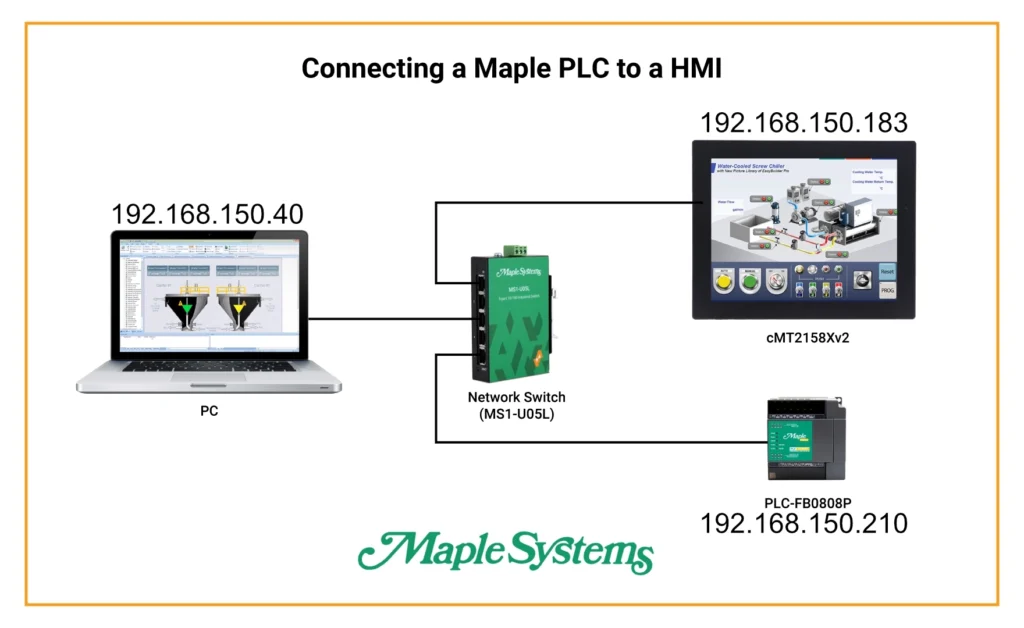
For my example, I’m going to be using a Maple Systems Network switch to set up a local network for the devices. You can use a single Ethernet cable connected directly between your HMI and PLC, but setting up a network switch allows you to connect to both devices from your PC seamlessly.
PLC Configuration
We’ll start with the configuration of the Maple Systems PLC
PLC Initialization
1. Open a new project in MapleLogic
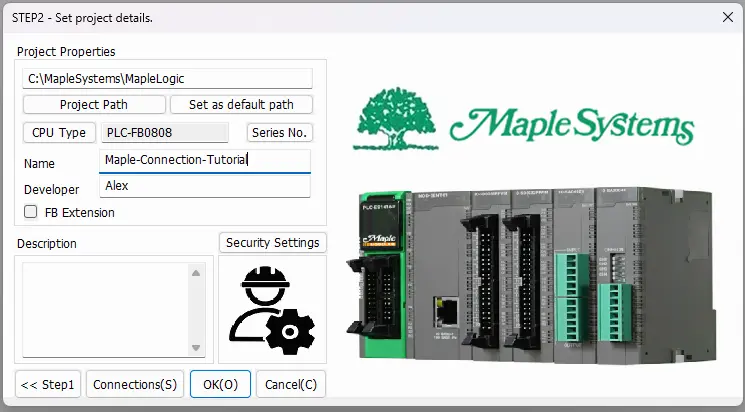
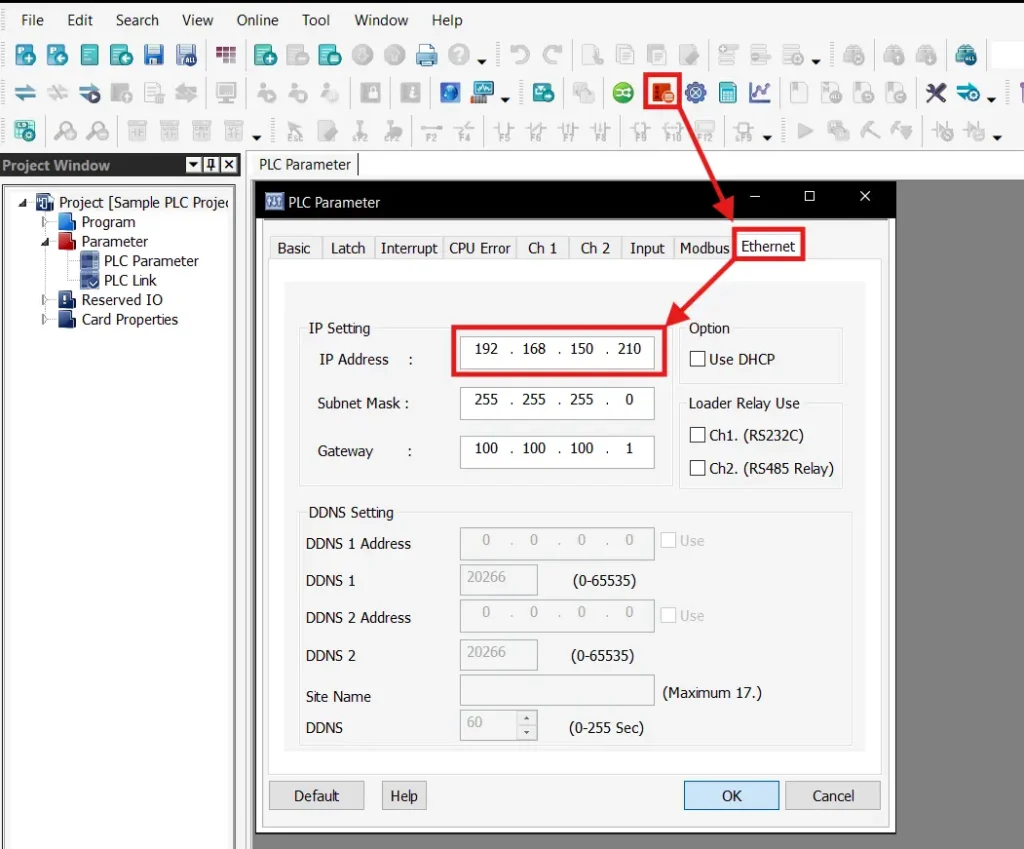
2. Open up the PLC parameters and go to the “Ethernet” tab, then change your PLC’s IP address to what you’d like. Be sure to take note of this IP address for when we configure the HMI side. Hit “OK” and save your new IP address.
3. Finally, you’ll want to create a new main scan program in MapleLogic. The PLC project won’t compile or download properly if there isn’t a main scan program.
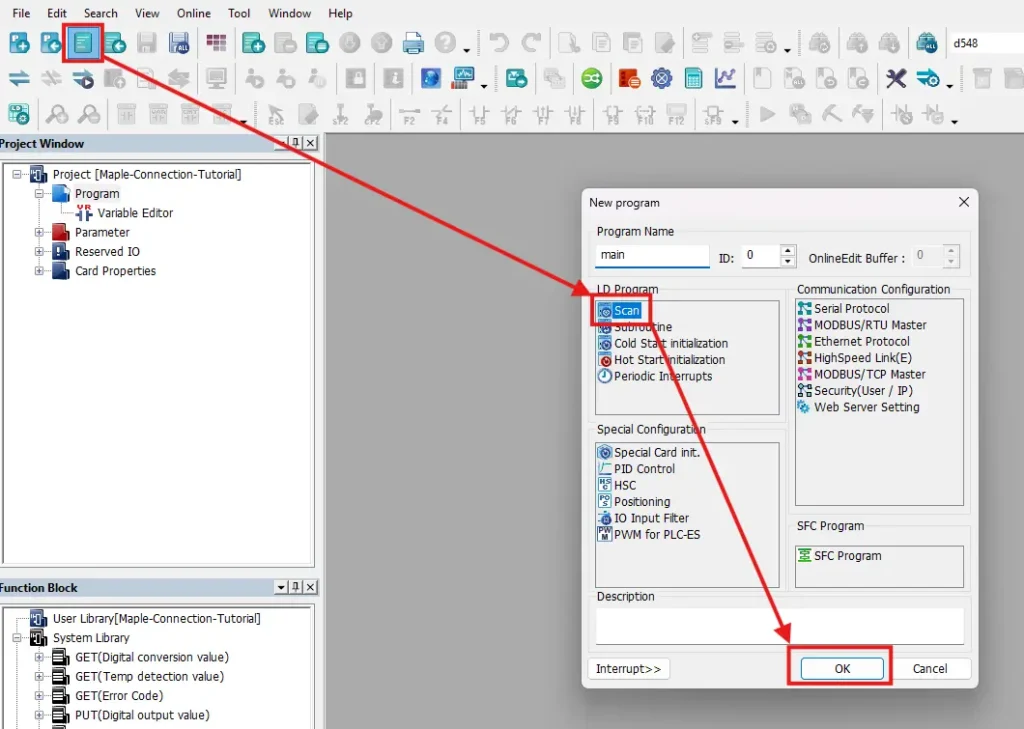
Once you have your PLC project initialized, you’ll want to download your project to your PLC.
I’ll walk through a download using a mini USB cable. You can download to your PLC over Ethernet, but the PLC’s IP address out of the box is 100.100.100.100, so you’ll need to change your PC’s IP address accordingly to make an initial connection to your PLC.
Downloading and Monitoring the PLC
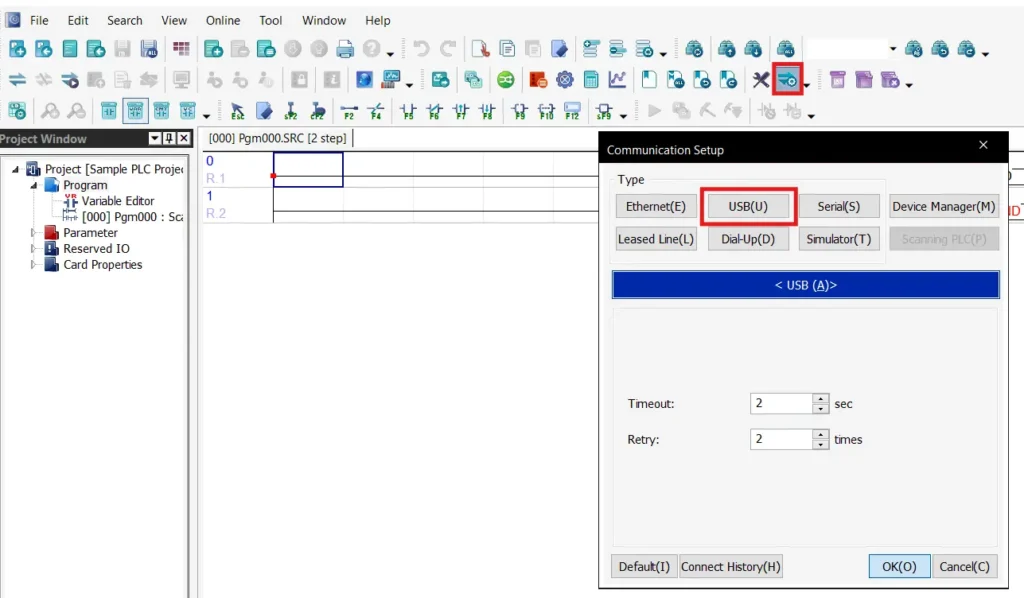
1. Firstly, you’ll want to make sure to connect your PLC to your computer with the mini-USB cable. You’ll also want to make sure to set MapleLogic to download via the USB (or Ethernet) cable of your choice like so:
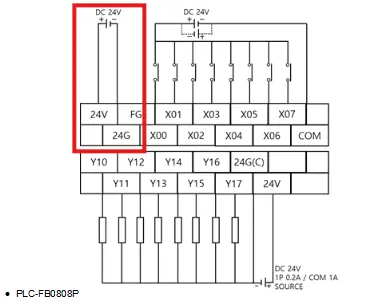
2. Then you’ll need to power on your PLC by sending 24VDC between the 24V and 24G terminals on the top terminal block of the PLC.
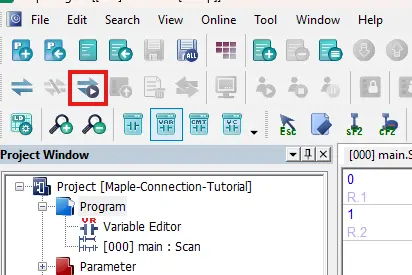
3. Next, you’ll want to press the “Link + Download + Monitor” button and accept all the prompts.
Once we have our PLC up and running, we’ll move to the EBPro configuration.
HMI Configuration
To start, you’ll want to power on your HMI, and configure it’s IP address
HMI Network Configuration
1. Go into the system settings of the cMT itself through the transparent button on the top-left

2. Navigate to configure your Network settings in the system settings menu.
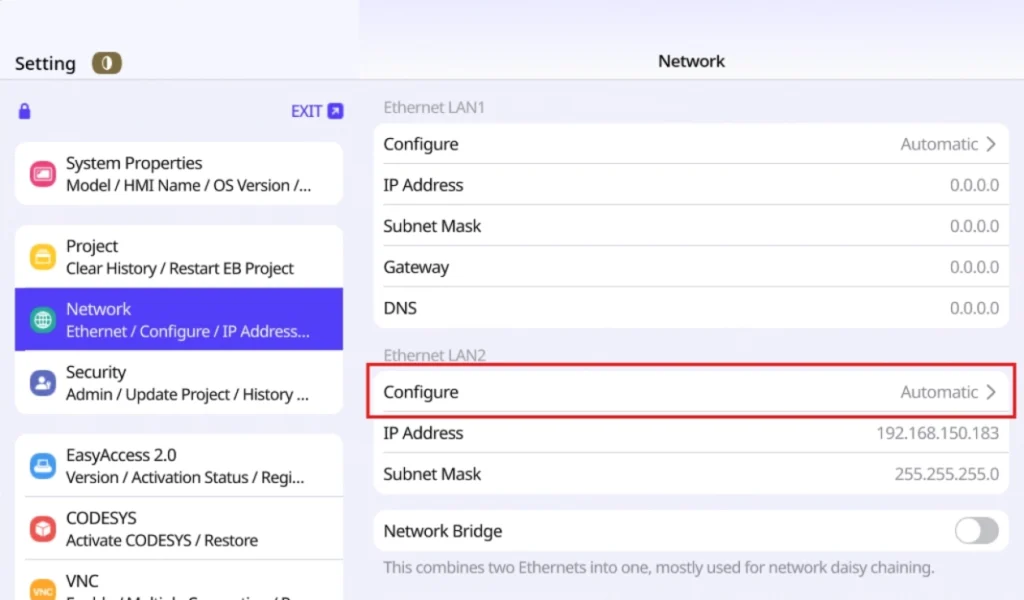
3. When you do so, you’ll be prompted to sign in as an Admin user. So you’ll want to enter your admin user password (which is 111111 by default).
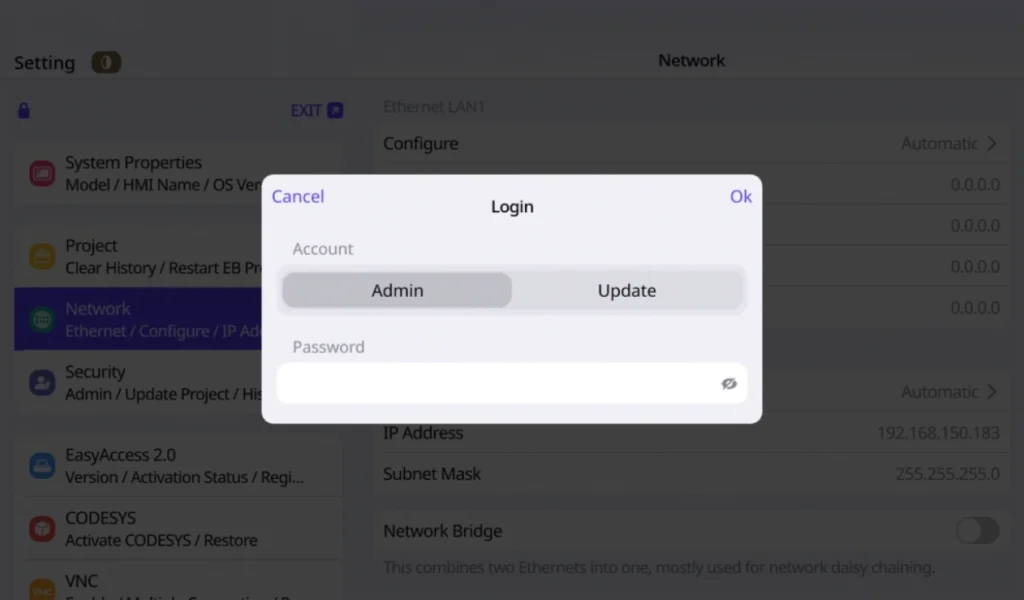
4. Finally, you’ll want to configure your IP address and sub net mask in the way you want for your network and take note of your HMI’s IP address.
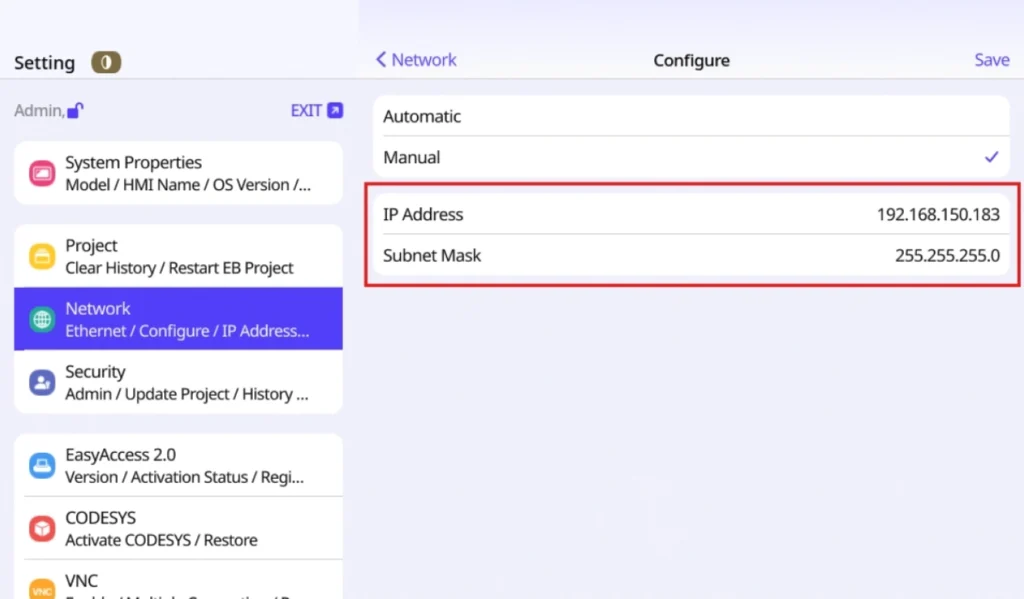
Once you have your cMT2158Xv2 on your network and configured, it’s time to create and configure your EBPro project
HMI Project Initialization
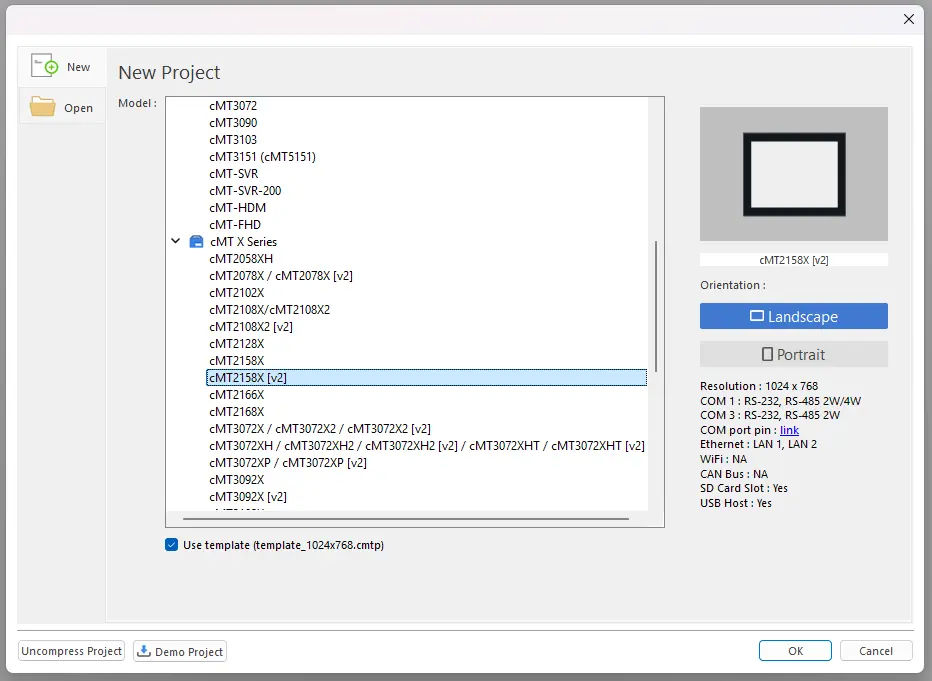
1. Open a new project in EBPro for your Maple Systems HMI
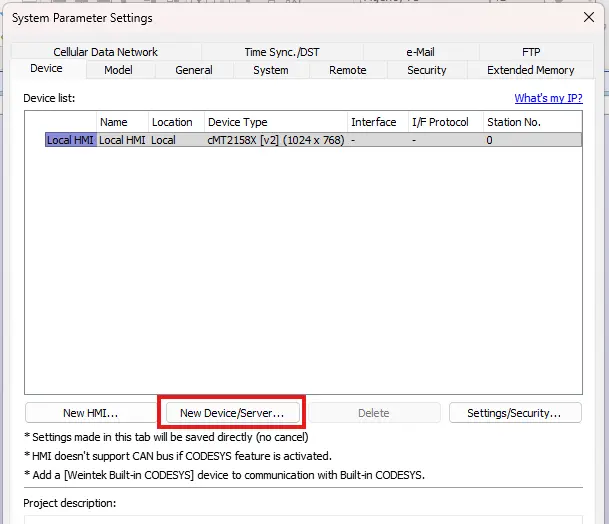
2. Once your new project opens, you’ll want to add a “New Device/Server” on the “System Parameter Settings” page
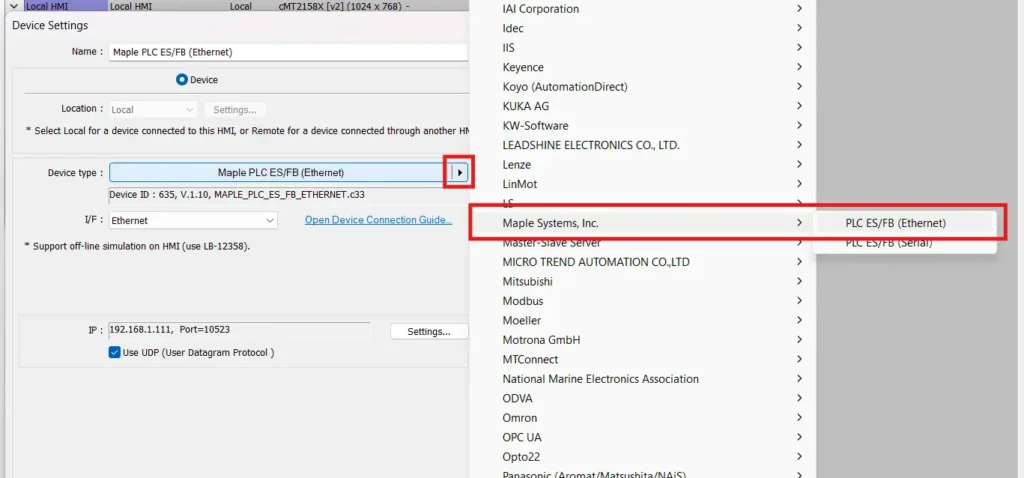
3. Next you’ll want to select the Maple Systems PLC (Ethernet) driver.
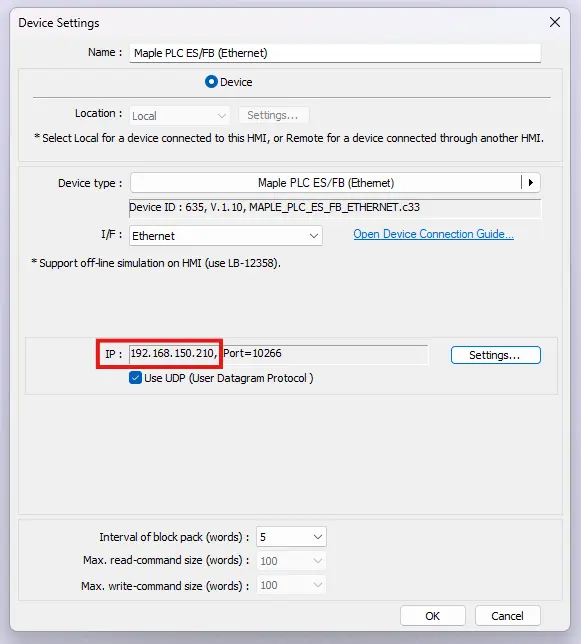
4. Go into the IP address settings and be sure to enter the same IP address you configured on the PLC side.
4. Finally, you’ll want to create some objects within your EBPro project that point to registers in the PLC. Below are some example objects I’ve made for this tutorial.
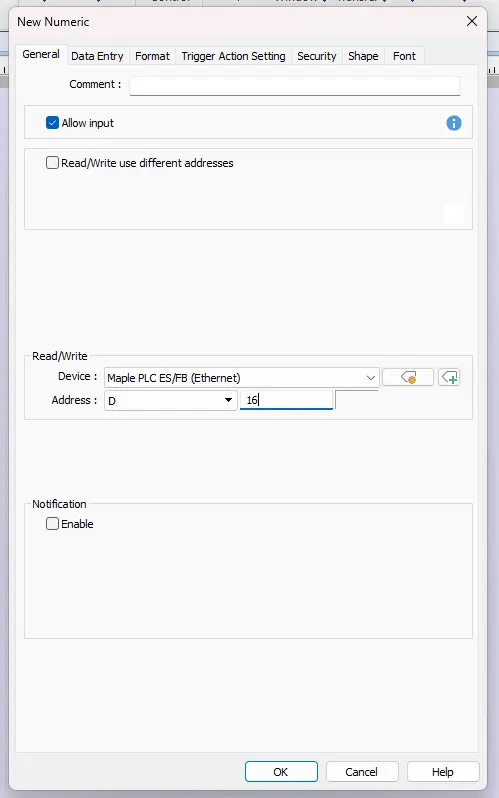
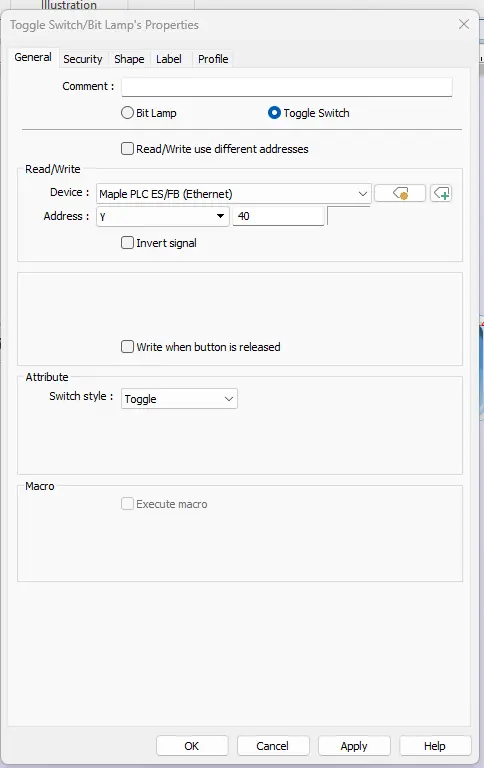
Next you’ll want to download your EBPro project to your HMI.
Downloading to the HMI
1. Navigate to “Project > Download (PC -> HMI)” in EBPro.

2. After your project compiles, enter your HMI’s IP address, and hit the download button.
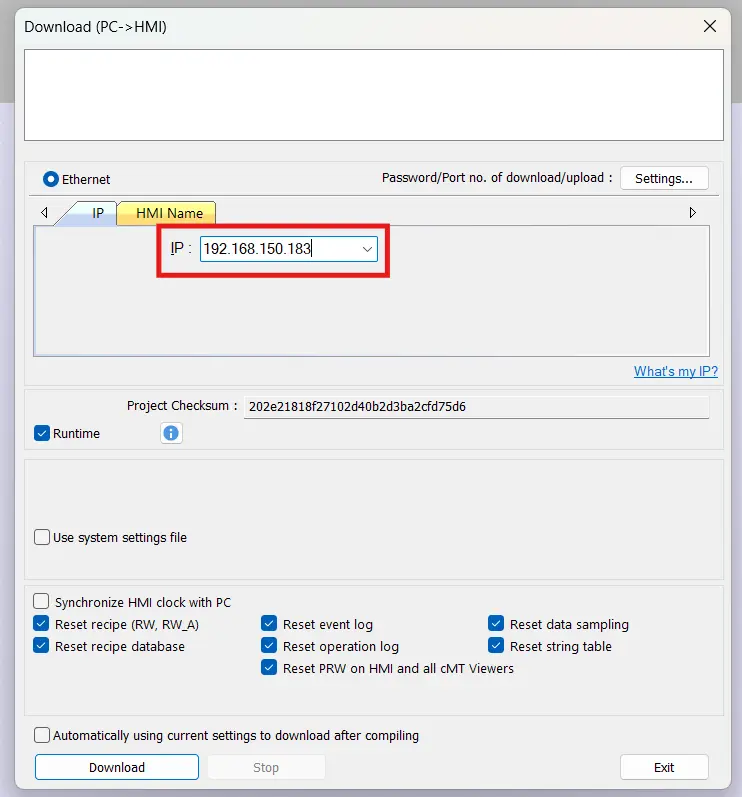
3. Once your project downloads to your HMI, it should reboot with your EBPro project on it.

Once you’ve downloaded your project to your HMI, you should be able to see both devices communicating across the network.
Serial Configuration
Connecting over serial cables will be very similar to the Ethernet method above, but with some key differences. To start, your network configuration would look more like this:
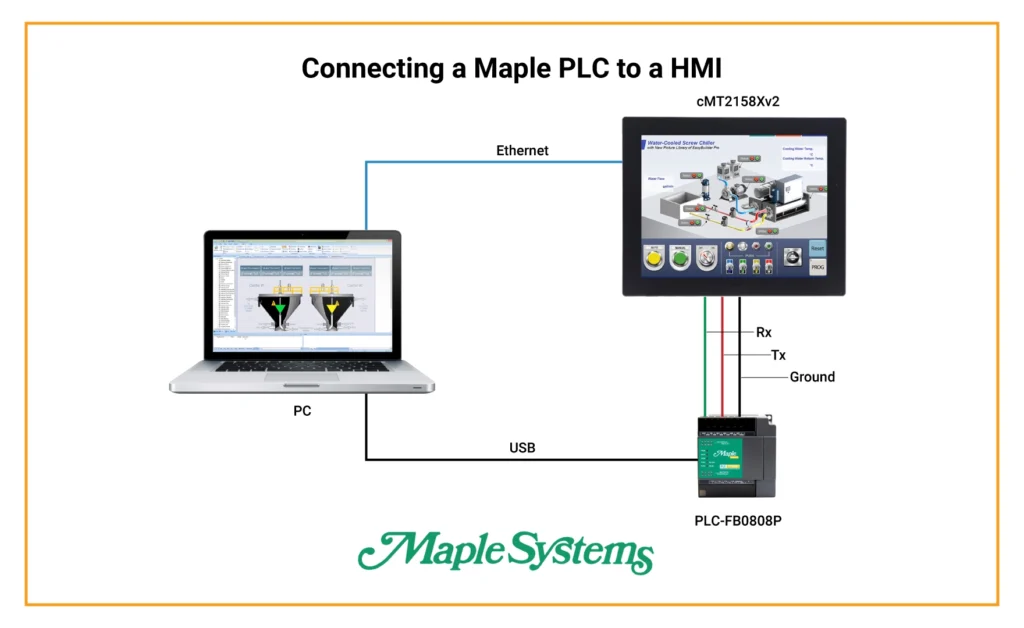
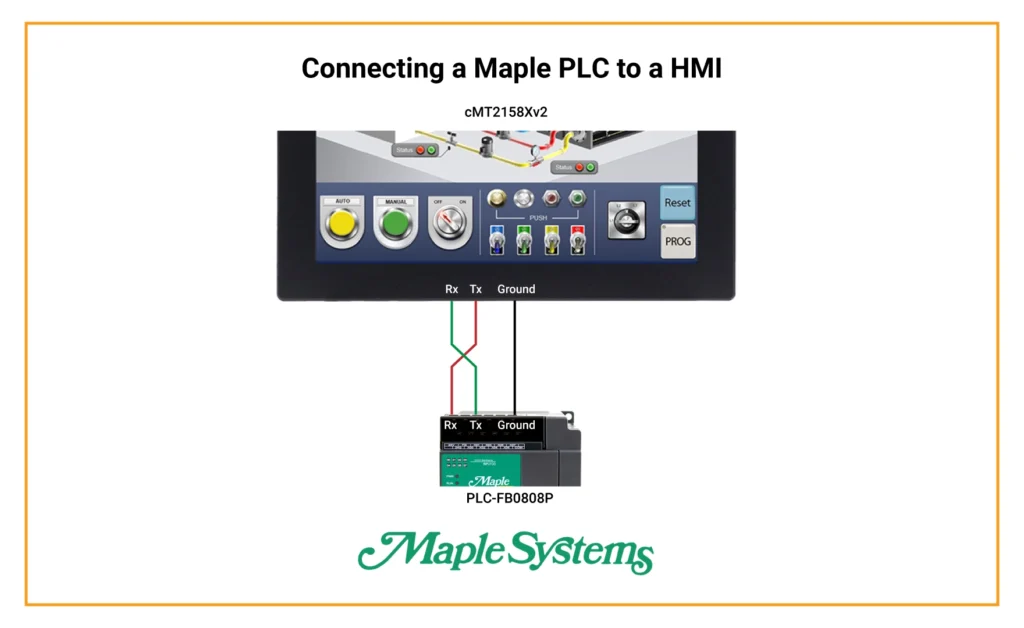
For this tutorial, I’ll be demonstrating the pin-outs and connections for an RS-232 cable. When wiring, you’ll want to make sure to cross your Rx and Tx pins across the two devices like so:
Now we’ll go into the serial configuration for the PLC.
PLC Configuration
Let’s start with the wiring on the PLC side. If you open the gray cover on the right-hand side of the PLC, you’ll see a terminal block that will serve as your serial pins on the PLC:
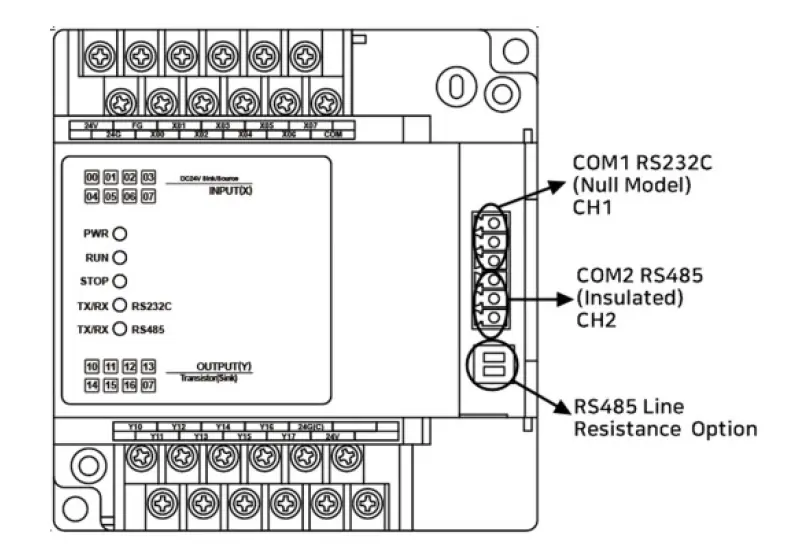
For RS-232 communications, you’ll want to wire up the first three pins on the terminal block, and take note of which wires are associated with which serial signal like so:
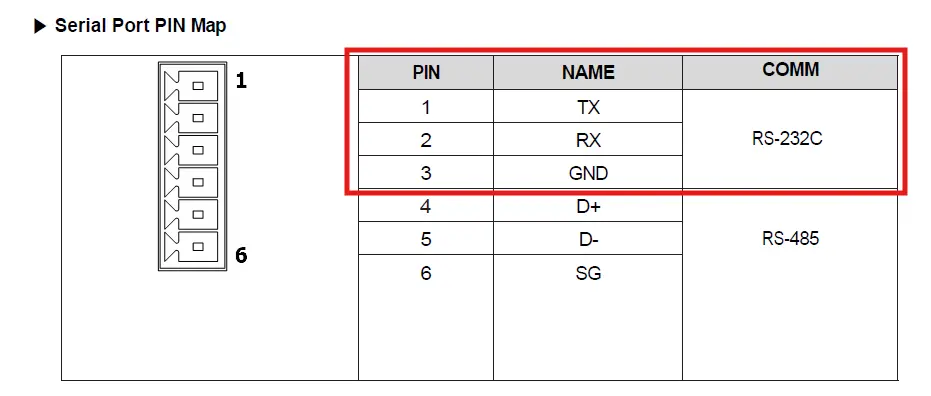
Once we’ve got the unit wired up, we’ll configure the MapleLogic project.
PLC Software Configuration and Download
1. I’ll start by going into my MapleLogic project, and going to the PLC Parameters like before
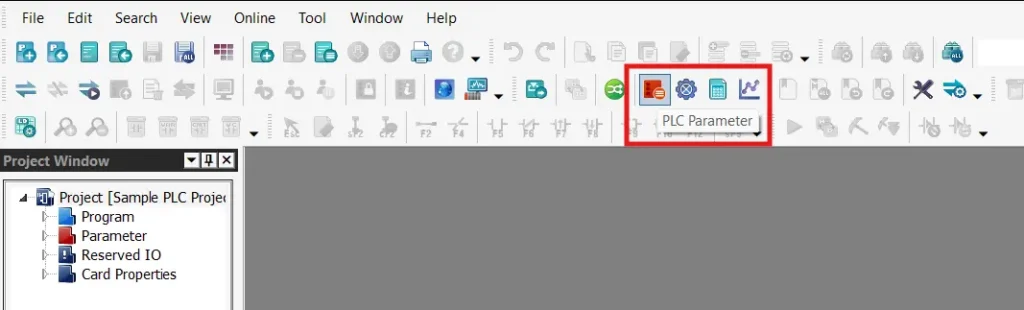
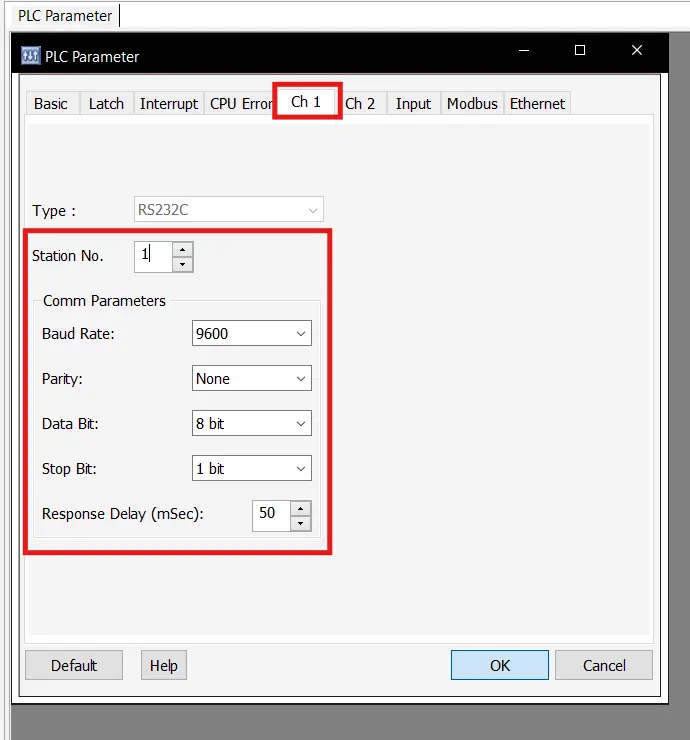
2. Within your PLC Parameters, you’ll want to go to Channel 1 (Ch 1) and take note of the serial settings, (or tweak them to your liking).
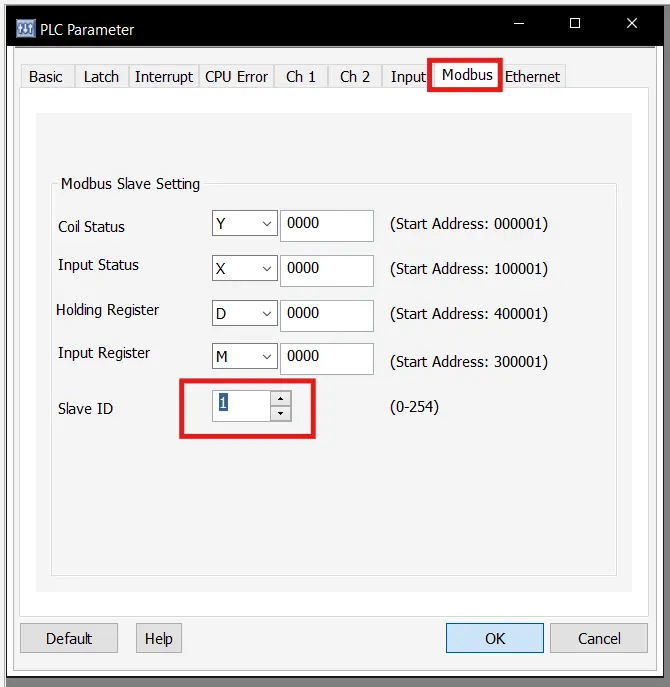
3. Then go to the Modbus tab and make sure the “Slave ID” is set to 1.
4. Once you’ve configured your serial settings, you’ll want to connect to your PLC and download your project to it like before.
Now we’ll move on to the HMI configuration.
HMI Configuration
We’ll start with the serial wiring on the HMI side. For this, you’ll want to refer to the serial pin-out outlined in the installation instructions included with your HMI. for the cMT2158Xv2, the pin-out will be as shown below:
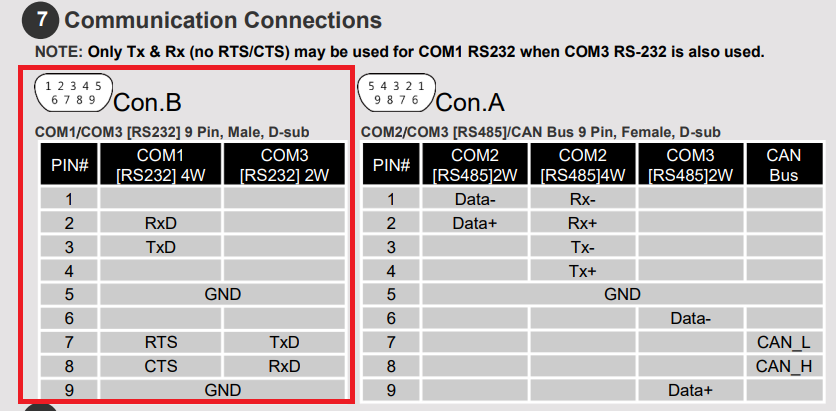
Once you have that wired up and ready, let’s go into the EBPro configuration
HMI Project Configuration
1. To start, we’re going to go into the EBPro project and open up the System Parameters
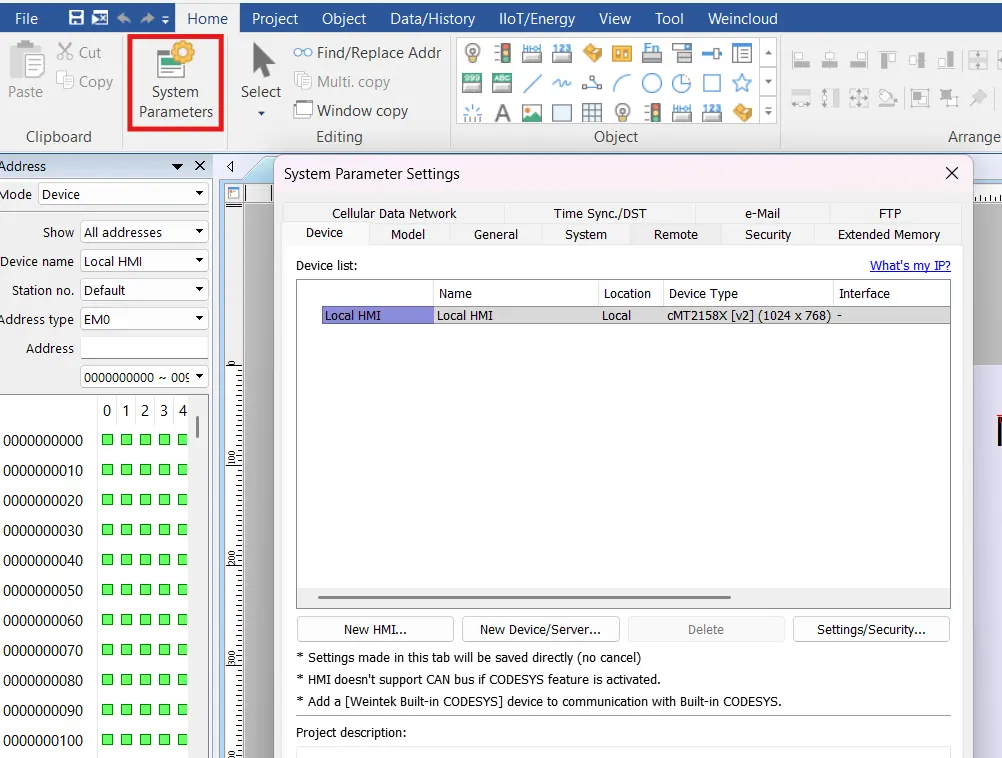
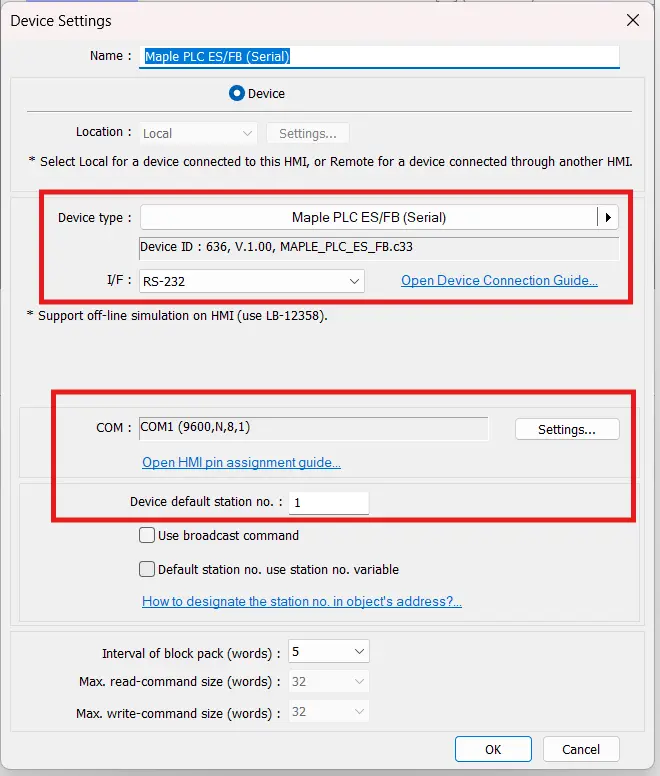
2. You’ll then want to pick the serial version of the Maple PLC driver, be sure to match your serial settings to the settings on the PLC side, and set the default station number to the “Slave ID” you set in MapleLogic
3. Then you’ll use this device driver the same way you’d use the Ethernet version within your project
From here, you’ll want to download your HMI project to the device just like before, and you should be able to see the HMI project changing and monitoring values on the PLC.
Sample Projects
The sample projects used in this tutorial and this video can be found below.
EBPro and MapleLogic Sample Projects
Resources & Documentation
MapleLogic Resources
EBPro Resources
More
Tutorials
Sample Projects
Software Downloads
See our Support Center for a complete list of Quick Start and Installation Guides

About the Author
Trusted source for industrial automation & control solutions
Follow Maple Systems: