
Imagine a mid-sized package sorting plant with 10 different lines of packages. Each of these lines have their own HMI to decide which sorting machine a package will go to. Let’s say that an operator needs to swap the destination for all 10 lines as fast as possible. Ideally, this operator wouldn’t have to walk to every HMI individually to change their destination. Imagine that at the same time, an supervisor wants to tweak a trend display on a different screen. How would this engineering supervisor be able to do this without interfering with his operator?
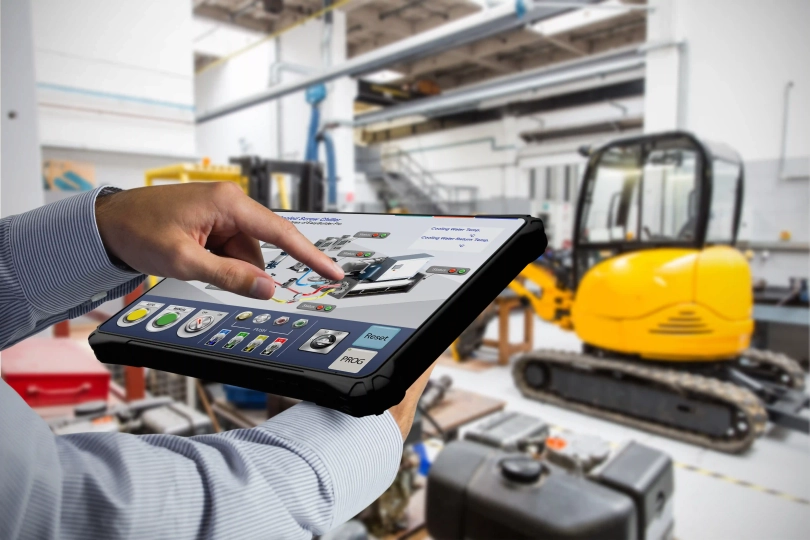
This is where cMT Viewer comes in. cMT Viewer is a free, cross-platform application that allows operators, engineers, and managers to connect to multiple cMT-series HMIs within the same Local area network (LAN). cMT Viewer is available on any phone, tablet, or PC. CMT Viewer is also automatically installed alongside EBPro, so if you’ve programmed a Maple Systems HMI, you already have access to cMT Viewer.
If you want to use cMT Viewer to connect to a cMT outside of your LAN. You’d need to leverage Easy Access 2.0.
In this tutorial, you’ll learn how to connect to a cMT-series HMI from a PC, rugged tablet, or i-Phone through cMT Viewer. We’ll also cover some of the more advanced and extended features that come alongside cMT Viewer.
Software Required
- cMT Viewer (also installed alongside EBPro)
Hardware Required
- Any cMT-series HMI from Maple Systems
- Any PC, Android, or iOS smart device
Network Configuration
To start, we’ll want to ensure our network is configured correctly.
Network Configuration and settings
You’ll want to ensure that your cMT device is powered on and connected to the same Local Area Network as your monitoring device. If the monitoring device is a PC, you’ll want to ensure an Ethernet connection to the same network via a network switch.
If your monitoring device uses WiFi, like a rugged tablet or a cell phone. You’ll want to be sure to set up a wireless access point for your LAN to ensure both your WiFi device and your cMT are on the same network.
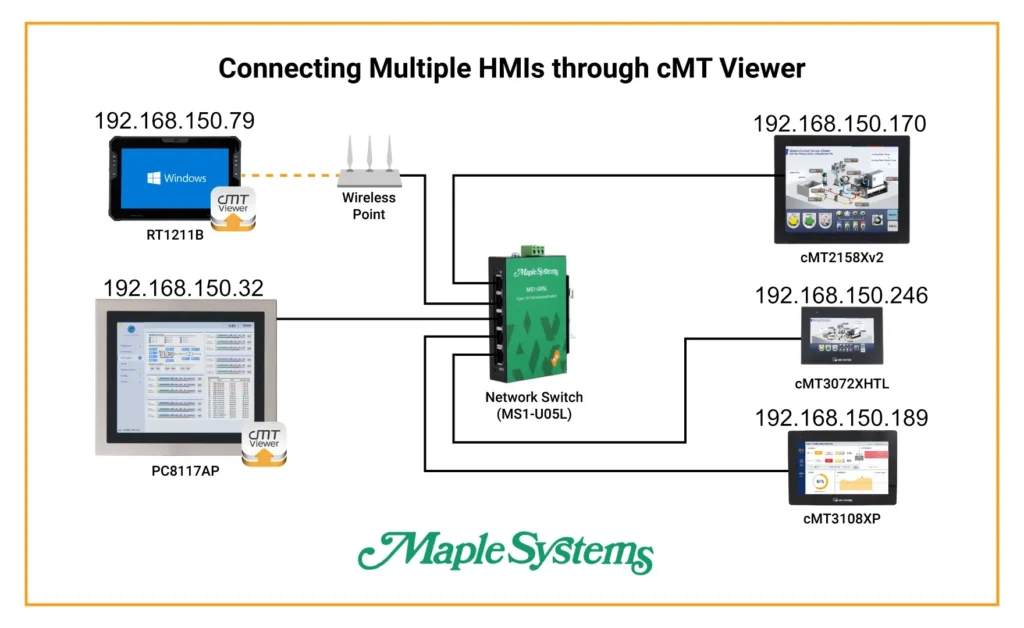
Once you have all of your devices connected properly, you’ll want to make sure your device’s IP addresses are all within the same subnet mask. Most cMTs have a subnet mask of 255.255.255.0 by default, which means that we want to make sure all our IP addresses have the same first 3 octets (192.168.150 in my example)
Establishing the Connection
Once we’ve gotten every device connected to the network properly, we’ll then establish the connection settings within cMT Viewer.
Connecting cMT Viewer to the HMI
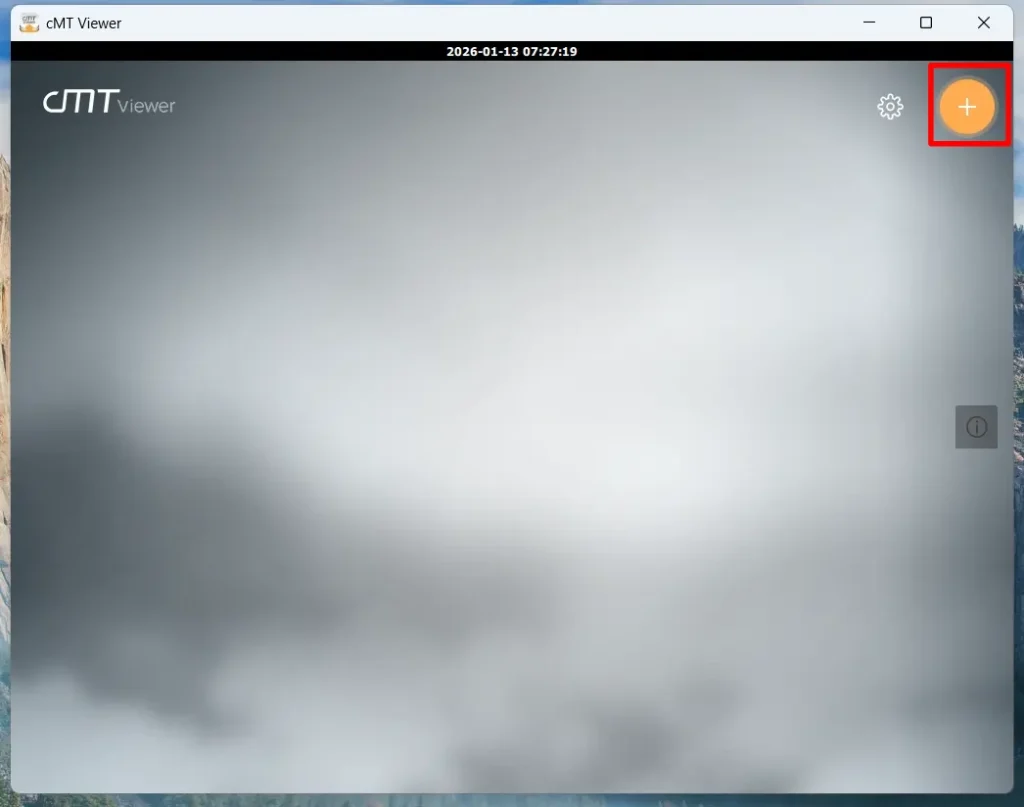
When you open cMT Viewer for the first time you’ll see a blank home screen. Our first step is to establish a connection with our HMI. We’ll do this by pressing the large orange “plus” button in the top-right.
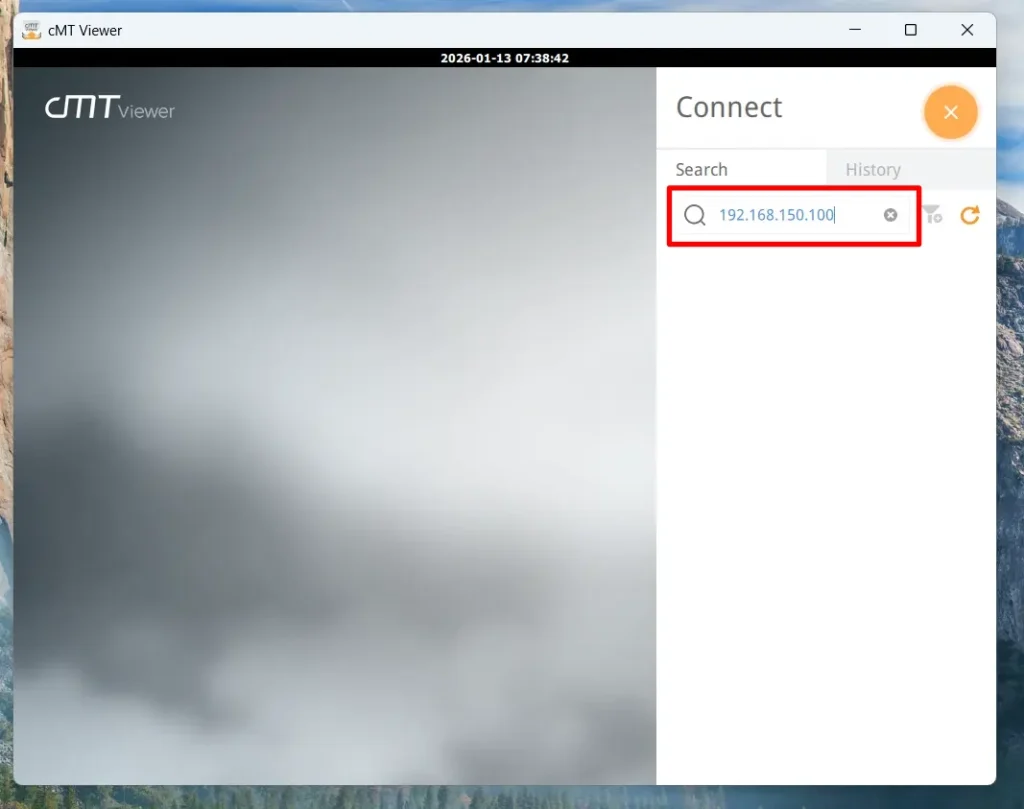
This will open up the side menu. In typical network connections, cMT Viewer may automatically detect your HMI, but if it doesn’t, you’d simply need to enter your HMI’s IP address manually in the search bar like so:
Once you specify an HMI to connect to, cMT Viewer will prompt you for a user password, which is “111111” by default
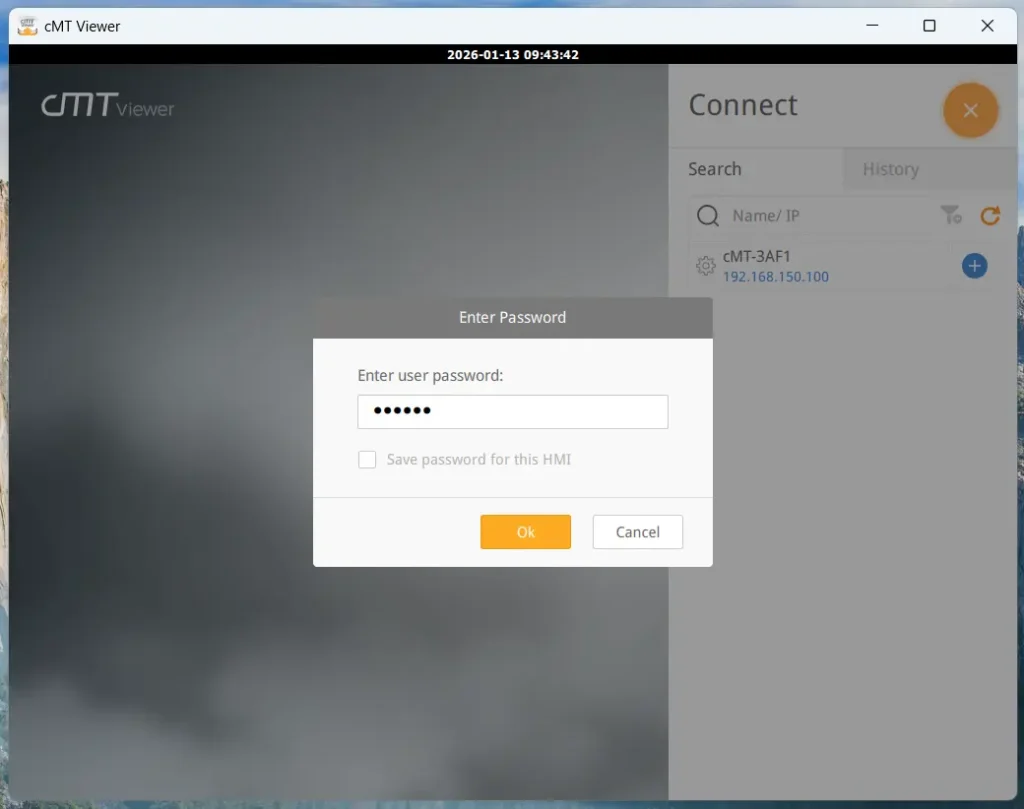
Once you’ve authenticated as a user, you’ll be connected to your HMI in no time!
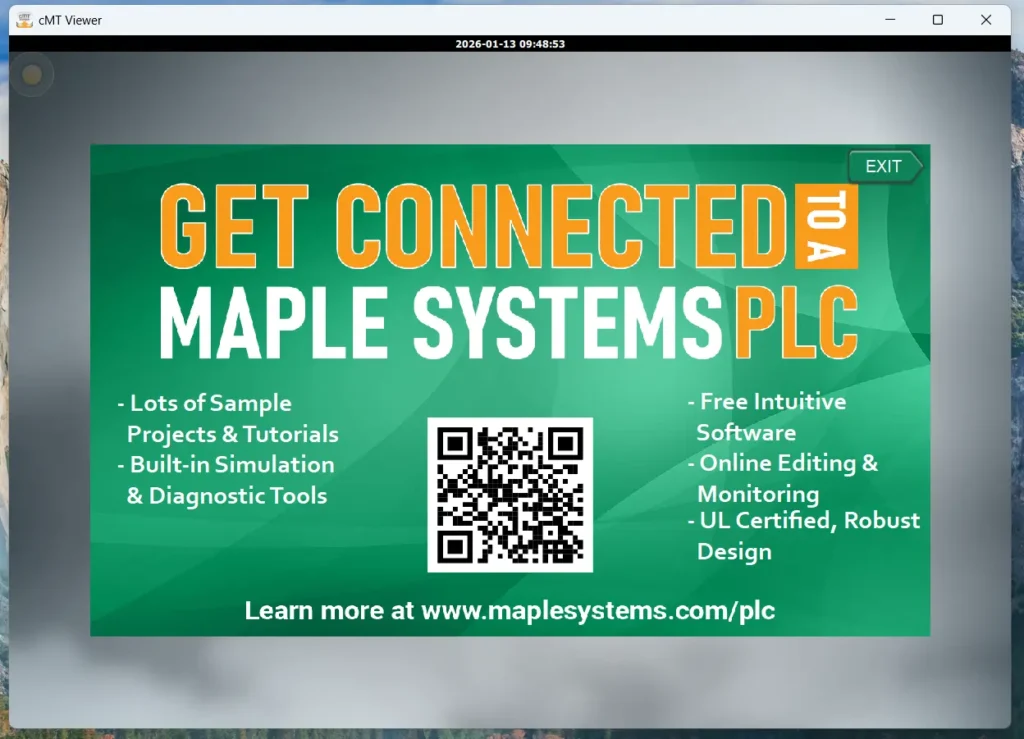
Advanced Features of cMT Viewer
Now that we’ve gotten connected to our HMI, let’s go over some the features cMT Viewer offers over other traditional remote monitoring software.
Project Instancing
One of the key advantages of cMT Viewer over traditional remote viewing tools is it’s use of project instancing. Specifically, rather than mirroring the physical HMI screen, cMT Viewer downloads a unique instance of the HMI project to each connected device.
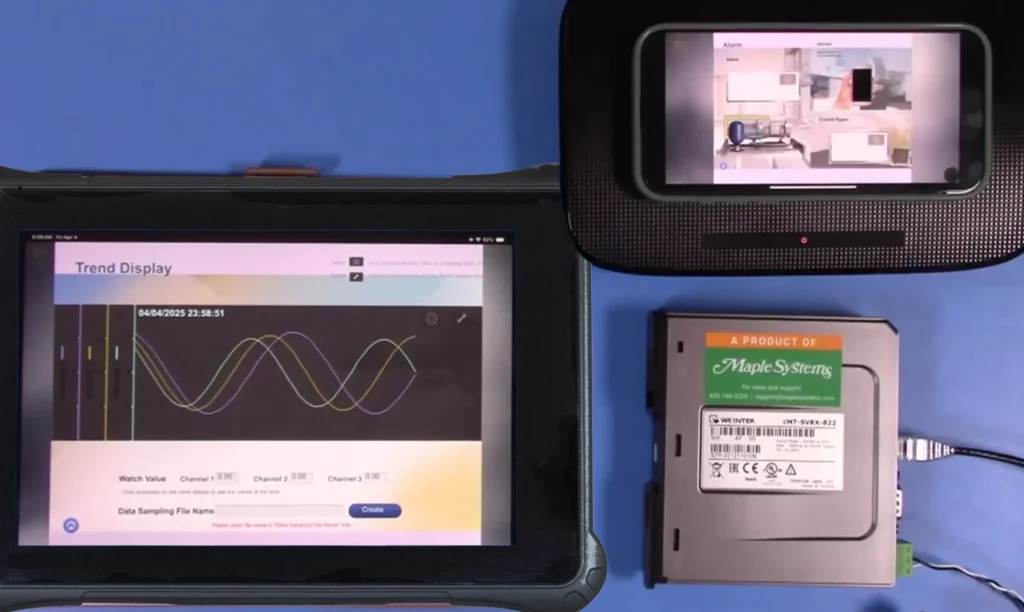
This architecture enables several benefits:
- Multiple users to connect to the same HMI simultaneously.
- Independent navigation without interrupting others.
- Performance remains fast and responsive, almost as if you were in front of the physical screen.
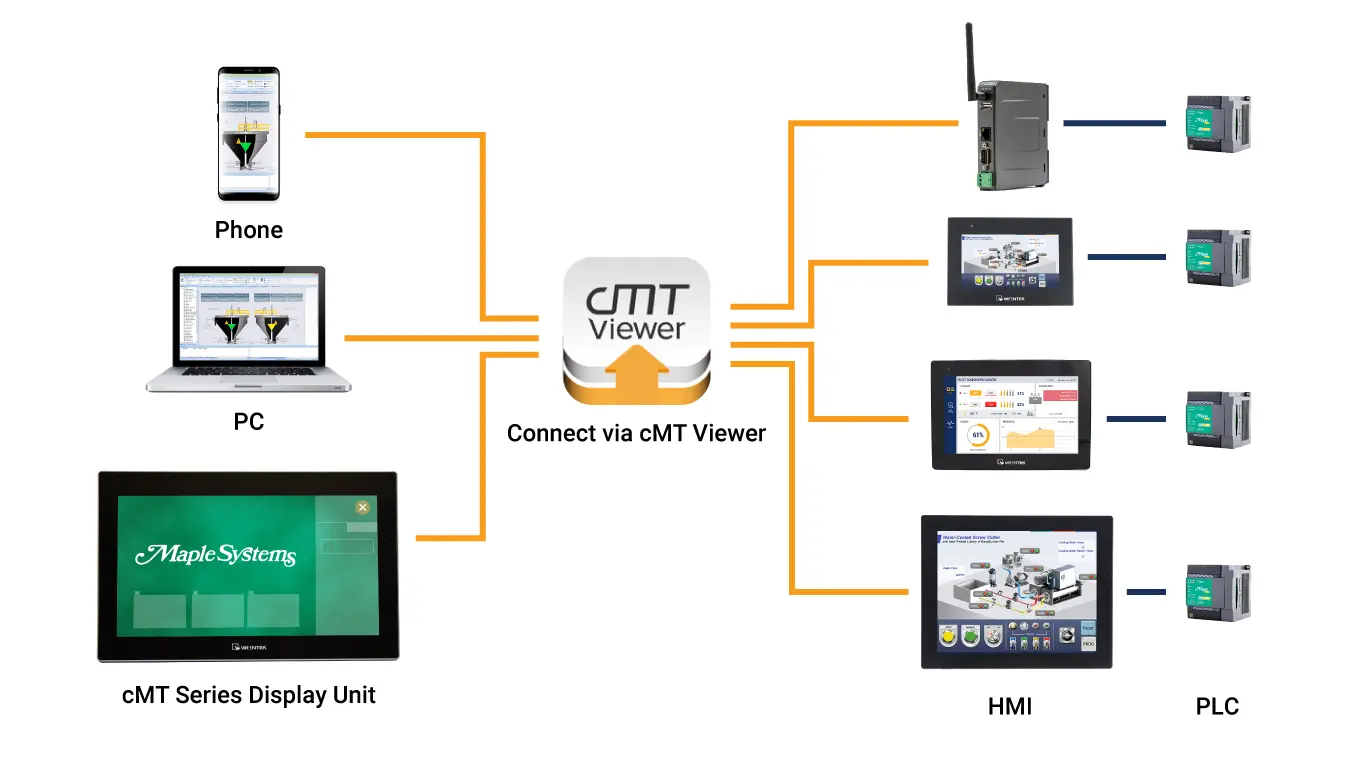
Because each session operates independently, cMT Viewer is particularly effective for collaborative engineering workflows, remote diagnostics, and distributed support teams.
EasyAccess 2.0

In situations you need remote access outside the HMI’s local network, you can use cMT Viewer with EasyAccess 2.0 to enable secure, internet-based connectivity to your HMI. EasyAccess 2.0 provides a secure tunnel to your device’s network, allowing you to connect from anywhere in the world with an internet connection without needing to set up a VPN.
Because EasyAccess 2.0 leverages cMT Viewer, it retains the same project instancing, responsiveness, and feature set as a local LAN. As a result, users experience consistent performance and interaction behavior whether they are on-site or accessing the system remotely.
This combination makes cMT Viewer and EasyAccess 2.0 a practical solution for off-site monitoring, remote support, and rapid response to operational issues.
Final Thoughts
If we refer to the story at the beginning of this tutorial, equipping our engineering operator with a rugged tablet running cMT Viewer feels like a natural choice. He can remote in to any of the HMIs at any time, effectively being at every line at once to swap sorting machines in an instant. And the project instancing of cMT Viewer ensures that our engineering supervisor can get into the HMI projects at the same time to tweak any other settings on any screen of the project without getting in his operator’s way, all from the comfort of his office.
If we also set up EasyAccess 2.0, then not only could our whole engineering team receive push notifications to their phones if there’s an alarm being rung by our HMIs, but a remote engineering support team could remote in to the HMI to check data trends and tweak settings from a completely different state if they needed to.
Resources & Documentation
More
Tutorials
Sample Projects
Software Downloads
See our Support Center for a complete list of Quick Start and Installation Guides

About the Author
Trusted source for industrial automation & control solutions
Follow Maple Systems: