
Advanced Headless HMI
$549.00
Monitor PLC operations, gather data, and remotely access your control system via the cMT Viewer App on your smart phone, tablet, laptop, or PC. If you’d like a local device for viewing, try our cMT iV Series secondary display units with built-in cMT Viewer or our Web HMI Series. Add an EasyAccess2.0 license for additional remote capabilities.
- All the same HMI features you’re used to, just without a screen
- Our headless HMIs are compact and can be DIN Rail mounted with ease
- You have the option of displaying HMI screens served by a Maple headless HMI to any user with cMT Viewer installed on their Tablet, PC, or Smartphone
- Enough horsepower to ingest, process, and publish data from dozens of local or remote devices, sensors, etc.
- Built-in flash storage, with SD card slot for expansion and data backup
- Supports OPC UA and CODESYS too!
- Volume discounts available.
- Connect to +400 PLCs and Controllers.
- US-based technical support.
Share the product:

-
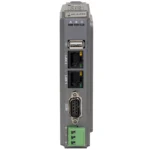
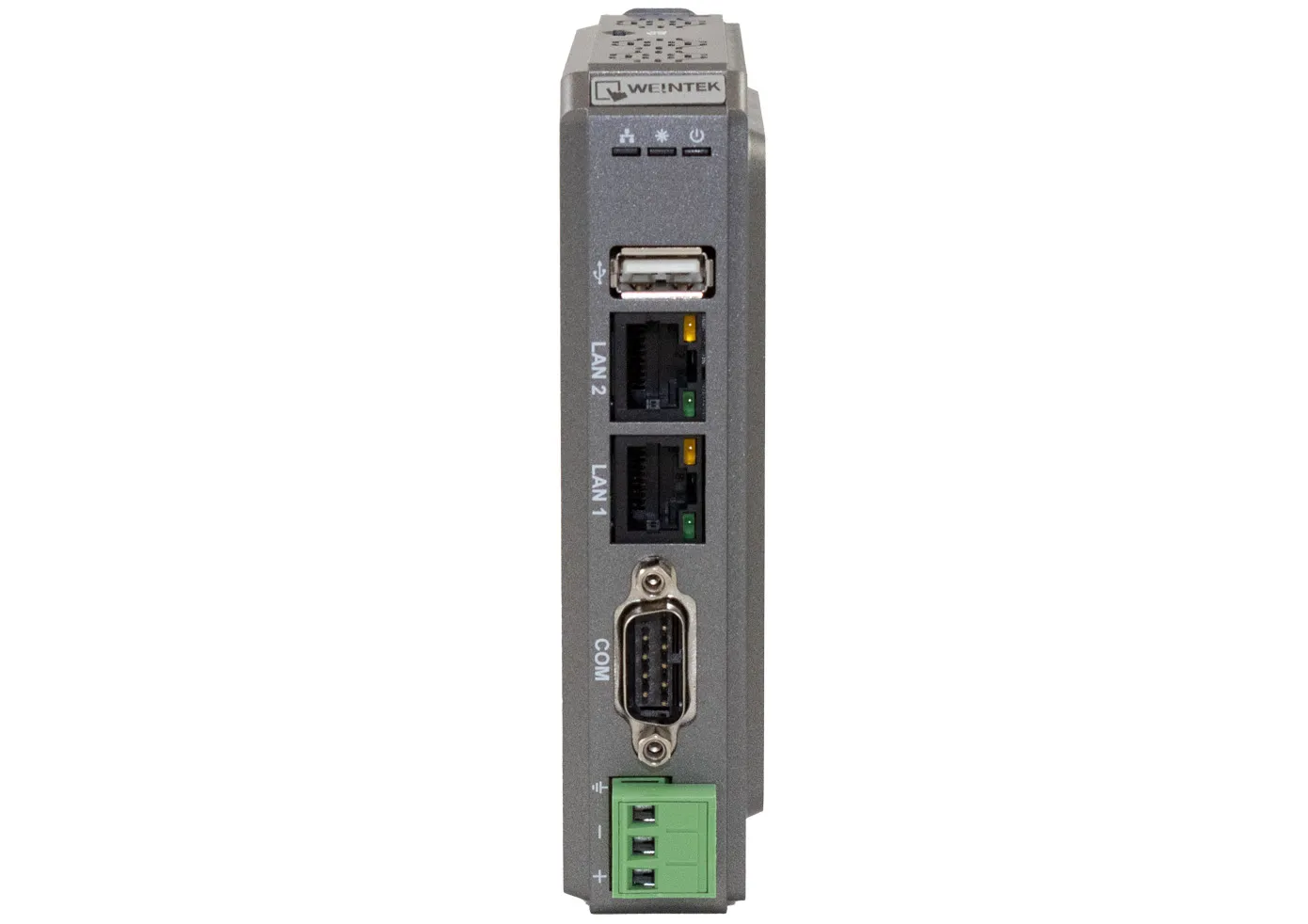
- 2 Ethernet, 1 USB, 1 Serial
- Quad-core RISC CPU
- 1GB RAM, 4GB Flash
- MQTT, OPCUA, SQL, Remote Access
- Supports display on a tablet, laptop, smartphone, PC, cMT iV Series, and Web HMI
- Optional CODESYS with Soft PLC Functionality
- DIN Rail Mount
System
| CPU | Quad-Core RISC |
| Memory (RAM) | 1 GB |
| Memory (Flash) | 4 GB |
| RTC | Built-in |
| Programming Software | EBPro (Latest Version) |
I/O Ports
| Ethernet/LAN | LAN 1: 10/100 Base-T RJ-45 LAN 2: GbE RJ-45 |
| CANbus | N/A |
| Audio Output | N/A |
| SD Card Slot | SD/SDHC (32GB capacity) |
| USB Host Ports | USB 2.0 x 1 |
| USB Client Ports | N/A |
| Wi-Fi | N/A |
| COM Port | 1 x DE9P COM1: RS-232, COM2: RS-485 2 or 4 wire, COM3: RS-485 2 wire |
| HDMI Port | N/A |
| Video Input | N/A |
| Serial Ports | 3 |
Electrical
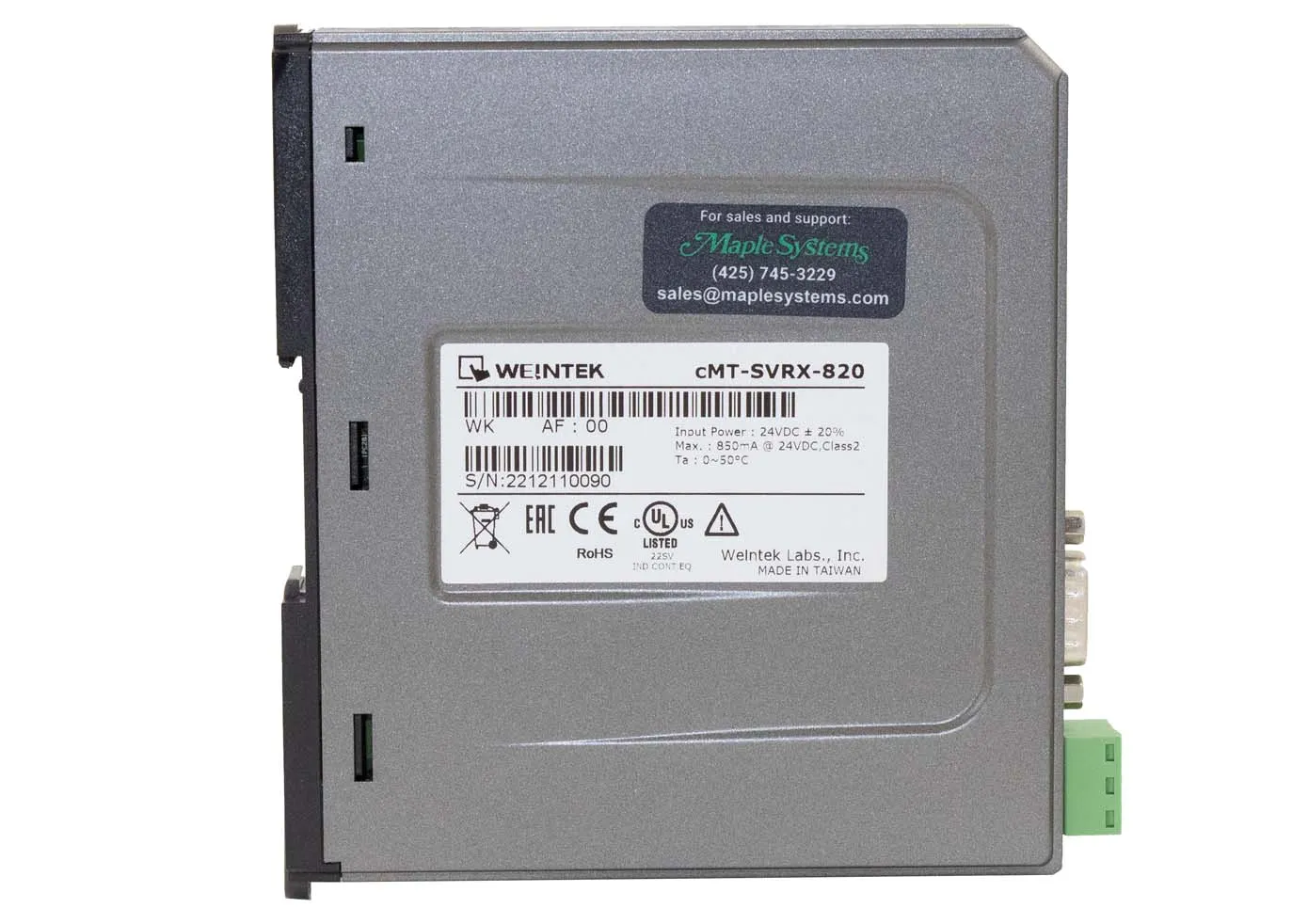
| Input Power | 20.4 W |
| Power Isolation | Built-in |
| Isolation Resistance | Exceed 50 MO – @ 500 VDC |
| Input Voltage | 24 ± 20% VDC |
| Input Current | 850 mA @ 24 VDC |
Mechanical
| Vibration Endurance | 10 to 25Hz (X, Y, Z direction 2G 30 minutes) |
| Enclosure Material | Plastic, charcoal grey |
| PCB Coating | Yes |
| Dimensions WxHxD | 1.17 x 5.11 x 4.52 inches [29.8 x 130 x 115 mm] |
| Panel Cutout (inches) [mm] | N/A |
| Weight | Approx. 0.53 lbs. [0.24 kg] |
| Mounting | 35 mm DIN Rail |
Environmental
| Operating Temperature | 32 ~ 122°F (0 ~ 50°C) |
| Storage Temperature | -4 ~ 140°F (-20 ~ 60°C) |
| Relative Humidity | 10% ~ 90% (non-condensing) |
Certification
| UL Type Rating | cULus |
| NEMA Rating | N/A |
| IP Rating | IP20 |
| CE | Yes |
| UL | cULus Listed |
| Class 1 Div 2 | N/A |
| ATEX | N/A |
| RoHS | Yes |
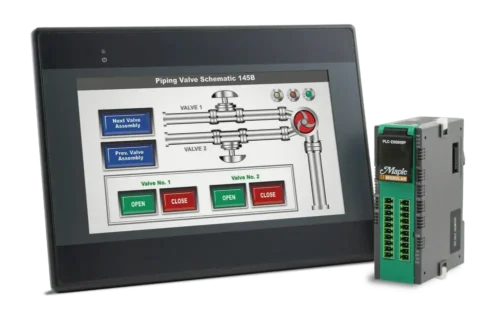
Connect a Maple Systems HMI to a Maple Systems PLC
Whether you are new to Maple Systems or know our HMIs well, pairing one of our powerful HMIs with a low-cost PLC is easy.
Unboxing a cMT-SVRX-820
We'll unbox, review I/O ports, hook it up to a Web HMI & demo remote access applications
FREE User Friendly HMI Software
Download our free, full-featured HMI configuration software to create custom control applications for your industrial process. EBPro supports over 300 PLC & controller protocols, ensuring seamless integration with new or existing systems. No license or key required.
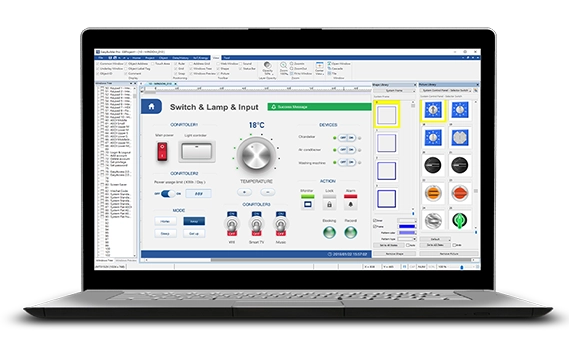
Is Maple Systems software free?
Yes! Maple Systems programming software is completely free of charge. This includes EBPro, MAPware-7000, and MapleLogic—our flagship software tools for HMI, HMI + PLC combo, or PLC programming and configuration. There are no licensing fees, subscriptions, or activation codes required to download, install, or use these programs. Creating a free account on the Maple Systems website is all that is required.
Whether you’re developing your first HMI project or configuring a complex control system, you can access the full functionality of our software without any cost.
Maple Systems is committed to providing cost-effective solutions for our customers, and offering free software is a core part of that mission. Updates are also free, and support resources—including user manuals, video tutorials, and US-based technical support—are available at no additional cost. This makes it easy for engineers, integrators, and OEMs to start building and maintaining projects right away, without worrying about hidden expenses or recurring fees.
Why would I use a headless HMI unit instead of a touchscreen HMI?
Most HMIs have a built-in touchscreen to provide feedback and allow input from on-site personnel. If that is all that’s required, a standard HMI may be sufficient. On the other hand, if you have limited panel space, no need for a touch screen, and want the convenience of monitoring and accessing your system without having to walk to where the HMI is physically located, one of our headless HMIs would be a great option. Utilize your Apple or Android smart phone or tablet to access unit remotely.Do your cMT Display units work with the Headless HMIs?
Yes! Adding a cMT Display unit to your existing Headless HMI system gives you an easier view into your HMIs operations.

Can I pair a Maple Systems HMI with a cMT-SVRX model?
Yes, pairing an HMI with a cMT-SVRX unit will add additional functionality that the Standard HMI doesn’t have on its own.
Our HMIs have a built-in touchscreen to provide feedback and allow input from on-site personnel for standard HMI functions. If you are interested in some of the features available only in the Advanced or High Performance HMIs, and you want the convenience of monitoring and accessing your system without having to walk to where the HMI is physically located, one of our cMT-SVRX or cMT-FHDX units are a great addition to your existing control system. You can even utilize your Android or Apple smart phone or tablet to access the Advanced or High-Performance headless units remotely.
Our Advanced and High-Performance headless cMT Servers can easily monitor multiple systems from one location: Install the cMT Viewer application onto your Windows® PC to monitor up to 50 cMT devices at one time, from any location on your local network. Simply click on the HMI to display it on your PC, then monitor or control the HMI from your PC. Add an EasyAccess2.0 license and you can use Pass Through mode to monitor and control your PLC and HMI from anywhere in the world.
Visit our HMI product pages to learn more about our Standard, Advanced, and High-Performance cMT and Headless cMT Models.
Does Maple Systems offer technical support?
Yes. Maple Systems provides 100% free, US-based technical support for all customers. Our Support Center includes extensive documentation, tutorials, and resources. However, if you’re unable to find what you need, our technical support team is ready to assist. You can reach our technicians by phone at (425) 745-3229 or by email at [email protected].
Do I need to pay an additional license fee to activate features on my HMI?
The vast majority of features in EBPro do not need additional licensing, but a few situations may require a license fee to activate specific functions.
For features like our built-in CODESYS runtime, OPC/UA messaging (for cMT-SVR-200/cMT-SVR-202 only), or the EasyAccess 2.0 VPN service, users must pay a one-time activation fee to enable these functions on the HMI.
For the EasyAccess 2.0 application, which enables remote access features on your Maple HMI, the standard license includes up to 3 GB of monthly high-speed data at no extra charge. If the monthly data limit has been reached, top-up cards may be purchased to add additional bandwidth as needed.
If you know that you will need one of the features mentioned above before making a purchase, Maple Systems does offer HMI options that come with pre-activated licensing.
I’ve never used EBPro before. How long will it take me to learn how to program my HMI?
The free EBPro software design maximizes functionality while maintaining user-friendliness. In many cases our customers are able to get up to speed and create their first project within 24 hours.
For new users who want to accelerate their learning process, our EBPro HMI Software Training Series has you covered. This series breaks down multiple topics into small, easy-to-understand sections so you can learn at your own pace. You can view individual videos based on the topic, or view the entire series in a YouTube playlist.
The EBPro Programming Manual provides full descriptions of the software’s features, and is an excellent resource for users of all skill levels. We also offer the EBPro Quick Start Guide, which contains information for new users when getting started with Maple Systems devices.
Can I pair a Maple HMI with a Maple PLC?
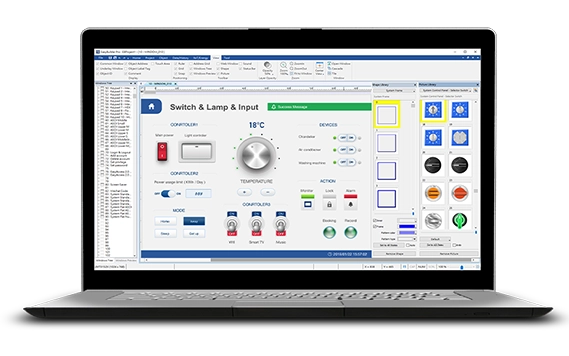
Yes. Our HMIs can be paired with our PLC products via Modbus RTU or TCP. The Modbus Slave driver is configured in the PLC software, and the Modbus Master driver is configured in HMI software (EBPro). Tags can be exported and imported in both directions.Can this HMI communicate with my PLC?
Maple Systems cMT HMIs support over +400 PLC and controller communication protocols via the built-in software, eliminating the need for additional converter hardware or software. Our cMT HMIs also support protocols such as Modbus TCP/IP or Modbus RTU, opening them up for use with a wide range of devices.
If you want to see the protocols that EBPro supports, visit our Controller Information Sheets page for more information. You can also download the EBPro software from our website for free, which includes simulation features. You can use these to test connections to your other devices before buying any hardware from Maple Systems.

Can I automatically back up my projects in EBPro?
Yes. To turn automatic backup on in EBPro, click on the File menu and select Preferences. On the Project tab, check the “Generate backup of project file before save” option. This will create a backup of your project any time you save it with a *.bak1 extension.
Subsequent saves will rename the backup file with a *.bak2 and finally *.bak3 extension, so there will always be three backup files saved with *.bak1 the most recent and *.bak3 the oldest.
Can I use a Smart Phone to communicate with a Maple Systems cMT HMI?
Yes! We have several remote access solutions and each one is different, but generally, all work in similar ways. Keep in mind that each remote access solution will work slightly differently and have their own set of features. Depending on your specific situation, there may be several remote access solution that will work, only you can decide what is best for your specific situation.
EasyAccess2.0
EasyAccess2.0 is a secure access utility that enables remote access to Maple Systems’ HMI and cMT Series devices. View and control any remote HMI with EasyAccess 2.0 from a PC or mobile device, allowing you to resolve issues immediately as they arise from anywhere in the world.
- Control your remote HMIs as though you’re standing in front of them.
- Upload/Download projects to modify and test your HMI Programs.
- Interact with connected PLCs using the PLC Passthrough mode.
cMT Viewer
cMT Viewer is remote connection software built into our EBPro HMI configuration platform. It works with select Maple Systems IIoT-ready HMIs and can run on PCs, Panel PCs, iPads, and Android tablets. Also, with cMT Viewer, you can easily monitor and manage your devices from anywhere.
Key benefits include:
- Free download for quick setup
- Monitor up to 50 HMIs simultaneously
- Faster connections with less bandwidth (only application data is exchanged)
To learn more, read our article What is cMT Viewer?
WebView
WebView enables you to point your browser to the supported HMI’s IP address on your local network and log in. Now you have access to all the functions, data, and project screens from your HMI application. You can access system settings, navigate to any window, and fully control your HMI from anywhere. It works just like VNC, but without requiring you to download or install any additional software!
VNC
VNC (Virtual Network Computing) server is built in on all our HMIs. Any third party VNC viewer client can log into a Maple HMI to see and control exactly what’s shown on the HMI screen. Configurable options on the Maple HMI include: set a password, enable monitor mode (view only – no control), allow single connection or multiple connections.
How do I turn on Monitor Mode in cMT-Viewer?
To turn on Monitor Mode in cMT-Viewer:
1. Click on the “gear” icon in the upper-right corner to open the Settings window.
2. Click on the “More settings” lock icon and enter the password (default: 111111).
3. Click on the General tab and turn on “Monitor mode.”

4. Close the settings window.
5. If you are currently logged in to an HMI, use the orange Start button in the upper-left corner of cMT-Viewer to minimize the view. You will see a small view of each HMI on the screen. If Monitor Mode has been enabled in the project on the HMI (System Parameters > General tab), Window 3 will appear in the Monitor view, otherwise it will show the startup window. (Note: If an HMI shows “Connecting” and doesn’t show Window 3, try connecting to it in EasyAccess 2.0 by clicking on the double-arrow icon.)
6. Click on any HMI to view it in cMT-Viewer. *Depending on the age of your unit, the default password on the HMI may be m1111111.
How many devices can connect to a cMT server at one time? How do I control how many devices can connect?
The number of devices that can simultaneously connect remotely to a cMT product (using cMT-Viewer, cMT-Viewer app, or EasyAccess 2.0) is controlled on the Remote tab of the System Parameter Settings window in EasyBuilder Pro (Home > System Parameters > Remote):
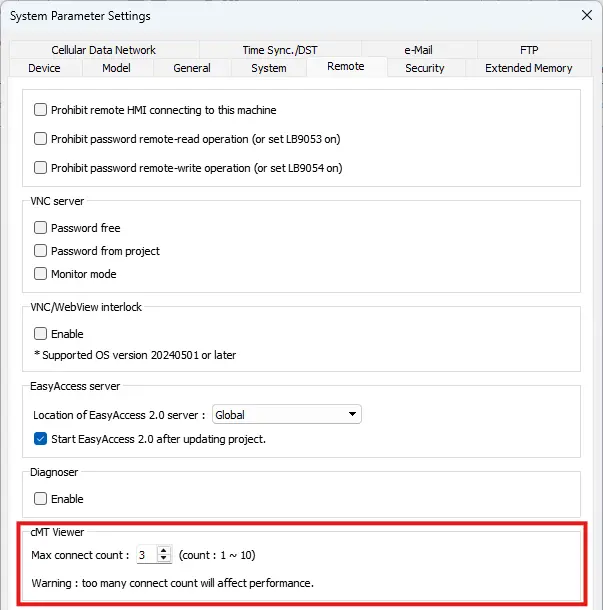
The default number is 3 and the max is 10. Connecting with multiple devices will increase the bandwidth requirement and CPU load on the cMT and could affect performance.
What is CMT Viewer?
CMT Viewer is a client application that enables users to view and control devices and screens quickly and easily. Only application data is exchanged between the HMI, acting as a server, and the client device. This client/server architecture offloads CPU intensive tasks such as rendering project graphics from the HMI to whatever client platform is used to connect to it.
Documents
Manuals
- EBPro Programming Manual
- cMT-SVRX Installation Guide
- cMT-SVRX Series User Manual
- EBPro Quick Start Guide
- cMT Quick Start Guide
- cMT MySQL Quick Start Guide
- cMT Microsoft SQL Quick Start Guide
- OPC-UA Set-up Overview
- EasyWeb 2.0 Operations Manual
- AWS IoT User Manual
- Azure IoT User Manual
Certifications
- CE Declaration of Conformity – cMT-SVRX-820, cMT-SVRX-822
- UL Certification Declaration – cMT Series
- RoHS Declaration of Conformity (all series)
- EU Declaration of Conformity (Battery Regulations)
- Trade Agreement Act Declaration of Conformity
- Russian Iron and Steel Declaration
- REACH EU Declaration of Conformity
- Country of Origin Certification
CAD Files
When you order the cMT-SVRX-820 the following items are included in the box:
- cMT-SVRX-820 Headless HMI
- Warranty Statement
- Installation Instruction
- Product Flyer
- Power Connector

-
B
It would be great if the media picture view object was available on this so you could view snap shots from FTP server
-
M
That specific feature is not supported by the SVRX series unfortunately. However, a headless model that can do that, would be the cMT-FHDX-820
Review cMT-SVRX-820
Share your thoughts and help others make the best choice