
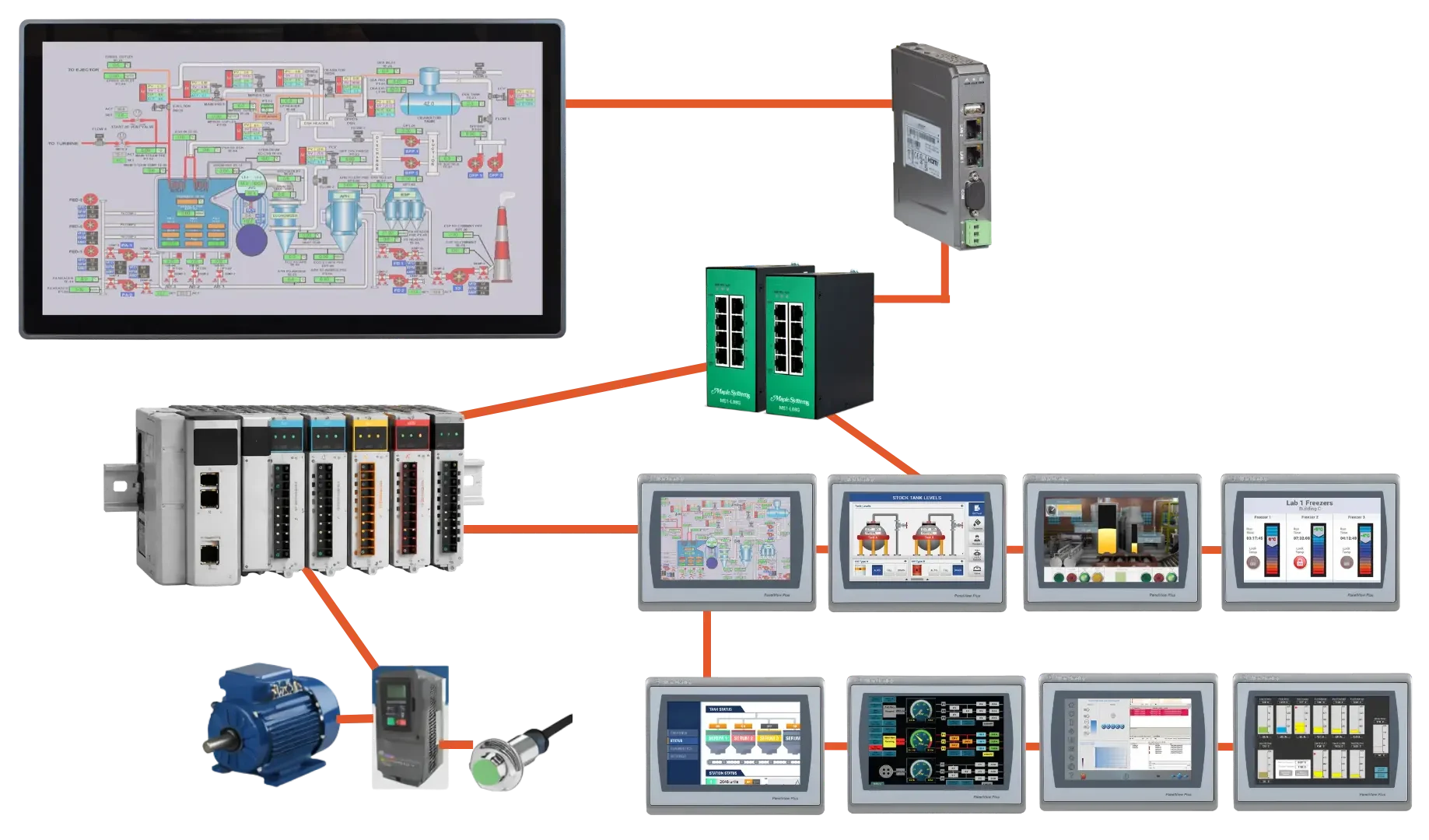
A Web HMI works alongside an Allen-Bradley HMI, such as a PanelView, to extend machine access. Traditionally, Allen-Bradley HMIs focus on local operation at the machine. Therefore, operators must stand at the machine to control processes and acknowledge alarms. However, a Web HMI adds an extension to the Allen Bradley HMI. As a result, engineers and supervisors can monitor machines from computers, tablets, or phones. In addition, maintenance staff can view system status remotely across the plant network. Consequently, this reduces walking time and improves response speed. Overall, it enables faster decisions through real-time visibility and remote access.
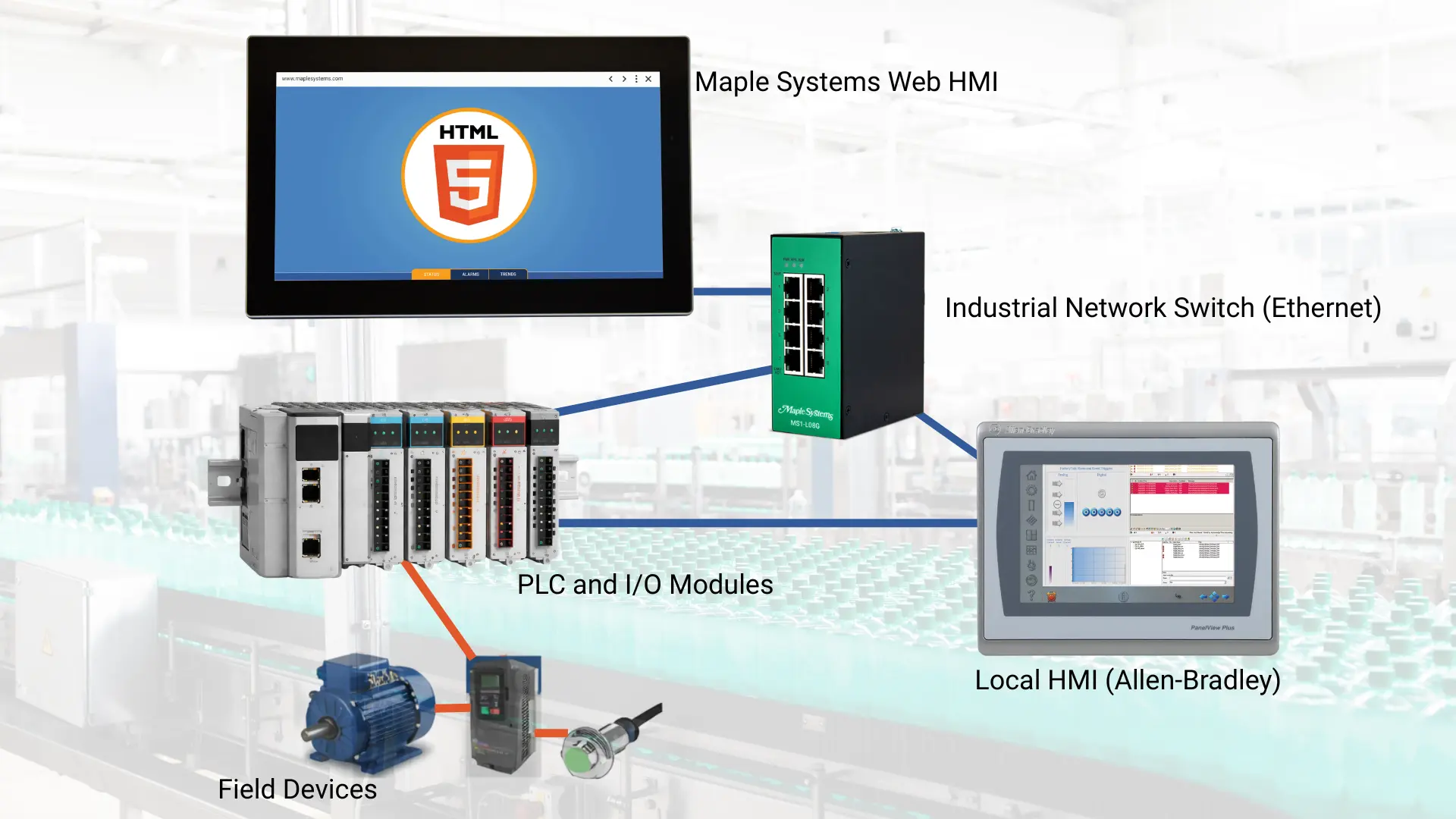
For example, in a bottling plant, each filling machine may use a PLC and a PanelView HMI for local control. Operators use the PanelView to start or stop the filler, adjust fill levels, and acknowledge alarms at the machine. At the same time, the Web HMI serves as a cost-effective extension of the Allen-Bradley HMI, providing a plant-wide dashboard that displays the status of all filling lines, production rates, downtime events, and alarm conditions. A supervisor can open a web browser on the Web HMI to quickly see which machines are running or in fault, while maintenance personnel can access sensor values or alarm history remotely to troubleshoot issues. In this setup, the PanelView remains the primary control interface, while the Web HMI provides centralized monitoring and improved visibility.
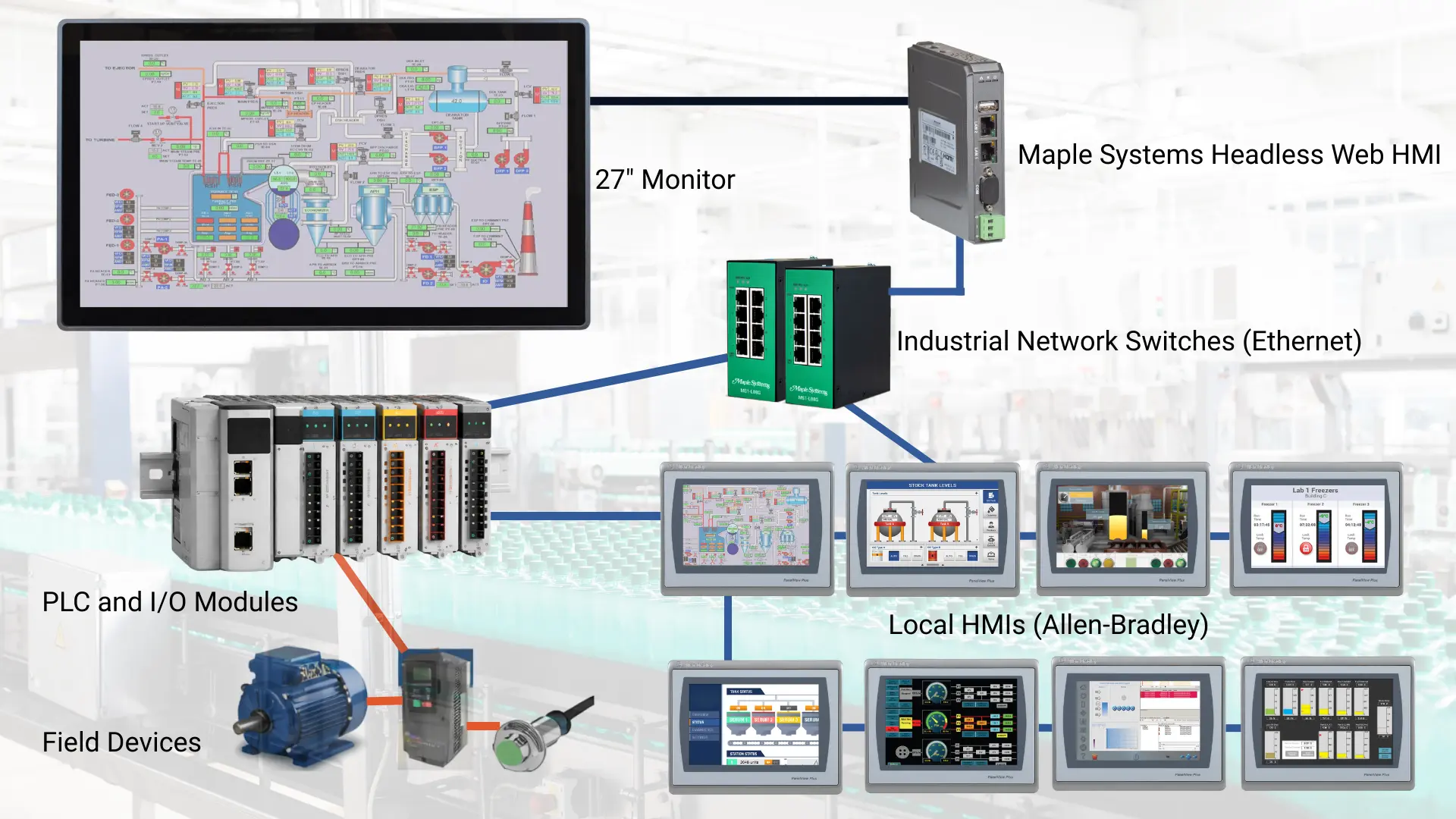
In another scenario, imagine a factory floor command center with eight operator stations across the plant, each using an Allen-Bradley HMI connected to the same PLC to monitor different parts of the process. Each station displays real-time data locally and operates independently. In the control room, a 27-inch monitor connects to a headless Maple Systems Web HMI (cMT-FHDX 820W). These HMIs do not generate web pages or share displays over a network, so users cannot access them through a browser by IP address. The headless Web HMI functions only as a browser and displays content available as a URL. To view these HMIs, you must convert them into a web-accessible format using FactoryTalk View SE. Because it loads one URL at a time, users must switch between HMIs unless a centralized web system is implemented.
Software Required
- FactoryTalk View Studio SE Installation (this is needed for any Allen Bradley HMI and for web access)
Hardware Required
- Any Web HMI can be used (a Maple Systems Headless Web HMI cMT-FHDX-820W and Web HMI cMT3162XW are used in this example)
- Allen Bradley HMI (a PanelView Plus 7 is used in this example)
Web HMI Configuration
Below, you will configure the Web HMI to connect to an Allen-Bradley HMI by entering its IP address and setting it as the startup URL. After saving the settings and rebooting, the Web HMI will load the remote HMI interface.
Web HMI Initial Setup
Follow this step-by-step guide to begin configuring a cMT3162XW or cMT-FHDX-820W Maple Systems Web HMI
Instructions: Web HMI Initial Setup
Access System Settings
– Before the connection countdown gets to 0, click the System Settings button
– If you do not click the button before the countdown ends, the Web HMI will load a web page.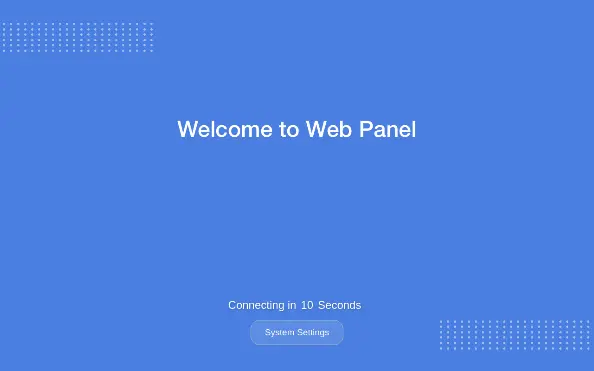
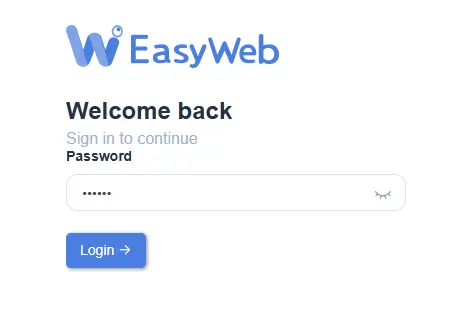
Logging into Web HMI
Enter the system password, by default it is 111111.
Network Settings
– Click the Network tab on the left side, and then Ethernet.
– Here is where the IP address of the Web HMI can be configured. LAN 1 or LAN 2 can be used.
– It can be set as static or automatic (DHCP)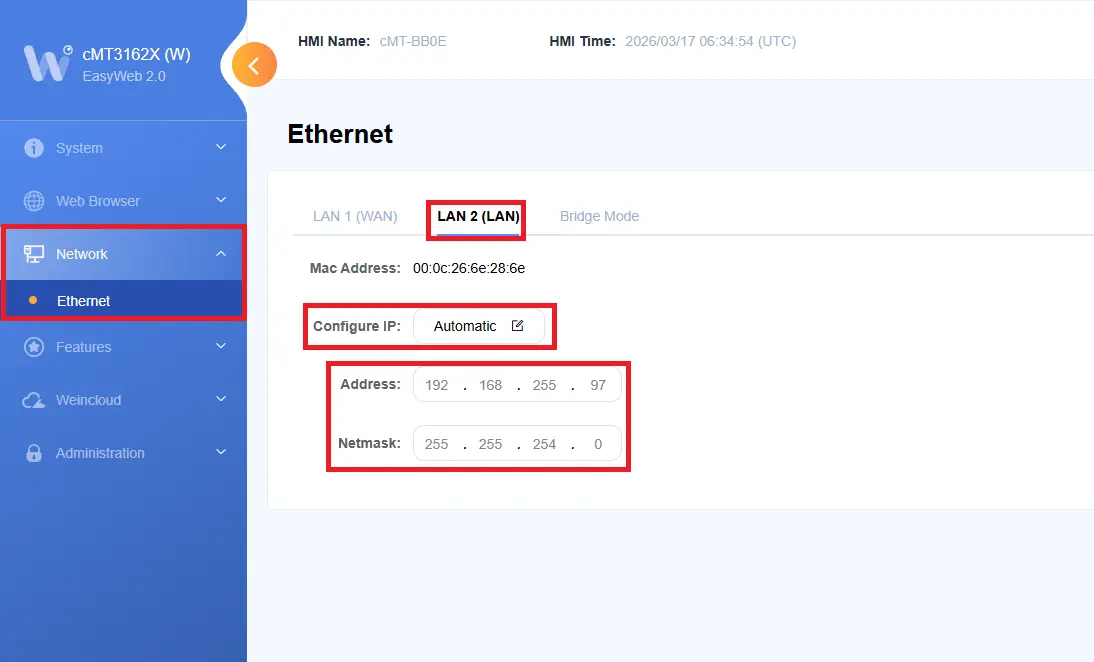
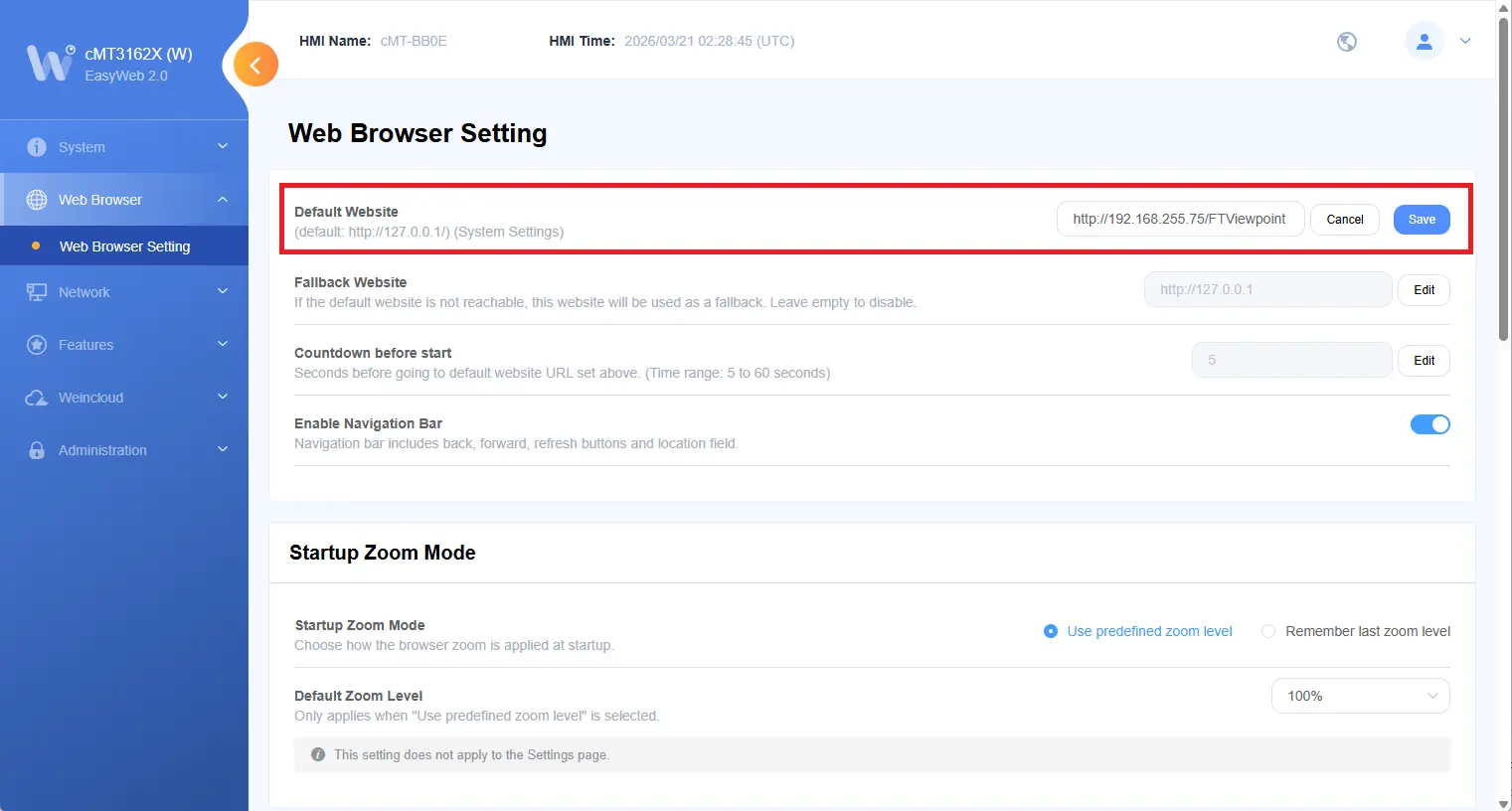
Web Browser Settings
– Click the Web Browser tab on the left side and then Web Browser Setting
– Specify the website URL here for the Web HMI connection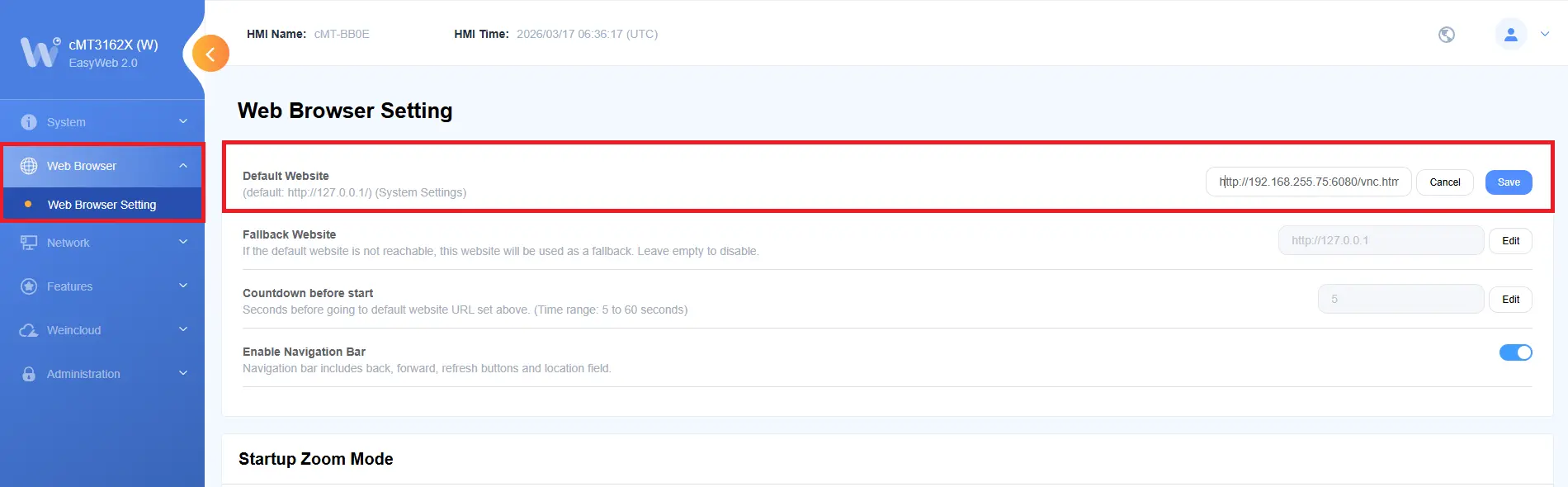
HMI & Web HMI Communication Setup
Below, you will learn how to display an Allen-Bradley HMI (PanelView) on a Maple Systems Web HMI by configuring a FactoryTalk View SE project in FactoryTalk View Studio (Site Edition).
In this setup, your Maple Systems Web HMI acts as a browser and displays a FactoryTalk View SE project running on a PC. Instead of connecting directly to the PanelView, the system uses FactoryTalk View SE and ViewPoint to convert the HMI screens into a web-accessible format.
This allows you to view your Allen-Bradley HMI project through a URL, enabling remote access and improved visibility across your system.
This configuration requires the following components:
- FactoryTalk View Studio (Site Edition) – used to build and configure the HMI project
- FactoryTalk View SE Server – runs the HMI application on the PC
- FactoryTalk ViewPoint Server – converts HMI displays into web pages
- FactoryTalk Services Platform – provides backend services such as security and communication
- Maple Systems Web HMI – loads and displays the FactoryTalk project using a web browser interface
Together, these components allow the Web HMI to access and display the FactoryTalk View project through a standard web URL.
Display FactoryTalk View Project on a Maple Web HMI
Follow this step-by-step guide in displaying an Allen Bradley FactoryTalk View project on a Maple Systems Web HMI.
Instructions: Display FactoryTalk View Project on a Maple Web HMI
Install FactoryTalk View SE + Viewpoint
– Launch the FactoryTalk View SE installer
– When Selecting features, make sure these are checked:
✔ FactoryTalk View Studio (Site Edition)
✔ FactoryTalk View SE Server
✔ FactoryTalk ViewPoint Server
✔ FactoryTalk Services Platform
– Continue install > reboot if prompted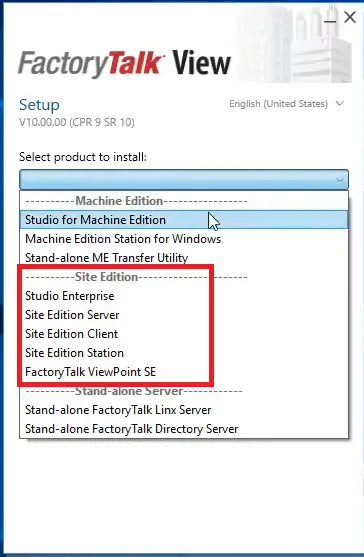
Enable IIS (Windows Web Server)
– On your PC, open: Turn Windows features on or off
– Enable the features in the Internet Information Services
– Web Management Tools: IIS 6 Management Console – This gives you the IIS GUI
– World Wide Web Services > Common HTTP Features : Static Content and Default Document
– World Wide Web Services > Application Development Features: ASP.NET (version depends on your system), .NET Extensibility, ISAPI Extensions, ISAPI Filters – All of these are required for ViewPoint pages to render.
– World Wide Web Services > Security: Windows Authentication, Basic Authentication – Optional but helpful
– World Wide Web Services > Performance Features: Static Content Compression
– Click OK
Windows will Install IIS and Configure Services, takes around 1-2 minutes.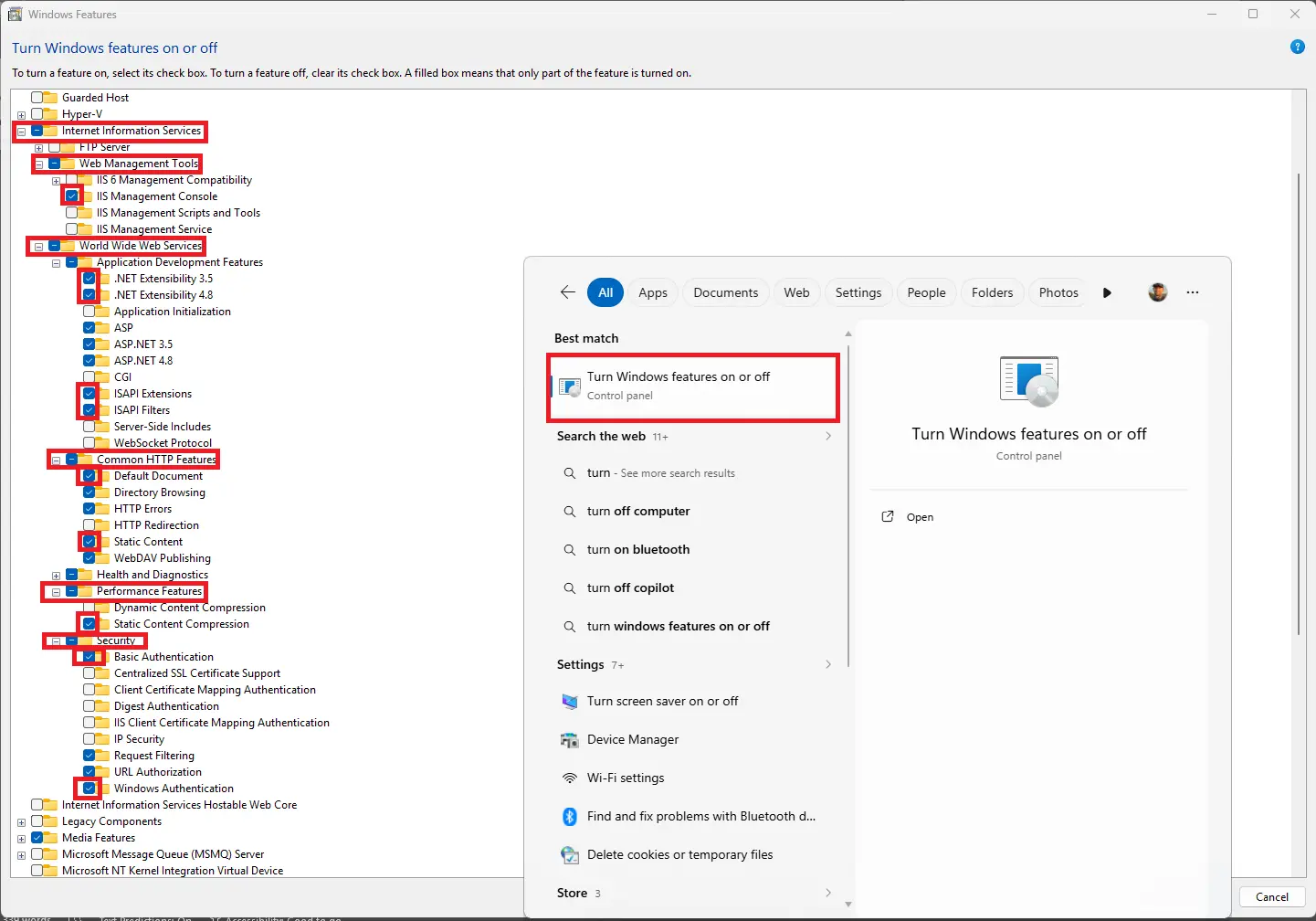
Open FactoryTalk View Studio to Create a Project
– Launch FactoryTalk View Studio (Site Edition)
– Choose Local Station or Network (if you already use it)
– Create a new application or open existing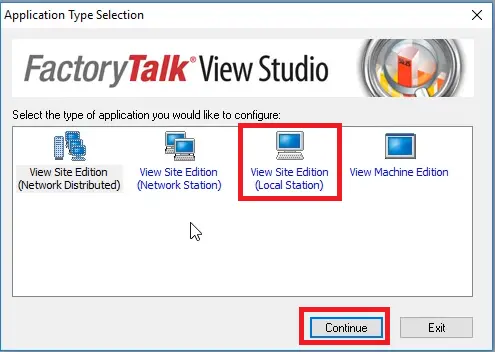
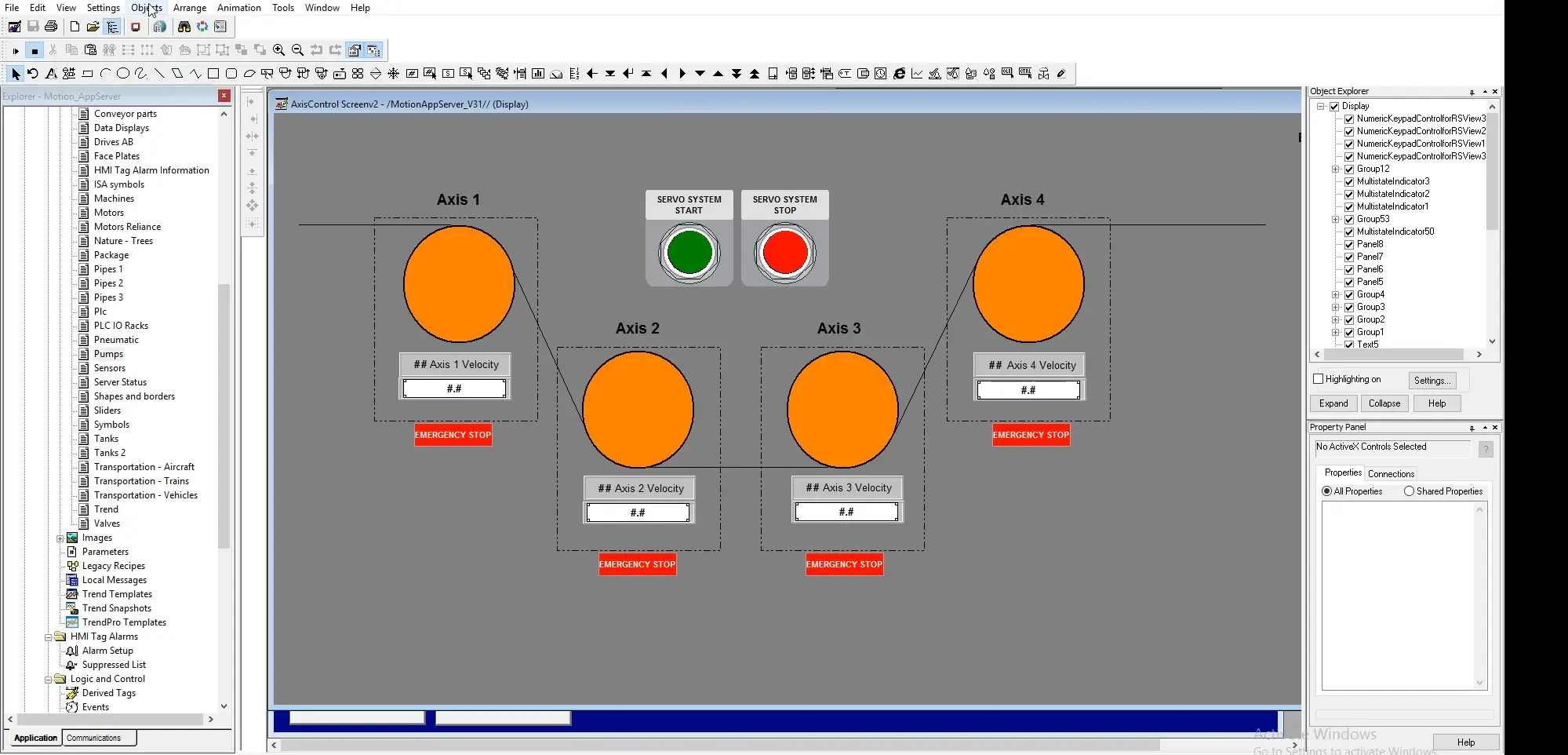
Create a Project
Create a project in FactoryTalk View SE
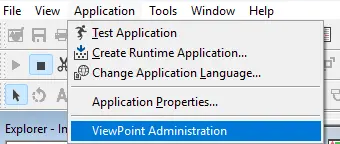
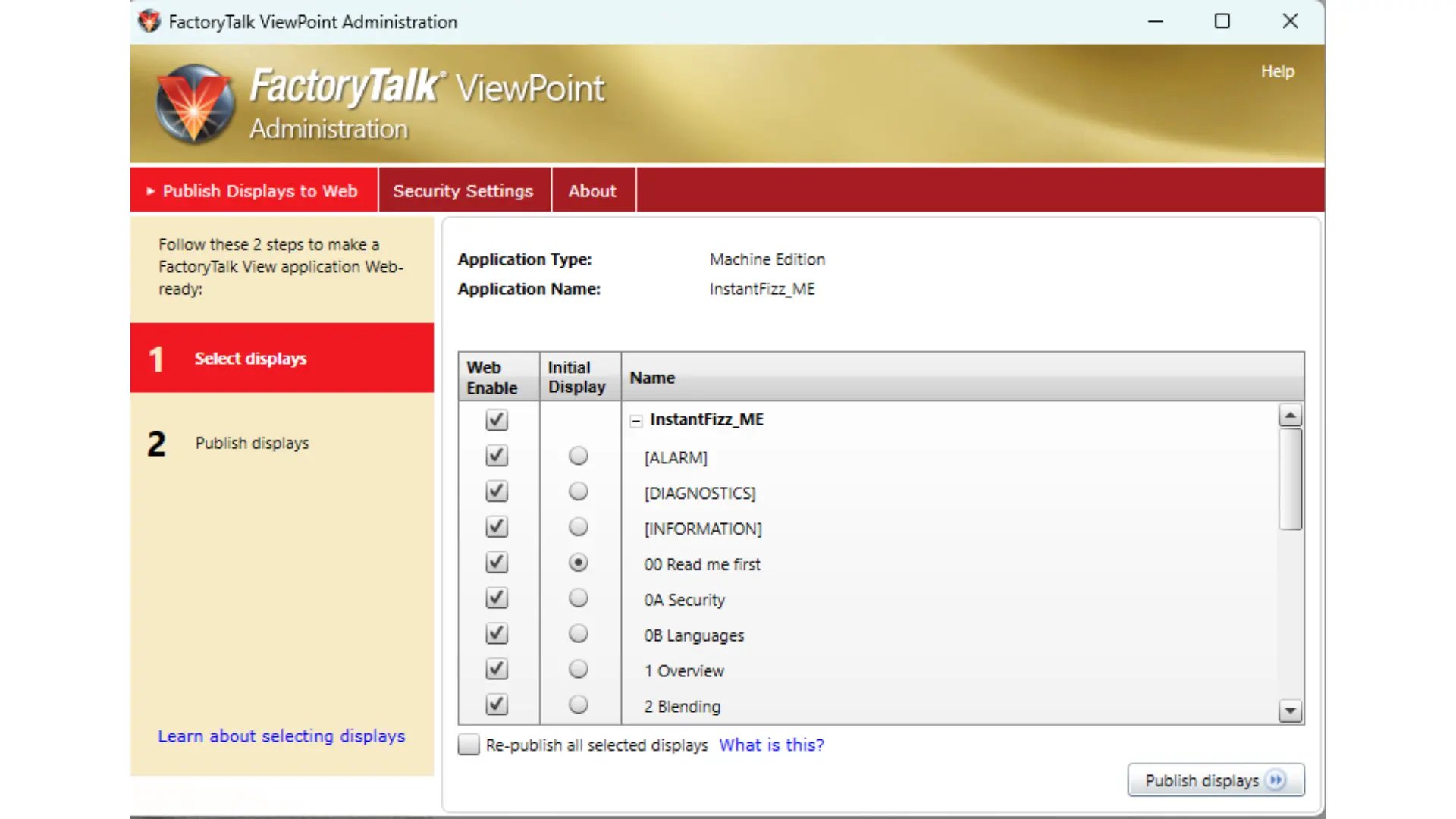
Open ViewPoint Administration
– In the project tree: ViewPoint Administration – Click it
Open ViewPoint
Here is where you configure your FactoryTalk project for web view
Select Displays
– Go to: Displays
– Find your Displays
– Check Web Enable
– Set the Initial Display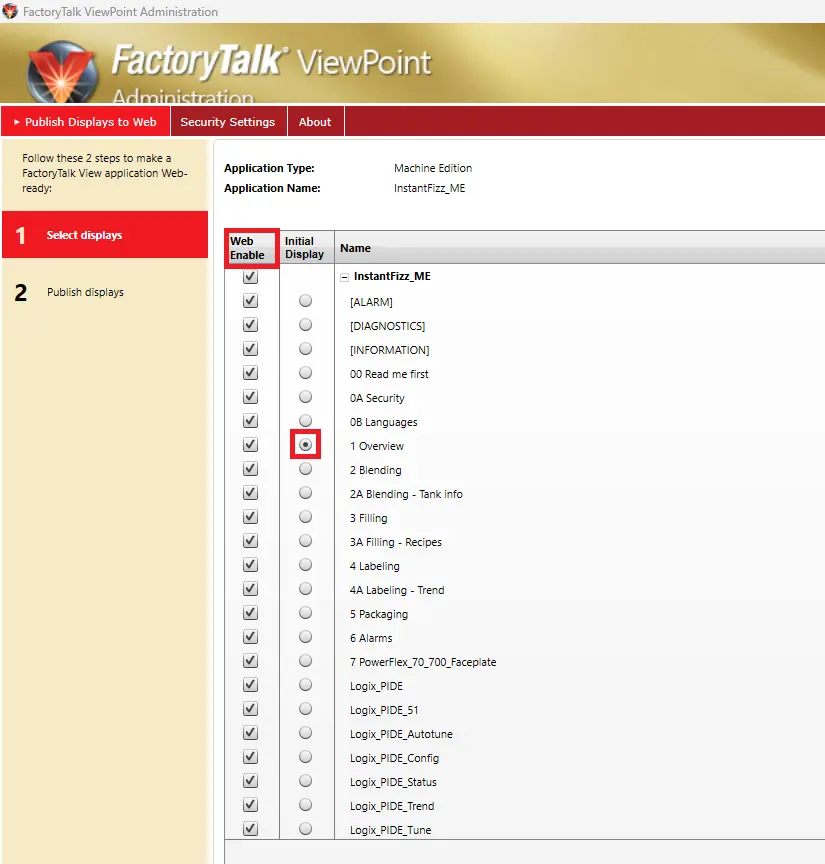
Publish Displays
– Click Publish Displays
– Close ViewPoint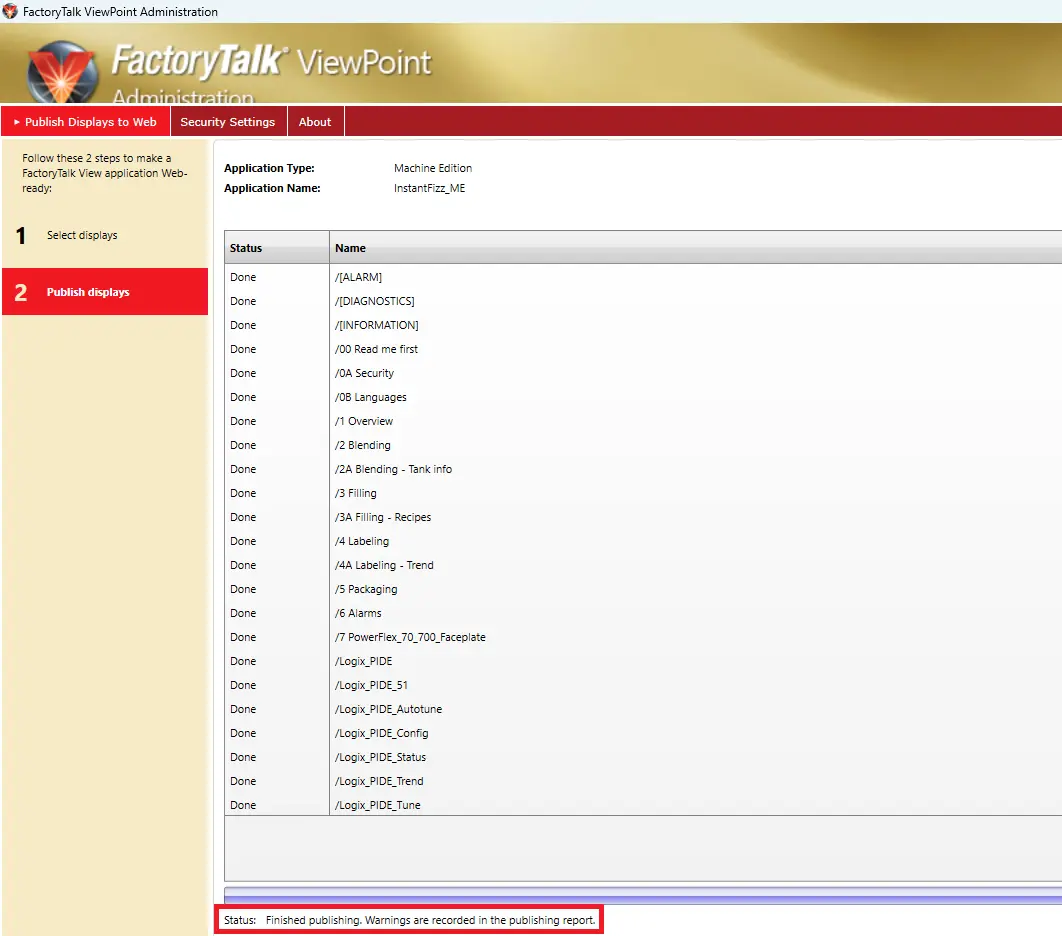
Launch SE Server / Client
– Open : FactoryTalk View SE Client
– Select the application
– Run it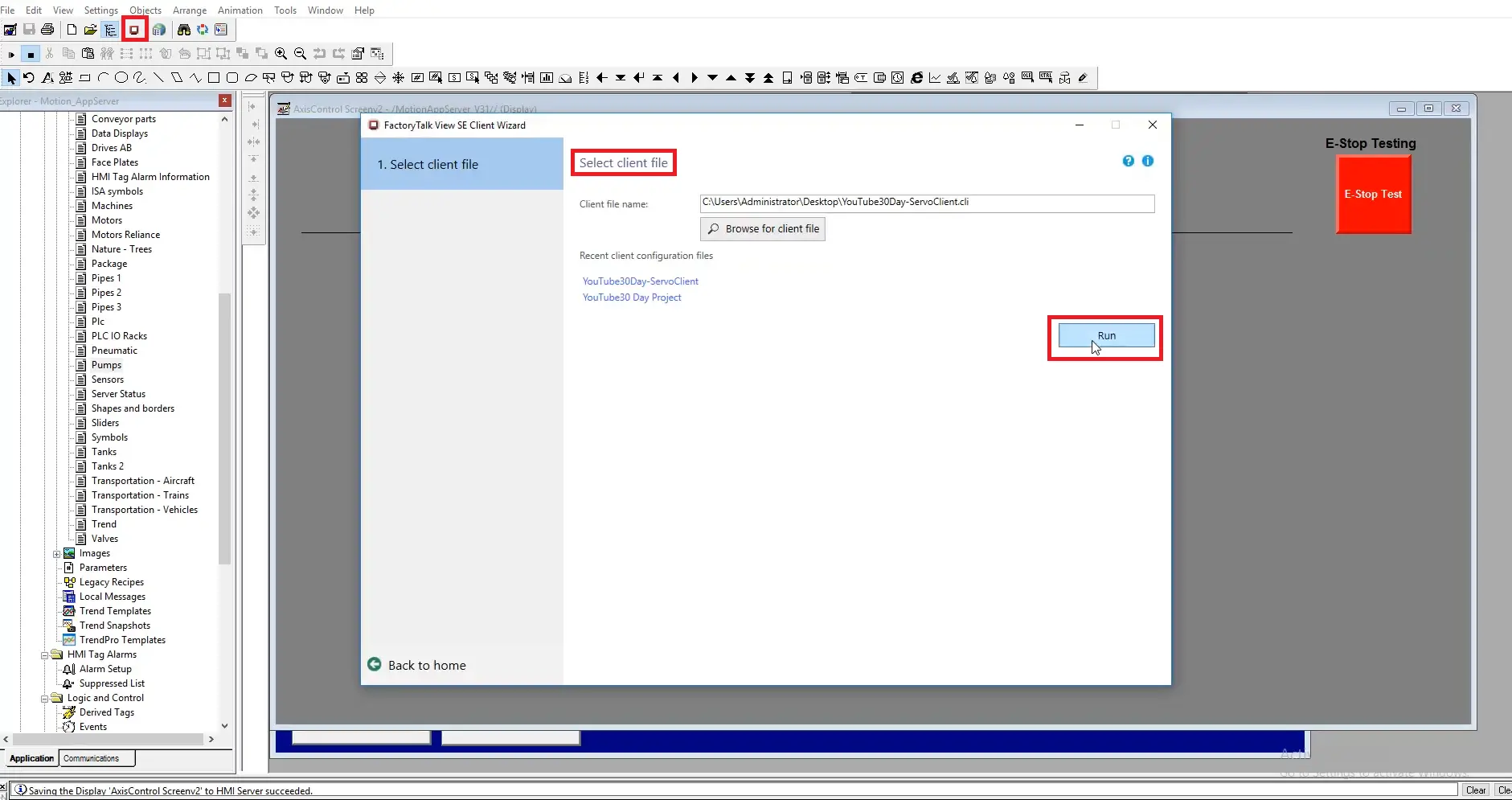
Open in Browser – Test Locally
– Open a browser on the same PC and enter the URL
– For example: http://localhost/FTViewPoint
Test from another device (Web HMI)
– Use http://192.168.x.x/FTViewPoint
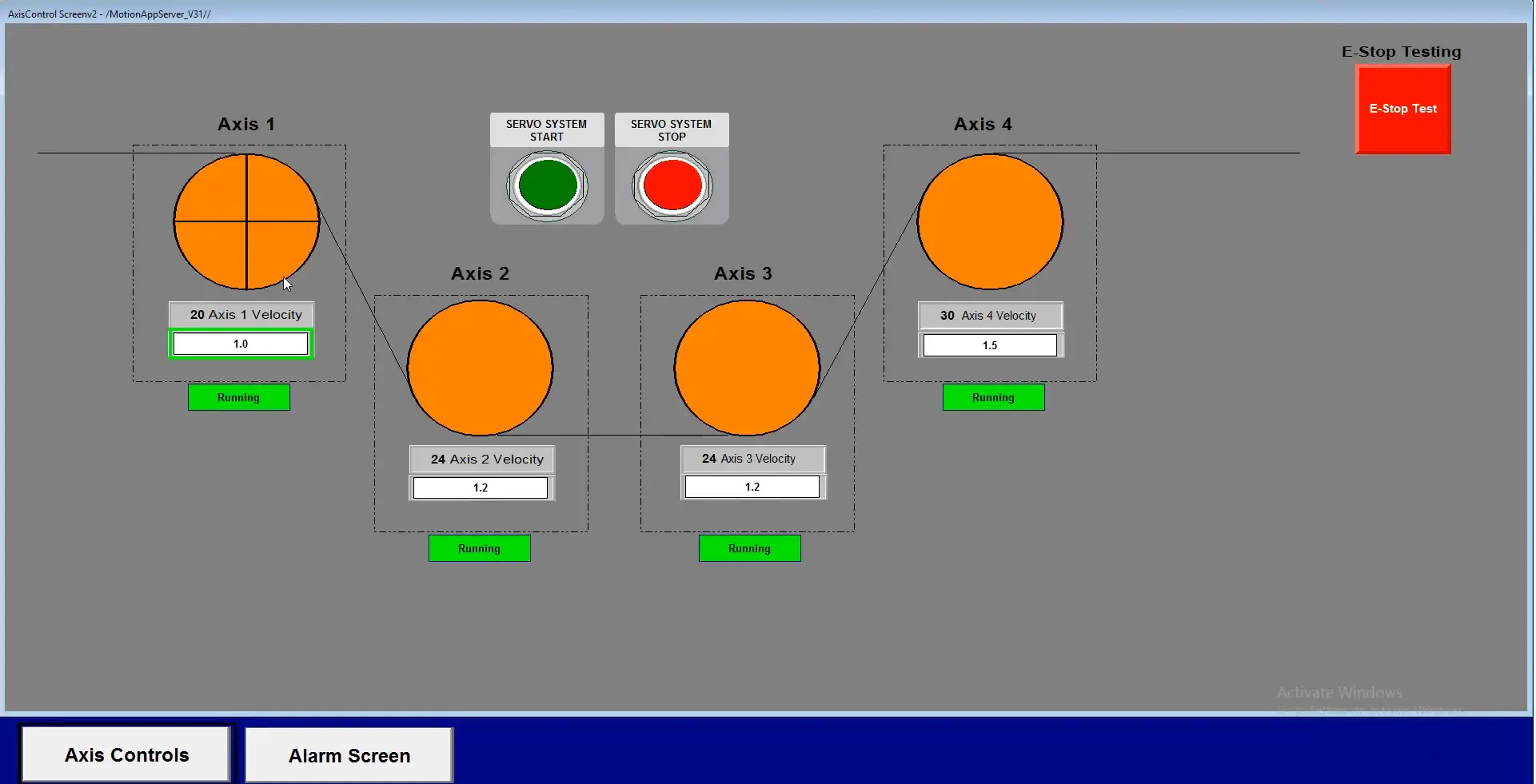
View Live Project
Now you can view the project on your Maple Systems Web HMI
Recap
In this article, you learned how a Maple Systems Web HMI extends traditional Allen-Bradley HMIs by enabling remote, browser-based access to machine data. You saw that PanelView HMIs cannot be accessed directly over a network and must be converted into a web format using FactoryTalk View SE and ViewPoint. By configuring ViewPoint, enabling IIS, and publishing displays, your FactoryTalk project can be accessed through a URL. This allows a Maple Systems Web HMI to function as a browser and display the FactoryTalk interface remotely.
Next Steps
Next, verify your ViewPoint setup by accessing the project locally using http://localhost/FTViewPoint to ensure the display loads correctly. Then test connectivity from the Maple Systems Web HMI by entering the PC’s IP address and confirming the FactoryTalk screen appears. After that, refine your displays for web compatibility by simplifying graphics and testing navigation between screens. Finally, consider expanding the system by adding real data sources or additional displays to create a more complete, plant-wide monitoring solution.
Resources & Documentation
The following guides and documentation are specific to the hardware used in this integration tutorial and will help you with setup, configuration, and programming:
Looking for additional learning resources? Explore our library of tutorials, example projects, and software tools to help you get the most out of your system:
Also, browse our Support Center for a complete list of installation guides, FAQs, and additional technical documentation.

About the Author
Trusted source for industrial automation & control solutions
Follow Maple Systems:
Share:



